How to Capture a Screenshot From the Command Line
Capture screens from a terminal on Linux and Windows, choose the right session-aware tool, troubleshoot failures, and automate clean website shots.
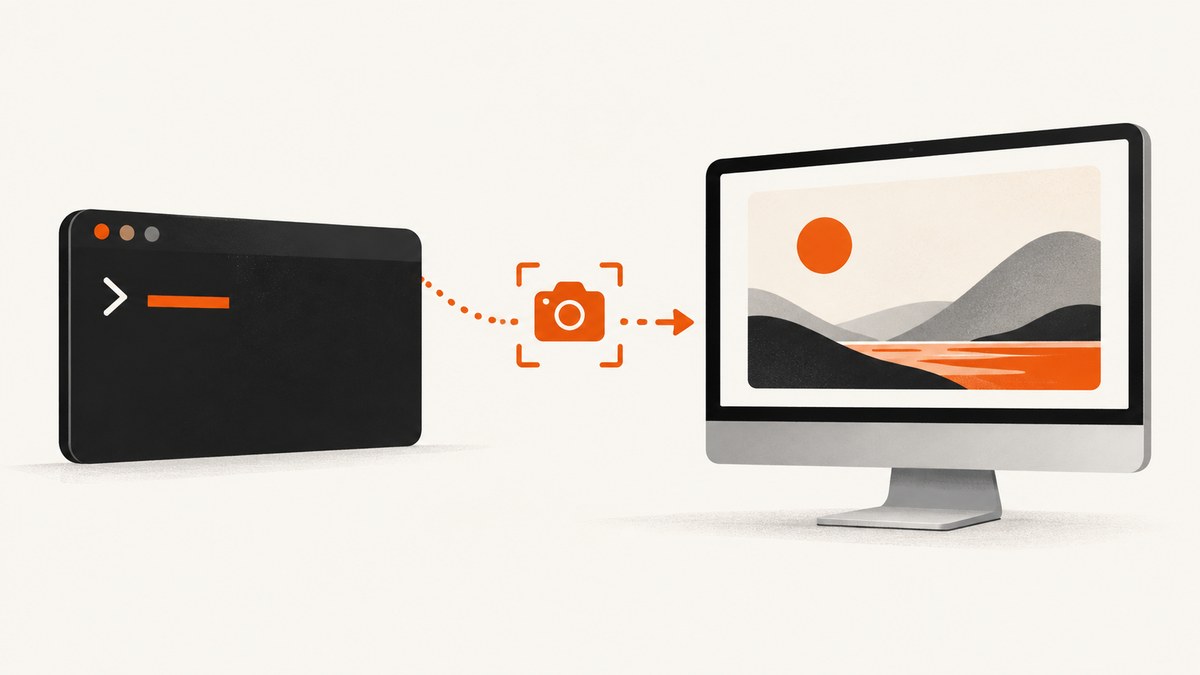
Short answer: there is no single screenshot command that works on every desktop. On Linux, first identify whether your session is X11 or Wayland. For X11, ImageMagick can capture the root window; GNOME users can use gnome-screenshot. On Windows, Snipping Tool is an interactive overlay, while .NET and Microsoft GDK provide programmable capture APIs. macOS syntax is version-specific, so check the local screencapture --help or current Apple documentation before scripting.
Choose a command by operating system and session
| Environment | Best fit | Automation level | Important limit |
|---|---|---|---|
| Linux, X11 | ImageMagick import |
Scriptable and interactive | Requires access to an X server; do not assume Wayland support. |
| Linux, GNOME | gnome-screenshot |
Scriptable with desktop integration | Flags can differ by distribution and release. |
| Windows desktop | Snipping Tool protocol | Interactive | Opens a capture UI; it is not a silent file-save command. |
| Windows application | Graphics.CopyFromScreen |
Programmable | API for app code, not a built-in shell command. |
| Windows GDK | wdcapture.exe |
Command line | Part of Microsoft Game Development Kit; verify availability. |
| macOS | Local screencapture manual |
Version-specific | Use the installed help output rather than copying unverified flags. |
Decide whether you need the whole display, the active window, a selected rectangle, or a browser page rendered on a server. Also decide whether a person can click a selection or whether a CI job must run unattended. Those choices determine the command more than the image format does.
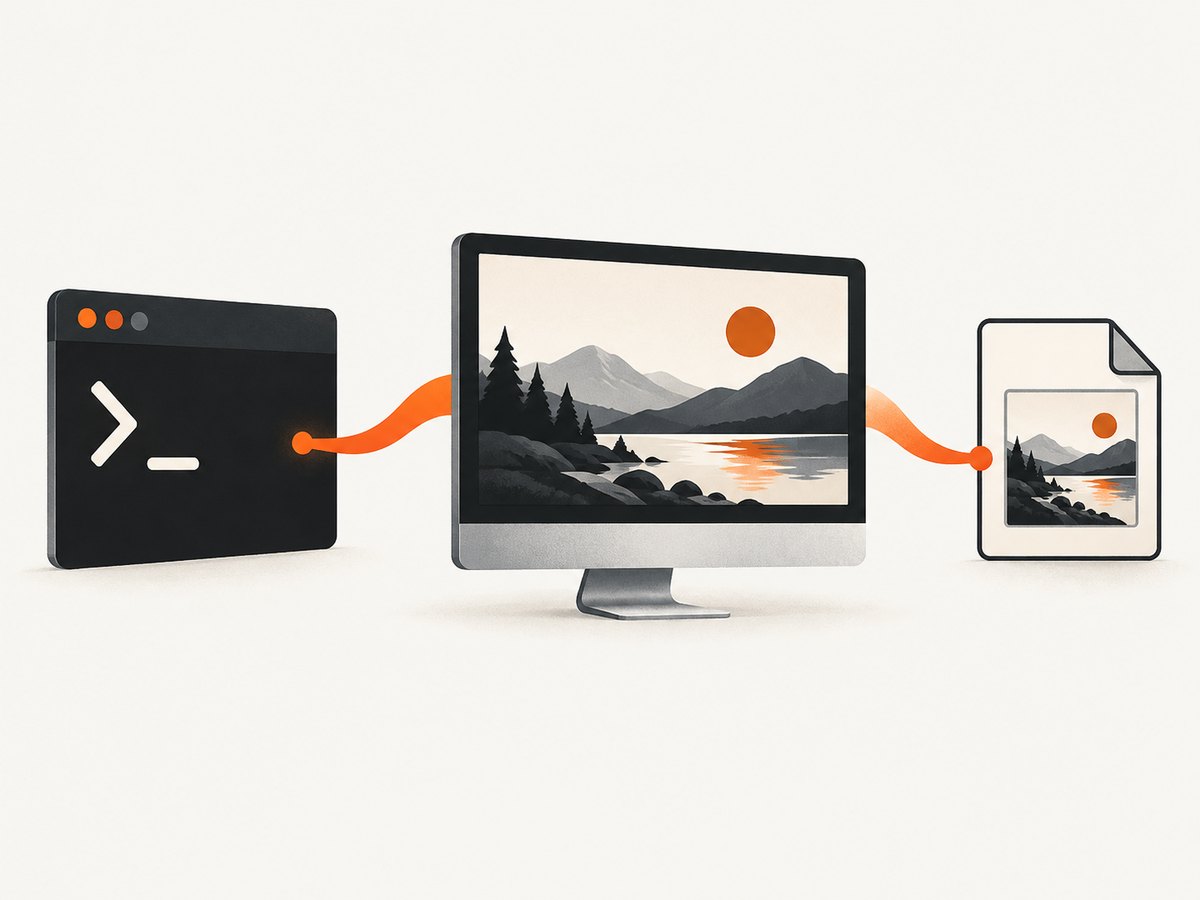
Linux with ImageMagick on X11
ImageMagick documents import as an X-server capture utility. Confirm that your session exposes an X display:
echo "$XDG_SESSION_TYPE"
echo "$DISPLAY"
If the first command prints x11 and DISPLAY is set, capture the root window:
magick import -window root screen.pngThe official example uses a PostScript filename; a PNG filename asks ImageMagick to write PNG data. The root window can include windows covering other windows, menus, and popups. This is useful for a literal desktop snapshot, but it is not the same as isolating one application.
Select a window or region
Run import without a target and follow the pointer instructions:
magick import selection.pngClick a window to capture it, or drag a rectangle when the cursor changes to selection mode. For repeatable scripts, prefer a known window identifier or geometry when your window manager exposes one; interactive selection is difficult to run in CI.
Common X11 failures
- “unable to open X server”:
DISPLAYis unset, the command is running in a container without an X socket, or authentication is missing. Run it inside the graphical session, pass the correct display, and provide the session’s Xauthority credentials. - Black or partial output: a compositor, hardware overlay, or remote desktop may not expose pixels through the root window. Try capturing a specific window or use the desktop’s native utility.
- Wayland session: ImageMagick’s documented method targets X servers. Do not treat it as a universal Wayland solution; use your desktop environment’s supported screenshot portal or utility.
GNOME Screenshot on Linux
The Debian unstable manual describes whole-screen capture by default, the active window option, an area-selection option, and a delay option. Check your installed version first:
gnome-screenshot --helpTypical commands from that manual are:
# Whole screen
gnome-screenshot -f screen.png

# Active window
gnome-screenshot -w -f active-window.png

# User-selected area
gnome-screenshot -a -f area.png

# Delay before capture (seconds)
gnome-screenshot -d 5 -f delayed.png
Option names are not guaranteed to be identical across all distributions. If a flag is rejected, use the local help output and keep the command aligned with the installed package rather than a copied blog example.
Windows: interactive and programmable choices
Launch Snipping Tool
Microsoft documents the ms-screenclip: protocol for opening Snipping Tool’s capture interface. It requires exactly one mode parameter, such as rectangle, freeform, or window mode. Because it opens a UI, it is suitable for a person at a desktop, not for unattended scheduled jobs.
start "" "ms-screenclip:screen=0"Verify the exact mode value supported by your Windows release and the Microsoft documentation before shipping a script. A protocol launch does not prove that an image was saved to a predictable path.
Capture pixels in .NET
System.Drawing.Graphics.CopyFromScreen copies pixels from a screen rectangle into a drawing surface. It belongs in application code, commonly Windows Forms:
using System.Drawing;

var bounds = System.Windows.Forms.Screen.PrimaryScreen.Bounds;
using var bitmap = new Bitmap(bounds.Width, bounds.Height);
using (var graphics = Graphics.FromImage(bitmap))
{
    graphics.CopyFromScreen(bounds.Location, Point.Empty, bounds.Size);
}
bitmap.Save("screen.png", System.Drawing.Imaging.ImageFormat.Png);
This captures the primary display’s visible pixels. Multi-monitor selection, DPI scaling, protected windows, and session-lock behavior need explicit handling in a production app. A locked or disconnected session may return black or unavailable content.
Microsoft GDK wdcapture.exe
Microsoft’s Game Development Kit includes wdcapture.exe, a command-line tool built on Windows Graphics Capture APIs. Its documented output is PNG for SDR and JXR for HDR. It is a GDK tool, so verify that the kit and its command are installed before recommending it on a general-purpose workstation. Treat HDR output as a separate pipeline: image viewers, encoders, and downstream web systems may not preserve it.
macOS: verify the installed command before automating
The available research does not establish one current flag set for every macOS release. Start with:
screencapture --helpRead the local manual page and test a destination path interactively. Keep scripts explicit about display selection, window versus full-screen scope, output format, and whether a delay is required. Avoid publishing a copied flag list without checking the macOS version that will run it.
Make a command reliable in scripts and CI
- Check the session: record
XDG_SESSION_TYPE,DISPLAY, and whether the process has a desktop session. - Use absolute paths: write to a known workspace such as
/tmp/captures/screen.png, create it first, and check the exit code. - Validate the file: ensure it exists and has a non-zero size before uploading or publishing it.
- Control timing: wait for the application to render, or use a documented delay. A screenshot command cannot capture pixels that have not appeared yet.
- Handle permissions: grant screen-recording permission where the OS requires it, and run under the same user/session that owns the display.
- Choose a stable format: PNG is lossless and broadly supported; JPEG is smaller but loses detail; HDR JXR is specialized.
set -eu
out="/tmp/captures/screen.png"
mkdir -p "$(dirname "$out")"
magick import -window root "$out"
test -s "$out"
printf 'saved %s (%s bytes)\n' "$out" "$(wc -c < "$out")"
In CI, virtual displays can provide an X server, but the capture still depends on the browser or application being attached to that display. Containers also need the display socket and authentication material mounted securely.
When a terminal screenshot means a website image
Desktop commands capture the pixels visible in a local session. They do not solve browser automation concerns such as waiting for network idle, loading lazy images, accepting consent banners, hiding chat widgets, setting a device viewport, or capturing a page that is not open locally. For a repeatable website image, use a browser automation stack or a screenshot API.
Or skip the browser setup
ScreenshotNeo provides a GET endpoint that returns a PNG, JPEG, WebP, or PDF for a URL. See the API documentation for all options.
curl -G "https://api.screenshotneo.com/v1/shot" -d access_key=YOUR_API_KEY --data-urlencode url=https://stripe.com -o shot.webpimport requests
r = requests.get("https://api.screenshotneo.com/v1/shot", params={"access_key": "YOUR_API_KEY", "url": "https://stripe.com"}, timeout=90)
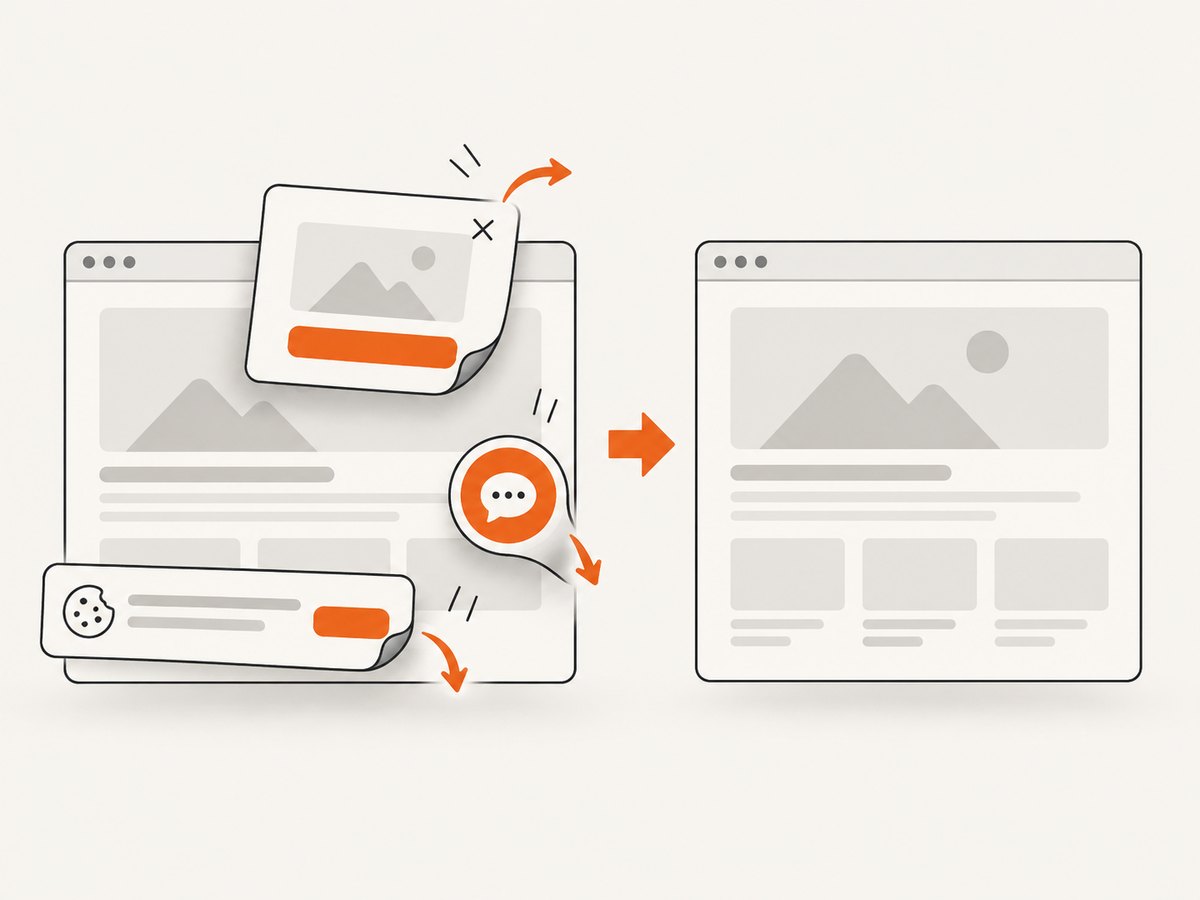
open("shot.webp", "wb").write(r.content)const q = new URLSearchParams({ access_key: 'YOUR_API_KEY', url: 'https://stripe.com' }); const res = await fetch(`https://api.screenshotneo.com/v1/shot?${q}`);Cookie banners, newsletter popups, and chat widgets are removed before the shot. Bot checks, blank pages, timeouts, failed loads, and cache hits are not billed, and response headers identify the page verdict and whether it was billed. You can also use an MCP server so Claude, Cursor, or another MCP client can call take_screenshot, get_page_info, and capture_pdf.
For production jobs, the API supports full-page capture with lazy images, CSS-element capture, dark mode, device presets or custom viewports, retina scale, PDF paper and margin settings, custom CSS and JavaScript, clicks, selector waits, delays, network-idle waits, request blocking, headers, cookies, user agents, authorization, timezone, geolocation, transparent backgrounds, resizing, configurable caching, signed links, asynchronous jobs with signed webhooks, bulk capture of up to 100 URLs per call, usage reporting, and an OpenAPI specification. Parameter names used by other screenshot APIs are accepted to ease migration.
Free accounts include 1,000 screenshots each month with no card. Paid plans start at $5 for 3,000 shots; yearly billing provides two months free, and every feature is available on every plan. Create a free ScreenshotNeo account.
Troubleshooting checklist
| Symptom | Likely cause | Fix |
|---|---|---|
| Command not found | Package or SDK is missing, or PATH is different in cron. | Install the documented package, use an absolute executable path, and print PATH in the job. |
| Permission denied | Screen-recording or display authorization is missing. | Grant permission to the terminal/app and run as the logged-in desktop user. |
| Empty image | Capture happened before rendering or the session is locked. | Add a documented delay, wait for the application, and keep an active session. |
| Wrong monitor | Primary-display defaults or DPI scaling changed coordinates. | Query monitor bounds in application code and test at the target scale. |
| Works locally, fails in CI | No display server, missing Xauthority, or different user. | Provide a supported virtual/display session and pass its credentials securely. |
| Website shot contains overlays | Desktop capture records exactly what the browser shows. | Hide overlays in browser automation or use ScreenshotNeo's consent and widget removal. |
Performance, reliability, and cost
Local capture is usually limited by display readback and image encoding. PNG consumes more disk and CPU than JPEG; avoid capturing a larger region or higher-resolution monitor than needed. Reusing one initialized application process is often faster than launching a new process for every image.
Reliability depends on session state: X11 versus Wayland, compositor behavior, monitor attachment, lock state, permissions, and rendering timing. Record command output and exit status, retain failed artifacts where possible, and retry only transient failures. A retry cannot fix a missing display or a permanently blocked permission.
For website workloads, an API can remove desktop maintenance. ScreenshotNeo bills only clean shots; bot checks, blank pages, timeouts, failed loads, and cache hits cost nothing. Its configurable cache TTL, asynchronous jobs, webhooks, and bulk endpoint help control latency and request overhead. Check the usage API and response headers when reconciling spend.
FAQ
Can one command capture every Linux desktop?
No. X11 and Wayland expose different capture paths, and desktop utilities vary by distribution. Identify the session and use the supported tool.
Does Snipping Tool save a file automatically?
The documented protocol launches an interactive capture mode. It does not establish a silent, predictable file-save workflow.
Should I use a desktop command for website screenshots?
Use it when you need the local desktop. For repeatable URLs, browser rendering controls, PDFs, or server-side jobs, use browser automation or a screenshot API.
What should I check before blaming the image encoder?
Check the display session, permissions, timing, monitor geometry, and whether the source window is visible. Encoding is usually downstream of those conditions.


