How to Capture a Screenshot with JavaScript
Capture DOM elements with html2canvas or real screens with getDisplayMedia(). Learn exports, cross-origin fixes, permissions, and production tips.
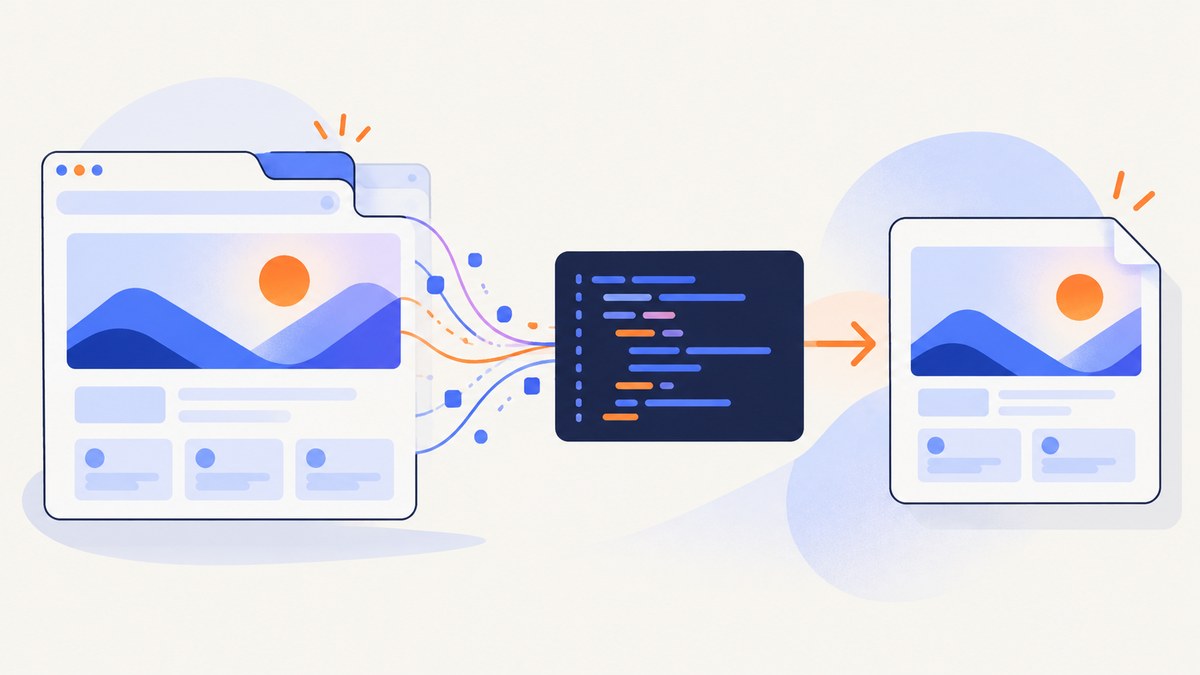
Use html2canvas when you need a screenshot of HTML content. It renders readable DOM and CSS into a canvas, which you can export as PNG, JPEG, or WebP. Use navigator.mediaDevices.getDisplayMedia() when you need pixels from a user-selected monitor, window, or browser tab. These APIs solve different problems: html2canvas reconstructs a page, while Screen Capture records a display surface.
Choose the right JavaScript screenshot method
| Need | Use | Permission | Main limitation |
|---|---|---|---|
| One element or page region | html2canvas | No capture prompt | It is a DOM reconstruction, not a pixel-perfect browser screenshot |
| A monitor, window, or browser tab | getDisplayMedia() |
HTTPS, user gesture, and explicit user choice | Browser support and capture policy vary |
| Browser chrome or another application | getDisplayMedia() |
Required | The user must select the surface |
| Server-side, repeatable URL captures | ScreenshotNeo | API key | Remote capture instead of a local browser API |
Capture an HTML element with html2canvas
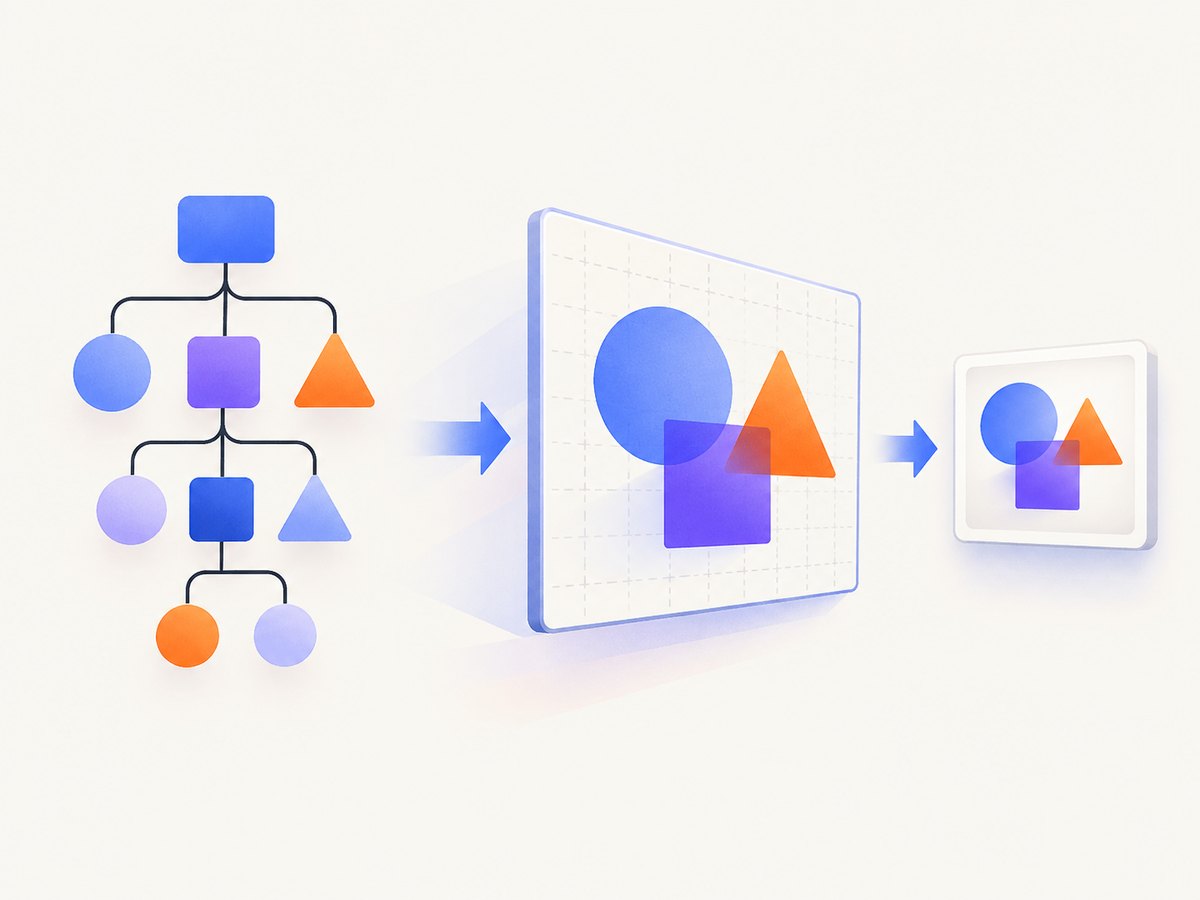
html2canvas walks the DOM and supported styles, paints the result to a canvas, and returns a promise. Install it with npm or load the browser bundle.
<script src="https://cdn.jsdelivr.net/npm/html2canvas@1.4.1/dist/html2canvas.min.js"></script>
<button id="save">Save card</button>
<article id="capture" style="padding:24px;background:#fff;color:#111">
  <h1>Release notes</h1>
  <p>This element will be rendered to an image.</p>
</article>
<script>
document.querySelector('#save').addEventListener('click', async () => {
  const canvas = await html2canvas(document.querySelector('#capture'));
  canvas.toBlob((blob) => {
    const url = URL.createObjectURL(blob);
    const link = document.createElement('a');
    link.download = 'release-notes.png';
    link.href = url;
    link.click();
    URL.revokeObjectURL(url);
  }, 'image/png');
});
</script>
The official project describes this as a screenshot based on information available in the DOM; unsupported CSS, cross-origin assets, and cross-origin iframes can differ from what the browser visibly paints. See the html2canvas documentation.
Capture the whole document
html2canvas(document.body, {
  scale: window.devicePixelRatio,
  useCORS: true,
  backgroundColor: '#ffffff'
}).then((canvas) => {
  canvas.toBlob((blob) => {
    const link = document.createElement('a');
    link.download = 'page.png';
    link.href = URL.createObjectURL(blob);
    link.click();
  }, 'image/png');
});
scale controls output density; using the device pixel ratio generally makes text sharper on high-DPI screens. useCORS: true only works when the image server sends an appropriate CORS header. It cannot bypass browser security.
Capture a region or configure rendering
const canvas = await html2canvas(document.body, {
  x: 0,
  y: 200,
  width: 1200,
  height: 800,
  scale: 2,
  backgroundColor: null, // transparent where supported
  useCORS: true,
  logging: false,
  onclone: (clonedDocument) => {
    clonedDocument.querySelectorAll('.no-screenshot').forEach((el) => el.remove());
  }
});x,y,width, andheightselect a viewport region.backgroundColor: nullrequests transparency; the result still depends on the rendered content and export format.onclonelets you alter the cloned document without changing the live page.- Lower
scalefor smaller files and faster rendering; raise it for print-quality output.
Capture the actual screen, window, or tab
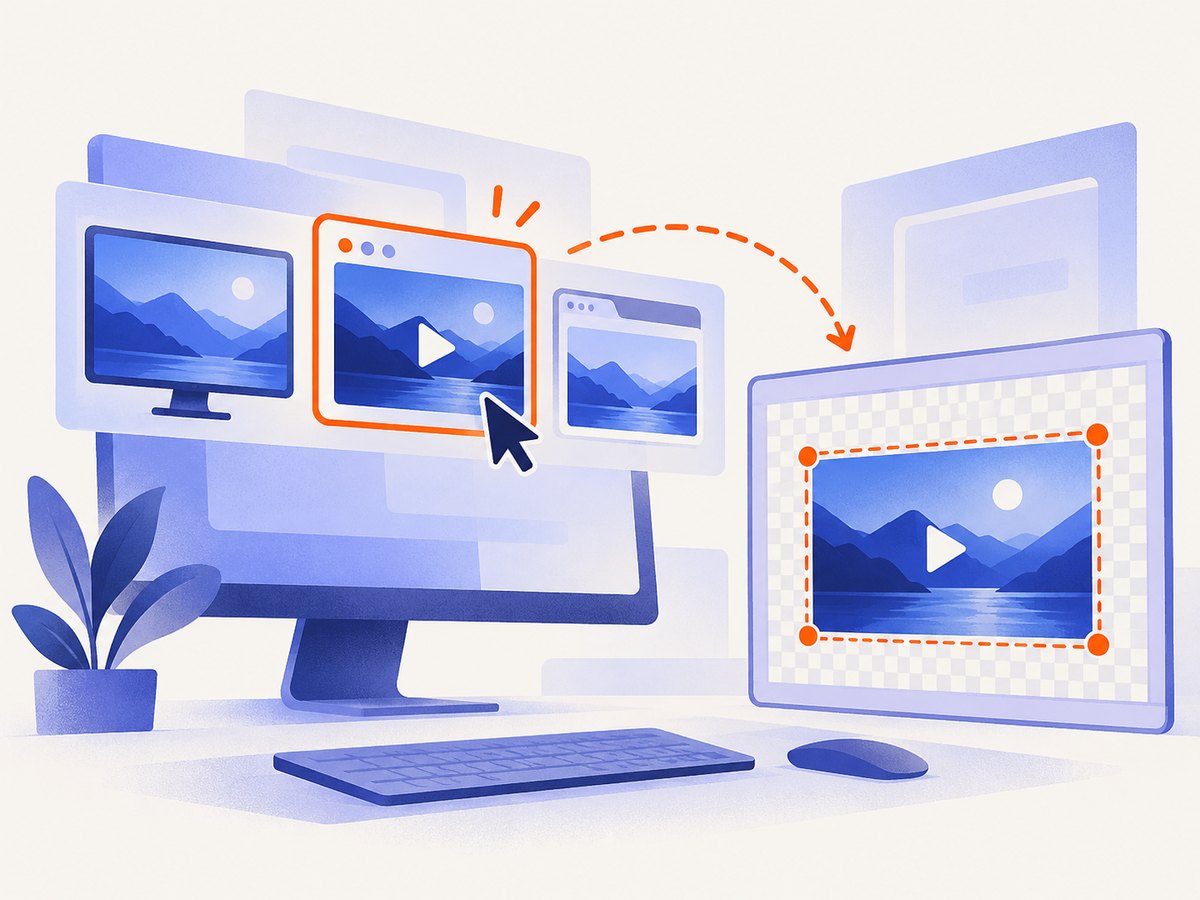
getDisplayMedia() prompts the user to select a display surface and returns a MediaStream. It must run from a secure context and normally from a recent user interaction. The browser owns the chooser and permission UI. The API has limited availability, so test your target browser matrix. Refer to MDN’s getDisplayMedia() documentation.
async function captureDisplay() {
  const stream = await navigator.mediaDevices.getDisplayMedia({
    video: { displaySurface: 'browser' },
    audio: false
  });

  const video = document.createElement('video');
  video.srcObject = stream;
  video.muted = true;
  await video.play();
  await new Promise((resolve) => {
    if (video.readyState >= 2) resolve();
    else video.addEventListener('loadeddata', resolve, { once: true });
  });

  const canvas = document.createElement('canvas');
  canvas.width = video.videoWidth;
  canvas.height = video.videoHeight;
  canvas.getContext('2d').drawImage(video, 0, 0);

  canvas.toBlob((blob) => {
    const link = document.createElement('a');
    link.download = 'display.png';
    link.href = URL.createObjectURL(blob);
    link.click();
  }, 'image/png');

  stream.getTracks().forEach((track) => track.stop());
}

document.querySelector('#capture-screen').addEventListener('click', captureDisplay);
The user can stop sharing at any time. Listen for track.onended if your application needs to update its controls when sharing stops.
Export a canvas efficiently
// PNG: lossless, usually larger
canvas.toBlob(saveBlob, 'image/png');

// JPEG: smaller for photographs; quality is 0..1
canvas.toBlob(saveBlob, 'image/jpeg', 0.85);

// WebP: use when supported by your target browsers
canvas.toBlob(saveBlob, 'image/webp', 0.85);

function saveBlob(blob) {
  if (!blob) throw new Error('The browser could not encode this format');
  const url = URL.createObjectURL(blob);
  const link = document.createElement('a');
  link.download = 'screenshot.webp';
  link.href = url;
  link.click();
  setTimeout(() => URL.revokeObjectURL(url), 0);
}
toDataURL() is convenient for small inline images, but it turns the entire image into an in-memory string. Prefer toBlob() and an object URL for downloads, uploads, and large captures. If the requested type is unsupported, canvas export generally falls back to PNG.
Common failures and fixes
| Symptom | Cause | Fix |
|---|---|---|
| Images are missing | The image is cross-origin without CORS headers | Host the asset on the same origin or configure the image server for CORS; then try useCORS: true. |
SecurityError when exporting |
A cross-origin image tainted the canvas | Remove the asset, enable CORS on its server, or use a server-side capture. |
| An iframe is blank | Cross-origin iframe content cannot be read by page JavaScript | Capture the iframe’s own origin or use a remote browser service. |
| Fonts or CSS differ | html2canvas supports a subset of CSS and may run before fonts finish loading | Wait for document.fonts.ready, simplify unsupported styles, and compare in the browsers you support. |
getDisplayMedia is rejected |
No HTTPS, no user gesture, denied permission, or a blocked policy | Call it from a button click on HTTPS and check permissions and embedding policy. |
| Black or empty display frame | Video metadata is not ready | Wait for loadeddata or a ready state before drawing. |
| Capture stops unexpectedly | The user stopped sharing or the selected surface ended | Handle MediaStreamTrack.onended and reset the UI. |
| Browser freezes on a huge page | Large canvases consume substantial memory | Capture a smaller region, reduce scale, and export with toBlob(). |
Reliability, performance, and security checklist
- Wait for images, fonts, and application data before rendering. A fixed delay is less reliable than waiting for a known selector or ready state.
- Keep capture dimensions bounded. Canvas memory grows with width × height × scale².
- Use JPEG or WebP for photographic content and PNG for text, diagrams, or transparency.
- Never treat a client-side screenshot as a security boundary. Users control their browser and can modify the page before capture.
- Do not request audio unless your product needs it. Screen capture permission is sensitive and user-controlled.
- Test both methods against your browser support matrix. Canvas export is broadly available, while Screen Capture API support varies more.
Or skip the browser setup
ScreenshotNeo captures a URL with one request and returns PNG, JPEG, WebP, or PDF. It can wait for a selector, delay, or network idle; load lazy images; capture an element by CSS selector; apply custom CSS or JavaScript; set viewport, device, dark mode, retina, headers, cookies, user agent, timezone, and geolocation; block ads, trackers, requests, or resource types; resize images; cache with a chosen TTL; and run asynchronous or bulk jobs. See the ScreenshotNeo API documentation.
curl -G "https://api.screenshotneo.com/v1/shot" -d access_key=YOUR_API_KEY --data-urlencode url=https://stripe.com -o shot.webpimport requests
r = requests.get("https://api.screenshotneo.com/v1/shot", params={"access_key": "YOUR_API_KEY", "url": "https://stripe.com"}, timeout=90)
open("shot.webp", "wb").write(r.content)const q = new URLSearchParams({ access_key: 'YOUR_API_KEY', url: 'https://stripe.com' });
const res = await fetch(`https://api.screenshotneo.com/v1/shot?${q}`);Cookie banners, newsletter popups, and chat widgets are removed before the shot, with each step configurable. Bot checks, blank pages, timeouts, failed loads, and cache hits are not billed; response headers identify the page verdict and billing status. An MCP server provides take_screenshot, get_page_info, and capture_pdf for Claude, Cursor, and other MCP clients. The Free plan includes 1,000 screenshots per month with no card; paid plans start at $5 for 3,000. Create a free ScreenshotNeo account.
FAQ
Can JavaScript capture the entire browser chrome?
Page JavaScript cannot read browser chrome. getDisplayMedia() can capture a user-selected display surface, subject to the browser’s chooser and permissions.
Is html2canvas pixel-perfect?
No. It reconstructs supported DOM and CSS. The output can differ from the browser’s actual painted pixels, especially with unsupported CSS, cross-origin assets, and iframes.
Which format should I use?
Use PNG for crisp text and transparency, JPEG for smaller photographic images, and WebP when your consumers support it and you want a smaller modern format.
Can I run getDisplayMedia without asking the user?
No. The browser requires an explicit surface choice and permission. Design the flow around a user-initiated action.
How do I capture a remote page consistently?
Run a server-side browser capture or use ScreenshotNeo. A remote API avoids shipping browser automation and can handle waiting, cookies, headers, cleanup, and repeatable output for you.


