Capture a Screenshot in Selenium Java
Learn how to capture browser and element screenshots in Selenium Java, save them reliably, handle output formats, and troubleshoot common failures.

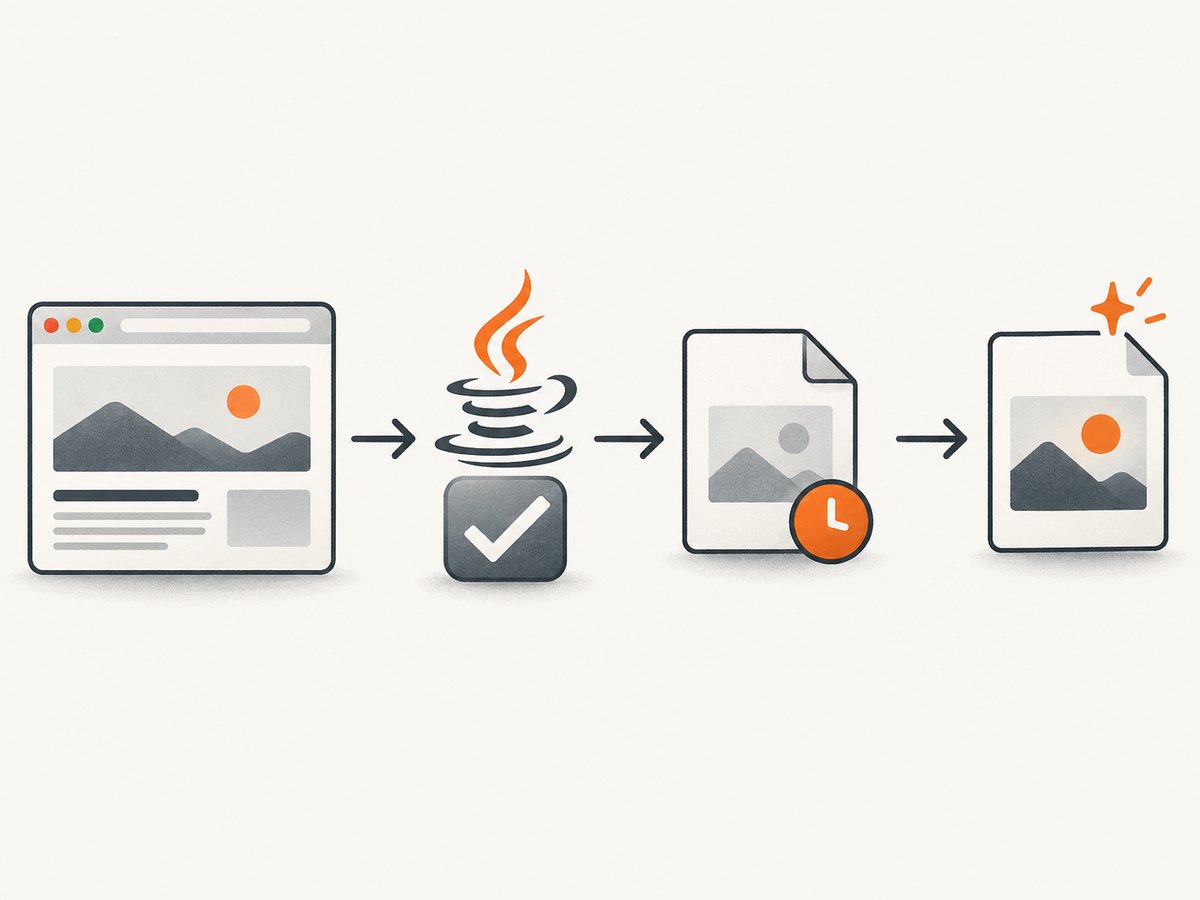
Use Selenium’s TakesScreenshot interface and request an output type:
File screenshot = ((TakesScreenshot) driver).getScreenshotAs(OutputType.FILE);
FileUtils.copyFile(screenshot, new File("./screenshot.png"));
This captures the current browser context when the driver supports screenshots. OutputType.FILE creates a temporary file, so copy it to a destination you control if it must survive the JVM process. Selenium also supports raw bytes and Base64 output. See the official TakesScreenshot API and OutputType API.
1. Add Selenium and file-copy dependencies
With Maven, add Selenium Java and Apache Commons IO:
<dependencies>
  <dependency>
    <groupId>org.seleniumhq.selenium</groupId>
    <artifactId>selenium-java</artifactId>
    <version>4.25.0</version>
  </dependency>
  <dependency>
    <groupId>commons-io</groupId>
    <artifactId>commons-io</artifactId>
    <version>1.3.2</version>
  </dependency>
</dependencies>
Use the Selenium version your project has standardized on. Recent Selenium releases can manage compatible browser drivers through Selenium Manager. In controlled CI environments, you can still provision the browser and driver explicitly.
2. Capture and save a full browser screenshot
import java.io.File;
import java.io.IOException;

import org.apache.commons.io.FileUtils;
import org.openqa.selenium.OutputType;
import org.openqa.selenium.TakesScreenshot;
import org.openqa.selenium.WebDriver;
import org.openqa.selenium.chrome.ChromeDriver;

public class ScreenshotExample {
    public static void main(String[] args) throws IOException {
        WebDriver driver = new ChromeDriver();

        try {
            driver.get("https://example.com");

            File temporaryScreenshot = ((TakesScreenshot) driver)
                    .getScreenshotAs(OutputType.FILE);

            File destination = new File("./artifacts/example.png");
            FileUtils.copyFile(temporaryScreenshot, destination);
            System.out.println("Saved screenshot to " + destination.getAbsolutePath());
        } finally {
            driver.quit();
        }
    }
}
Create the artifacts directory before running if your file utility does not create parent directories automatically. Always quit the driver in a finally block so failed captures do not leave browser processes behind.
3. Choose the output form
| Output type | Java value | Use it when |
|---|---|---|
FILE |
File |
You want to copy an image to disk. The returned file is temporary. |
BYTES |
byte[] |
You will upload, hash, inspect, or otherwise process the image in memory. |
BASE64 |
String |
You need an encoded string for JSON, logs, or another text transport. |
Save raw bytes
import java.nio.file.Files;
import java.nio.file.Path;

byte[] png = ((TakesScreenshot) driver)
        .getScreenshotAs(OutputType.BYTES);
Files.write(Path.of("./artifacts/page.png"), png);
Get a Base64 string
String encoded = ((TakesScreenshot) driver)
        .getScreenshotAs(OutputType.BASE64);

// Example: decode it when you need a file
byte[] decoded = java.util.Base64.getDecoder().decode(encoded);
Files.write(Path.of("./artifacts/page-from-base64.png"), decoded);
The bytes and Base64 string represent the screenshot returned by the driver. They avoid the temporary-file lifecycle that applies to FILE.
4. Capture a specific element
When you only need a component, locate it and request a screenshot from the WebElement. Driver support and exact boundaries can vary, so treat this as an element capture rather than a cross-driver pixel guarantee.
import java.io.File;
import org.apache.commons.io.FileUtils;
import org.openqa.selenium.By;
import org.openqa.selenium.OutputType;
import org.openqa.selenium.WebElement;

WebElement card = driver.findElement(By.cssSelector(".pricing-card"));
File elementImage = card.getScreenshotAs(OutputType.FILE);
FileUtils.copyFile(elementImage, new File("./artifacts/pricing-card.png"));
5. Wait until the page is ready
A screenshot captures the state that exists at the moment of the call. Navigating to a URL does not guarantee that your target element, fonts, images, or asynchronous data have finished rendering. Use an explicit wait for a meaningful condition:
import java.time.Duration;
import org.openqa.selenium.support.ui.ExpectedConditions;
import org.openqa.selenium.support.ui.WebDriverWait;

WebDriverWait wait = new WebDriverWait(driver, Duration.ofSeconds(15));
wait.until(ExpectedConditions.visibilityOfElementLocated(
        By.cssSelector("main .report")));

File image = ((TakesScreenshot) driver).getScreenshotAs(OutputType.FILE);
FileUtils.copyFile(image, new File("./artifacts/report.png"));
For pages that continue changing after the first element appears, wait for a stable application state, a loading indicator to disappear, or a specific text value. A fixed sleep can be useful for diagnosing timing issues, but explicit conditions are usually more reliable and faster.
6. Understand full-page behavior
The basic TakesScreenshot call should not be assumed to stitch an arbitrarily long page. Capture behavior depends on the browser driver and its implementation. In many setups it returns the current viewport; some implementations provide additional full-page behavior. Verify the result for the exact browser, driver, and remote execution mode you use.
If you require a consistent long-page image across environments, consider a browser-specific full-page capability or an external screenshot service. Selenium’s API documents the interface and output forms, but it does not promise identical capture boundaries for every implementation.
7. Capture screenshots in tests
A reusable helper keeps test code small and gives failures deterministic filenames:
import java.io.File;
import java.io.IOException;
import java.nio.file.Files;
import java.nio.file.Path;
import java.time.LocalDateTime;
import java.time.format.DateTimeFormatter;

import org.apache.commons.io.FileUtils;
import org.openqa.selenium.OutputType;
import org.openqa.selenium.TakesScreenshot;
import org.openqa.selenium.WebDriver;

public final class ScreenshotHelper {
    private ScreenshotHelper() {}

    public static Path save(WebDriver driver, String name) throws IOException {
        Path directory = Path.of("target", "screenshots");
        Files.createDirectories(directory);

        String timestamp = LocalDateTime.now()
                .format(DateTimeFormatter.ofPattern("yyyyMMdd-HHmmss-SSS"));
        Path destination = directory.resolve(timestamp + "-" + name + ".png");

        File temporary = ((TakesScreenshot) driver)
                .getScreenshotAs(OutputType.FILE);
        FileUtils.copyFile(temporary, destination.toFile());
        return destination;
    }
}
Call the helper from a test failure hook or catch block. Preserve the original test exception when saving the screenshot also fails, and log the screenshot path for CI artifact collection.
8. Troubleshooting
| Symptom | Likely cause | Fix |
|---|---|---|
ClassCastException when casting the driver |
The driver does not implement TakesScreenshot. |
Use a supported browser or remote-driver implementation, and check the driver type before casting. |
UnsupportedOperationException |
The implementation exposes WebDriver but does not support screenshots. | Switch to a driver with screenshot support or use another capture path. |
WebDriverException during capture |
The browser session crashed, disconnected, or rejected the command. | Check browser and driver logs, session lifetime, remote connectivity, and resource limits; retry only when the failure is transient. |
| File disappears after the run | OutputType.FILE returns a temporary file. |
Copy it immediately to a persistent destination. |
| Image shows a loading spinner or blank component | The capture ran before asynchronous content rendered. | Wait for a visible element, expected text, network completion signal, or loading indicator removal. |
| Only the viewport is present | The driver returned a viewport screenshot. | Do not assume basic screenshots are full page; use a supported full-page method or service. |
| Element screenshot is clipped or different between browsers | Element screenshot support and boundaries vary by implementation. | Validate on each target browser and use viewport capture plus cropping when you need a controlled fallback. |
FileNotFoundException or permission error |
The destination directory is missing or not writable. | Create parent directories and write to a workspace path permitted by your CI runner. |
| Screenshot is unexpectedly small or blurry | Viewport dimensions or device pixel ratio differ from local runs. | Set the window size or browser options explicitly and keep CI display settings consistent. |
9. Reliability and performance practices
- Use one driver session per test isolation boundary and always call
quit(). - Prefer explicit waits tied to application state instead of long global sleeps.
- Save bytes directly when uploading to object storage or attaching to a report; avoid unnecessary Base64 expansion.
- Use unique filenames in parallel test workers to prevent overwrites.
- Keep screenshots as failure artifacts unless every test genuinely needs one; image encoding and disk I/O add time.
- For remote WebDriver, account for command and file-transfer latency. Capture after the page is stable so retries do not multiply expensive browser work.
- Keep browser, driver, and Selenium versions aligned with the support policy of your environment, and record them with the artifact metadata.
10. Or skip the browser setup
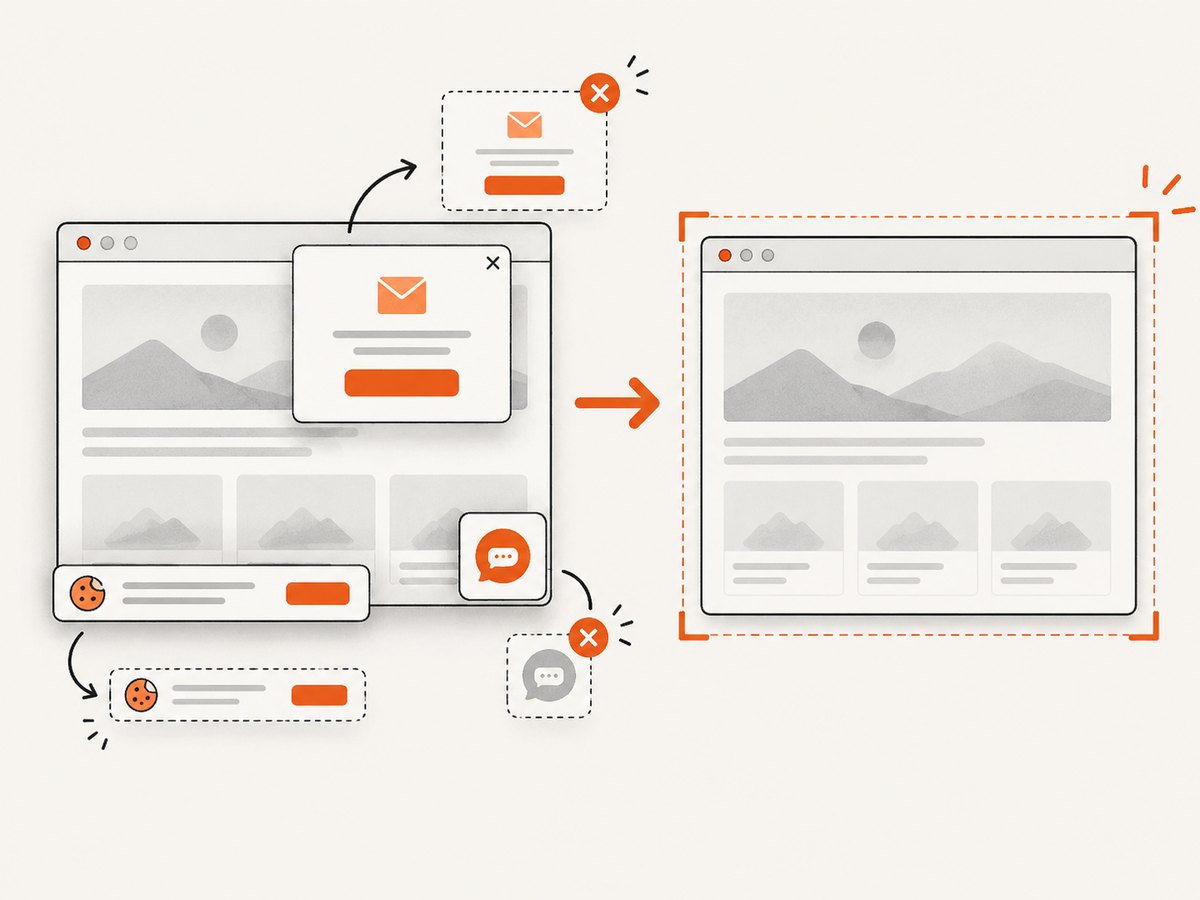
ScreenshotNeo provides a single HTTP request for a PNG, JPEG, WebP, or PDF. Its consent handling accepts cookie banners and removes more than 60 known consent platforms, newsletter popups, and chat widgets before capture. Bot checks, blank pages, failed loads, timeouts, and cache hits are not billed, and response headers identify the page verdict and billing status. It also provides an MCP server with take_screenshot, get_page_info, and capture_pdf for Claude, Cursor, and other MCP clients.
See the ScreenshotNeo API documentation for all options.
cURL
curl -G "https://api.screenshotneo.com/v1/shot" -d access_key=YOUR_API_KEY --data-urlencode url=https://stripe.com -o shot.webpPython
import requests

r = requests.get(
    "https://api.screenshotneo.com/v1/shot",
    params={"access_key": "YOUR_API_KEY", "url": "https://stripe.com"},
    timeout=90,
)
r.raise_for_status()
open("shot.webp", "wb").write(r.content)
Node.js
const q = new URLSearchParams({ access_key: 'YOUR_API_KEY', url: 'https://stripe.com' });
const res = await fetch(`https://api.screenshotneo.com/v1/shot?${q}`);
if (!res.ok) throw new Error(`Screenshot failed: ${res.status}`);
const image = Buffer.from(await res.arrayBuffer());
require('fs').writeFileSync('shot.webp', image);
You can request full-page captures with lazy images loaded, CSS-selector element captures, dark mode, device presets or custom viewports, retina scale, custom CSS and JavaScript, click and wait actions, blocked resources, headers, cookies, user agents, authorization, timezone, geolocation, transparency, resizing, caching with a chosen TTL, signed links, asynchronous jobs with signed webhooks, bulk capture for up to 100 URLs per call, and usage data.
The Free plan includes 1,000 screenshots each month with no card. Paid plans start at $5 for 3,000 screenshots, and every feature is available on every plan. Create a free ScreenshotNeo account.
FAQ
Does Selenium save a PNG automatically?
No. Selenium returns a file, byte array, or Base64 string. With FILE, copy the temporary file to a persistent path yourself.
Can I screenshot an element instead of the page?
Yes. Locate a WebElement and call its screenshot method when the driver supports element screenshots.
Why is my screenshot not full page?
The basic API does not guarantee a stitched long-page image. Capture boundaries depend on the browser-driver implementation.
Which output should I use for an API upload?
Use BYTES for binary uploads. Use BASE64 only when the receiving protocol requires text.
What happens if the driver cannot take screenshots?
Selenium may throw UnsupportedOperationException or WebDriverException. Check support and session health before retrying.


