How to Capture a Screenshot in Selenium WebDriver
Capture a Selenium WebDriver screenshot as a PNG file, element image, bytes, or Base64 string, with reliable waits, paths, and troubleshooting.
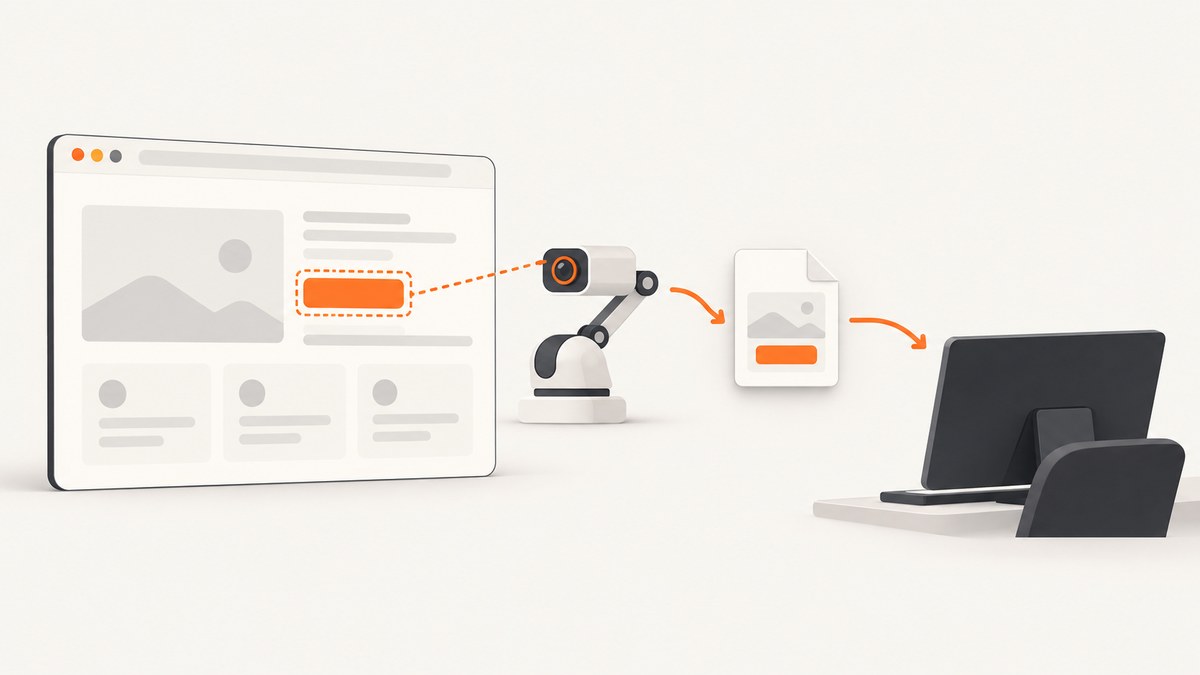
Selenium WebDriver can capture the current browser view with its screenshot command. In Python, driver.save_screenshot("artifacts/home.png") writes a PNG; use get_screenshot_as_png() for bytes or get_screenshot_as_base64() for a Base64 string. To capture one element, call the screenshot method on the element. The page state is captured when the command runs, so wait for the page or target element your test needs before taking the shot.
This guide covers Python and Java examples, plus JavaScript, cURL, and Node.js options where they apply. Selenium’s own screenshot method requires a running browser and driver. cURL and plain Node.js fetch do not control a Selenium browser; they are included below for a distinct alternative: ScreenshotNeo’s screenshot API.
1. Save a full-page-context screenshot in Python
The WebDriver screenshot command captures the current browsing context. Selenium’s Python helpers save PNG files. Make the output directory first, use a writable path ending in .png, check the returned Boolean, and close the browser even when navigation or saving fails.
from pathlib import Path
from selenium import webdriver

output = Path("artifacts")
output.mkdir(parents=True, exist_ok=True)

 driver = webdriver.Chrome()
try:
    driver.get("https://example.com")
    saved = driver.save_screenshot(str(output / "home.png"))
    if not saved:
        raise IOError("Selenium could not write the screenshot")
finally:
    driver.quit()
Remove the extra leading space before driver = webdriver.Chrome() if copying this snippet verbatim; the assignment belongs at the left margin. Here is the corrected runnable form:
from pathlib import Path
from selenium import webdriver

output = Path("artifacts")
output.mkdir(parents=True, exist_ok=True)

driver = webdriver.Chrome()
try:
    driver.get("https://example.com")
    saved = driver.save_screenshot(str(output / "home.png"))
    if not saved:
        raise IOError("Selenium could not write the screenshot")
finally:
    driver.quit()
The binding also documents get_screenshot_as_file(filename) as a file helper. Both helpers return False on an I/O failure. A full path can make the output location unambiguous in local runs and CI. Selenium’s screenshot guide demonstrates the WebDriver screenshot command and Base64 return behavior. Selenium screenshot guide; Python WebDriver API.
2. Wait for the state you intend to capture
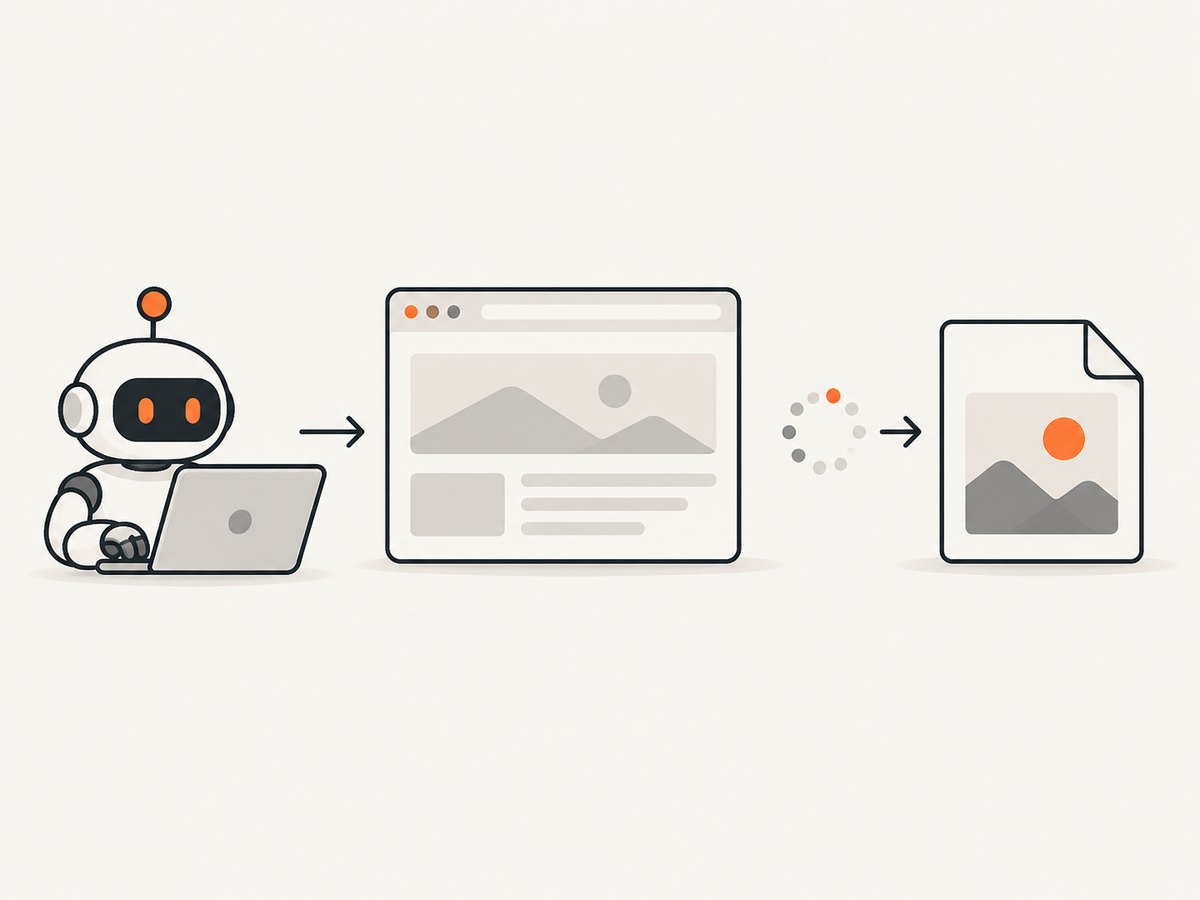
A screenshot records the browser state present when the screenshot command executes. A successful navigation call does not necessarily mean that client-side rendering, images, fonts, or asynchronous content have reached the state your test is asserting. Prefer an explicit wait for a meaningful condition over an arbitrary pause.
from pathlib import Path
from selenium import webdriver
from selenium.webdriver.common.by import By
from selenium.webdriver.support import expected_conditions as EC
from selenium.webdriver.support.ui import WebDriverWait

Path("artifacts").mkdir(parents=True, exist_ok=True)
driver = webdriver.Chrome()
try:
    driver.get("https://example.com")
    WebDriverWait(driver, 15).until(
        EC.visibility_of_element_located((By.CSS_SELECTOR, "h1"))
    )
    driver.save_screenshot("artifacts/ready.png")
finally:
    driver.quit()
Choose a condition based on what matters to the capture. Wait for a heading to become visible, a loading indicator to disappear, or a known element to exist. A fixed sleep may be useful for a known animation delay, but it is less adaptive: it can waste time on fast runs and still be too short on slow ones.
3. Capture one WebElement
Use an element screenshot when a test needs a component or region without the surrounding page. Locate the element after waiting for it, then call its screenshot method.
from pathlib import Path
from selenium import webdriver
from selenium.webdriver.common.by import By
from selenium.webdriver.support import expected_conditions as EC
from selenium.webdriver.support.ui import WebDriverWait

Path("artifacts").mkdir(parents=True, exist_ok=True)
driver = webdriver.Chrome()
try:
    driver.get("https://example.com")
    heading = WebDriverWait(driver, 15).until(
        EC.visibility_of_element_located((By.CSS_SELECTOR, "h1"))
    )
    heading.screenshot("artifacts/heading.png")
finally:
    driver.quit()
The same idea is available through the Java WebElement screenshot API and other bindings. Element capture is useful for focused visual checks, component evidence, and reports. The target must be found and in a state the browser can capture; stale or missing elements need to be handled as normal WebDriver errors.
4. Choose file, bytes, or Base64 output
Use the output form that matches the next step in your workflow. A file is convenient for CI artifacts and manual review. Bytes are convenient when another Python library or HTTP client consumes the image directly. Base64 is useful when embedding the result in HTML or when a receiving interface expects an encoded string.
| Output | Python method | Use it for |
|---|---|---|
| PNG file | save_screenshot(path) |
Artifacts, reports, local inspection |
| PNG bytes | get_screenshot_as_png() |
In-memory processing or upload |
| Base64 string | get_screenshot_as_base64() |
HTML embedding or APIs that accept Base64 |
from selenium import webdriver

driver = webdriver.Chrome()
try:
    driver.get("https://example.com")
    png_bytes = driver.get_screenshot_as_png()
    encoded = driver.get_screenshot_as_base64()
    print(f"PNG bytes: {len(png_bytes)}")
    print(f"Base64 characters: {len(encoded)}")
finally:
    driver.quit()
Do not decode or encode unnecessarily: keep the representation in memory if the next consumer accepts it. Base64 is text representation of binary image data and generally takes more space than the PNG bytes. Avoid logging the entire encoded value; it can be large and makes logs difficult to use.
5. Java and JavaScript examples
Java
In Java, cast the driver to TakesScreenshot, request OutputType.FILE, and copy the temporary screenshot file to the desired destination. This example uses Apache Commons IO for the copy operation.
import java.io.File;
import org.apache.commons.io.FileUtils;
import org.openqa.selenium.OutputType;
import org.openqa.selenium.TakesScreenshot;
import org.openqa.selenium.WebDriver;
import org.openqa.selenium.chrome.ChromeDriver;

WebDriver driver = new ChromeDriver();
try {
    driver.get("https://example.com");
    File screenshot = ((TakesScreenshot) driver)
        .getScreenshotAs(OutputType.FILE);
    FileUtils.copyFile(screenshot, new File("artifacts/home.png"));
} finally {
    driver.quit();
}
Create the artifacts directory before running this snippet. Use OutputType.BASE64 when a string is more useful than a file. The Java API documents WebDriverException for failures and UnsupportedOperationException when an implementation does not support screenshots. Java TakesScreenshot API.
JavaScript with selenium-webdriver
The Node.js Selenium binding returns a Base64 string from takeScreenshot(). Write it with the Base64 encoding option.
const { Builder } = require('selenium-webdriver');
const fs = require('node:fs');

(async function () {
  fs.mkdirSync('artifacts', { recursive: true });
  const driver = await new Builder().forBrowser('chrome').build();
  try {
    await driver.get('https://example.com');
    const encoded = await driver.takeScreenshot();
    fs.writeFileSync('artifacts/home.png', encoded, 'base64');
  } finally {
    await driver.quit();
  }
}());
For a single element, locate it and use the binding’s element screenshot method, such as await element.takeScreenshot(true). Check the installed binding’s API when relying on optional element behavior, because the exact method signature belongs to that binding version. The official Selenium guide shows the driver capture and Base64 file write pattern. Selenium screenshot guide.
6. RemoteWebDriver and repeatable captures
The screenshot command can be used with local drivers and remote browser sessions when the remote implementation supports it. A screenshot taken remotely still needs to be transferred to the machine that writes the artifact. Keep the save path on the process that receives the screenshot response, and confirm the CI worker has write permission there.
When visual reproducibility matters, record the browser name and version, driver or Selenium version, viewport, and relevant test state alongside the image. The official API describes W3C-conformant screenshot behavior and best-effort behavior for non-conformant implementations; do not assume identical dimensions or full-page behavior across all browsers and drivers. Selenium Java API.
7. Make artifact paths reliable
- Create the directory before capture; screenshot helpers do not create missing parent folders for you.
- Use unique names for parallel tests, for example a test identifier plus a timestamp or worker index.
- Keep filenames ending in
.pngwhen using Selenium’s documented PNG file helpers. - Check file-save results and surface failures in the test output.
- Put browser cleanup in a
finallyblock so exceptions do not leave sessions running.
Parallel tests writing the same filename can overwrite each other’s artifacts. A simple strategy is a directory per test case or worker. If an image is destined for a report, consider retaining bytes in memory until the report is assembled rather than writing temporary files and cleaning them up later.
8. Troubleshooting
| Symptom | Likely cause | Fix |
|---|---|---|
| No file appears | Parent directory is missing, path is relative to a different working directory, or process lacks write permission. | Create the directory, log or resolve the absolute path, and check Python’s Boolean return value. |
Python returns False |
An I/O error prevented the file write. | Use a writable full path ending in .png; verify the target volume and directory. |
| Screenshot is blank or incomplete | The capture happened before the page or target content was ready, or navigation did not reach the expected state. | Wait for a meaningful element or condition; inspect the browser state and test URL before capture. |
| Element screenshot fails | The selector matched nothing, the element became stale, or the element was not ready for capture. | Wait for presence or visibility, then locate the element again if the page re-rendered. |
| Driver reports unsupported screenshot | The selected driver or remote implementation does not support the screenshot command. | Use a supported browser/driver combination or a screenshot-capable remote implementation. |
| Java throws a WebDriver exception | The browser session, command, or file handoff failed. | Preserve the exception details, check session health and destination permissions, and ensure cleanup runs. |
| Base64 output is corrupted | Encoded text was written as ordinary text or decoded with the wrong encoding. | Write with Base64 encoding, as in the JavaScript example, or use the binding’s PNG bytes helper. |
| Different runs produce different images | Viewport, browser version, content timing, animations, or remote environment changed. | Fix the viewport and browser environment, wait on deterministic page state, and record versions. |
9. Performance, reliability, and cost
Taking a screenshot adds browser work and produces image data that must be copied, encoded, or written. Keep captures at useful checkpoints rather than after every operation, especially in large suites. In-memory bytes avoid a temporary file round trip when the next step can consume bytes; Base64 is appropriate where text transport is required but adds encoding overhead.
Reliability depends on more than the screenshot command: browser session availability, page readiness, filesystem permissions, and unique artifact names all matter. Always close drivers in cleanup code, and do not interpret a successful screenshot call as proof that the page was correct. Validate the expected state separately.
For Selenium, cost depends on where and how browser sessions run, which is outside the screenshot API itself. This research provides no benchmark or universal cost figure. Remote browser execution can shift infrastructure and operational costs; evaluate it against the need to run browsers in your own environment.
10. Or skip the browser setup
If you need a rendered website image without provisioning and managing a Selenium browser for that capture, ScreenshotNeo provides a one-request screenshot API. Selenium remains useful when the screenshot must be part of a browser test with controlled interactions; the API is a direct option for URL-to-image captures.
cURL:
curl -G "https://api.screenshotneo.com/v1/shot" -d access_key=YOUR_API_KEY --data-urlencode url=https://stripe.com -o shot.webpPython:
import requests

r = requests.get(
    "https://api.screenshotneo.com/v1/shot",
    params={"access_key": "YOUR_API_KEY", "url": "https://stripe.com"},
    timeout=90,
)
open("shot.webp", "wb").write(r.content)
Node.js:
const q = new URLSearchParams({ access_key: 'YOUR_API_KEY', url: 'https://stripe.com' });
const res = await fetch(`https://api.screenshotneo.com/v1/shot?${q}`);
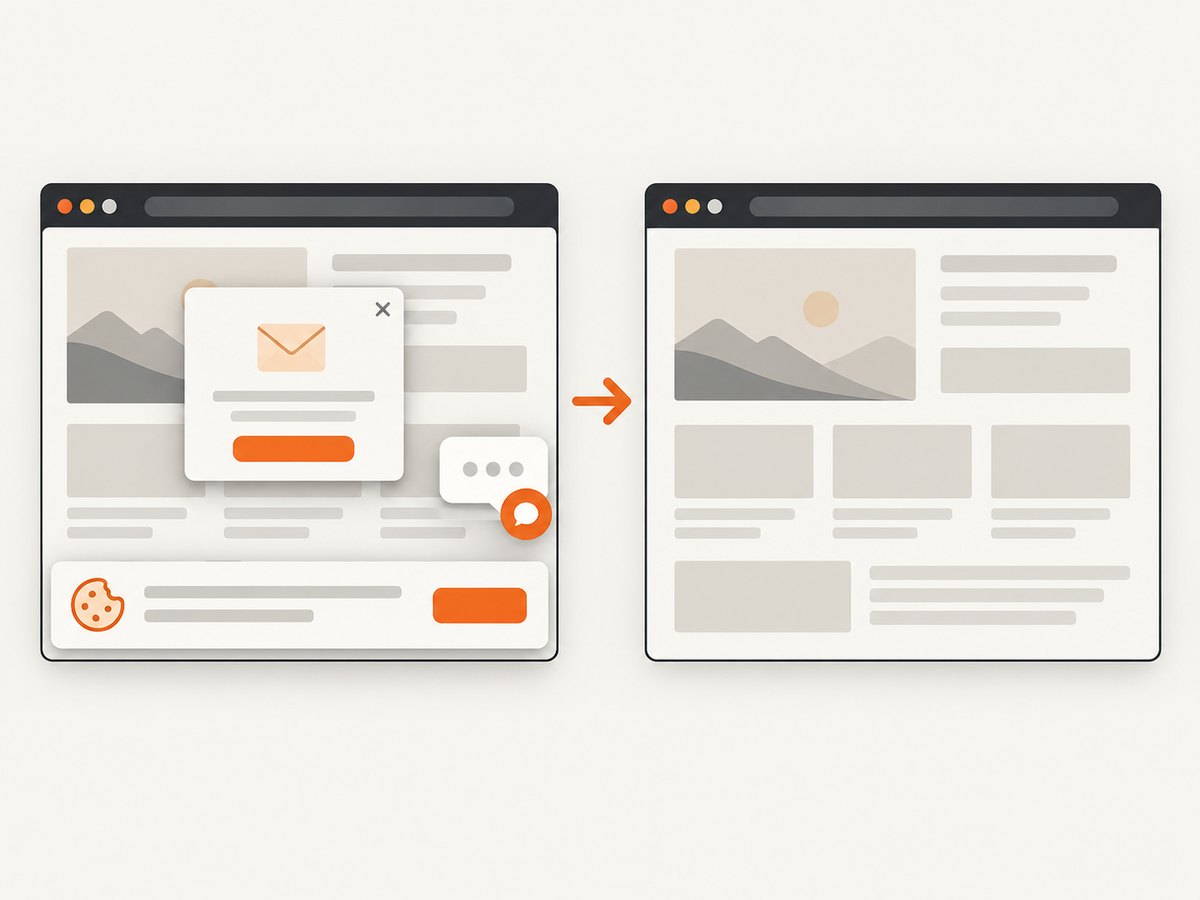
See the ScreenshotNeo API documentation for parameters and setup. ScreenshotNeo accepts cookie and consent banners and removes more than 60 known consent platforms, newsletter popups, and chat widgets before the shot; each of those steps can be turned off. Bot checks, blank pages, timeouts, failed loads, and cache hits cost nothing, and response headers report the page verdict and billing status. Its MCP server gives AI agents tools to take screenshots, inspect page information, and capture PDFs. The free plan includes 1,000 screenshots a month with no card; paid plans start at $5 for 3,000. ScreenshotNeo also supports PDF output and configuration such as viewport, device presets, element selection, and wait conditions.
Sign up for ScreenshotNeo and get 1,000 free screenshots a month with no card.
11. FAQ
Does Selenium save screenshots as PNG?
The documented Python file helpers save PNG files. Use a filename ending in .png for those helpers.
Can I take a screenshot of just one element?
Yes. Locate the element and call its screenshot method. Selenium documents element screenshot support in its bindings.
Can I return a screenshot without saving a file?
Yes. Python provides PNG bytes and Base64 helpers; Java can request OutputType.BASE64, and JavaScript’s driver method returns Base64.
Does WebDriver always capture the entire long page?
Do not assume that. The command captures the current browsing context, and the documented behavior does not promise identical full-page dimensions across browsers and drivers.
Can cURL take a Selenium screenshot?
No. cURL does not operate a Selenium WebDriver session. It can call a screenshot service such as ScreenshotNeo to capture a URL directly.


