How to Capture a Screenshot and Share It on Social Media
Capture a screenshot on iPhone, Android, Windows, or Mac, check it for private details, then share it safely on Instagram, Facebook, X, or another app.

Quick answer: capture the screen with your device shortcut, open the preview or Screenshots folder, crop or mark up the image, check every visible detail for private information, then use the device share sheet or the social app’s current photo composer. Posting controls vary by app, so the final step may be labeled New post, Create, Add photo, or Share.
1. Capture the right thing
Before pressing a shortcut, decide whether you need:
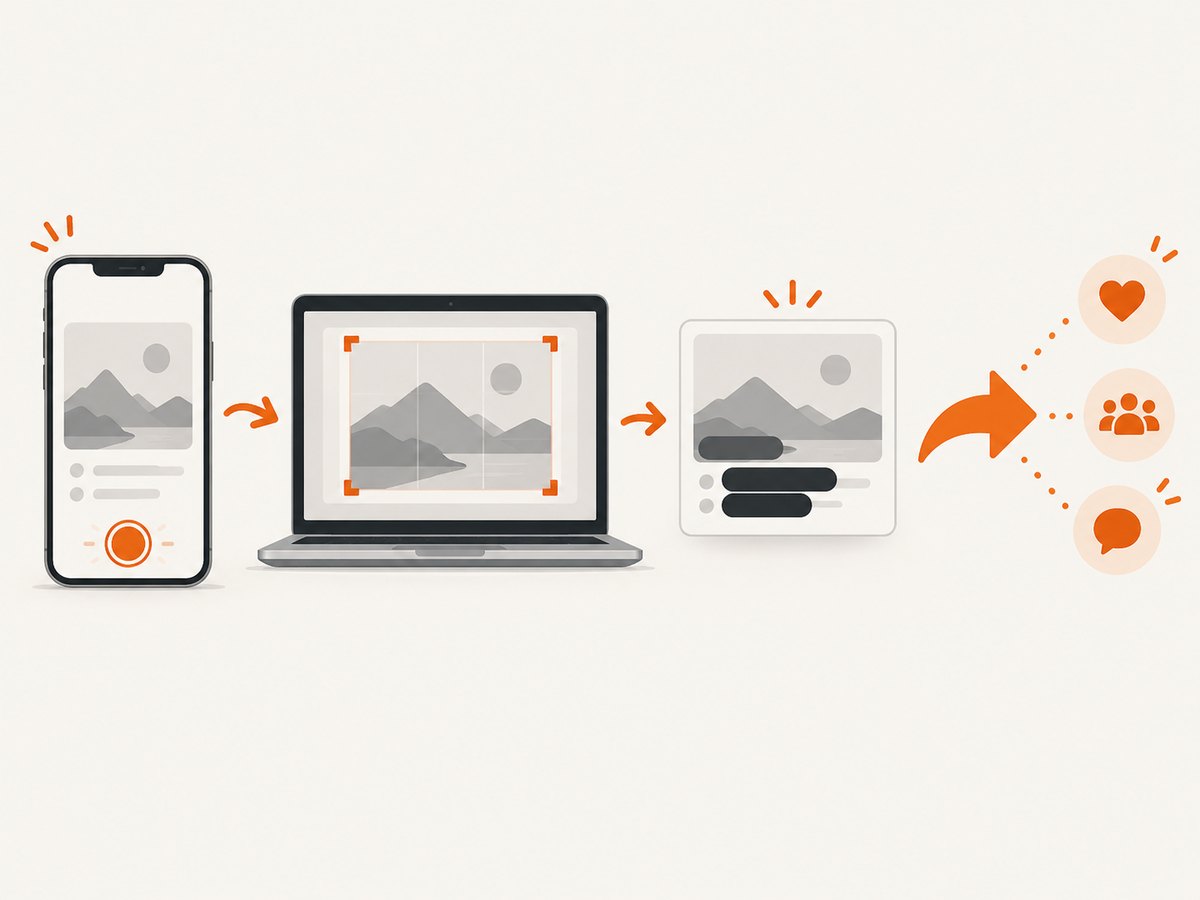
- Full screen: everything currently visible.
- One window: a particular app or browser window.
- A selected area: only the content that supports your post.
- A scrolling capture: a page longer than one screen, when your device and app support it.
Close unrelated tabs and notifications first. A screenshot is a durable copy that can be downloaded, forwarded, and reshared beyond your intended audience. The Australian eSafety Commissioner warns that once material is shared, you may lose control over where it goes. [Read the eSafety guidance](https://www.esafety.gov.au/young-people/sharing-images).
2. iPhone
Face ID models
Press and quickly release the Side button and Volume Up button together.
Models with a Home button
Press and quickly release Home with the Side button or Top button, depending on the model.
Edit, save, and share
A preview appears immediately. Tap it to crop, draw, add markup, or share. If you dismiss the preview, find the file in Photos → Collections → Media Types → Screenshots. Apple documents editing, sharing, and saving from the screenshot preview. [Apple’s screenshot guide](https://support.apple.com/en-us/HT200289).
3. Android phones and tablets
Standard shortcut
Press Power and Volume Down together. If that does not work, some devices provide Screenshot after a long press of Power or in the quick settings panel. Hardware behavior differs by manufacturer.
Scrolling screenshots
On Android 12 and later, choose Capture more after taking a screenshot when the current screen allows scrolling. It is not available in every app or on every screen.
Find and share the file
Look in Google Photos → Collections → On this device → Screenshots, or in the phone maker’s Gallery app. Open the image, crop or annotate it, then tap Share. [Google’s Android screenshot instructions](https://support.google.com/android/answer/9075928).
4. Windows 10 and 11
Press Windows logo key + Shift + S. The Snipping Tool overlay lets you choose:
- Rectangular selection
- Freeform selection
- A specific window
- Full screen
After you select an area, open the notification or Snipping Tool window to crop, mark up, save, or share. Print Screen behavior can differ by settings, so this shortcut is the clearest default.
5. Mac
- Shift-Command-5: open controls for full screen, a window, or a selected portion.
- Shift-Command-3: capture the entire screen.
- Shift-Command-4: select a region.
The capture is saved according to your Screenshot options. Open it in Preview or Finder to crop, annotate, rename, and share.
6. Prepare the image before posting
- Crop for focus. Remove browser chrome, unrelated windows, or empty margins. Cropping does not replace a privacy check.
- Mark up only what helps. Arrows, highlights, and short annotations can explain the point. Keep the original if you may need to recapture or edit later.
- Inspect all four edges. Check notifications, account names, direct messages, email addresses, phone numbers, open tabs, file names, timestamps, and location details.
- Redact or recapture. Do not rely on a caption to hide information that remains visible in the image.
- Choose a useful format. PNG preserves sharp text; JPEG is smaller for photographs; WebP may reduce size when the destination accepts it.
7. Share to Instagram, Facebook, X, or another social app
Use the current composer rather than relying on a fixed sequence of buttons, because labels and layouts change.
- Open the image in Photos, Gallery, Finder, Preview, Snipping Tool, or your file manager.
- Tap or click Share, then choose the social app if it appears.
- If it does not appear, save the image and open the app’s post composer, then select the image from your camera roll or file picker.
- Set the audience, add context in the caption, and review the final preview.
- Publish only after checking the account, visibility, tags, and attached image.
For a screenshot of someone else’s private conversation, account, or private media, get permission or remove identifying details. X’s Private Information policy says: “You may not threaten to expose, incentivize others to expose, or publish or post other people’s private information without their express authorization and permission, or share private media of individuals without their consent.” [X Private Information policy](https://help.x.com/en/rules-and-policies/private-information).
8. Troubleshooting
| Problem | Likely cause | Fix |
|---|---|---|
| The shortcut does nothing | Buttons were held too long, or the device uses a manufacturer-specific shortcut. | Press and release together; try the quick settings Screenshot control or the device maker’s support instructions. |
| The screenshot includes a notification | A notification arrived while capturing. | Dismiss notifications, enable Do Not Disturb temporarily, and recapture. |
| Scrolling capture is missing | The screen or app does not support it. | Use the app’s export/share feature, capture sections separately, or save the page as a PDF where appropriate. |
| The image is blurry | The source was displayed at a small size or compressed during sharing. | Capture at the source’s normal scale, avoid repeated re-saving, and send the original file when possible. |
| The social app rejects the file | Unsupported format, dimensions, or file size. | Export a PNG or JPEG, reduce dimensions or quality, and try the app’s file picker instead of the share sheet. |
| Text is cut off | The selected region was too small. | Recapture with extra margin, then crop after reviewing the complete image. |
| Private data remains after markup | Drawing over data may leave it readable or removable. | Use an opaque redaction, crop the area out, or recapture without the data. |
9. Browser and automated captures
For a one-off post, the built-in device tools above are fastest. For repeated captures of web pages, a browser automation script must handle page loading, viewport size, lazy images, consent banners, popups, and failed navigations. Those conditions make a repeatable screenshot workflow harder to maintain than a manual capture.

Or skip the browser setup
ScreenshotNeo is a website screenshot API and MCP server. One GET request returns a PNG, JPEG, WebP, or PDF. Before capture it accepts the cookie or consent banner like a visitor and removes more than 60 known consent platforms, newsletter popups, and chat widgets; each step can be turned off. Bot checks, blank pages, timeouts, failed loads, and cache hits cost nothing, and the response identifies the result with X-Page-Verdict and X-Billed headers. Its MCP server provides take_screenshot, get_page_info, and capture_pdf for Claude, Cursor, and other MCP clients.
See the ScreenshotNeo API documentation for the full option set, including full-page and element capture, dark mode, device presets and custom viewports, retina scale, PDF paper and margin controls, custom CSS and JavaScript, clicks, waits, request blocking, headers, cookies, user agents, authorization, timezone, geolocation, transparent backgrounds, resizing, caching TTLs, signed links, async webhooks, bulk capture, usage, and the OpenAPI specification.
cURL
curl -G "https://api.screenshotneo.com/v1/shot" -d access_key=YOUR_API_KEY --data-urlencode url=https://stripe.com -o shot.webpPython
import requests
r = requests.get("https://api.screenshotneo.com/v1/shot", params={"access_key": "YOUR_API_KEY", "url": "https://stripe.com"}, timeout=90)
open("shot.webp", "wb").write(r.content)
Node.js
const q = new URLSearchParams({ access_key: 'YOUR_API_KEY', url: 'https://stripe.com' });
const res = await fetch(`https://api.screenshotneo.com/v1/shot?${q}`);
Free usage includes 1,000 screenshots per month with no card. Paid plans start at $5 for 3,000 screenshots; every feature is on every plan. Create a free ScreenshotNeo account.
10. Reliability, performance, and cost notes
- Manual capture: best for a single post and requires no service account.
- Repeatable capture: standardize viewport, wait conditions, and output format so images are comparable.
- Large pages: full-page and lazy-loaded content may take longer than a viewport capture. Wait for the content you need before saving.
- Privacy: inspect every automated result too; a clean capture can still contain account or location data from the page.
- ScreenshotNeo billing: only clean shots are billed. Bot checks, blank pages, timeouts, failed loads, and cache hits are not billed, and verdict headers explain the result.
- Caching: choose a TTL when the page does not need a fresh render for every request.
FAQ
Where do screenshots go?
iPhone uses Photos, Android uses Google Photos or the manufacturer Gallery, Windows uses Snipping Tool and its save location, and Mac uses the configured Screenshot destination.
Can I post a screenshot directly from the preview?
Usually yes. Tap or click Share and choose the social app. If it is not listed, save the image and attach it from the app’s composer.
Why should I crop before sharing?
Cropping focuses attention and can remove unrelated content, but you still need to inspect the complete image for private information.
Does taking a screenshot give me permission to publish it?
No. Capture and publishing are separate questions. Get permission for another person’s private details or media and follow the platform’s rules and applicable law.
What is the fastest way to automate web screenshots?
Use a screenshot API such as ScreenshotNeo when you need repeatable captures, consent cleanup, waiting controls, or an MCP workflow for AI agents.


