How to Capture a Screenshot of a URL
Capture a URL manually in Chrome or automate viewport, full-page, and element screenshots with Playwright, Puppeteer, or ScreenshotNeo.

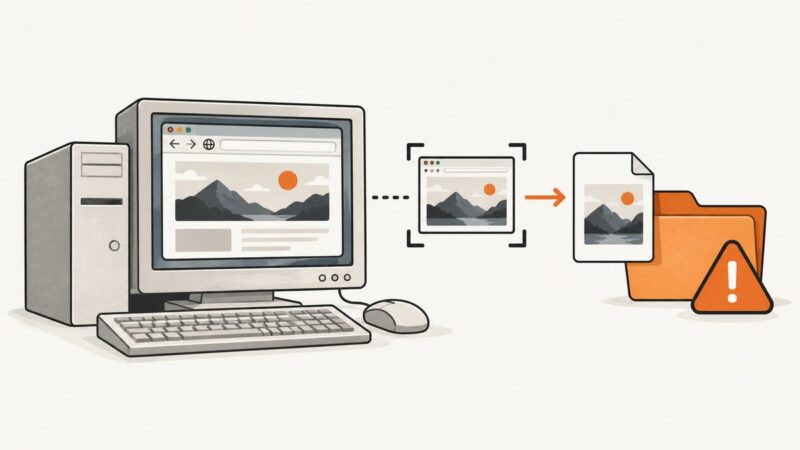
To capture a screenshot of a URL, open the page in Chrome and use DevTools for a one-off area capture, or use browser automation for repeatable captures. With Playwright, navigate to the URL and call page.screenshot(); set fullPage: true for the full scrollable page. For repeat jobs, pick a stable viewport and wait for the page state your capture needs.
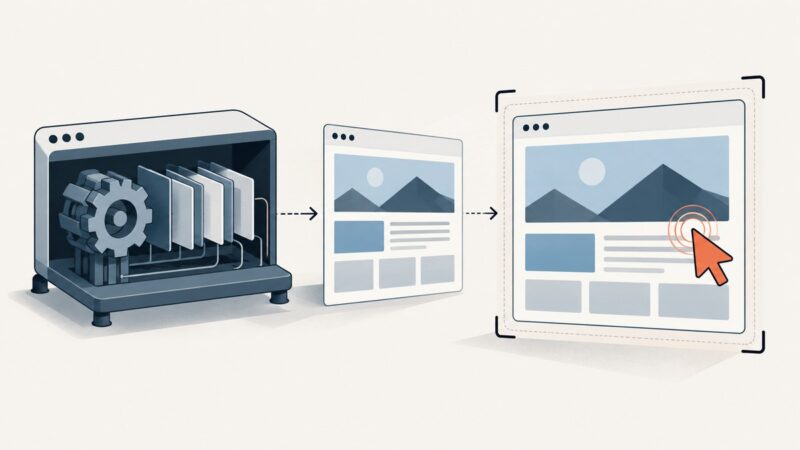
This guide covers manual area capture, runnable Playwright and Puppeteer scripts, the Playwright CLI, viewport versus full-page versus element captures, output choices, dynamic content, and troubleshooting. If you want a hosted API instead of maintaining browser setup, ScreenshotNeo captures a URL with one GET request.
1. Choose the capture method and scope
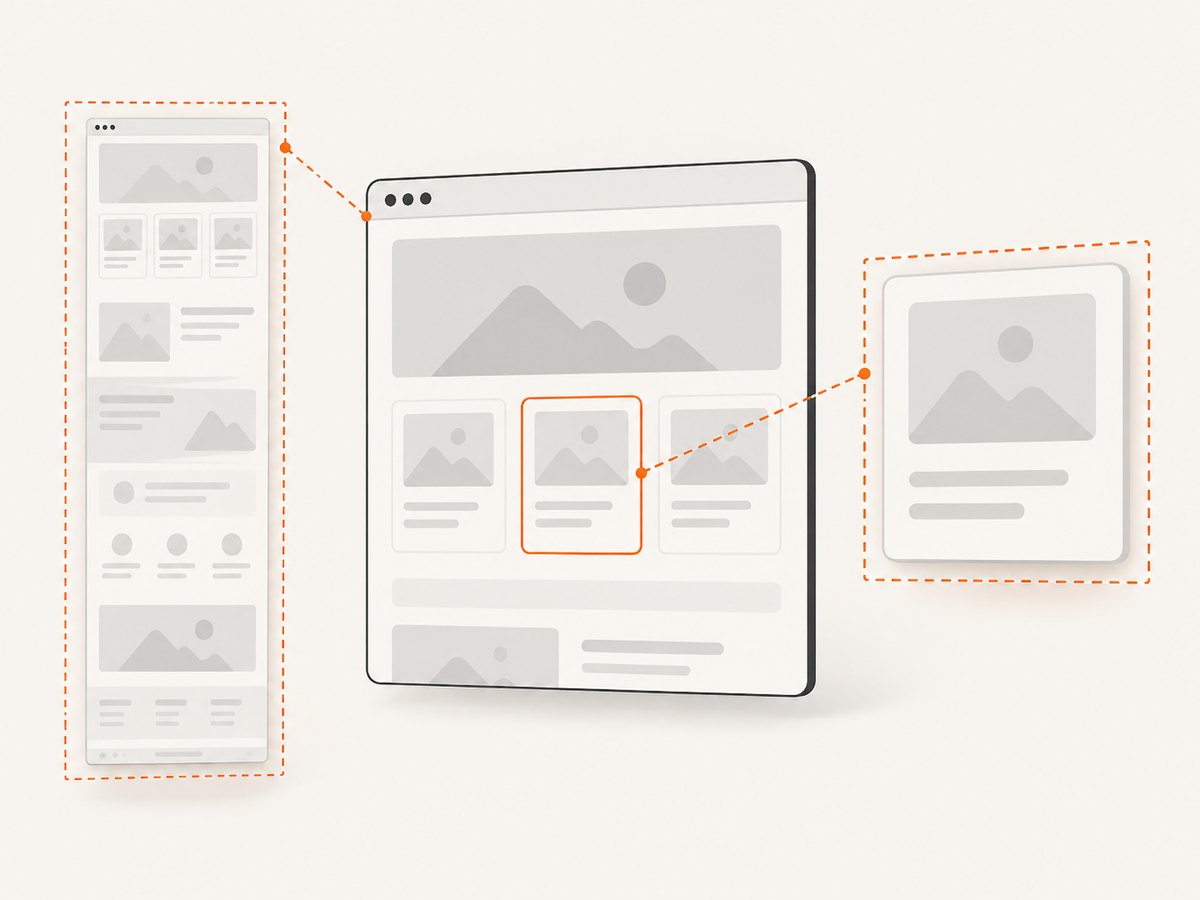
First decide whether this is a one-time capture or a repeatable task. Then decide how much of the page belongs in the image.
| Scope | What it captures | Use it for |
|---|---|---|
| Viewport | The visible browser viewport | What a visitor sees without scrolling |
| Full page | The full scrollable document | Long-page reviews, archived visuals, and page-level comparisons |
| Element | A selected DOM element | A chart, card, hero, or other specific component |
| Area | A manually selected region | A quick one-off capture when you can see the page |
A screenshot records the rendered page at the time it is taken. It is visual evidence: useful for layout, canvas and chart output, and documenting a visual bug. If you need to read the page’s text or understand its structure, use an accessibility snapshot or DOM inspection instead of treating pixels as structured data.
2. Capture an area in Chrome DevTools
- Open the exact URL in Chrome and wait until the region you need is visible.
- Open DevTools. Keep it docked in the browser window; Chrome’s documented area-capture workflow does not work while DevTools is undocked.
- Open the DevTools Command Menu, type
screenshot, and select Capture area screenshot. - Drag over the part of the page to capture. Save the image when prompted.
This method is convenient when you need a single visible area and do not need to repeat the job. For a full-page capture or a repeatable URL workflow, use a script or the Playwright CLI. The documented area workflow does not establish one universal shortcut or manual full-page procedure across browser versions.
3. Capture a URL with Playwright
Playwright can navigate to a URL and save a viewport screenshot, a full-page image, a clipped region, or a selected element. Its screenshot API supports file or buffer output, image type and quality controls, and masking selected locators. Install Playwright and its Chromium browser in your project:
npm init -y
npm install playwright
npx playwright install chromium
Save the following as capture.mjs. It accepts the URL as an argument and writes a PNG. The default captures the viewport; pass --full for a full-page image.
import { chromium } from 'playwright';

const input = process.argv[2];
if (!input) throw new Error('Usage: node capture.mjs <url> [--full]');
const url = new URL(input);
const fullPage = process.argv.includes('--full');
const browser = await chromium.launch({ headless: true });
try {
  const page = await browser.newPage({ viewport: { width: 1440, height: 900 } });
  await page.goto(url.href, { waitUntil: 'load', timeout: 60_000 });
  await page.screenshot({ path: 'capture.png', fullPage });
} finally {
  await browser.close();
}
Run it with:
node capture.mjs https://example.com
node capture.mjs https://example.com --full
The navigation wait here means the page’s load event fired; it does not prove that every application has finished rendering. For a page with a known readiness signal, wait for it explicitly before the screenshot:
await page.goto(url.href, { waitUntil: 'domcontentloaded' });
await page.locator('[data-ready="true"]').waitFor({ state: 'visible', timeout: 15_000 });
await page.screenshot({ path: 'ready.png', fullPage: true });
Replace the example selector with one that actually indicates readiness on your target page. If you do not control the page, inspect the output and adjust the wait strategy; there is no generic delay that guarantees every dynamic page is ready.
Element, clip, and output options
For an element image, locate the element and ask it to take its own screenshot:
const chart = page.locator('#chart');
await chart.screenshot({ path: 'chart.png' });
For a fixed viewport region, use a clip rectangle in CSS pixels:
await page.screenshot({
  path: 'region.png',
  clip: { x: 100, y: 120, width: 640, height: 360 }
});
Choose the image format deliberately. PNG is a lossless default for sharp interface details. JPEG can reduce file size for photographic pages; set a quality value when using that format. WebP is also available in Playwright’s screenshot options. A buffer is useful when another part of your program will upload or transform the image instead of writing it directly to disk:
const image = await page.screenshot({ type: 'jpeg', quality: 80 });Playwright also supports masking selected locators in a screenshot. Use that for regions you deliberately want obscured, then inspect the resulting image to confirm personal data or account details are not visible elsewhere.
4. Capture with Puppeteer
Puppeteer offers a similar browser automation flow. Install it and its browser, then save this as capture.cjs:
npm install puppeteerconst puppeteer = require('puppeteer');
(async () => {
const url = process.argv[2];
if (!url) throw new Error('Usage: node capture.cjs <url> [--full]');
new URL(url); // Reject malformed URLs before launching a browser.
const fullPage = process.argv.includes('--full');
const browser = await puppeteer.launch({ headless: true });
try {
const page = await browser.newPage();
await page.setViewport({ width: 1440, height: 900 });
await page.goto(url, { waitUntil: 'networkidle2', timeout: 60_000 });
await page.screenshot({ path: 'capture.png', fullPage });
} finally {
await browser.close();
}
})();Run node capture.cjs https://example.com for a viewport capture or append --full for the full page. Puppeteer’s guide demonstrates waiting for networkidle2. That is an example, not a guarantee that a site with polling, streaming, delayed rendering, or lazy images has reached the state you need. Where possible, wait for a specific element or application state, and review the saved file.
For an element screenshot, wait for the target and capture its bounding box through Puppeteer’s element handle, or use the API’s element screenshot support for your installed version. Keep the selector specific: a broad selector can match multiple elements or a hidden template. Check the installed Puppeteer documentation when relying on version-sensitive options.
5. Use the Playwright CLI
If you prefer a command over a script, Playwright CLI supports URL capture, a custom output filename, full-page capture, and PNG, JPEG, or WebP output. Check the options provided by your installed version with its help command, since CLI flags can change. A typical command is:
npx playwright screenshot --full-page --browser chromium https://example.com full-page.pngUse CLI capture for a quick repeatable command in a shell script. Use the API when you need conditional waits, custom page state, element selection, or application logic. Playwright’s high-resolution CLI capture accounts for device pixel ratio and can make text more legible in design review. The resulting image pixels then no longer line up one-to-one with mouse command CSS-pixel coordinates, so account for the scale if you combine screenshots with scripted clicking.
6. Make captures consistent and complete
- Check the destination. Confirm redirects, authentication, and consent state lead to the intended page. A successful navigation to a login or error page is still a successful browser navigation.
- Set a repeatable viewport. Use the same width and height for comparisons. Keep browser engine and device scale consistent too; responsive breakpoints and text rendering can change the result.
- Wait for the state you need. For applications you control, wait for a readiness selector or state. For third-party pages, inspect whether fonts, images, charts, and late content appear in the capture.
- Choose viewport or full page intentionally. Full-page mode captures a tall document, but very long pages can create large images. Use element capture when only one component matters.
- Check lazy-loaded content. Content that loads only as the user scrolls may not exist at capture time. A full-page option does not promise that every site’s lazy content has loaded; scroll or trigger the relevant state before capture, then verify.
- Review privacy before sharing. Browser screenshots can contain account data, private messages, or identifiers. Mask or remove sensitive regions and inspect the final file.
7. Or skip the browser setup
For a hosted URL capture, ScreenshotNeo accepts a GET request and returns a PNG, JPEG, WebP, or PDF. The API can also capture a full page or one CSS-selected element, set a viewport or device preset, wait for a selector, delay, or network idle, and set custom headers, cookies, or an authorization value. See the ScreenshotNeo API documentation for request options.

cURL:
curl -G "https://api.screenshotneo.com/v1/shot" -d access_key=YOUR_API_KEY --data-urlencode url=https://example.com -o shot.webpPython:
import requests

r = requests.get(
    "https://api.screenshotneo.com/v1/shot",
    params={"access_key": "YOUR_API_KEY", "url": "https://example.com"},
    timeout=90,
)
r.raise_for_status()
open("shot.webp", "wb").write(r.content)
Node.js:
const q = new URLSearchParams({ access_key: 'YOUR_API_KEY', url: 'https://example.com' });
const res = await fetch(`https://api.screenshotneo.com/v1/shot?${q}`);
if (!res.ok) throw new Error(`Screenshot request failed: ${res.status}`);
await Bun.write('shot.webp', res);
In Node.js environments without Bun, save the response body using the runtime’s file API. Keep the access key out of public client code. ScreenshotNeo accepts cookie and consent banners like a visitor and removes more than 60 known consent platforms, newsletter popups, and chat widgets before capture; each step can be turned off. Bot checks or CAPTCHAs, blank pages, timeouts, failed loads, and cache hits are not billed; response headers identify the page verdict and billing outcome. Its MCP server offers take_screenshot, get_page_info, and capture_pdf for Claude, Cursor, and other MCP clients. The free plan includes 1,000 shots a month with no card; paid plans start at $5 for 3,000 shots. Create a free ScreenshotNeo account to get started.
8. Troubleshooting
| Symptom | Likely cause | What to do |
|---|---|---|
| Chrome area capture is unavailable | DevTools is undocked, or the command was not selected from the Command Menu. | Dock DevTools, reopen the menu, search for “screenshot,” and choose “Capture area screenshot.” |
| Screenshot is blank or shows an error page | The URL redirected, access was denied, or the page failed before rendering. | Open the same URL in a browser, inspect the final destination and access requirements, and capture only after confirming the intended page loaded. |
| Some content is missing | Capture occurred before client rendering, images, fonts, or lazy content were ready. | Wait for a relevant selector or state, scroll to trigger lazy loading if needed, and inspect the new image. Avoid assuming a fixed delay works universally. |
| Navigation times out | The site is slow, keeps connections open, or does not reach the selected wait condition. | Use a bounded timeout and a readiness condition that matches the content you need. A looser navigation event may help, but take the screenshot only after confirming the page state. |
| Element screenshot fails or captures the wrong item | The selector is absent, ambiguous, hidden, or matches a template. | Use a unique selector, wait for it to be visible, and confirm the element’s dimensions before capture. |
| Image is huge or hard to share | Full-page capture, a high device scale, or a large image format created more pixels than needed. | Capture a viewport or element, lower the scale where supported, or choose JPEG/WebP when lossy output is acceptable. |
| Mouse coordinates do not match a high-resolution screenshot | The capture uses device-pixel-ratio scaling while mouse commands use CSS pixels. | Convert coordinates using the scale factor or use a standard-resolution capture for coordinate-aligned automation. |
| Private information appears in the image | The rendered page contained account or user data. | Mask sensitive locators where supported, capture a safe test account, and inspect the saved image before sharing. |
9. Performance, reliability, and cost
Local browser automation has a setup cost: your environment must have a compatible browser, and your job must launch and manage it. For repeated captures, reuse a browser process where your workload and isolation needs permit, while creating a fresh page or context for each job as appropriate. Keep navigation and readiness waits bounded so one stalled page does not hold a batch indefinitely.
Large full-page images take more time and storage to write or transfer than a viewport or element image. Use the smallest capture scope and output quality that answers the task. For visual comparisons, standardize viewport, browser, device scale, URL state, and timing. Capture results can still vary when the page itself changes or depends on external content.
Playwright and Puppeteer are software libraries; the supplied research does not establish a price or comparative speed for them. Local cost depends on the machine and operating environment running the browser. ScreenshotNeo pricing is Free for 1,000 shots a month, Starter $5 for 3,000, Growth $15 for 15,000, Pro $39 for 60,000, Scale $99 for 250,000, and Business $249 for 1,000,000; yearly billing gives two months free. Every feature is on every plan. Only clean shots are billed, and cache hits are free.
10. Frequently asked questions
How do I take a screenshot of a webpage without installing a library?
For a one-off area, use Chrome DevTools’ Command Menu and choose “Capture area screenshot.” If you need automated or full-page captures without managing a browser, use a hosted screenshot API.
Can I capture a URL automatically?
Yes. A browser automation script can navigate to a URL and save an image. A screenshot API can do the capture through an HTTP request. In either case, verify redirects and readiness for the target page.
How do I screenshot only one part of a page?
Use Chrome’s area selection for a manual rectangle, a Playwright clip rectangle for fixed coordinates, or an element screenshot for a DOM element selected by CSS.
Is a full-page screenshot the same as a stitched scrolling capture?
It represents the full scrollable page as a tall image. The page’s lazy content and fixed-position elements can affect what appears, so review the resulting image rather than assuming it matches a visitor’s scrolling experience exactly.
Should I use a screenshot to extract text?
Usually no. Screenshots preserve visual appearance; use the DOM or an accessibility snapshot when the goal is to read text or inspect page structure.