How to Capture a Screenshot from a YouTube Video
Pause the video, hide controls, and capture a clean frame on Windows, Mac, iPhone, Android, or Chromebook—with fixes for blur, black screens, and overlays.

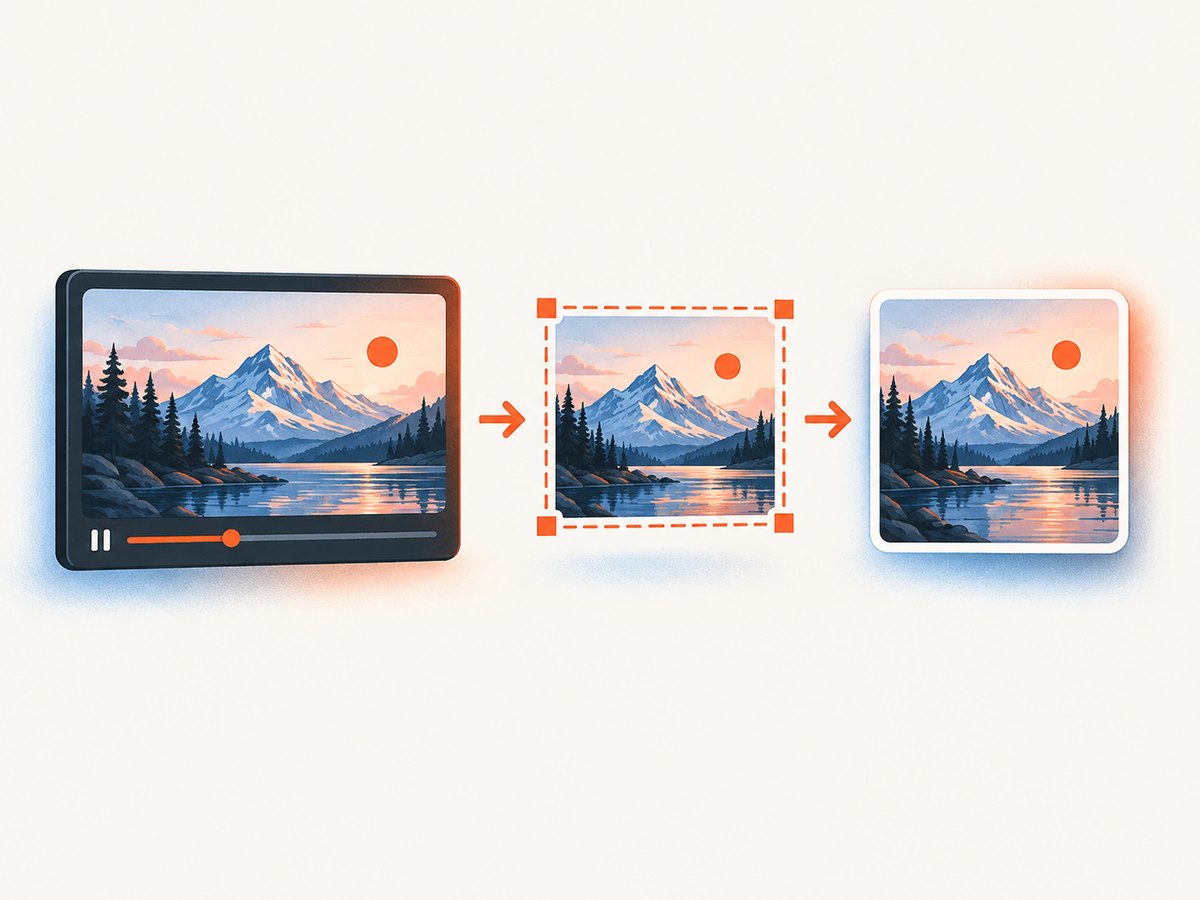
The quickest reliable way to capture a screenshot from a YouTube video is to pause at the moment you need, enlarge the player, move the pointer away until the controls disappear, then use your device’s region screenshot tool. Crop the result and save it as PNG or JPEG.
This captures the frame as it is rendered on your screen. It does not recover a higher-resolution source frame than the player displays, and it may include subtitles, black bars, or overlays if you capture too soon.
Universal five-step method
- Open the YouTube video and move the playhead close to the moment you want.
- Pause the video. Use the left and right arrow keys for small adjustments where your player supports them.
- Expand the player or enter full screen if that makes the image larger.
- Move the pointer outside the video and wait for the timeline, play button, and title overlays to fade.
- Capture only the video rectangle, crop any unwanted borders, and save the image.
Use a regional capture rather than a full-screen capture whenever possible. A full-screen image includes browser tabs, toolbars, notifications, and other content that you will have to remove later.
Capture a YouTube screenshot on Windows
Snipping Tool (recommended)
- Pause the video at the target frame.
- Press Windows logo key + Shift + S. Windows opens the Snipping Tool capture overlay.
- Choose rectangular snip if another mode is selected.
- Drag around the video image and release.
- Select the notification to edit the snip, or open Snipping Tool from the taskbar notification.
- Press Ctrl + C to copy it, or Ctrl + S to save it.
Microsoft documents rectangular, window, full-screen, and freeform captures, plus a delay option from one to five seconds. A delay helps when controls need extra time to disappear. See the Microsoft Snipping Tool instructions.
Other Windows shortcuts
| Shortcut | Typical result | Use it when |
|---|---|---|
| Print Screen | Copies the screen or opens capture controls, depending on configuration | You want a full-screen image or clipboard copy |
| Alt + Print Screen | Captures the active window on many installations | You need the browser window, then plan to crop |
| Windows + Print Screen | Usually saves a full-screen image automatically | You need a quick reference image |
Windows + Shift + R is for a video snip (screen recording), not a still screenshot.
Capture a YouTube screenshot on Mac
Select only the video area
- Pause the video and hide the controls.
- Press Shift + Command + 4.
- Drag around the video frame and release.
- Find the saved image on the desktop by default, unless you changed the screenshot destination.
Use the screenshot control panel
- Press Shift + Command + 5.
- Choose capture of the entire screen, a window, or a selected portion. Do not choose a recording mode for a still image.
- Select the video area and capture.
Apple’s screenshot guide describes these controls. Enter full screen only when it increases the displayed video size. Move the pointer to a corner before capturing.
Capture a YouTube screenshot on iPhone or iPad
The button combination depends on the hardware:
- Face ID models: press the Side button and Volume Up together.
- Home-button models: press the Side or Top button and Home together.
Pause first, rotate to landscape if it gives you a larger frame, and wait for the controls to fade. Tap the thumbnail that appears to crop or mark up the image. Button locations and behavior vary by model, so use the shortcut that matches your device.
Capture a YouTube screenshot on Android
- Pause the video and wait for controls to disappear.
- Press Power + Volume Down at the same time.
- Tap the preview to crop, edit, save, or share.
Google lists this as the common Android method, but manufacturers can add alternatives. Holding the Power button may show a Screenshot option, and some phones offer a three-finger gesture. If the shortcut fails, check your phone manufacturer’s support instructions. Avoid tapping the player immediately before the capture because that can bring the controls back.
Capture a YouTube screenshot on Chromebook
- Full screen: press Ctrl + Show Windows. On some external keyboards, Google documents Ctrl + F5 as the equivalent.
- Partial capture or capture menu: press Shift + Ctrl + Show Windows, then drag around the video.
Chromebook screenshots are saved in the Downloads folder by default and copied to the clipboard. See Google’s guides for full-screen screenshots and partial captures.
How to capture a clean frame without YouTube controls
- Pause once; do not repeatedly click the player.
- Move the pointer to the browser toolbar or a screen edge.
- Wait several seconds for the title, play icon, timeline, and hover controls to time out.
- Use full screen if it produces a larger image.
- Capture a slightly larger rectangle than you need and crop precisely afterward.
- Disable captions if they are not part of your intended image. Captions are visible pixels and will appear in a screenshot.
- Crop letterboxing only when the black bars come from the player layout. Keep them when they are part of the original video composition.
If controls refuse to disappear, use a one-to-five-second delayed capture on Windows, or open the macOS screenshot panel before pausing and then select the region after the controls fade.
How to get the highest-quality screenshot
- Set YouTube to the highest playback quality available to you.
- Make the player as large as practical before capturing.
- Capture at the displayed native size instead of enlarging a tiny screenshot later.
- Use PNG for diagrams, text, and interface imagery. Use JPEG when a smaller file matters and mild compression is acceptable.
- Avoid browser zoom that resamples the video or cuts off part of the player.
- Check the source video itself. A low-resolution upload cannot produce a detailed screenshot simply by being displayed full screen.
A screen capture records the composited display. It can include scaling artifacts, subtitles, controls, and cursor pixels. It cannot contain more detail than the rendered frame.
Screen capture versus exact frame extraction
Screen capture is best for a quick reference, a presentation note, or sharing a visible moment. It requires no extra software and works on nearly every device, but it depends on display resolution and can include overlays.
Frame extraction works from a local video file and is better for editors, researchers, repeated captures, or exact frame numbers. A media player such as VLC can take snapshots from a video file that you own, are licensed to use, or obtained lawfully. This is a separate workflow from screenshotting YouTube playback; do not treat it as a general YouTube-download method.
Why the screenshot contains a play button or timeline
| Cause | Fix |
|---|---|
| You clicked or tapped immediately before capture | Pause, stop interacting with the player, and wait |
| The pointer is still over the video | Move it to the toolbar or screen edge |
| Controls have not timed out | Wait longer or use a delayed capture |
| The screenshot shortcut changed focus | Use a keyboard shortcut after pausing, or capture a slightly larger region and crop |
| The video was not fully paused | Pause again and confirm the frame is stable |
Why the screenshot is black, blank, or blurry
Black or blank output
- Try a rectangular region capture instead of a window capture.
- Try another browser.
- Toggle the browser’s hardware-acceleration setting, restart the browser, and test again.
- Use the operating system’s built-in screenshot utility rather than an extension.
- Try full-screen playback.
- Test a local video or another site to determine whether the problem is general rendering.
Protected playback can deliberately prevent capture or produce a blank result. Treat that as a restriction; do not try to bypass it. A black screenshot alone does not prove that YouTube blocked the capture.
Blurry output
- Increase the player size and playback quality.
- Capture the video rectangle at its native display size.
- Do not upscale a small region afterward.
- Check whether motion blur is present in the original frame.
The frame changes while the capture tool opens
Pause before invoking the shortcut and avoid clicking the player. If timing is still difficult, use a short screen recording only for content you own or are authorized to record, then select a still from that recording.
Browser extensions and one-click frame tools
Built-in tools are enough for most one-off screenshots. If you capture YouTube frames frequently, a browser extension may offer a button that saves the current frame or copies it to the clipboard. For example, the Chrome Web Store lists Screenshot YouTube with that type of workflow.
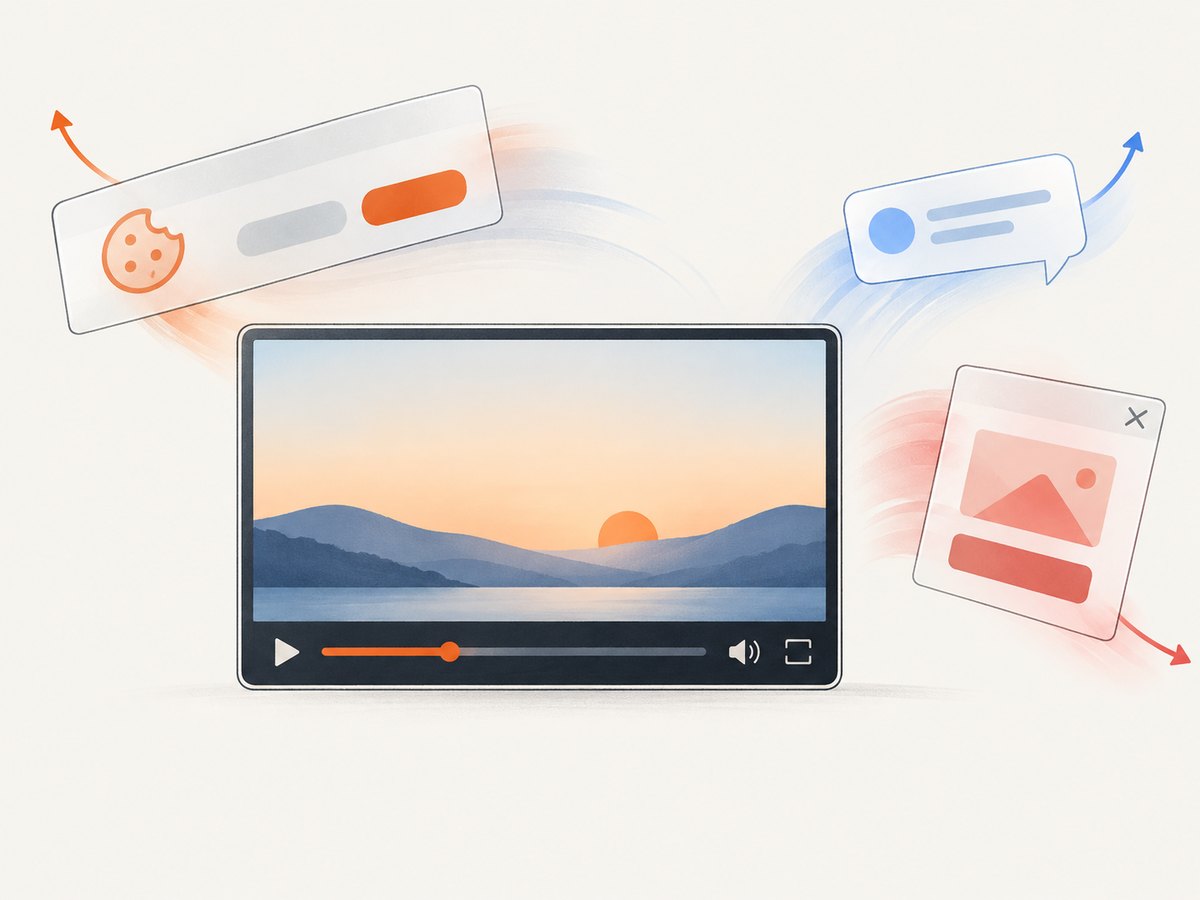
Availability, permissions, compatibility, update history, privacy practices, and pricing can change. Before installing, check the publisher, requested permissions, recent reviews, update date, and privacy policy. An extension may remove controls more conveniently, but it does not automatically recover more detail than a native screenshot.
Or skip the browser setup
ScreenshotNeo is a website screenshot API and MCP server. It captures a rendered URL as PNG, JPEG, WebP, or PDF, so it is useful when you need an automated image of a YouTube page or another web page. For an exact video source frame, use the device or authorized local-file workflow above.
Use the API documented at ScreenshotNeo’s API documentation:
curl -G "https://api.screenshotneo.com/v1/shot" -d access_key=YOUR_API_KEY --data-urlencode url=https://www.youtube.com/watch?v=VIDEO_ID -o shot.webpimport requests
r = requests.get(
"https://api.screenshotneo.com/v1/shot",
params={"access_key": "YOUR_API_KEY", "url": "https://www.youtube.com/watch?v=VIDEO_ID"},
timeout=90,
)
r.raise_for_status()
open("shot.webp", "wb").write(r.content)const q = new URLSearchParams({
access_key: 'YOUR_API_KEY',
url: 'https://www.youtube.com/watch?v=VIDEO_ID'
});
const res = await fetch(`https://api.screenshotneo.com/v1/shot?${q}`);
if (!res.ok) throw new Error(`HTTP ${res.status}`);
const data = Buffer.from(await res.arrayBuffer());
require('fs').writeFileSync('shot.webp', data);ScreenshotNeo removes cookie and consent banners, newsletter popups, and chat widgets before capture. Bot checks, blank pages, timeouts, failed loads, and cache hits are not billed, and the response identifies the result with X-Page-Verdict and X-Billed headers. Its MCP server provides take_screenshot, get_page_info, and capture_pdf tools for Claude, Cursor, and other MCP clients. You get 1,000 screenshots a month free with no card; paid plans start at $5 for 3,000 shots. Create a free ScreenshotNeo account.
Copyright and reuse
Saving a screenshot for private reference is different from publishing or selling it. YouTube explains that original videos are generally protected by copyright and that owners control copying and distribution (copyright basics). Possible lawful bases include permission, a Creative Commons license, public-domain status, or a copyright exception.
For U.S. readers, YouTube describes fair use as potentially covering criticism, commentary, research, teaching, or news reporting, while emphasizing that courts decide cases individually. Purpose, nature of the work, amount used, and market effect are relevant factors (fair-use guidance). Giving credit alone does not create permission, and “educational” does not automatically make reuse lawful. A frame can also contain separately protected music, artwork, logos, faces, or subtitles.
Practical checklist
- Pause on the intended moment.
- Choose the highest available playback quality.
- Enlarge the player or use full screen.
- Move the pointer away and wait for overlays to fade.
- Capture the video region, not the whole desktop.
- Crop bars, controls, and browser chrome.
- Save PNG for text or JPEG for smaller files.
- Keep rights and permission in mind before publishing.
FAQ
Can I capture a YouTube frame without downloading the video?
Yes. Pause playback and use your operating system’s region screenshot tool. This is the simplest method for a single frame.
Does a screenshot contain the original video quality?
It contains the detail rendered at your display size. A screen capture cannot exceed the resolution shown by the player.
Why do subtitles appear in my image?
Subtitles are part of the visible display. Turn captions off before capturing if you need a clean image, or keep them when they are part of the context.
Is an extension required?
No. Windows, macOS, Android, iPhone, iPad, and Chromebook all provide built-in capture tools. Extensions are optional conveniences for frequent use.
Can I publish any YouTube screenshot if I credit the channel?
No. Attribution alone is not permission. Check licensing, obtain permission, or assess a relevant copyright exception for your situation.


