How to Capture Website Screenshots With the ApiFlash API
Capture website screenshots with ApiFlash using full-page, viewport, wait, authentication, and output options, with runnable examples and fixes for common errors.
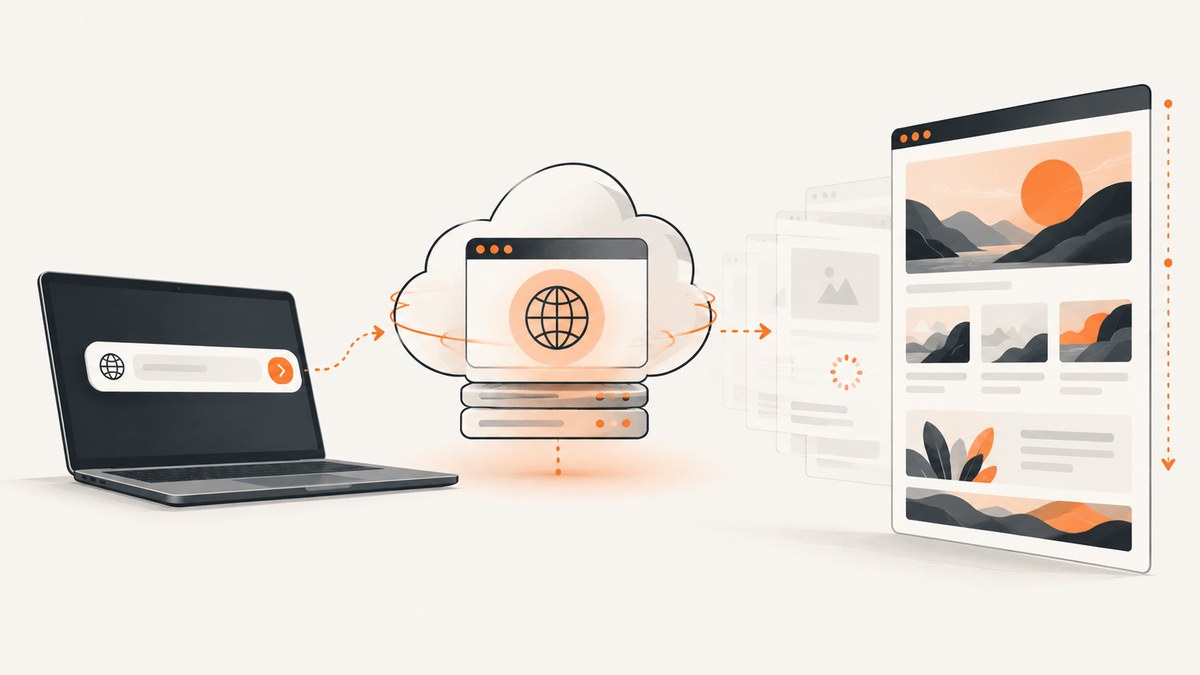
ApiFlash captures a webpage by rendering a supplied URL in a browser and returning screenshot bytes or, optionally, a JSON response with generated links. Send an HTTPS GET or POST request to https://api.apiflash.com/v1/urltoimage with a valid access_key and a complete target URL. Add options such as full_page=true, wait_until, format, or authentication headers to control the result. Keep the API key on a server you control; never put it in browser JavaScript or a public image URL.
This guide covers the ApiFlash request flow, complete examples, capture parameters, dynamic and authenticated pages, output handling, errors, and operational considerations. The parameter names and limits below follow the supplied ApiFlash documentation dossier; verify current behavior against the vendor’s API documentation before deploying, since API limits and plan features can change.
1. Make your first ApiFlash request
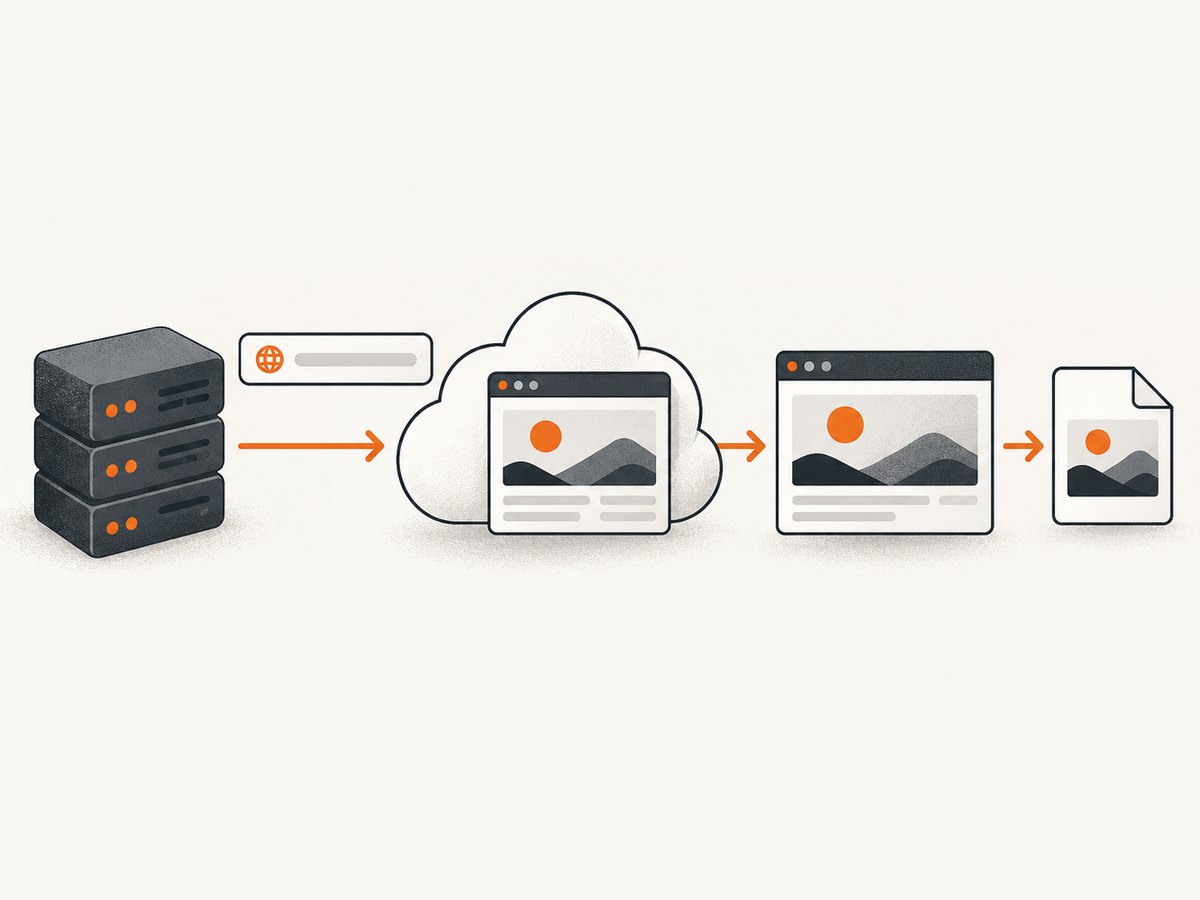
The endpoint accepts GET query parameters or POST form data. For the simplest capture, use GET and save the response body as an image. Replace the placeholder key and target URL with your own. Include http:// or https:// in the URL.
curl --fail --show-error --silent \
  --get 'https://api.apiflash.com/v1/urltoimage' \
  --data-urlencode 'access_key=YOUR_ACCESS_KEY' \
  --data-urlencode 'url=https://example.com' \
  --output screenshot.jpeg
--data-urlencode safely encodes the query values, which matters for URLs containing ampersands, spaces, or other reserved characters. The default response is the screenshot itself, with an appropriate content type and content length. The extension in your output filename does not convert formats; request the desired format explicitly when necessary.
Keep the key private
Store the access key in a server-side environment variable or secret manager. If your application exposes a screenshot feature to end users, route requests through your own backend. Validate the destination URL against an allowlist or other policy appropriate to your service, and rate-limit your public route. ApiFlash’s Nginx guide demonstrates putting the key at a proxy, restricting target URLs, and applying rate limits. This also reduces the chance that someone can use your key to capture arbitrary internal or sensitive destinations.
2. Choose viewport, page length, and image format
Set width and height to choose the browser viewport. ApiFlash documents defaults of 1920 by 1080, subject to pixel limits. For a full-page screenshot, set full_page=true; in that mode, height is ignored. The element option captures the first page element matching a CSS selector, but it is ignored when full-page mode is active.
Choose format as jpeg, png, or webp. JPEG and WebP support quality; PNG supports transparent when the page body background is transparent. Use scale_factor=2 for higher-definition output, understanding that the resulting image is larger. The API also documents crop in left,top,width,height form and thumbnail_width for a proportional thumbnail.
curl --fail --show-error --silent \
  --get 'https://api.apiflash.com/v1/urltoimage' \
  --data-urlencode 'access_key=YOUR_ACCESS_KEY' \
  --data-urlencode 'url=https://example.com/products' \
  --data-urlencode 'width=1440' \
  --data-urlencode 'height=1000' \
  --data-urlencode 'format=webp' \
  --data-urlencode 'quality=85' \
  --data-urlencode 'scale_factor=2' \
  --output products.webp
For a full-page capture, add --data-urlencode 'full_page=true' and omit the expectation that a chosen height will constrain the output. For an element capture, use a URL-encoded selector, for example --data-urlencode 'element=main article'; inspect selector uniqueness because only the first match is captured. Do not combine element capture and full-page mode expecting the element option to take effect.
| Need | Parameter | Practical note |
|---|---|---|
| Entire document | full_page=true |
height is ignored. |
| Specific viewport | width, height |
Defaults are documented as 1920 × 1080; pixel limits apply. |
| Single page element | element |
First CSS selector match; ignored with full-page capture. |
| Sharper output | scale_factor=2 |
Higher definition increases image size. |
| Image encoding | format, quality |
JPEG/WebP accept quality; PNG can be transparent where page background permits. |
| Crop or preview | crop, thumbnail_width |
Crop uses left,top,width,height; thumbnail preserves proportions. |
3. Wait for JavaScript-rendered content
Modern pages can show an initial shell before their useful content appears. ApiFlash documents wait_until values dom_loaded, page_loaded, and network_idle; the documented default is network_idle. Set wait_until_timeout from 1 to 30 seconds to bound that wait. If a specific component signals readiness, use wait_for with its CSS selector; the documented selector wait aborts after 15 seconds if there is no match.

curl --fail --show-error --silent \
  --get 'https://api.apiflash.com/v1/urltoimage' \
  --data-urlencode 'access_key=YOUR_ACCESS_KEY' \
  --data-urlencode 'url=https://example.com/dashboard' \
  --data-urlencode 'wait_until=page_loaded' \
  --data-urlencode 'wait_until_timeout=25' \
  --data-urlencode 'wait_for=#dashboard-ready' \
  --output dashboard.jpeg
Prefer a meaningful selector or a suitable lifecycle state over a fixed delay when possible: it ties capture to a page condition rather than an arbitrary amount of elapsed time. A selector must actually appear on the page, and it may not indicate that every late-loading image or third-party widget has finished. For long-lived connections or pages with continuous network activity, network_idle can be a poor fit; try a bounded timeout and a page-specific readiness selector. ApiFlash also accepts a delay option, but the dossier does not specify its range, so check current docs before relying on one.
4. Python and Node.js examples
These examples request the default image response and write the response bytes to disk. They use URL parameter encoding through the HTTP library rather than assembling a query string by hand. In production, load the key from a server-side secret, check the HTTP status, and handle network timeouts and non-image error bodies before treating a response as a screenshot.
Python
import os
import requests

endpoint = "https://api.apiflash.com/v1/urltoimage"
params = {
    "access_key": os.environ["APIFLASH_ACCESS_KEY"],
    "url": "https://example.com",
    "full_page": "true",
    "format": "png",
    "wait_until": "page_loaded",
}
response = requests.get(endpoint, params=params, timeout=60)
response.raise_for_status()

content_type = response.headers.get("Content-Type", "")
if not content_type.startswith("image/"):
    raise RuntimeError(f"Expected image response, got {content_type}: {response.text[:500]}")

with open("screenshot.png", "wb") as image_file:
    image_file.write(response.content)
Node.js
const endpoint = 'https://api.apiflash.com/v1/urltoimage';
const params = new URLSearchParams({
  access_key: process.env.APIFLASH_ACCESS_KEY,
  url: 'https://example.com',
  full_page: 'true',
  format: 'png',
  wait_until: 'page_loaded'
});

const response = await fetch(`${endpoint}?${params}`, {
  signal: AbortSignal.timeout(60000)
});
if (!response.ok) {
  const body = await response.text();
  throw new Error(`ApiFlash HTTP ${response.status}: ${body.slice(0, 500)}`);
}
const contentType = response.headers.get('content-type') || '';
if (!contentType.startsWith('image/')) {
  throw new Error(`Expected image response, got ${contentType}`);
}
const bytes = new Uint8Array(await response.arrayBuffer());
await import('node:fs/promises').then(fs => fs.writeFile('screenshot.png', bytes));
These are server-side examples. The key appears in the request URL and can be exposed by browser history, logs, analytics, or referrer handling if used in client code. Do not embed it in a frontend application or a publicly accessible image source.
5. Request JSON, extract content, or store directly
The default response is convenient when your server can stream the screenshot bytes to a file or object store. Set response_type=json when you need an ApiFlash-generated screenshot URL or the extraction links documented for HTML or text. Inspect the actual JSON response shape before consuming fields, and treat returned links as remote resources with their own access and retention behavior.
curl --fail --show-error --silent \
  --get 'https://api.apiflash.com/v1/urltoimage' \
  --data-urlencode 'access_key=YOUR_ACCESS_KEY' \
  --data-urlencode 'url=https://example.com' \
  --data-urlencode 'response_type=json'
ApiFlash also documents parameters for uploading directly to an AWS S3 bucket or compatible endpoint. This can avoid routing the image bytes through your application server. Follow the vendor’s current S3 instructions for credentials and required parameters; the research dossier does not enumerate those parameter names, so they are intentionally not guessed here. Direct-to-storage flows still need controlled credentials, destination permissions, and a retention policy.
6. Capture pages behind login
For a page that requires authentication, the correct mechanism depends on how the site authenticates. The ApiFlash FAQ lists request headers or cookies for passing tokens and session state. A JavaScript-injected login flow is another documented possibility. Use an authorized account and the narrowest possible permissions; session cookies and bearer tokens are credentials.
- For bearer-token or custom-header authentication, send the required header using the documented
headersparameter and encode its value as required. - For an existing browser session, pass the relevant cookie state using
cookies. Confirm domain, path, expiration, and secure-cookie requirements. - If the site requires an interactive login sequence, the FAQ notes JavaScript injection as an option. This is more fragile than passing a supported session credential because login pages can change or require additional checks.
Do not put secrets in a query URL that might be stored in application logs. ApiFlash supports POST form data as well as GET; use the documented POST form where it helps reduce exposure in URL logs, while recognizing that transport and service-side handling still need to be secured. Never attempt to bypass a site’s access controls or capture data you are not permitted to access.
7. Modify pages, remove overlays, and control caching
Use the js parameter to inject JavaScript before capture, URL-encoding the script. This can adjust page state or trigger an application-specific action, though scripts that depend on timing or site internals may break when the page changes. ApiFlash also documents no_cookie_banners, no_ads, and no_tracking for removing common overlays or requests. Review the resulting image and the target site’s requirements; blocking requests can alter page layout or functionality.
By default, the documented screenshot cache TTL is 86,400 seconds (one day), with a maximum of 2,592,000 seconds (30 days). Use the documented cache options when the page is stable and repeated captures should reuse a result. Set fresh=true to bypass a cached screenshot when current content matters. Cache behavior is part of correctness: a dashboard or frequently updated page may need a fresh capture, while a static page can tolerate reuse. The dossier does not specify the exact parameter name for choosing a custom TTL, so confirm that name in the live documentation.
8. Limits, quota, cost, and reliability
ApiFlash documents a leaky-bucket rate limit of 20 requests per second with a burst size of 400. Requests beyond the burst may receive HTTP 429. Successful responses expose X-Quota-Limit, X-Quota-Remaining, and X-Quota-Reset; a quota endpoint is documented at /v1/urltoimage/quota. Check response headers and the quota endpoint rather than assuming a request succeeded just because the connection completed.
The dossier does not include a current ApiFlash price table, so no price or per-plan allowance is stated here. Before launching a high-volume workflow, check the current pricing and plan feature limits directly. Estimate workload using the number of unique captures, retries, freshness requirements, image dimensions, and whether caching can reduce repeated work. Larger or full-page images can take more time and storage even when API billing is based on capture requests.
For reliability, set finite client timeouts, retry only transient failures, and use exponential backoff with jitter for 429 or temporary server errors. Avoid rapid retries of the same failed capture: ApiFlash documents a limit of five identical failed captures per hour. Record status codes, quota headers, target URL identifiers (without secrets), elapsed time, and capture options so failures can be diagnosed. Do not retry 400, 401, 402, or 403 without first changing the request, credentials, quota, or plan condition.
9. Troubleshooting ApiFlash errors
| HTTP status or symptom | Likely cause | What to do |
|---|---|---|
| 400 Bad Request | Invalid parameters or URL cannot be captured. | Check parameter spelling and supported values; provide a complete encoded HTTP(S) URL; verify the target is reachable. |
| 401 Unauthorized | Access key is invalid or revoked. | Check the server-side secret and account key; rotate a revoked key and avoid exposing it in logs. |
| 402 Payment Required | Monthly quota exceeded. | Inspect quota and current plan; reduce duplicate captures through cache reuse or adjust the plan. |
| 403 Forbidden | Requested feature is not supported by the plan. | Check the feature and plan documentation, then use a supported option or plan. |
| 429 Too Many Requests | Rate or burst limit exceeded. | Back off with jitter, cap concurrency, and honor quota/reset information. |
| 500 Internal Server Error | Capture service encountered an internal failure. | Retry cautiously with backoff; avoid exceeding the documented identical-failure limit and log a request identifier if one is returned. |
| Image is blank or missing content | Capture happened before the relevant page state, selector did not identify the intended content, or the target itself rendered blank. | Use wait_for for a readiness selector, adjust lifecycle waiting, and verify the page in a normal browser. |
| Wrong file or corrupt image | An error body or JSON response was saved with an image extension. | Check HTTP status and Content-Type; use response_type=json only when expecting JSON. |
| Authenticated page redirects to login | Header or cookie state was omitted, expired, or scoped incorrectly. | Verify the authorized credential, cookie scope, and authentication method; never paste live secrets into public debugging tools. |
Or skip the browser setup
ScreenshotNeo is a website screenshot API and MCP server. One GET request returns PNG, JPEG, WebP, or PDF; its parameter names used by other screenshot APIs also work, which can make switching easier. For a page capture:
curl -G "https://api.screenshotneo.com/v1/shot" \
  -d access_key=YOUR_API_KEY \
  --data-urlencode url=https://stripe.com \
  -o shot.webp
See the ScreenshotNeo API documentation for request options. Cookie banners, popups, and chat widgets are removed before the shot. Bot checks, blank pages, and failed loads are never billed. Its MCP server lets AI agents take screenshots, and the free plan includes 1,000 screenshots a month with no card; paid plans start at $5 for 3,000. Sign up for ScreenshotNeo and start with 1,000 free screenshots a month, no card required.
Frequently asked questions
Can I make an ApiFlash call with POST instead of GET?
Yes. The supplied documentation says calls can use GET query parameters or POST form data. POST can help keep credentials and structured values out of URL logs, but handle request bodies and secrets securely as well.
Can I capture a single CSS element and the full page together?
No. The documented element option is ignored when full_page=true. Choose the capture mode that matches the output you need.
Why does a capture take longer than a normal page load?
The API must render the page and may wait for network activity, a lifecycle state, or a selector. Third-party resources and complex pages can extend rendering time; choose a suitable bounded wait condition rather than adding an unnecessarily long fixed delay.
Can I expose a capture as an HTML image URL?
ApiFlash can return a generated screenshot URL with response_type=json, according to the dossier. Consider whether the URL is public, how long it remains usable, and whether the captured page contains private data before embedding or sharing it.
Capture checklist
- Use the documented endpoint, a valid server-side key, and a complete encoded URL.
- Choose viewport or full-page mode, output format, and any crop or element behavior deliberately.
- Wait for a meaningful lifecycle state or page selector when content is dynamic.
- For private pages, send authorized and current session state without exposing credentials.
- Check status, content type, response headers, and quota before storing the result.
- Use caching for repeatable static pages, fresh captures for changing pages, and backoff for transient errors.
For the current supported parameters, quota details, and plan-specific behavior, consult the ApiFlash documentation and FAQ before building a production integration.


