How to Capture Screenshots from a Browser Control
Learn how to capture viewport, element, and full-page screenshots with Playwright, MCP, and Chrome DevTools Protocol, plus a hosted API option.
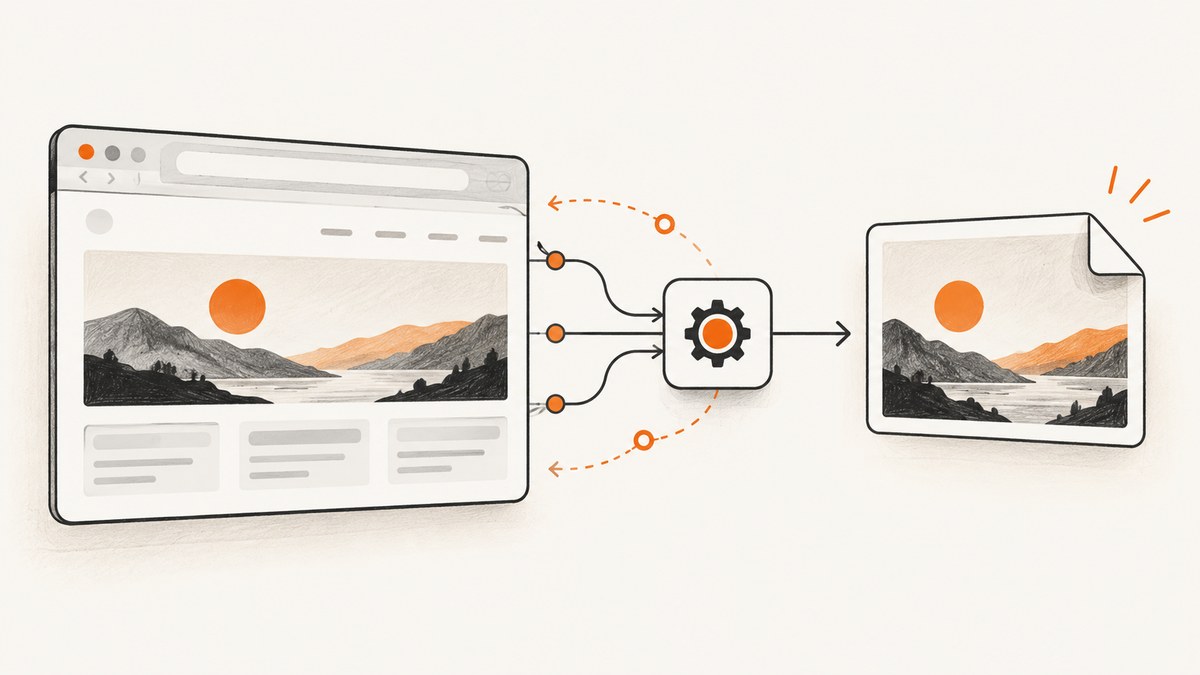
Direct answer: once your browser automation has navigated to the intended page state, call the framework’s screenshot method. In Playwright, use await page.screenshot({ path: 'screenshot.png' }) for the current viewport, add fullPage: true for the full scrollable page, or call locator.screenshot() for one element.
This guide covers browser-controlled screenshots with Playwright, Playwright MCP, and the Chrome DevTools Protocol (CDP). It explains what each capture mode records, how to wait for dynamic content, how to select formats and scale, how to troubleshoot blank or incomplete images, and when a hosted screenshot API is simpler.
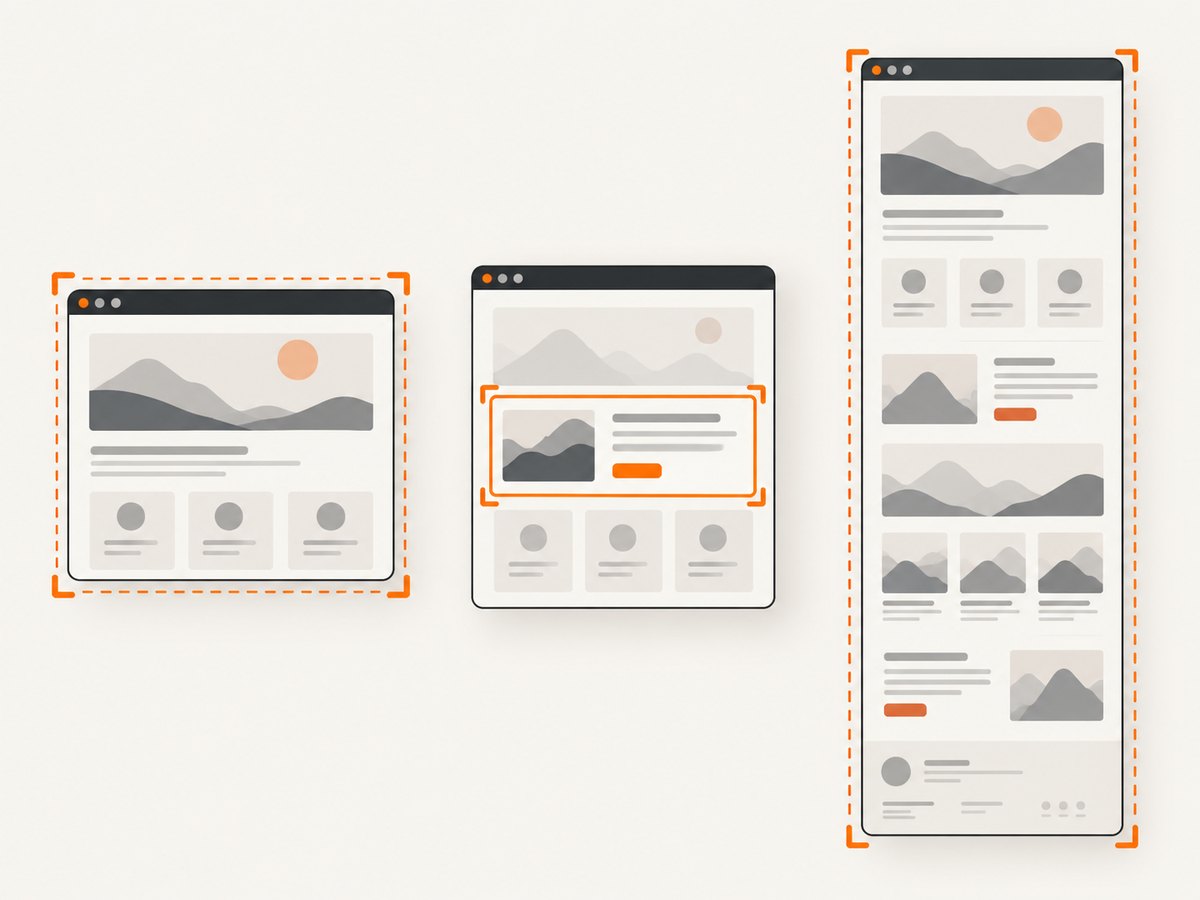
1. Choose the capture scope
| Goal | Method | Result |
|---|---|---|
| Show what a user currently sees | Viewport screenshot | The current browser viewport |
| Document one component | Locator or element screenshot | The selected element’s bounds |
| Include below-the-fold content | Full-page screenshot | The full scrollable page |
| Capture selected coordinates | CDP clip | A rectangle you define |
Use a screenshot for visual evidence. When you need to identify or operate controls, use an accessibility snapshot or a locator. Playwright MCP summarizes this distinction as: “Screenshots are for looking at, not for acting on — use browser_snapshot to get refs to interact with.”
2. Capture a viewport screenshot with Playwright
Install Playwright and a browser, then navigate and capture the page:
npm install playwright
npx playwright install chromium
const { chromium } = require('playwright');
(async () => {
const browser = await chromium.launch();
const page = await browser.newPage({ viewport: { width: 1440, height: 900 } });
await page.goto('https://example.com', { waitUntil: 'domcontentloaded' });
await page.screenshot({ path: 'viewport.png' });
await browser.close();
})();The screenshot is written to viewport.png. If you need the bytes instead of a file, omit path; Playwright returns a buffer:
const image = await page.screenshot({ type: 'png' });
require('fs').writeFileSync('viewport.png', image);
3. Capture the full scrollable page
await page.goto('https://example.com', { waitUntil: 'networkidle' });
await page.screenshot({ path: 'full-page.png', fullPage: true });
Full-page capture is useful for documentation and visual regression checks. Long pages can create large images, and pages that continuously load content may never reach a stable state. For those pages, wait for a meaningful selector or use a bounded delay instead of relying only on network idle.
4. Capture one element
const card = page.locator('.pricing-card').first();
await card.waitFor({ state: 'visible' });
await card.screenshot({ path: 'pricing-card.png' });
Locator screenshots are generally more robust than hard-coded coordinates because the element can move as the layout changes. Make sure the locator identifies exactly one intended element and that it is visible.
5. Control output format, quality, and scale
await page.screenshot({ path: 'shot.webp', type: 'webp', quality: 82 });
await page.screenshot({ path: 'shot.jpg', type: 'jpeg', quality: 85 });
await page.screenshot({ path: 'shot.png', type: 'png' });
Use PNG for lossless text and interface details, JPEG for photographic pages, and WebP when supported by your delivery pipeline. Playwright MCP supports PNG, JPEG, and WebP. Its screenshot tool can use CSS-pixel or device-pixel scaling and infers the type from a filename extension when possible; otherwise it defaults to PNG.
6. Make the page ready before capture
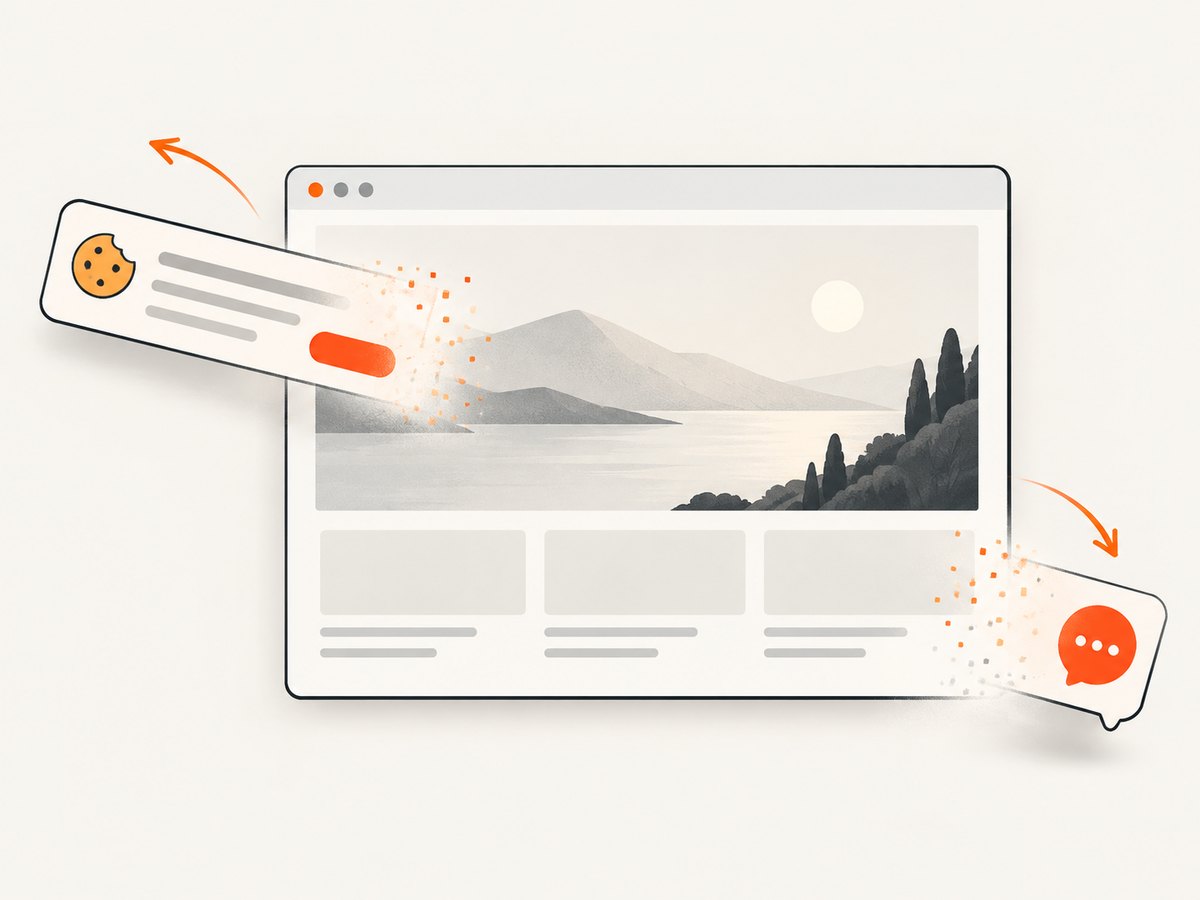
A screenshot records the state that exists at capture time. Waiting for navigation alone does not guarantee that fonts, images, animations, consent dialogs, or client-rendered content are ready.
Wait for a selector
await page.goto('https://example.com/dashboard');
await page.locator('[data-testid="report"]').waitFor({ state: 'visible' });
await page.screenshot({ path: 'report.png' });
Wait for a specific delay
await page.waitForTimeout(1000);
await page.screenshot({ path: 'after-delay.png' });
Use a delay only when the page has a known timing requirement. A selector or application-level readiness signal is usually less fragile.
Wait for fonts and images
await page.evaluate(async () => {
  if (document.fonts) await document.fonts.ready;
  await Promise.all(Array.from(document.images).map(img => {
    if (img.complete) return Promise.resolve();
    return new Promise(resolve => {
      img.addEventListener('load', resolve, { once: true });
      img.addEventListener('error', resolve, { once: true });
    });
  }));
});
await page.screenshot({ path: 'settled.png', fullPage: true });
Freeze animations when repeatability matters
await page.addStyleTag({ content: `
  *, *::before, *::after {
    animation: none !important;
    transition: none !important;
    caret-color: transparent !important;
  }
` });
7. Set viewport, device scale, and color scheme
const context = await browser.newContext({
  viewport: { width: 1280, height: 800 },
  deviceScaleFactor: 2,
  colorScheme: 'dark',
  locale: 'en-US',
  timezoneId: 'America/New_York'
});
const page = await context.newPage();
A larger device scale factor produces more physical pixels for the same CSS viewport. It also increases memory and file size. Use the same browser, viewport, scale, fonts, and operating system in visual regression jobs to reduce unexplained differences.
8. Handle consent banners, popups, and overlays
Dismiss overlays before capturing the page. If the dialog has a stable role or label, prefer that locator:
const consent = page.getByRole('button', { name: /accept all/i });
if (await consent.isVisible().catch(() => false)) {
  await consent.click();
}
await page.screenshot({ path: 'without-consent-overlay.png' });
For a newsletter or chat widget, close it through its visible control or hide it with CSS for the capture. Keep this behavior explicit so you do not accidentally remove content that belongs in the evidence.
9. Playwright MCP browser control
When an MCP client controls Playwright, call browser_take_screenshot. With no target it captures the viewport. Pass a target reference or selector for an element, or set fullPage: true for the full scrollable page. The documented options include:
filenamefor the output filetype:png,jpeg, orwebpscale:cssordevicetargetfor an element reference or selectorfullPagefor the complete scrollable page
An element target cannot be combined with fullPage. If no filename is supplied, the tool returns the image inline as well as saving it to its output location.
10. Capture with the Chrome DevTools Protocol
CDP is a lower-level option when you already control a Chromium debugging session. The Page.captureScreenshot command returns base64-encoded image data and accepts a format, JPEG quality, clip rectangle, and a flag to capture beyond the viewport.
const result = await cdpSession.send('Page.captureScreenshot', {
  format: 'png',
  captureBeyondViewport: true,
  clip: { x: 0, y: 0, width: 800, height: 600, scale: 1 }
});
require('fs').writeFileSync('clip.png', Buffer.from(result.data, 'base64'));
Use CDP when you need protocol-level control or already have a CDP connection. Use Playwright when you want navigation, locators, waiting, and browser lifecycle management in one API.
11. A complete reusable Playwright script
const { chromium } = require('playwright');

async function capture({ url, output, fullPage = false, selector }) {
  const browser = await chromium.launch();
  const context = await browser.newContext({
    viewport: { width: 1440, height: 900 },
    deviceScaleFactor: 1,
    colorScheme: 'light'
  });
  const page = await context.newPage();

  try {
    await page.goto(url, { waitUntil: 'domcontentloaded', timeout: 30000 });
    await page.waitForLoadState('networkidle', { timeout: 15000 }).catch(() => {});
    await page.evaluate(() => document.fonts?.ready);

    const options = { path: output, fullPage };
    if (selector) {
      await page.locator(selector).waitFor({ state: 'visible', timeout: 10000 });
      await page.locator(selector).screenshot({ path: output });
    } else {
      await page.screenshot(options);
    }
  } finally {
    await context.close();
    await browser.close();
  }
}

capture({
  url: 'https://example.com',
  output: 'example.png',
  fullPage: true
}).catch(error => {
  console.error(error);
  process.exitCode = 1;
});
12. Troubleshooting checklist
| Symptom | Likely cause | Fix |
|---|---|---|
| Blank or mostly blank image | Capture happened before client rendering finished | Wait for a page-specific selector, fonts, and required images. |
| Cookie banner covers content | Consent dialog remains open | Locate and click its consent button before capture. |
| Element screenshot fails | Selector matches zero or multiple elements, or the element is hidden | Use a stable selector, assert the count, and wait for visibility. |
| Full-page image cuts off content | Lazy content loads only after scrolling or the page changes height | Scroll through the page, wait for lazy images, then capture. |
| Fonts look wrong | Web fonts have not loaded or are unavailable in the runtime | Await document.fonts.ready and install or serve the required fonts. |
| Screenshot times out | Navigation or a readiness wait never completes | Set explicit timeouts, wait for a concrete selector, and handle optional waits. |
| JPEG quality option has no effect | PNG or another format is selected | Set type: 'jpeg' and provide a quality value. |
| Different pixels between runs | Animations, ads, time, locale, or responsive layout changed | Freeze animations, block nondeterministic resources, and fix viewport, locale, timezone, and data. |
| Browser executable is missing | Playwright browsers were not installed in the environment | Run npx playwright install chromium during setup. |
13. Performance, reliability, and cost
- Reuse a browser: launch one browser and create contexts or pages for multiple captures. Repeated process startup adds overhead.
- Bound waits: use explicit navigation and selector timeouts so one broken page does not stall a batch.
- Control page size: full-page and device-scale captures consume more memory and produce larger files than viewport captures.
- Reduce nondeterminism: set the viewport, scale, locale, timezone, color scheme, and test data. Disable animations when pixel comparison matters.
- Protect credentials: screenshots can contain whatever the page displays. Store output securely and avoid capturing sensitive states unintentionally.
- Retry carefully: retry transient navigation failures, but keep the original error and URL so a persistent page problem is visible.
Browser automation has infrastructure costs: you manage browser binaries, concurrency, timeouts, storage, and failed loads. A hosted API can move those concerns out of your application.
14. Or skip the browser setup
ScreenshotNeo provides a one-call website screenshot API and MCP server. Cookie and consent banners are accepted and removed before capture, along with more than 60 known consent platforms, newsletter popups, and chat widgets. Bot checks, blank pages, timeouts, failed loads, and cache hits are not billed, and each response reports its page verdict and billing status in X-Page-Verdict and X-Billed headers.
See the ScreenshotNeo documentation for all options, including full-page and element capture, dark mode, device presets, retina scale, custom CSS and JavaScript, waits, blocking rules, headers, cookies, user agents, timezone, geolocation, resizing, caching, signed links, asynchronous jobs, bulk capture, usage, and the OpenAPI specification.
cURL
curl -G "https://api.screenshotneo.com/v1/shot" \
  -d access_key=YOUR_API_KEY \
  --data-urlencode url=https://stripe.com \
  -o shot.webp
Python
import requests

r = requests.get(
    "https://api.screenshotneo.com/v1/shot",
    params={"access_key": "YOUR_API_KEY", "url": "https://stripe.com"},
    timeout=90,
)
r.raise_for_status()
open("shot.webp", "wb").write(r.content)
Node.js
const fs = require('node:fs/promises');

const q = new URLSearchParams({ access_key: 'YOUR_API_KEY', url: 'https://stripe.com' });
const res = await fetch(`https://api.screenshotneo.com/v1/shot?${q}`);
if (!res.ok) throw new Error(`Screenshot failed: ${res.status}`);
await fs.writeFile('shot.webp', Buffer.from(await res.arrayBuffer()));
An MCP server lets Claude, Cursor, and other MCP clients call take_screenshot, get_page_info, and capture_pdf. The Free plan includes 1,000 screenshots each month with no card; paid plans start at $5 for 3,000. Create a free ScreenshotNeo account.
15. FAQ
Does a screenshot include the browser’s address bar or desktop?
No. These APIs capture page content, not the operating-system desktop or browser chrome.
Should I use a screenshot to find a button to click?
No. Use a locator or accessibility snapshot for interaction. The screenshot is visual output.
When should I choose full-page capture?
Choose it when content below the viewport belongs in the artifact. Use a viewport or element capture when you need a focused, smaller image.
Can I return an image without writing a file?
Yes. Playwright returns a buffer when path is omitted, and CDP returns base64 data.
Why can two screenshots of the same URL differ?
Dynamic data, ads, animations, fonts, viewport dimensions, device scale, locale, and timezone can all change rendered pixels. Fix those inputs when repeatability matters.


