How to Capture Screenshots of Websites Blocked by Cloudflare
Learn what a Cloudflare screenshot can show, how to document a challenge safely, troubleshoot challenge loops, and capture authorized pages.

A screenshot records the pixels a browser has rendered. If Cloudflare is showing an interstitial Challenge Page instead of the destination, the screenshot can document that challenge screen, but it cannot reveal content that Cloudflare has not delivered to the browser.
The safe workflow is:
- Identify whether you are seeing a full-page Challenge Page or an embedded Turnstile widget.
- Capture the visible state with your device’s normal screenshot feature.
- If you are authorized to access the destination, troubleshoot the challenge using Cloudflare’s supported steps.
- If you own the site, investigate the WAF, Bot Management, rate limiting, and access rules that triggered the challenge.
- For automated testing, use a staging environment and Turnstile test keys. Do not automate production challenge solving.
What a Cloudflare block looks like
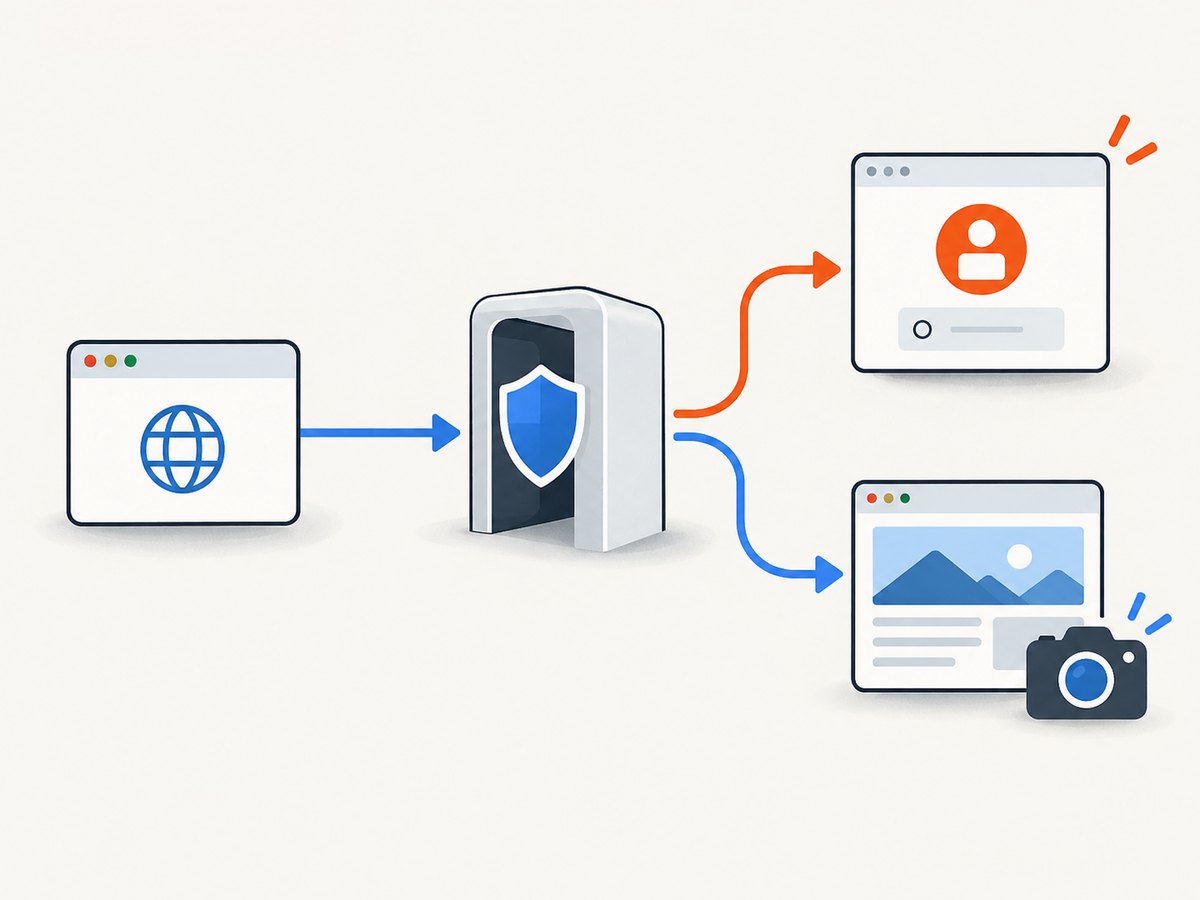
Cloudflare uses several challenge experiences. The distinction matters because a screenshot only captures the state currently rendered in the browser.
| What you see | What it means | What a screenshot proves |
|---|---|---|
| Full-page Challenge Page | Cloudflare is evaluating the browser before allowing the request to reach the destination. | The challenge and any visible diagnostic details, such as an error code or Ray ID. |
| Challenge loop | The challenge reloads or returns repeatedly instead of completing. | That the browser remained in the loop at the time of capture. |
| Turnstile widget inside a page | The destination loaded, but a particular action such as login or signup is gated. | The page content and the embedded widget, if both are visible. |
| Destination page | Cloudflare has allowed the request through. | The rendered destination at that moment. |
Cloudflare describes an interstitial Challenge Page as a gate before the destination URL. The request can be held while Cloudflare evaluates browser signals. That means a screenshot of the interstitial is not a screenshot of the inaccessible destination. See Cloudflare’s documentation on Interstitial Challenge Pages.
Capture the challenge you can already see
If the goal is evidence for support, a bug report, an access review, or a record of what a visitor encountered, use the ordinary screenshot function on the device displaying the challenge.
Windows
- Bring the challenge window to the front.
- Press
Win+Shift+Sand select the browser area, or pressPrtScnfor a full-screen capture. - Save the image without cropping out the address bar if the URL, timestamp, or Ray ID is relevant.
macOS
- Press
Shift+Command+4to select the browser region, orShift+Command+3for the full screen. - Keep the address bar and visible Cloudflare details in the selection when documenting an incident.
- Open the resulting image and check that the error code and Ray ID remain readable.
Linux
Use your desktop environment’s screenshot shortcut or its screenshot utility. Select the browser window rather than only the challenge panel when troubleshooting, because browser and URL context can help the site administrator.
iPhone, iPad, and Android
Use the device’s hardware screenshot shortcut while the challenge is visible. Avoid marking up or compressing the original if support may need to inspect small text. Send a copy if you need to redact personal information.
Preserve useful evidence
A screenshot is most useful when it is paired with the request context. Record:
- The complete URL, including the path where the challenge appeared.
- The date and time, with the time zone.
- The browser name and version, operating system, and device type.
- The Cloudflare error code and Ray ID shown on the page.
- Whether the page was a full-page interstitial or a Turnstile widget embedded in an already loaded page.
- Whether the behavior changed on another browser, device, network, or private window.
Do not describe a challenge screenshot as proof that the destination itself contains the displayed message. It proves what the browser rendered, which may only be the access gate.
Troubleshoot a challenge loop
When you are authorized to access the site, Cloudflare recommends checking the browser and network conditions that can prevent a challenge from completing. Work through these steps in order and record what changes.
1. Update and verify the browser
Use a supported, current browser. An old browser can fail to run the scripts or browser checks required by the challenge. Restart the browser after updating and load the URL again.
2. Confirm JavaScript is enabled
Challenge pages depend on browser-side scripts. Check the browser’s site settings and ensure JavaScript is allowed for the affected domain. Reload after changing the setting.
3. Temporarily disable interfering extensions
Content blockers, privacy extensions, script filters, and security products can prevent challenge resources from loading. Disable them temporarily for diagnosis, then reload. Re-enable them after the test and create a narrower site exception if your policy permits.
4. Try a private window
An incognito or private window helps distinguish extension problems from cached data or damaged cookies. If the challenge works there, clear site data in the normal profile or inspect which extension changes the request.
5. Try another browser or device
A second browser or device helps determine whether the issue is tied to one browser profile, a device security product, or the network itself. Keep notes on the exact combinations you tried.
6. Test without a VPN or proxy
Temporarily test a direct connection if your organization’s rules allow it. VPN or proxy egress can change the network context that Cloudflare evaluates. Do not bypass an employer’s security controls; ask the network administrator for an approved test.
7. Test another network
A mobile hotspot can show whether the problem is specific to the original network. This is a diagnostic comparison, not a way to evade a site’s access policy.
Cloudflare’s challenge solve guidance also recommends reproducing the issue with browser developer tools’ Preserve log enabled and collecting a HAR file and console log when the loop continues. Send those files, the screenshot, the error code, and the Ray ID to the website administrator.
What a 401 Private Access Token response means
During challenge troubleshooting you may see a 401 response for a Private Access Token request. Cloudflare says that response is not, by itself, evidence of a misconfiguration, false positive, or block. Treat it as one diagnostic event and use the complete browser and challenge context when reporting the issue.
If you administer the website
A site administrator can inspect the rules that trigger Challenge Pages. Cloudflare identifies WAF rules, Bot Management, rate limiting, and other access configurations as possible sources. Review the event details for the affected request, confirm that the rule matches the intended traffic, and provide an authorized visitor with a supported path to the content.
Do not ask a visitor to evade a production challenge. If the visitor is legitimate, review the rule or provide access through your normal support and authentication process. A screenshot can help establish what happened, but it does not replace reviewing the site’s security configuration.
Automated testing: use test infrastructure
Cloudflare explicitly states that automated browsers are not supported for solving production challenges. Selenium, Puppeteer, Playwright, and Cypress should not be used to defeat a live production challenge. For automated Turnstile testing, use Cloudflare’s documented test keys in a staging or test setup. See Cloudflare’s supported browser documentation and the Turnstile documentation.
A reliable test plan separates these cases:
- Challenge evidence: manually capture the visible interstitial.
- Application testing: configure staging with Turnstile test keys and test the page after the gate.
- Site diagnostics: use logs, HAR files, console output, and Cloudflare event data with administrator access.
Or skip the browser setup
ScreenshotNeo is a website screenshot API and MCP server. It can capture the state that a browser can render, but it does not make inaccessible Cloudflare destination content appear. If the challenge page is the visible result, the API can document that visible result; it cannot solve a production challenge.
For an authorized URL that loads normally, make one GET request. The ScreenshotNeo documentation lists the available parameters and response headers.
cURL
curl -G "https://api.screenshotneo.com/v1/shot" -d access_key=YOUR_API_KEY --data-urlencode url=https://stripe.com -o shot.webpPython
import requests

r = requests.get(
    "https://api.screenshotneo.com/v1/shot",
    params={"access_key": "YOUR_API_KEY", "url": "https://stripe.com"},
    timeout=90,
)
r.raise_for_status()
open("shot.webp", "wb").write(r.content)
Node.js
const q = new URLSearchParams({ access_key: 'YOUR_API_KEY', url: 'https://stripe.com' });
const res = await fetch(`https://api.screenshotneo.com/v1/shot?${q}`);
if (!res.ok) throw new Error(`HTTP ${res.status}`);
const buffer = Buffer.from(await res.arrayBuffer());
require('fs').writeFileSync('shot.webp', buffer);
ScreenshotNeo removes cookie and consent banners, newsletter popups, and chat widgets before the capture. Each step can be turned off. Clean shots are the only responses billed; bot checks, blank pages, timeouts, failed loads, and cache hits cost nothing, and the response identifies the result with X-Page-Verdict and X-Billed headers.
For production integrations, relevant controls include full-page capture with lazy images loaded, CSS-selector element capture, dark mode, device presets or custom viewports, retina scale, custom CSS and JavaScript, click actions, selector hiding, selector or network-idle waits, request and resource blocking, headers, cookies, user agents, Authorization, timezone, geolocation, transparent backgrounds, resizing, configurable cache TTL, signed image links, asynchronous jobs with signed webhooks, bulk capture of up to 100 URLs per call, and a usage API. An MCP server provides take_screenshot, get_page_info, and capture_pdf tools for Claude, Cursor, and other MCP clients.
These options help when the page is reachable but difficult to capture consistently. They do not authorize bypassing a site’s access controls.
Performance, reliability, and cost notes
- Use a wait for a specific selector, a fixed delay, or network idle when pages render asynchronously.
- Use full-page capture only when you need content below the fold; it can require more rendering work, especially on long pages with lazy images.
- Use a selector capture for a single chart, article, or component to reduce image size and processing time.
- Choose caching with a TTL when repeated requests can reuse the same capture. Cache hits are not billed by ScreenshotNeo.
- For large batches, use bulk capture or asynchronous jobs and signed webhooks instead of keeping one request open for every URL.
- Inspect
X-Page-VerdictandX-Billedrather than assuming every HTTP response is a clean page.
ScreenshotNeo’s Free plan includes 1,000 shots per month without a card. Starter is $5 for 3,000 shots, Growth is $15 for 15,000, Pro is $39 for 60,000, Scale is $99 for 250,000, and Business is $249 for 1,000,000. Yearly billing gives two months free, and every feature is available on every plan.

Common errors and fixes
| Symptom | Likely cause | Fix |
|---|---|---|
| The screenshot shows only a Cloudflare challenge | The destination was never delivered to the browser. | Document the challenge, then troubleshoot authorized access or contact the site administrator. |
| The challenge reloads forever | Browser version, JavaScript, extension, cookie, VPN, proxy, or network interference. | Follow the browser and network checklist; collect a HAR, console log, error code, and Ray ID. |
| A Turnstile box is visible but the page loads | The widget gates an action rather than the entire page. | Capture the page as shown and report the gated action separately. |
| Automation cannot pass production challenge | Cloudflare does not support automated browsers for solving production challenges. | Use staging and Turnstile test keys for automated tests. |
| ScreenshotNeo returns a non-clean result | The target produced a bot check, blank page, timeout, or failed load. | Read X-Page-Verdict; check the target’s authorized accessibility and adjust waits or request settings. |
| Image appears before content finishes rendering | The page uses delayed JavaScript or lazy loading. | Wait for a selector, delay, or network idle; use full-page capture when below-fold images are required. |
FAQ
Can a screenshot reveal a page hidden behind Cloudflare?
No. It can show the interstitial that the browser rendered. It cannot recover destination content that was not delivered.
Can I use Playwright or Selenium to solve the challenge?
Cloudflare says automated browsers are not supported for solving production challenges. Use test keys and staging for automation.
Does a 401 Private Access Token response prove I am blocked?
No. Cloudflare says that response alone is not proof of a misconfiguration, false positive, or block.
What should I send the website owner?
Send the screenshot, URL, time zone and timestamp, browser and operating system, error code, Ray ID, and any HAR or console log you collected.
Can ScreenshotNeo capture a page with a Cloudflare challenge?
It can capture whatever state the rendering browser receives, including a visible challenge page. It does not bypass or solve a production challenge.
When you need repeatable screenshots of pages you are authorized to access, start with 1,000 free screenshots per month and no card. Screenshots of inaccessible destinations still require the site’s administrator to grant or restore authorized access.


