How to Capture Screenshots in C# Selenium Grid
Capture viewport and element screenshots from remote C# Selenium Grid sessions, save reliable client-side artifacts, and troubleshoot Grid-specific failures.
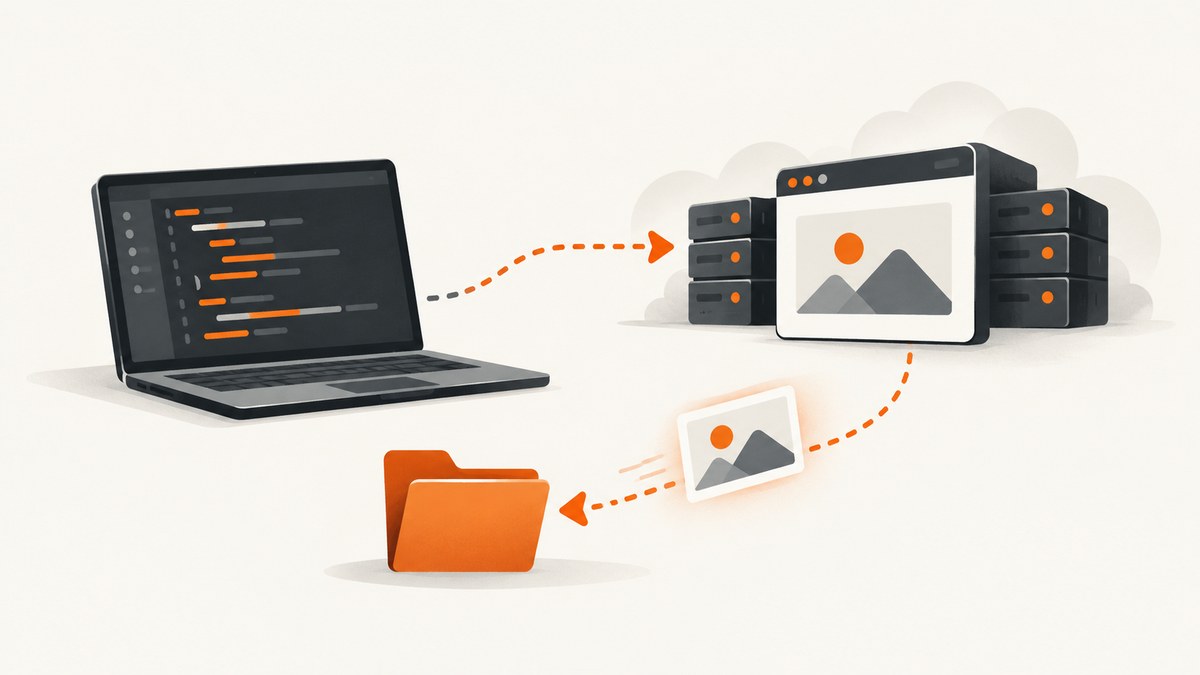
To capture a screenshot from a remote C# Selenium Grid session, get the screenshot through Selenium’s ITakesScreenshot interface and save it from the test process:
using OpenQA.Selenium;
using OpenQA.Selenium.Remote;

// driver is a RemoteWebDriver connected to Selenium Grid.
var screenshot = ((ITakesScreenshot)driver).GetScreenshot();
screenshot.SaveAsFile("artifacts/screenshot.png");
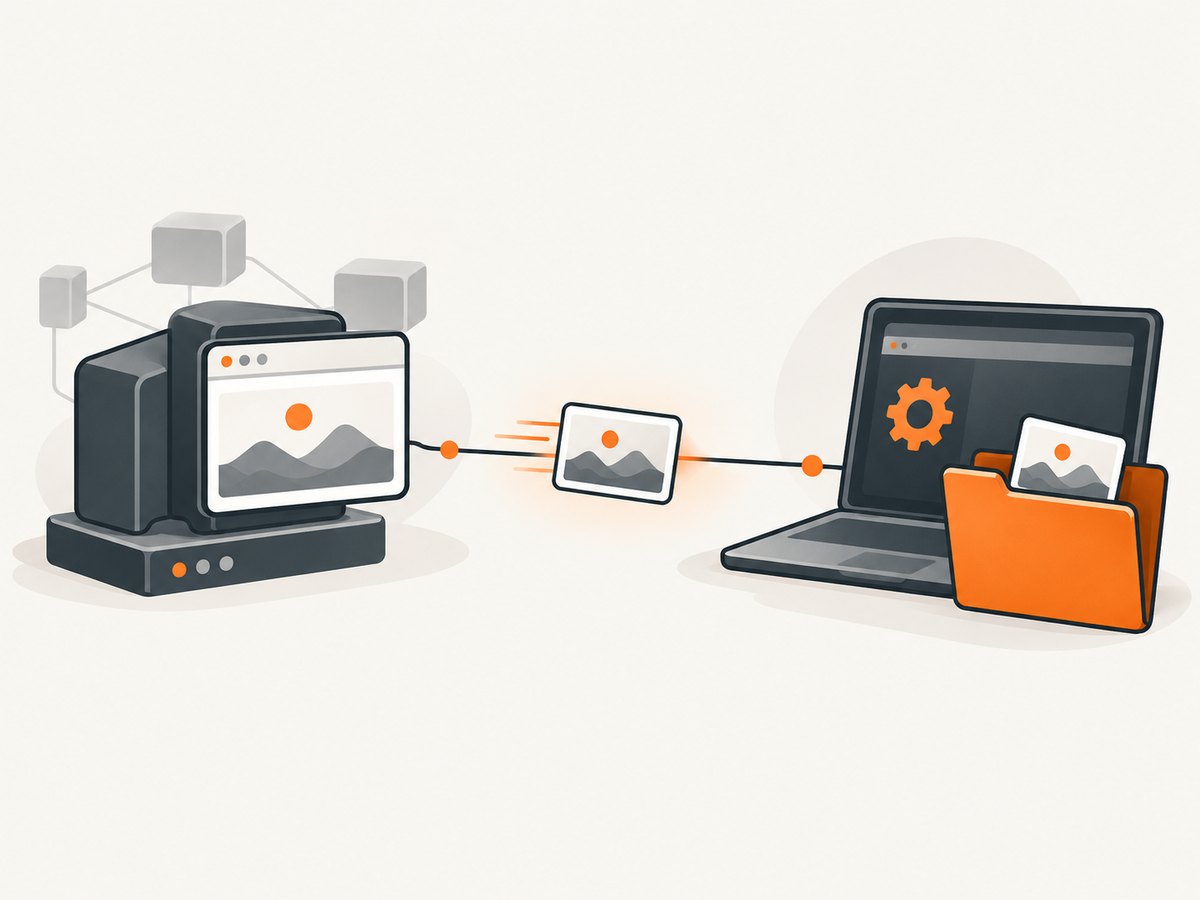
RemoteWebDriver implements ITakesScreenshot. The image is returned over the WebDriver connection, so the path passed to SaveAsFile is on the machine running your C# test, not automatically on the Grid node. Selenium describes Grid as routing client commands to remote browser instances (Grid overview).
1. Create a remote C# Grid session
Install Selenium’s .NET binding in your test project:
dotnet add package Selenium.WebDriverThis complete example creates a Chrome session, navigates to a page, creates a client-side artifact directory, and saves a uniquely named PNG.
using System;
using System.IO;
using OpenQA.Selenium;
using OpenQA.Selenium.Chrome;
using OpenQA.Selenium.Remote;

var gridUri = new Uri("http://localhost:4444/wd/hub");
var options = new ChromeOptions();
options.AddArgument("--window-size=1440,1000");

using IWebDriver driver = new RemoteWebDriver(gridUri, options);
try
{
    driver.Navigate().GoToUrl("https://example.com");

    var artifactDirectory = Path.Combine(AppContext.BaseDirectory, "artifacts");
    Directory.CreateDirectory(artifactDirectory);

    var sessionId = ((RemoteWebDriver)driver).SessionId;
    var fileName = $"page-{sessionId}-{DateTime.UtcNow:yyyyMMdd-HHmmssfff}.png";
    var filePath = Path.Combine(artifactDirectory, fileName);

    var screenshot = ((ITakesScreenshot)driver).GetScreenshot();
    screenshot.SaveAsFile(filePath);
    Console.WriteLine($"Saved screenshot to {filePath}");
}
finally
{
    driver.Quit();
}
Change the Grid URI to your deployment’s endpoint and provide the browser options required by your nodes. Selenium’s remote-driver documentation covers connecting a client to a remote browser (Remote WebDriver).
2. Capture the current viewport
GetScreenshot() captures the browser’s current rendered view. Wait for the state you want before calling it, then save the returned Screenshot object.
using OpenQA.Selenium.Support.UI;

var wait = new WebDriverWait(driver, TimeSpan.FromSeconds(15));
wait.Until(d => d.FindElement(By.CssSelector("main")).Displayed);

var viewportShot = ((ITakesScreenshot)driver).GetScreenshot();
viewportShot.SaveAsFile(Path.Combine(artifactDirectory, "dashboard-viewport.png"));
The .NET API documents Screenshot.SaveAsFile(string) as writing PNG output and overwriting the destination when it already exists (Selenium .NET API). Create the directory first and use unique names in parallel runs.
3. Capture one element
For an element-only image, locate the element and use the screenshot interface implemented by IWebElement:
var chart = driver.FindElement(By.CssSelector("[data-testid='sales-chart']"));
var elementShot = ((ITakesScreenshot)chart).GetScreenshot();
elementShot.SaveAsFile(Path.Combine(artifactDirectory, "sales-chart.png"));
Selenium provides this pattern in its C# screenshot examples (screenshots documentation). Confirm support with the browser, driver and Selenium versions used by an unusual or older Grid setup.
4. Capture screenshots after a test failure
Put capture logic in your test framework’s failure hook so the original exception is preserved and the driver remains available long enough to collect an artifact. A framework-neutral helper can be reused from NUnit, xUnit or MSTest hooks.
static string SaveScreenshot(IWebDriver driver, string testName, string artifactDirectory)
{
    Directory.CreateDirectory(artifactDirectory);
    var safeName = string.Concat(testName.Split(Path.GetInvalidFileNameChars()));
    var session = driver is RemoteWebDriver remote ? remote.SessionId.ToString() : "local";
    var path = Path.Combine(
        artifactDirectory,
        $"{safeName}-{session}-{DateTime.UtcNow:yyyyMMdd-HHmmssfff}.png");

    ((ITakesScreenshot)driver).GetScreenshot().SaveAsFile(path);
    return path;
}

// Call from your framework's failure handler:
var path = SaveScreenshot(driver, "checkout-validation", "artifacts");
Console.WriteLine($"Failure screenshot: {path}");
Capture before Quit(); after the session closes, the remote browser can no longer provide a screenshot.
5. Grid filesystem and artifact handling
- Save on the client. The Grid node hosts the browser, while your C# process receives the screenshot bytes and writes the file.
- Create directories explicitly. Relative paths resolve against the test process’s working directory, which may differ in CI.
- Avoid collisions.
SaveAsFileoverwrites an existing file. Include test name, browser, session ID, worker ID or a timestamp. - Publish artifacts in CI. Configure your CI system to upload the client-side artifact directory after the test, including when tests fail.
- Keep paths portable. Use
Path.Combineinstead of hard-coded separators.
6. Full-page screenshots: check browser support
The standard WebDriver screenshot command captures the current viewport. Selenium’s remote-driver documentation also shows browser-specific commands, including a Firefox-specific full-page example. There is no universal full-page C# Grid operation guaranteed across every browser, driver, Selenium binding and Grid version. Verify the exact browser and node capabilities before depending on it.
When full-page output is required, check:
- the target browser’s documented full-page capability;
- the Selenium .NET binding version;
- the remote driver and Grid version;
- whether your node image enables that command; and
- how very tall pages, fixed headers and lazy-loaded content are rendered.
If portability matters, treat viewport capture as the baseline and test any browser-specific full-page command on every browser combination in your matrix.
7. Timing, state and visual consistency
- Wait for a meaningful condition, such as a selector becoming visible, instead of relying only on a fixed delay.
- Scroll or interact first if the screenshot should represent a particular state.
- Set a consistent window size in browser options so pixel dimensions do not vary between nodes.
- Use deterministic test data and disable animations where your application permits it.
- For lazy-loaded content, scroll through the page before a viewport or browser-specific full-page capture.
- Record browser, Selenium, Grid node and session identifiers beside the artifact so failures can be reproduced.
8. Troubleshooting
| Symptom | Likely cause | Fix |
|---|---|---|
InvalidCastException |
The object is not exposing the screenshot interface in the way the code expects. | Use a Selenium RemoteWebDriver or IWebElement from the .NET binding and cast it to ITakesScreenshot. Check package versions. |
| File not found after the test | The path was written on the test runner, while you looked on the Grid node. | Inspect the client/CI workspace and publish that directory as an artifact. |
| DirectoryNotFoundException | The artifact directory does not exist. | Call Directory.CreateDirectory(path) before SaveAsFile. |
| Earlier screenshot disappeared | SaveAsFile overwrote a file with the same name. |
Include a test ID, session ID, worker ID or UTC timestamp in every filename. |
| Screenshot is blank or shows the wrong state | Capture happened before navigation, rendering or an asynchronous update completed. | Wait for a specific element or state, then capture; preserve the failure page before teardown. |
| Element screenshot fails | The element is absent, hidden, stale or unsupported by the selected browser/driver. | Wait for the element, reacquire it after DOM changes, ensure it is displayed, and verify browser support. |
| Full-page command is rejected | Full-page support is browser-specific rather than part of the portable baseline. | Use the standard viewport API or implement and test the documented command for that browser and version. |
| Remote session cannot be created | Wrong Grid URL, unavailable node, incompatible browser capability or network access. | Check the Grid status, endpoint path, node logs, requested capabilities and connectivity from the test runner. |
9. Performance, reliability and cost considerations
Performance
A screenshot adds image encoding and transfer time to the WebDriver command. Capture only at checkpoints and on failures unless every step is required. Element shots usually contain fewer pixels than full viewport shots. Keep artifact uploads outside the critical test path when your CI supports asynchronous publishing.
Reliability
Use explicit waits, stable viewport dimensions and unique names. Capture before quitting the driver. If screenshot capture itself fails during a failure hook, log that secondary error without replacing the original test failure.
Cost
Selenium Grid screenshot capture has no separate Screenshot API charge, but it consumes browser session time, network bandwidth, storage and CI artifact capacity. Retain only the artifacts needed for diagnosis and apply your CI retention policy.
10. Or skip the browser setup
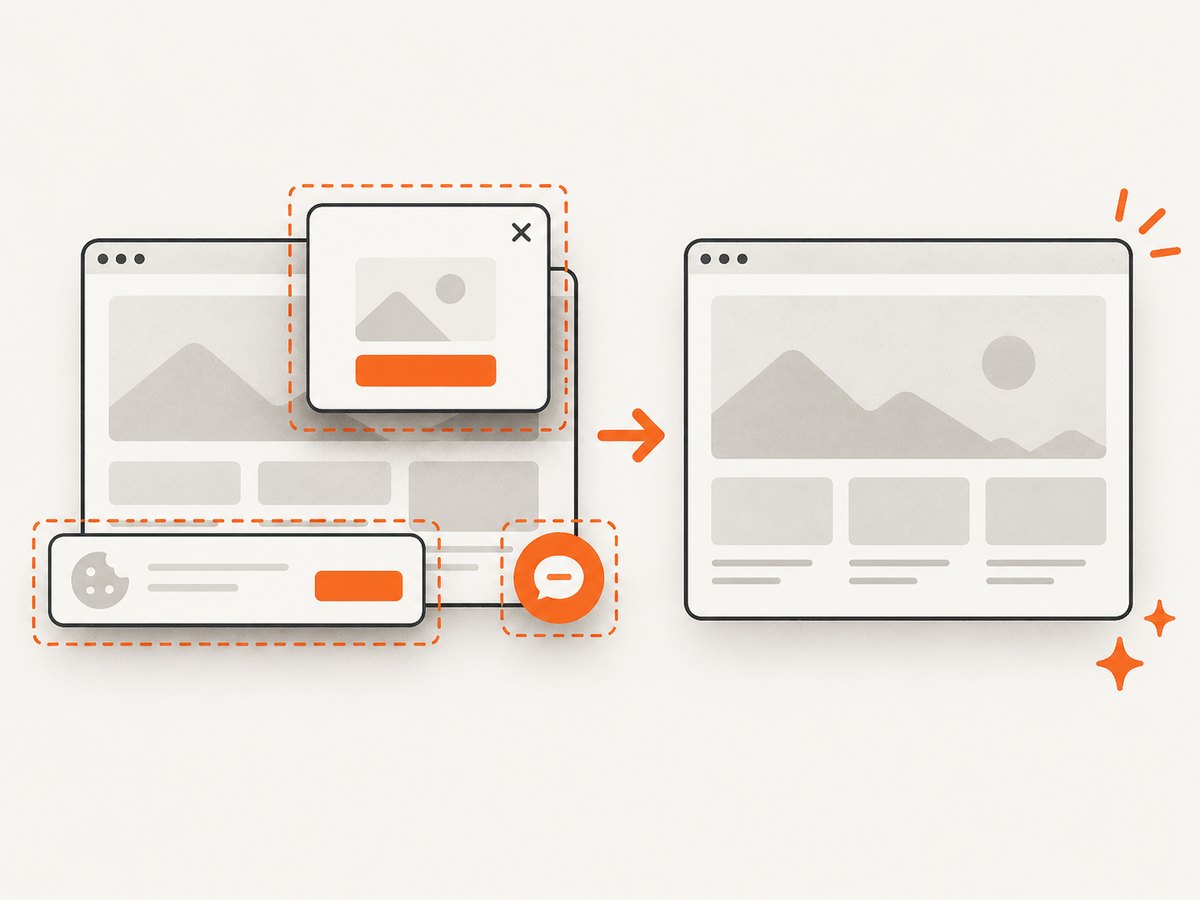
If you need a clean image of a URL rather than a state from an existing test session, ScreenshotNeo returns a screenshot or PDF from one GET request. Its capture API removes cookie/consent banners, newsletter popups and chat widgets before the shot; bot checks, blank pages, timeouts, failed loads and cache hits are not billed. An MCP server provides take_screenshot, get_page_info and capture_pdf tools for Claude, Cursor and other MCP clients. Every plan includes all features; 1,000 screenshots per month are free with no card, and paid plans start at $5 for 3,000 shots.
See the ScreenshotNeo API documentation for all options.
cURL
curl -G "https://api.screenshotneo.com/v1/shot" -d access_key=YOUR_API_KEY --data-urlencode url=https://stripe.com -o shot.webpPython
import requests
r = requests.get("https://api.screenshotneo.com/v1/shot", params={"access_key": "YOUR_API_KEY", "url": "https://stripe.com"}, timeout=90)
open("shot.webp", "wb").write(r.content)
Node.js
const q = new URLSearchParams({ access_key: 'YOUR_API_KEY', url: 'https://stripe.com' });
const res = await fetch(`https://api.screenshotneo.com/v1/shot?${q}`);
Create a free ScreenshotNeo account to use 1,000 screenshots each month with no card.
11. FAQ
Does Selenium Grid save the screenshot on the remote node?
No. The screenshot is returned to the client through WebDriver, and your C# process saves it wherever its filesystem can write.
Can I save JPEG instead of PNG with the .NET API?
The documented SaveAsFile(string) API writes PNG output. Use the PNG artifact or convert it after saving if your pipeline requires another format.
Should I capture before or after quitting the driver?
Before quitting. Once the remote session is closed, screenshot commands cannot run.
Is full-page capture portable across Chrome, Firefox and Edge Grid nodes?
Do not assume it is. Validate the browser-specific capability and your exact Selenium/Grid versions; the standard portable operation is the current viewport.
How do I prevent parallel tests from replacing one another’s files?
Generate unique names with the test identifier, session ID, worker ID or UTC timestamp, and create separate per-run directories when practical.


