How to Capture Screenshots of Every Element on a Webpage
Capture an entire webpage or every DOM element with Firefox, Playwright, and a screenshot API. Includes code, options, troubleshooting, and scaling advice.
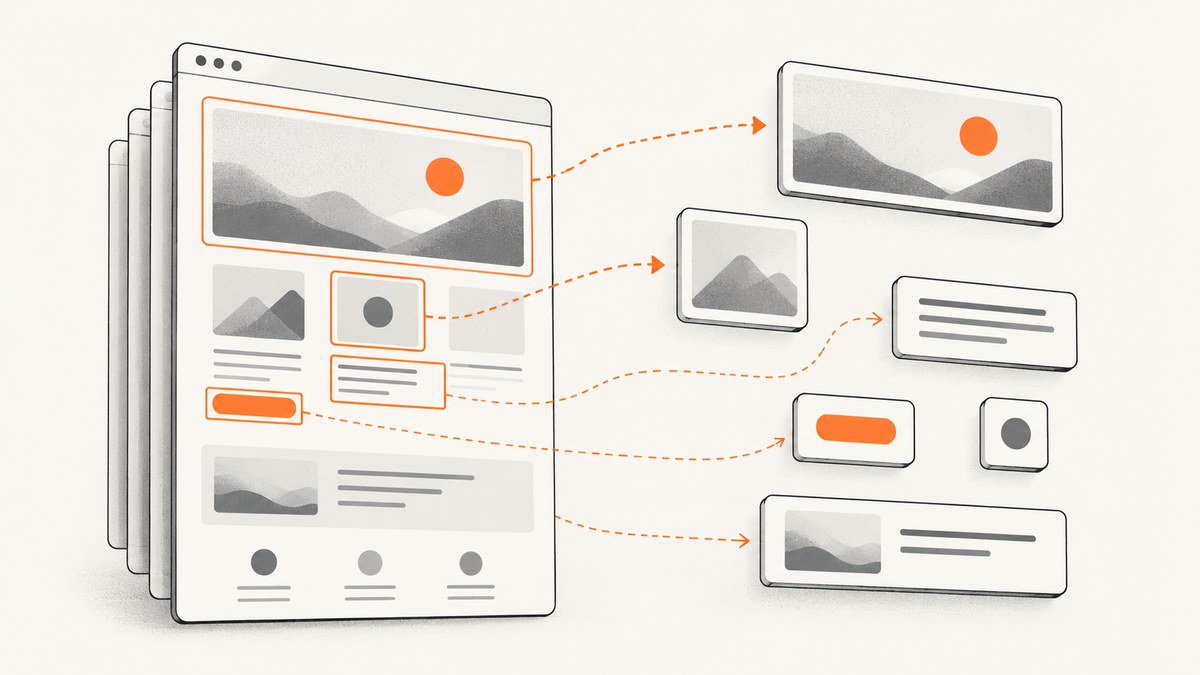
There are two meanings behind “How to Capture Screenshots of Every Element on a Webpage.” You may need one image of the complete scrollable page, including content below the fold, or separate images of specific DOM elements such as a header, card, form, or footer. This guide covers both workflows.
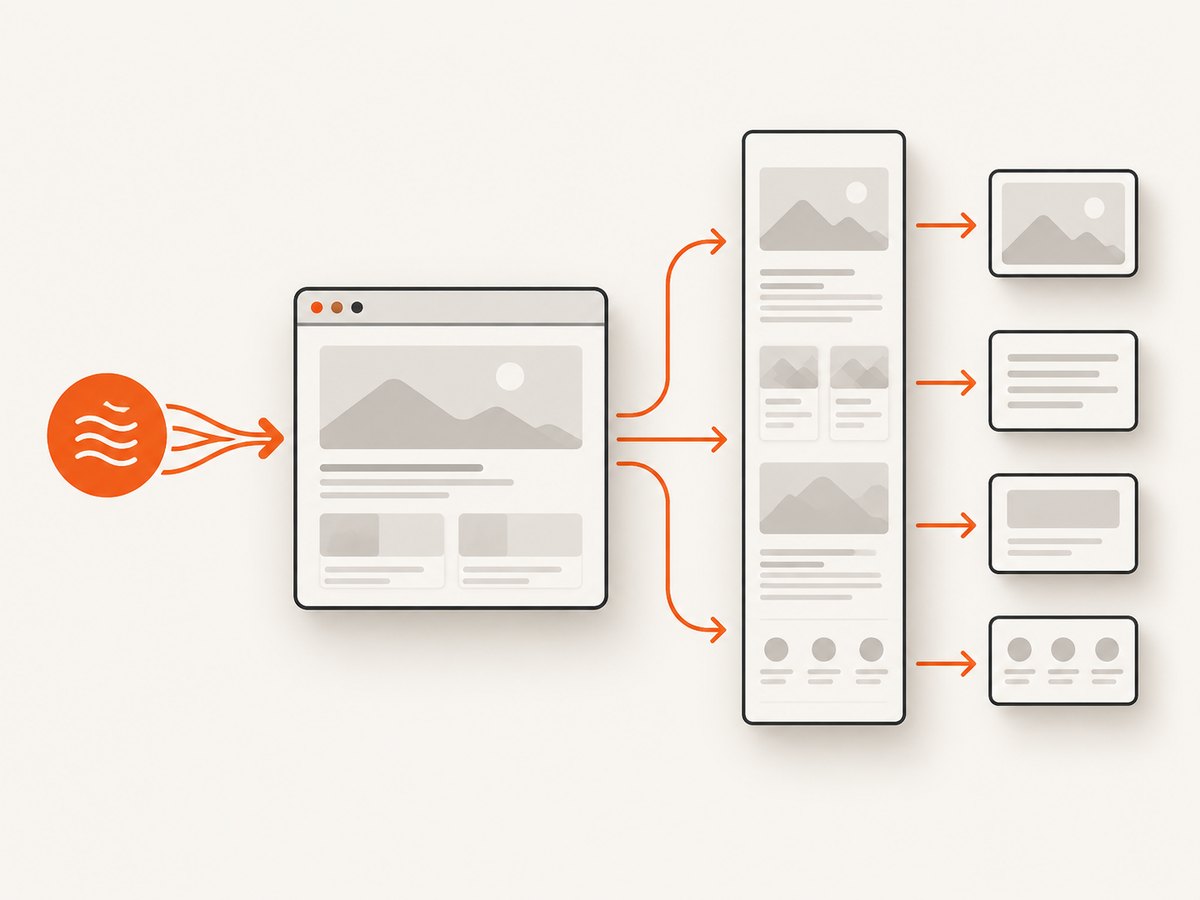
For a one-off capture, Firefox Developer Tools is enough. For repeatable work, use Playwright. Playwright defines a full-page screenshot as a capture of the entire scrollable page “as if you had a very tall screen and the page could fit it entirely.” For hosted capture without maintaining a browser, use ScreenshotNeo.
Choose the capture you actually need
| Goal | Best method | Result |
|---|---|---|
| One image of the whole document | Firefox full-page capture or Playwright fullPage: true |
A tall image containing the scrollable page |
| One DOM element and its children | Firefox “Screenshot Node” or a Playwright locator screenshot | An image cropped to that element’s bounds |
| Every matching element | Loop over Playwright locators | One file per element |
| Production or server-side capture | ScreenshotNeo API | PNG, JPEG, WebP, or PDF from one HTTP request |
A full-page screenshot does not create a separate file for each node. If you need one file per element, enumerate the elements and capture each bounding box or locator individually.
Capture a full page with Firefox Developer Tools
- Open the page in Firefox.
- Open Developer Tools and select the settings menu.
- Under Available Toolbox Buttons, enable Take a screenshot of the entire page.
- Click the camera icon in the Developer Tools toolbar. Firefox saves the image to Downloads by default.
Mozilla documents both whole-page and single-element screenshots in its Taking screenshots guide.
Capture one element in Firefox
- Open the Inspector.
- Find the element in the HTML pane.
- Open its context menu and select Screenshot Node.
The capture includes the selected node and its descendants. For a delayed state or a CSS selector, use Firefox’s Web Console helper:
:screenshot --selector ".product-card" --delay 1000 product-card.pngThe helper supports delay, device-pixel ratio, filename, full-page capture, and a CSS selector. Reusing a filename overwrites the earlier image, so use unique names when collecting multiple states.
Capture a full page with Playwright
Install Playwright and its browser binaries:
npm init -y
npm install -D playwright
npx playwright install chromium
Create full-page.js:
const { chromium } = require('playwright');

(async () => {
  const browser = await chromium.launch();
  const page = await browser.newPage({ viewport: { width: 1440, height: 900 } });
  await page.goto('https://example.com', { waitUntil: 'networkidle' });
  await page.screenshot({ path: 'page.png', fullPage: true });
  await browser.close();
})();
Run it with node full-page.js. The Playwright screenshot documentation also covers image format, clipping, quality, and scale options.
Important full-page options
fullPage: truecaptures the full scrollable document.pathwrites the output file.type: 'png','jpeg', or'webp'selects the format where supported.qualityapplies to JPEG and WebP; it is ignored for PNG.scale: 'css'keeps CSS-pixel dimensions;scale: 'device'uses device pixels.animations: 'disabled'can reduce motion differences in current Playwright versions.caret: 'hide'prevents a text caret from appearing in the image.
Screenshot one DOM element with Playwright
const { chromium } = require('playwright');

(async () => {
  const browser = await chromium.launch();
  const page = await browser.newPage();
  await page.goto('https://example.com', { waitUntil: 'networkidle' });

  const header = page.locator('header');
  await header.waitFor();
  await header.screenshot({ path: 'header.png' });

  await browser.close();
})();
A locator screenshot captures the element’s bounding box, including its visible descendants. Use a stable selector such as a test ID, semantic element, or component class rather than a generated CSS class.
Screenshot every matching element
Use locator.count() and capture each match separately. This example writes card-001.png, card-002.png, and so on:
const { chromium } = require('playwright');
const fs = require('fs/promises');

(async () => {
  const browser = await chromium.launch();
  const page = await browser.newPage({ viewport: { width: 1440, height: 900 } });
  await page.goto('https://example.com/catalog', { waitUntil: 'networkidle' });

  const cards = page.locator('[data-card]');
  const count = await cards.count();
  await fs.mkdir('captures', { recursive: true });

  for (let i = 0; i < count; i++) {
    const card = cards.nth(i);
    await card.scrollIntoViewIfNeeded();
    await card.screenshot({
      path: `captures/card-${String(i + 1).padStart(3, '0')}.png`,
      animations: 'disabled'
    });
  }

  console.log(`Captured ${count} elements`);
  await browser.close();
})();
This is the practical interpretation of “every element”: choose a selector for the component family you want. Capturing every node in a complex document, including nested spans and pseudo-elements, usually produces thousands of overlapping images and is rarely useful.
Capture a list of different selectors
const targets = [
  ['header', 'header.png'],
  ['main', 'main.png'],
  ['form.signup', 'signup-form.png'],
  ['footer', 'footer.png']
];

for (const [selector, filename] of targets) {
  const target = page.locator(selector).first();
  if (await target.count()) {
    await target.screenshot({ path: `captures/${filename}` });
  }
}
Wait for the page before capturing
Many screenshots fail because the capture starts before fonts, images, client-side rendering, or menus are ready. Combine navigation waits with a specific readiness condition:
await page.goto('https://example.com', { waitUntil: 'domcontentloaded' });
await page.locator('[data-page-ready="true"]').waitFor({ state: 'visible' });
await page.waitForLoadState('networkidle');
await page.screenshot({ path: 'ready.png', fullPage: true });
Use a short explicit delay only when the page has unavoidable animation or delayed hydration. Prefer a selector that represents readiness because fixed delays make runs slower and still may be too short on a busy page.
Handle lazy loading, sticky headers, and responsive layouts
- Lazy images: scroll through the page before capture, or wait for each image to complete. A full-page screenshot may otherwise contain placeholders.
- Sticky headers: a fixed header can appear repeatedly or cover content. Hide it with injected CSS or capture content sections individually.
- Responsive components: set an explicit viewport and capture each breakpoint you support.
- Animations: disable them or wait for a stable state to avoid inconsistent frames.
- Cross-origin frames: a screenshot can include an iframe visually, but DOM selectors from the parent page cannot reach into a cross-origin frame without navigating its frame context.
- Very tall pages: large PNGs consume memory. Use JPEG/WebP where lossless output is unnecessary, or capture sections.
await page.addStyleTag({ content: `
  *, *::before, *::after {
    animation: none !important;
    transition: none !important;
    caret-color: transparent !important;
  }
  .cookie-banner, .chat-widget { display: none !important; }
` });
Capture with the Playwright screenshot tool
If you use Playwright’s screenshot tool rather than the page API, fullPage: true requests the full scrollable page. Its scale option accepts css or device. Full-page mode and a targeted element cannot be combined in that tool, so choose either the document or the target.

Or skip the browser setup
ScreenshotNeo provides a website screenshot API and MCP server. A GET request returns PNG, JPEG, WebP, or PDF. The API can capture a full page or one CSS-selected element and supports device presets, arbitrary viewports, retina scale, dark mode, custom CSS and JavaScript, click actions, waits, headers, cookies, user agents, timezone, geolocation, blocking rules, resizing, caching, signed links, asynchronous jobs, bulk capture, and usage reporting. See the ScreenshotNeo docs for parameter names and the OpenAPI specification.
cURL
curl -G "https://api.screenshotneo.com/v1/shot" -d access_key=YOUR_API_KEY --data-urlencode url=https://stripe.com -o shot.webpPython
import requests

r = requests.get(
    "https://api.screenshotneo.com/v1/shot",
    params={"access_key": "YOUR_API_KEY", "url": "https://stripe.com"},
    timeout=90,
)
r.raise_for_status()
open("shot.webp", "wb").write(r.content)
Node.js
const q = new URLSearchParams({ access_key: 'YOUR_API_KEY', url: 'https://stripe.com' });
const res = await fetch(`https://api.screenshotneo.com/v1/shot?${q}`);
if (!res.ok) throw new Error(`Screenshot failed: ${res.status}`);
require('fs').writeFileSync('shot.webp', Buffer.from(await res.arrayBuffer()));
Before the capture, ScreenshotNeo accepts cookie and consent banners like a visitor and removes more than 60 known consent platforms, newsletter popups, and chat widgets; each step can be turned off. Bot checks and CAPTCHAs, blank pages, timeouts, failed loads, and cache hits cost nothing. Response headers include X-Page-Verdict and X-Billed so your pipeline can see what happened. Its MCP server exposes take_screenshot, get_page_info, and capture_pdf for Claude, Cursor, and other MCP clients.
Plans include 1,000 screenshots per month free with no card; paid plans start at $5 for 3,000 shots. Create a free ScreenshotNeo account.
Troubleshooting
| Symptom | Likely cause | Fix |
|---|---|---|
| Only the visible viewport is captured | Full-page mode is disabled | Use fullPage: true or Firefox’s entire-page button. |
| Element screenshot is empty | The locator matches a hidden or zero-size node | Wait for visibility, inspect its bounding box, and target the visible instance. |
| Images are missing | Lazy loading or blocked resources | Scroll to load images, wait for completion, and review request blocking. |
| Wrong responsive layout | Default viewport differs from production | Set width, height, device scale, and user agent explicitly. |
| Cookie dialog covers content | Consent UI was not handled | Accept or hide it in Playwright; ScreenshotNeo can handle known consent platforms before capture. |
| Fonts change between runs | Web fonts have not loaded | Wait for document.fonts.ready and a page-specific readiness selector. |
| Firefox overwrote a file | The same filename was reused | Provide a unique filename for each capture. |
| ScreenshotNeo response is not an image | The page failed, timed out, or triggered a bot check | Inspect the HTTP status and X-Page-Verdict/X-Billed headers before saving or retrying. |
Performance, reliability, and cost
- Reuse one Playwright browser process and limit concurrent pages instead of launching a browser per element.
- Capture only the component selectors you need; every additional image adds encoding and storage work.
- Prefer WebP or JPEG for photographic pages and PNG for sharp UI or transparency.
- Use deterministic viewport, timezone, locale, user agent, and color scheme settings when comparing images.
- Retry transient navigation failures with a bounded backoff, but do not blindly retry authentication errors or invalid selectors.
- For repeated URLs, caching can reduce work. ScreenshotNeo lets you choose a cache TTL; cache hits are not billed.
- For large batches, ScreenshotNeo supports up to 100 URLs per bulk call and asynchronous jobs with signed webhooks.
FAQ
How do I take a screenshot of the entire page?
In Playwright, call page.screenshot({ path: 'page.png', fullPage: true }). In Firefox, enable the entire-page screenshot toolbar button.
How do I screenshot one element on a webpage?
Use Firefox’s Inspector and Screenshot Node, or Playwright’s page.locator('selector').screenshot().
Can a full-page screenshot capture content inside an iframe?
It can include the iframe’s rendered pixels, but selecting elements inside a cross-origin iframe requires using the frame itself and appropriate access.
Should I capture every DOM node?
Usually no. Capture meaningful components or a selector family. Nested nodes overlap and can create an unmanageable number of files.
Which method is best for a scheduled job?
Use Playwright when you need browser-level control and own the runtime. Use ScreenshotNeo when you want an HTTP or MCP interface without maintaining browser infrastructure.


