How to Capture Screenshots in a Firefox Loop
Capture a page in Firefox with its built-in tool or command line, understand what “Firefox Loop” means, and learn when a screenshot API fits better.
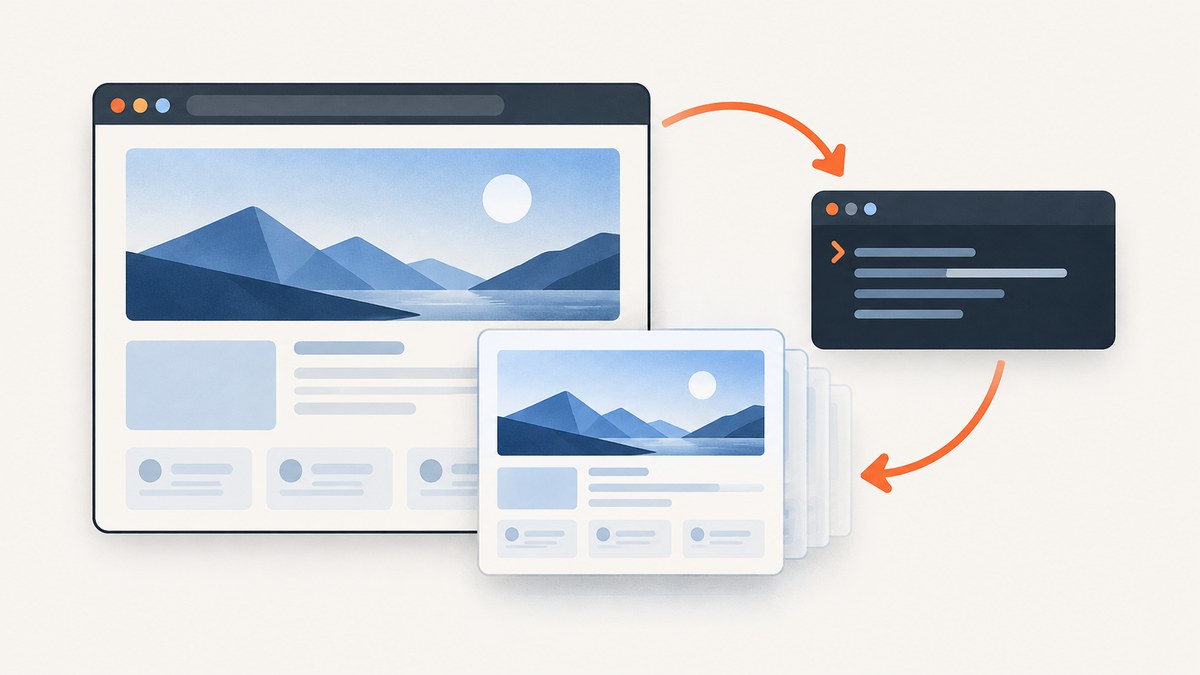
For a one-off screenshot in desktop Firefox, right-click an empty area of a page and choose Take Screenshot. You can also press Ctrl+Shift+S on Windows or Linux, or Command+Shift+S on macOS. Choose a region, a highlighted page element, the full page, or the visible area, then copy or download the result. For a headless screenshot saved to a file, Firefox documents the --screenshot command-line option. Mozilla’s screenshot guide covers the current built-in feature; the command-line options are in Firefox’s command-line reference.
“Firefox Loop” can also refer to Loop, the historical codename for Firefox Hello, a browser communications and content-sharing project that Mozilla says began shutting down from Firefox 49. It is not a current screenshot feature. This guide explains the current Firefox screenshot tool and a single headless capture. Firefox’s documented command-line reference does not provide a complete repeat loop for visiting multiple URLs, so the example here does not claim to automate that workflow.
1. Choose the Firefox screenshot method
Use the built-in tool when you want to interactively choose what to capture and copy it or download it. Use the command line when you want Firefox to write a screenshot file from a headless invocation. The documented command-line flags do not establish that the headless option offers the same region and element selection interface as the built-in tool.
| Need | Use | Output |
|---|---|---|
| Grab a visible region or a page element | Built-in screenshot tool | Clipboard or downloaded image |
| Save a whole page | Built-in tool’s full-page mode | Clipboard or downloaded image |
| Capture a headless browser viewport to a file | --screenshot |
File at the supplied path or in the working directory |
| Capture many URLs in a repeatable workflow | A separately verified browser automation script or a screenshot API | Depends on the chosen workflow |
2. Take a screenshot with Firefox’s built-in tool
- Open the page in Firefox desktop.
- Right-click an empty part of the page and select Take Screenshot, or use the platform shortcut. You can add a Screenshot button from More Tools > Customize Toolbar if you prefer a toolbar control.
- Choose the target: a selected region, the element highlighted under the pointer, the entire page, or the currently visible area.
- Choose Copy to place the result on the clipboard, or Download to save it in Firefox’s default downloads folder.
The downloaded filename includes the date and time and the page title, according to Mozilla Support. If you need the file somewhere else, move it after downloading or change the browser’s download settings. The clipboard route is useful when you plan to paste the capture into an editor or document immediately.
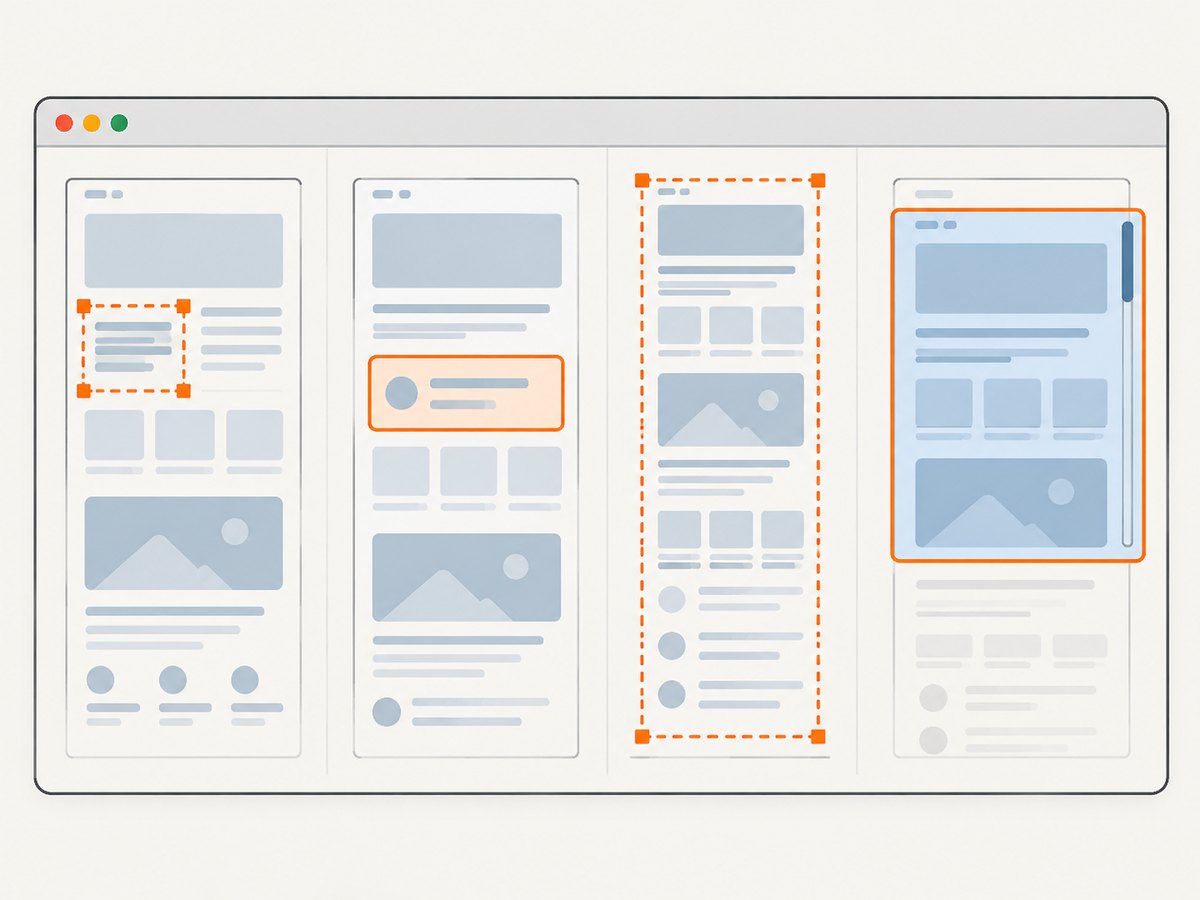
Keyboard selection and accessibility
Mozilla documents keyboard controls for the screenshot selection interface. Arrow keys move the crosshair, and Space or Enter starts or completes selection. The support article notes that moving the crosshair does not work on Wayland. If this input method fails, use the pointer or a different desktop session rather than assuming the capture itself is broken.
3. Capture a screenshot from the command line
Firefox documents --screenshot [path]. It saves a screenshot to the supplied path, or to the working directory when no path is supplied, and implies headless operation. Use --window-size width[,height] to set the screenshot viewport dimensions.
firefox --screenshot page.png https://example.comTo specify a viewport, include the window-size option. For example:
firefox --window-size 1440,1000 --screenshot page.png https://example.comReplace firefox with the executable name or path available on your system if necessary. The command-line reference describes the flags, but it does not specify a portable executable path for every operating system, a wait-until-loaded rule, or a reliable loop over multiple URLs. Confirm Firefox is installed and available to your shell, and inspect the produced file before using it in a pipeline.
What viewport size means
--window-size sets the size used for the screenshot. It is the right setting to adjust when a capture has the wrong viewport dimensions. The reference does not say that this flag selects full-page capture or matches every interactive selection mode. If you need a full-page image, use the built-in full-page mode or a workflow whose documentation explicitly supports full-page capture.
4. What “loop” does and does not mean
The word “loop” in this title should not be read as the name of a current Firefox screenshot product. MozillaWiki’s archived Loop page identifies it with Firefox Hello and says shutdown began from Firefox 49. The current screenshot feature is accessed through Firefox’s screenshot tool.
A repeat loop means more than passing one URL to Firefox: software must decide which URLs to visit, how to wait for each page, how to name and store each result, and what to do when a page fails. The cited Firefox command-line documentation establishes single-capture flags, but not those orchestration details. Avoid copying an unverified shell loop into a production job and assuming it handles loading, errors, or browser process cleanup.
5. Privacy and data collection
Mozilla Support says Firefox Screenshots collects interaction events, such as using Copy or Save full page, but does not collect the URL or details of the captured image. The article also describes settings for disabling technical and interaction data collection, and says website data collection respects the browser’s Do Not Track setting. These statements describe the support article’s specific account of Firefox Screenshots; consult the current support page and Firefox settings for the controls available in your version.
6. Troubleshooting
| Symptom | Likely cause | What to try |
|---|---|---|
| “Take Screenshot” is missing from the context menu | The menu was opened over a control or the feature is not visible in that context | Right-click an empty page area, use the keyboard shortcut, or add the Screenshot button through toolbar customization. |
| The shortcut does not open the tool | The shortcut differs by operating system, or another application intercepts it | Use Ctrl+Shift+S on Windows/Linux and Command+Shift+S on macOS; otherwise use the context menu or toolbar. |
| Keyboard crosshair will not move | Mozilla notes this behavior on Wayland | Use pointer selection or another supported input/session. |
| The saved screenshot is hard to find | Firefox downloads to its configured default folder | Check the browser’s downloads list and default download location; the filename includes date/time and page title. |
| Command reports that Firefox cannot be found | The executable is not on the shell’s PATH or has a different name | Run the installed Firefox executable by its full path, or configure the shell path for the installed browser. |
| Command produces an unexpected image size | The default viewport differs from the desired dimensions | Set --window-size width[,height] and capture again. |
| Command-line result is not full-page | The documented command-line flag does not promise full-page selection | Use built-in full-page capture or a tool whose documented options include full-page output. |
| A repeated capture job misses pages or saves inconsistent results | The cited CLI reference does not specify URL iteration or page-load waiting | Use a separately verified automation approach with explicit navigation, wait, naming, and failure handling, or send each URL to a screenshot API. |
7. Performance, reliability, and cost
The built-in tool has no separate screenshot-service request: it captures the page open in Firefox and copies or downloads the result. A headless invocation is convenient for a single file capture, but a multi-page production workflow needs additional decisions that the cited flags do not cover, including page readiness, retries, output naming, and resource cleanup. For either method, very large pages and complex sites can make capture slower and increase image size; choose a smaller viewport or a visible-area capture when a full-page image is not required.
Firefox itself does not add a per-screenshot API charge to these documented methods. An external service may charge according to its own plan and billing rules. Check what the service counts as a successful or billable capture before using it for batch work, and account for failed page loads and retries in your workflow design.
Or skip the browser setup
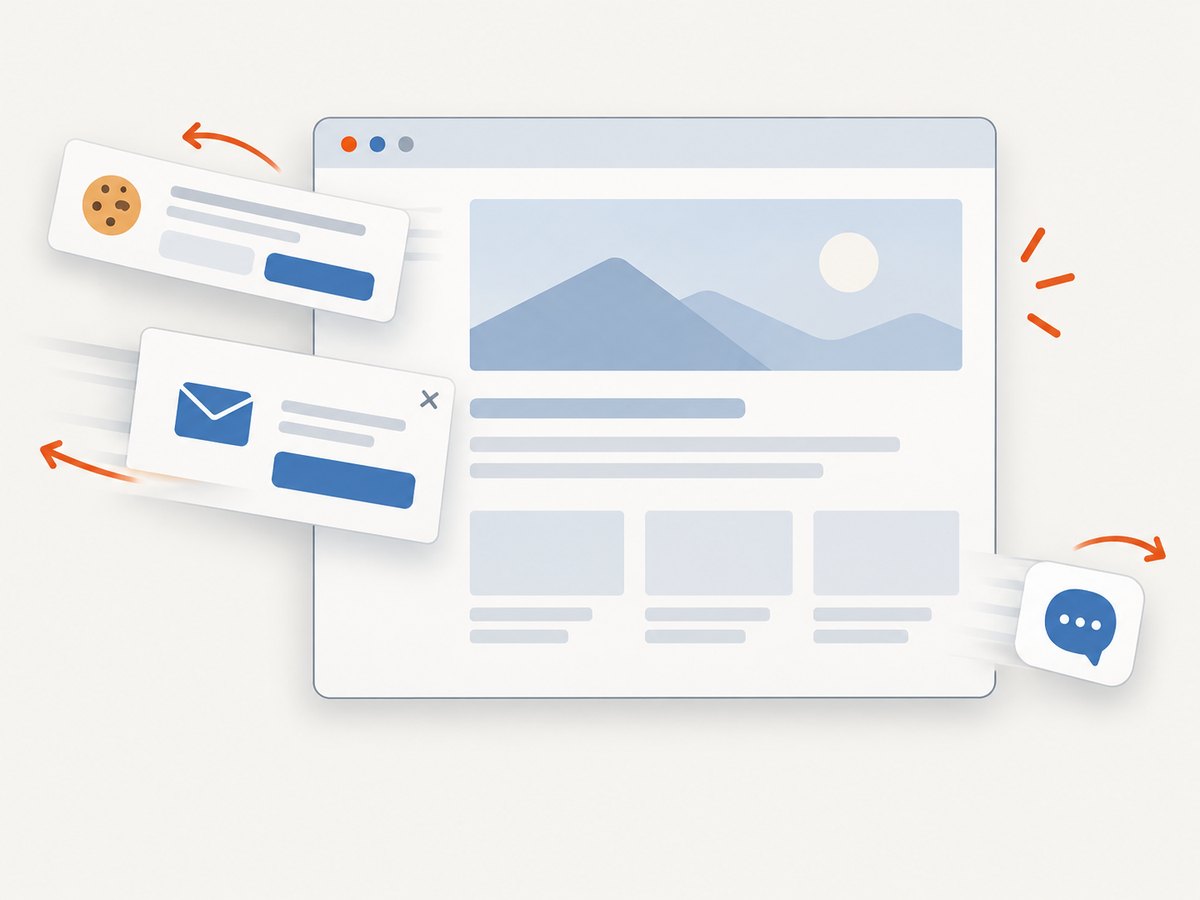
For a screenshot API request, send a URL to ScreenshotNeo. It returns an image or PDF and also offers an MCP server for AI agents. Its clean capture can accept cookie and consent banners and remove known consent platforms, newsletter popups, and chat widgets before taking the shot. Bot checks, blank pages, failed loads, timeouts, and cache hits are not billed; response headers report the page verdict and billing status.
Here is a one-call cURL example. See the ScreenshotNeo API documentation for request options and response details.
curl -G "https://api.screenshotneo.com/v1/shot" \
  -d access_key=YOUR_API_KEY \
  --data-urlencode url=https://stripe.com \
  -o shot.webp
The same request in Python:
import requests

r = requests.get(
    "https://api.screenshotneo.com/v1/shot",
    params={"access_key": "YOUR_API_KEY", "url": "https://stripe.com"},
    timeout=90,
)
open("shot.webp", "wb").write(r.content)
And in Node.js:
const q = new URLSearchParams({ access_key: 'YOUR_API_KEY', url: 'https://stripe.com' });
const res = await fetch(`https://api.screenshotneo.com/v1/shot?${q}`);
if (!res.ok) throw new Error(`Screenshot request failed: ${res.status}`);
await Bun.write('shot.webp', res);
In Node.js environments without Bun, read the response body and write it with the runtime’s file APIs. Keep the access key on the server; do not expose it in browser code or public pages. ScreenshotNeo includes tools named take_screenshot, get_page_info, and capture_pdf in its MCP server, and its free plan includes 1,000 screenshots each month with no card. Paid plans start at $5 for 3,000 shots; yearly billing gives two months free. Every feature is available on every plan.
Create a free ScreenshotNeo account for 1,000 screenshots a month with no card.
Frequently asked questions
Can Firefox save a full-page screenshot?
Yes. The built-in screenshot interface includes a full-page capture mode. The documented command-line flags cited here do not establish an equivalent full-page mode.
Does Firefox Loop take screenshots?
No current screenshot tool is identified by that historical name in the sources. MozillaWiki describes Loop as Firefox Hello, a discontinued communications and content-sharing project.
Can I capture a specific page element?
Yes, with the built-in interface: move the pointer over the page until the target element is highlighted, then select it.
Can I use the command line to capture many URLs?
The Firefox command-line reference documents a screenshot flag for capture, not a complete multi-URL loop. A repeated workflow needs separately verified navigation, waiting, output, and error handling.


