How to Capture Screenshots or HTML Pages in Behat Steps
Capture rendered screenshots or raw HTML in Behat with DrevOps, Mink, browser drivers, custom steps, CI troubleshooting, and ScreenshotNeo.
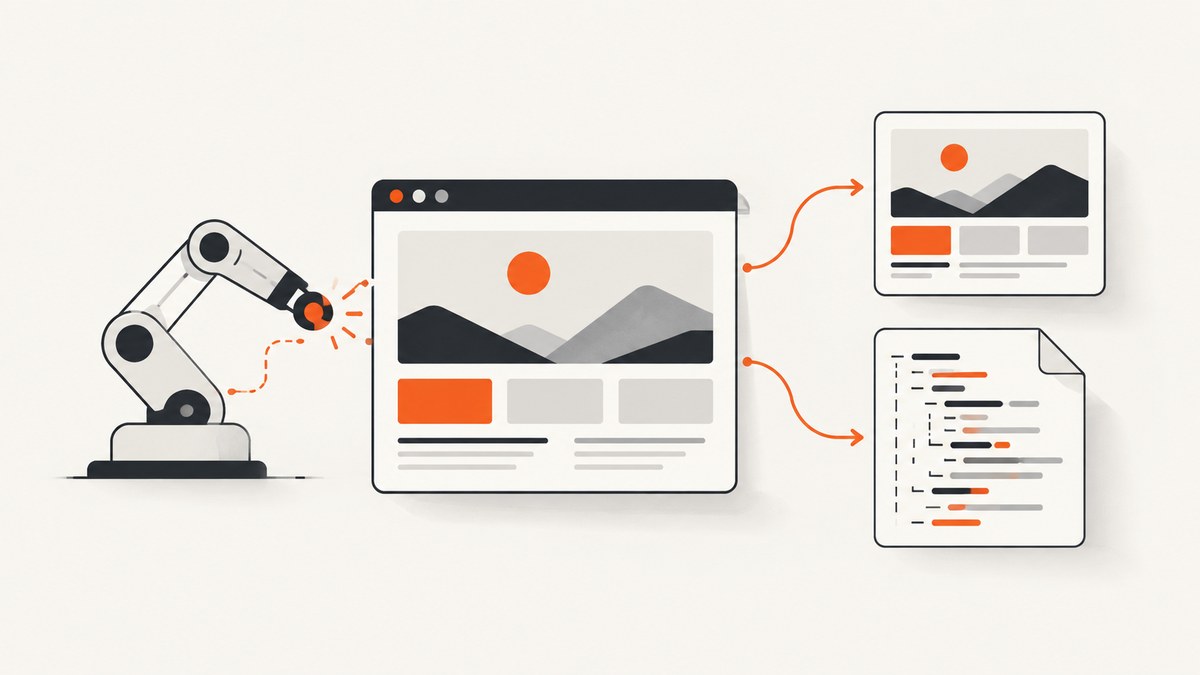
Direct answer: install the DrevOps behat-screenshot extension when you need standard PNG or HTML evidence from Behat. Register DrevOps\BehatScreenshotExtension\Context\ScreenshotContext, then use I save screenshot or I save fullscreen screenshot. If you need a raw DOM artifact, write a Mink context step that calls $this->getSession()->getPage()->getOuterHtml(). Use Selenium2 or Chrome when the page depends on JavaScript, layout, or browser interaction; BrowserKit and Goutte do not execute JavaScript.
This guide covers setup, named files, viewport sizes, failure capture, HTML output, driver selection, custom steps, CI artifacts, and the errors that most often make screenshot steps fail.
1. Install the Behat screenshot extension
The maintained DrevOps extension supplies ready-made screenshot steps and can capture screenshots on failures or after every step. Add it as a development dependency:
composer require --dev drevops/behat-screenshotIts package documentation is available on Packagist.
2. Register the context and extension
Add the screenshot context to the suite that runs your scenarios. The extension must also be enabled in the same Behat profile:
default:
  suites:
    default:
      contexts:
        - DrevOps\BehatScreenshotExtension\Context\ScreenshotContext
        - FeatureContext
  extensions:
    DrevOps\BehatScreenshotExtension: ~
Adapt the profile and suite names if your project has separate browser, API, or smoke suites. A common mistake is placing the context under a suite that is not selected by the command you run.
3. Use the built-in screenshot steps
Once the context is loaded, a scenario can save the current browser state:
Feature: Checkout evidence

  Scenario: Save evidence of the rendered page
    Given I am on 'https://example.com'
    Then I save screenshot
    And I save fullscreen screenshot
The extension also documents variants for deterministic names and viewport dimensions:
Then I save screenshot with name 'checkout.png'
Then I save 1440 x 900 screenshot
Then I save fullscreen 1440 x 900 screenshot
Use an ordinary screenshot when the viewport is the evidence you want. Fullscreen mode temporarily resizes the browser to the page height, which is useful for a long landing page but can produce a very tall image.
Capture failures automatically
For regression debugging, configure the extension to capture a screenshot when a scenario fails. The extension documents on_failed: true. You can also capture every step with on_every_step: true, or opt scenarios into capture with the @screenshots tag. Keep automatic capture limited to the suites where the extra browser work is useful; capturing every step in a large suite increases runtime and storage.
4. Capture the current HTML with a custom Mink step
A screenshot records pixels. HTML records the document structure that Mink sees at the moment of capture. A custom context is the most flexible option when you need a predictable filename, raw markup, or additional metadata.
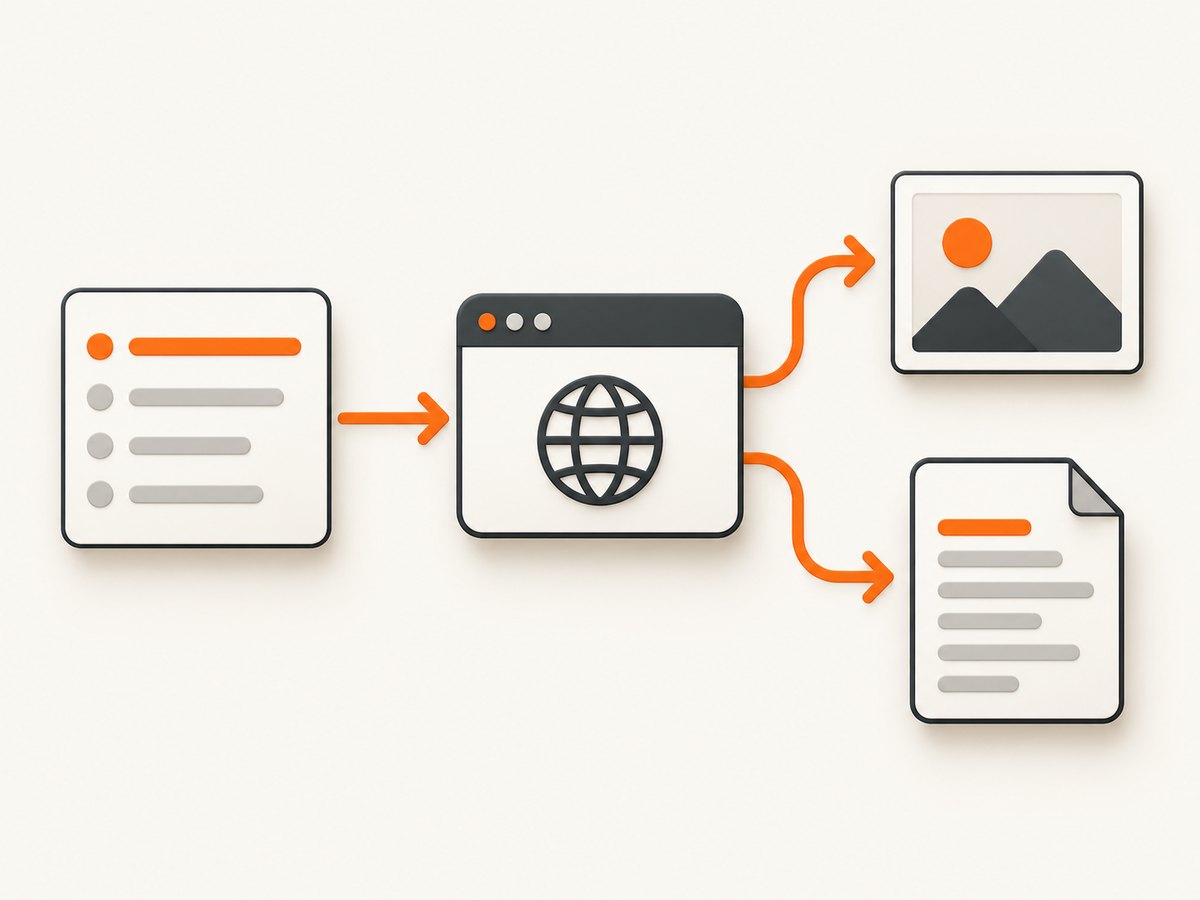
<?php

use Behat\Behat\Context\Context;
use Behat\MinkExtension\Context\MinkContext;

final class FeatureContext extends MinkContext implements Context
{
    /**
     * @Given I save the current HTML as :filename
     */
    public function saveCurrentHtml(string $filename): void
    {
        $artifactDirectory = __DIR__ . '/../artifacts';
        if (!is_dir($artifactDirectory) && !mkdir($artifactDirectory, 0775, true) && !is_dir($artifactDirectory)) {
            throw new RuntimeException('Unable to create artifact directory: ' . $artifactDirectory);
        }

        $safeName = basename($filename);
        $path = $artifactDirectory . '/' . $safeName . '.html';
        $html = $this->getSession()->getPage()->getOuterHtml();

        if (file_put_contents($path, $html) === false) {
            throw new RuntimeException('Unable to write HTML artifact: ' . $path);
        }
    }
}
Use it in a feature like this:
Scenario: Save the document after validation fails
  Given I am on 'https://example.com/form'
  When I press 'Submit'
  Then I save the current HTML as 'form-validation'
Session::getPage() returns Mink’s DocumentElement, which represents the page’s <html> node. getOuterHtml() includes that node; getHtml() returns its inner HTML. Mink documents these methods in its traversing and manipulating guides.
Why use basename?
Feature text becomes input to your step. Passing it through basename() prevents a filename such as ../../outside from escaping the artifact directory. You should also keep artifacts outside the source tree or add the artifact directory to .gitignore.
5. Choose a driver that can render the evidence
Driver choice determines what your evidence means. BrowserKit and Goutte are useful for fast DOM-oriented checks, but they do not evaluate JavaScript. Selenium2 and Chrome provide the browser controls required for JavaScript-rendered content, layout, scrolling, and interactive state. See Mink’s driver capability documentation.
| Need | Suitable approach | Reason |
|---|---|---|
| Fast server-rendered DOM assertions | BrowserKit or Goutte | No browser startup; JavaScript is not evaluated. |
| React, Vue, Angular, or client-side hydration | Selenium2 or Chrome | The page must execute JavaScript before capture. |
| Pixel evidence and layout | Selenium2 or Chrome | A real browser supplies viewport and window operations. |
| Raw HTML after interaction | A JavaScript-capable driver | The DOM must be captured after the interaction and any async update. |
A browser driver does not automatically mean the application is ready. Add a project-specific wait for a stable selector, or wait for the state your application exposes, before saving the artifact.
6. Make captures deterministic
- Navigate to a known URL. Prefer a local test environment or a fixture page whose content is controlled by the test.
- Complete the interaction. Click, submit, or open the component before capture.
- Wait for readiness. Wait for a result selector, loading indicator removal, or application-specific ready state.
- Capture one primary artifact. Save a named screenshot or HTML file at the assertion point.
- Attach artifacts in CI. Publish the configured screenshot and HTML directories when the job fails.
For dynamic pages, avoid arbitrary sleeps when a reliable selector or state condition is available. A fixed delay can be too short on a busy runner and unnecessarily slow on a fast one.
7. HTML versus PNG: choose the artifact deliberately
| Artifact | Best for | Limitations |
|---|---|---|
| PNG screenshot | Visual regressions, layout, evidence for a ticket | Does not explain hidden DOM state or source markup. |
| HTML document | Debugging generated markup, inspecting validation messages, preserving selectors | Does not preserve pixels, fonts, or final layout. |
| Both | Hard-to-reproduce failures and CI diagnosis | More storage and browser work. |
Save both when a failure can arise from either presentation or markup. For routine smoke tests, one screenshot on failure is usually enough.
8. Or skip the browser setup
ScreenshotNeo is a website screenshot API and MCP server. It accepts one GET request and returns PNG, JPEG, WebP, or PDF. The same call is useful from a Behat hook, a CI job, or an AI agent when you want a remote capture without managing a browser driver.

See the ScreenshotNeo API documentation for all options. A minimal call is:
curl -G 'https://api.screenshotneo.com/v1/shot' \
  -d access_key=YOUR_API_KEY \
  --data-urlencode url=https://stripe.com \
  -o shot.webp
import requests
r = requests.get(
'https://api.screenshotneo.com/v1/shot',
params={'access_key': 'YOUR_API_KEY', 'url': 'https://stripe.com'},
timeout=90,
)
r.raise_for_status()
open('shot.webp', 'wb').write(r.content)const q = new URLSearchParams({ access_key: 'YOUR_API_KEY', url: 'https://stripe.com' });
const res = await fetch(`https://api.screenshotneo.com/v1/shot?${q}`);
if (!res.ok) throw new Error(`Screenshot failed: ${res.status}`);
const fs = await import('node:fs/promises');
await fs.writeFile('shot.webp', Buffer.from(await res.arrayBuffer()));ScreenshotNeo removes cookie and consent banners, newsletter popups, and chat widgets before capture. Bot checks or CAPTCHAs, blank pages, timeouts, failed loads, and cache hits are not billed; response headers identify the page verdict and whether the request was billed. It also supports full-page capture with lazy images loaded, CSS-selector element capture, dark mode, device presets and custom viewports, retina scale, PDF options, custom CSS and JavaScript, clicks, waits, blocking rules, headers, cookies, user agents, authorization, timezone, geolocation, transparent backgrounds, resizing, chosen cache TTLs, signed links, asynchronous jobs, webhooks, bulk capture, usage reporting, and an OpenAPI specification. An MCP server exposes take_screenshot, get_page_info, and capture_pdf to Claude, Cursor, and other MCP clients.
Plans include 1,000 screenshots per month free with no card; paid plans start at $5 for 3,000 shots. Every feature is available on every plan. Create a free ScreenshotNeo account.
9. Troubleshooting common Behat screenshot errors
“Undefined step: I save screenshot”
Cause: the screenshot context is not registered in the active suite, or the extension is not enabled.
Fix: verify the exact namespace in behat.yml, then inspect definitions:
vendor/bin/behat -di | grep -i screenshotBehat’s CLI documentation describes --definitions (also -d) for browsing registered definitions. If nothing appears, check that you are running the expected profile and that Composer installed the package.
The screenshot is blank
Cause: the page did not load, the driver captured before rendering, or the selected driver cannot execute JavaScript.
Fix: confirm the URL is reachable from the test runner, switch to Selenium2 or Chrome for dynamic pages, and wait for a page-specific ready selector before the capture.
The screenshot misses a modal or validation message
Cause: the interaction or asynchronous update had not completed.
Fix: assert that the modal or message exists, then capture. Prefer a condition-based wait over a long fixed sleep.
Fullscreen capture is unexpectedly huge
Cause: fullscreen mode resizes the browser to the document height, including long feeds or repeated lazy-loading sections.
Fix: use a fixed viewport screenshot, capture a specific element, or test the page in sections.
HTML and screenshot disagree
Cause: they were captured at different points, or the screenshot includes browser layout effects that raw markup cannot show.
Fix: place both steps immediately after the same wait and interaction. Remember that HTML describes DOM structure while PNG describes rendered pixels.
Artifacts are missing from CI
Cause: the files were written to a runner-local path that the CI job does not publish, or the test process lacked directory permissions.
Fix: create the artifact directory during job setup, use an absolute or well-known workspace path, verify permissions, and configure the CI system to upload the directory even when the test command exits non-zero.
10. Performance, reliability, and cost considerations
- Runtime: browser startup, page navigation, JavaScript execution, full-page resizing, and image encoding all add time. Reuse a browser session where your isolation model permits it, and reserve fullscreen or every-step capture for targeted suites.
- Parallelism: parallel jobs need separate artifact filenames and isolated browser profiles. Include scenario or worker identifiers in custom filenames.
- Storage: PNGs and full HTML documents can contain sensitive test data. Set retention rules and avoid committing generated artifacts.
- Reliability: capture after a meaningful readiness condition. A screenshot of a loading spinner is valid evidence only if that is the state under test.
- Remote capture cost: ScreenshotNeo bills only clean shots. Bot checks, blank pages, timeouts, failed loads, and cache hits cost nothing, and the response headers expose the verdict and billing result. Its cache TTL, bulk endpoint, and asynchronous jobs can reduce repeated work for large capture sets.
11. A practical CI checklist
- Install
drevops/behat-screenshotwith Composer. - Register
ScreenshotContextunder the suite that CI runs. - Run
behat -dionce to confirm the definitions are present. - Use a JavaScript-capable driver for rendered evidence.
- Wait for a stable application state before capture.
- Enable
on_failedfor failure evidence. - Write files to a dedicated artifact directory.
- Use
basename()or another safe naming policy for feature-supplied filenames. - Upload screenshots and HTML as CI artifacts and apply retention limits.
FAQ
Can Behat save the current page as HTML without a screenshot extension?
Yes. A Mink context can call $this->getSession()->getPage()->getOuterHtml() and write the returned string to a file.
Does Goutte capture JavaScript-rendered content?
No. Use Selenium2 or Chrome when JavaScript execution or browser layout is part of the evidence.
Should I capture every Behat step?
Only when step-by-step history is needed. Failure-only capture usually gives useful diagnostics with less runtime and storage.
What is the safest way to name an HTML artifact?
Accept a logical name from the feature, reduce it to a basename, and write it beneath a directory created by the test or CI setup.
When is ScreenshotNeo a better fit?
Use it when you want an API or MCP workflow, clean pages without consent banners and widgets, failure-aware billing, or capture features without maintaining a browser driver.


