How to Capture Website Screenshots and Convert HTML to Images in Java
Learn Java screenshot capture with Playwright and Selenium, HTML-to-image rendering, full-page and element shots, troubleshooting, and a hosted API option.
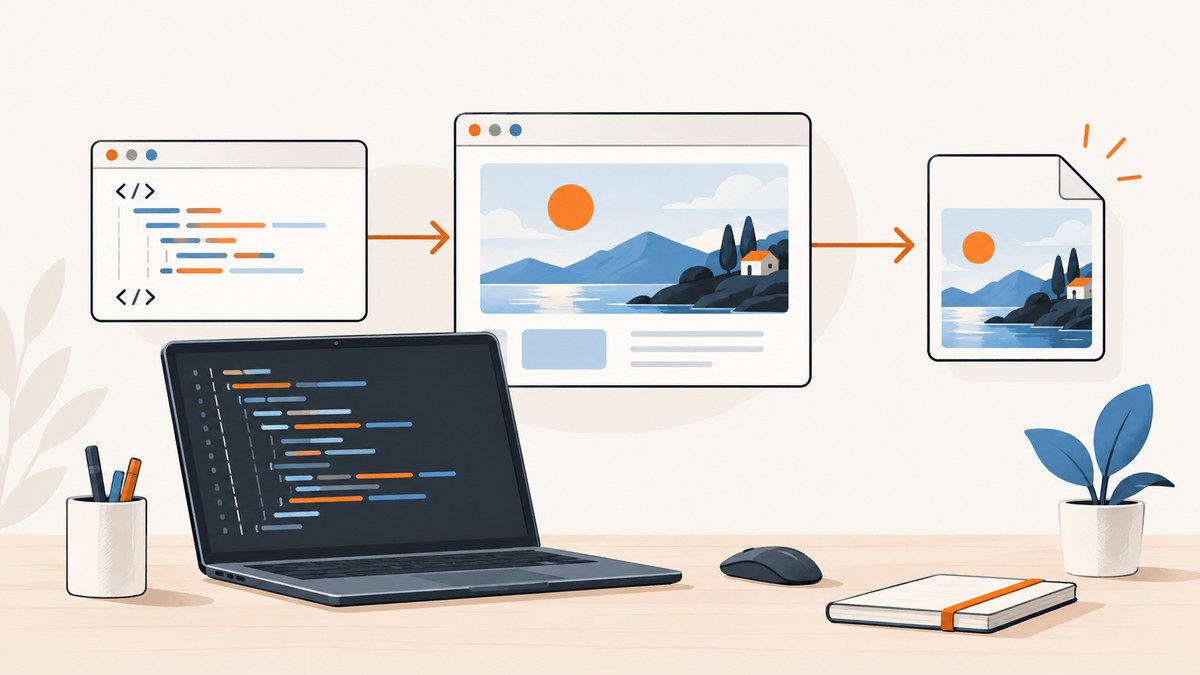
Java has two different image-rendering jobs: capturing a live website after a browser executes its HTML, CSS, JavaScript, fonts, and network requests; and converting HTML/CSS that you already have into an image. Use a real browser such as Playwright or Selenium for the first job. Use a Java HTML renderer or a hosted HTML-to-image service for the second. A lightweight HTML parser alone cannot reproduce a modern page faithfully because it does not lay out CSS or execute JavaScript.
This guide shows complete Java implementations for both paths, including full-page and element screenshots, byte-array output, waiting, format and scale controls, authentication, failure handling, and production considerations. It also includes cURL, Python, and Node.js examples for a hosted option.
1. Choose the right rendering path
| Need | Recommended path | What it does |
|---|---|---|
| Screenshot a JavaScript-driven URL | Playwright Java | Launches a browser page and exposes page, full-page, byte-array, and locator screenshots. |
| Use an existing WebDriver setup | Selenium WebDriver | Captures a driver viewport or an individual element through TakesScreenshot. |
| Convert supplied HTML/CSS without navigation | HTML conversion library or rendering API | Accepts markup directly; JavaScript and CSS support depend on the selected renderer. |
| Avoid browser binaries and server maintenance | Hosted screenshot API | Receives a URL or markup and returns an image, with authentication and network-service tradeoffs. |
Decide first whether your input is a public URL, an authenticated URL, or a string/file containing HTML. Then decide whether you need the viewport only, the entire scrollable document, or one DOM element. Finally choose PNG for lossless output, JPEG/WebP for smaller files, and a scale or device profile appropriate for your downstream use.
2. Capture a website with Playwright Java
Playwright’s Java guide documents screenshots saved to a path, full-page capture, byte-array output, and locator-level screenshots. Add the Playwright Java dependency using the version managed by your project, then install the browser binaries with the Playwright CLI for your environment.
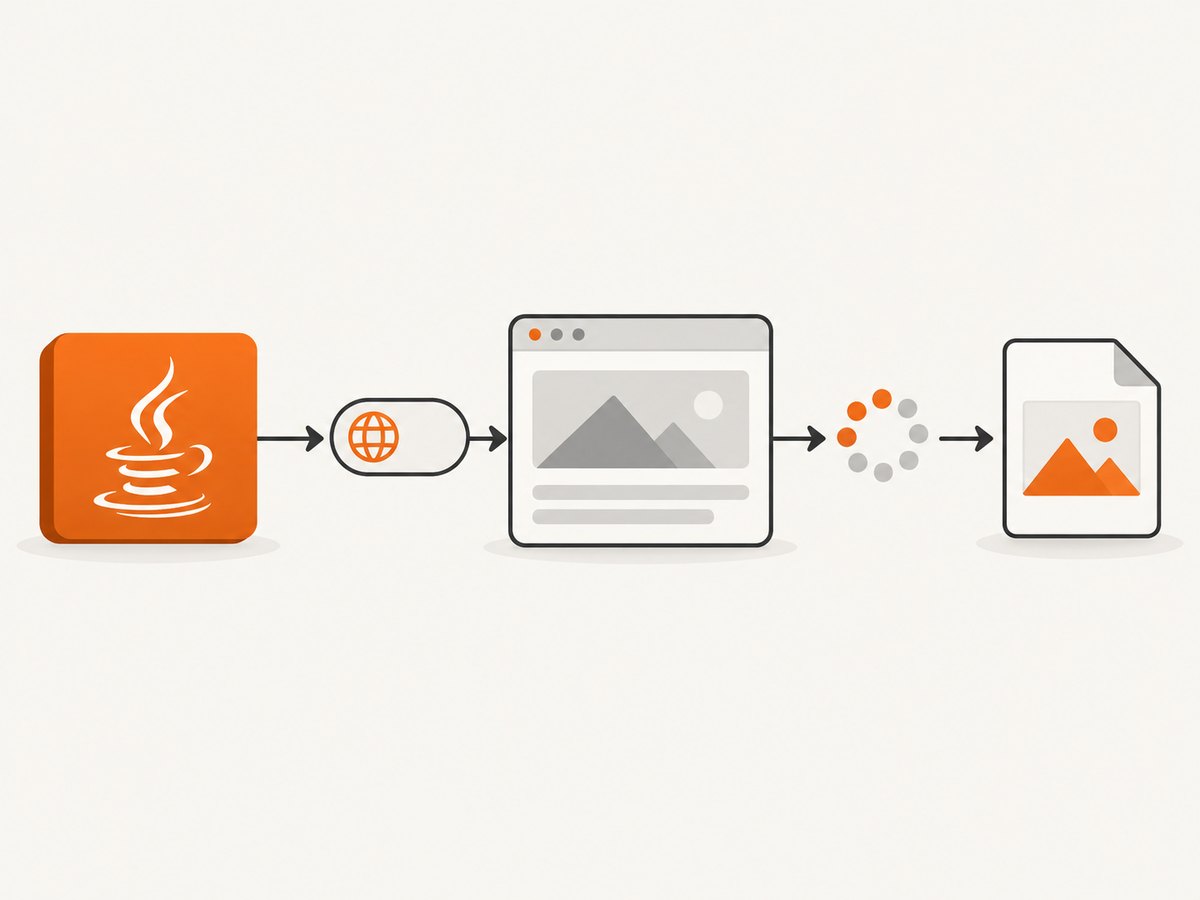
Minimal viewport screenshot
import com.microsoft.playwright.Browser;
import com.microsoft.playwright.BrowserType;
import com.microsoft.playwright.Page;
import com.microsoft.playwright.Playwright;
import java.nio.file.Paths;

public class WebsiteShot {
  public static void main(String[] args) {
    try (Playwright playwright = Playwright.create()) {
      Browser browser = playwright.chromium().launch(
          new BrowserType.LaunchOptions().setHeadless(true));
      Page page = browser.newPage(new Browser.NewPageOptions()
          .setViewportSize(1440, 900));
      page.navigate("https://example.com");
      page.screenshot(new Page.ScreenshotOptions()
          .setPath(Paths.get("shot.png")));
      browser.close();
    }
  }
}
The call waits for navigation according to Playwright’s navigation behavior, but a page can still be rendering data after navigation completes. For a stable capture, wait for the actual content you need.
Full-page screenshot
page.screenshot(new Page.ScreenshotOptions()
    .setPath(Paths.get("full-page.png"))
    .setFullPage(true));
setFullPage(true) captures the page’s full scrollable height. Very tall documents can create large images and consume substantial memory; split long reports into sections when a downstream system has pixel or file-size limits.
Wait for a selector, then capture
page.navigate("https://example.com/dashboard");
page.locator("[data-testid='dashboard-ready']")
    .waitFor();
page.screenshot(new Page.ScreenshotOptions()
    .setPath(Paths.get("dashboard.png"))
    .setType("png"));
Waiting on a meaningful selector is usually more reliable than sleeping for a fixed number of milliseconds. You can also wait for a known response or use a short delay when the page has no stable readiness marker. Keep the wait bounded so a missing element becomes an explicit failure rather than an indefinitely hung job.
Capture an element
page.locator(".invoice-card").screenshot(
    new Page.ScreenshotOptions()
        .setPath(Paths.get("invoice-card.png"))
        .setType("png"));
Locator screenshots are clipped to the matched element. The element must be attached and visible. A covered element may not appear as expected, and a scrollable container shows only the content currently in its scroll position; scroll the container or capture its contents separately when needed.
Return bytes for post-processing
byte[] png = page.screenshot(new Page.ScreenshotOptions()
    .setType("png"));
java.nio.file.Files.write(Paths.get("in-memory.png"), png);
Byte output is useful when you need to upload directly to object storage, add metadata, resize with an image library, or return an HTTP response without a temporary file.
Format, quality, scale, and timeout
page.screenshot(new Page.ScreenshotOptions()
    .setPath(Paths.get("hero.webp"))
    .setType("webp")
    .setQuality(82)
    .setScale("css")
    .setTimeout(30_000));
Lossy formats such as JPEG and WebP accept a quality value. PNG ignores quality. The scale option controls whether output pixels follow CSS pixels or device pixels; choose deliberately when producing retina assets. Screenshot timeout protects the job from a page that never reaches a capturable state.
3. Capture with Selenium WebDriver
Selenium’s official Java API exposes screenshots through TakesScreenshot. Drivers can return a file, bytes, or base64 data. Element objects also implement screenshot capability in conforming drivers.
import org.openqa.selenium.By;
import org.openqa.selenium.OutputType;
import org.openqa.selenium.TakesScreenshot;
import org.openqa.selenium.WebDriver;
import org.openqa.selenium.chrome.ChromeDriver;
import java.io.File;
import java.nio.file.Files;
import java.nio.file.StandardCopyOption;
import java.time.Duration;

public class SeleniumShot {
  public static void main(String[] args) throws Exception {
    WebDriver driver = new ChromeDriver();
    try {
      driver.manage().timeouts().implicitlyWait(Duration.ofSeconds(5));
      driver.manage().window().setSize(new org.openqa.selenium.Dimension(1440, 900));
      driver.get("https://example.com");

      File source = ((TakesScreenshot) driver)
          .getScreenshotAs(OutputType.FILE);
      Files.copy(source.toPath(), java.nio.file.Paths.get("viewport.png"),
          StandardCopyOption.REPLACE_EXISTING);

      File card = driver.findElement(By.cssSelector(".card"))
          .getScreenshotAs(OutputType.FILE);
      Files.copy(card.toPath(), java.nio.file.Paths.get("card.png"),
          StandardCopyOption.REPLACE_EXISTING);
    } finally {
      driver.quit();
    }
  }
}
Selenium’s full-page behavior varies by browser and driver. Some drivers capture only the viewport, while others provide a full-page implementation or require scrolling and stitching. Verify the exact driver combination before promising identical output across environments. For consistent full-page behavior, Playwright’s documented full-page option is simpler.
4. Convert supplied HTML/CSS to an image
If you have an HTML string, template, or file rather than a URL, use a renderer that accepts markup directly. Aspose.HTML for Java documents conversion to JPG, PNG, GIF, TIFF, and BMP. A hosted HTML-to-image service is another option when you do not want browser binaries in your deployment. Check each renderer’s CSS, font, and JavaScript support; these capabilities are not universal.
Render local markup in a browser with Playwright
String html = """
Invoice
$240.00
""";
page.setContent(html);
page.locator("#total").waitFor();
page.screenshot(new Page.ScreenshotOptions()
.setPath(Paths.get("html-image.png"))
.setFullPage(true));setContent is useful when your Java application generates the document. Relative images, stylesheets, and fonts need resolvable URLs or embedded data. If external resources are required, allow them through your network policy and wait for the relevant element before capture.
When a direct converter is a better fit
- Use a direct Java converter when you need deterministic server-side rendering of known markup and do not need browser JavaScript.
- Use a browser when layout depends on modern CSS, client-side scripts, web fonts, canvas, or third-party components.
- Use a hosted renderer when packaging Chromium, sandbox permissions, and browser patching are operational burdens.
Do not infer fidelity from the library name. Compare the renderer against your own templates, especially for flexbox/grid layouts, SVG, web fonts, sticky positioning, and JavaScript-generated content.
5. Make captures repeatable
Control viewport and device scale
Set viewport width and height explicitly. A responsive site can produce materially different navigation, line wrapping, and image dimensions at 1280px versus 390px. Use a consistent device scale when pixel dimensions matter.
Disable animation and blinking cursors
page.addStyleTag(new Page.AddStyleTagOptions().setContent("""
*, *::before, *::after {
  animation: none !important;
  transition: none !important;
  caret-color: transparent !important;
}
"""));
Handle lazy images
Full-page scrolling can trigger lazy loading, but implementations differ. Wait for image completion when your page exposes a known marker, or evaluate a bounded script that checks document.images. Avoid an unbounded wait on third-party images that may never finish.
Authentication and private pages
Use a browser context with the required cookies or storage state, or add headers before navigation. Never print access tokens in logs. Some sites block automation or require an interactive challenge; treat that as an expected failure state and report it to the caller.
6. Or skip the browser setup
ScreenshotNeo provides a website screenshot API and MCP server. One GET request returns PNG, JPEG, WebP, or PDF. The same parameter names used by many screenshot APIs work, which can simplify migration.
cURL: see the ScreenshotNeo API docs for all options.
curl -G "https://api.screenshotneo.com/v1/shot" -d access_key=YOUR_API_KEY --data-urlencode url=https://stripe.com -o shot.webpPython:
import requests
r = requests.get("https://api.screenshotneo.com/v1/shot", params={"access_key": "YOUR_API_KEY", "url": "https://stripe.com"}, timeout=90)
open("shot.webp", "wb").write(r.content)
Node.js:
const q = new URLSearchParams({ access_key: 'YOUR_API_KEY', url: 'https://stripe.com' });
const res = await fetch(`https://api.screenshotneo.com/v1/shot?${q}`);
For Java, call the same endpoint with your HTTP client and stream the response to a file. ScreenshotNeo can capture a full page, one CSS-selected element, dark mode, device presets or any viewport, retina scale, custom CSS and JavaScript, clicks, selector or network-idle waits, blocked ads and trackers, custom headers/cookies/user agents, timezone and geolocation, transparent backgrounds, resizing, caching with your chosen TTL, signed image links, asynchronous jobs with signed webhooks, bulk capture of up to 100 URLs per call, PDFs, HTML/CSS input, and usage reporting.
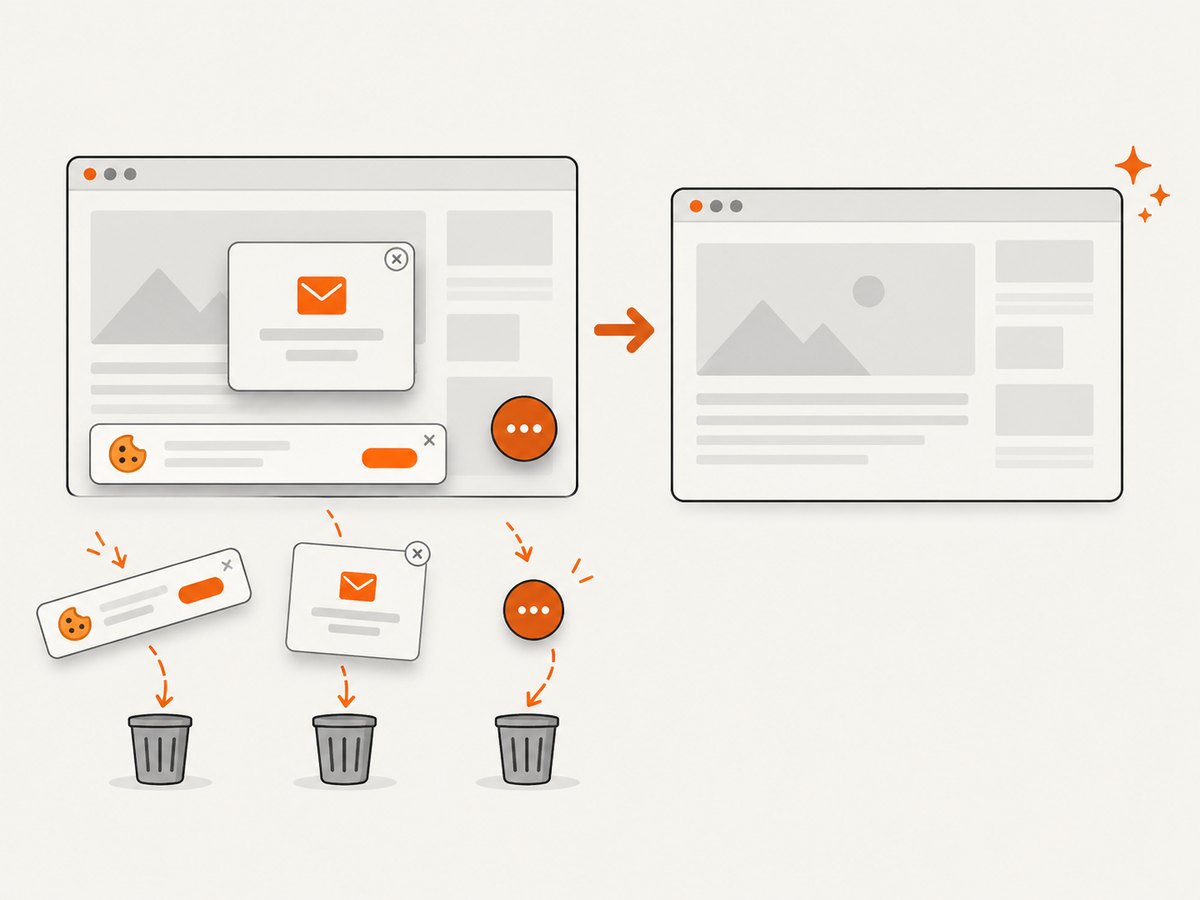
Cookie and consent banners, newsletter popups, and chat widgets are removed before the shot. Bot checks, blank pages, failed loads, timeouts, and cache hits are not billed; response headers identify the page verdict and whether the request was billed. Its MCP server exposes take_screenshot, get_page_info, and capture_pdf for Claude, Cursor, and other MCP clients.
The Free plan includes 1,000 screenshots per month with no card. Paid plans start at $5 for 3,000 screenshots; yearly billing gives two months free, and every feature is on every plan. Create a free ScreenshotNeo account and try the first 1,000 shots without a card.
7. Troubleshooting common failures
| Symptom | Likely cause | Fix |
|---|---|---|
| Blank or partially blank image | Capture occurred before client rendering or fonts/images loaded. | Wait for a specific selector, response, or bounded readiness condition; verify resource URLs. |
| Timeout | Slow network, an unreachable resource, or a selector that never appears. | Set a finite timeout, log the URL and readiness step, and make nonessential resources optional. |
| Element screenshot is clipped | Locator screenshots capture the element box, and scrollable containers show their current scroll position. | Capture the needed container state, scroll it deliberately, or use a page screenshot with clipping. |
| Full page differs between machines | Different browser versions, fonts, viewport, device scale, or driver behavior. | Pin browser dependencies, install fonts, set viewport and scale, and use the same driver. |
| 403 or bot challenge | The target site restricts automation or requires a challenge. | Use an authorized session, provide required headers/cookies, or surface the failure instead of retrying blindly. |
| Missing relative assets in HTML | Markup was loaded without a base URL. | Embed assets, use absolute URLs, or provide a document base URL and allow network access. |
| Out-of-memory error | Huge full-page image or many concurrent browsers. | Limit concurrency, use viewport captures or tiled sections, and stream bytes instead of retaining all images. |
8. Performance, reliability, and cost
- Reuse browsers carefully: launching Chromium is expensive; reuse a browser process while creating isolated contexts or pages per job. Close pages and contexts to prevent leaks.
- Bound every wait: combine selector or network-idle waits with a maximum timeout. Third-party analytics and advertisements can keep a network-idle condition open.
- Control concurrency: each page consumes CPU, memory, and network sockets. Start with a small worker pool and measure queue time, render time, and output size.
- Cache stable pages: cache by URL plus viewport, relevant headers, cookies, and rendering options. Invalidate when content or styles change.
- Choose output deliberately: PNG preserves text and sharp edges; JPEG/WebP usually reduce storage and transfer size. Quality and scale have direct size and processing effects.
- Track failures separately: record navigation errors, readiness timeouts, browser crashes, and target-site HTTP errors. Retrying a deterministic 403 wastes capacity.
- Hosted-service economics: include authentication, service availability, request limits, and egress in your design. ScreenshotNeo bills only clean shots; failed loads, blank pages, bot checks, timeouts, and cache hits are not billed and are identified in response headers.
9. Java implementation checklist
- Classify the input as URL, authenticated URL, or supplied HTML.
- Select Playwright for modern browser behavior, Selenium when an existing WebDriver stack is required, or a direct converter for controlled markup.
- Set viewport, device scale, output type, and timeout explicitly.
- Wait for a meaningful selector or response instead of relying only on a long sleep.
- Decide between viewport, full-page, and locator capture.
- Make fonts, images, and external requests available or embed them.
- Pin browser and driver versions in production.
- Limit concurrency and close every page, context, driver, and browser.
- Log enough context to reproduce failures without exposing credentials.
- Validate representative pages at each responsive breakpoint.
10. FAQ
Can Java convert any HTML file directly to PNG?
No. The result depends on the renderer’s CSS, font, SVG, and JavaScript support. A browser engine is the safest choice for pages that behave like a website.
Is a full-page screenshot always one very tall image?
Playwright’s full-page mode produces a single image of the scrollable page. Selenium behavior depends on the browser and driver, so verify it or implement controlled scrolling and stitching.
Should I use PNG or WebP?
Use PNG when lossless text and graphics matter. Use WebP or JPEG when smaller files and faster transfer are more important.
How do I capture a page behind login?
Provide an authorized browser context, cookies, storage state, or headers. Keep credentials out of source control and logs, and confirm the target permits automated access.
When is an API preferable to local Playwright?
An API is useful when you want to avoid browser packaging and maintenance, need bulk or asynchronous capture, or want cleaning of consent banners and widgets before delivery.


