How to Capture Screenshots of Invisible Webpages
Capture hidden, below-the-fold, lazy-loaded, and headless webpages with Playwright or Puppeteer, then troubleshoot blank and unstable screenshots.

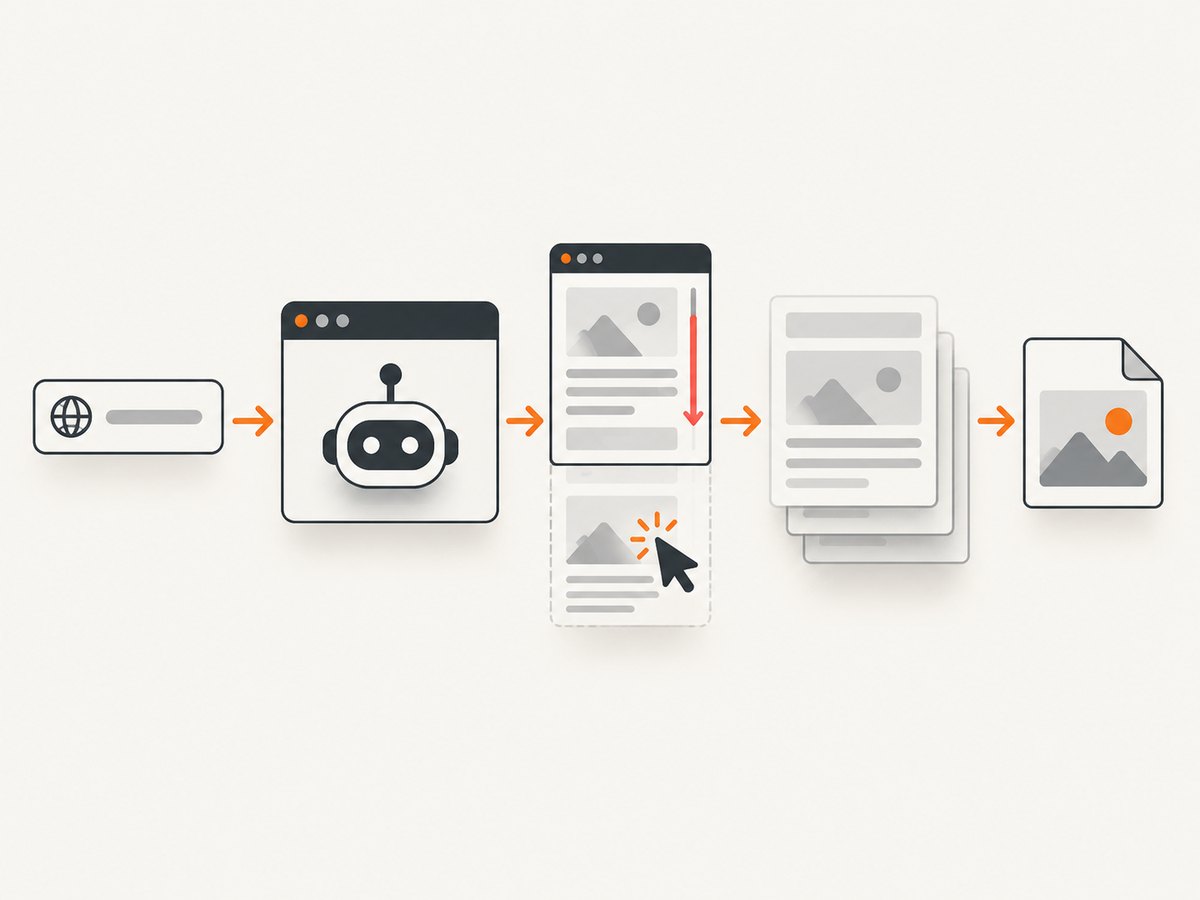
Use a real browser automation session. Navigate with Playwright or Puppeteer, wait for the target state, perform the interaction that reveals the content, and then capture the correct scope. Use fullPage: true for the entire scrollable document, a locator screenshot for one component, or clip for an exact rectangle. A screenshot cannot contain pixels that the page never rendered.
This guide covers pages that are below the fold, lazy-loaded, hidden in tabs or accordions, revealed by clicks, rendered only in headless Chrome, or difficult to capture consistently.
Choose the right capture method
| Need | Method | Important detail |
|---|---|---|
| Current viewport only | Ordinary browser screenshot | Fast, but excludes content below the fold. |
| Entire scrollable page | Playwright fullPage: true or Puppeteer equivalent |
Captures one tall image of the document. |
| Hidden tab, accordion, or modal | Open it, wait for its visible state, then capture its locator | The interaction must happen before the screenshot. |
| One component | Locator or element screenshot | Keeps the output focused and avoids unrelated page content. |
| Exact rectangle | Playwright clip |
Specify x, y, width, and height. |
| Repeatable visual test | Mask unstable regions and apply screenshot CSS | Hide timestamps, ads, animations, and other changing pixels. |
Playwright: capture a page that is not visible
Install Playwright and its browser binaries:
npm install playwright
npx playwright install chromium
Full page after scrolling lazy content
The script below waits for the document, scrolls through it to trigger deferred rendering, waits for network activity to settle, and saves a WebP image.
import { chromium } from 'playwright';

const browser = await chromium.launch({ headless: true });
const page = await browser.newPage({
  viewport: { width: 1440, height: 900 },
  deviceScaleFactor: 1,
  colorScheme: 'light',
});

await page.goto('https://example.com', { waitUntil: 'domcontentloaded', timeout: 60000 });
await page.waitForLoadState('networkidle');

// Trigger lazy images and other below-the-fold work.
await page.evaluate(async () => {
  await new Promise((resolve) => {
    const distance = 700;
    const timer = setInterval(() => {
      window.scrollBy(0, distance);
      if (window.innerHeight + window.scrollY >= document.body.scrollHeight) {
        clearInterval(timer);
        window.scrollTo(0, 0);
        resolve();
      }
    }, 100);
  });
});

await page.screenshot({
  path: 'page.webp',
  fullPage: true,
  type: 'webp',
  quality: 85,
});

await browser.close();
Playwright describes a full-page screenshot as the full scrollable page, as if it fit on a very tall screen. See the Playwright screenshot guide and API reference.
Wait for a meaningful condition
Prefer a locator or application-ready signal over a blind delay. This example waits for an element to be attached and visible:
await page.goto('https://example.com/dashboard', { waitUntil: 'domcontentloaded' });
const report = page.locator('[data-testid="report"]');
await report.waitFor({ state: 'visible', timeout: 30000 });
await report.screenshot({ path: 'report.png', type: 'png' });
Playwright supports visible, hidden, attached, and detached states. Arbitrary timeout waits are prone to flakiness when page speed changes.
Reveal a hidden tab, accordion, or modal
await page.goto('https://example.com/help', { waitUntil: 'domcontentloaded' });

await page.getByRole('button', { name: 'Advanced options' }).click();
const panel = page.locator('#advanced-options');
await panel.waitFor({ state: 'visible' });
await panel.screenshot({ path: 'advanced-options.png' });
If the content is created only after a click, taking a screenshot before that click captures an empty or nonexistent region.
Capture an exact rectangle
await page.screenshot({
  path: 'chart-region.png',
  clip: { x: 120, y: 260, width: 900, height: 520 },
});
Coordinates are CSS pixels relative to the page. For a responsive layout, a locator screenshot is usually safer than hard-coded coordinates.
Make visual output repeatable
await page.screenshot({
  path: 'stable.png',
  fullPage: true,
  mask: [page.locator('.live-clock'), page.locator('.personal-data')],
  style: `
    *, *::before, *::after {
      animation: none !important;
      transition: none !important;
      caret-color: transparent !important;
    }
  `,
});
Mask sensitive or unstable regions and review the resulting image. A mask should cover the actual rendered element, including content that changes after loading.
Python Playwright example
Install the package and Chromium:
python -m pip install playwright
python -m playwright install chromium
from playwright.sync_api import sync_playwright
with sync_playwright() as p:
browser = p.chromium.launch(headless=True)
page = browser.new_page(
viewport={"width": 1440, "height": 900},
device_scale_factor=1,
color_scheme="light",
)
page.goto("https://example.com", wait_until="domcontentloaded", timeout=60000)
page.wait_for_load_state("networkidle")
page.evaluate("""async () => {
await new Promise((resolve) => {
const timer = setInterval(() => {
window.scrollBy(0, 700);
if (window.innerHeight + window.scrollY >= document.body.scrollHeight) {
clearInterval(timer);
window.scrollTo(0, 0);
resolve();
}
}, 100);
});
}""")
page.screenshot(path="page.png", full_page=True)
browser.close()Puppeteer alternative for Chrome
Puppeteer is a JavaScript library for browser automation, screenshots, PDFs, navigation, and performance analysis. Chrome for Developers documents visual snapshots of full pages and specific elements.
npm install puppeteerimport puppeteer from 'puppeteer';
const browser = await puppeteer.launch({ headless: true });
const page = await browser.newPage();
await page.setViewport({ width: 1440, height: 900, deviceScaleFactor: 1 });
await page.goto('https://example.com', { waitUntil: 'networkidle0', timeout: 60000 });
await page.evaluate(async () => {
await new Promise((resolve) => {
const timer = setInterval(() => {
window.scrollBy(0, 700);
if (window.innerHeight + window.scrollY >= document.body.scrollHeight) {
clearInterval(timer);
window.scrollTo(0, 0);
resolve();
}
}, 100);
});
});
await page.screenshot({ path: 'page.png', fullPage: true });
await browser.close();Headless browser settings that affect the result
- Viewport: Set width and height explicitly. Responsive breakpoints can move or hide content.
- Device scale: Choose a device pixel ratio deliberately. Higher scale produces more pixels and larger files.
- Fonts: Install or load the same fonts in CI and local runs. Missing fonts change line wrapping and page height.
- Color scheme: Set
lightordarkwhen the page usesprefers-color-scheme. - Locale and timezone: Fix them when dates, number formats, or localized text appear in the image.
- Browser engine: Use Chromium, Firefox, or WebKit to match the rendering engine your users need.
- Animations: Disable transitions and wait for a stable state before capture.
Why invisible content becomes blank
Lazy-loaded images
Many pages request images only when an element approaches the viewport. Scroll through the document, wait for image elements to finish, and then return to the top before a full-page capture. If the application exposes a ready event, wait for that event instead of guessing with a timer.
Content outside the DOM
A screenshot tool captures rendered browser pixels. Server-side data that never arrives, blocked requests, and failed JavaScript cannot be recovered by changing screenshot options. Inspect the page and network errors first.
Sticky headers and repeated elements
Full-page capture may include a fixed header over multiple sections. Hide it with screenshot CSS, mask it, or capture separate sections with clips when the header must appear only once.
Cross-origin frames
Wait for the frame itself and target elements inside it with Playwright’s frame locators. If the frame is blocked or never loads, fix the embedding or authorization issue; a screenshot cannot bypass browser security or a server denial.
Troubleshooting checklist
| Symptom | Likely cause | Fix |
|---|---|---|
| Blank area below the fold | Lazy content never entered the viewport | Scroll through the page, wait for images or a ready selector, then capture. |
| Hidden tab is empty | The tab was never opened | Click the control, wait for visible state, and screenshot the locator. |
| Headless output differs from a desktop browser | Different viewport, fonts, locale, color scheme, or device scale | Set each value explicitly and use the same browser engine. |
| Screenshot times out | Navigation or a locator never reaches its expected state | Check the URL and selector, inspect console/network errors, and set a justified timeout. |
| Images are missing | Requests failed, were blocked, or are deferred | Review request failures, permissions, authentication, and lazy-loading triggers. |
| Animations produce different frames | Capture occurs during motion | Disable animation with screenshot CSS and wait for a stable state. |
| Sticky content covers text | Fixed elements remain on top during full-page capture | Hide or mask the element, or capture sections separately. |
| Sensitive values appear in output | Mask selector missed a rendered region | Use a broader selector, inspect the image, and avoid storing unreviewed captures. |
Performance, reliability, and cost
- Performance: A full-page image requires more layout, scrolling, encoding, and memory than a viewport shot. Use locator or clipped captures when you need only one component.
- Reliability: Concrete selectors and application-ready signals are more stable than fixed sleeps. Retry navigation failures only when the failure is transient and keep the page state deterministic.
- Parallelism: Reuse a browser process and create isolated pages or contexts for batches. Limit concurrency to the CPU and memory available to avoid contention.
- Output size: PNG preserves lossless pixels, JPEG is smaller for photographic pages, and WebP can reduce size when supported. Higher device scale increases both quality and storage.
- Cost: Self-hosted Playwright or Puppeteer consumes your compute, browser maintenance, storage, and CI time. Hosted capture APIs trade browser operations for per-capture pricing and operational simplicity.
Or skip the browser setup
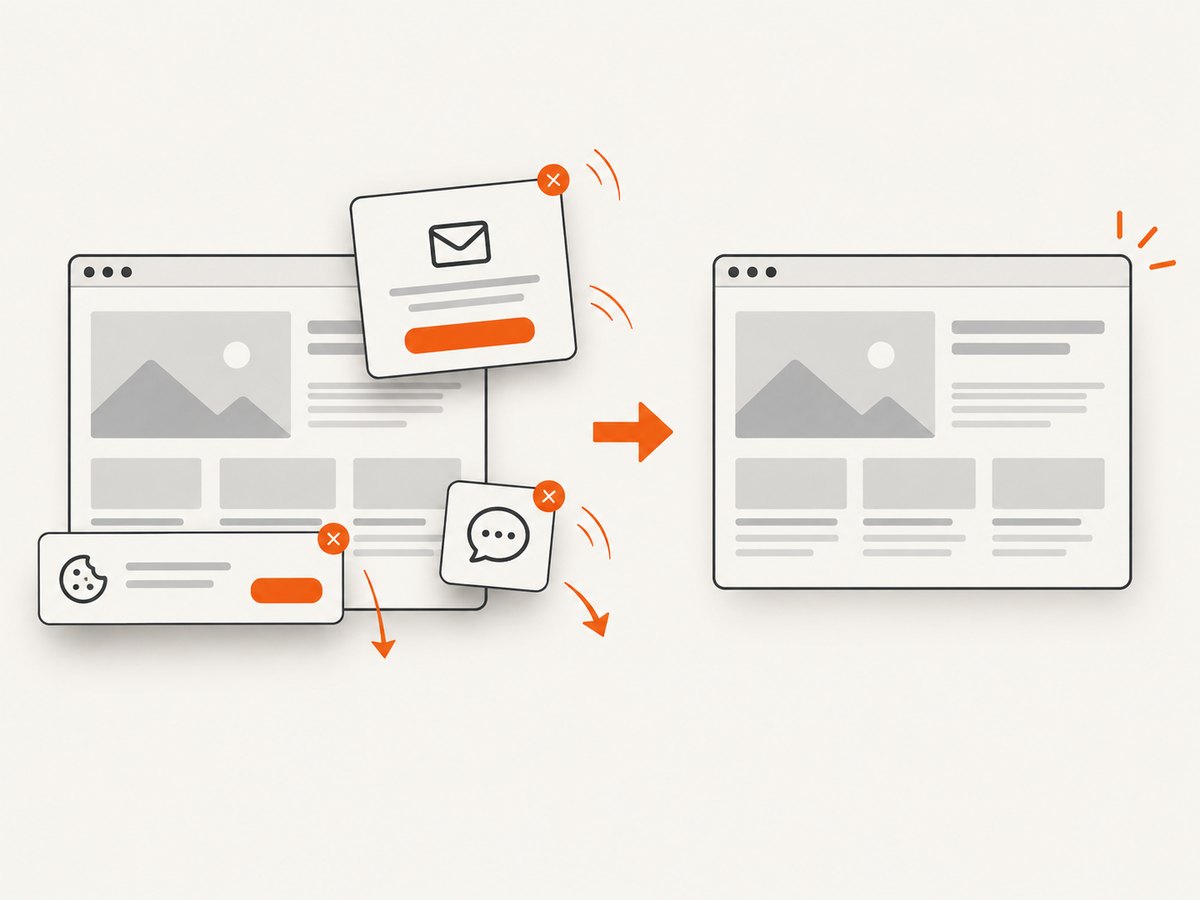
ScreenshotNeo is a website screenshot API and MCP server. It accepts one GET request and returns PNG, JPEG, WebP, or PDF. Before capture it accepts cookie or consent banners and removes more than 60 known consent platforms, newsletter popups, and chat widgets; each step can be turned off. Bot checks, blank pages, timeouts, failed loads, and cache hits are not billed, and response headers identify the page verdict and billing result.
See the ScreenshotNeo API documentation for all options, including full-page and element capture, waits, custom CSS and JavaScript, clicks, blocked resources, headers, cookies, user agents, geolocation, caching, signed links, async jobs, bulk capture, and usage reporting.
curl -G "https://api.screenshotneo.com/v1/shot" -d access_key=YOUR_API_KEY --data-urlencode url=https://stripe.com -o shot.webpimport requests
r = requests.get("https://api.screenshotneo.com/v1/shot", params={"access_key": "YOUR_API_KEY", "url": "https://stripe.com"}, timeout=90)
open("shot.webp", "wb").write(r.content)const q = new URLSearchParams({ access_key: 'YOUR_API_KEY', url: 'https://stripe.com' });
const res = await fetch(`https://api.screenshotneo.com/v1/shot?${q}`);An MCP server lets Claude, Cursor, and other MCP clients use take_screenshot, get_page_info, and capture_pdf. One thousand screenshots per month are free with no card; paid plans start at $5 for 3,000 shots. Create a free ScreenshotNeo account.
Frequently asked questions
Can a screenshot capture content that is display:none?
No. Reveal the content first, or capture a visible state after the user interaction that displays it.
Should I use full-page capture for every test?
No. Use a locator or clip for focused checks; reserve full-page images for cases where the complete document matters.
Why does a screenshot include a blank image placeholder?
The image request may not have completed, may have failed, or may require scrolling to trigger. Check network errors and force the lazy-loading path before capture.
When should I choose Puppeteer over Playwright?
Choose Puppeteer when Chrome-centered automation fits your project. Choose Playwright when you need its documented multi-engine and locator-oriented controls.


