How to Capture Screenshots of Multiple PDF Pages
Learn how to capture full PDF pages or precise regions, keep every image consistent, and automate multi-page capture when Acrobat is not enough.
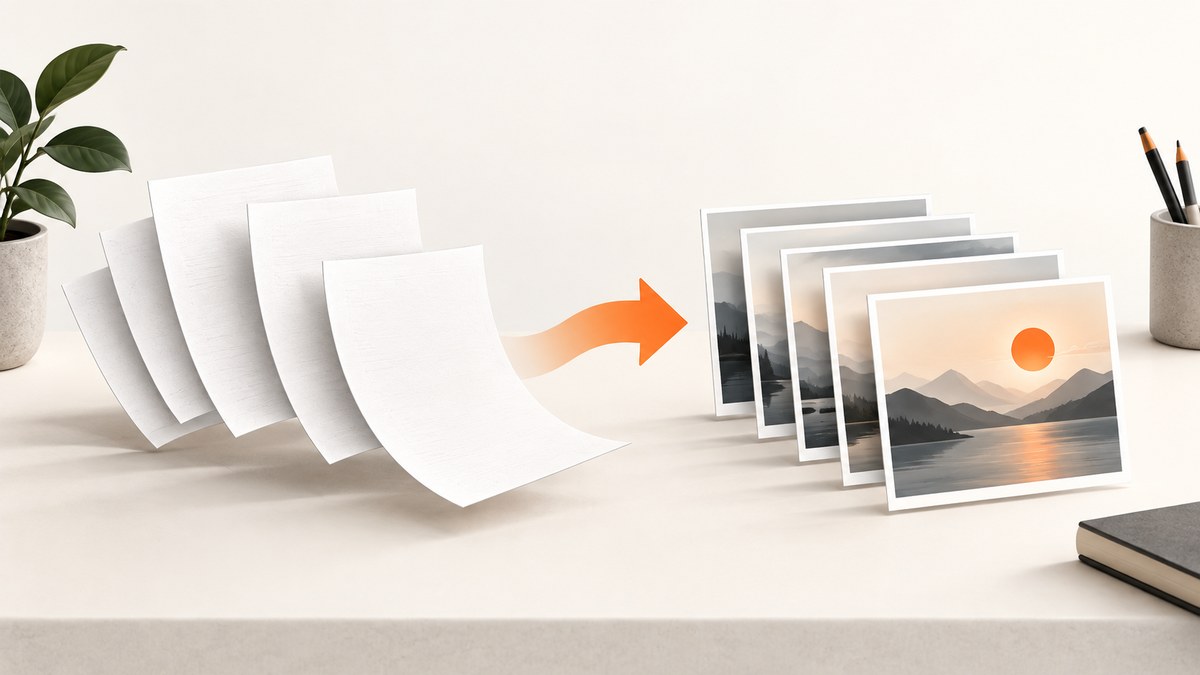
To capture screenshots of multiple PDF pages, open the file in Adobe Acrobat, use Take a snapshot for each page, and paste each capture into an image editor or document. Acrobat copies the visible page or selected rectangle to your clipboard. You repeat the operation for every page you need, keeping the zoom, crop, and orientation consistent.
This guide explains the Acrobat workflow in detail, operating-system alternatives, how to prepare a large PDF, how to preserve readable text, and when an automated screenshot API is a better fit.
1. Capture multiple PDF pages with Adobe Acrobat
Acrobat’s Snapshot tool captures either the entire visible page area or a rectangular selection. It does not automatically render every page in a batch; the cited workflow is page by page.
Step 1: Open the PDF and find the first page
- Open the PDF in Acrobat desktop.
- Navigate to the first page you want to capture.
- Set the zoom and scroll position so the intended content is visible.
For a full-page screenshot, make the complete page visible in the document window. Acrobat captures what is visible in the viewport, including the current zoom and position. Content outside the viewport is not included.
Step 2: Choose Take a snapshot
On Windows, choose Menu > Undo, Redo and More > Take a snapshot. On macOS, choose Edit > Undo, Redo and More > Take a snapshot.
Click anywhere on the page to copy the visible page content. To capture only part of the page, drag a rectangle around the required area and release the mouse. Acrobat copies the result to the clipboard automatically. If Acrobat displays a confirmation, accept it before continuing.
Step 3: Paste and save the image
Open an image editor, presentation, document, or notes application and paste with Ctrl+V on Windows or Command+V on macOS. Save the result as PNG when text clarity matters, or JPEG when a smaller file is more important.
Use page-numbered names such as:
document-p01.png
document-p02.png
document-p03.png
Step 4: Repeat for each page
- Return to Acrobat and move to the next page.
- Keep the same zoom level, page orientation, and crop rectangle.
- Run Take a snapshot again.
- Paste and save with the next page number.
For a visual sequence, consistency matters more than speed. If page one uses a 100% zoom and a 900-pixel crop, use the same settings for every page. Record the page number in the filename or caption so someone can trace an image back to the source.
2. Full page versus selected area
| Goal | Acrobat action | Best practice |
|---|---|---|
| Show the complete visible page | Click on the page after choosing Take a snapshot | Fit the entire page in the viewport first |
| Show a chart, paragraph, or figure | Drag a rectangle around the region | Use the same rectangle on every page |
| Compare pages | Repeat at identical zoom and position | Keep orientation and output dimensions constant |
| Prepare a printable handout | Print the selected graphic | Choose Fit if the graphic needs resizing |
A selected region is useful when page margins, navigation elements, or unrelated content would make a full-page capture noisy. A full visible page is better when readers need page context or page numbering.
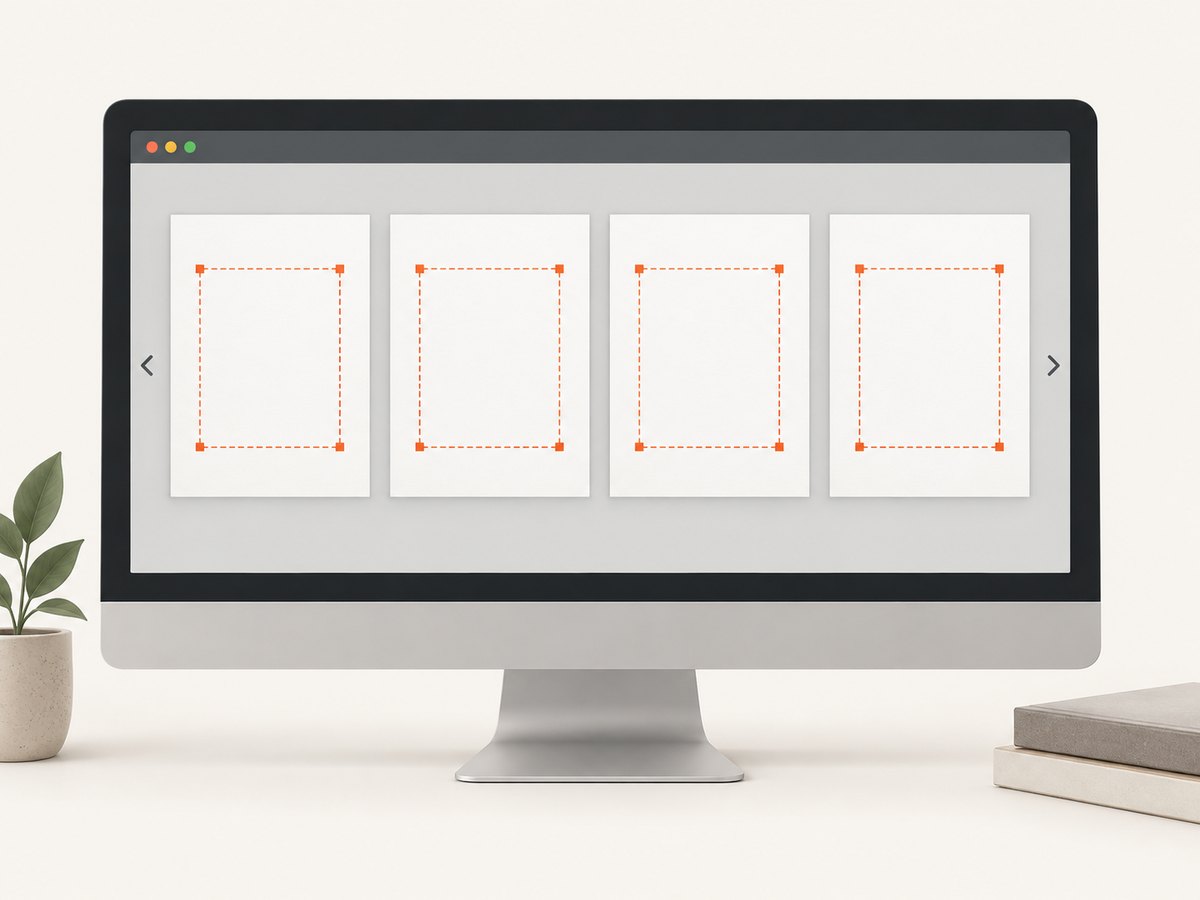
3. Keep text readable and captures consistent
- Choose zoom deliberately. Increase zoom until small text is readable, then use that same zoom for every page.
- Avoid accidental scrolling. Before each capture, check that the top and bottom of the intended region are visible.
- Use PNG for text-heavy pages. PNG avoids additional JPEG compression around thin strokes and diagrams.
- Use identical crop boundaries. A fixed rectangle makes a multi-page sequence easier to compare.
- Keep page orientation stable. Do not mix portrait and landscape captures unless the source requires it.
- Number files with leading zeroes. Names such as
p01throughp12sort correctly in file managers.
If the PDF contains very small type, a screenshot may not be the right deliverable. Consider preserving the original PDF for searching and using screenshots only for figures, layout examples, or selected excerpts.
4. Capture a large PDF by splitting it first
Large PDFs can be cumbersome to navigate. Acrobat’s Organize Pages > Split workflow can create smaller working files by page count, file size, or top-level bookmarks. Splitting is useful when you only need a chapter or a defined page range.
- Open the PDF in Acrobat.
- Choose Organize Pages.
- Select Split.
- Choose whether to split by number of pages, file size, or top-level bookmarks.
- Save the resulting files with clear range names, such as
report-pages-001-020.pdf. - Open the smaller file and run the Snapshot workflow.
Splitting does not create screenshots by itself. It only reduces the document you need to inspect and helps isolate the range you intend to capture.
5. Windows and macOS alternatives
Windows: PrtScn
Press PrtScn to copy a screen capture, then paste it into an image editor or document. Position the PDF window first and use the same window size for each page. This method captures the screen, so browser chrome, desktop elements, or other windows can appear if they overlap the PDF.
macOS: Screenshot utility
Open Applications > Utilities > Screenshot, select the required capture mode, and use Edit > Copy when you need the result on the clipboard. As with PrtScn, the output is a screen capture rather than a PDF-aware page render.
These operating-system tools are useful when Acrobat is unavailable or when you need a quick visual note. Acrobat is usually easier to keep consistent because its Snapshot command is designed for content inside the PDF.
6. Print a selected capture or create a PDF from clipboard content
Acrobat can print a Snapshot graphic instead of saving it as an individual image. Open the print dialog, choose Selected graphic under Pages to Print > More Options, and select Fit if the graphic needs to be resized to the sheet.
You can also create a PDF from clipboard content. On Windows, capture with PrtScn. On macOS, use Screenshot and copy the result. In Acrobat, choose Create > PDF from clipboard. This is useful when the final deliverable should be one PDF containing several captured regions rather than a folder of image files.
7. A repeatable checklist for multi-page capture
- Define the page range before opening the tool.
- Decide whether each output is a full visible page or a selected region.
- Set one zoom level and record it.
- Set one crop rectangle and record its dimensions if possible.
- Capture pages in order.
- Paste immediately so the clipboard is not overwritten.
- Save with page-numbered filenames.
- Review the first, middle, and last files for clipping or readability.
- Keep the original PDF with the image set.
8. Or skip the browser setup
If your source is a web-hosted PDF or a page that must be rendered in a browser, ScreenshotNeo can return a screenshot or PDF from one request. Its capture options include full-page rendering, device and viewport settings, retina scale, waiting for selectors or network idle, custom CSS and JavaScript, cookies and headers, and PDF page ranges.
For a direct image response:
curl -G "https://api.screenshotneo.com/v1/shot" -d access_key=YOUR_API_KEY --data-urlencode url=https://stripe.com -o shot.webpPython:
import requests

r = requests.get(
    "https://api.screenshotneo.com/v1/shot",
    params={"access_key": "YOUR_API_KEY", "url": "https://stripe.com"},
    timeout=90,
)
r.raise_for_status()
open("shot.webp", "wb").write(r.content)
Node.js:
const q = new URLSearchParams({ access_key: 'YOUR_API_KEY', url: 'https://stripe.com' });
const res = await fetch(`https://api.screenshotneo.com/v1/shot?${q}`);
if (!res.ok) throw new Error(`HTTP ${res.status}`);
const data = Buffer.from(await res.arrayBuffer());
require('fs').writeFileSync('shot.webp', data);
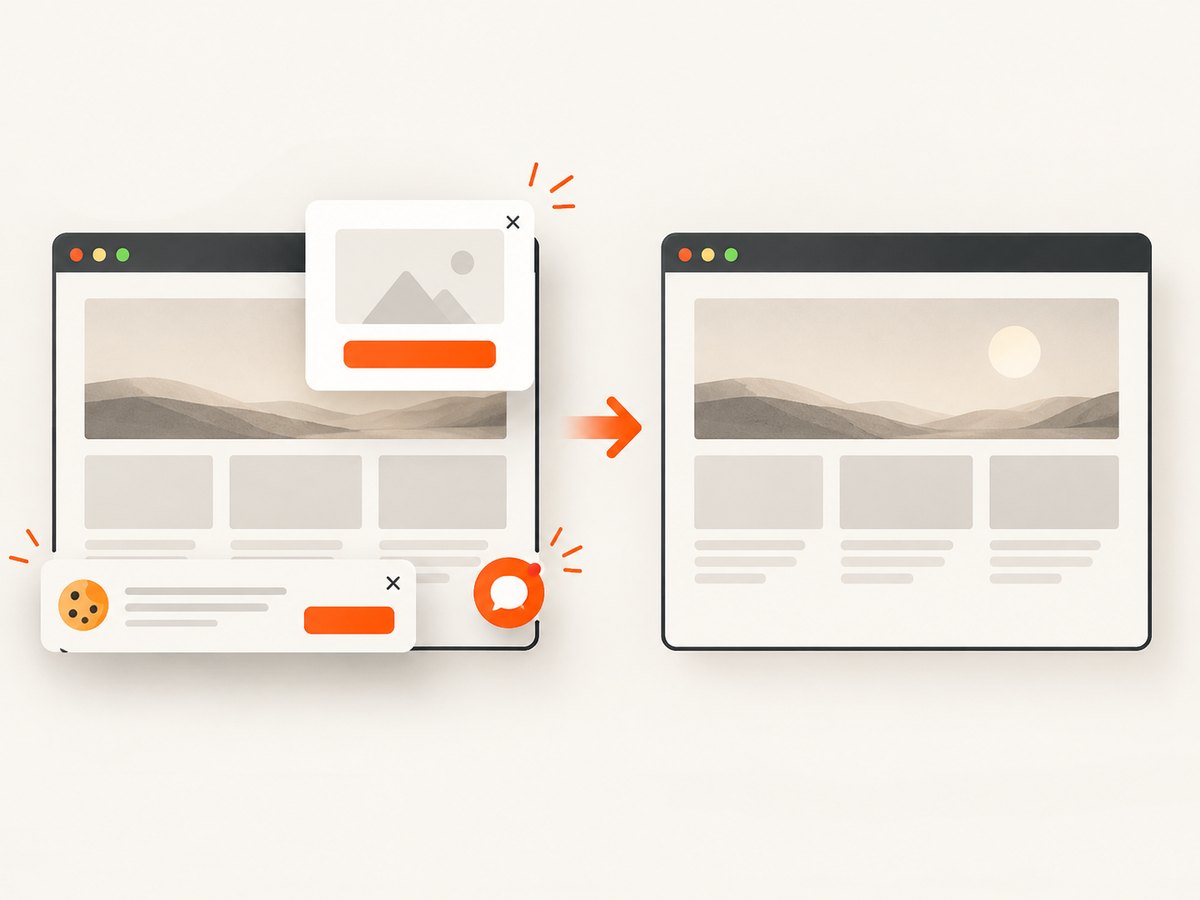
See the ScreenshotNeo documentation for the complete parameter list and response details. Cookie banners, newsletter popups, and chat widgets are removed before the shot. Bot checks, blank pages, failed loads, timeouts, and cache hits are not billed, and response headers identify the page verdict and billing result. An MCP server lets Claude, Cursor, and other MCP clients call take_screenshot, get_page_info, and capture_pdf.
The Free plan includes 1,000 shots per month with no card. Paid plans start at $5 for 3,000 shots; every feature is available on every plan. Create a free ScreenshotNeo account.
9. Troubleshooting common problems
The capture is clipped
Cause: Part of the page was outside the Acrobat viewport or the crop rectangle ended too early.
Fix: Zoom out, reposition the page, and capture again. For a selected region, drag beyond the complete content and verify the pasted image before saving.
Text looks blurry
Cause: The page was captured at a low zoom, resized after pasting, or saved with heavy JPEG compression.
Fix: Increase Acrobat zoom, capture again, keep the original dimensions, and save as PNG.
Pages have different sizes
Cause: Zoom, window dimensions, orientation, or crop boundaries changed between captures.
Fix: Restore the same zoom and window size. Use a fixed selection rectangle and check the pixel dimensions of each saved file.
The clipboard contains the wrong image
Cause: Another copy operation replaced the Snapshot result.
Fix: Paste immediately after each Snapshot and save before copying anything else.
The PDF is too large to manage
Cause: Navigation and rendering become slower as the document grows.
Fix: Split it with Organize Pages > Split by page count, file size, or top-level bookmarks, then capture the smaller file.
The screenshot includes desktop or application chrome
Cause: PrtScn or macOS Screenshot captured the screen rather than PDF content.
Fix: Use Acrobat Snapshot, or carefully place and crop the PDF window before using the operating-system tool.
ScreenshotNeo returns an error
Cause: The request may contain an invalid access key, malformed URL, or a page that cannot load.
Fix: Confirm the key, URL-encode query values, set a practical timeout, and inspect the HTTP status and response headers. A bot check, blank page, timeout, failed load, or cache hit is reported in the response and is not billed.
10. Performance, reliability, and cost considerations
Manual Acrobat capture is appropriate for a small, known page range because each page requires navigation, Snapshot, paste, and save. It also gives you direct control over the visible crop. The tradeoff is that the process is repetitive and difficult to reproduce exactly across many documents or machines.
For repeatable browser rendering, keep capture settings explicit: viewport, device scale, wait condition, page range, and output format. Waiting for a selector or network idle helps pages finish loading before capture. Caching with a chosen TTL can avoid rendering the same URL repeatedly. Bulk capture supports up to 100 URLs per call, while asynchronous jobs and signed webhooks are useful when a set takes longer than a single request.
ScreenshotNeo bills only clean shots. Bot checks, blank pages, timeouts, failed loads, and cache hits cost nothing, and each response includes X-Page-Verdict and X-Billed headers. Use the usage API to monitor consumption and select the plan that matches your monthly volume.
11. FAQ
Can Acrobat capture every PDF page automatically?
The Snapshot workflow described here is page by page. Acrobat does not automatically save an image for every page through this command.
Can I capture only the same area on every page?
Yes. Use a fixed rectangle and keep zoom, page position, and orientation unchanged. This produces a consistent visual sequence.
Should I use PNG or JPEG?
Use PNG for small text, line art, and diagrams. Use JPEG when file size matters more than lossless detail.
Can I turn screenshots back into one PDF?
Yes. Paste the captures into a document and export it, or use Acrobat’s Create > PDF from clipboard workflow for clipboard content.
What is the fastest option for many web pages?
For browser-rendered pages, an API such as ScreenshotNeo avoids maintaining a browser setup and supports full-page capture, waiting rules, and PDF output in one request.


