How to Capture Screenshots of Restricted Websites
A screenshot that fails or appears black may be blocked by browser policy, a screen-sharing restriction, or the site itself. Identify which control applies and choose an approved capture or export path.
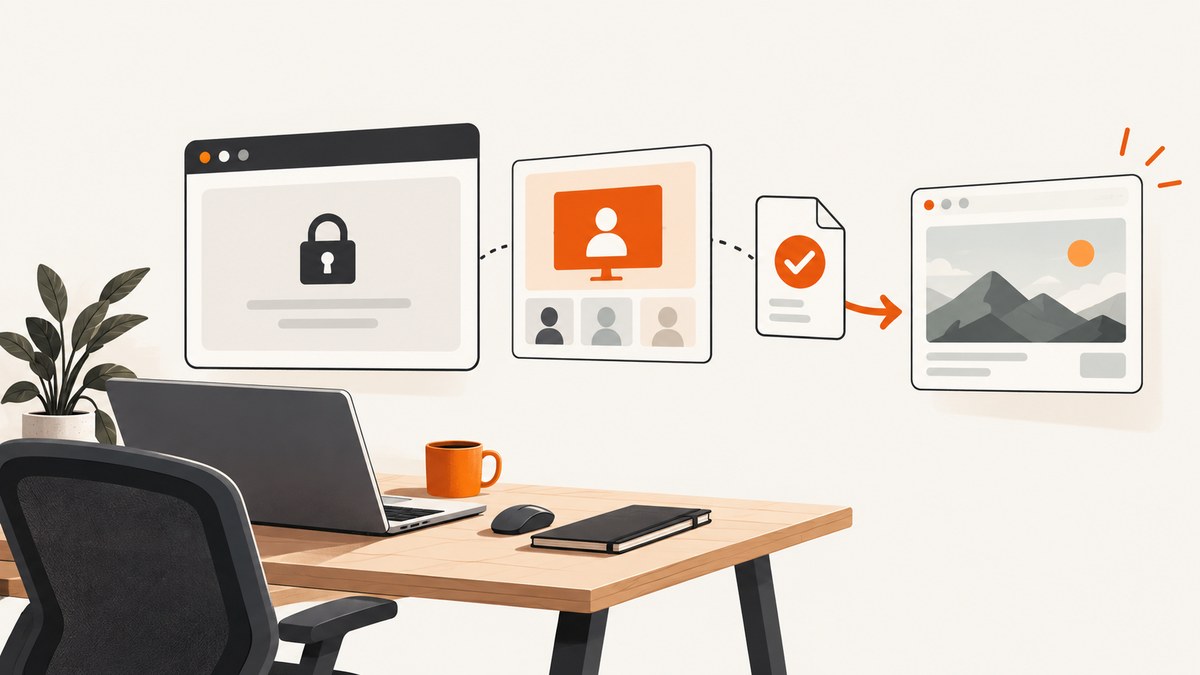
A blocked screenshot is usually a clue about which capture path is restricted. First identify whether you tried an operating-system screenshot, a browser shortcut or extension, a website’s live screen-sharing prompt, or a capture of protected or blank content. Those are different mechanisms and may be governed by different policies.
If a work or school browser is managed, ask the administrator or content owner for an approved screenshot exception, export, print view, or static copy. Do not treat another capture route as permission to get around a restriction. If you own or administer the site and device, use the diagnostic steps below to find the relevant control. For an authorized page that can be accessed normally, a service such as ScreenshotNeo can capture it through a website screenshot API without requiring you to install browser automation.
1. Identify what failed
Before changing settings or code, record the exact symptom and the action that produced it. “Screenshot blocked” can mean that a keyboard command was suppressed, a browser extension failed, a live screen-share request was rejected, or the page itself rendered protected content. These symptoms do not have one universal fix.
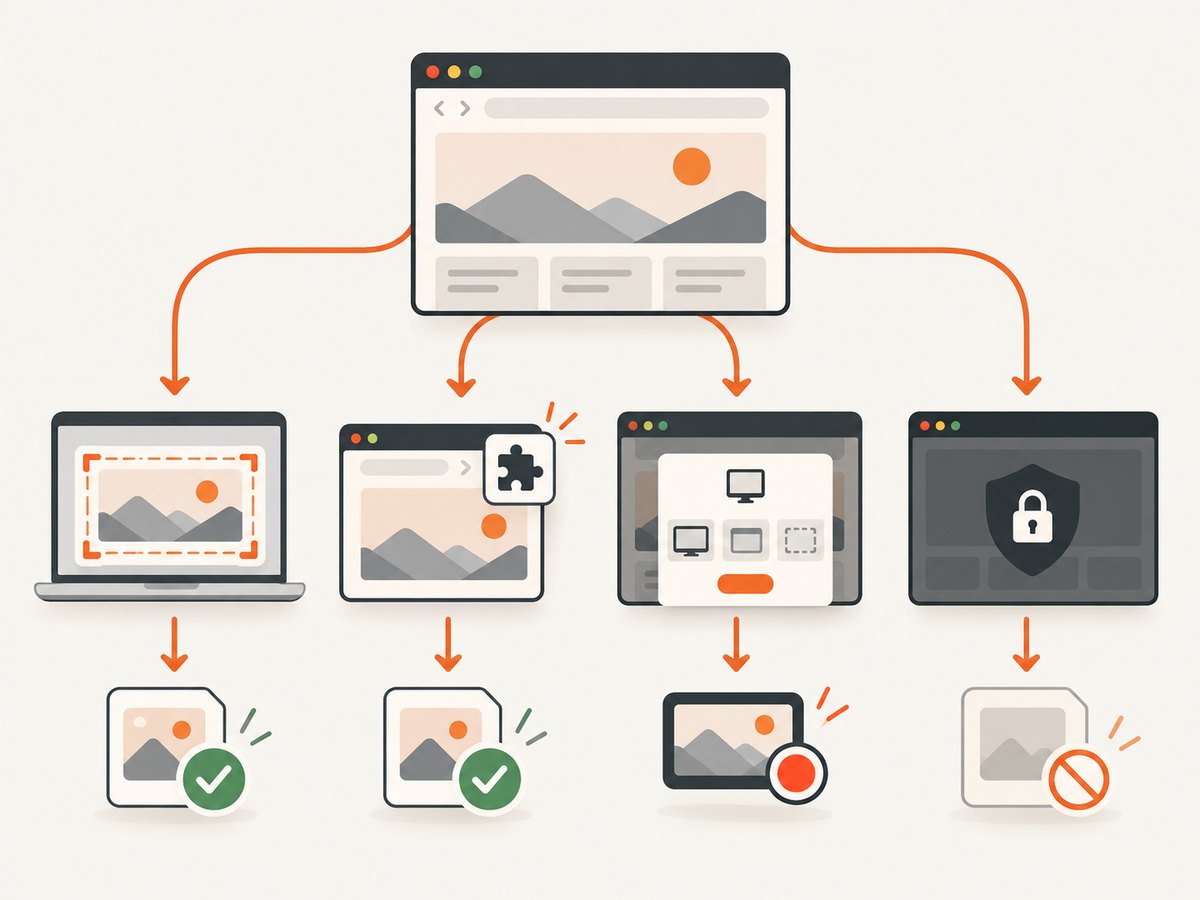
| What you tried | What the failure suggests | First safe step |
|---|---|---|
| Operating-system screenshot command | Device, application, or organization policy may restrict capture. | Check whether the device is managed; ask its administrator about an approved record. |
| Browser shortcut or screenshot extension | A managed browser policy may block shortcuts or extension capture. | Check the browser’s managed status and ask the administrator to review the applicable policy. |
| A website button asking you to share a tab or screen | A screen-sharing permission or policy may reject the website’s request. | Ask the site owner or administrator whether sharing is permitted. |
| A black, blank, or incomplete capture | The page may use protected content, fail to load, or be affected by browser or organization controls. | Check the page in the authorized viewing session and request an export if the content remains unavailable. |
Check whether the browser says it is managed and whether you are signed into a work or school profile. If so, policy may come from the organization rather than the website. Note the browser and operating system, the page URL, the capture method, the exact error, and whether the issue occurs on one site or all sites. That information gives an administrator a useful starting point without asking you to bypass the restriction.
2. Understand the main restriction types
Managed browser screenshot policy
Browser administrators can restrict screenshot shortcuts and extension-based capture. Microsoft Edge’s DisableScreenshots policy says that when enabled, “users can’t take screenshots using keyboard shortcuts or extension APIs.” Its documentation also notes that the policy behavior can leave other methods available in the documented configuration. That is a technical caveat, not authorization to use those methods against an organization’s rule. Ask the administrator what capture is approved for your use case. Microsoft Edge DisableScreenshots policy
Chrome Enterprise also documents screenshot prevention for managed users and browsers in supported organization contexts. The controls can apply to screenshots taken by different means, including shortcuts and apps or extensions that use the Chrome API. Whether a policy applies depends on the organization’s setup, device, browser, and site rules. Chrome Enterprise policy reference
Website-initiated screen sharing
A page that asks you to choose a tab, window, or monitor is requesting a live screen-share stream. That is different from you taking a static screenshot with a keyboard shortcut. Edge has a separate ScreenCaptureAllowed policy: disabling it causes screen-share API calls to fail, with documented origin-specific policy exceptions. Chrome Enterprise likewise documents separate controls for whether sites can prompt users to live-stream a tab, window, or screen. These settings exist to govern a site’s screen-sharing request; they do not explain every failure of an ordinary screenshot command. Edge ScreenCaptureAllowed policy · Chrome Enterprise policy reference
Permissions Policy on a page
A site can also restrict whether a document may initiate the browser’s Screen Capture API, getDisplayMedia(), using the HTTP Permissions-Policy directive display-capture. If that directive disallows capture, a page calling getDisplayMedia() receives a NotAllowedError. This controls website-initiated display capture; it does not describe the ordinary action of pressing a screenshot shortcut. MDN labels support for this directive limited, so behavior can vary by browser. MDN: display-capture directive
Protected or unavailable page content
A capture may be empty or black even when the capture command itself completes. The underlying page might not have loaded, access may have expired, or content protection may prevent a page from being rendered into an image. A screenshot tool cannot turn inaccessible content into an authorized copy. Reopen the page through the permitted account or request a downloadable or printable version from its owner.
3. Choose an approved path
- For a managed device or browser: contact the administrator. Explain why you need the record, whether it is a one-time image or recurring documentation, and which page is involved. Ask for an approved exception, supported export, or other authorized process.
- For a site you do not administer: look for the site’s own download, export, or print feature. If it has none, ask the content owner for an accessible static copy or permission to capture the material.
- For a site and device you administer: inspect the browser’s managed-policy status, the organization’s browser configuration, and—if your page is making a live sharing request—the page’s Permissions Policy and browser console error. Adjust policy only when you have authority and the change matches your organization’s rules.
- For an authorized page that loads normally: choose a screenshot workflow based on the output you need. A manual browser capture suits a one-off record; an approved export is preferable when the owner provides one; an API can help with repeatable capture of pages you are permitted to access.
There is no documented capture method that works for every restricted site. Browser, operating-system version, site implementation, and organization policy all matter. Do not use browser debugging or automation interfaces as a workaround for managed capture restrictions. Chrome’s announced Chrome 155 change describes policy-based rejection of chrome.debugger.attach() for affected managed browsers. As of September 29, 2026, its Stable rollout is scheduled for October 6, 2026, so that date is still future and should be rechecked before relying on it. Chrome for Developers: debugger policy enforcement
4. For site owners: diagnose a screen-share error
If you maintain the website and the user has permission to share, inspect the website-initiated capture path separately from screenshots. A minimal diagnostic page can catch and report the rejection without hiding the browser’s error:
<button id="share">Choose a screen to share</button>
<pre id="status">No request made</pre>
<script>
const status = document.querySelector('#status');
document.querySelector('#share').addEventListener('click', async () => {
  try {
    const stream = await navigator.mediaDevices.getDisplayMedia({ video: true });
    status.textContent = 'Screen sharing started';
    stream.getTracks().forEach(track => {
      track.addEventListener('ended', () => {
        status.textContent = 'Screen sharing ended';
      });
    });
  } catch (error) {
    status.textContent = `${error.name}: ${error.message}`;
    console.error('Display capture request failed', error);
  }
});
</script>
Run this only on a page and device you control, and only for an intended screen-sharing feature. A NotAllowedError is consistent with permission or policy rejection, but it does not identify which administrator setting caused it. Confirm the response headers and embedding context, then ask the browser or device administrator to check managed policy. Do not infer that a failed prompt authorizes a different way to record the screen.
For your own document, a response header can restrict which origins may initiate display capture. For example, Permissions-Policy: display-capture=() disallows it for the document. Use that only if it reflects the intended behavior of your site, and check browser support before depending on it. When an embedded document is involved, review the parent page’s policy and the iframe’s permissions configuration as well. MDN documents the directive syntax and its default allowlist. MDN directive reference
5. Troubleshooting common errors
| Symptom or error | Likely cause | Safe next step |
|---|---|---|
| Shortcut does nothing in Edge | An administrator may have enabled DisableScreenshots. |
Check managed status and ask the administrator whether the policy is intentional or an approved exception is available. |
| Screenshot extension fails on managed Chrome | Screenshot prevention or another enterprise restriction may block extension capture. | Share the extension’s exact error and page URL with IT. Do not switch to debugger/CDP attachment to defeat the restriction. |
NotAllowedError after clicking a site’s share button |
The user denied the browser prompt, the browser disallowed the request, or policy prevented the page from using display capture. | Check the page’s intended sharing flow and policy configuration; ask the administrator or site owner if the block is unexpected. |
| Capture works on other sites but not this one | A site-specific rule, protected content, login state, or page behavior may be involved. | Confirm authorization and session state; use the site’s export or ask its owner for a copy. |
| Image is black or missing content | The content may be protected, not loaded, or unavailable to the capture path. | Verify the page is visible in the authorized session and request a supported export if it remains blank. |
| A policy change does not take effect | The device may be managed centrally, the browser may need policy refresh, or another policy may take precedence. | Have the administrator verify the effective policy and its scope; do not remove management software or change settings you do not own. |
6. Or skip the browser setup
For a page you are authorized to capture and that is accessible to a screenshot service, ScreenshotNeo provides a one-request website screenshot API. Its capture flow accepts cookie or consent banners and removes more than 60 known consent platforms, newsletter popups, and chat widgets before the shot; each step can be turned off. It does not make restricted content accessible or override your organization’s permissions. Use it only for a page you are allowed to capture.
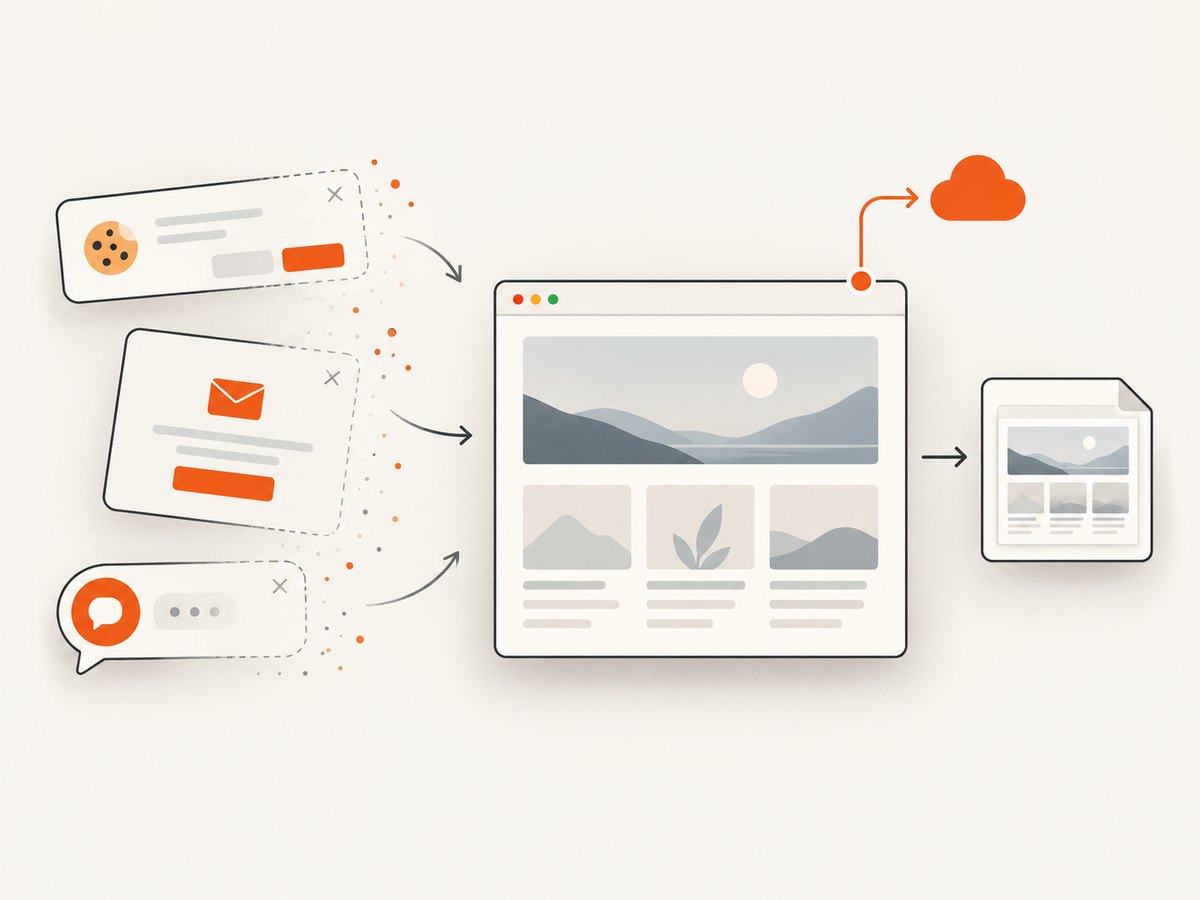
See the ScreenshotNeo API documentation for request options and setup. Replace the example target with an authorized URL and use your API key:
curl -G "https://api.screenshotneo.com/v1/shot" \
  -d access_key=YOUR_API_KEY \
  --data-urlencode url=https://stripe.com \
  -o shot.webp
import requests
r = requests.get(
"https://api.screenshotneo.com/v1/shot",
params={"access_key": "YOUR_API_KEY", "url": "https://stripe.com"},
timeout=90,
)
r.raise_for_status()
open("shot.webp", "wb").write(r.content)const q = new URLSearchParams({
access_key: 'YOUR_API_KEY',
url: 'https://stripe.com'
});
const res = await fetch(`https://api.screenshotneo.com/v1/shot?${q}`);
if (!res.ok) throw new Error(`Screenshot request failed: ${res.status}`);
const image = Buffer.from(await res.arrayBuffer());
await import('node:fs/promises').then(fs => fs.writeFile('shot.webp', image));ScreenshotNeo bills only clean shots: bot checks or CAPTCHAs, blank pages, timeouts, failed loads, and cache hits cost nothing. Responses identify the page verdict and billing status with X-Page-Verdict and X-Billed headers. It also offers an MCP server for AI agents, with take_screenshot, get_page_info, and capture_pdf tools. The free plan includes 1,000 shots per month with no card; paid plans start at $5 for 3,000. Create a free ScreenshotNeo account.
7. Performance, reliability, and cost considerations
For manual capture, the main costs are the time spent opening the right page, confirming it loaded, and preserving the result in the approved location. An official export may take less effort and retain document structure. For recurring authorized captures, an API can remove repeated browser setup, but it adds an external service, API credentials, and request handling to your workflow.
When automating, set a finite request timeout, check the HTTP status, and record the requested URL and capture time alongside the saved image. Avoid logging API keys. If you are capturing many pages, respect access controls and site rules, avoid unnecessary request volume, and use caching where appropriate. ScreenshotNeo supports caching with a chosen TTL, asynchronous jobs with signed webhooks, bulk capture of up to 100 URLs per call, and a usage API; consult its docs for configuration details. Those features help structure authorized workloads, but no performance benchmark or universal turnaround time is implied here.
Compare plan allowance to expected volume before choosing a paid tier. ScreenshotNeo’s listed monthly plans are Free: 1,000 shots; Starter: $5 for 3,000; Growth: $15 for 15,000; Pro: $39 for 60,000; Scale: $99 for 250,000; and Business: $249 for 1,000,000. Yearly billing gives two months free, and every feature is on every plan. An organization that prohibits sending a URL to a third-party service should use its approved internal workflow instead.
8. A short decision checklist
- Did an operating-system shortcut, browser shortcut, extension, or website share prompt fail?
- Is the browser or device managed by work or school?
- Is the problem a blocked command, an explicit error, or a black/blank result?
- Does the page owner provide an export, download, or print option?
- Do you own or administer the page and device, and are you authorized to change their settings?
- For recurring capture, is use of an external API allowed by your organization and by the content owner?
Answering those questions points to the proper owner of the restriction. Ask that owner for an approved exception or copy whenever policy applies; use an API only when the page and capture are authorized.
FAQ
Does a website’s display-capture setting block normal screenshots?
The display-capture Permissions Policy directive controls whether a document may initiate getDisplayMedia(). It is not the same mechanism as a user pressing an ordinary screenshot shortcut.
Why does a screenshot extension fail only in my work browser?
Managed browser policies can apply to extension-based screenshot capture. Ask the administrator to check the browser’s effective policy and whether an approved workflow is available.
Can a screenshot API capture a page my organization has blocked?
An API is not permission to access or record restricted material. Follow the content owner’s and organization’s rules; request an approved export or exception.
What should I send IT when I report a capture problem?
Include the site URL, browser and operating-system versions, whether the device is managed, the capture method, the exact error, and whether the result was blocked, black, or blank.


