How to Capture Proper Screenshots with Selenium
Capture the browser window, a WebElement, or a full page with Selenium. Learn how to wait for stable content, save test failure evidence, and fix common screenshot issues.
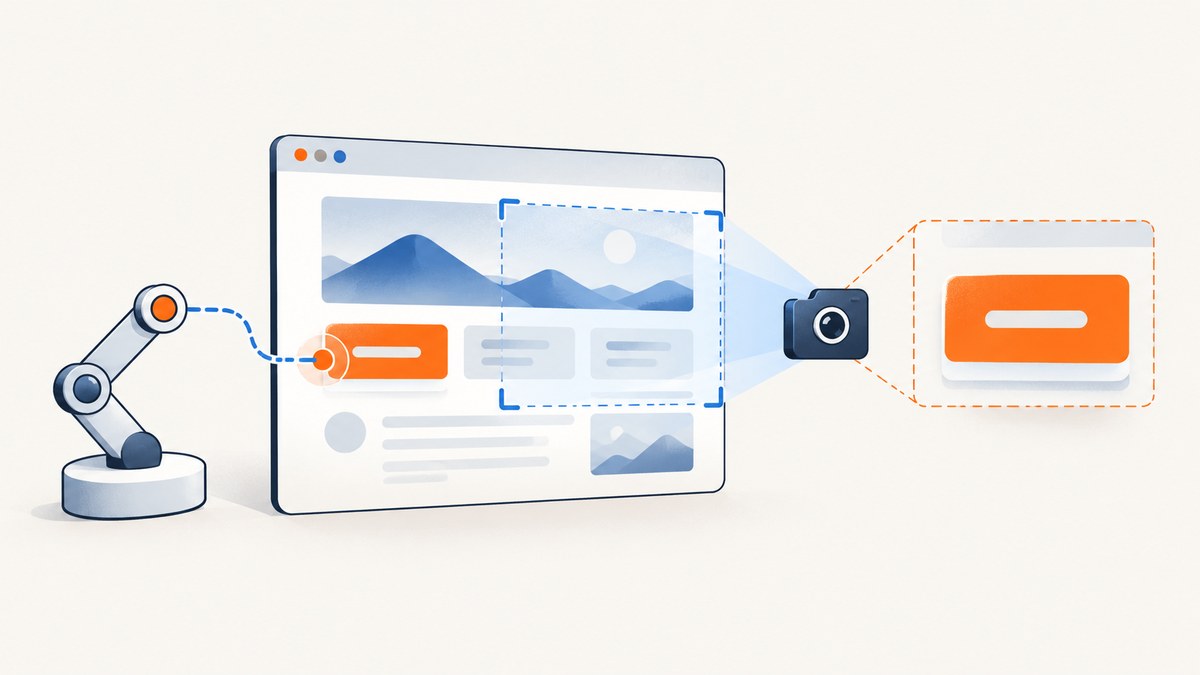
Selenium can save a screenshot of the current browser window or of a specific WebElement. In Python, use driver.save_screenshot("screenshots/page.png") for the current window and element.screenshot("screenshots/element.png") for an element. Full-document capture is driver-specific: Selenium’s Firefox Python API exposes full-page methods, but the generic WebDriver screenshot API describes the current window. Decide what evidence you need, wait for the page’s meaningful ready condition, set a stable window size, and check that the file was actually saved.
This guide uses Python examples. The same capture concepts apply across Selenium bindings, but method names and full-page support can differ by language and browser. See the Selenium screenshot and window documentation and the ScreenshotNeo API docs.
1. Choose the screenshot scope
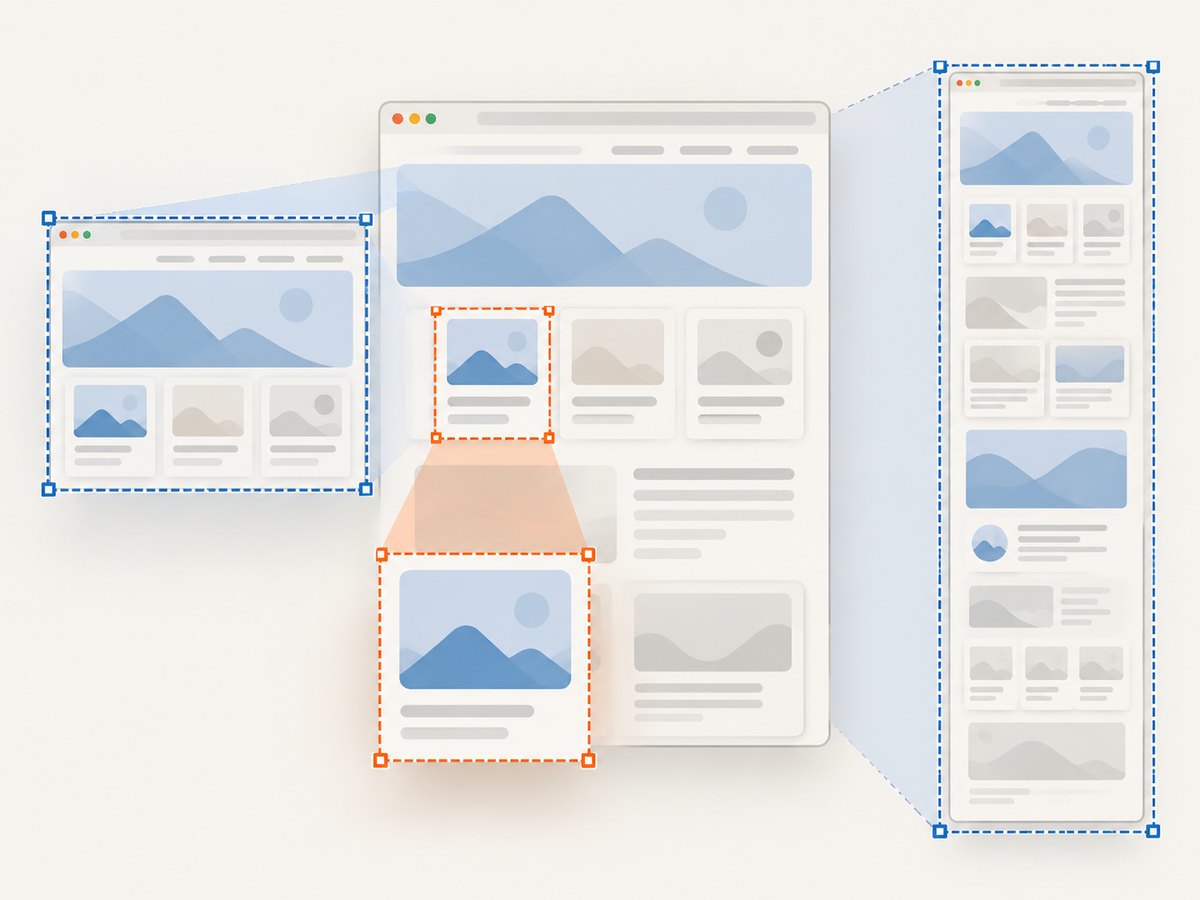
“Screenshot” can mean different things. The standard WebDriver screenshot command captures the current browsing context as an image. In Selenium Python, its file methods save PNG images, and the API describes a screenshot of the current window. A WebElement has its own screenshot method, which is useful when the artifact should show only a chart, card, heading, or other component. Neither choice should be confused with a guaranteed capture of every scrollable pixel on a long page.
| What you need | Python API | Notes |
|---|---|---|
| Current browser window | driver.save_screenshot(path) |
PNG; check the boolean return value. |
| Current window via alternate method | driver.get_screenshot_as_file(path) |
Also saves a PNG file; check the result. |
| Image bytes in memory | driver.get_screenshot_as_png() |
Useful when another library or upload step consumes bytes. |
| Base64 image data | driver.get_screenshot_as_base64() |
Useful for embedding or passing encoded data. |
| One element | element.screenshot(path) |
Locate the WebElement first; the method saves PNG. |
| Full document | Firefox Python full-page methods | Confirm browser, binding, and driver support; this is not a universal WebDriver capability. |
These methods and their return formats are described in the Python WebDriver API reference and the WebElement API reference. The Firefox API separately lists full-document screenshot methods, including get_full_page_screenshot_as_file and save_full_page_screenshot; check the API reference for the Selenium version used by your project.
2. Capture the current window with Python
The following standalone script creates an output directory, starts Chrome, sets a predictable window size, navigates to a page, saves the current-window screenshot, checks the result, and closes the WebDriver session even if capture fails. Install Selenium in the Python environment and make sure the browser and driver setup used by your project can launch Chrome.
from pathlib import Path
from selenium import webdriver

output = Path("screenshots")
output.mkdir(parents=True, exist_ok=True)

 driver = webdriver.Chrome()
try:
    driver.set_window_size(1440, 1000)
    driver.get("https://example.com")

    saved = driver.save_screenshot(str(output / "page.png"))
    if not saved:
        raise OSError("Selenium could not save the screenshot")
finally:
    driver.quit()
Remove the leading space before driver = webdriver.Chrome() if copying this snippet: the assignment should begin at the left margin. The rest of the script is conventional Python indentation. Alternatively, write the clean version as follows:
from pathlib import Path
from selenium import webdriver

output = Path("screenshots")
output.mkdir(parents=True, exist_ok=True)
driver = webdriver.Chrome()
try:
    driver.set_window_size(1440, 1000)
    driver.get("https://example.com")
    if not driver.save_screenshot(str(output / "page.png")):
        raise OSError("Selenium could not save the screenshot")
finally:
    driver.quit()
The Selenium Python file methods return False on an I/O error, so check the result rather than assuming a file exists. Use a path whose parent directory exists and a .png extension. Selenium documents pixel-based window sizing with set_window_size(width, height); it improves repeatability, though a browser window’s outer size should not be casually treated as identical to the page’s CSS viewport in every environment. See window sizing and screenshot examples.
3. Capture one WebElement
Element capture is useful for focused test artifacts or visual comparisons of a component. Locate the element after the page reaches the state you want to record. If the selector is missing, the lookup fails before the screenshot call; if the element exists but is not rendered as expected, the saved image may still be blank or incomplete.
from pathlib import Path
from selenium import webdriver
from selenium.webdriver.common.by import By

Path("screenshots").mkdir(parents=True, exist_ok=True)
driver = webdriver.Chrome()
try:
    driver.set_window_size(1440, 1000)
    driver.get("https://example.com")

    heading = driver.find_element(By.TAG_NAME, "h1")
    if not heading.screenshot("screenshots/heading.png"):
        raise OSError("Could not save element screenshot")
finally:
    driver.quit()
The call captures the located WebElement; it is not a substitute for a full-page capture. For dynamic interfaces, wait for the element to become visible and for relevant content to finish updating before saving. If a sticky header, overlay, or animation changes the element’s appearance, make the test state deterministic before capturing evidence.
4. Get a full-page screenshot when supported
Do not assume that driver.save_screenshot() captures the whole scrollable document. The generic Python WebDriver API documents a current-window screenshot. Selenium’s Firefox Python API lists explicit full-document screenshot methods. Use the method documented for the browser binding and Selenium version you run, and keep a current-window capture as a fallback if full-page capture is unavailable.
from pathlib import Path
from selenium import webdriver

Path("screenshots").mkdir(parents=True, exist_ok=True)
driver = webdriver.Firefox()
try:
    driver.get("https://example.com")
    # Firefox Python API: verify availability in your installed version.
    saved = driver.get_full_page_screenshot_as_file("screenshots/full-page.png")
    if not saved:
        raise OSError("Could not save full-page screenshot")
finally:
    driver.quit()
The method above is Firefox-specific according to the Firefox Python API reference; it is not a portable promise across all browsers. Consult the Firefox WebDriver API and check the installed Selenium version. Long documents with lazy-loaded content may need scrolling or application-specific readiness steps before capture. Confirm that the expected page regions appear in the output.
5. Make screenshots reproducible
- Choose a stable browser setup. Keep browser, driver, Selenium binding, operating environment, and configured window dimensions consistent when comparing images.
- Wait for a meaningful page condition. Prefer an explicit wait for the element or state under test. A fixed sleep can be too short on a slow run and waste time on a fast one; no single delay guarantees that every site has finished rendering.
- Set the required state first. Dismiss or preserve consent banners according to the test objective, finish interactions, and ensure the page is on the intended tab or window.
- Choose the capture API to match the evidence. Capture the current window for general context, an element for a focused component, or a documented full-page API for the full document.
- Check and retain the artifact deliberately. Confirm the method returned success and save to a known location. Avoid overwriting a useful failure artifact with a later passing run.
Window sizing is available in Selenium’s window management API. The size affects responsive layout, so even small changes can move elements, change line wrapping, or alter which controls are visible. If screenshots are compared by an image-diff tool, control fonts and rendering environment too; otherwise unrelated environment changes can create visual differences.
6. Attach a screenshot when a pytest test fails
If you use pytest-selenium with its HTML report integration, the plugin gathers debug information on failures by default, including the current URL, HTML, logs, and screenshot. You can set capture behavior to never, failure (the default), or always using its configuration or SELENIUM_CAPTURE_DEBUG environment variable. The plugin warns that always collecting debug data can dramatically increase report size.
# pytest.ini
[pytest]
selenium_capture_debug = failure
selenium_exclude_debug = html:logs
To exclude screenshots too, include screenshot in the exclusion list, for example html:logs:screenshot. This can matter when reports might be published or contain sensitive page data. The pytest-selenium user guide describes these configuration settings and the debug data it collects.
For a small custom fixture or failure hook, capture only when a test is failing and use a unique file name so parallel tests do not overwrite each other. A basic direct capture inside a failing test can look like this:
from pathlib import Path
from selenium import webdriver

Path("artifacts").mkdir(exist_ok=True)
driver = webdriver.Chrome()
try:
    driver.get("https://example.com")
    # Run the test actions and assertions here.
    # If an assertion fails, capture before quitting:
    driver.save_screenshot("artifacts/failure.png")
finally:
    driver.quit()
For real suites, put capture and cleanup in fixtures or hooks so failure paths are handled consistently. Avoid collecting screenshots and page HTML indiscriminately in public CI reports: those artifacts can expose personal data, account details, or tokens displayed by the application.
7. Troubleshooting common problems
| Symptom | Likely cause | Fix |
|---|---|---|
| No file appears | Parent directory does not exist, path is unwritable, or save returned false. | Create the directory, use a writable full path, and check the method’s boolean result. |
| Screenshot is blank or stale | Capture happened before navigation, rendering, or application state updates completed. | Wait for a meaningful element or application condition; verify the active URL and state before capture. |
| Element screenshot raises a lookup error | The selector does not match or the element is not present yet. | Check the selector and wait for the target element to appear before locating it. |
| Screenshot is clipped on a long page | Current-window capture records the current browsing context, not a universally supported full document. | Use a full-page method documented for the selected browser, such as the Firefox Python API method, or capture a specific region. |
| Layout differs between runs | Window dimensions, fonts, browser versions, timing, or page data changed. | Stabilize the environment and window size; wait for deterministic application state. |
| Test report becomes very large | Debug capture is set to always, or many large artifacts are included. | Use failure-only capture and exclude unneeded debug types. |
| Failure artifact is missing after browser closes | Capture was attempted after quitting the WebDriver session. | Save the screenshot before driver.quit(), including in test cleanup or failure hooks. |
8. Cost, speed, and reliability considerations
Selenium captures require a browser session that can navigate to the target and render the page. Startup, navigation, readiness waits, and saving files all contribute to the time taken by an automated workflow. A screenshot call does not make an unstable page deterministic: slow requests, animations, fonts, lazy content, and test data can still change the result. Wait for the condition that matters, keep dimensions stable, and retry only when there is a clear transient failure condition; retries can hide reproducible bugs if used without limits.
For many URLs, browser sessions can consume meaningful CI time and compute. Reuse a session across related steps where appropriate, while ensuring each capture starts from known state. Keep generated artifacts only as long as your debugging or audit process needs them. Screenshot storage and report size grow with resolution, full-page length, and capture frequency. Restrict access to artifacts that include private or account-specific content.
9. Or skip the browser setup
If you need a website screenshot without managing Selenium, Chrome or Firefox, and a driver session, ScreenshotNeo provides a website screenshot API and MCP server. One GET request can return PNG, JPEG, WebP, or PDF. Cookie and consent banners are accepted like a visitor would accept them, and 60+ known consent platforms, newsletter popups, and chat widgets are removed before capture; each step can be turned off. Bot checks, blank pages, timeouts, failed loads, and cache hits cost nothing, and response headers identify the page verdict and billing status. Its MCP server provides screenshot, page information, and PDF tools for AI agents.
See the ScreenshotNeo API docs for request options and output details.
curl -G "https://api.screenshotneo.com/v1/shot" \
  -d access_key=YOUR_API_KEY \
  --data-urlencode url=https://stripe.com \
  -o shot.webp
import requests
r = requests.get(
"https://api.screenshotneo.com/v1/shot",
params={"access_key": "YOUR_API_KEY", "url": "https://stripe.com"},
timeout=90,
)
open("shot.webp", "wb").write(r.content)const q = new URLSearchParams({
access_key: 'YOUR_API_KEY',
url: 'https://stripe.com'
});
const res = await fetch(`https://api.screenshotneo.com/v1/shot?${q}`);
if (!res.ok) throw new Error(`Screenshot request failed: ${res.status}`);
const image = Buffer.from(await res.arrayBuffer());
await import('node:fs/promises').then(fs => fs.writeFile('shot.webp', image));The API supports full-page capture, element selection, viewport and device presets, custom CSS and JavaScript, waits, headers and cookies, caching, asynchronous jobs, bulk capture, and other controls. Free includes 1,000 screenshots per month with no card; paid plans start at $5 for 3,000. Every feature is available on every plan. The free sign-up is 1,000 screenshots a month, no card required.
10. FAQ
Does Selenium save screenshots as PNG?
The documented Python WebDriver file screenshot methods and WebElement screenshot method save PNG files. Use a .png filename, or work with the byte or Base64 getters if another part of your application handles image output.
Can I screenshot a page without showing browser chrome?
WebDriver screenshots capture the browser’s current browsing context, not the operating system desktop or browser toolbar. They are intended as page evidence rather than a screenshot of the entire desktop.
Should I use a fixed sleep before every screenshot?
No fixed delay fits every page. Wait for a state that represents readiness for your test, such as a target element appearing or a loading indicator disappearing. This makes the condition explicit and avoids relying on timing guesses.
Is full-page capture available in every Selenium browser?
The generic Python WebDriver screenshot API documents the current window. Firefox’s Python API lists full-document screenshot methods. Check the docs for your binding and browser before relying on full-page behavior.


