How to Capture Screenshots When a Test Case Fails
Capture failed-test screenshots reliably in Cypress, Playwright, and pytest, preserve them in CI, troubleshoot timing issues, and automate evidence collection.

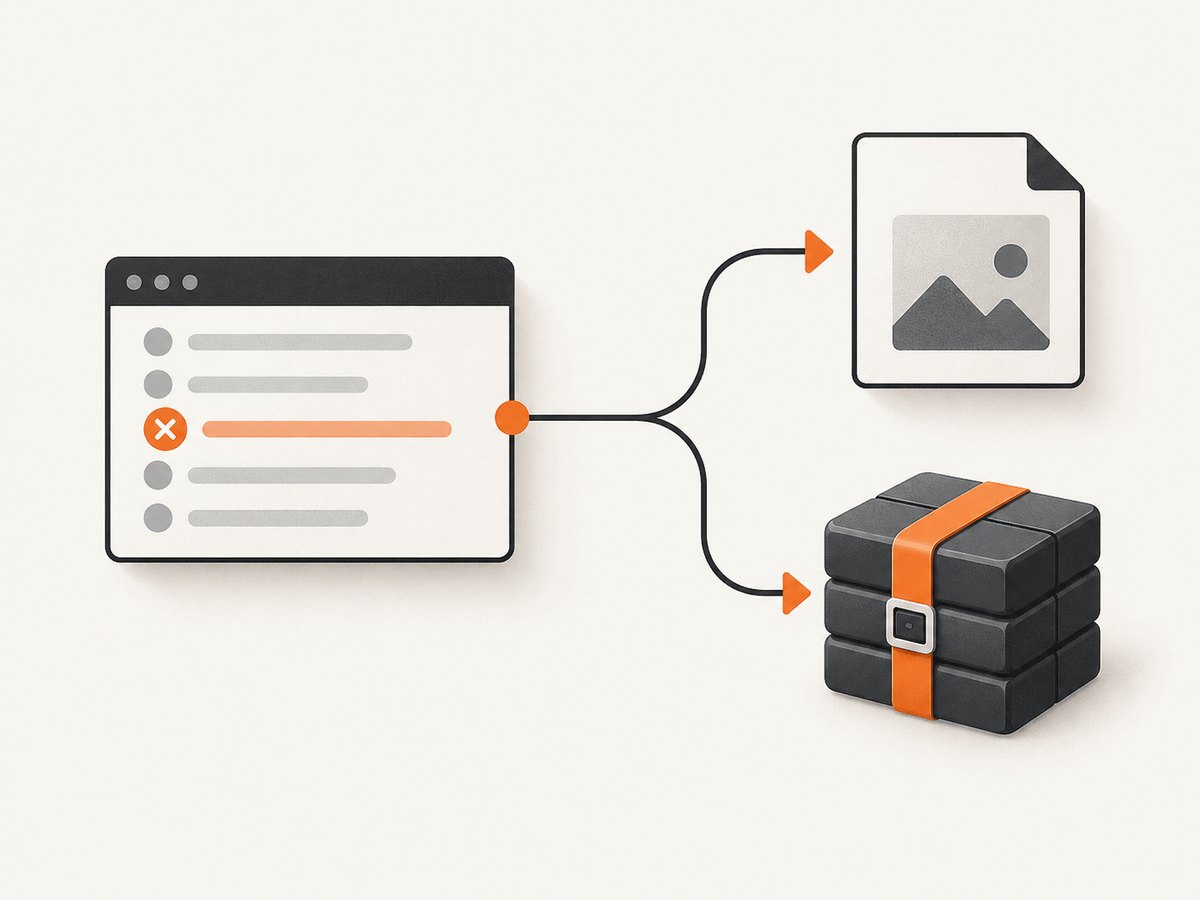
Capture the browser state as soon as a test fails, save the file under a test-specific name, and upload that directory as a CI artifact. The exact implementation depends on your runner:
- Cypress: failure screenshots are automatic during
cypress run, including CI. They are not automatic incypress open. - Playwright Test: add an
afterEachhook (or fixture) that checks the test result and callspage.screenshot()withtestInfo.outputPath(). - pytest-selenium: use the documented
pytest_selenium_capture_debughook inconftest.py.
Always retain the generated directory in your CI system. A screenshot that exists only inside a short-lived runner is not useful during triage.
Why failure screenshots are useful
A stack trace tells you which assertion failed. A screenshot often shows the state that caused it: a validation message, an unexpected redirect, a cookie dialog, a blank region, or a responsive layout change. Treat the image as one part of the failure record alongside the test name, URL, browser, viewport, console output, network errors, and video or trace files.
Cypress
Automatic screenshots in headless runs
Cypress documents automatic screenshots when a test fails during cypress run, including CI. The default directory is cypress/screenshots. Cypress clears that directory before a run unless trashAssetsBeforeRuns is set to false. See the Cypress screenshots and videos guide.
// cypress.config.js
const { defineConfig } = require('cypress')

module.exports = defineConfig({
  e2e: {
    screenshotOnRunFailure: true,
  },
})
screenshotOnRunFailure is enabled by default in current Cypress APIs; keep it explicit when you want the behavior to be obvious to readers of the configuration. Configuration shape can vary between Cypress generations, so use the structure supported by your installed version. Set it to false when screenshots are not appropriate for a particular pipeline. Reference: Cypress.Screenshot.
Take an intentional screenshot in a test
it('shows a useful state when checkout fails', () => {
  cy.visit('/checkout')
  cy.get('[data-testid="pay"]').click()

  cy.screenshot('checkout-before-payment-assertion', {
    capture: 'viewport',
    blackout: ['.customer-email'],
  })

  cy.contains('Payment failed').should('be.visible')
})
Use capture: 'viewport' for the visible browser area, capture: 'fullPage' for the application page, or capture: 'runner' when the Cypress command runner is part of the evidence. The cy.screenshot() API reference lists the options supported by your version.
Retries and asynchronous capture
Cypress names automatic failure files from the test name and adds (failed). Retries receive attempt labels, so preserve the complete filename when collecting artifacts. Cypress also notes that screenshot capture is asynchronous: the page can change between the assertion failure and the image being written. If the exact failing state matters, add an explicit screenshot immediately before the assertion or freeze the relevant UI in a controlled failure path. See Cypress test retries.
Playwright Test
Playwright Test exposes a test-specific output path through TestInfo. A hook can save a full-page screenshot only when the test status differs from its expected status. This is a manual hook pattern; do not assume a particular automatic failure-screenshot default from the TestInfo API.
// tests/failure-screenshot.spec.ts
import { test } from '@playwright/test'

test.afterEach(async ({ page }, testInfo) => {
  if (testInfo.status !== testInfo.expectedStatus) {
    await page.screenshot({
      path: testInfo.outputPath('failure.png'),
      fullPage: true,
    })
  }
})

test('account settings save', async ({ page }) => {
  await page.goto('https://your-app.example/settings')
  await page.getByRole('button', { name: 'Save' }).click()
  await page.getByText('Saved').waitFor()
})
outputPath() keeps artifacts associated with the individual test and retry. You can include the retry number in a diagnostic filename when several images are useful:
test.afterEach(async ({ page }, testInfo) => {
  if (testInfo.status !== testInfo.expectedStatus) {
    const name = `failure-retry-${testInfo.retry}.png`
    await page.screenshot({
      path: testInfo.outputPath(name),
      fullPage: true,
    })
  }
})
For a screenshot of only the current viewport, remove fullPage: true. For an element, locate it and use locator.screenshot({ path }); this is useful when a long page makes the failure detail hard to see.
pytest-selenium
The pytest-selenium user guide documents the pytest_selenium_capture_debug hook for writing screenshot and other debug data. Hook arguments and available debug items depend on the plugin version, so check the installed-version user guide before copying a hook unchanged.
# conftest.py
from pathlib import Path


def pytest_selenium_capture_debug(item, report, extra):
    """Persist screenshot debug entries supplied by pytest-selenium."""
    output_dir = Path("test-artifacts")
    output_dir.mkdir(parents=True, exist_ok=True)

    for name, content in extra:
        if name.lower() == "screenshot":
            path = output_dir / f"{item.name}.png"
            path.write_bytes(content)
If your plugin version supplies base64 text instead of bytes, decode it before writing. If it supplies a file path, copy the file into your artifact directory. Confirm the actual extra shape in the version-specific documentation.
Keep screenshots in CI
Configure the job to upload the screenshot directory even when the test command fails. The exact syntax depends on your CI provider; the essential sequence is:
- Run the test command.
- Allow the test step to report failure.
- Upload
cypress/screenshots, Playwright’s test-results directory, or your pytest artifact directory. - Set an appropriate retention period and avoid exposing secrets in screenshots.
# GitHub Actions example
- name: Run browser tests
  run: npm test

- name: Upload failure screenshots
  if: always()
  uses: actions/upload-artifact@v4
  with:
    name: browser-failure-screenshots
    path: |
      cypress/screenshots
      test-results
      test-artifacts
    if-no-files-found: ignore
Use separate artifact names for parallel jobs if your CI system merges paths. Include the browser, operating system, commit, and retry in the job or artifact metadata so an image can be traced back to one execution.
Choosing the right capture point
| Need | Capture | Why |
|---|---|---|
| What the user could see | Viewport screenshot | Matches the visible browser area. |
| Page layout and below-the-fold content | Full-page screenshot | Includes the document beyond the viewport. |
| A component assertion | Element screenshot | Reduces unrelated visual noise. |
| Runner diagnostics | Cypress runner capture | Includes command-runner context when needed. |
Capture after navigation and critical UI actions have settled. A screenshot taken during an animation, before fonts load, or while a network request is pending can describe an intermediate state rather than the defect.
Common errors and fixes
| Symptom | Likely cause | Fix |
|---|---|---|
| No Cypress image in CI | The job used cypress open, or the directory was not uploaded. |
Use cypress run for automatic failure capture and upload cypress/screenshots with an always-run artifact step. |
| Old Cypress images disappear | Cypress clears the screenshots directory before a run. | Archive each run externally, or set trashAssetsBeforeRuns: false when retaining local files is intentional. |
| Playwright hook throws after a failed navigation | The page or browser context is already closed. | Guard the hook, check that the page is open, and preserve the original test error instead of masking it with screenshot cleanup. |
| Screenshot shows the wrong state | Capture is asynchronous or the UI had not settled. | Add an explicit capture near the assertion, wait for a selector or stable network state, and disable relevant animations in test CSS. |
| pytest file is empty or unreadable | The plugin returned base64 or a path rather than raw bytes. | Inspect the version’s hook contract and decode or copy the supplied value accordingly. |
| CI artifact is missing | The upload step ran only on success. | Use the provider’s always-run condition and set if-no-files-found behavior deliberately. |
| Sensitive data appears in images | Tokens, customer data, or personal information is rendered in the page. | Use test fixtures, redact with framework options where available, mask selectors, and restrict artifact access. |
Performance, reliability, and cost
- Performance: full-page images take longer and produce larger artifacts than viewport or element captures. Capture only the scope needed to diagnose the failure.
- Reliability: use deterministic test data, stable selectors, fixed viewport settings, and a wait for the UI state that the assertion evaluates.
- Retries: keep each retry’s image instead of overwriting it; intermittent failures often require comparing attempts.
- Storage: choose retention based on debugging needs. Long retention of full-page images can consume significant CI storage.
- Privacy: treat screenshots as build artifacts containing production-like data. Apply access controls and redaction.
Or skip the browser setup
If you need a screenshot of a URL outside the failing test runner, ScreenshotNeo provides a single request that returns PNG, JPEG, WebP, or PDF. Its capture can accept cookie and consent banners before removing more than 60 known consent platforms, newsletter popups, and chat widgets. Bot checks, blank pages, timeouts, failed loads, and cache hits are not billed, and the response identifies the result with X-Page-Verdict and X-Billed headers.

See the ScreenshotNeo API documentation for all options.
cURL
curl -G "https://api.screenshotneo.com/v1/shot" \
  -d access_key=YOUR_API_KEY \
  --data-urlencode url=https://stripe.com \
  -o shot.webp
Python
import requests

r = requests.get(
    "https://api.screenshotneo.com/v1/shot",
    params={"access_key": "YOUR_API_KEY", "url": "https://stripe.com"},
    timeout=90,
)
r.raise_for_status()
open("shot.webp", "wb").write(r.content)
Node.js
const q = new URLSearchParams({
  access_key: 'YOUR_API_KEY',
  url: 'https://stripe.com',
})
const res = await fetch(`https://api.screenshotneo.com/v1/shot?${q}`)
if (!res.ok) throw new Error(`Screenshot failed: ${res.status}`)
const image = Buffer.from(await res.arrayBuffer())
require('node:fs').writeFileSync('shot.webp', image)
ScreenshotNeo also supports full-page capture, CSS-selector element capture, dark mode, device presets, retina scale, custom CSS and JavaScript, clicks, waits, request blocking, headers, cookies, user agents, authorization, timezone, geolocation, transparent backgrounds, resizing, selectable cache TTLs, signed image links, asynchronous jobs with signed webhooks, bulk capture of up to 100 URLs per call, usage reporting, and an MCP server with take_screenshot, get_page_info, and capture_pdf for AI clients.
There are 1,000 free screenshots each month with no card. Paid plans start at $5 for 3,000 screenshots, and every feature is available on every plan. Create a free ScreenshotNeo account.
FAQ
Does Cypress capture failures in interactive mode?
No. Automatic failure screenshots are documented for cypress run; add an explicit cy.screenshot() when working in cypress open.
Should a Playwright screenshot hook use testInfo.outputPath()?
Yes. It creates a test-specific path that works with retries and the runner’s output layout.
Why save both a screenshot and a trace?
A screenshot is a fast visual summary. A trace, video, console log, and network record can explain the events that produced that visual state.
Can I capture only the failed component?
Yes. Cypress supports element-oriented capture through the screenshot workflow, Playwright supports locator.screenshot(), and ScreenshotNeo accepts a CSS selector for one element.


