How to Capture Screenshots With Selenium
Learn how to capture viewport, element, full-page, PNG, and in-memory screenshots with Selenium, including waits, troubleshooting, and automation patterns.
Selenium can capture the browser’s current viewport, a single DOM element, or (with Firefox’s WebDriver API) an entire document. In Python, the shortest working call is driver.save_screenshot('screenshots/home.png'). It writes a PNG and returns True or False, so production code should check the result.
This guide covers setup, deterministic waits, viewport and element captures, full-page screenshots, PNG bytes and base64 output, browser sizing, troubleshooting, performance, security, and a browserless alternative with ScreenshotNeo.
1. Set up Selenium and a browser
Install Selenium in a virtual environment:
python -m venv .venv
source .venv/bin/activate
python -m pip install --upgrade selenium
Recent Selenium versions can manage compatible browser drivers through Selenium Manager. Install Chrome, Firefox, or Edge on the machine where the script runs. In CI, use a browser image or install the browser explicitly, and run headless when no display server is available.
A minimal Chrome session is:
from selenium import webdriver

options = webdriver.ChromeOptions()
options.add_argument('--headless=new')
options.add_argument('--window-size=1280,900')

driver = webdriver.Chrome(options=options)
try:
    driver.get('https://example.com')
    print(driver.title)
finally:
    driver.quit()
For Firefox, replace the constructor with webdriver.Firefox() and use FirefoxOptions if you need headless mode. Keep the browser and driver versions compatible. Selenium’s official screenshot documentation describes the WebDriver capture methods and their return types: Selenium screenshot documentation.
2. Capture the current viewport in Python
save_screenshot and get_screenshot_as_file save the current browser window as a PNG. They return a Boolean success value. Use a full path ending in .png; Selenium’s Python implementation can return False when the file cannot be written.
from pathlib import Path
from selenium import webdriver

out = Path('screenshots')
out.mkdir(parents=True, exist_ok=True)

driver = webdriver.Chrome()
try:
    driver.get('https://example.com')
    ok = driver.save_screenshot(str(out / 'home.png'))
    if not ok:
        raise OSError('Selenium could not write the screenshot')
finally:
    driver.quit()
The equivalent method is:
ok = driver.get_screenshot_as_file('screenshots/home.png')
if not ok:
    raise OSError('Screenshot write failed')
Use save_screenshot for readability in application code. Both methods capture what is visible in the current viewport, including the browser’s current scroll position.
Choose a repeatable viewport
Set dimensions before navigation or capture so output does not depend on the machine’s desktop size:
driver.set_window_size(1280, 900)
driver.get('https://example.com')
driver.save_screenshot('screenshots/1280x900.png')
The width and height are CSS pixels. Device pixel ratio, browser zoom, operating-system scaling, and headless implementation can affect the resulting bitmap dimensions. If pixel-perfect comparisons matter, standardize the browser version, OS image, scale factor, fonts, and window size.
3. Wait for the page state you actually want
A screenshot taken immediately after get can contain a loading spinner, missing fonts, empty cards, or a cookie dialog. Selenium does not define one universal “page is ready” condition; wait for an application-specific signal.
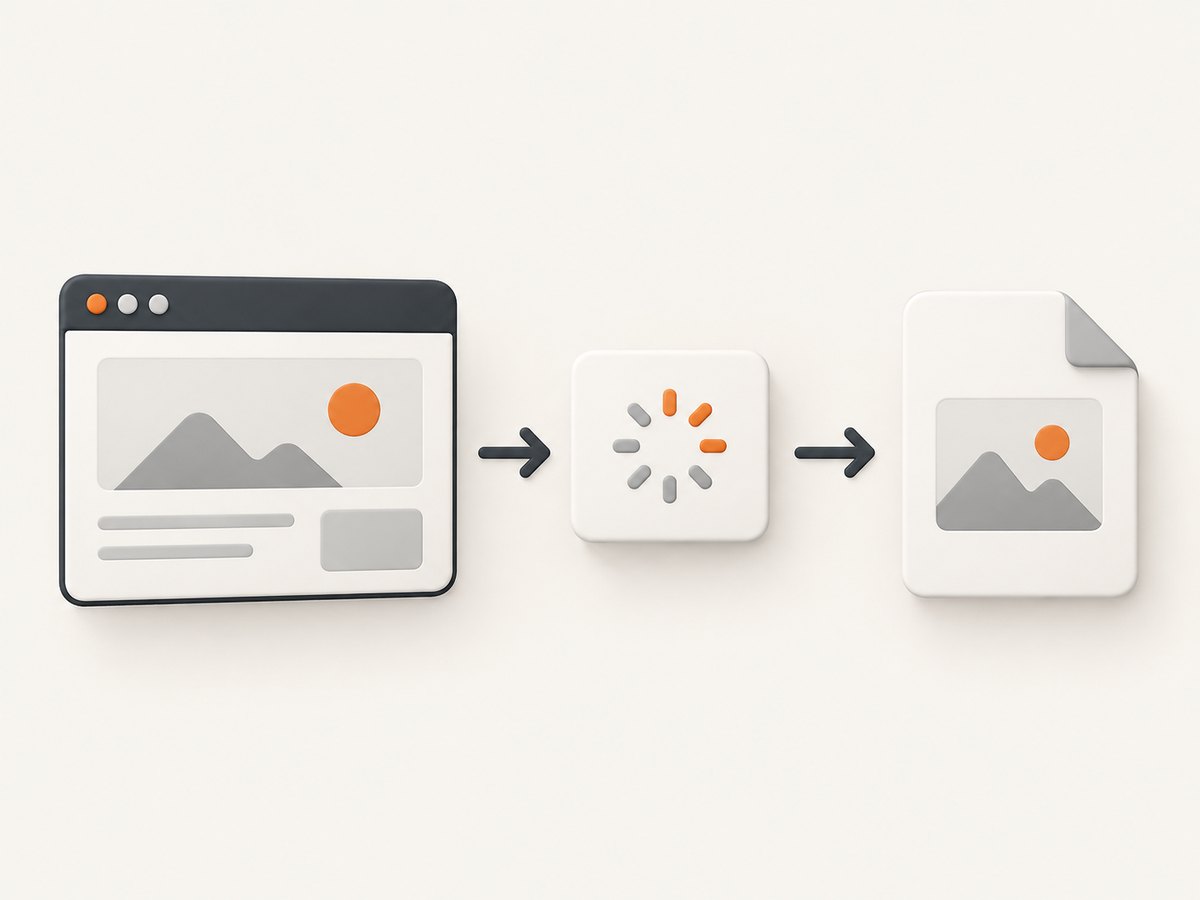
Prefer explicit waits over long fixed sleeps:
from selenium.webdriver.common.by import By
from selenium.webdriver.support.ui import WebDriverWait
from selenium.webdriver.support import expected_conditions as EC

wait = WebDriverWait(driver, 20)
driver.get('https://example.com/dashboard')
wait.until(EC.visibility_of_element_located((By.CSS_SELECTOR, 'main.dashboard')))
wait.until(EC.invisibility_of_element_located((By.CSS_SELECTOR, '.loading-spinner')))
driver.save_screenshot('screenshots/dashboard.png')
For a known image or chart, wait for its element and, when appropriate, verify a property such as nonzero dimensions. A JavaScript ready state can be a useful baseline but does not prove that a single-page application has finished rendering:
wait.until(lambda d: d.execute_script("return document.readyState") == 'complete')Do not wait for network idle by polling a private browser variable unless your test framework defines one. Use a visible, stable DOM condition owned by the application.
4. Capture one Selenium element
Find a DOM element and call its screenshot method:
from selenium.webdriver.common.by import By

card = driver.find_element(By.CSS_SELECTOR, 'article.product-card')
ok = card.screenshot('screenshots/product-card.png')
if not ok:
    raise OSError('Element screenshot write failed')
The element screenshot includes the element’s rendered box. It is useful for cards, charts, invoices, components, and regression-test fixtures. The selector must identify the intended element after the page has rendered. If the element is outside the viewport, Selenium may scroll it into view as part of the command; page layout can therefore change slightly.
For an in-memory element image, use element.screenshot_as_png or element.screenshot_as_base64:
png_bytes = card.screenshot_as_png
base64_text = card.screenshot_as_base64
Element screenshot behavior is documented in the Selenium WebElement API.
5. Capture PNG bytes or base64 without writing a file
Use get_screenshot_as_png() when another service, object store, or image processor should receive binary data directly:
png_bytes = driver.get_screenshot_as_png()
with open('screenshots/in-memory.png', 'wb') as image_file:
    image_file.write(png_bytes)
get_screenshot_as_base64() returns base64 text, which is suitable for embedding in HTML or sending in a text-based payload:
base64_text = driver.get_screenshot_as_base64()
html_image = f"<img src='data:image/png;base64,{base64_text}' alt='Captured page'>"
Base64 expands the payload compared with raw PNG bytes. Prefer bytes for queues, object storage, and HTTP uploads unless the receiving interface requires text.
6. Capture a full-page screenshot
A normal WebDriver screenshot is a viewport capture. Firefox’s Python WebDriver exposes full-document methods that capture the page beyond the visible viewport:
from selenium import webdriver

options = webdriver.FirefoxOptions()
options.add_argument('-headless')
driver = webdriver.Firefox(options=options)
try:
    driver.get('https://example.com/long-page')
    ok = driver.get_full_page_screenshot_as_file('screenshots/full-page.png')
    if not ok:
        raise OSError('Full-page screenshot write failed')
finally:
    driver.quit()
Firefox also provides save_full_page_screenshot plus PNG and base64 variants. Check the Firefox WebDriver API for the exact method available in your Selenium version. Do not assume the Firefox-specific method exists on every browser driver.
Long pages can contain lazy-loaded images that appear only after scrolling. A full-document command may not trigger every site’s lazy-loading logic. If the page uses an intersection observer, scroll through the document first, wait for images, then capture:
driver.execute_script('window.scrollTo(0, document.body.scrollHeight)')
driver.execute_script('window.scrollTo(0, 0)')
wait.until(lambda d: d.execute_script("return [...document.images].every(img => img.complete)"))
driver.get_full_page_screenshot_as_file('screenshots/full-page-ready.png')
This JavaScript check only verifies that image requests completed; it does not guarantee that fonts, video frames, or application data are ready.
7. Hide overlays, click controls, and set test conditions
Automated captures often need the same interactions as a human session. Dismiss a consent dialog, open a tab, or select a theme before taking the image:
from selenium.webdriver.common.by import By
from selenium.webdriver.support import expected_conditions as EC

close_button = wait.until(EC.element_to_be_clickable((By.CSS_SELECTOR, '.cookie-banner button.accept')))
close_button.click()
tab = wait.until(EC.element_to_be_clickable((By.CSS_SELECTOR, '[data-tab="details"]')))
tab.click()
wait.until(EC.visibility_of_element_located((By.CSS_SELECTOR, '#details-panel')))
driver.save_screenshot('screenshots/details.png')
For deterministic output, set the locale, timezone, authenticated test account, feature flags, and test data through supported application mechanisms. Avoid putting real credentials in URLs or screenshots. If a page displays personal data, treat the resulting files as sensitive artifacts.
8. A complete reusable screenshot function
This helper creates the output directory, sets a viewport, waits for a selector, checks the Boolean result, and always closes the browser:
from pathlib import Path
from selenium import webdriver
from selenium.webdriver.support.ui import WebDriverWait
from selenium.webdriver.common.by import By
from selenium.webdriver.support import expected_conditions as EC

def capture(url: str, output: str, ready_selector: str | None = None) -> Path:
    path = Path(output)
    path.parent.mkdir(parents=True, exist_ok=True)
    options = webdriver.ChromeOptions()
    options.add_argument('--headless=new')
    options.add_argument('--window-size=1440,1000')
    driver = webdriver.Chrome(options=options)
    try:
        driver.get(url)
        if ready_selector:
            WebDriverWait(driver, 20).until(
                EC.visibility_of_element_located((By.CSS_SELECTOR, ready_selector))
            )
        if not driver.save_screenshot(str(path)):
            raise OSError(f'Could not write screenshot: {path}')
        return path
    finally:
        driver.quit()

capture('https://example.com', 'screenshots/example.png', 'main')
9. Troubleshooting common Selenium screenshot errors
| Symptom | Likely cause | Fix |
|---|---|---|
save_screenshot returns False |
Directory does not exist, path is not writable, or the filename has an unsuitable extension. | Create the parent directory, use an absolute or known-good path ending in .png, and check filesystem permissions. |
Unable to obtain driver |
Browser or driver is missing, incompatible, or blocked from downloading. | Install the browser and a compatible driver, or use Selenium Manager in an environment with the required network access. |
| Screenshot is blank or partly rendered | Capture ran before the application finished rendering. | Wait for a stable application selector, hide loading states, and verify that data and images are present. |
| Cookie banner or chat widget covers content | The page requires an interaction before capture. | Locate and click the dismiss control, or use a test-only CSS rule to hide the overlay when your project permits it. |
Element screenshot raises NoSuchElementException |
The selector is wrong or the element has not been inserted yet. | Use an explicit wait and confirm the selector in browser developer tools. |
ElementClickInterceptedException |
An overlay is covering the target. | Dismiss the overlay, wait for it to disappear, then click; avoid JavaScript clicks unless normal interaction is impossible. |
| Full-page method is missing | You are using a non-Firefox driver or a Selenium version without that API. | Use Firefox’s documented full-page method, or implement a browser-specific scroll/stitch workflow. |
| Fonts or icons differ in CI | Different OS fonts, font loading timing, browser version, or device scale factor. | Use a fixed container image, install the same fonts, wait for font readiness, and standardize browser settings. |
When diagnosing intermittent failures, save the page source, browser console logs, current URL, and a diagnostic screenshot on failure. Keep those artifacts out of public logs if they can contain secrets.
10. Performance, reliability, and cost considerations
Starting a browser is usually more expensive than taking another screenshot in an existing session. Reuse one driver for a related batch of pages when isolation requirements allow it, but reset cookies, local storage, and application state between captures. Parallel drivers improve throughput at the cost of CPU, memory, and contention for browser resources.
Use explicit waits with sensible timeouts. A very long timeout hides outages; a very short timeout creates flaky captures. Record navigation time, wait time, screenshot time, and file size so slow pages can be identified. Full-page images consume more memory and disk space than viewport images. Resize or compress artifacts after capture only if the output requirements allow it.
Selenium itself has no per-screenshot service charge: you operate the browser infrastructure. Your costs are compute, storage, CI minutes, and maintenance of browser versions and drivers. Reliability depends on the page, browser, network, and your automation environment. Retry transient navigation failures with a limit and capture diagnostics; do not blindly retry deterministic selector or permission errors.
11. Or skip the browser setup
ScreenshotNeo provides a website screenshot API and MCP server. One GET request returns a PNG, JPEG, WebP, or PDF. The API accepts options for full-page capture, CSS element selection, dark mode, device presets, custom viewports, retina scale, waits, custom CSS and JavaScript, clicks, hidden selectors, blocked resources, headers, cookies, user agents, authorization, timezone, geolocation, transparent backgrounds, resizing, caching, signed links, asynchronous jobs, webhooks, bulk capture, and usage reporting. See the ScreenshotNeo API documentation for the full parameter list.
cURL
curl -G "https://api.screenshotneo.com/v1/shot" -d access_key=YOUR_API_KEY --data-urlencode url=https://stripe.com -o shot.webpPython
import requests
r = requests.get("https://api.screenshotneo.com/v1/shot", params={"access_key": "YOUR_API_KEY", "url": "https://stripe.com"}, timeout=90)
open("shot.webp", "wb").write(r.content)
Node.js
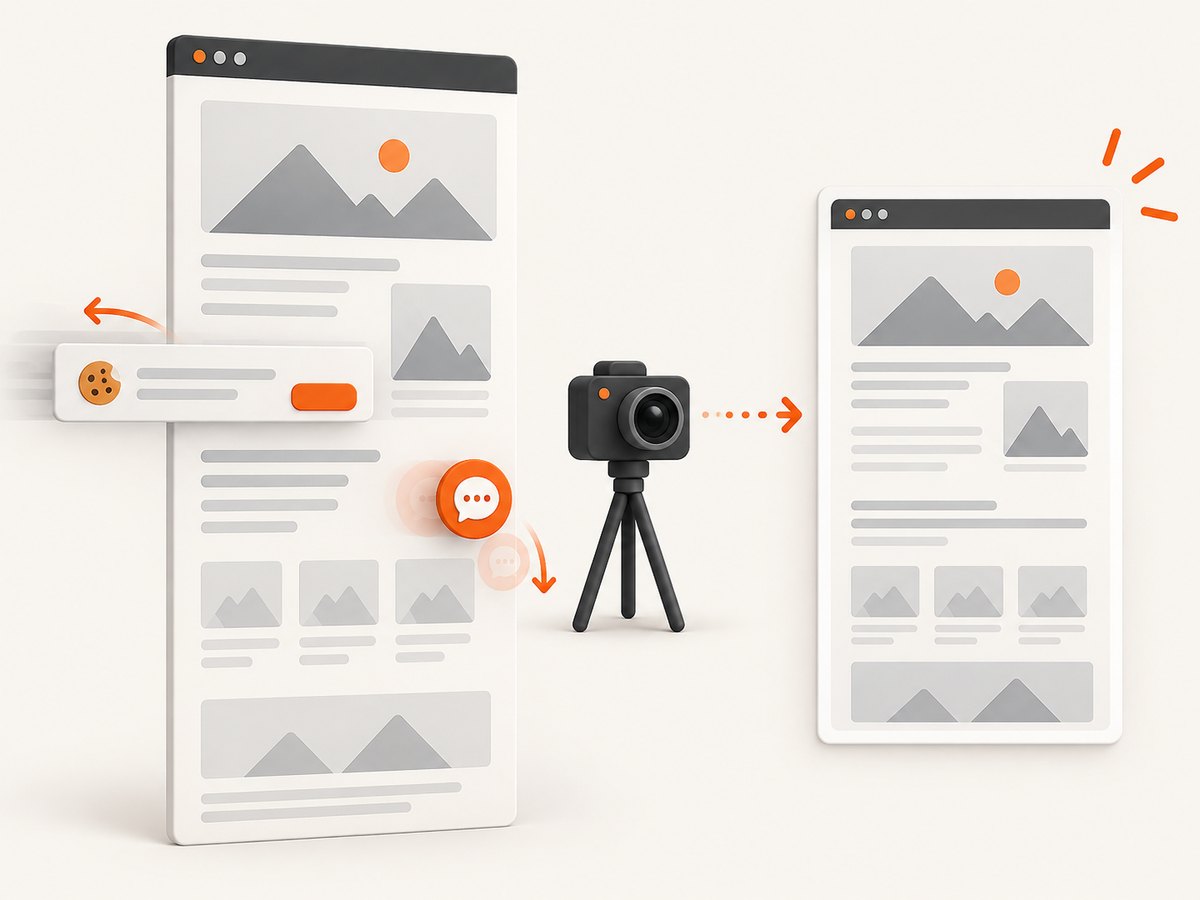
const q = new URLSearchParams({ access_key: 'YOUR_API_KEY', url: 'https://stripe.com' }); const res = await fetch(`https://api.screenshotneo.com/v1/shot?${q}`);Cookie and consent banners, newsletter popups, and chat widgets are removed before the shot. Bot checks, blank pages, failed loads, timeouts, and cache hits are not billed; response headers identify the page verdict and billing status with X-Page-Verdict and X-Billed. ScreenshotNeo also has an MCP server with take_screenshot, get_page_info, and capture_pdf tools for Claude, Cursor, and other MCP clients. The Free plan includes 1,000 screenshots each month with no card; paid plans start at $5 for 3,000 screenshots. Create a free ScreenshotNeo account.
12. Selenium screenshot FAQ
Does Selenium save screenshots as JPEG?
The standard Selenium screenshot methods save PNG files or return PNG data. Convert the bytes with an image library if another format is required.
Can I screenshot a page without displaying a browser window?
Yes. Use the browser’s headless option, but keep the viewport and fonts fixed because headless rendering can differ from a developer desktop.
Why is my screenshot only the visible area?
Ordinary WebDriver screenshots represent the current viewport. Use Firefox’s full-document API or a deliberate scroll-and-stitch workflow for a long page.
Should I use a screenshot for visual regression tests?
Yes, when the environment is controlled. Pin browser versions, fonts, viewport dimensions, test data, and readiness conditions, then compare images with a tolerance appropriate for anti-aliasing differences.
How do I avoid leaking secrets in screenshot artifacts?
Use test accounts, redact sensitive regions before publishing, restrict artifact access, and apply your project’s retention policy. Screenshots can contain tokens, personal information, and internal URLs.


