How to Capture All Scrollable Div Content in a PDF With html2canvas
Capture the full content of a scrollable div with html2canvas, then split the result across PDF pages. Includes runnable code and fixes for clipping, images, and canvas limits.
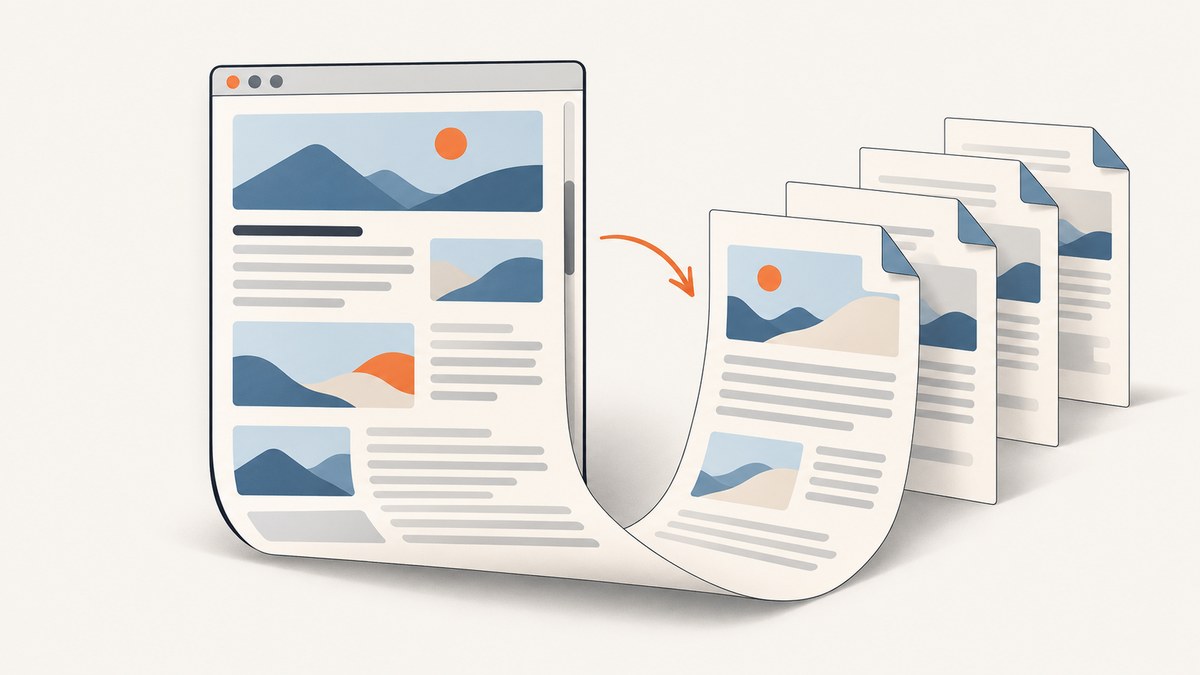
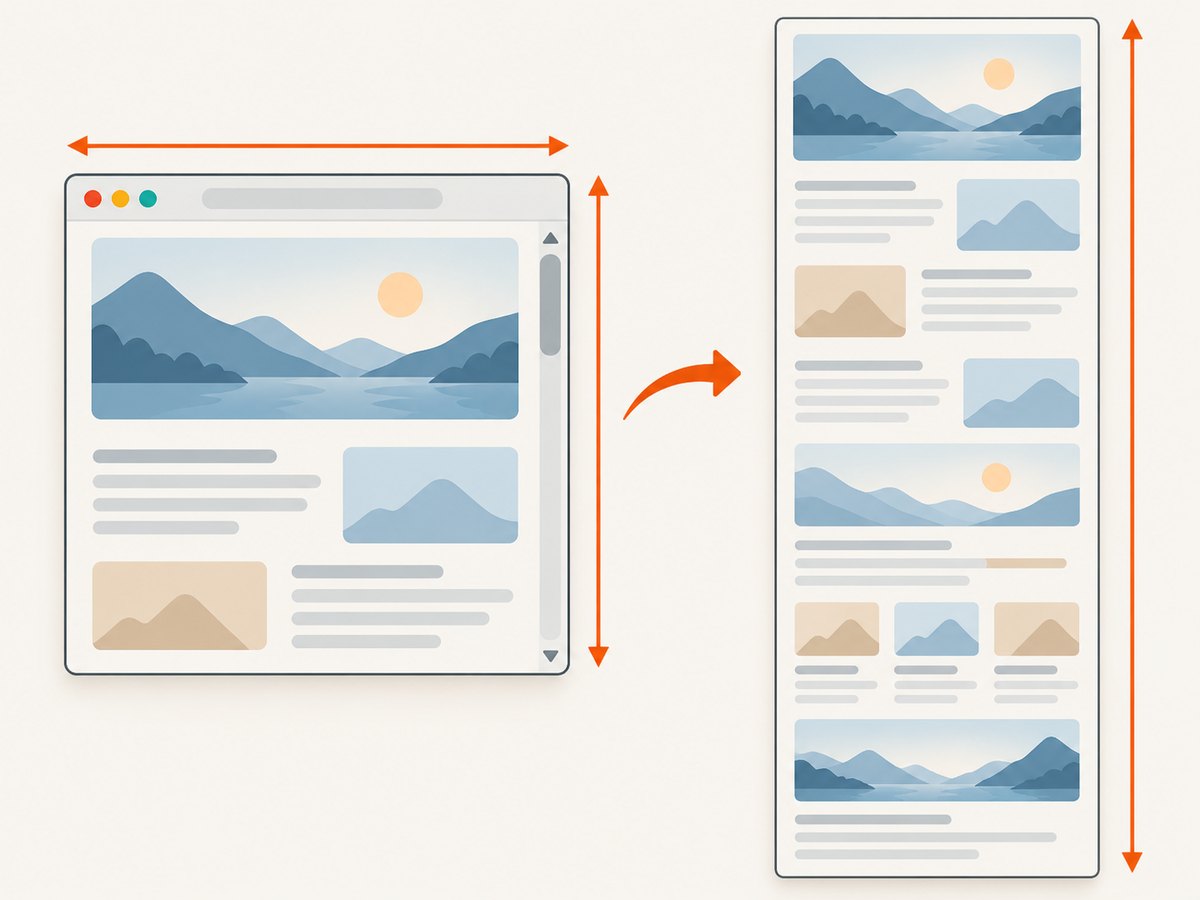
To capture content below a scrollable div’s visible area, pass the element’s scrollWidth and scrollHeight as html2canvas’s windowWidth and windowHeight, then split the resulting canvas across PDF pages. Those options set the rendering window; they are different from the width and height options that set canvas dimensions. This approach produces a visual, image-based PDF, and very large captures can exceed browser canvas limits.
The method works best for content that is already in the DOM. It does not force virtualized lists to render rows they have not mounted, bypass cross-origin restrictions, or guarantee pixel-perfect CSS output. The official html2canvas documentation describes its output as a reconstruction from DOM and style information rather than a native browser screenshot. See the html2canvas limitations and FAQ.
1. Prepare the scrollable content
Choose the element that contains the content to export. The element can have a fixed height and overflow: auto; the important measurement is its content extent, exposed by scrollHeight and scrollWidth. If content is loaded asynchronously, wait for the app to finish loading it before capture. There is no universal wait duration: use the application’s own loading state or a known completion signal.
<div id="content-to-export">
  <h1>Monthly report</h1>
  <p>Content continues below the visible area.</p>
  <!-- More rendered content -->
</div>

<button id="export-pdf">Download PDF</button>
For a list that only renders visible rows (virtualization or windowing), the DOM does not contain the unseen rows. Configure that component to render all rows for export, or gather the data and build a dedicated export view first. Increasing the canvas height cannot capture nodes that do not exist.
2. Install the browser libraries
This example uses html2canvas to render the element and jsPDF to create pages. Install the packages in your project:
npm install html2canvas jspdfRun the code in a browser after the target element exists. html2canvas depends on browser APIs such as window, document, and computed styles; the project FAQ explains that it does not run as a plain Node.js server-side DOM capture.
3. Capture the full element and create a multi-page PDF
The following module-style example captures the element’s full scroll extent, preserves its aspect ratio, and slices the image into page-sized sections. It supports the standard jsPDF page sizes through the format setting and writes a PDF download.
import html2canvas from 'html2canvas';
import { jsPDF } from 'jspdf';

async function exportScrollableDivToPdf({
  selector = '#content-to-export',
  filename = 'export.pdf',
  format = 'a4',
  orientation = 'portrait',
  marginMm = 10,
  scale = 1.5,
} = {}) {
  const element = document.querySelector(selector);
  if (!(element instanceof HTMLElement)) {
    throw new Error(`Could not find export element: ${selector}`);
  }

  // Ensure the element has layout and measurable content.
  const width = element.scrollWidth;
  const height = element.scrollHeight;
  if (!width || !height) throw new Error('Export element has no content dimensions.');

  const canvas = await html2canvas(element, {
    windowWidth: width,
    windowHeight: height,
    width,
    height,
    scale,
    useCORS: true,
    backgroundColor: '#ffffff',
    logging: false,
  });

  const pdf = new jsPDF({ orientation, unit: 'mm', format });
  const pageWidth = pdf.internal.pageSize.getWidth();
  const pageHeight = pdf.internal.pageSize.getHeight();
  const printableWidth = pageWidth - marginMm * 2;
  const printableHeight = pageHeight - marginMm * 2;

  // Map canvas pixels to PDF millimetres without distorting the image.
  const mmPerPixel = printableWidth / canvas.width;
  const pageSlicePixels = Math.floor(printableHeight / mmPerPixel);
  if (pageSlicePixels < 1) throw new Error('PDF margins leave no printable area.');

  let y = 0;
  let firstPage = true;
  while (y < canvas.height) {
    const sliceHeight = Math.min(pageSlicePixels, canvas.height - y);
    const pageCanvas = document.createElement('canvas');
    pageCanvas.width = canvas.width;
    pageCanvas.height = sliceHeight;
    const context = pageCanvas.getContext('2d');
    if (!context) throw new Error('Could not create a canvas context.');
    context.drawImage(canvas, 0, y, canvas.width, sliceHeight,
      0, 0, canvas.width, sliceHeight);

    if (!firstPage) pdf.addPage();
    const data = pageCanvas.toDataURL('image/jpeg', 0.92);
    pdf.addImage(data, 'JPEG', marginMm, marginMm,
      printableWidth, sliceHeight * mmPerPixel);
    y += sliceHeight;
    firstPage = false;
  }

  pdf.save(filename);
}

document.querySelector('#export-pdf').addEventListener('click', async () => {
  try {
    await exportScrollableDivToPdf();
  } catch (error) {
    console.error('PDF export failed:', error);
    alert('Could not create the PDF. Check the console for details.');
  }
});
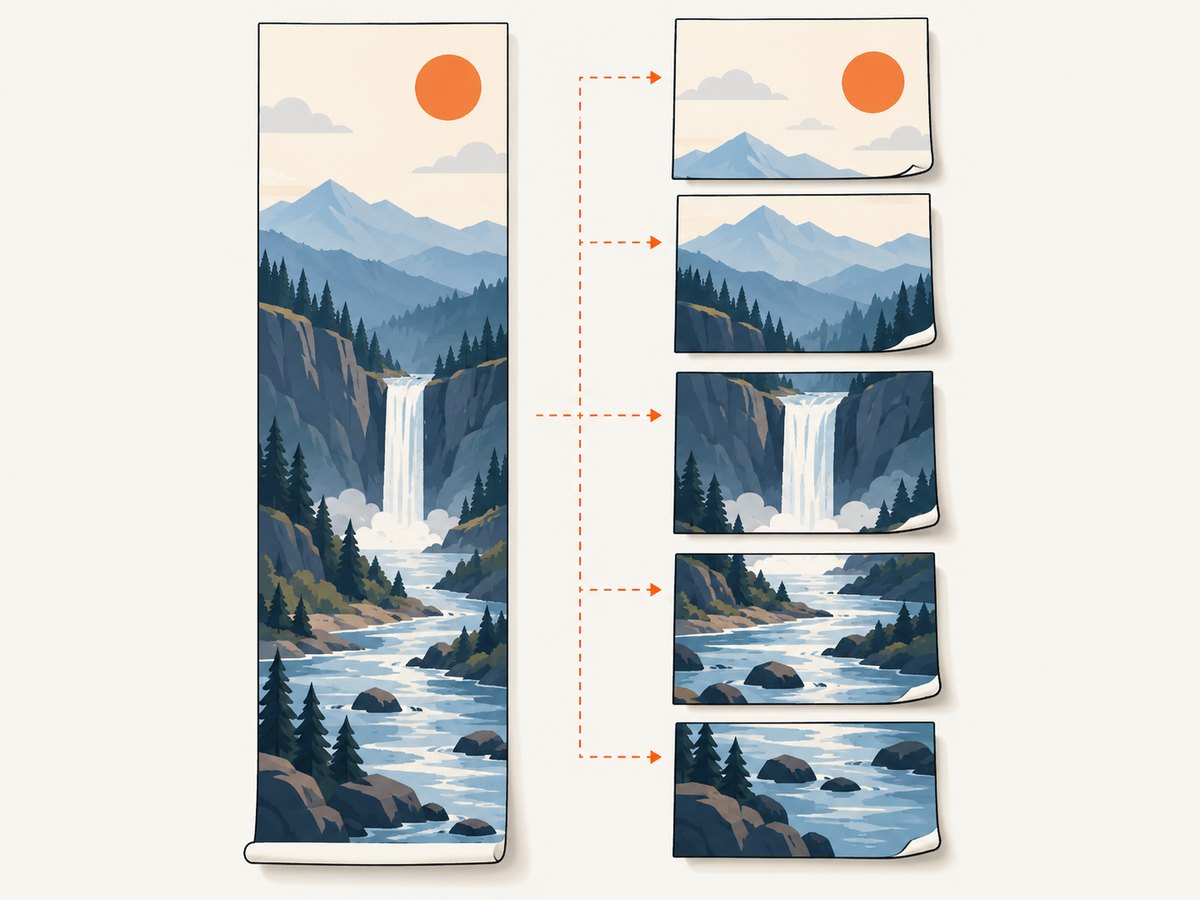
Keep the PDF library’s units consistent: this example uses millimetres and passes the same unit to jsPDF. It scales the canvas to the printable page width, then calculates how many source pixels fit vertically. Each slice starts on a new PDF page. A cut may pass through a text line or image; adjust the content or use semantic page breaks if preserving whole sections matters.
4. Understand the important html2canvas options
| Option | Purpose | Guidance |
|---|---|---|
windowWidth, windowHeight |
Rendering-window dimensions; can affect media queries. | For tall overflow content, begin with the element’s scrollWidth and scrollHeight, as the project FAQ recommends. |
width, height |
Canvas dimensions. | Set when you need to specify the output canvas bounds. These do not substitute for the rendering-window settings. |
scale |
Output resolution multiplier. | Higher values can look sharper in print, but multiply pixel area and memory use. Start at 1 or a modest value and inspect output. |
useCORS |
Attempts to load images using CORS. | It works only when the image server permits cross-origin access with appropriate headers. |
backgroundColor |
Canvas background; null can preserve transparency. |
Set a deliberate color for predictable PDF pages. |
imageTimeout |
Maximum wait for images to load. | Use when images are slow; it does not guarantee unavailable images will appear. |
proxy |
Proxy URL for supported cross-origin image fetching. | Only use a proxy you control and configure for this purpose. |
ignoreElements |
Callback to exclude selected elements. | Useful for removing controls or transient UI from an export. |
Consult the configuration reference for the complete option list for the version installed. CSS overflow may still clip a cloned layout in some cases; inspect the rendered output and the cloned layout when the dimensions look right but content remains missing. There is no single documented overflow-style patch that applies to every layout.
5. Decide how PDF pages should break
The slicing example prioritizes predictable image placement. It does not understand paragraphs or headings, so a page can split through a component. If page-aware layout matters, consider the browser-side html2pdf.js wrapper, which combines html2canvas and jsPDF and documents CSS, legacy, and selector-based page-break controls.
import html2pdf from 'html2pdf.js';

const element = document.querySelector('#content-to-export');
await html2pdf().set({
  filename: 'report.pdf',
  margin: [10, 10, 10, 10],
  image: { type: 'jpeg', quality: 0.92 },
  html2canvas: {
    windowWidth: element.scrollWidth,
    windowHeight: element.scrollHeight,
    useCORS: true,
    scale: 1.5,
  },
  jsPDF: { unit: 'mm', format: 'a4', orientation: 'portrait' },
  pagebreak: {
    mode: ['css', 'legacy'],
    before: '.new-page',
    avoid: '.keep-together',
  },
}).from(element).save();
Use classes such as new-page and keep-together in the export markup, then inspect a multi-page result. “Avoid” can move a whole element to the next page, potentially leaving a gap; very tall elements cannot always be kept intact. The wrapper’s page-break behavior is documented in its repository, including page-break modes and selectors.
6. Handle very long or complex content
A single canvas is convenient until its dimensions or pixel area become too large. The html2canvas FAQ gives rough guidance of about 32,767 pixels as a maximum dimension across current evergreen desktop browsers, with rough maximum areas of about 268 million pixels for Chrome/Chromium and 472 million for Firefox. These are not guarantees: browser, device, and platform limits vary. At scale: 2, both canvas dimensions double and pixel area becomes four times larger.
If a full canvas is blank, incomplete, or consumes too much memory, capture the content in smaller sections and append each section to successive PDF pages. This is an engineering workaround, not a universal pagination algorithm: verify that section boundaries, margins, and content order match your document. Keep image scale modest, avoid retaining unnecessary intermediate canvases, and release references after saving when exports are large.
Canvas output is rasterized: text generally will not be selectable or searchable, and file size can grow with dimensions and image detail. JPEG usually reduces size for photographic or colorful pages but can blur fine text; PNG preserves crisp edges but can be larger. If the PDF must support accessible, searchable text, use a semantic or print-oriented document generation path instead of treating a canvas image as the final document.
7. Troubleshooting
| Symptom | Likely cause | Fix |
|---|---|---|
| Canvas is empty or stops partway down. | Rendering window does not reflect the content extent, or browser canvas limits are exceeded. | Set windowWidth/windowHeight from scroll dimensions. Check output dimensions and split the capture if it is too large. |
| Content appears at the wrong width or uses unexpected responsive styling. | Window dimensions trigger different media queries; canvas bounds and window bounds were confused. | Compare the rendered width at the chosen window size. Set the window options separately from canvas width/height. |
| Remote images are missing. | The server does not allow CORS, or the image request failed. | Use useCORS: true when the server sends appropriate CORS headers, or use a controlled proxy. html2canvas cannot bypass browser content policy. |
| Cross-origin iframe is blank. | Browser same-origin restrictions prevent reading its document. | Capture content you control in the same origin, or have the embedded application provide an export/integration path. A client-side option cannot remove this restriction. |
| CSS differs from the page. | html2canvas reconstructs the page and supports a defined subset of CSS. | Check the supported features for your version; simplify unsupported effects or use another rendering approach. |
| Some rows are absent. | A virtualized list has not mounted off-screen rows, or data is still loading. | Render all data in an export view and wait for application-level loading to finish before capture. |
| PDF pages are huge or blurry. | Canvas resolution, output image type, and PDF page scale do not match the use case. | Reduce scale, preserve aspect ratio, and compare JPEG/PNG quality on representative pages. |
| Text or sections split awkwardly. | Canvas slicing has no awareness of document semantics. | Adjust slice boundaries, capture separate components, or use html2pdf.js page-break controls and inspect the result. |
8. Or skip the browser setup
If the content is available at a public or authorized URL, ScreenshotNeo can capture the rendered page as an image or PDF with one GET request. This captures a webpage; it does not directly access a local, unsaved div or bypass your page’s access controls. See the ScreenshotNeo API documentation for request options.
curl -G "https://api.screenshotneo.com/v1/shot" -d access_key=YOUR_API_KEY --data-urlencode url=https://stripe.com -o shot.webpimport requests
r = requests.get("https://api.screenshotneo.com/v1/shot", params={"access_key": "YOUR_API_KEY", "url": "https://stripe.com"}, timeout=90)
open("shot.webp", "wb").write(r.content)const q = new URLSearchParams({ access_key: 'YOUR_API_KEY', url: 'https://stripe.com' });
const res = await fetch(`https://api.screenshotneo.com/v1/shot?${q}`);ScreenshotNeo removes cookie banners, newsletter popups, and chat widgets before the shot. Bot checks, blank pages, and failed loads are never billed. An MCP server lets AI agents take screenshots. The free plan includes 1,000 screenshots a month with no card; paid plans start at $5 for 3,000. Sign up for 1,000 free screenshots a month, no card required.
FAQ
Can html2canvas capture a div without scrolling it first?
Usually, yes, if the full content is present in the DOM and the rendering dimensions include its scroll extent. Virtualized content is an exception because unseen rows may not exist in the DOM.
Will the resulting PDF have selectable text?
The canvas-based method inserts rendered pixels, so treat the PDF as an image document rather than a semantic text document.
Why set both window size and canvas size?
The rendering window can affect layout and media queries; canvas width and height determine the output bitmap bounds. The configuration reference defines these as distinct settings.
Does useCORS make every remote image capturable?
No. The remote image server must permit the request. If it does not, use content hosted under the page’s origin or a suitable proxy you control.
Can I use this for a cross-origin iframe?
No. Browser security prevents access to a cross-origin iframe’s document. Same-origin iframe content is supported recursively according to the project documentation.


