How to Capture Scrollable Modals with html2canvas
Fix clipped html2canvas modal screenshots by rendering the element’s full scroll dimensions, then troubleshoot sizing, CSS, CORS and canvas limits.
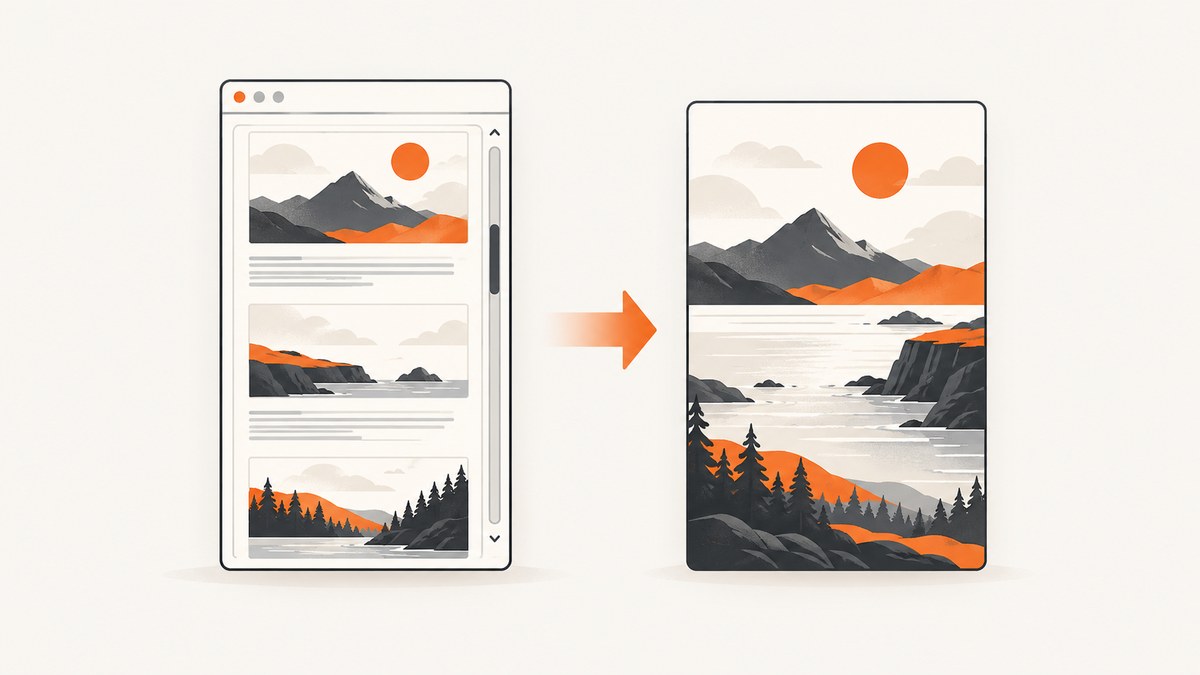
Set html2canvas’s rendering window to the scrollable element’s full dimensions. Capture the element that actually owns the scrollbar, then pass its scrollWidth and scrollHeight as windowWidth and windowHeight:
const target = document.querySelector('.modal-body');

const canvas = await html2canvas(target, {
  windowWidth: target.scrollWidth,
  windowHeight: target.scrollHeight,
});
The selector is only an example. In your modal, the scrolling element may be an inner content panel, the dialog itself, or another wrapper. Inspect the DOM and choose the element containing the complete content you want rendered.
Why a scrollable modal gets cut off
A modal often has a fixed-height shell and a nested body with overflow: auto or overflow-y: scroll. The visible viewport shows only part of the body, while the full content exists in its scrollable dimensions. If html2canvas renders using the current window size, the resulting canvas can contain only the visible portion.
html2canvas reconstructs an image from the DOM and styles it understands. It is not a native screenshot of the browser’s composited tab, so its rendering window and CSS support affect the result.
Step-by-step fix
1. Find the element that really scrolls
Use browser developer tools to inspect the modal. Scroll the page and each modal wrapper while watching which element’s scrollTop changes. The correct target normally has:
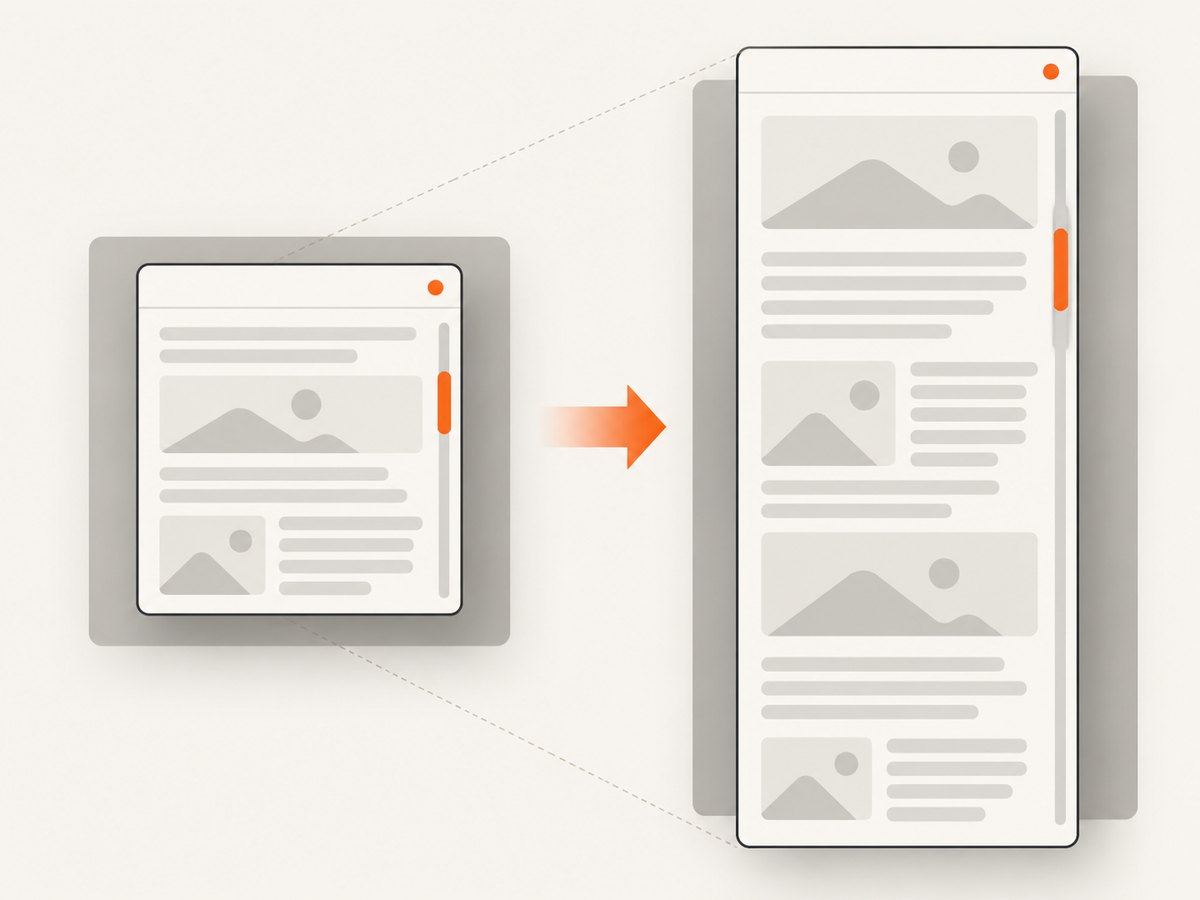
element.scrollHeight > element.clientHeightDo not automatically capture the outer dialog. It may contain the header and footer while the inner body owns the overflow.
2. Render using the full scroll dimensions
async function captureScrollableModal() {
  const target = document.querySelector('.modal-body');
  if (!target) {
    throw new Error('Scrollable modal content was not found');
  }

  const canvas = await html2canvas(target, {
    windowWidth: target.scrollWidth,
    windowHeight: target.scrollHeight,
  });

  return canvas;
}
windowWidth and windowHeight describe the virtual rendering window. They can also change which responsive media queries apply. They are different from the canvas’s explicit width and height options and from the scroll offsets.
3. Save or display the canvas
const canvas = await captureScrollableModal();
const pngUrl = canvas.toDataURL('image/png');

const link = document.createElement('a');
link.href = pngUrl;
link.download = 'modal.png';
link.click();
For a JPEG, use canvas.toDataURL('image/jpeg', 0.9). Keep in mind that a very tall canvas consumes substantial memory.
A complete browser example
Install html2canvas in an application bundled with npm:
npm install html2canvasThen capture the actual scrolling panel:
import html2canvas from 'html2canvas';

export async function downloadModalImage() {
  const target = document.querySelector('[data-modal-scroll]');
  if (!target) {
    throw new Error('Expected [data-modal-scroll] element was not found');
  }

  const canvas = await html2canvas(target, {
    windowWidth: target.scrollWidth,
    windowHeight: target.scrollHeight,
    backgroundColor: '#ffffff',
    scale: window.devicePixelRatio,
    useCORS: true,
  });

  const link = document.createElement('a');
  link.download = 'modal.png';
  link.href = canvas.toDataURL('image/png');
  link.click();
}
Remove useCORS unless the modal contains cross-origin images and those image servers send a suitable Access-Control-Allow-Origin header. See the official html2canvas FAQ and configuration reference.
Choosing the capture target
| Goal | Likely target | What to verify |
|---|---|---|
| Only the long text and controls | Scrollable modal body | scrollHeight includes every item |
| Header, body and footer | An enclosing dialog wrapper | The wrapper’s dimensions include the complete body |
| Backdrop plus dialog | A modal root or overlay container | Its layout does not clip the body with fixed height |
| Several independent scroll regions | Capture each region separately | Combine images in application code if needed |
There is no universal framework-independent modal selector. A React, Vue, Angular or plain CSS modal can place scrolling on different nodes.
Important html2canvas options
| Option | Use | Common mistake |
|---|---|---|
windowWidth, windowHeight |
Set the virtual rendering window; use the target’s scroll dimensions for a full scrollable render. | Assuming these options directly set the output canvas size. |
width, height |
Set explicit canvas dimensions when you need a controlled output size. | Using them instead of expanding the rendering window. |
scrollX, scrollY |
Set the scroll position used during rendering, including behavior of fixed-position elements. | Expecting them to reveal content outside the target’s dimensions. |
scale |
Control pixel density. The default commonly follows device pixel ratio. | Using a high scale on a very tall modal and exhausting memory. |
useCORS |
Attempt cross-origin image loading when the remote server permits it. | Expecting it to bypass browser origin policy. |
proxy |
Use a configured proxy route for resources that cannot be loaded directly. | Assuming any proxy can safely or correctly rewrite every asset. |
backgroundColor |
Choose the output background, or use transparency where supported. | Forgetting that transparent output can look black in some viewers. |
data-html2canvas-ignore |
Exclude an element from the render. | Hiding an ancestor and accidentally removing the whole modal. |
Keeping headers and footers in the image
If the modal header and footer must appear, capture a containing element only after verifying that its layout includes the full body. A fixed-height wrapper with an inner scrolling body may still clip even when the wrapper is selected.
const dialog = document.querySelector('.modal-dialog');
if (!dialog) throw new Error('Modal dialog was not found');

const body = dialog.querySelector('.modal-body');
if (!body) throw new Error('Modal body was not found');

const canvas = await html2canvas(dialog, {
  windowWidth: Math.max(dialog.scrollWidth, body.scrollWidth),
  windowHeight: Math.max(dialog.scrollHeight, body.scrollHeight),
});
This is a starting point, not a guaranteed recipe. Check the resulting dimensions and layout for your modal’s actual DOM.
Handling remote images and CORS
When the modal contains images from another origin, the browser must be allowed to load them for canvas rendering. useCORS: true asks html2canvas to attempt that path, but the image server still needs an appropriate Access-Control-Allow-Origin response. A proxy is the other documented route.
const canvas = await html2canvas(target, {
  windowWidth: target.scrollWidth,
  windowHeight: target.scrollHeight,
  useCORS: true,
});
If the server does not grant permission, enabling the option alone cannot bypass the browser’s origin policy. Replace the asset with a same-origin copy, configure the image server, or use a suitable proxy.
When the result is still clipped or blank
Check the dimensions before rendering
console.table({
  clientWidth: target.clientWidth,
  clientHeight: target.clientHeight,
  scrollWidth: target.scrollWidth,
  scrollHeight: target.scrollHeight,
});
If scrollHeight is not larger than clientHeight, the selected node probably does not own the scrolling, or content has not finished loading.
Wait for content that loads late
Images, expanded sections and asynchronous data can change the scroll dimensions after the modal opens. Wait for the relevant selector, data promise or image completion before reading scrollHeight.
await new Promise((resolve) => requestAnimationFrame(resolve));
const canvas = await html2canvas(target, {
  windowWidth: target.scrollWidth,
  windowHeight: target.scrollHeight,
});
Look for canvas-size limits
Very tall or wide captures can exceed browser or platform canvas limits. The result may be blank, partially rendered or fail during export. Limits vary by browser and platform, so do not rely on one universal maximum. For especially long content, capture smaller sections and combine them, reduce scale, or use a native capture mechanism appropriate to the application.
Audit unsupported CSS
html2canvas implements CSS properties individually, and support is incomplete. Correct dimensions do not guarantee pixel-identical rendering for every layout, filter, pseudo-element or browser feature. Reduce the page to the affected style and check the project’s current support documentation.
Exclude controls that should not appear
<button data-html2canvas-ignore>Close</button>This removes the marked element from the render while leaving the rest of the modal available.
Troubleshooting checklist
| Symptom | Cause | Fix |
|---|---|---|
| Only the visible modal area appears | Rendering window matches the viewport. | Set windowWidth and windowHeight from the real scrolling element’s scrollWidth and scrollHeight. |
| Full width but missing lower content | You selected the shell instead of the scrolling body. | Find the node whose scrollTop changes and capture it or a correctly sized ancestor. |
| Blank canvas | Canvas limits, a failed resource, or an exception during rendering. | Lower scale, capture a shorter segment, inspect the console, and check remote assets. |
| Images are missing | Cross-origin restrictions or images not loaded yet. | Wait for images and configure CORS or a proxy. |
| Layout changes in the output | windowWidth triggers different media queries. |
Choose dimensions that match the intended responsive layout and inspect breakpoint CSS. |
| Fixed header appears in the wrong place | Scroll offsets affect fixed-position rendering. | Review scrollX and scrollY; capture the appropriate element instead of relying on viewport behavior. |
| Close buttons and chat controls appear | All DOM descendants are eligible for rendering. | Add data-html2canvas-ignore to unwanted elements. |
Performance and reliability
- Measure before capture. Reading the target’s dimensions after content settles avoids rendering an unnecessarily large canvas.
- Control pixel density. A retina scale multiplies memory and export size. Use the lowest scale that meets your output requirement.
- Segment extreme documents. Multiple shorter captures are safer than one canvas near a browser’s size limit.
- Freeze changing UI. Disable animations, carousels and live updates while capturing so dimensions and pixels remain consistent.
- Handle errors. Wrap the call in
try/catch, report the target and measured dimensions, and preserve a fallback path for users. - Remember the fidelity boundary. html2canvas reconstructs supported DOM and CSS; it does not guarantee the same result as a native browser screenshot.
Or skip the browser setup
If you need a screenshot of a rendered page rather than a canvas generated inside your app, ScreenshotNeo provides a one-call screenshot API and an MCP server. See the ScreenshotNeo API documentation for all options.
curl -G "https://api.screenshotneo.com/v1/shot" -d access_key=YOUR_API_KEY --data-urlencode url=https://stripe.com -o shot.webpimport requests
r = requests.get("https://api.screenshotneo.com/v1/shot", params={"access_key": "YOUR_API_KEY", "url": "https://stripe.com"}, timeout=90)
open("shot.webp", "wb").write(r.content)const q = new URLSearchParams({ access_key: 'YOUR_API_KEY', url: 'https://stripe.com' });
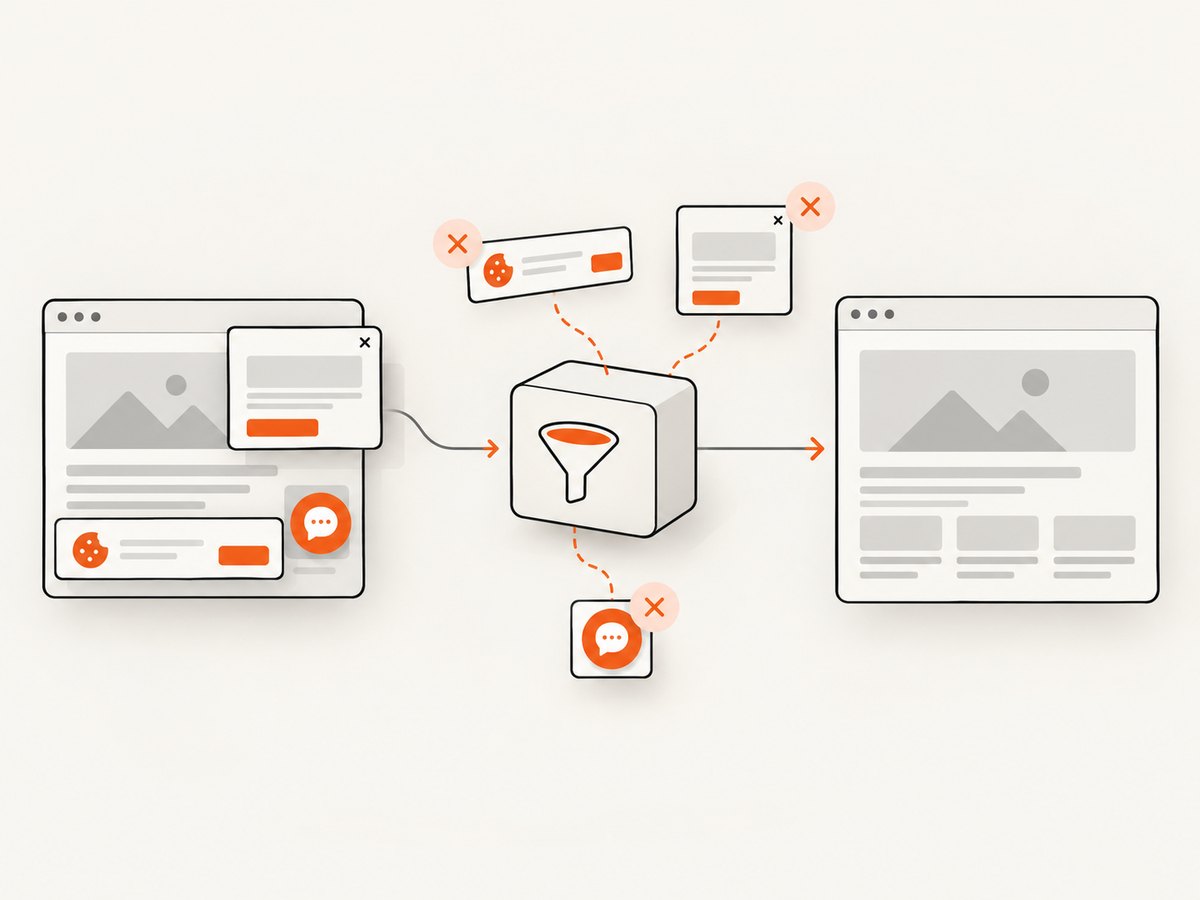
const res = await fetch(`https://api.screenshotneo.com/v1/shot?${q}`);ScreenshotNeo removes cookie banners, newsletter popups and chat widgets before capture. Bot checks, blank pages and failed loads are never billed, and response headers report the page verdict and billing status. Its MCP server lets AI agents take screenshots. The free plan includes 1,000 screenshots a month with no card, and paid plans start at $5 for 3,000 shots.
Create a free ScreenshotNeo account to get started.
FAQ
Should I set both height and windowHeight?
Only when you need a separately controlled canvas size. For the usual clipped-modal problem, start with the scrolling element’s windowWidth and windowHeight; do not assume canvas dimensions alone reveal hidden content.
Can html2canvas capture content outside the selected element?
No. Select an ancestor that contains the required header, footer or backdrop, and verify that its scroll dimensions represent the complete output.
Does useCORS make every image work?
No. The remote server must allow the browser’s cross-origin request, or you need a suitable proxy.
Why does a native browser screenshot sometimes look better?
html2canvas rebuilds supported DOM and CSS into a canvas. A native browser or tab capture uses the browser’s composited rendering and can be a better fit for extension screenshots or unsupported CSS.
What should I do with an extremely long modal?
Measure the canvas limits for your target environment, reduce scale, or capture and combine smaller sections. Browser limits vary and are not a universal fixed number.


