How to Capture a Scrolled Selenium Page in One Screenshot
Learn when Selenium captures only the viewport, how to take a full-page Firefox screenshot, and how to stitch or switch tools safely.
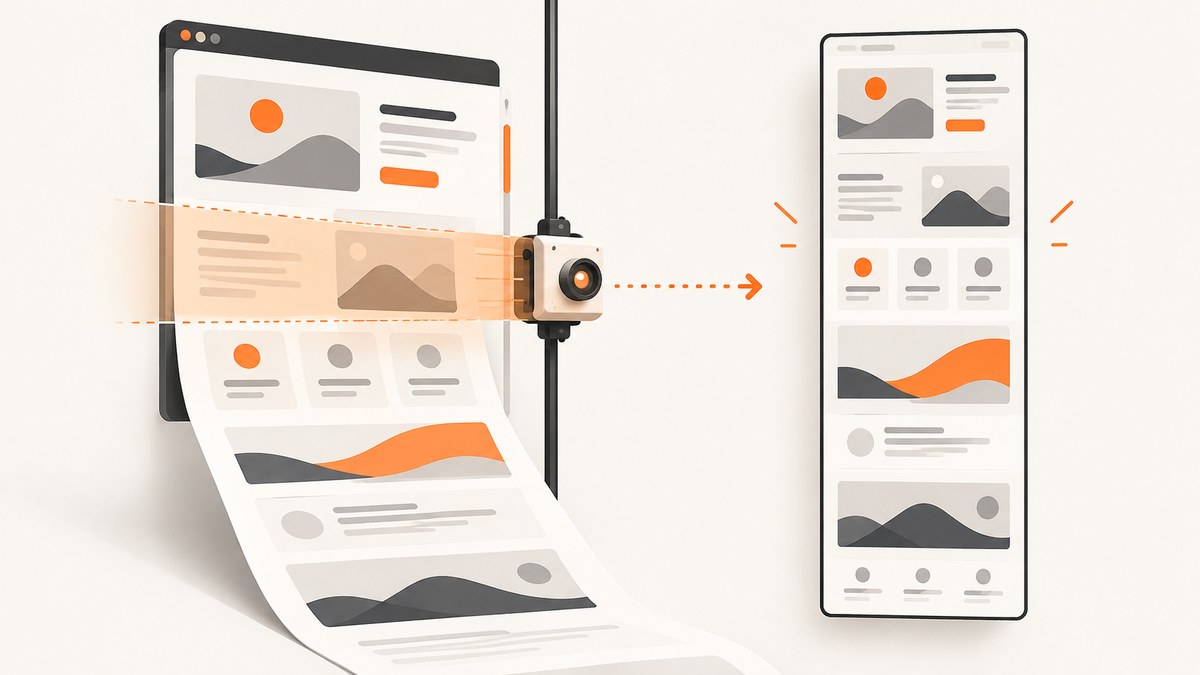
Short answer: a normal Selenium screenshot captures the current viewport. Scrolling first and calling screenshot() again does not automatically create one continuous image. For Firefox, Selenium documents a full-document screenshot API. For Chrome and other browser-driver combinations, verify whether your exact binding supports a full-page method; otherwise capture viewport-sized segments and stitch them, or use a framework with a documented full-page option.
Selenium’s Firefox support includes get_full_page_screenshot_as_file() in Python and the HasFullPageScreenshot interface in Java. The Selenium documentation does not establish one identical full-page API for every browser and driver, so check the browser, driver, Selenium version and language binding you actually deploy. Firefox-specific Selenium documentation and the Python API reference show the Firefox route.
Choose the capture method
| Situation | Recommended method | Trade-off |
|---|---|---|
| Firefox with a supported Selenium binding | Use the documented full-document screenshot API | Simple, but Firefox-specific |
| Chrome or another browser with a verified full-page API | Use that browser/driver API after checking its current documentation | Support depends on the exact combination |
| No supported full-page call | Capture viewport segments and stitch them | Sticky headers, lazy content and page changes can create seams |
| A framework change is acceptable | Use Playwright’s documented fullPage option |
Requires changing automation frameworks |
Firefox: save one full-document screenshot with Selenium Python
This is the direct Selenium solution when your project uses Firefox and a Selenium version that exposes the Firefox full-page method.
from selenium import webdriver
from selenium.webdriver.firefox.options import Options

options = Options()
options.add_argument("--headless")

driver = webdriver.Firefox(options=options)
try:
    driver.get("https://example.com/long-page")
    driver.get_full_page_screenshot_as_file("page-full.png")
finally:
    driver.quit()
The method saves a PNG of the full document. You can also use the binding’s byte or base64 variants when the image must be uploaded instead of written to disk. Confirm the method exists in your installed Selenium package before deploying.
Wait for content before capture
A full-page call only captures what has loaded at capture time. Wait for a meaningful element, a page state, or an application-specific ready condition.
from selenium import webdriver
from selenium.webdriver.common.by import By
from selenium.webdriver.support.ui import WebDriverWait
from selenium.webdriver.support import expected_conditions as EC
from selenium.webdriver.firefox.options import Options

options = Options()
options.add_argument("--headless")
driver = webdriver.Firefox(options=options)

try:
    driver.get("https://example.com/long-page")
    WebDriverWait(driver, 30).until(
        EC.visibility_of_element_located((By.CSS_SELECTOR, "main"))
    )
    driver.get_full_page_screenshot_as_file("ready-page.png")
finally:
    driver.quit()
Firefox Java API
Selenium’s Java API documents FirefoxDriver as implementing HasFullPageScreenshot. Cast the driver to that interface and request the screenshot using the method available in your Selenium version.
import java.io.File;
import org.openqa.selenium.WebDriver;
import org.openqa.selenium.firefox.FirefoxDriver;
import org.openqa.selenium.firefox.HasFullPageScreenshot;

public class FullPageShot {
  public static void main(String[] args) {
    WebDriver driver = new FirefoxDriver();
    try {
      driver.get("https://example.com/long-page");
      File image = ((HasFullPageScreenshot) driver)
          .getFullPageScreenshotAsFile();
      System.out.println(image.getAbsolutePath());
    } finally {
      driver.quit();
    }
  }
}
See Selenium’s Java HasFullPageScreenshot reference for the exact return type and version-specific API.
Chrome and other browsers: verify support first
Do not assume that a regular Chrome screenshot becomes full-page because you scrolled to the bottom. Selenium documents ordinary driver and element screenshot calls, but the reviewed documentation does not define one universal full-document method for Chrome and every other browser. Check the official Selenium and driver documentation for your exact browser, driver and binding.
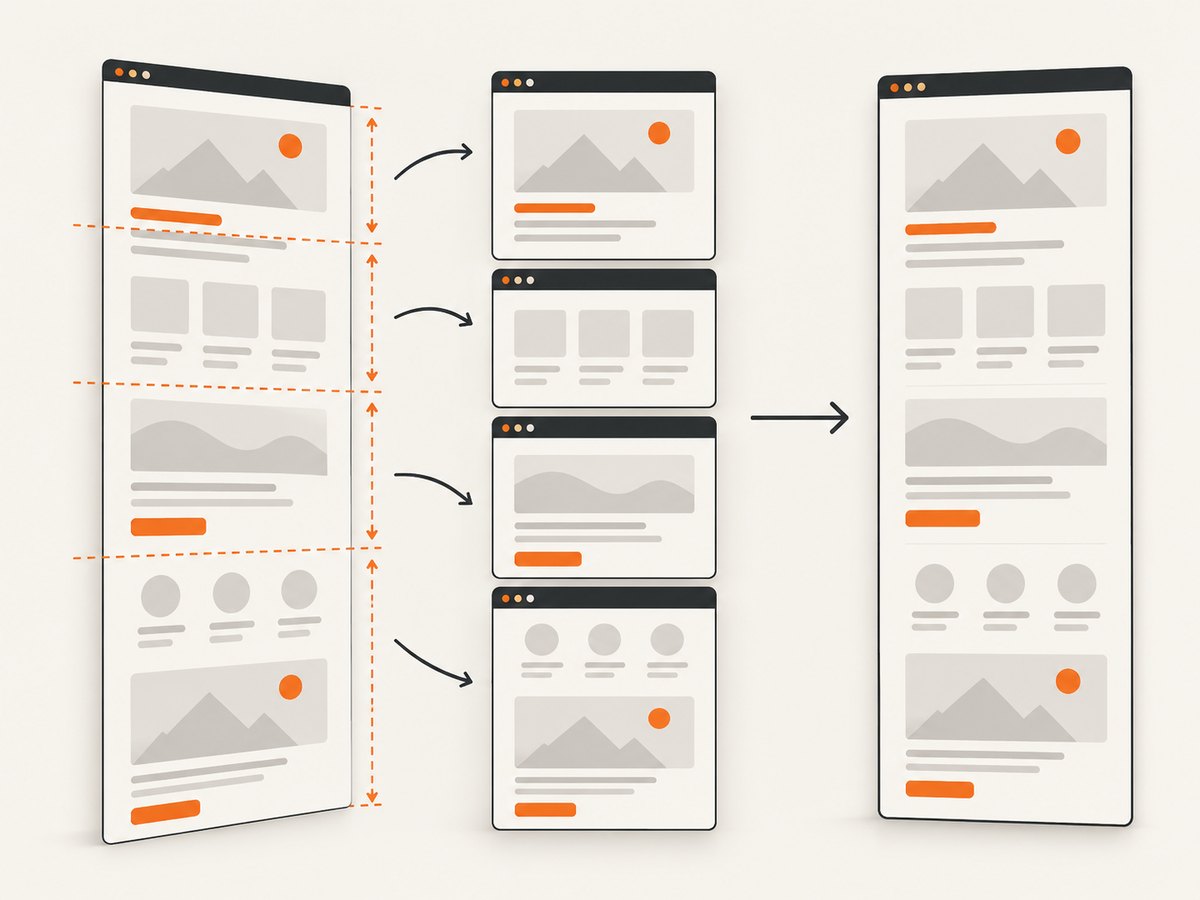
If no supported call is available, use the segment workflow below. Treat it as an image-composition process rather than a native full-page screenshot.
Fallback: capture viewport segments and stitch them
- Set a known viewport size.
- Measure the document height.
- Scroll by viewport-sized steps.
- Capture each viewport.
- Join the images in document order.
- Inspect joins for duplicated sticky elements, gaps and moving content.
from io import BytesIO
from PIL import Image
from selenium import webdriver
from selenium.webdriver.firefox.options import Options

options = Options()
options.add_argument("--headless")
driver = webdriver.Firefox(options=options)

try:
    driver.set_window_size(1280, 900)
    driver.get("https://example.com/long-page")

    viewport_height = driver.execute_script("return window.innerHeight")
    document_height = driver.execute_script(
        "return Math.max(document.body.scrollHeight, "
        "document.documentElement.scrollHeight)"
    )

    parts = []
    y = 0
    while y < document_height:
        driver.execute_script("window.scrollTo(0, arguments[0])", y)
        png = driver.get_screenshot_as_png()
        parts.append(Image.open(BytesIO(png)).convert("RGB"))
        y += viewport_height

    width = max(part.width for part in parts)
    output_height = sum(part.height for part in parts)
    stitched = Image.new("RGB", (width, output_height), "white")
    top = 0
    for part in parts:
        stitched.paste(part, (0, top))
        top += part.height
    stitched.save("stitched-page.jpg", quality=90)
finally:
    driver.quit()
This example is intentionally conservative. The final image can contain overlap because the browser captures a viewport after each scroll while fixed elements remain visible. For higher fidelity, calculate overlap, crop repeated regions, temporarily hide fixed or sticky elements, or use a browser-specific full-page implementation. Any custom stitching implementation needs visual validation on the pages you capture.
Make stitching more stable
- Disable CSS animations and transitions with injected CSS.
- Wait for fonts and critical images before measuring height.
- Scroll through the page once to trigger lazy loading before taking segments.
- Hide cookie banners, chat launchers and fixed navigation during capture when they would repeat.
- Keep the viewport, device scale factor and zoom constant for every segment.
- Record the scroll positions so a failed segment can be retried.
driver.execute_script("""
const style = document.createElement('style');
style.textContent = `
  *, *::before, *::after {
    animation: none !important;
    transition: none !important;
    caret-color: transparent !important;
  }
`;
document.head.appendChild(style);
""")
Element screenshots versus full-page screenshots
element.screenshot() captures one element's rendered box. It is useful for a component or a card, but it does not capture the rest of the document. A driver screenshot captures the current viewport. A full-document method or a stitched workflow is required for the entire scrollable page.
Playwright alternative
If changing frameworks is practical, Playwright documents a direct full-page option. Its API describes fullPage: true as taking a screenshot of the full scrollable page instead of only the visible viewport. Python uses full_page=True. This is a Playwright feature, not a Selenium flag. See the Playwright Page API.
from playwright.sync_api import sync_playwright

with sync_playwright() as p:
    browser = p.chromium.launch(headless=True)
    page = browser.new_page(viewport={"width": 1280, "height": 900})
    page.goto("https://example.com/long-page", wait_until="networkidle")
    page.screenshot(path="playwright-full.png", full_page=True)
    browser.close()
Or skip the browser setup
ScreenshotNeo provides a website screenshot API when you need a full-page image without maintaining Selenium, browser binaries or stitching code. Its full-page capture loads lazy images; you can also select one element by CSS selector, set a viewport or device preset, use dark mode and retina scale, wait for a selector, delay or network idle, and apply custom CSS or JavaScript.
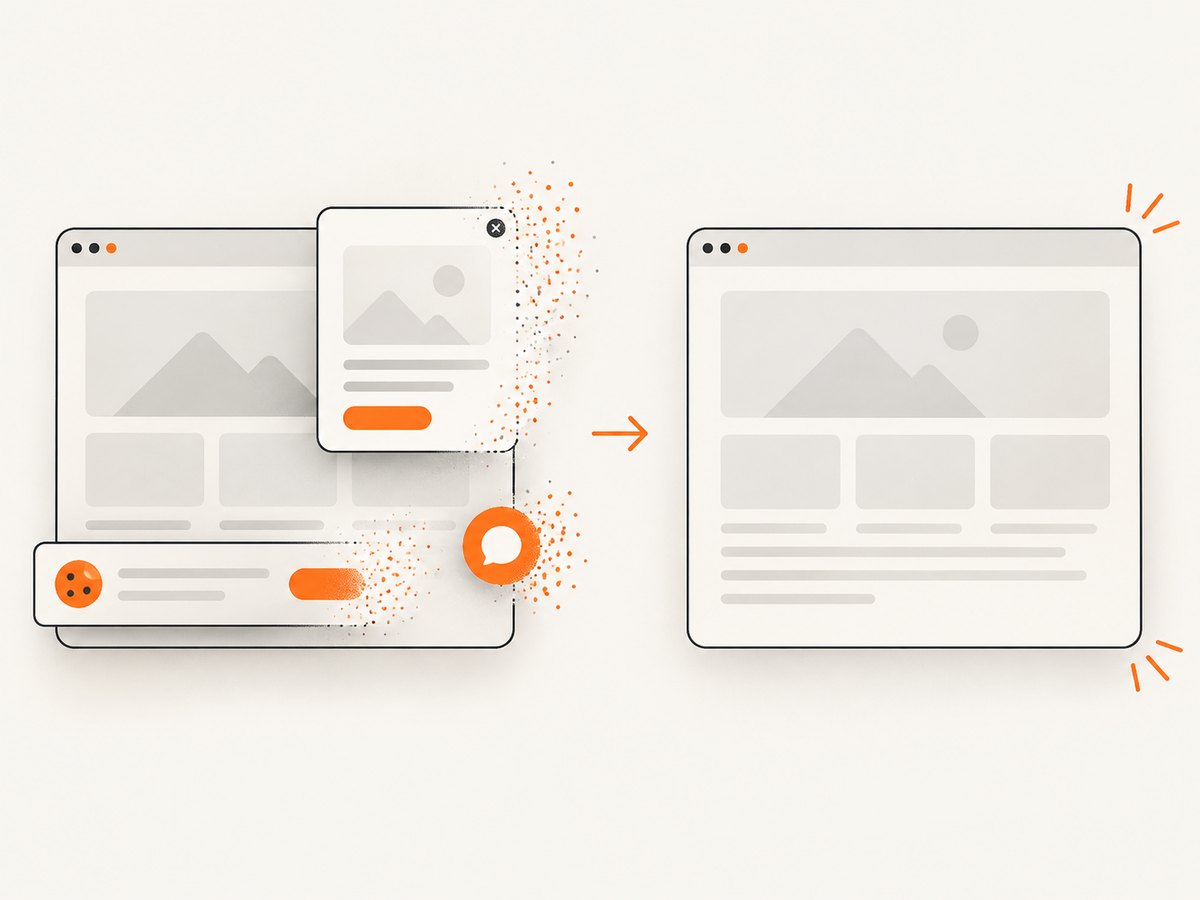
One GET request returns PNG, JPEG, WebP or PDF. The API removes cookie and consent banners, newsletter popups and chat widgets before capture. Bot checks, blank pages, timeouts, failed loads and cache hits are not billed, and response headers identify the page verdict and billing result.
Read the ScreenshotNeo API documentation for all options.
curl -G "https://api.screenshotneo.com/v1/shot" -d access_key=YOUR_API_KEY --data-urlencode url=https://stripe.com -o shot.webpimport requests
r = requests.get(
"https://api.screenshotneo.com/v1/shot",
params={"access_key": "YOUR_API_KEY", "url": "https://stripe.com"},
timeout=90,
)
r.raise_for_status()
open("shot.webp", "wb").write(r.content)const q = new URLSearchParams({ access_key: 'YOUR_API_KEY', url: 'https://stripe.com' });
const res = await fetch(`https://api.screenshotneo.com/v1/shot?${q}`);
if (!res.ok) throw new Error(`HTTP ${res.status}`);
const buffer = Buffer.from(await res.arrayBuffer());
await import('node:fs/promises').then(fs => fs.writeFile('shot.webp', buffer));An MCP server also lets Claude, Cursor and other MCP clients call take_screenshot, get_page_info and capture_pdf. The free plan includes 1,000 screenshots per month with no card; paid plans start at $5 for 3,000 shots. Create a free ScreenshotNeo account.
Loading, lazy content and page state
Full-page capture does not guarantee that content requiring interaction has rendered. Before capture:
- Wait for a stable selector that proves the main content is present.
- Trigger lazy sections by scrolling when using a segment workflow.
- Dismiss or remove overlays that block the page.
- Freeze animations if visual consistency matters.
- Use a deterministic viewport, timezone, locale and test data.
Common errors and fixes
| Symptom | Likely cause | Fix |
|---|---|---|
| Only the visible area appears | A regular viewport screenshot was used | Use Firefox's full-page API, a verified browser method, stitching, or Playwright fullPage |
AttributeError for the full-page method |
The binding, browser or Selenium version does not expose it | Check the installed API and Firefox support; use a verified alternative |
| Repeated header between segments | A fixed or sticky element is painted in every viewport | Hide it during capture or crop the overlap before stitching |
| Blank lower sections | Lazy content never loaded | Scroll to trigger loading, wait for the content selector, then capture |
| Gaps or seams | Scroll offsets, viewport sizes or crop calculations differ | Use fixed dimensions, record offsets and inspect every join |
| Content changes between segments | Animation, ads, timestamps or live data moved | Freeze animations, block unstable resources where appropriate, or capture with a native full-page method |
| Driver starts but capture fails | Browser-driver or Selenium mismatch | Align versions and consult the browser-specific Selenium documentation |
Performance, reliability and cost considerations
- Native full-page APIs: usually require one capture operation and avoid image-join processing, but are limited by browser and driver support.
- Stitching: takes multiple screenshots and increases runtime and memory with page height. Large pages may need streaming or temporary files instead of keeping every image in memory.
- Reliability: deterministic waits, fixed viewport settings and disabled animation reduce visual differences. Re-run a failed segment rather than silently publishing a partial image.
- Page limits: extremely tall documents can exceed browser, image-library or output-format limits. Split the result or produce a PDF when one raster image is impractical.
- Operational cost: self-hosted Selenium consumes browser and infrastructure resources. ScreenshotNeo charges only for clean shots; bot checks, blank pages, timeouts, failed loads and cache hits are not billed, and caching lets you choose a TTL.
Checklist before shipping a full-page capture
- Confirm whether the selected browser and Selenium binding support a native full-page call.
- Set the viewport and device scale factor explicitly.
- Wait for the main content and fonts or images that affect layout.
- Handle cookie banners, chat widgets and other fixed overlays.
- Disable motion if screenshots are compared or diffed.
- Inspect the top, middle and bottom of the output for seams and missing content.
- Log browser, driver, Selenium and capture method versions.
FAQ
Does scrolling to the bottom make Selenium take a full-page screenshot?
No. Scrolling changes the viewport position. A normal screenshot still captures one viewport unless you use a full-document API or compose multiple captures.
Is Selenium's full-page screenshot API available in every browser?
The reviewed Selenium documentation specifically documents the full-document API for Firefox. Verify support for your exact browser, driver and language binding.
Why does my stitched image contain duplicate content?
Fixed headers, sticky controls and other viewport-anchored elements are captured in each segment. Hide or crop those regions and validate the joins.
When should I use Playwright instead?
Use Playwright when a framework change is acceptable and you want its documented fullPage screenshot option without writing a stitching workflow.
Can I capture a full page as a PDF?
Browser APIs and ScreenshotNeo can produce PDF output, but PDF pagination and raster screenshots solve different layout problems. Choose based on whether you need a document or one continuous image.


