How to Capture a Scrolling Screenshot on Samsung
Capture an entire scrolling page on a Samsung Galaxy with Scroll capture, fix missing controls, and automate screenshots when needed.
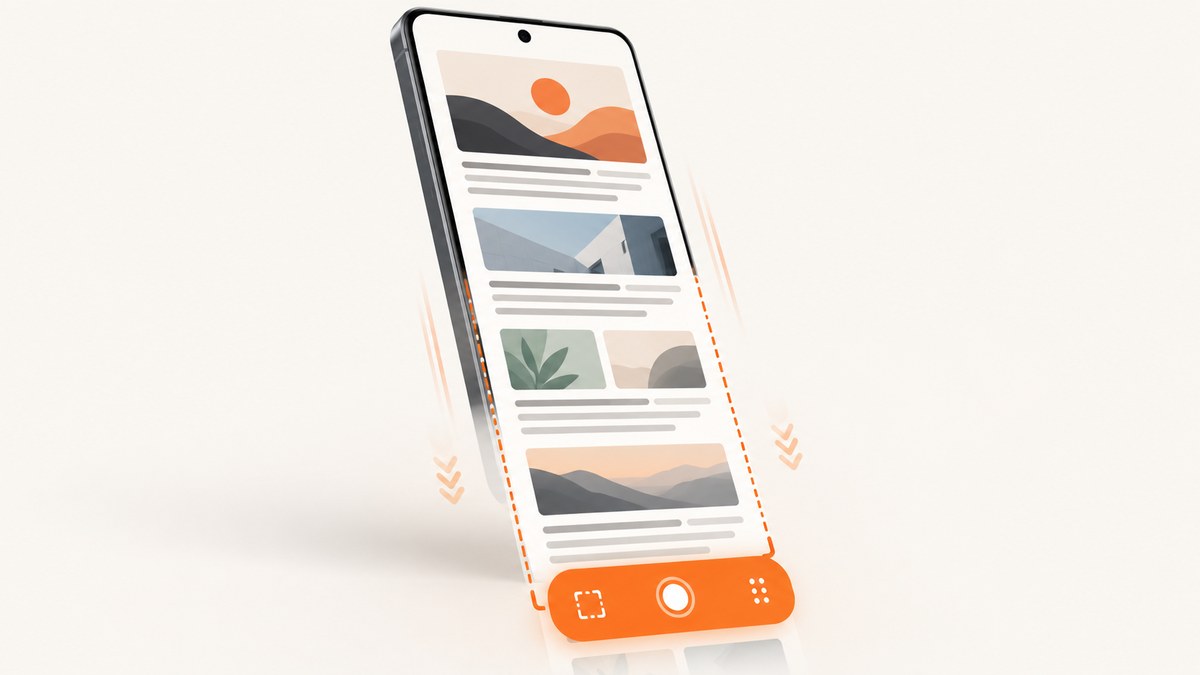
Samsung Galaxy phones can capture a page that is longer than the screen with the built-in Scroll capture control. First take a normal screenshot with Power/Side + Volume Down, then tap the toolbar button with two downward arrows. Tap it again to extend the image, and tap outside the toolbar when you have captured enough. Samsung says the finished image is saved in Gallery.
The control appears only when the current screen has more content to scroll, and some apps or protected screens do not allow screenshots. The exact button names and settings can vary by Galaxy model and software version.
How Samsung Scroll capture works
Scroll capture is an extension of the regular screenshot workflow. It is not a separate camera mode or screen recorder. Samsung takes an initial screenshot, checks whether the screen can scroll, and then exposes a toolbar action that captures additional sections and joins them into one tall image. Samsung notes that the result is automatically resized and that the amount captured depends on the content.
This makes the feature useful for web articles, long settings pages, receipts, chats, documentation and other content that continues below the visible display. It will not defeat an app’s screenshot restrictions, and it may be unavailable on certain websites or apps.
Step-by-step: capture a full scrolling page
- Open the content. Navigate to the webpage, article, document or app screen you want to save. Start near the top of the content so the final image has a predictable reading order.
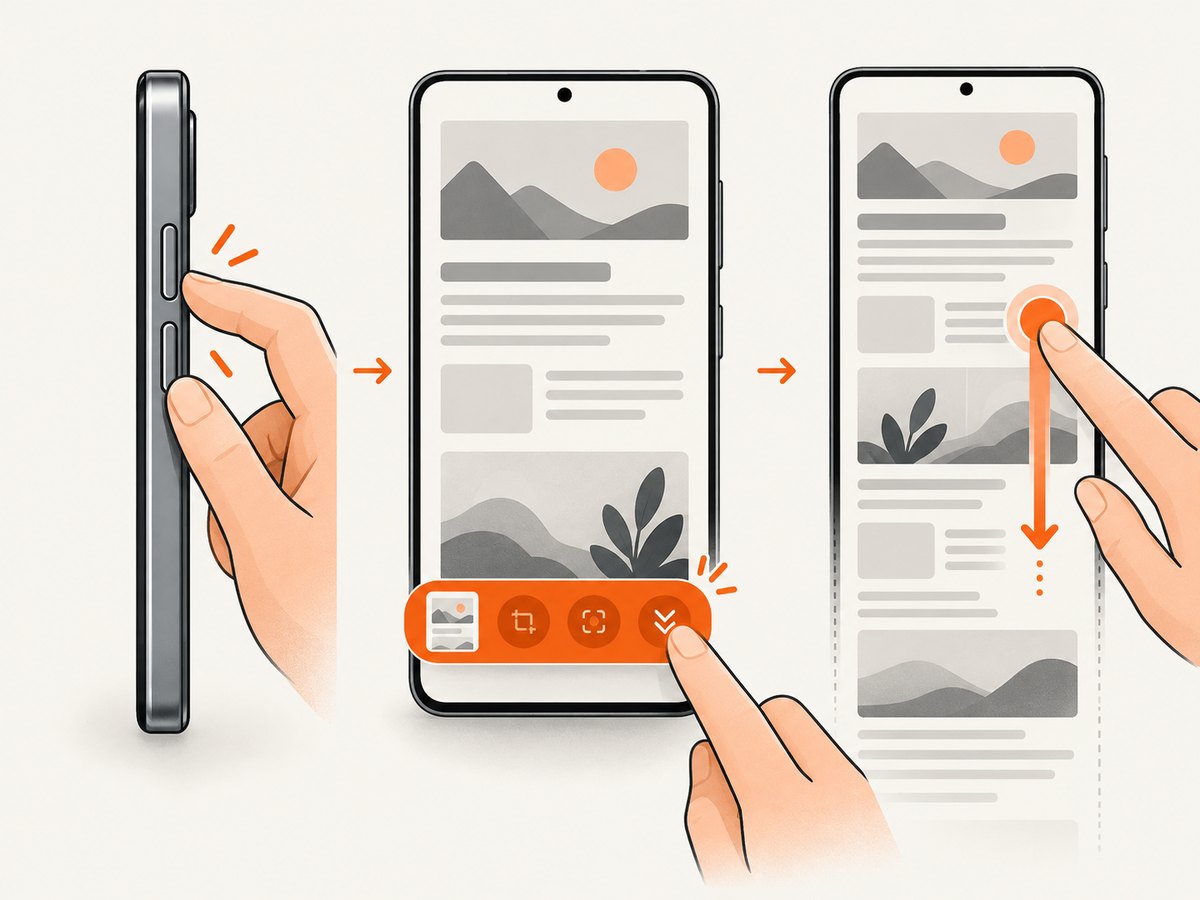
- Take a normal screenshot. Press the Power/Side button and Volume Down button together, then release them. The screen should flash and a screenshot toolbar should appear. Button wording and placement vary between devices.
- Find Scroll capture. Look for the icon showing two downward arrows in the toolbar. It is shown only when Samsung detects additional scrollable content.
- Extend the capture. Tap the Scroll capture icon. The phone scrolls down and adds the next section to the image. Tap the icon again for more sections. Samsung’s Saudi support guide also describes pressing and holding the icon to continue scrolling farther.
- Finish. Tap outside the toolbar when the image includes everything you need. Avoid tapping the control after reaching the bottom, because the final amount depends on how much content remains.
- Open the result. Go to Gallery and open the newest screenshot. You can crop, annotate or share it from there.
Samsung’s US support documentation describes Scroll capture as available when scrolling is possible, while Samsung’s regional guides explain that the captured image is resized and that length varies with the page. See Samsung’s screen capture guide and the Scroll capture instructions for the device-specific wording.
What to do when Scroll capture is missing
A missing icon usually means either that the screenshot toolbar is disabled, Samsung cannot detect more scrollable content, or the app blocks capture.
Turn on the screenshot toolbar
- Open Settings.
- Tap Advanced features.
- Open Screenshots and screen recorder.
- Enable Show toolbar after capturing.
On some models the menu is labeled differently. Samsung’s Saudi guide says that if the device does not offer screen recording, you should select Screen capture instead. Use the Settings search field for “screenshot” if the listed path is not present. Samsung’s US button guide also warns that software and device variations can change the available controls.
Confirm that the page can scroll
Scroll capture is contextual. The icon will not appear on a screen that already fits in one display, on a dialog with no additional content, or after you have reached the bottom. Test the page with a manual swipe first. If the page does scroll but the icon still does not appear, try taking the screenshot again after returning to the top.
Check for app or website restrictions
Some apps and websites disable screenshots for privacy or security. Banking apps, password managers, streaming services and protected work profiles are common examples, although the exact behavior depends on the app. Samsung states: “Not all screens or apps allow recordings or screenshots.” When a restriction is active, Scroll capture cannot override it.
Getting a clean, readable long screenshot
- Start at a stable position. Wait for the page to finish loading before the first screenshot. Moving content, skeleton placeholders or an open keyboard can produce an awkward join.
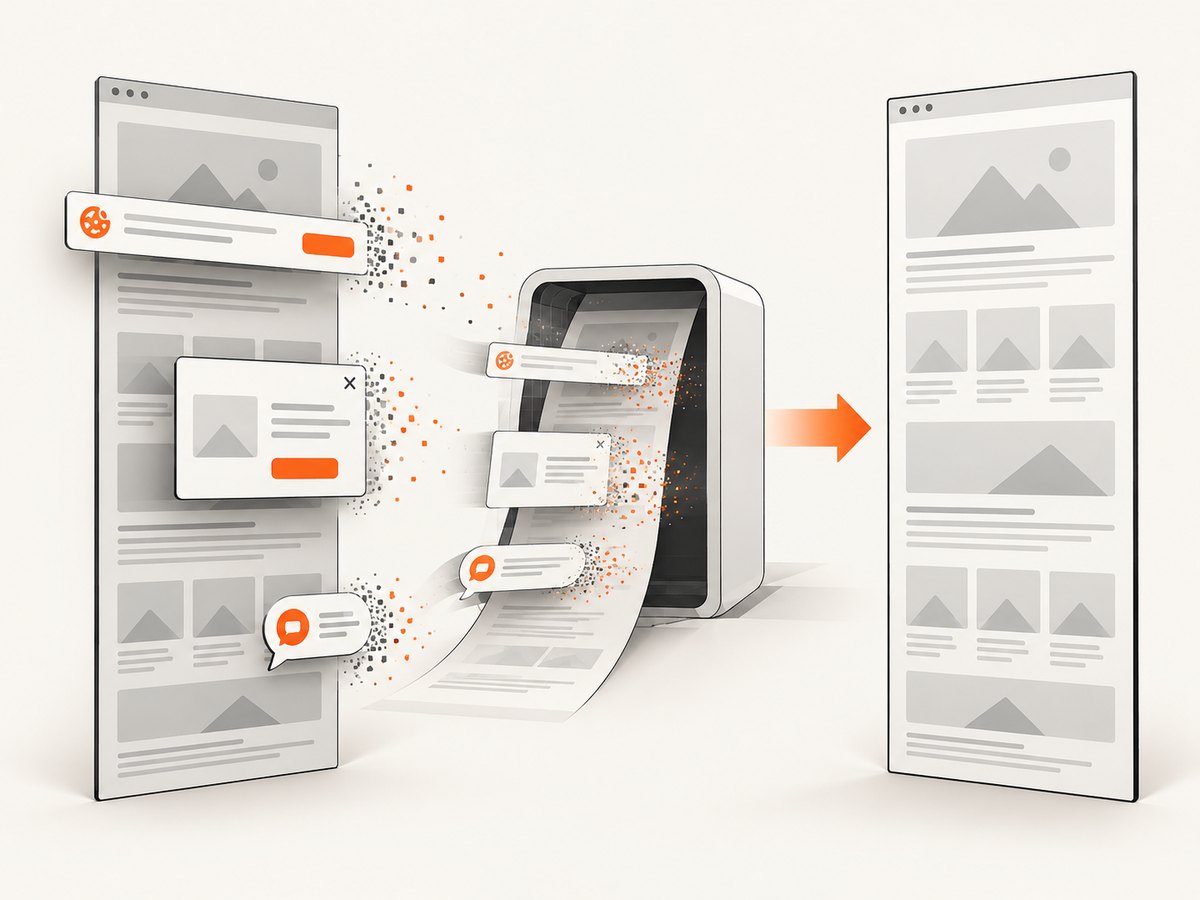
- Close overlays. Dismiss cookie notices, chat bubbles, translation bars and floating buttons if they cover the content. Scroll capture records what is visible.
- Use a consistent orientation. Portrait is usually easier to read for articles. Landscape can expose wider tables but produces a wider image.
- Keep the page at a useful zoom. Browser zoom and Android display scaling affect how much text fits in each segment and the final image dimensions.
- Pause before each extension. Wait for images and lazy-loaded content to settle. Capturing while a page is moving can create seams or missing sections.
- Check the bottom edge. Samsung automatically resizes the image, so inspect the final file in Gallery before sharing it. The amount captured can vary by content.
Scroll capture versus a regular screenshot
| Need | Best choice | What happens |
|---|---|---|
| Only the visible screen | Regular screenshot | Press Power/Side + Volume Down and stop after the first image. |
| An entire article or settings page | Scroll capture | Use the toolbar’s downward-arrow control to append more content. |
| A protected screen | Follow the app’s permitted export method | Samsung may hide or disable screenshot controls. |
| A repeatable capture of many URLs | An automated screenshot service | Use a browser-based API instead of operating each phone manually. |
Limitations and edge cases
Infinite scroll and feeds
Social feeds and product listings may load new items as you scroll. There is no fixed bottom, so the capture ends wherever you stop. If the page keeps changing, the top and bottom may represent different states. For a stable record, save the page or use a print/export function when the app provides one.
Nested scroll areas
A page can contain a scrollable article inside a fixed application shell, or a horizontally scrolling table inside a vertically scrolling page. Samsung may capture the outer page and leave the nested area unchanged. Manually position the nested element before starting and verify the result in Gallery.
Lazy-loaded images and videos
Images that load only when they approach the viewport can appear late or remain blank. Wait for the visible section to finish loading before tapping Scroll capture. Video frames may change between segments, so a scrolling screenshot is not a substitute for a video recording.
Very long pages
Samsung resizes the completed image and the captured length varies with content. Extremely tall images can be difficult to share or edit. Capture only the necessary range, or split the page into several screenshots when readability matters more than having one file.
Troubleshooting common problems
| Symptom | Likely cause | Fix |
|---|---|---|
| No screenshot toolbar | Toolbar setting is off, or the device software uses a different control. | Enable Settings > Advanced features > Screenshots and screen recorder > Show toolbar after capturing. Search Settings for “screenshot” if labels differ. |
| No downward-arrow icon | The screen has no detected content below the viewport. | Scroll manually to confirm more content exists, return near the top and take a new screenshot. |
| Icon is present but does nothing | The app blocks screenshots, or the page is still loading. | Wait for loading to finish. If the app is protected, use its export or share feature; Scroll capture cannot bypass the restriction. |
| Only part of the page was saved | Capture was ended early, the page reached its bottom, or new content stopped loading. | Repeat the process and tap Scroll capture until the required section is included. For infinite feeds, stop at a deliberate boundary. |
| Text or images look blurred | Samsung resized the tall image, or the original page was zoomed out. | Use a closer browser zoom, capture a shorter range, and inspect the saved file at full size in Gallery. |
| Sections overlap or have seams | The page moved during capture, an animation was active, or content loaded between taps. | Pause animations where possible, wait for images to settle, then recapture from a stable position. |
| Buttons do not work | Power and Volume Down were pressed too far apart or held too long. | Press both together briefly and release. On some models, use the device’s documented screenshot gesture if enabled. |
| Screenshot cannot be found | The Gallery view is filtered, or media indexing is delayed. | Open Gallery’s Screenshots album, sort by newest, and wait briefly after capture. |
Privacy and sharing checks
A scrolling screenshot can include account names, email addresses, order numbers, notifications or private messages that were below the visible screen. Review the entire image before sharing it. Crop or annotate sensitive details in Gallery, and avoid uploading screenshots from protected workspaces to services that your organization has not approved.
Or skip the browser setup
If you need screenshots from many URLs, a consistent viewport, or a capture that runs in a build or backend job, ScreenshotNeo provides a website screenshot API and MCP server. It accepts one GET request and returns a PNG, JPEG, WebP or PDF. Its full parameter list and OpenAPI details are in the ScreenshotNeo documentation.
This is the minimal request for a page such as Samsung’s support article:
curl -G "https://api.screenshotneo.com/v1/shot" -d access_key=YOUR_API_KEY --data-urlencode url=https://www.samsung.com/us/support/answer/ANS10001616/ -o shot.webpPython:
import requests

r = requests.get(
    "https://api.screenshotneo.com/v1/shot",
    params={
        "access_key": "YOUR_API_KEY",
        "url": "https://www.samsung.com/us/support/answer/ANS10001616/",
    },
    timeout=90,
)
r.raise_for_status()
open("shot.webp", "wb").write(r.content)
Node.js:
const q = new URLSearchParams({
  access_key: 'YOUR_API_KEY',
  url: 'https://www.samsung.com/us/support/answer/ANS10001616/'
});
const res = await fetch(`https://api.screenshotneo.com/v1/shot?${q}`);
if (!res.ok) throw new Error(`Screenshot failed: ${res.status}`);
const fs = await import('node:fs/promises');
await fs.writeFile('shot.webp', Buffer.from(await res.arrayBuffer()));
ScreenshotNeo can load full pages with lazy images, capture one element by CSS selector, set a device preset or custom viewport, use dark mode and retina scale, and apply custom CSS or JavaScript. You can wait for a selector, a delay or network idle; click an element; hide selectors; block ads, trackers, requests or resource types; provide headers, cookies, a user agent or Authorization; set timezone and geolocation; make the background transparent; resize the output; choose a cache TTL; create signed links for public image tags; run async jobs with signed webhooks; capture up to 100 URLs per bulk call; and read usage through its API.
For a clean result, it accepts the cookie or consent banner like a visitor and removes more than 60 known consent platforms, newsletter popups and chat widgets. Each cleanup step can be turned off. Bot checks and CAPTCHAs, blank pages, timeouts, failed loads and cache hits cost nothing, and every response reports the page verdict and billing status in X-Page-Verdict and X-Billed headers. Its MCP server exposes take_screenshot, get_page_info and capture_pdf to Claude, Cursor and other MCP clients.
The Free plan includes 1,000 shots per month with no card. Paid plans start at $5 for 3,000 shots; yearly billing gives two months free, and every feature is available on every plan. Create a free ScreenshotNeo account to try the API with 1,000 screenshots a month and no card.
Performance, reliability and cost considerations
- Phone workflow: Native Scroll capture is immediate for one page and requires no account or network service, but you must operate the device and manually inspect each result.
- Automation: An API is useful when captures belong in a test, documentation build, archive or content pipeline. Reuse a fixed viewport and wait condition so output is comparable between runs.
- Page readiness: Network idle is not always the same as visual readiness. A page can finish requests while fonts, charts or lazy images are still rendering. Wait for a meaningful selector or a short delay when needed.
- Caching: A chosen cache TTL can reduce repeat work for unchanged pages. Disable or shorten caching when the screenshot must reflect live content.
- Billing: ScreenshotNeo bills clean shots only. Failed loads, blank pages, bot checks, CAPTCHAs, timeouts and cache hits are not billed, with the result stated in response headers.
- Output choice: WebP is compact for web storage, PNG preserves lossless detail and transparency, JPEG is broadly compatible, and PDF is better when the deliverable is a paginated document.
FAQ
Can every Samsung phone take a scrolling screenshot?
Availability depends on the Galaxy model, software version and the app or website. The standard screenshot and toolbar controls are common, but Samsung documents device variation and restrictions.
Do I need to install an app?
No. Native Scroll capture uses the phone’s screenshot controls. An automated API is optional when you need repeatable or server-side captures.
Why does Samsung resize the image?
Samsung says the captured image is automatically resized. The final dimensions and length depend on the content, so inspect the saved image before distributing it.
Can Scroll capture record a protected banking screen?
No. Apps can block screenshots for security or privacy, and Samsung says not all screens or apps allow recordings or screenshots.
Where is the finished screenshot stored?
Samsung says completed captures are saved in Gallery, normally in the Screenshots album.
Can I capture a scrolling screenshot from a desktop or script?
Not with the phone’s native toolbar. For scripted website captures, ScreenshotNeo’s API and MCP tools provide server-side screenshots, full-page loading and PDF output.


