How to Capture a Scrolling Web Page Screenshot
Capture an entire webpage beyond the visible screen using Chrome, Firefox, Edge, iPhone, or Android. Learn when full-page captures fail and how to fix them.
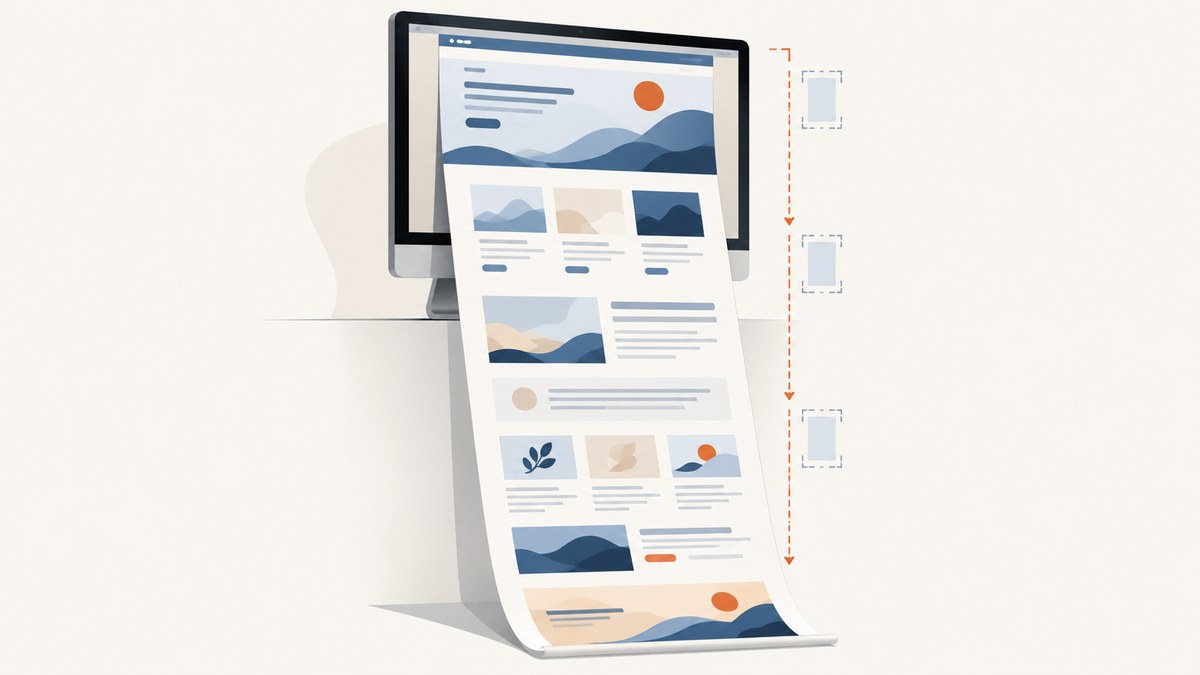
A scrolling screenshot captures a whole webpage, including the content below the visible screen. On a desktop, use your browser’s built-in full-page capture: Chrome and Firefox provide it in developer tools, and Edge has a Capture full page command. On iPhone, Safari can save a full-page screenshot as an image or PDF; on Android 12 and later, use scrolling capture when the control appears.
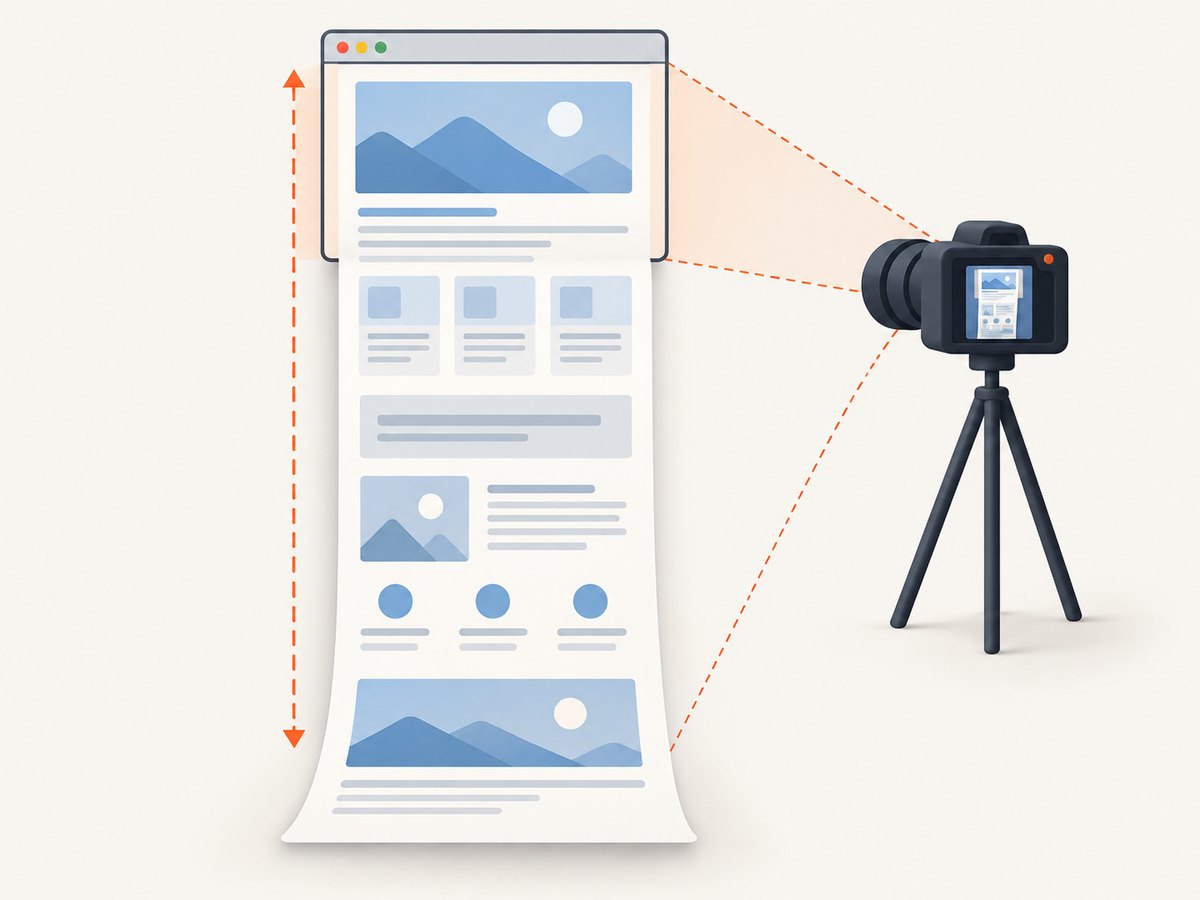
Start with the built-in workflow for your device. Before saving, wait for lazy-loaded images and dynamic content to appear, then inspect the result for missing or repeated sections. A full-document capture is different from stitching together ordinary viewport screenshots, and nested scrolling areas may need their own capture.
1. Choose the right capture method
Use the method that matches where you are viewing the page and what you need to do with the result.
| Device or browser | Full-page method | Typical output | Useful when |
|---|---|---|---|
| Chrome desktop | DevTools command menu → Capture full size screenshot | Image | You need a direct capture of the whole document |
| Firefox desktop | Screenshot toolbar button or Web Console command | Image | You want a full-page image or command-line-like console workflow |
| Microsoft Edge desktop | Ctrl+Shift+S → Capture full page | Image | You want a browser capture from the toolbar |
| iPhone Safari | Take a screenshot → Full Page | Image or PDF | You want to save or share a long webpage, especially as a document |
| Android 12+ | Take a screenshot → scrolling-capture control, if available | Image | The screen and device support scrolling capture |
Browser menu names and placement can vary by version. The workflows below use the documented commands and settings.
2. Capture a full page in Chrome
- Open the webpage you want to capture.
- Open Chrome DevTools by pressing F12, or use the browser menu to open Developer Tools.
- Open the DevTools command menu: press Ctrl+Shift+P on Windows or Linux, or Cmd+Shift+P on macOS.
- Type Capture full size screenshot in the command menu.
- Select the command. Chrome captures the whole page, including content outside the current viewport, and saves an image.
- Open the saved file and check the top, bottom, and any sections that load as you scroll.
Use the full-size command when you need the document from top to bottom. If you only need what is currently visible, use a viewport capture instead. Chrome also offers narrower screenshot commands, which can help when a full-document capture handles a dynamic or nested layout poorly. [Chrome DevTools screenshot documentation]
Before you capture
- Scroll through the page once if it loads images or sections on demand.
- Wait for animations, embedded content, and loading indicators to settle.
- Dismiss temporary overlays that obscure the content if you need a clean record of the page.
3. Capture a full page in Firefox
Firefox offers a screenshot toolbar button and a Web Console command.
Enable the screenshot button
- Open Developer Tools.
- Open Developer Tools settings.
- Under Available Toolbox Buttons, enable Take a screenshot of the entire page.
- Click the screenshot button in the toolbox to capture and save the page to Downloads.
Use the Web Console
- Open the page and Developer Tools’ Web Console.
- Run the following command, changing the filename if needed:
screenshot page.png --fullpageThe --fullpage option asks Firefox to capture the full page. Keep the .png extension if you want a PNG filename. Check the saved file for delayed images, fixed elements, and content inside independently scrolling panels. [Mozilla Web Console command documentation]
4. Capture a full page in Microsoft Edge
- Open the webpage in Edge.
- Press Ctrl+Shift+S.
- Choose Capture full page.
- Save or copy the result, then inspect it for missing content.
Edge’s full-page capture includes parts of the webpage that would otherwise require scrolling. If the command is unavailable, check that Edge is the active window and use its screenshot tool from the browser interface. [Microsoft Edge screenshot help]
5. Save a long webpage on iPhone
- In Safari, open the webpage.
- Take a normal screenshot. On Face ID models, press the side button and volume-up button together. On models with a Home button, press the side button and Home button together.
- Tap the screenshot preview before it disappears.
- Select Full Page in the preview.
- Review the long capture and crop it if needed.
- Save it to Photos as an image, or choose Save PDF to Files when you need a document-style file.
Safari’s Full Page option captures the webpage as a tall page. PDF is often more practical when the result is too long to review as one image or you need to store it with other documents. [Apple screenshot and full-page capture help]
6. Take a scrolling screenshot on Android
- Open a screen that can scroll.
- Take a normal screenshot using your device’s screenshot shortcut.
- When the scrolling-capture control appears, tap it and extend the capture through the content you need.
- Save the result and check that the bottom of the page is included.
Android’s documented scrolling capture applies to Android 12 and later and works on most screens that allow scrolling. The control’s wording and position vary by manufacturer, and it may not appear for every app or screen. If you do not see it, try the page in a browser that offers a full-page capture or save the page in sections. [Google Android screenshot help]
7. Make sure the screenshot includes the content you need
A full-page screenshot is only useful if the content has finished loading and the capture method can represent the page layout correctly. Review the image or PDF before sharing or archiving it.
Prepare pages that load content as you scroll
Some sites defer images or sections until they are close to the visible screen. Scroll through the page once, pausing for content to load, then return to the top and capture it. If the site has a loading indicator, wait for it to finish. Embedded video, maps, and other third-party content may load separately or remain interactive content that a still image cannot reproduce.
Watch for fixed headers and overlays
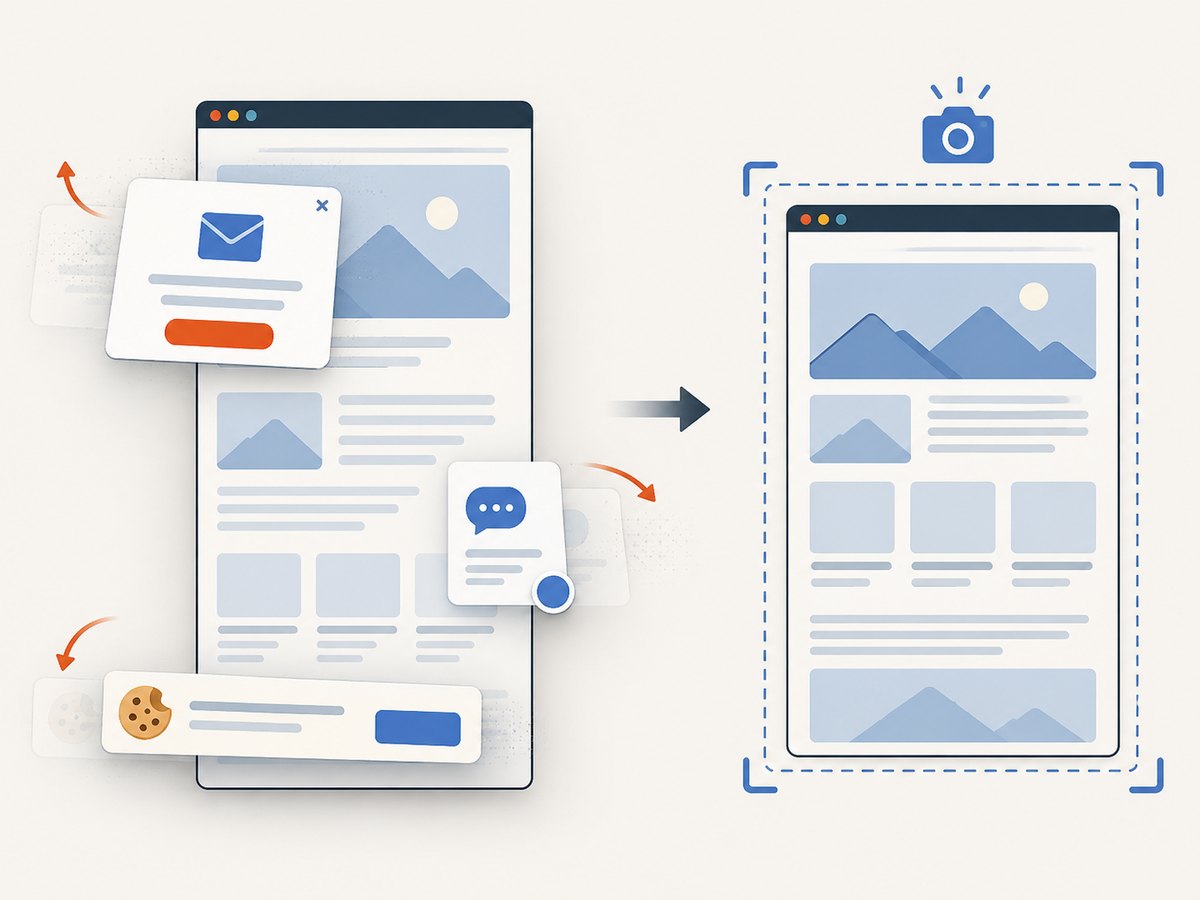
Sticky navigation bars, fixed chat widgets, cookie banners, and animations can obscure content or appear in unexpected positions in a full-page image. Dismiss a banner if you have a choice and need the underlying text. If the same fixed element repeats over the page or covers important content, try capturing a narrower region or use a viewport screenshot for the affected area.
Understand nested scrolling areas
A page can contain a panel with its own scrollbar, such as a code sample, product list, or embedded conversation. Scrolling the document does not necessarily reveal all of that panel’s contents. Capture the panel separately, or copy its contents when a screenshot is not required. Browser full-page capture is designed around the webpage document; it may not expand every independent scroll container.
Check very tall results
Long images can be difficult to zoom, review, and share. Crop to the relevant section when a full-page record is unnecessary. On iPhone, saving Safari’s Full Page capture as a PDF is an option when a document-style result is easier to navigate.
8. Automate full-page screenshots with a browser
For repeatable captures in a development workflow, a browser automation library can open a page and request a full-page screenshot. The following Playwright example uses Node.js. Install Playwright and its browser first, then save the script as capture.mjs and run it with Node.
npm install playwright
npx playwright install chromium
import { chromium } from 'playwright';
const browser = await chromium.launch({ headless: true });
const page = await browser.newPage({ viewport: { width: 1440, height: 900 } });
try {
await page.goto('https://example.com', {
waitUntil: 'networkidle',
timeout: 60000,
});
await page.screenshot({ path: 'page.png', fullPage: true });
} finally {
await browser.close();
}Replace https://example.com with a page you are allowed to access. fullPage: true requests a capture of the full page. networkidle waits for network activity to settle, but pages with long-lived connections may never become idle; in that case use domcontentloaded followed by an explicit wait for a meaningful selector, or a short delay. A successful navigation does not guarantee every lazy-loaded image is present, so scroll through the page before capture when needed.
Use the browser automation route when you need to control browser state, run custom JavaScript, or capture pages as part of a test or job. It requires a browser runtime and maintenance of the capture environment. For a one-off personal capture, the browser’s built-in tool is simpler.
9. Or skip the browser setup
ScreenshotNeo is a website screenshot API and MCP server for developers. One GET request returns a screenshot or PDF. See the ScreenshotNeo site and the API documentation for setup and options.
curl -G "https://api.screenshotneo.com/v1/shot" \
  -d access_key=YOUR_API_KEY \
  --data-urlencode url=https://stripe.com \
  -o shot.webp
import requests
r = requests.get(
"https://api.screenshotneo.com/v1/shot",
params={"access_key": "YOUR_API_KEY", "url": "https://stripe.com"},
timeout=90,
)
open("shot.webp", "wb").write(r.content)const q = new URLSearchParams({
access_key: 'YOUR_API_KEY',
url: 'https://stripe.com',
});
const res = await fetch(`https://api.screenshotneo.com/v1/shot?${q}`);
if (!res.ok) throw new Error(`Screenshot request failed: ${res.status}`);
await Bun.write('shot.webp', res);Replace YOUR_API_KEY with your key and change the target URL. The Python snippet requires the requests package. The Node.js example uses Bun’s file-writing helper; in Node.js, save the response with Buffer.from(await res.arrayBuffer()) and the node:fs/promises writeFile function.
ScreenshotNeo removes cookie banners, newsletter popups, and chat widgets before the shot. Bot checks, blank pages, and failed loads are never billed; response headers say whether the page was clean and billed. Its MCP server lets AI agents take screenshots. The free plan includes 1,000 screenshots a month with no card; paid plans start at $5 for 3,000. Every feature is on every plan. You can sign up free for 1,000 screenshots a month, with no card.
10. Troubleshooting
| Problem | Likely cause | What to try |
|---|---|---|
| The screenshot shows only the visible screen | A normal viewport capture was selected | Use the full-size or full-page command; on mobile, choose the scrolling or Full Page control. |
| Images or sections are missing | Lazy loading or delayed requests had not finished | Scroll through the page, wait for images and embeds, then capture again. |
| Part of a list or panel is absent | The content is in a nested scroll container | Scroll and capture that element separately, or use a viewport capture of the panel. |
| A header, banner, or chat widget covers text | Fixed-position content overlaps the page | Dismiss overlays where possible; capture a smaller region if a fixed element repeats or obscures the result. |
| Firefox does not show a screenshot button | The toolbox button is not enabled | In Developer Tools settings, enable “Take a screenshot of the entire page” under Available Toolbox Buttons. |
| Android has no scrolling capture option | The device version, manufacturer interface, app, or screen may not support it | Confirm Android 12 or later and that the screen scrolls; use a browser capture or take separate screenshots if the control remains absent. |
| The image is too tall to use comfortably | The whole document is longer than is convenient as one image | Crop to the relevant content or use PDF when a document-style capture suits the task. |
| Automated capture times out waiting for network idle | The page keeps network connections open | Wait for DOM content, then wait for a page-specific selector or a bounded delay before taking the screenshot. |
11. Performance, reliability, and file handling
Capture time depends on the page: image count, embedded content, scripts, and lazy loading all affect how long it takes to reach a stable result. Waiting for every network connection to become idle can be reliable for some pages and impractical for others. Prefer a meaningful page-ready condition when automating, and use a bounded timeout so a stalled page does not block a workflow indefinitely.
For accuracy, keep viewport dimensions consistent across repeated captures. Responsive pages can rearrange content at different widths, so the same URL may produce different page length and layout on a phone and a desktop. Retina or high-density settings can increase image dimensions and file size. If you need only a specific section, capturing that element or viewport reduces the amount of output to inspect and store.
Keep the original capture when it is evidence or an audit artifact. For ordinary sharing, crop to the relevant region or choose PDF for a long document. Check that the file opens and includes the expected bottom of the page before deleting or replacing it.
12. Frequently asked questions
Is a scrolling screenshot the same as a full-page screenshot?
They usually mean the same result: one capture that includes content beyond the visible viewport. The method may scroll and stitch viewports internally, or capture the page as a whole.
Can I capture a full webpage as a PDF?
On iPhone Safari, choose Full Page and then Save PDF to Files. A screenshot API can also return a PDF when configured for PDF output.
Why does my full-page screenshot look different from the live page?
A screenshot is a still capture. Animations, interactive embeds, viewport-dependent layout, and content loaded during scrolling can change what appears. Wait for the page to settle and inspect the saved result.
Can I capture just one element instead of the whole document?
Browser screenshot tools may offer narrower capture modes, and automation tools can target a page element. Element capture is useful for an independently scrolling panel or a specific card, table, or chart.
What should I do if none of the full-page controls appear?
Check that you are using the browser and device workflow described above. On Android, the scrolling control is conditional. If the browser does not expose a full-page command, use a browser automation workflow or capture the page in sections.


