How to Capture Search API Responses with Puppeteer
Use Puppeteer’s response events and waitForResponse() to capture, validate, and parse the API payload behind a browser search.

To capture the API response behind a browser search, arm page.waitForResponse() before you trigger the search, match the expected endpoint with a URL or predicate, then read the returned HTTPResponse with json(), text(), or buffer(). This observes the browser response directly; it does not require request interception.
The ordering matters. Search responses can return before a click handler finishes, so create the response promise first and await it together with the click or form submission. Check the HTTP status separately from whether the request completed: a 404 or 503 can still produce a finished request.
What you are capturing
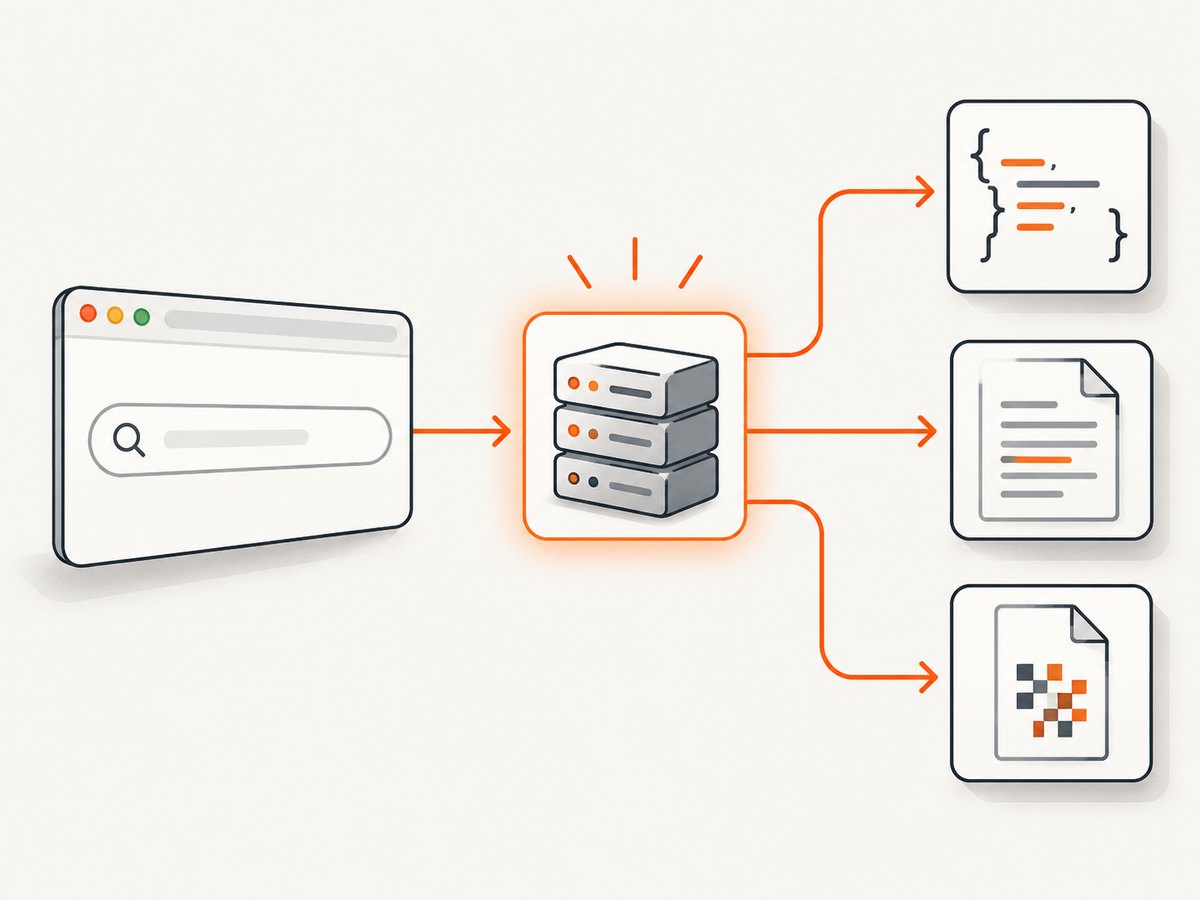
A search page commonly makes an XHR or fetch request after a user submits a form. The visible result cards are only one representation of that response. Puppeteer can observe the network response and give you its status, URL, headers, request metadata, and body.
There are two useful observation patterns:
page.waitForResponse(): best when one action should produce one known response. It resolves with the first response matching a URL or asynchronous predicate.page.on('response'): best when you need to monitor many responses over time. Remove the listener withpage.off()when the observation period ends.
Request interception is different. Use interception when you must modify, abort, or fulfill requests. Do not enable it merely to read responses: once enabled, requests stall until they are continued, responded to, or aborted.
Set up Puppeteer
Install Puppeteer in a new Node.js project and use the API documentation for the version installed in your lockfile. The examples below use the current Page response APIs described in the Puppeteer Page.waitForResponse reference.
mkdir search-response-capture
cd search-response-capture
npm init -y
npm install puppeteer
Create a browser, open the page, and make sure the search controls are available before waiting for the response. Replace the URL, selector, and endpoint fragment with values from the application you are inspecting.
Capture one JSON response with waitForResponse()
The reliable sequence is:
- Navigate to the search page.
- Arm
waitForResponse(). - Trigger the search inside
Promise.all(). - Check the response status and read the body.
- Close the browser in a
finallyblock.
const puppeteer = require('puppeteer');

(async () => {
  const browser = await puppeteer.launch({headless: true});
  try {
    const page = await browser.newPage();
    await page.goto('https://example.com/search', {
      waitUntil: 'domcontentloaded',
      timeout: 30_000
    });

    const responsePromise = page.waitForResponse(async response => {
      if (!response.url().includes('/api/search')) return false;
      if (response.request().method() !== 'GET') return false;
      if (response.status() !== 200) return false;
      return true;
    }, {timeout: 30_000});

    await Promise.all([
      responsePromise,
      page.click('button[type="submit"]')
    ]);

    const response = await responsePromise;
    if (!response.ok()) {
      throw new Error(`Search returned HTTP ${response.status()}`);
    }

    const contentType = response.headers()['content-type'] || '';
    if (!contentType.includes('application/json')) {
      const body = await response.text();
      throw new Error(`Expected JSON, received ${contentType}: ${body.slice(0, 300)}`);
    }

    const payload = await response.json();
    console.log(JSON.stringify(payload, null, 2));
  } finally {
    await browser.close();
  }
})();
waitForResponse() accepts a URL string, a regular expression, or an asynchronous predicate. A predicate is usually safer because it can check the method, status, query parameters, or response URL together. Keep it narrow when a page sends several requests containing the same word, such as autocomplete, analytics, and the final search.
Match query parameters and methods
const responsePromise = page.waitForResponse(async response => {
  const request = response.request();
  const url = new URL(response.url());

  return url.origin === 'https://example.com' &&
    url.pathname === '/api/search' &&
    url.searchParams.get('q') === 'puppeteer' &&
    request.method() === 'GET' &&
    response.status() === 200;
});
If the search uses POST, inspect request.method() and request.postData(). Do not assume that a visible form submission means a navigation; many applications prevent the default action and call fetch() instead.
Read JSON, text, or binary response bodies
Use the body method that matches the payload:
await response.json()parses JSON. It throws when the body is not valid JSON.await response.text()returns UTF-8 text, useful for HTML, XML, or plain-text error messages.await response.buffer()returns bytes for downloads, compressed formats, or other binary payloads.
const response = await responsePromise;
const type = response.headers()['content-type'] || '';

if (type.includes('application/json')) {
  const data = await response.json();
  console.log(data.items || data.results || data);
} else if (type.startsWith('text/')) {
  console.log(await response.text());
} else {
  const bytes = await response.buffer();
  require('fs').writeFileSync('search-response.bin', bytes);
}
Read the body only once. After consuming a response body, keep the parsed value or buffer rather than calling another body method on the same response. For error responses, capture a short text representation before throwing so logs explain what the server returned.
Use a response event listener
An event listener is useful when a page performs repeated searches, pagination calls, or background refreshes. The listener receives every response, so filter aggressively and remove it when finished.
function onResponse(response) {
  const url = new URL(response.url());
  if (url.pathname !== '/api/search') return;

  console.log('search response', response.status(), response.url());
  response.json()
    .then(data => console.log(data))
    .catch(error => console.error('Invalid JSON', error));
}

page.on('response', onResponse);
await page.click('button[type="submit"]');
await page.waitForTimeout(1000);
page.off('response', onResponse);
Prefer waitForResponse() for one expected call because it makes the synchronization point explicit. Prefer an event listener when the number of calls is unknown or you need a continuous network audit.
Handle status codes, redirects, and multiple matches
A response can exist even when the server reports an application failure. Check response.status() or response.ok() and log the URL and request method. A completed request is not proof that the search succeeded.
Redirects create a request chain: one request finishes successfully and another request starts at the redirected URL. When redirects matter, inspect the final response URL and the request chain rather than assuming the first URL is the API endpoint.
If several requests match, refine the predicate with:
- Exact hostname and pathname.
- HTTP method.
- Required query parameters.
- A status range such as 200–299.
- A request header or POST body field, when appropriate.
Trigger searches that need typing, keyboard events, or waits
Some search boxes submit only after keyboard input or a debounce delay. Arm the waiter before typing, then perform the exact interaction the application expects.
const responsePromise = page.waitForResponse(response =>
  response.url().includes('/api/search') && response.status() === 200
);

await page.focus('input[name="q"]');
await page.keyboard.type('puppeteer');
await page.keyboard.press('Enter');

const response = await responsePromise;
const results = await response.json();
For a button click, use Promise.all() so the click and response wait begin together. For debounced inputs, avoid arbitrary sleeps when possible; wait for the matching response instead.
Debug a timeout or missing response
waitForResponse() has a default timeout of 30 seconds, configurable with page timeout settings or per-call options. A timeout usually means the action did not issue a request, the predicate is too strict, or the waiter was created too late.
Log every candidate response
page.on('response', response => {
  console.log(response.status(), response.request().method(), response.url());
});
Run this temporarily, submit the search, and copy the actual endpoint into a narrower predicate. Also verify that:
- The page finished loading enough for the search control to exist.
- The selector points to the active form or button.
- The click is not blocked by an overlay or disabled state.
- The application did not call a different endpoint for mobile, locale, or authenticated users.
- The response is not served from a service worker or cache with a different URL.
Common errors and fixes
| Error | Likely cause | Fix |
|---|---|---|
| Timeout exceeded | Waiter armed after the click, wrong endpoint, or no request | Create the promise first, log responses, and verify the selector and predicate. |
| JSON parse error | HTML error page, empty body, or non-JSON content type | Check status and content-type; read text() for diagnostics. |
| Captured autocomplete instead of search | Several URLs contain /search |
Match the exact pathname, method, query, and status. |
| Search hangs after enabling interception | An intercepted request was never resolved | Continue, respond to, or abort every intercepted request; check interception resolution state immediately before resolving. |
| Results differ from manual browsing | Cookies, authentication, locale, or user agent differ | Reuse the required browser context, headers, cookies, and viewport before triggering the search. |
Request interception: when it is appropriate
Interception is for changing traffic, such as blocking an image, fulfilling a mock API response, or rewriting a request. It carries a page-wide responsibility: every intercepted request must be resolved. Other listeners may resolve a request while your asynchronous code is waiting, so check whether it has already been handled before continuing or aborting.
await page.setRequestInterception(true);
page.on('request', request => {
  if (request.isInterceptResolutionHandled()) return;

  if (request.resourceType() === 'image') {
    request.abort();
  } else {
    request.continue();
  }
});
For ordinary response capture, leave interception disabled and use response observation. This avoids stalled navigation, extra coordination, and accidental changes to the application’s behavior.
Performance and reliability practices
- Use one browser and isolated pages: launch the browser once for a batch, then create a page or browser context per job.
- Keep predicates cheap: inspect URL, method, and status before doing asynchronous work.
- Set explicit timeouts: use a navigation timeout and a response timeout suited to the target, and report which stage timed out.
- Close resources: close pages and the browser in
finallyblocks so failures do not leak Chromium processes. - Capture diagnostics: log the final URL, status, method, and a bounded error body; avoid logging credentials or sensitive search terms.
- Retry carefully: retry transient navigation or 5xx failures with a limit, but do not blindly repeat searches that mutate server state.
- Control concurrency: too many simultaneous pages can exhaust CPU, memory, file descriptors, or the target site’s rate limits.
For reproducible captures, pin the Puppeteer version, use a known viewport and locale, and preserve the same cookies and authentication state. Treat HTTP errors as application results that need handling, not as proof that the browser failed to communicate.
Or skip the browser setup
If you need a clean image or PDF of the search page rather than the raw API payload, ScreenshotNeo provides a single screenshot request. Its capture process accepts cookie and consent banners like a visitor, then removes more than 60 known consent platforms, newsletter popups, and chat widgets before the shot. Bot checks, blank pages, timeouts, failed loads, and cache hits are not billed, and the response identifies the result with X-Page-Verdict and X-Billed headers.

See the ScreenshotNeo API documentation for the complete option list. The same request can select a full page or CSS element, load lazy images, use dark mode or device presets, set a custom viewport and retina scale, inject CSS or JavaScript, click an element, wait for a selector, delay, or network idle, block resources, provide headers and cookies, set timezone or geolocation, resize output, cache with a chosen TTL, create signed image links, submit asynchronous jobs, capture up to 100 URLs in one call, or create PDFs.
cURL
curl -G "https://api.screenshotneo.com/v1/shot" \
  -d access_key=YOUR_API_KEY \
  --data-urlencode url=https://stripe.com \
  -o shot.webp
Python
import requests

r = requests.get(
    'https://api.screenshotneo.com/v1/shot',
    params={'access_key': 'YOUR_API_KEY', 'url': 'https://stripe.com'},
    timeout=90,
)
r.raise_for_status()
open('shot.webp', 'wb').write(r.content)
Node.js
const q = new URLSearchParams({
  access_key: 'YOUR_API_KEY',
  url: 'https://stripe.com'
});
const res = await fetch(`https://api.screenshotneo.com/v1/shot?${q}`);
if (!res.ok) throw new Error(`Screenshot failed: ${res.status}`);
const bytes = Buffer.from(await res.arrayBuffer());
require('fs').writeFileSync('shot.webp', bytes);
ScreenshotNeo also has an MCP server with take_screenshot, get_page_info, and capture_pdf tools for Claude, Cursor, and other MCP clients. The Free plan includes 1,000 shots per month without a card; paid plans start at $5 for 3,000 shots, and every feature is available on every plan. Create a free ScreenshotNeo account.
FAQ
Should I use waitForResponse() or page.on('response')?
Use waitForResponse() for one expected response tied to one action. Use an event listener for repeated or unknown numbers of responses, and remove it after the observation window.
Can I capture a response without clicking?
Yes. Arm the waiter, then trigger any behavior that causes the request: typing, pressing Enter, calling a page function, changing a filter, or navigating.
Why did a 404 still resolve?
HTTP errors are still valid network responses. Inspect status() or ok() before parsing the payload as a successful result.
Can interception replace response observation?
It can observe traffic indirectly, but it adds request-resolution responsibilities and can stall the page. Use response events for capture; reserve interception for modification, blocking, or mocking.
What if the API response is compressed?
Puppeteer exposes the decoded response body through its body methods in normal browser operation. Choose json(), text(), or buffer() based on the payload’s content type and expected format.


