How to Capture Screenshots of Secured Pages in Ruby
Capture authenticated pages in Ruby with Ferrum, Selenium or Capybara, then automate clean screenshots with ScreenshotNeo.
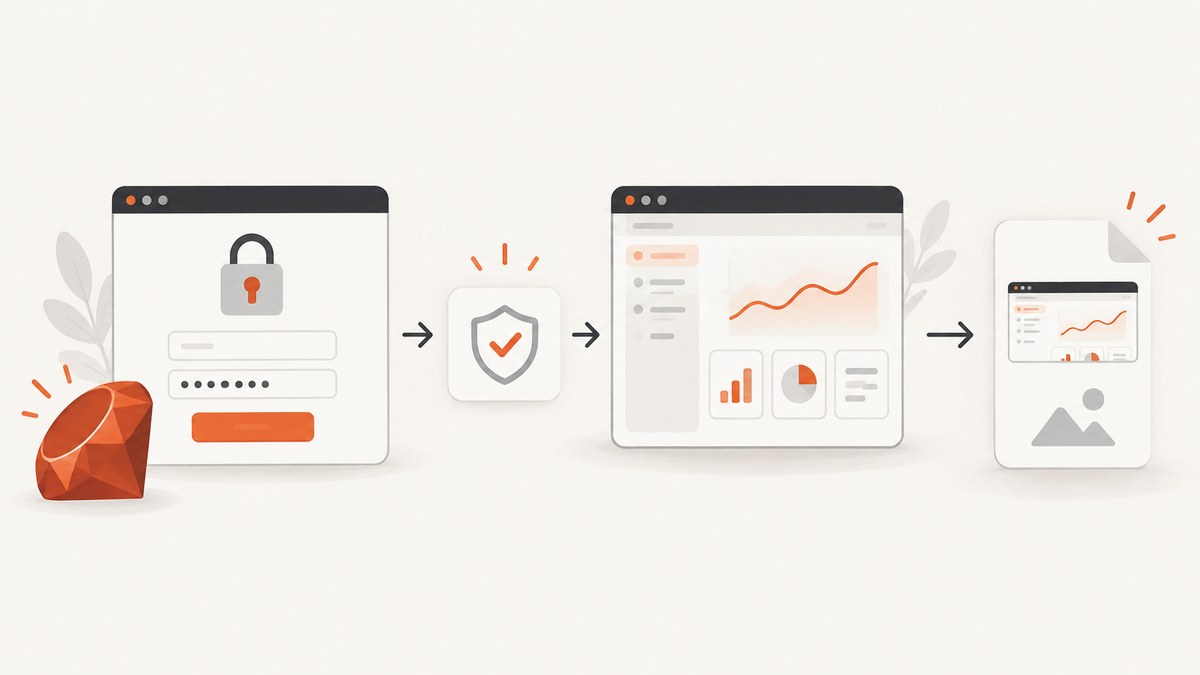
Direct answer: use a real browser session, complete the site’s normal authorized login, verify that the secured page has loaded, then call the browser’s screenshot API. In Ruby, Ferrum drives Chrome or Chromium through the DevTools Protocol and can save viewport, full-page, selector, or rectangular-area images. Selenium WebDriver is a good fit when your test stack already uses WebDriver; Capybara can sit on top of a configured browser driver.
A screenshot records the browser’s rendered state. It does not bypass a login, paywall, MFA challenge, bot check, or other access control. Use credentials and accounts you are authorized to access, keep secrets outside source control, and treat images as potentially sensitive records.
1. Choose the Ruby capture stack
| Option | Use it when | Capture notes |
|---|---|---|
| Ferrum | You want a direct Ruby API over Chrome/Chromium CDP. | Its API covers path, format, full-page, selector, area, quality and scaling options. The browser remains a deployment dependency. |
| Selenium WebDriver | Your tests already use WebDriver or need its driver ecosystem. | The Ruby binding documents element screenshots; exact behavior depends on installed Selenium, browser and driver versions. |
| Capybara | Screenshots belong in an acceptance-test workflow. | Capybara is the test layer; configure a compatible driver that supports screenshots. |
These projects do not establish a universal speed or reliability winner. Compare the browser you can operate in CI, how you establish an isolated authenticated session, and whether you need a viewport, full page, element, or area capture. See the Capybara repository and your driver’s current setup guide before pinning versions.
2. Install Ferrum and a browser
Install the gem in the application or test bundle and install a compatible Chrome/Chromium package on the machine or container. Ferrum’s introduction describes its CDP connection and navigation and screenshot flow. Pin versions and check the current API comments before deploying because browser and gem compatibility changes over time.
# Gemfile
gem 'ferrum'

# shell
bundle install
# Ensure Chrome or Chromium is installed and discoverable by Ferrum
3. Log in through the ordinary flow, then capture
The example uses environment variables so no password is committed. It waits for a post-login selector, checks that the URL did not remain on the login page, and saves a PNG. Replace selectors and URLs with those documented by the site you operate.
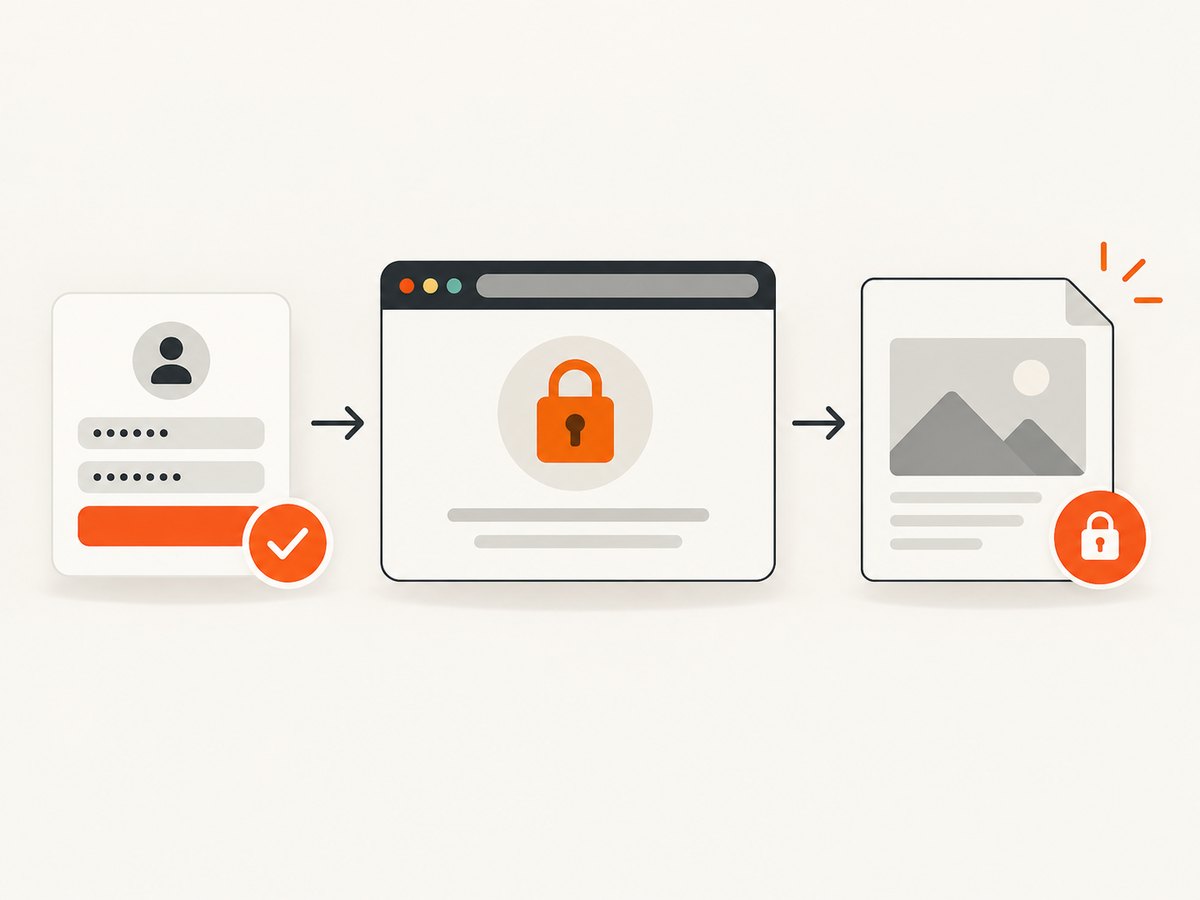
require 'ferrum'

login_url = ENV.fetch('LOGIN_URL')
private_url = ENV.fetch('PRIVATE_URL')
email = ENV.fetch('APP_EMAIL')
password = ENV.fetch('APP_PASSWORD')

browser = Ferrum::Browser.new(
  browser_path: ENV['CHROME_BIN'],
  headless: true,
  timeout: 30
)

begin
  browser.go_to(login_url)
  browser.at_css("input[name='email']").focus.type(email)
  browser.at_css("input[name='password']").focus.type(password)
  browser.at_css("button[type='submit']").click
  browser.at_css("[data-testid='account-shell']", wait: 30)
  abort 'login redirect detected' if browser.current_url.start_with?(login_url)
  browser.go_to(private_url)
  browser.at_css("[data-testid='private-page']", wait: 30)
  browser.screenshot(path: 'secured-page.png', full: true, format: :png)
ensure
  browser.quit
end
Ferrum’s screenshot API is documented in its screenshot implementation. A minimal save is browser.screenshot(path: 'page.png'). Use options supported by your installed version:
full: truecaptures the full scrollable document; without it you get the current viewport.selector: '#invoice'limits the image to an element. Wait for that element first.area: { x: 0, y: 0, width: 1200, height: 800 }captures a rectangle.format: :png,:jpeg, or:webpchooses output where supported. JPEG accepts quality in versions that expose it.- Scaling controls device-pixel ratio. Larger scales improve small text but increase memory and file size.
- Use a selector wait or network-idle strategy after navigation when client-side rendering is asynchronous. Prefer a meaningful selector over a blind sleep.
4. Restore an authorized session instead of typing a password
For repeatable tests, create a dedicated test account or restore a short-lived session issued by your application. Never paste a real token into source or publish an image containing it. Cookie APIs differ by Ferrum version; adapt this pattern to the installed gem:
browser = Ferrum::Browser.new(headless: true)
begin
  browser.go_to('https://app.example.test/')
  browser.cookies.set(
    name: 'session',
    value: ENV.fetch('TEST_SESSION_VALUE'),
    domain: 'app.example.test',
    path: '/',
    secure: true,
    http_only: true
  )
  browser.go_to(ENV.fetch('PRIVATE_URL'))
  browser.at_css("[data-testid='private-page']", wait: 30)
  browser.screenshot(path: 'restored-session.png', full: true)
ensure
  browser.quit
end
Cookie domains, SameSite rules, expiry and secure transport must match the site. If the application requires CSRF, SSO, WebAuthn or MFA, use its supported test setup rather than trying to skip it.
5. Capture only the evidence you need
Viewport versus full page
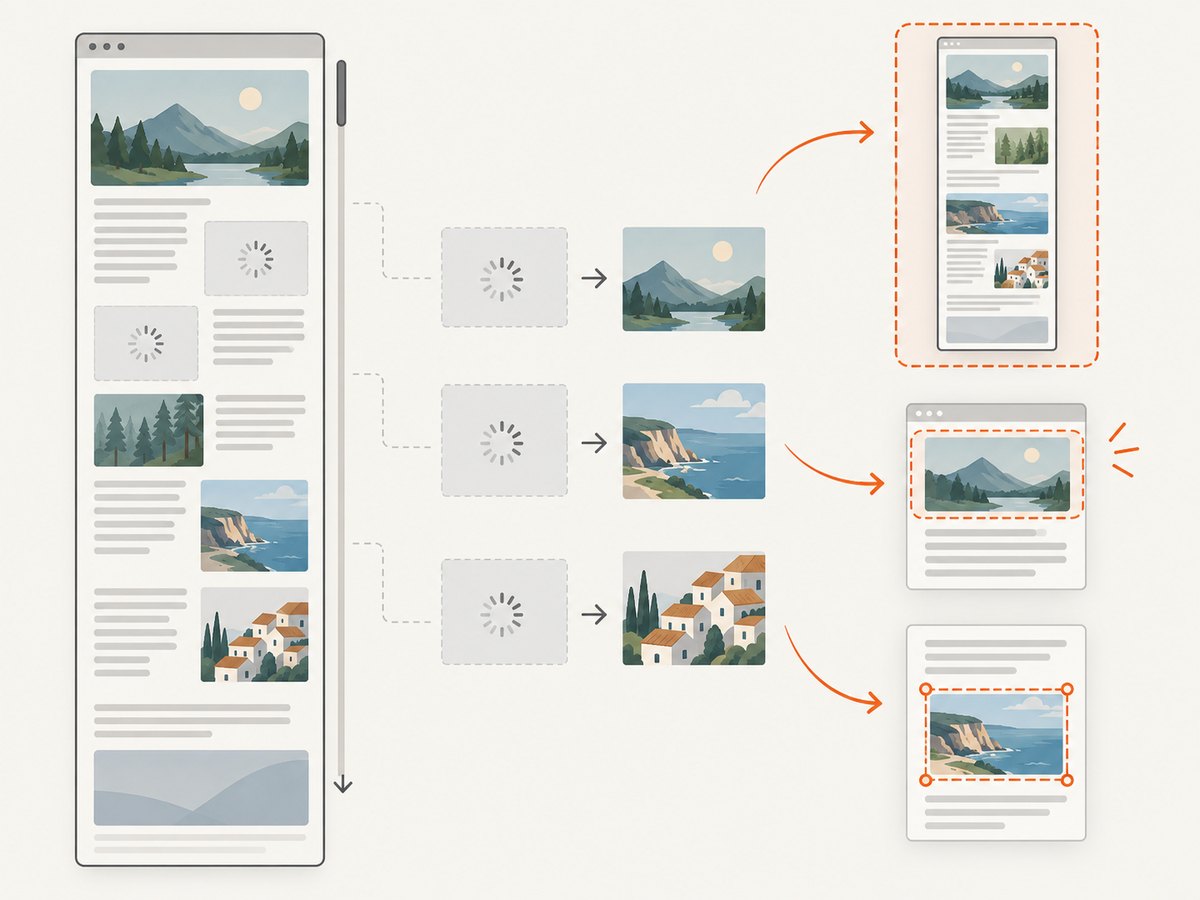
A viewport shot is stable for a dashboard tile or visual regression at a known window size. Full-page mode is better for a document, but lazy images, sticky headers and infinite scroll can change what renders while the browser expands the page. Trigger supported lazy-loading behavior and wait for final content before capture.
Element and area captures
Element capture avoids unrelated account data and usually produces smaller artifacts. A selector must identify the intended element after authentication and client rendering. An area capture suits a fixed chart region, but coordinates depend on viewport size, zoom and responsive layout.
Format and sensitive data
PNG preserves text and transparency. JPEG is smaller for photographic content but introduces compression. WebP can reduce transfer size when consumers support it. Crop or mask personal data before sharing; masking support varies by library, so test-only CSS or a narrower selector may be appropriate.
6. Selenium WebDriver alternative
If your project already uses Selenium, its Ruby binding can save an element screenshot. The official window and tab documentation shows this style of API.
require 'selenium-webdriver'

options = Selenium::WebDriver::Chrome::Options.new
options.add_argument('--headless=new')
options.add_argument('--window-size=1440,1200')
driver = Selenium::WebDriver.for(:chrome, options: options)

begin
  driver.navigate.to ENV.fetch('LOGIN_URL')
  driver.find_element(name: 'email').send_keys ENV.fetch('APP_EMAIL')
  driver.find_element(name: 'password').send_keys ENV.fetch('APP_PASSWORD')
  driver.find_element(css: "button[type='submit']").click
  wait = Selenium::WebDriver::Wait.new(timeout: 30)
  wait.until { driver.find_element(css: "[data-testid='account-shell']").displayed? }
  driver.navigate.to ENV.fetch('PRIVATE_URL')
  element = wait.until { driver.find_element(css: "[data-testid='private-page']") }
  element.save_screenshot('selenium-element.png')
  driver.save_screenshot('selenium-viewport.png')
ensure
  driver.quit
end
Driver startup, headless flags and full-page behavior vary across releases. Keep window size explicit and verify output in the same environment used by CI.
7. Capybara acceptance-test pattern
Capybara supplies a high-level acceptance-test DSL. Register a Selenium or Ferrum driver according to your suite, then authenticate through the supported test path:
Capybara.current_driver = :selenium_chrome
visit '/login'
fill_in 'Email', with: ENV.fetch('APP_EMAIL')
fill_in 'Password', with: ENV.fetch('APP_PASSWORD')
click_button 'Sign in'
assert_selector "[data-testid='account-shell']"
visit '/private/report'
assert_selector "[data-testid='private-page']"
save_screenshot('capybara-report.png', full: true)
Driver registration is project-specific. Confirm that your chosen driver implements save_screenshot and that its full-page option behaves as expected.
8. Make captures reliable in CI
- Use deterministic data. A dedicated account and seeded records prevent changes caused by another user.
- Set viewport and timezone. Responsive breakpoints, dates and number formats otherwise vary between machines.
- Wait for state, not time. Assert an authenticated-only marker, then wait for the chart, table or image that must appear.
- Handle animations. Disable transitions in test CSS or wait until animation completes.
- Capture diagnostics on failure. Save URL, HTML and a failure screenshot without logging passwords, cookies or authorization headers.
- Close every session.
ensure/finallyblocks prevent orphaned Chrome processes and leaked sessions.
Full-page images can consume substantial memory on very tall pages. Capture a specific element or several sections when one giant image is unnecessary. Avoid parallel workers sharing one account unless session isolation is guaranteed.
9. Troubleshooting
| Symptom | Cause | Fix |
|---|---|---|
| Login form appears | Credentials failed, SSO is pending, or session expired. | Check final URL and an authenticated-only selector before capture. |
| Element not found | Client rendering is incomplete or selector changed. | Wait for a stable test ID and inspect the page in the same environment. |
| Blank or partial page | Timeout, JavaScript failure or lazy content not loaded. | Collect console/network diagnostics, verify browser dependencies and wait for content. |
| Full page is cut off | Infinite scroll, nested scrolling, sticky layout or driver limitation. | Trigger lazy loading, capture the relevant element, or take section shots. |
| Chrome will not start in CI | Missing binary, sandbox restriction, fonts or incompatible driver. | Install matching dependencies, set CHROME_BIN if needed, use documented headless flags and pin versions. |
| Screenshot contains secrets | Account data or tokens are visible. | Use test data, narrow the selector, mask where supported and restrict artifact access. |
| Intermittent differences | Fonts, timezone, viewport, ads, animations or live data vary. | Fix the environment, disable animations, seed data and wait for stable state. |
10. Or skip the browser setup
If you need a screenshot after a URL has rendered, ScreenshotNeo provides one GET request returning PNG, JPEG, WebP or PDF. It is not a way to defeat authentication: a private page still needs an authorized mechanism such as permitted cookies, headers or an access-controlled URL. The API supports selectors, custom JavaScript/CSS, waits, device presets, full-page capture and PDF settings. See the ScreenshotNeo API documentation.
curl -G "https://api.screenshotneo.com/v1/shot" -d access_key=YOUR_API_KEY --data-urlencode url=https://stripe.com -o shot.webpimport requests
r = requests.get("https://api.screenshotneo.com/v1/shot", params={"access_key": "YOUR_API_KEY", "url": "https://stripe.com"}, timeout=90)
r.raise_for_status()
open("shot.webp", "wb").write(r.content)const q = new URLSearchParams({ access_key: 'YOUR_API_KEY', url: 'https://stripe.com' });
const res = await fetch(`https://api.screenshotneo.com/v1/shot?${q}`);
if (!res.ok) throw new Error(`HTTP ${res.status}`);
require('node:fs').writeFileSync('shot.webp', Buffer.from(await res.arrayBuffer()));ScreenshotNeo removes cookie/consent banners, newsletter popups and chat widgets before capture, and each step can be disabled. Bot checks/CAPTCHAs, blank pages, timeouts, failed loads and cache hits are not billed; response headers report the page verdict and billing status through X-Page-Verdict and X-Billed. Its MCP server provides take_screenshot, get_page_info and capture_pdf for Claude, Cursor and other MCP clients.
Performance and cost controls include 12 device presets or any viewport, retina scale, full-page lazy-image loading, selector capture, caching with a chosen TTL, async jobs with signed webhooks, bulk capture of up to 100 URLs per call, resizing, request blocking and a usage API. The Free plan includes 1,000 shots per month with no card; paid plans start at $5 for 3,000 shots, and every feature is on every plan. Create a free ScreenshotNeo account.
11. Cost, security and retention checklist
- Budget for browser CPU, RAM, storage and CI minutes when running Ferrum or Selenium yourself.
- Keep credentials in your CI secret store and rotate test passwords and short-lived session values.
- Restrict screenshot artifacts because they may contain customer records, email addresses or financial details.
- Record browser, gem, driver and viewport versions alongside visual-regression artifacts.
- Choose an output format and scope that meet evidence needs without creating unnecessarily huge files.
12. FAQ
Can a screenshot API sign in for me?
No. Establish an authorized browser session or provide authorized cookies or headers. A screenshot call records the resulting rendered page.
Should I use Ferrum or Selenium?
Use Ferrum for a direct CDP-oriented Ruby API; use Selenium when your project already depends on WebDriver. Evaluate the versions you deploy.
How do I prove the page was authenticated?
Assert an authenticated-only URL or DOM marker before capture, and fail if the browser is still on a login or consent screen.
Is full-page capture always complete?
No. Infinite scroll, lazy loading and nested scroll containers can require page-specific preparation or element or section captures.
Can I share secured screenshots?
Only with authorized recipients. Remove or mask personal and secret data, limit artifact access and apply a retention policy.


