How to Capture Screenshots of Session-Managed Pages with Python Selenium and PhantomJS
Capture authenticated pages with Python Selenium, restore session state safely, and understand why PhantomJS is legacy.

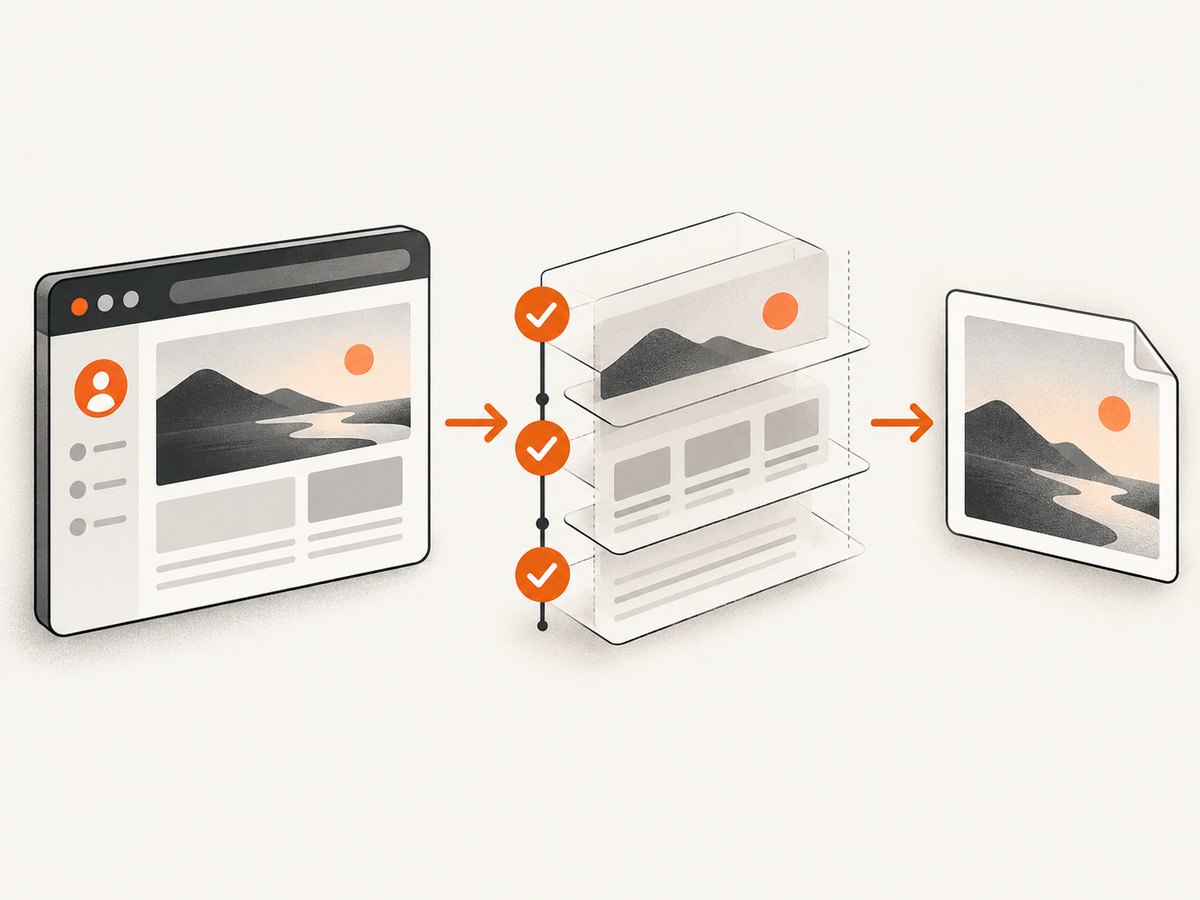
Direct answer: start a supported headless browser with Selenium, establish the authenticated session, wait for the protected content you need, set a repeatable viewport, call driver.save_screenshot('page.png'), verify the return value, and close the driver. PhantomJS is a legacy option: Selenium’s Python changelog deprecated it and recommended headless Chrome or Firefox instead. [Selenium Python changelog]
What “session-managed page” means
A session-managed page requires state that the server checks before returning private content. That state can come from a completed login, cookies, local or session storage, CSRF data, device checks, or a server-side session that has expired. A copied cookie is therefore not a universal substitute for the original login flow.
Recommended approach: current Selenium with headless Chrome
Use a supported browser for new code. The example below logs in through the site, waits for a selector that proves authentication succeeded, opens the target page, and saves a PNG.
1. Install dependencies
python -m pip install seleniumYou also need a compatible Chrome installation. Selenium Manager can usually locate the driver; confirm your installed Selenium, browser, and driver versions when deploying.
2. Complete login and capture the page
from pathlib import Path
from selenium import webdriver
from selenium.webdriver.chrome.options import Options
from selenium.webdriver.common.by import By
from selenium.webdriver.support.ui import WebDriverWait
from selenium.webdriver.support import expected_conditions as EC

LOGIN_URL = "https://example.com/login"
TARGET_URL = "https://example.com/account/reports"
USERNAME = "your-user@example.com"
PASSWORD = "replace-me"
OUTPUT = Path("page.png")

options = Options()
options.add_argument("--headless=new")
options.add_argument("--window-size=1440,1200")
options.add_argument("--disable-gpu")

driver = webdriver.Chrome(options=options)
wait = WebDriverWait(driver, 30)

try:
    driver.get(LOGIN_URL)
    wait.until(EC.visibility_of_element_located((By.NAME, "email"))).send_keys(USERNAME)
    driver.find_element(By.NAME, "password").send_keys(PASSWORD)
    driver.find_element(By.CSS_SELECTOR, "button[type='submit']").click()

    # Choose a selector that exists only for an authenticated user.
    wait.until(EC.visibility_of_element_located((By.CSS_SELECTOR, "[data-test='account-nav']")))

    driver.get(TARGET_URL)
    wait.until(EC.visibility_of_element_located((By.CSS_SELECTOR, "main[data-test='report']")))

    # Optional: wait for an application-specific loading marker to disappear.
    wait.until(EC.invisibility_of_element_located((By.CSS_SELECTOR, ".loading")))

    if not driver.save_screenshot(str(OUTPUT)):
        raise RuntimeError("Selenium did not confirm the screenshot was saved")
    print(f"Saved {OUTPUT.resolve()}")
finally:
    driver.quit()
save_screenshot(filename) saves the current window as a PNG and returns a success boolean. See the Selenium Python WebDriver API.
Restoring an existing session
If the site permits it, you can add valid cookies after first opening the cookie’s domain. Selenium documents retrieving and adding cookies for the current WebDriver session. Cookie attributes include domain, path, expiry, secure, HTTP-only, and SameSite scope. A cookie-only restore can still fail when authentication also depends on storage, CSRF state, device checks, or server-side expiry.
Save cookies after an authorized login
import json
from selenium import webdriver
from selenium.webdriver.chrome.options import Options

options = Options()
options.add_argument("--headless=new")
driver = webdriver.Chrome(options=options)
try:
    driver.get("https://example.com/")
    # Complete the site's authorized login here.
    with open("cookies.json", "w", encoding="utf-8") as f:
        json.dump(driver.get_cookies(), f)
finally:
    driver.quit()
Load cookies before opening the protected URL
import json
from selenium import webdriver
from selenium.webdriver.chrome.options import Options

options = Options()
options.add_argument("--headless=new")
driver = webdriver.Chrome(options=options)
try:
    driver.get("https://example.com/")  # Establishes the cookie domain.
    with open("cookies.json", encoding="utf-8") as f:
        for cookie in json.load(f):
            # Remove fields rejected by a particular browser/version if needed.
            driver.add_cookie(cookie)
    driver.get("https://example.com/account/reports")
    driver.save_screenshot("restored-session.png")
finally:
    driver.quit()
Waiting for the right page state
A fixed sleep only delays the script; it does not prove that the authenticated view or its data is ready. Prefer explicit waits for a URL, an authenticated selector, a spinner disappearing, or a particular element becoming visible.
wait.until(EC.url_contains("/account"))
wait.until(EC.presence_of_element_located((By.CSS_SELECTOR, "[data-ready='true']")))
wait.until(EC.element_to_be_clickable((By.CSS_SELECTOR, "button.export")))
For applications that render data after navigation, wait for the application’s own ready marker. If no marker exists, combine a bounded wait with a check for the content that must appear in the screenshot.
Viewport, full-page images, and element screenshots
- Viewport:
save_screenshotcaptures the current browser window. Set--window-size=1440,1200or calldriver.set_window_size(1440, 1200)for repeatable output. - One element: locate the element and call its
screenshot('panel.png')method when supported by your browser. - Full document: generic WebDriver screenshot behavior is browser-specific. Do not assume
save_screenshotcaptures the entire scrollable document. Use a browser-specific full-page capability or stitch controlled viewport captures after verifying the result. - Retina output: browser device scale settings affect pixel dimensions. Keep the scale consistent across runs if image diffs matter.
Historical PhantomJS code
PhantomJS is no longer the maintained choice for Selenium projects. Selenium’s Python changelog states: “PhantomJS is now deprecated, please use either Chrome or Firefox in headless mode.” [Selenium changelog]
The following shape explains how older systems used it; it may require an old Selenium release and a separately installed PhantomJS binary, so do not use it for new deployments.
from selenium import webdriver

# Legacy only: webdriver.PhantomJS was removed from current Selenium releases.
driver = webdriver.PhantomJS(service_log_path="/tmp/ghostdriver.log")
try:
    driver.get("https://example.com/")
    driver.add_cookie({"name": "session", "value": "legacy-session-value", "domain": "example.com", "path": "/"})
    driver.get("https://example.com/account/reports")
    driver.save_screenshot("legacy.png")
finally:
    driver.quit()
PhantomJS documentation also describes loading a cookie file into its cookie jar. Treat that as historical behavior, not current Selenium guidance. [PhantomJS cookie API]
Common errors and fixes
| Error or symptom | Likely cause | Fix |
|---|---|---|
| Redirected back to login | Missing cookie, wrong domain/path, expired server session, or additional storage/device checks | Run the authorized login in the same driver, inspect driver.get_cookies(), and wait for the authenticated selector. |
InvalidCookieDomainException |
Cookie was added before visiting its domain or belongs to another host | Open the correct scheme and host first, then add only cookies valid for that domain. |
| Screenshot is blank | Capture happened before rendering, a bot check blocked the page, or the page failed to load | Wait for a content selector, inspect the current URL/title, and save page source or browser logs for diagnosis. |
| Element not found | Selector changed, iframe shadow DOM is involved, or the element has not rendered | Verify the selector, switch into the correct iframe, and use an explicit wait. |
| Only part of the page appears | WebDriver captured the viewport rather than the full document | Use a verified full-page browser capability or capture and stitch scroll segments. |
| PhantomJS driver cannot start | Legacy binary, Ghostdriver, and Selenium versions are incompatible or unavailable | Migrate to headless Chrome or Firefox; pin old dependencies only when reproducing a historical system. |
| Intermittent timeouts | Slow assets, network variance, or an application state that never becomes ready | Use bounded explicit waits, retry navigation carefully, and record URL, title, and readiness diagnostics. |
Security and session-handling checklist
- Use credentials and session tokens only where you are authorized to access the page.
- Keep secrets out of source control and screenshots; environment variables or a secret manager are safer.
- Restrict cookie files to the account that runs the capture and delete them when no longer needed.
- Redact private data before sharing screenshots or logs.
- Respect the target site’s terms, rate limits, robots policies, and MFA requirements.
Performance, reliability, and cost
Browser startup is usually the expensive step. Reuse one driver for a controlled batch of pages when isolation rules allow it, but clear or recreate sessions when data could leak between accounts. Keep waits specific and bounded, avoid unnecessary full-page stitching, and capture only after the required content is present. Retries should be limited and idempotent; a failed login should not be retried indefinitely.

Selenium itself has no per-screenshot service charge, but your runtime, browser hosts, bandwidth, and maintenance have costs. PhantomJS can reduce compatibility and increase maintenance because it is deprecated. For repeatable production capture, record browser versions, viewport dimensions, target URL, readiness selector, and failure reason.
Or skip the browser setup
ScreenshotNeo provides a single HTTP request for screenshots or PDFs, with options for authenticated headers, cookies, user agents, custom JavaScript, waits, selectors, device presets, full-page capture, and more. Cookie banners, popups, and chat widgets are removed before the shot. Bot checks, blank pages, timeouts, failed loads, and cache hits are not billed, and response headers identify the page verdict and billing status. Its MCP server lets Claude, Cursor, and other MCP clients take screenshots. The free plan includes 1,000 screenshots each month with no card; paid plans start at $5 for 3,000 shots.
See the ScreenshotNeo API documentation for all options.
curl -G "https://api.screenshotneo.com/v1/shot" -d access_key=YOUR_API_KEY --data-urlencode url=https://example.com/account/reports -o shot.webpimport requests
r = requests.get("https://api.screenshotneo.com/v1/shot", params={"access_key": "YOUR_API_KEY", "url": "https://example.com/account/reports"}, timeout=90)
open("shot.webp", "wb").write(r.content)const q = new URLSearchParams({ access_key: 'YOUR_API_KEY', url: 'https://example.com/account/reports' });
const res = await fetch(`https://api.screenshotneo.com/v1/shot?${q}`);Create a free ScreenshotNeo account and get 1,000 screenshots a month with no card.
FAQ
Can I guarantee login success by copying one cookie?
No. Authentication can depend on several cookies, storage values, CSRF state, device checks, and server-side expiry. Verify the protected selector after restoration.
Does Selenium’s PNG method capture the whole page?
It captures the current window. Full-document output depends on browser-specific capabilities or a stitching strategy.
Should a new project use PhantomJS?
No. Use headless Chrome or Firefox with current Selenium. Keep PhantomJS only for maintaining or reproducing legacy systems.
How do I know the screenshot contains authenticated data?
Wait for a selector or URL that proves authentication, then check the saved image and record diagnostics such as title and current URL.


