How to Capture Shadows in Android Screenshots
Capture Android elevation shadows correctly, diagnose clipping and renderer differences, and automate repeatable PNG screenshots from devices or emulators.
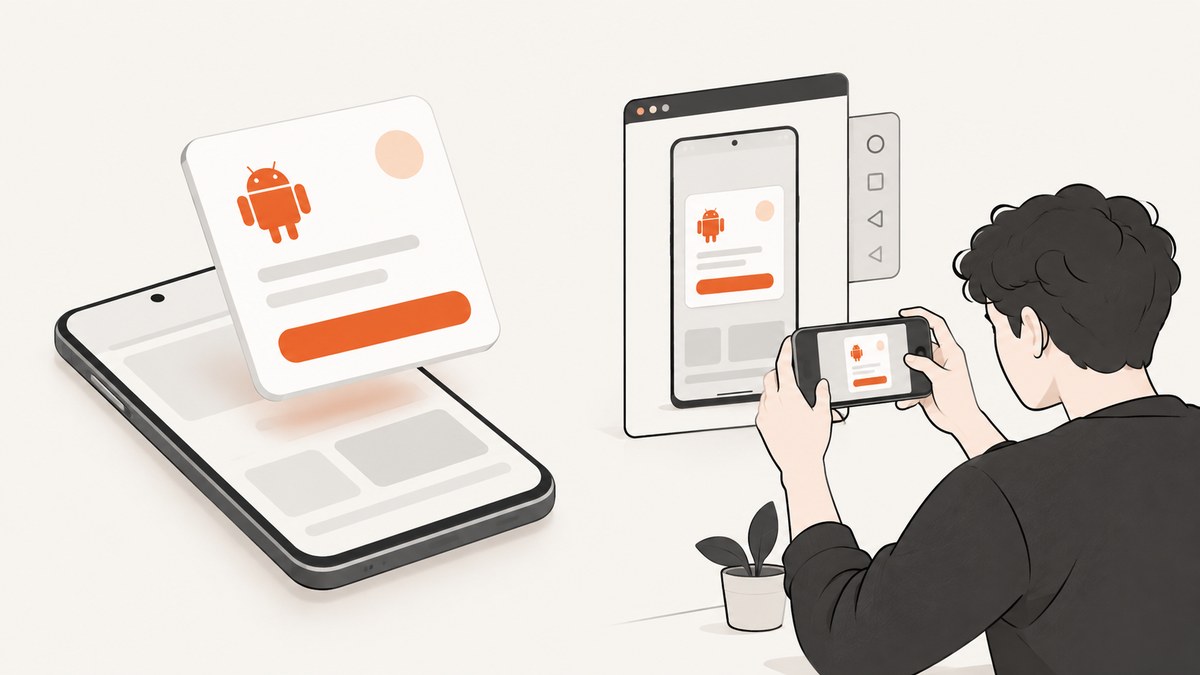
To capture an Android shadow, capture the screen after the elevated view has finished rendering. Android draws elevation shadows through the view’s parent, so a parent that clips its children can cut the shadow off before any screenshot API runs. If the shadow is missing, inspect the view’s Z value, outline, parent bounds and clipping first.
For a repeatable developer capture, use an Android device or emulator and save a PNG with adb exec-out screencap -p > screen.png. Keep the device, Android version, density, theme and renderer consistent when comparing screenshots because shadow rendering can vary between platforms.
1. How Android shadows are rendered
Android models a view’s Z position as its elevation plus its translationZ. A larger Z value generally produces a larger, softer shadow and changes occlusion order, but it does not enlarge the view itself. The view’s background drawable supplies the default shadow outline; a custom outline can replace it.
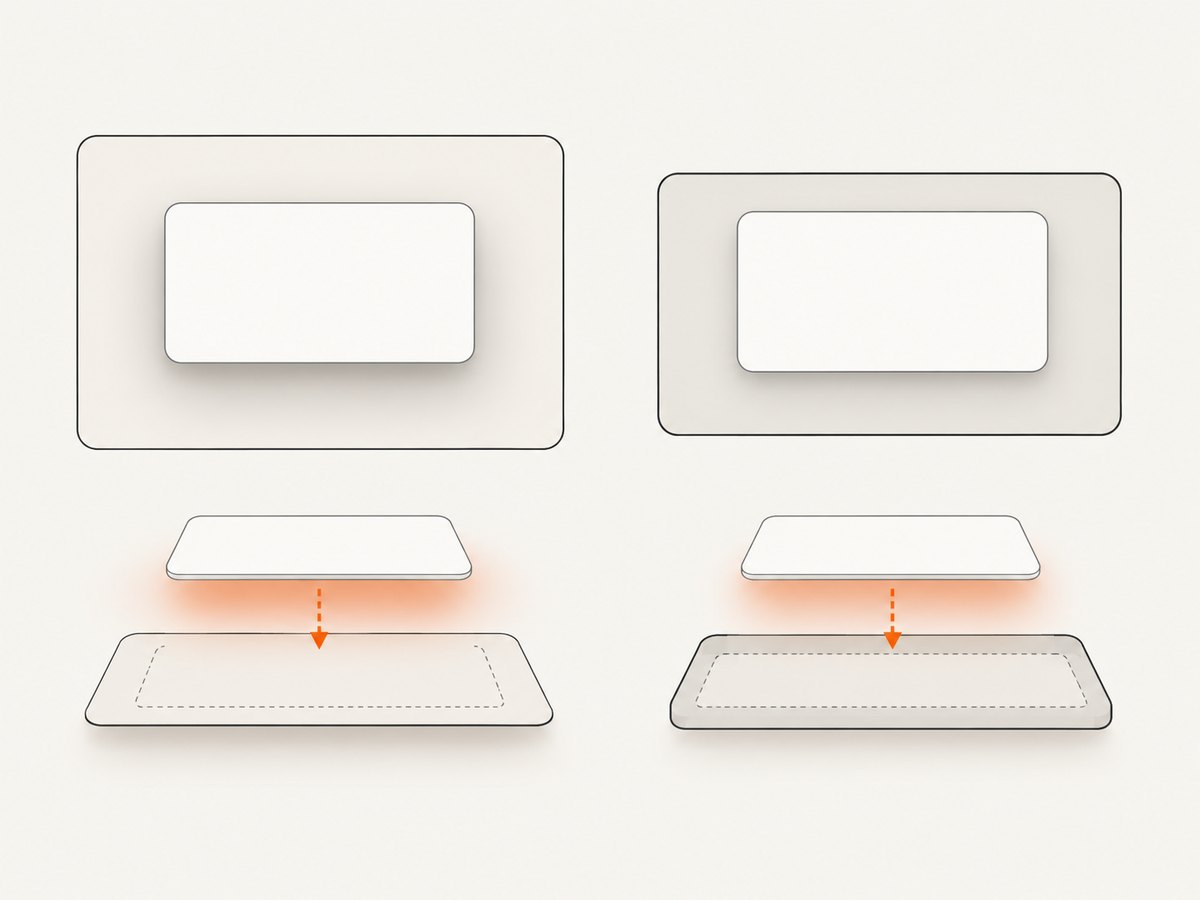
Android’s documentation states that “Shadows are drawn by the parent of the elevated view.” The parent’s normal clipping rules therefore matter. If the shadow extends beyond the parent’s bounds, the captured image cannot contain pixels that were clipped during layout or drawing.
val card = findViewById<View>(R.id.card)
card.elevation = 12f
card.translationZ = 0f
Check these values before capturing
- Elevation: confirm the view has a nonzero elevation in the final rendered state.
- TranslationZ: animations or state changes can temporarily alter the effective Z value.
- Outline: make sure the background shape or custom outline matches the intended card shape.
- Parent bounds: leave room around the view if the shadow extends outside its layout rectangle.
- Clipping: inspect ancestor containers for clipping behavior that trims drawing outside their bounds.
2. Capture a device or emulator screenshot from the command line
Connect a device with USB debugging enabled, or start an emulator, then verify that Android Debug Bridge can see it:
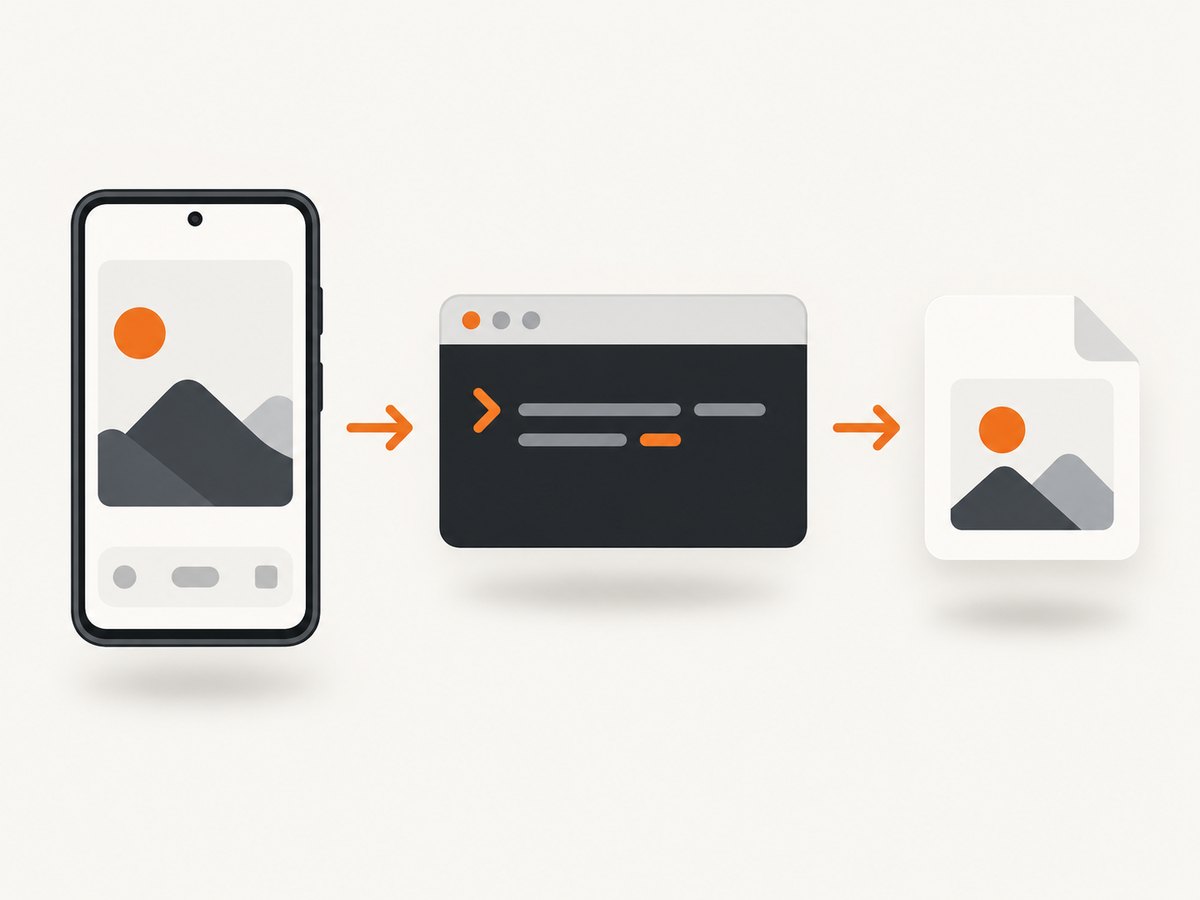
adb devicesCapture the current frame as a PNG:
adb exec-out screencap -p > android-shadow.pngOn environments where exec-out is unavailable, write the file on the device and pull it:
adb shell screencap -p /sdcard/android-shadow.png
adb pull /sdcard/android-shadow.png ./android-shadow.png
adb shell rm /sdcard/android-shadow.png
Open the resulting PNG at 100% scale. Scaling it in an image viewer can make a soft shadow appear sharper or weaker than it is. For repeatable captures, fix the same device or emulator profile, display density, orientation, font scale, dark/light theme and animation state.
Capture after the UI is ready
Take the screenshot only after the elevated view has been laid out and drawn. In automated flows, wait for the screen to reach its settled state rather than capturing immediately after navigation or an animation start. A screenshot command records the current frame; it does not wait for a shadow to appear or repair a clipped one.
3. Capture from the Android device UI
On most Android phones and tablets, press Power + Volume Down. The exact action varies by manufacturer, Android version and navigation configuration. On supported Android 12 and later devices, scrolling screenshot is available on most screens that allow scrolling.
Scrolling capture extends the content area; it does not enable a special shadow mode. A card shadow can still be clipped at a parent boundary, and the renderer can still produce platform-specific results.
4. Capture a view for tests or feedback
For app screenshots used in automated UI feedback or tests, choose a capture API that matches the surface being captured. Android’s View API guidance discusses PixelCopy for copying rendered UI content. It is not required for an ordinary user pressing the screenshot buttons, and it does not override layout clipping.
if (Build.VERSION.SDK_INT >= Build.VERSION_CODES.O) {
    val window = window
    val bitmap = Bitmap.createBitmap(
        window.decorView.width,
        window.decorView.height,
        Bitmap.Config.ARGB_8888
    )
    PixelCopy.request(window, bitmap, { result ->
        if (result == PixelCopy.SUCCESS) {
            FileOutputStream(File(cacheDir, "window.png")).use { out ->
                bitmap.compress(Bitmap.CompressFormat.PNG, 100, out)
            }
        }
    }, Handler(Looper.getMainLooper()))
}
Use the API appropriate to your window, surface and test framework. Verify that the callback reports success before reading the bitmap.
5. Diagnose a missing or clipped shadow
Shadow is cut off at one edge
Inspect the elevated view’s parent and its ancestors. Because the parent draws the shadow, standard clipping at any ancestor can trim the pixels. Increase the container’s available space or change the layout/clipping arrangement so the shadow remains inside the drawable region.
Shadow shape is wrong
Check the background drawable and outline provider. A rounded card needs an outline that follows its rounded shape; an incorrect or missing outline can produce an unexpected shadow silhouette.
Shadow appears on one device but not another
Capture under matching Android versions, device or emulator profiles, density, theme and renderer settings. Android’s screenshot testing guidance notes that low-level drawing features such as shadows depend on platform implementations, so pixel-identical output across renderers is not guaranteed.
Automated capture omits the expected rendering
- Confirm the view is attached and has nonzero width and height.
- Wait for layout, drawing and any elevation animation to finish.
- Check that the capture callback or command completed successfully.
- Inspect parent clipping and the view outline.
- For window or surface capture used in tests, evaluate whether
PixelCopyfits the capture context.
Need a longer screenshot
Use the device’s scrolling screenshot feature on Android 12 and later where supported. It captures more scrollable content, but it does not change elevation, shadow generation or clipping.
6. Compare capture methods
| Method | Best for | Shadow considerations |
|---|---|---|
| Power + Volume Down | Manual device screenshots | Uses the device’s current renderer and layout; manufacturer steps vary. |
| Scrolling screenshot | Long scrollable screens | Extends the capture; does not fix clipped shadows. |
adb exec-out screencap -p |
Repeatable device or emulator PNGs | Captures the current frame; keep environment settings fixed. |
| PixelCopy | App or test code capturing rendered UI | Use for the relevant window or surface; it cannot restore pixels clipped by layout. |
7. Performance, reliability and cost notes
- Performance: PNG preserves soft shadow edges without lossy compression, but large full-screen images take more storage and transfer time.
- Reliability: Emulator and physical-device captures can differ. Pin the Android image, device profile, density, orientation and theme in visual regression jobs.
- Repeatability: Disable or settle animations, wait for network content and capture at a known state.
- Cost: Local
adband device screenshots have no screenshot-service request cost; device, emulator and CI resources still consume your normal infrastructure budget.
8. Or skip the browser setup
ScreenshotNeo is a website screenshot API, so it is useful when the thing you need to capture is a web page, hosted Android demo or documentation page rather than a live Android device surface. One GET request returns a PNG, JPEG, WebP or PDF. See the ScreenshotNeo API documentation for all options.
curl -G "https://api.screenshotneo.com/v1/shot" -d access_key=YOUR_API_KEY --data-urlencode url=https://developer.android.com -o shot.webpimport requests
r = requests.get("https://api.screenshotneo.com/v1/shot", params={"access_key": "YOUR_API_KEY", "url": "https://developer.android.com"}, timeout=90)
open("shot.webp", "wb").write(r.content)const q = new URLSearchParams({ access_key: 'YOUR_API_KEY', url: 'https://developer.android.com' });
const res = await fetch(`https://api.screenshotneo.com/v1/shot?${q}`);
const data = Buffer.from(await res.arrayBuffer());
require('fs').writeFileSync('shot.webp', data);ScreenshotNeo removes cookie banners, newsletter popups and chat widgets before the shot. Bot checks, blank pages and failed loads are never billed, and response headers report the page verdict and billing result. Its MCP server lets Claude, Cursor and other MCP clients use take_screenshot, get_page_info and capture_pdf. The free plan includes 1,000 screenshots a month with no card; paid plans start at $5 for 3,000.
Create a free ScreenshotNeo account to try it.
9. FAQ
Does higher elevation guarantee a visible shadow?
No. The view still needs a suitable outline, and an ancestor can clip the shadow outside its bounds.
Can a screenshot setting restore a shadow that was clipped?
No. Capture APIs record rendered pixels; fix the layout or clipping that removed them.
Are Android screenshots pixel-identical across devices?
No. Platform implementations of low-level drawing features can differ, so compare under controlled conditions.
Does scrolling screenshot preserve shadows?
It captures more scrollable content where supported, but it does not change shadow rendering or clipping.
Should I use an emulator or a physical device?
Use the environment that matches the devices you support, then keep that environment fixed for comparisons and regression captures.


