How to Capture a Full-Page SPA as a PDF with Node.js and Puppeteer
Render a single-page app completely, wait for real readiness, and export a reliable paginated PDF with Node.js and Puppeteer.
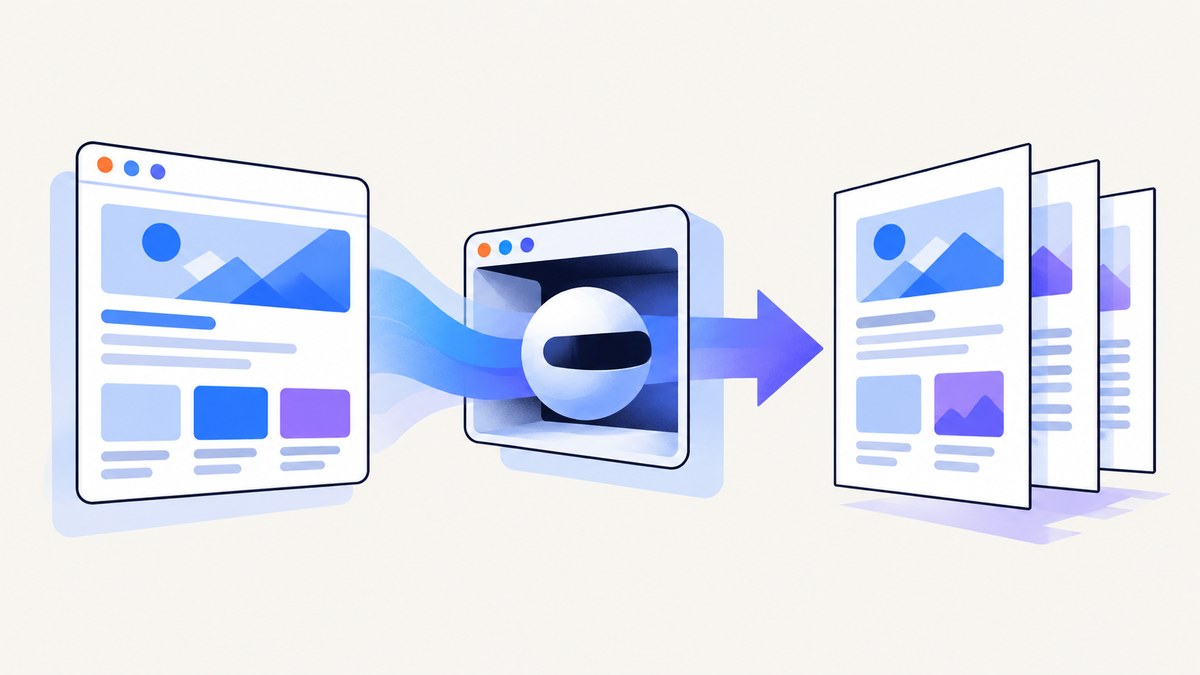
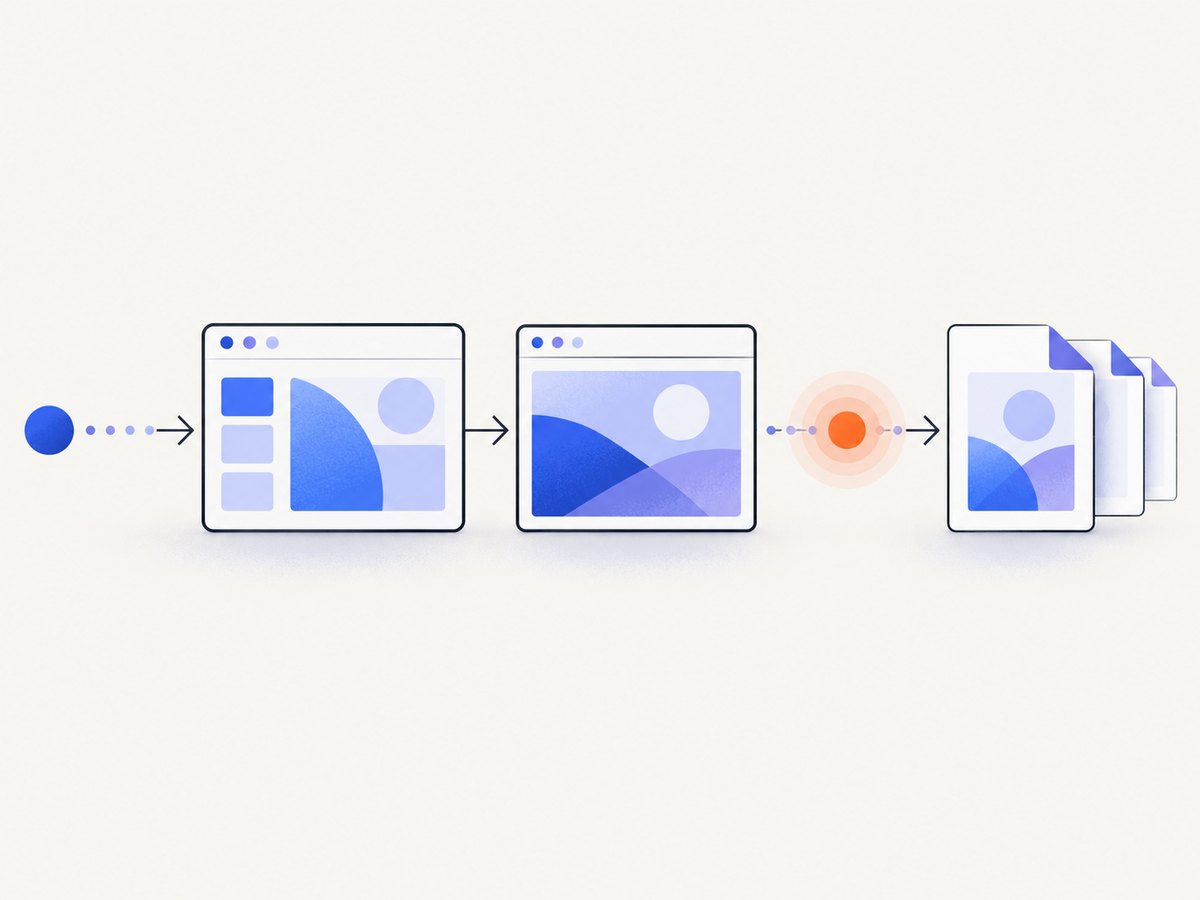
Direct answer: launch Chromium with Puppeteer, navigate to the SPA, wait for an application-specific condition that proves the content is rendered, load any lazy sections, then call page.pdf(). A PDF is paginated print output. page.screenshot({fullPage: true}) is a separate full-page image workflow.
The most important decision is the readiness condition. Navigation events and network-idle timing do not know whether your React, Vue, Angular, or other SPA has finished fetching data, mounting charts, or revealing lazy sections.
1. Install Puppeteer and create the exporter
Install Puppeteer in a Node.js project:
npm install puppeteerCreate export-spa-pdf.mjs:
import puppeteer from 'puppeteer';

const url = process.argv[2] ?? 'https://example.com/app/report';
const browser = await puppeteer.launch({ headless: true });

try {
  const page = await browser.newPage();
  await page.setViewport({ width: 1440, height: 1000, deviceScaleFactor: 1 });

  await page.goto(url, {
    waitUntil: 'domcontentloaded',
    timeout: 60_000,
  });

  await page.waitForSelector('[data-pdf-ready=\'true\']', {
    visible: true,
    timeout: 30_000,
  });

  await page.waitForNetworkIdle({ idleTime: 500, concurrency: 0 });

  await page.pdf({
    path: 'report.pdf',
    format: 'A4',
    printBackground: true,
    preferCSSPageSize: true,
    waitForFonts: true,
    margin: { top: '16mm', right: '14mm', bottom: '16mm', left: '14mm' },
  });
} finally {
  await browser.close();
}
Run it with node export-spa-pdf.mjs https://your-app.example/report. The selector is illustrative. Replace it with a marker your application sets only after the report data and intended sections are complete.
2. Wait for the SPA, not just the browser
domcontentloaded fires before many application requests finish. A network-idle interval is also only a heuristic: polling, streaming, WebSockets, and analytics can keep traffic active indefinitely. Add an app-owned marker:
// Set this after the final query, charts, images and sections are rendered.
document.documentElement.dataset.pdfReady = 'true';
Or render an element such as <div data-pdf-ready='true'></div>. A state-based wait is another option:
await page.waitForFunction(
  () => window.reportState?.status === 'complete',
  { timeout: 30_000 },
);
A visible selector proves that a matching element exists; it does not prove that every child is populated. If you cannot change the application, wait for a meaningful selector and inspect the resulting DOM before trusting the PDF.
3. Trigger lazy-loaded content
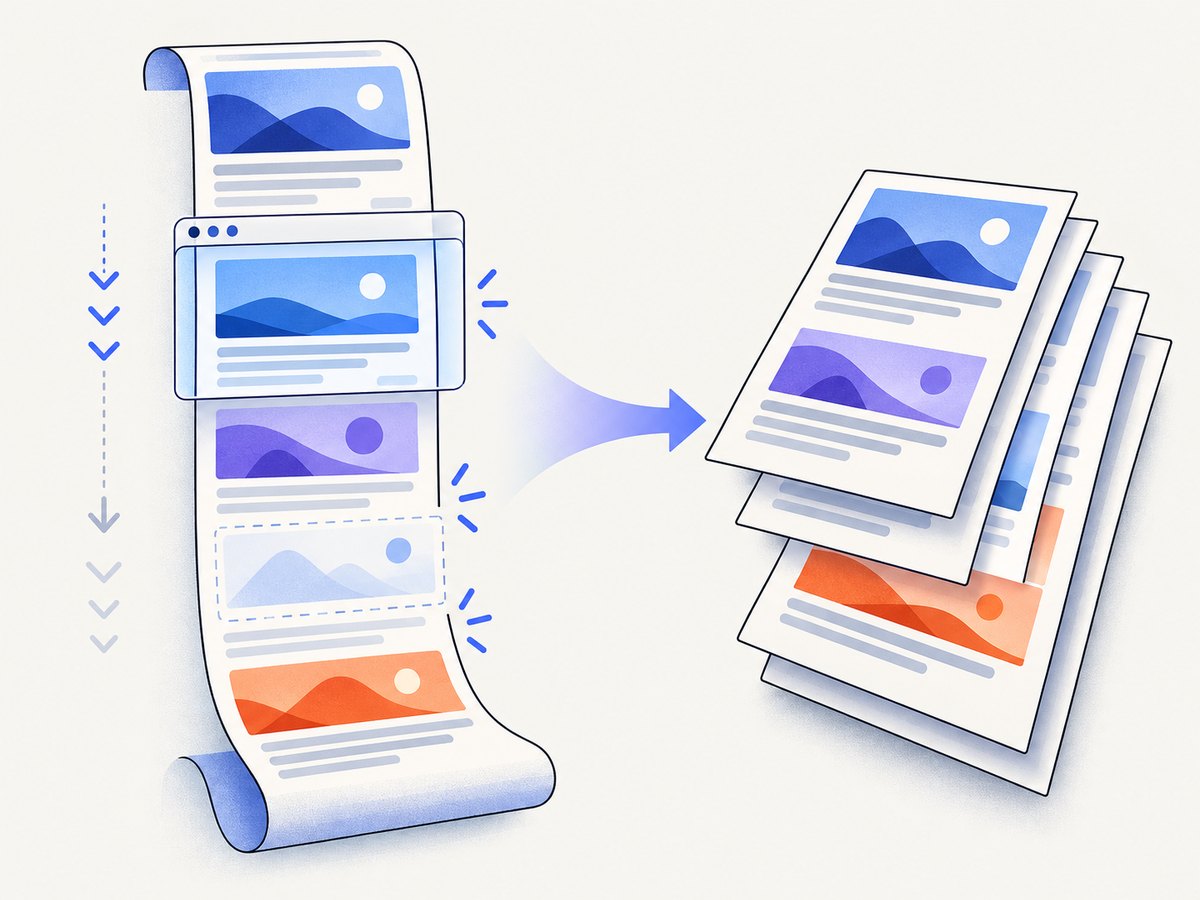
Many SPAs use IntersectionObserver to fetch cards, images, or chart data only when a section enters the viewport. Scroll through the document before printing:
await page.evaluate(async () => {
  await new Promise((resolve) => {
    let previous = 0;
    const step = () => {
      const height = document.documentElement.scrollHeight;
      window.scrollTo(0, height);
      if (height === previous) return resolve();
      previous = height;
      setTimeout(step, 250);
    };
    step();
  });
});

await page.waitForFunction(
  () => [...document.images].every((image) => image.complete),
  { timeout: 30_000 },
);
await page.evaluate(() => window.scrollTo(0, 0));
This technique cannot defeat every virtualization strategy. A virtualized list may remove earlier rows as you scroll. For that case, provide a print route that renders all rows or disable virtualization in print mode. Check document.documentElement.scrollHeight and the selectors for every required section before exporting.
4. Understand print media and pagination
page.pdf() uses print media by default. Print rules can hide navigation, change colors, remove fixed elements, or constrain overflow. That is often desirable for a document, but it explains why a PDF differs from the screen.
@media print {
  .app-chrome, .toast, .chat-widget { display: none !important; }
  .report-section { break-inside: avoid; }
  * {
    -webkit-print-color-adjust: exact;
    print-color-adjust: exact;
  }
}

@page { size: A4; margin: 16mm 14mm; }
If screen styling is explicitly required, request it before printing:
await page.emulateMediaType('screen');
await page.pdf({ path: 'screen-styled.pdf', format: 'A4', printBackground: true });
Review print CSS before adding arbitrary delays. Puppeteer waits for document fonts by default in the current API. Missing fonts usually indicate a failed request, incorrect origin, or a stylesheet problem.
5. PDF options you should choose deliberately
| Option | Purpose | Practical guidance |
|---|---|---|
format |
Paper preset such as A4 or Letter | Use for portable, predictable output. |
width/height |
Custom paper dimensions | Useful for receipts or controlled layouts. |
margin |
Page whitespace | Set all four sides when consistency matters. |
printBackground |
Background fills and charts | Defaults to false; enable when needed. |
preferCSSPageSize |
Give @page priority |
Useful when the stylesheet owns page size. |
pageRanges |
Export selected pages | Examples include 1-3,5. |
scale |
Change rendering scale | Lower values fit more content but reduce readability. |
waitForFonts |
Wait for document fonts | Keep enabled unless you have a specific reason not to. |
Normal page-sized PDFs are easier to print and share than one extremely tall custom page. A PDF is a document layout, not a tall screenshot.
6. Authenticated reports and diagnostics
Set headers and cookies before navigation. Keep secrets out of the URL whenever possible:
import puppeteer from 'puppeteer';

const browser = await puppeteer.launch({ headless: true });
try {
  const page = await browser.newPage();
  await page.setExtraHTTPHeaders({
    Authorization: `Bearer ${process.env.REPORT_TOKEN}`,
  });
  await page.setCookie({
    name: 'session',
    value: process.env.SESSION_COOKIE,
    domain: 'app.example.com',
    path: '/',
    httpOnly: true,
    secure: true,
  });

  await page.goto('https://app.example.com/report/42', {
    waitUntil: 'domcontentloaded',
    timeout: 60_000,
  });
  await page.waitForSelector('[data-pdf-ready=\'true\']', {
    visible: true,
    timeout: 30_000,
  });

  const diagnostics = await page.evaluate(() => ({
    title: document.title,
    height: document.documentElement.scrollHeight,
    images: [...document.images].map((image) => ({
      src: image.currentSrc,
      complete: image.complete,
    })),
  }));
  console.log(JSON.stringify(diagnostics));

  await page.pdf({
    path: 'report.pdf',
    format: 'Letter',
    printBackground: true,
    preferCSSPageSize: true,
    waitForFonts: true,
  });
} finally {
  await browser.close();
}
When a capture fails, save await page.content(), log console messages and failed responses, and take a normal screenshot. Comparing the DOM before and after the readiness condition is usually more useful than increasing a timeout.
7. PDF versus a full-page screenshot
Use page.pdf() for selectable text, pagination, print margins, and page ranges. Use a screenshot for visual archiving or image-based regression:
await page.screenshot({ path: 'report.png', fullPage: true });The fullPage option belongs to screenshot capture. It does not configure PDF generation.
8. Troubleshooting common failures
| Symptom | Cause | Fix |
|---|---|---|
| Only the loading shell appears | Navigation completed before SPA data. | Wait for an application-owned selector or state flag. |
| Sections are missing | Lazy loading or virtualization. | Scroll to trigger observers or use a non-virtualized print route. |
| The PDF is blank | Print CSS hides the root or navigation failed. | Inspect HTML, console errors, response failures, and @media print. |
| Colors differ | Print media changes styles; backgrounds are disabled. | Review print CSS, use printBackground: true, and emulate screen media only when intended. |
| Fonts are replaced | Font requests failed or export happened early. | Check font responses and keep waitForFonts: true. |
| Network idle never resolves | Polling, streaming, or persistent connections. | Use the readiness condition as the contract; treat idle as optional. |
| Content is clipped | Fixed heights or overflow: hidden. |
Remove restrictive print heights and overflow. |
| Redirected to login | Cookie or header scope is incorrect. | Set credentials before navigation and verify domain and path. |
| Chromium will not launch | Missing OS libraries or constrained container. | Install Chromium dependencies or provide a managed executable path. |
| Pages split badly | Break rules, fixed elements, or scaling. | Inspect print layout and adjust break-inside, margins, or scale. |
9. Performance and reliability
Reuse a browser process for batches, but create a fresh page per document and close every page in finally. Set explicit navigation and readiness timeouts. Pin the Puppeteer and Chromium versions used in production, set a stable timezone and locale, disable animations in print CSS, and avoid unnecessarily large viewports or scale values.
Retry transient navigation failures, not deterministic application errors. If data can change during capture, export from a server-side snapshot or include a report version in the readiness marker. Browser automation requires a Chromium runtime, memory, startup time, and maintenance; image count, fonts, and SPA complexity dominate actual runtime, so measure your own pages.
10. Or skip the browser setup
ScreenshotNeo provides a website screenshot API and MCP server. Its endpoint can render a URL and return an image or PDF while handling browser setup. See the ScreenshotNeo API docs for PDF parameters.
curl -G 'https://api.screenshotneo.com/v1/shot' -d access_key=YOUR_API_KEY --data-urlencode url=https://stripe.com -o shot.webpimport requests
r = requests.get('https://api.screenshotneo.com/v1/shot', params={'access_key': 'YOUR_API_KEY', 'url': 'https://stripe.com'}, timeout=90)
r.raise_for_status()
open('shot.webp', 'wb').write(r.content)const q = new URLSearchParams({ access_key: 'YOUR_API_KEY', url: 'https://stripe.com' });
const res = await fetch(`https://api.screenshotneo.com/v1/shot?${q}`);
if (!res.ok) throw new Error(`HTTP ${res.status}`);ScreenshotNeo supports full-page capture with lazy images loaded, PDF paper size, margins, landscape mode and page ranges, plus custom CSS and JavaScript, waits for a selector, delay or network idle, custom headers and cookies, timezone and geolocation, request blocking, caching, signed links, async jobs with signed webhooks, bulk capture for 100 URLs per call, usage information, and an OpenAPI specification.
Cookie banners, newsletter popups and chat widgets are removed before capture. Bot checks, blank pages, failed loads, timeouts and cache hits are not billed; the response identifies the result with X-Page-Verdict and X-Billed headers. Its MCP server exposes take_screenshot, get_page_info and capture_pdf to Claude, Cursor and other MCP clients.
The Free plan includes 1,000 screenshots per month with no card. Paid plans start at $5 for 3,000 shots, yearly billing gives two months free, and every feature is included on every plan. Create a free ScreenshotNeo account.
11. FAQ
Does fullPage: true work with page.pdf()?
No. It is a screenshot option. PDFs are paginated by paper size and print CSS.
Should every export wait for network idle?
No. Use an app-specific readiness condition first. Network idle may never occur on apps with persistent traffic.
How do I export selected pages?
Pass a pageRanges value such as 1-3,5.
Why does the PDF differ from the browser?
Puppeteer uses print media by default. Review @media print, backgrounds, page breaks and overflow.
Can I create one very tall PDF page?
Custom dimensions can define unusual paper, but normal page sizes are more portable. Use a full-page screenshot when the goal is one tall visual.


