How to Capture Websites with Specific Banner Ads
Capture a website while the banner you want is actually visible. Choose a browser or automated workflow, keep ad blocking off, and verify the saved image.
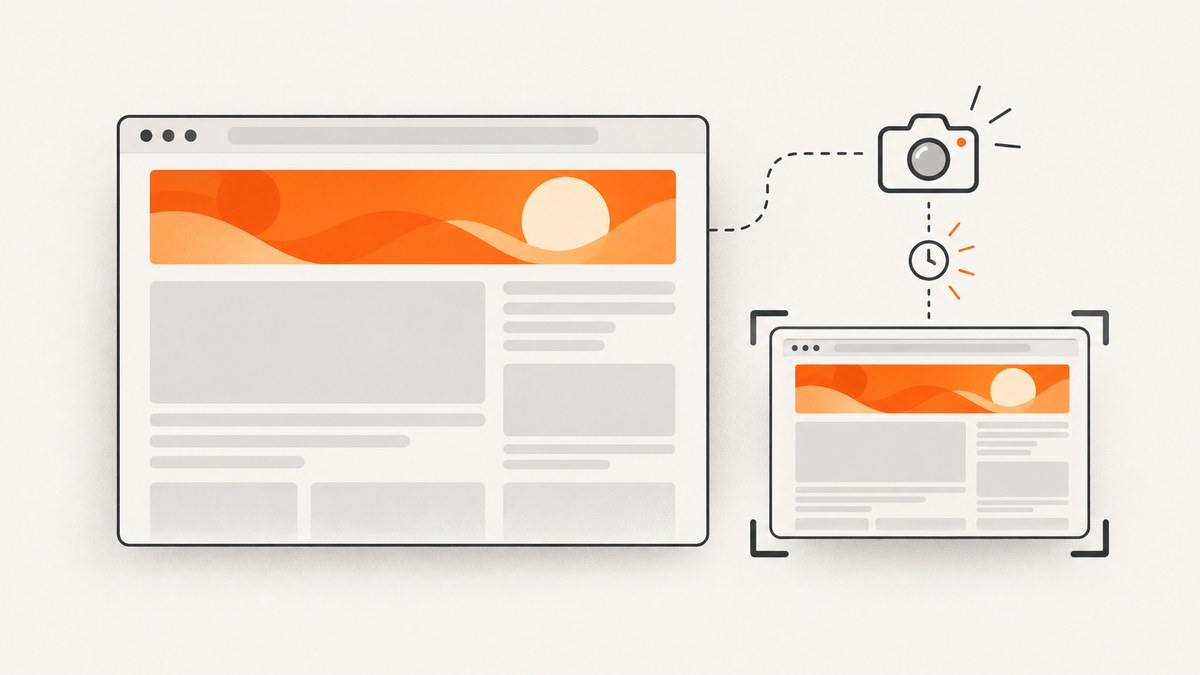
To capture a website with a specific banner ad visible, open the page, wait until that exact ad appears, and take the screenshot while it is on screen. A screenshot records the page as rendered at that moment; it cannot make an ad network deliver a particular creative. For a manual capture, Microsoft Edge supports full-page and selected-area screenshots. For automation, set the target URL and viewport, keep ad blocking disabled, and wait for the page to render before capture. Always inspect the output to confirm the intended banner is present.
1. Confirm what “specific banner ad” means
This phrase can mean either a page that displays banner advertising or one particular creative, such as a campaign image with a specific offer. The distinction matters. A screenshot tool controls when and how it captures a rendered page, but ad delivery is decided by the site’s advertising setup and the ad system’s decisions for that visit. The reviewed browser and capture documentation does not describe a control that commands an ad network to serve a chosen creative.
If you need a particular creative for a report, review, or record, first verify that the creative is visible in the browser. Take the screenshot only after that check. A later visit or retry may show a different impression, and capture settings cannot guarantee otherwise.
2. Choose the screenshot scope
| What you need | Capture scope | When to use it |
|---|---|---|
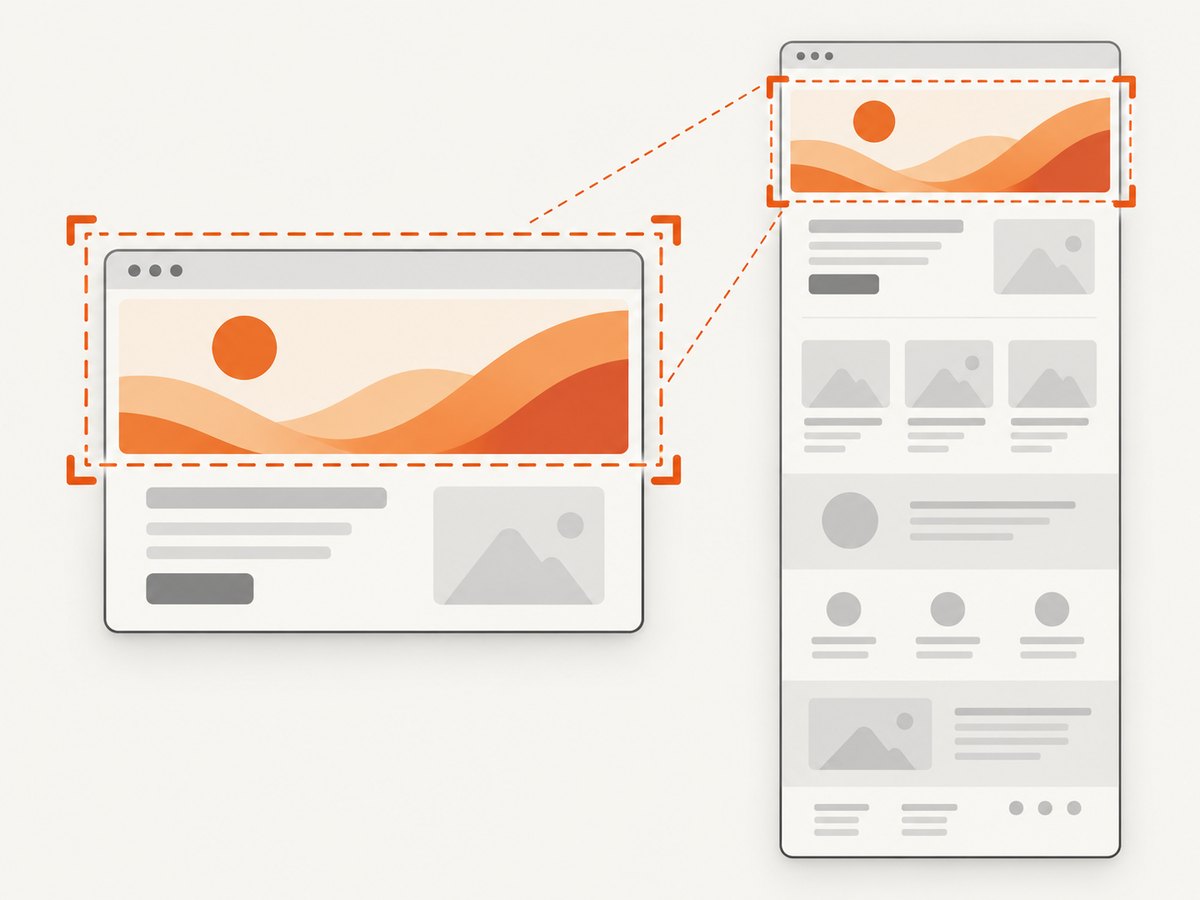
| The banner as it appears on screen | Current viewport | The ad is visible without scrolling and the surrounding browser-rendered context is useful. |
| The banner and nearby content | Selected area | You want a focused image that includes the ad plus a chosen part of the page. |
| Content elsewhere on the page, or a page record | Full page | The relevant content is below the fold or you need the full document in one image. |
For an on-screen banner, a viewport or selected-area capture usually preserves the visual context in which the ad appeared. Full-page capture is useful when the requested record must include content outside the current screen. Be aware that full-page capture may change how a long or dynamically loaded page is represented; inspect the resulting file rather than assuming it matches a single viewport.
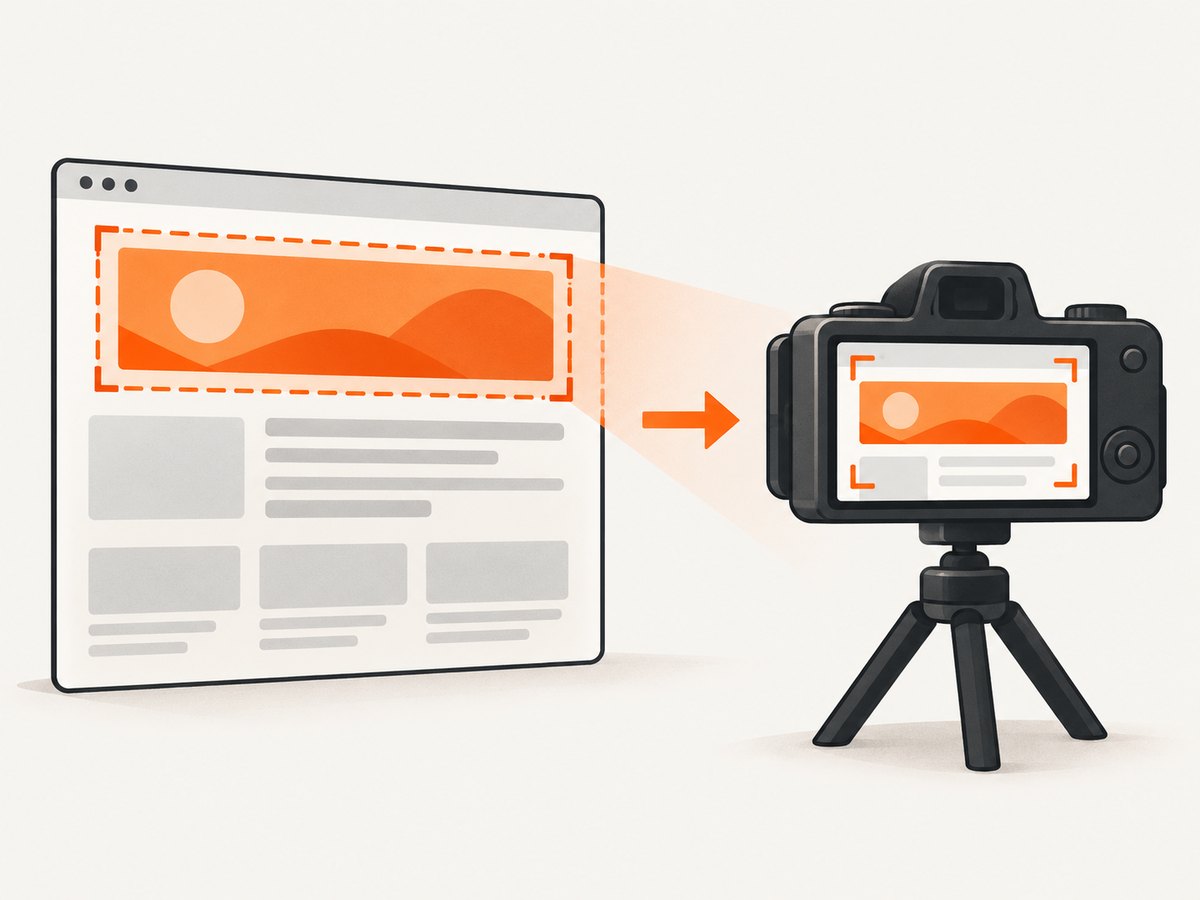
3. Capture manually in Microsoft Edge
- Open the target URL in Edge and wait for the page and intended banner to appear.
- Check the visible creative and its placement before capturing. If it is not the right ad, the screenshot feature cannot select it for you.
- Press Ctrl+Shift+S to open Screenshot.
- Choose a selected area for a focused capture, or full-page capture when you need content beyond the visible screen.
- Save the image or copy it, depending on the available controls, then open the saved result and confirm the banner is legible and present.
Microsoft documents both full-page and selected-area screenshot options. Exact availability can vary by device, market, and browser version, so check the current Edge interface if a control is missing. For a viewport-only record, frame the page at the desired scroll position before using the capture tool.
4. Automate captures while leaving ads eligible to render
For scheduled or repeatable captures, use a screenshot API or browser automation workflow that renders the page before taking an image. Set the URL, viewport dimensions, and capture scope explicitly. If the page loads its banner asynchronously, use a wait condition or a delay. Confirm that ad blocking is disabled: the Capture screenshot API reference documents blockAds as false by default, but defaults can change, so set and verify the option in the current API documentation.
A delay gives the page more time to render; it does not guarantee that an ad is served. A selector wait can be useful when the page exposes a stable element that indicates the relevant content has loaded, but it also cannot choose a particular advertisement. Cloudflare Browser Run documents a screenshot endpoint that renders a webpage, including HTML and JavaScript, before taking its image. Review current endpoint controls before building a workflow around a service.
Automation checklist
- Use the exact page URL and the viewport where the banner normally appears.
- Keep ad blocking off, and check for any browser, extension, proxy, or network policy that blocks ad requests.
- Wait for page rendering with an appropriate selector or a measured delay if needed.
- Choose viewport, region, or full-page scope to match the record you need.
- Save the response and inspect it for the intended creative; a successful HTTP response alone does not prove the ad appeared.
- When the exact creative is absent, record that outcome and retry only if the workflow permits another page impression.
5. cURL example with Capture
The Capture API documents screenshot options including ad blocking, viewport dimensions, full-page capture, selector waits, and delay. Consult its current reference for authentication, exact parameter names and response handling before using the request below as a template. The blockAds value should be false for this use case; the exact endpoint URL and API key format are not included in the research reference, so do not guess them.
# Set the endpoint and authentication according to the current Capture API docs.
# Include the target URL, viewport and desired full-page/region options.
# Explicitly set blockAds=false, then use a documented wait or delay if needed.
# Save the image response and inspect it for the intended banner.
This intentionally avoids inventing a runnable endpoint or credential syntax not documented in the available source. Cloudflare Browser Run likewise provides a documented screenshot endpoint; use its current endpoint controls and authentication instructions for a production request.
6. Common problems and fixes
| Symptom | Likely cause | What to do |
|---|---|---|
| The screenshot has no banner | The ad was not served on that visit, had not loaded yet, or ad blocking is active. | Verify the live page first, disable ad blocking in the capture path, and add an appropriate render wait. If the creative still does not appear, the capture settings cannot force delivery. |
| A different banner appears | The advertising system served a different impression. | Check the page again and capture only when the requested creative is visible. Do not treat viewport or wait settings as creative-selection controls. |
| The banner is clipped | The viewport or selected region excludes part of the ad, or the page was scrolled to an unsuitable position. | Adjust the viewport or selection; capture at the right scroll position. Use full-page capture only if the needed content lies outside the current screen. |
| The image is mostly blank | The page had not rendered before capture, or loading failed. | Wait for a stable page element or allow more time, then verify the page manually. A wait cannot fix a failed page request. |
| Full-page output differs from the visible page | Long pages and dynamic content may render or load differently during a full-page capture. | Compare with a viewport or selected-area capture and inspect the output. Use the scope that preserves the evidence you need. |
| Screenshot controls or API options are missing | Feature availability or documentation may differ by version, market, or service configuration. | Check the current browser interface and official service docs before relying on a particular control. |
7. Reliability, performance, and cost considerations
Ad impressions can vary across visits, so a reliable workflow separates page capture from creative verification. Preserve the URL, capture time, chosen scope, and resulting image according to your own recordkeeping needs. If a specific creative is essential, build a review step into the process; a screenshot API cannot guarantee the ad network will return it.
Waiting longer can help with delayed rendering, but it also increases the time each automated job takes. Prefer a relevant selector wait when a stable page element is available; otherwise use a reasonable delay and inspect sample results. Full-page images can take more processing than a viewport capture, depending on page length and service behavior. The cited sources do not provide comparable performance benchmarks or guaranteed costs, so check the current service terms before scaling recurring capture jobs.
Microsoft Edge is suitable for occasional manual captures. API-based capture is useful when the same workflow must run repeatedly or across URLs, but requires configuration and output checks. Browser features, APIs, and defaults can change; verify current documentation when a workflow depends on a particular option.
8. Or skip the browser setup
ScreenshotNeo is a website screenshot API and MCP server from Yorker Media. Its one-call API returns a screenshot or PDF, with capture options for viewport, full page, selectors, waits, and other page settings. See the ScreenshotNeo API documentation.
curl -G "https://api.screenshotneo.com/v1/shot" -d access_key=YOUR_API_KEY --data-urlencode url=https://stripe.com -o shot.webpFor this banner-ad task, verify the returned image: a capture call cannot guarantee that a particular ad creative was served. ScreenshotNeo removes cookie banners, popups, and chat widgets before the shot, which can leave more page area visible; each of those steps can be turned off. Bot checks, blank pages, and failed loads are never billed, and the response identifies the page verdict and billing status. An MCP server lets AI agents use screenshot tools. The free plan includes 1,000 screenshots a month with no card; paid plans start at $5 for 3,000.
Create a free ScreenshotNeo account for 1,000 screenshots a month with no card.
9. Frequently asked questions
Can I make a website show one exact banner ad?
Not with screenshot settings alone. Capture controls govern rendering time and image scope; they do not command ad delivery. Wait until the wanted creative is actually visible.
Should I use full-page capture for a banner?
Use a viewport or selected area when the banner is visible on screen. Choose full-page when content outside the viewport must be included.
Does disabling ad blocking guarantee I will see an ad?
No. It prevents the capture setup from intentionally blocking ads, but delivery still depends on the page and advertising system.
How can I prove which banner was captured?
Inspect the saved image and retain the capture time and page URL with it. A capture response does not by itself establish that the requested creative is present.
Sources
- Microsoft Edge Screenshot Tool — full-page and selected-area capture; feature availability can vary.
- Capture screenshot options — ad blocking, viewport, full-page, waits, and delay.
- Cloudflare Browser Run screenshot endpoint — webpage rendering and screenshot workflow.


