How to Capture Specific Web Page Content as an Image File
Save a selected region, HTML element, visible viewport, or full web page as a PNG with Firefox, macOS capture, or ScreenshotNeo.
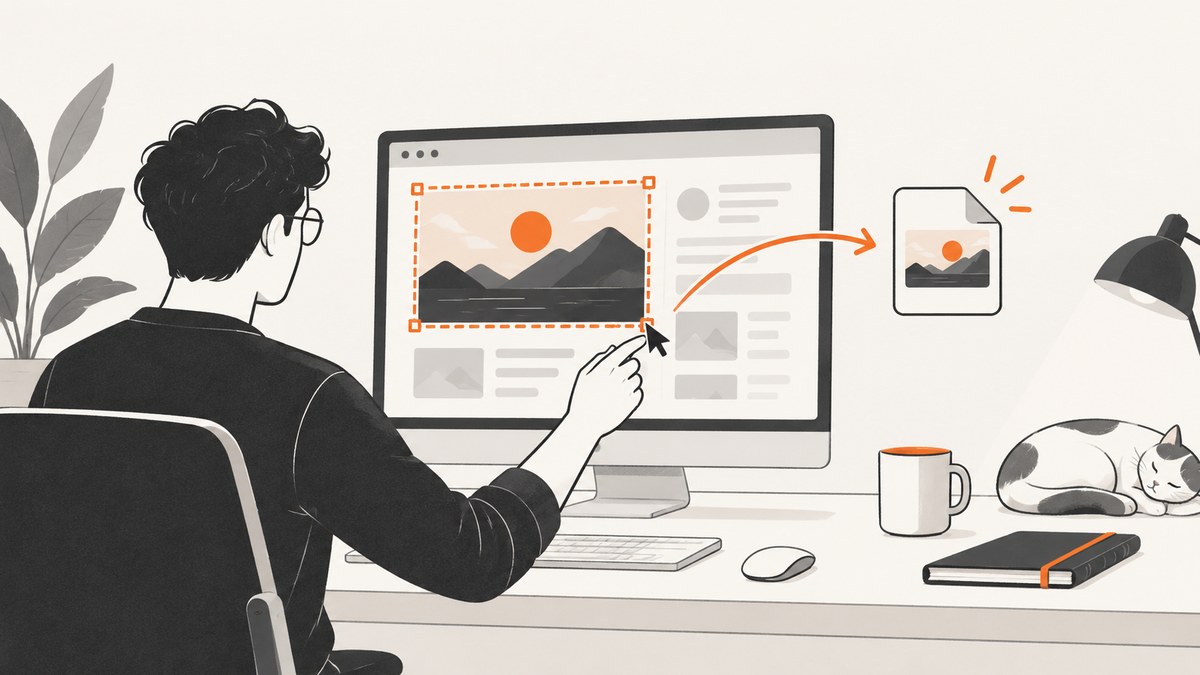
Direct answer: In Firefox, right-click an empty area of the page, choose Take Screenshot, select the region or highlighted page part, then choose Download. Firefox saves a PNG. Use Save visible for the current viewport, Save full page for the entire document, or Firefox Developer Tools’ Screenshot Node when you need one HTML element.
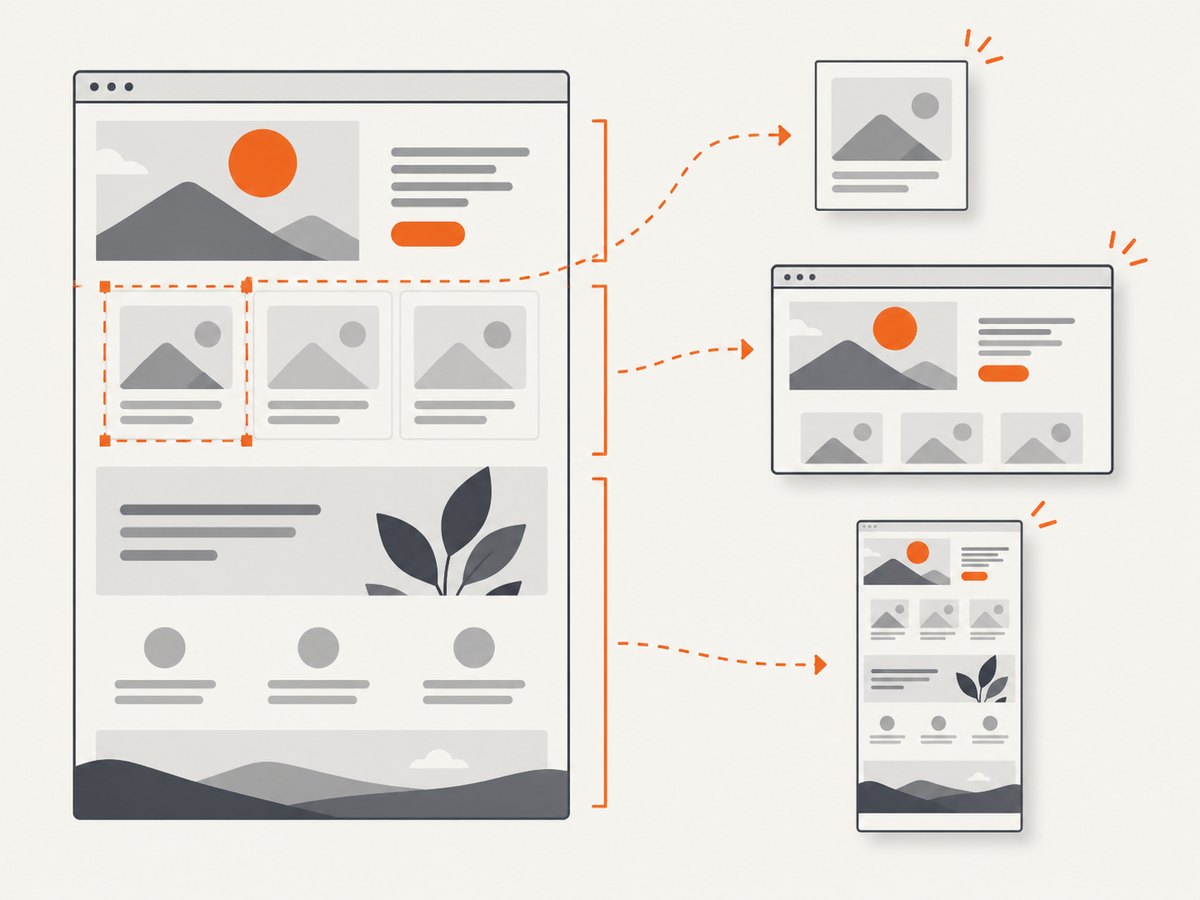
Choose the capture scope before you start:
| What you need | Best method | Includes content outside the viewport? |
|---|---|---|
| An arbitrary rectangle | Firefox Take Screenshot and drag a region | No |
| One page component | Firefox’s automatically highlighted page part | Only if the component extends beyond the viewport and Firefox includes it |
| One HTML element | Developer Tools Inspector → Screenshot Node | Element-dependent |
| The visible browser area | Take Screenshot → Save visible | No |
| The complete document | Take Screenshot → Save full page | Yes |
| Pixels currently displayed on a Mac | macOS screen capture | No |
1. Capture a selected region in Firefox
- Open the page and wait for the content you need to appear.
- Right-click an empty part of the page and select Take Screenshot. You can also press Ctrl+Shift+S on Windows or Linux, or Command+Shift+S on macOS. Mozilla documents this workflow in its Firefox screenshot guide.
- Drag over the exact rectangle you want. Firefox also highlights page parts as you move the pointer; click a highlighted part when it matches your target.
- Adjust the selection handles if necessary.
- Choose Download to save a PNG in Firefox’s configured download folder, or choose Copy to place the image on the clipboard.
This is the fastest option for a heading and paragraph, a chart, a product card, or any other rectangular detail that is already visible.
2. Save one HTML element with Screenshot Node
Use this method when the target is a DOM element rather than an arbitrary screen rectangle.
- Open Firefox Developer Tools with F12 or Ctrl+Shift+I (Windows/Linux) or Command+Option+I (macOS).
- Open the Inspector and select the element in the HTML pane.
- Right-click the selected node.
- Choose Screenshot Node.
- Save the generated PNG. Use a new filename or location when repeating the operation, because reusing a filename can overwrite an existing screenshot.
Mozilla’s Firefox Developer Tools documentation describes element and full-page screenshot controls. This approach is useful for a card, table, article section, or component whose boundaries are defined by HTML and CSS.
3. Capture the visible viewport or the full page
Open Firefox’s Take Screenshot tool and select one of these commands:
- Save visible: saves only the pixels currently in the viewport.
- Save full page: captures the complete page, including content below the fold.
Use full-page capture for long documentation, receipts, or articles. Allow images and interactive content to finish loading first; otherwise the saved file can contain placeholders or partially rendered sections.
4. Capture a visible area on macOS
macOS can save a selected portion of the display with its built-in screenshot interface. Press Shift+Command+5, choose the selected-area option, drag around the content, and save the result. Apple’s screen-capture guide documents the available controls.
A system screenshot records displayed screen pixels. It cannot include content below the viewport in one file. For a long page, scroll and capture multiple sections, or use Firefox’s full-page option.
5. Match the method to the result you need
Region versus element
A dragged region is based on screen coordinates. It may include nearby pixels, browser zoom effects, or part of an adjacent component. Screenshot Node targets the selected HTML element and is usually better when you need repeatable component boundaries.
Viewport versus full page
A viewport image represents what a visitor sees without scrolling. A full-page image is better for archival or review purposes but can be very tall and harder to read at normal size.
Rendered page versus source
All of these methods capture the rendered result. They include the current fonts, layout, animations, consent dialogs, and responsive breakpoint. They do not save the page’s HTML or CSS as an editable image source.
6. Prepare the page before capturing
- Close menus, tooltips, browser notifications, and temporary overlays that should not appear.
- Set the browser zoom and window size you want represented.
- Scroll the target into view for a region or viewport capture.
- Wait for fonts, images, charts, and lazy-loaded content to finish rendering.
- Pause animations or capture after the desired frame appears.
- Check that a cookie banner or chat widget is not covering the target.
- Confirm that private information is not visible before sharing the file.
7. Automate element and page captures with ScreenshotNeo
If you need repeatable captures in a build, monitoring job, script, or AI workflow, ScreenshotNeo provides a website screenshot API. It can capture one element by CSS selector or a full page, with options for custom viewports, device presets, dark mode, retina scale, waits, custom CSS and JavaScript, cookies, headers, geolocation, and more. See the ScreenshotNeo API documentation for the complete parameter list.
cURL
curl -G "https://api.screenshotneo.com/v1/shot" -d access_key=YOUR_API_KEY --data-urlencode url=https://stripe.com -o shot.webpPython
import requests

r = requests.get(
    "https://api.screenshotneo.com/v1/shot",
    params={"access_key": "YOUR_API_KEY", "url": "https://stripe.com"},
    timeout=90,
)
r.raise_for_status()
open("shot.webp", "wb").write(r.content)
Node.js
const q = new URLSearchParams({ access_key: 'YOUR_API_KEY', url: 'https://stripe.com' });
const res = await fetch(`https://api.screenshotneo.com/v1/shot?${q}`);
if (!res.ok) throw new Error(`Screenshot failed: ${res.status}`);
const buffer = Buffer.from(await res.arrayBuffer());
await import('node:fs/promises').then(fs => fs.writeFile('shot.webp', buffer));
Replace the example URL with the page you need. ScreenshotNeo returns PNG, JPEG, WebP, or PDF according to the request. For a specific element, pass the CSS-selector option documented in the API reference. Other useful controls include full-page capture with lazy images loaded, selector or network-idle waits, click-before-capture, hidden selectors, blocked resource types, custom authorization, timezone and geolocation, transparent backgrounds, resizing, a chosen cache TTL, signed links, asynchronous jobs with signed webhooks, and bulk capture of up to 100 URLs per call.
8. Or skip the browser setup
Use one API call when a server-side image file is easier to integrate than a manual browser workflow:

curl -G "https://api.screenshotneo.com/v1/shot" -d access_key=YOUR_API_KEY --data-urlencode url=https://stripe.com -o shot.webpScreenshotNeo removes cookie and consent banners, newsletter popups, and chat widgets before the shot. Bot checks, blank pages, failed loads, timeouts, and cache hits are not billed; response headers identify the page verdict and whether the request was billed. Its MCP server provides take_screenshot, get_page_info, and capture_pdf tools for Claude, Cursor, and other MCP clients. The Free plan includes 1,000 screenshots per month with no card; paid plans start at $5 for 3,000 shots, and every feature is available on every plan. Create a free ScreenshotNeo account.
9. Troubleshooting
| Problem | Likely cause | Fix |
|---|---|---|
| The screenshot contains only the visible area | A viewport or system capture was used | Use Firefox’s Save full page option. |
| The target is partly covered | Cookie banner, modal, chat widget, or sticky header | Dismiss or hide the overlay, then capture again. |
| Images are blank or missing | Lazy loading or unfinished network requests | Scroll through the page, wait for assets, and retry. |
| The wrong element was captured | The selection was a parent or child node | Inspect the DOM again and choose the node whose box matches the intended content. |
| Text looks too small | The full page is taller than the display | Capture the element or split the page into logical sections. |
| The file replaced an earlier screenshot | The same filename was reused | Choose a new filename or destination. |
| Firefox’s command is unavailable | Focus is on a restricted browser page or the interface changed | Open a normal web page, use Developer Tools, or check the current Mozilla documentation. |
| A macOS capture misses content below the fold | System capture records screen pixels only | Use Firefox full-page capture or take multiple scrolled captures. |
10. Quality, reliability, and cost considerations
- Quality: Use the page’s natural layout for faithful rendering. Element screenshots avoid unrelated page content and reduce later cropping.
- Repeatability: Keep viewport, zoom, device scale, font availability, and wait conditions consistent when comparing captures.
- Reliability: Dynamic pages can change between loads. Wait for a selector or network idle state, and capture after animations settle.
- Privacy: Review screenshots for account data, tokens, email addresses, and internal URLs before storing or sharing them.
- Cost: Manual Firefox and macOS screenshots use built-in software. An API is useful when captures run in CI, on a schedule, or for many URLs. ScreenshotNeo’s Free plan provides 1,000 shots monthly without a card; paid plans begin at $5 for 3,000 shots.
11. FAQ
How do I screenshot part of a webpage?
In Firefox, choose Take Screenshot, then drag around the part you want and click Download.
How do I screenshot one element on a webpage?
Open Firefox Developer Tools, select the element in Inspector, right-click it, and choose Screenshot Node.
Can a normal screen capture save a whole long page?
No. A system capture saves displayed pixels. Use a browser full-page screenshot for content below the viewport.
What format does Firefox save?
Mozilla documents the downloaded screenshot as a PNG. ScreenshotNeo can return PNG, JPEG, WebP, or PDF.
Does Chrome have the same verified element workflow?
The Chrome DevTools overview confirms DevTools and page inspection, but the reviewed source does not establish a current screenshot-command sequence. Follow Chrome’s current documentation before relying on version-specific steps.


