How to Capture a Specific Section of a Website Screenshot
Capture one precise website section with Playwright, browser tools, or ScreenshotNeo. Learn selectors, full-page differences, options, errors, and automation patterns.
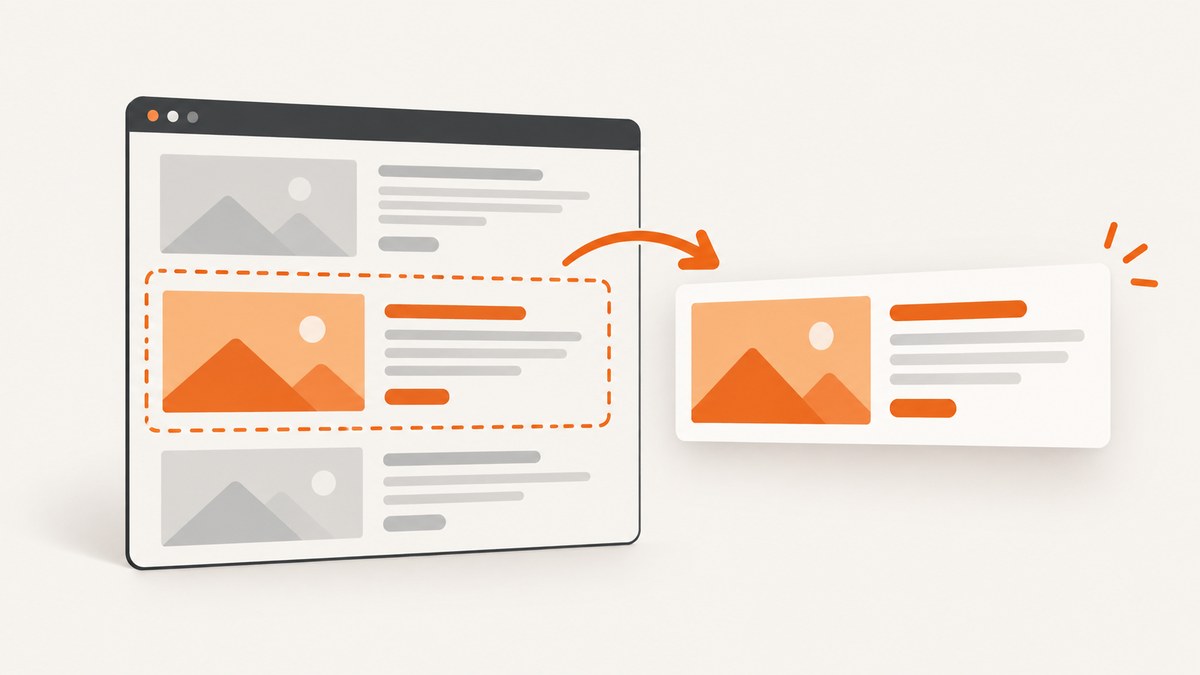
To capture a specific section of a website screenshot, target that section as an element instead of capturing the current viewport or the entire page. In Playwright, locate the element and call its screenshot method:
import { chromium } from 'playwright';

const browser = await chromium.launch();
const page = await browser.newPage({ viewport: { width: 1440, height: 900 } });
await page.goto('https://example.com', { waitUntil: 'networkidle' });

await page.locator('.pricing-card').screenshot({
  path: 'pricing-card.png',
  type: 'png'
});

await browser.close();
The locator screenshot captures the matched element, including its rendered dimensions. A viewport screenshot captures only what is currently visible. A full-page screenshot captures the complete scrollable document. Choosing the correct scope is the most important step.
Element, viewport, and full-page screenshots
These three screenshot modes solve different problems:
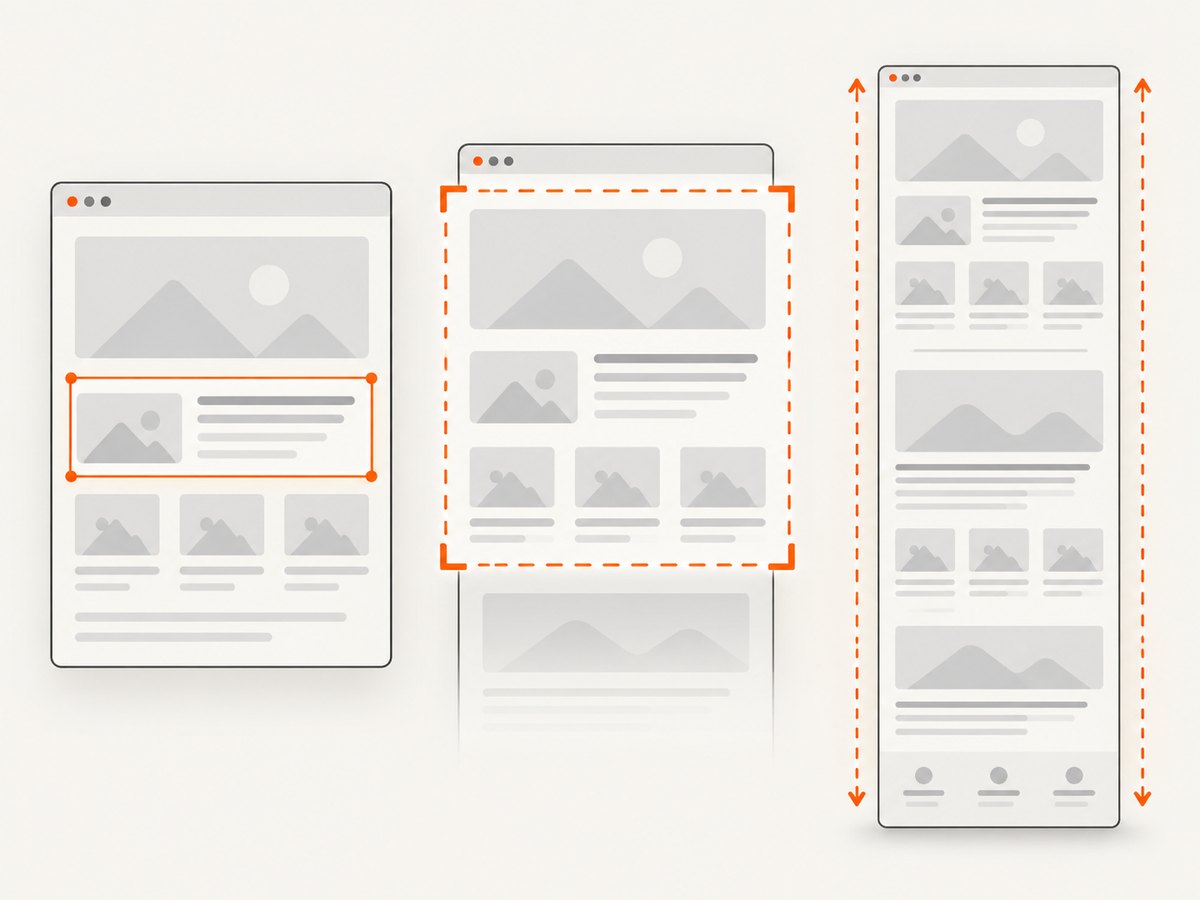
| Mode | What it captures | Use it when | Common mistake |
|---|---|---|---|
| Element | One DOM element and its visible rendered box | You need a card, chart, hero, article section, or form | The selector matches the wrong element or multiple elements |
| Viewport | The browser area currently visible on screen | You need to document what a user sees at a given size | Content below the fold is missing |
| Full page | The page’s full scrollable height | You need an archival image of the entire document | The output includes unrelated sections and becomes unwieldy |
Playwright’s official screenshot documentation covers viewport, full-page, and element captures, along with image format, clipping, and quality options: Playwright Screenshots documentation.
Set up Playwright
Install Playwright in a new Node.js project:
mkdir section-shot
cd section-shot
npm init -y
npm install playwright
npx playwright install chromium
Create a script named capture-section.mjs. The following example waits for a stable section, checks that the selector resolves, and writes a PNG:
import { chromium } from 'playwright';

const url = process.argv[2] ?? 'https://example.com';
const selector = process.argv[3] ?? 'main';

const browser = await chromium.launch();
try {
  const page = await browser.newPage({
    viewport: { width: 1440, height: 1000 },
    deviceScaleFactor: 1
  });

  await page.goto(url, { waitUntil: 'domcontentloaded', timeout: 60_000 });
  const section = page.locator(selector).first();
  await section.waitFor({ state: 'visible', timeout: 30_000 });

  const count = await page.locator(selector).count();
  if (count > 1) {
    console.warn(`Selector matched ${count} elements; using the first match.`);
  }

  await section.screenshot({
    path: 'section.png',
    type: 'png',
    animations: 'disabled'
  });
  console.log('Saved section.png');
} finally {
  await browser.close();
}
Run it with:
node capture-section.mjs https://example.com '.hero'Choose a reliable locator
A screenshot is only as repeatable as its locator. Prefer selectors that describe the page’s structure or semantics:
page.getByRole('region', { name: 'Pricing' })when the page exposes an accessible region name.page.getByTestId('report-summary')when your application provides stable test IDs.page.locator('article[data-section="introduction"]')for a deliberate data attribute.page.locator('#main-content .pricing-card')when an ID and class combination is stable.
Avoid selectors based on generated CSS class names, position-only selectors such as div:nth-child(4), and text that changes with localization or live data. If several elements legitimately match, use .nth(index) only when the order is part of the page contract. Otherwise add an attribute to the source page.
const summary = page.getByTestId('report-summary');
await summary.waitFor({ state: 'visible' });
await summary.screenshot({ path: 'summary.webp', type: 'webp', quality: 85 });
Wait for the section to be ready
Element visibility does not always mean the pixels are final. Images, fonts, charts, and client-side data may still be changing. Combine a navigation wait with a section-specific readiness check:
await page.goto(url, { waitUntil: 'networkidle' });
await page.locator('[data-testid="chart"]').waitFor({ state: 'visible' });
await page.waitForFunction(() => document.fonts?.status === 'loaded');
await page.waitForTimeout(250);
await page.locator('[data-testid="chart"]').screenshot({ path: 'chart.png' });
Use a short delay only for a known animation or rendering transition. A fixed long delay slows every capture and still does not guarantee readiness. For charts, wait for a marker such as an SVG path, a canvas data attribute, or a loading element to disappear:
await page.locator('.loading').waitFor({ state: 'hidden' });
await page.locator('svg[data-rendered="true"]').waitFor({ state: 'attached' });
If lazy-loaded images are inside the section, scroll the element into view before taking the shot:
const section = page.locator('#case-study');
await section.scrollIntoViewIfNeeded();
await section.screenshot({ path: 'case-study.png' });
Control dimensions, format, and quality
Set the viewport to reproduce a target layout. A responsive page can render a completely different section at 375px than at 1440px. Set deviceScaleFactor when you need a denser image for documentation or retina displays.
const page = await browser.newPage({
  viewport: { width: 1280, height: 800 },
  deviceScaleFactor: 2
});
Playwright supports PNG, JPEG, and WebP output. PNG is lossless and useful for text, diagrams, and pixel comparisons. JPEG is smaller for photographic content. WebP often provides a useful size and quality balance. JPEG and WebP accept a quality value.
await section.screenshot({ path: 'section.jpg', type: 'jpeg', quality: 82 });
await section.screenshot({ path: 'section.webp', type: 'webp', quality: 85 });
For a fixed rectangular crop that is not a DOM element, use a viewport clip:
await page.screenshot({
  path: 'crop.png',
  clip: { x: 120, y: 180, width: 900, height: 420 }
});
A clip is tied to coordinates and viewport layout. An element screenshot follows the element when its position changes, so it is usually the better choice for automation.
Hide or adjust content before capture
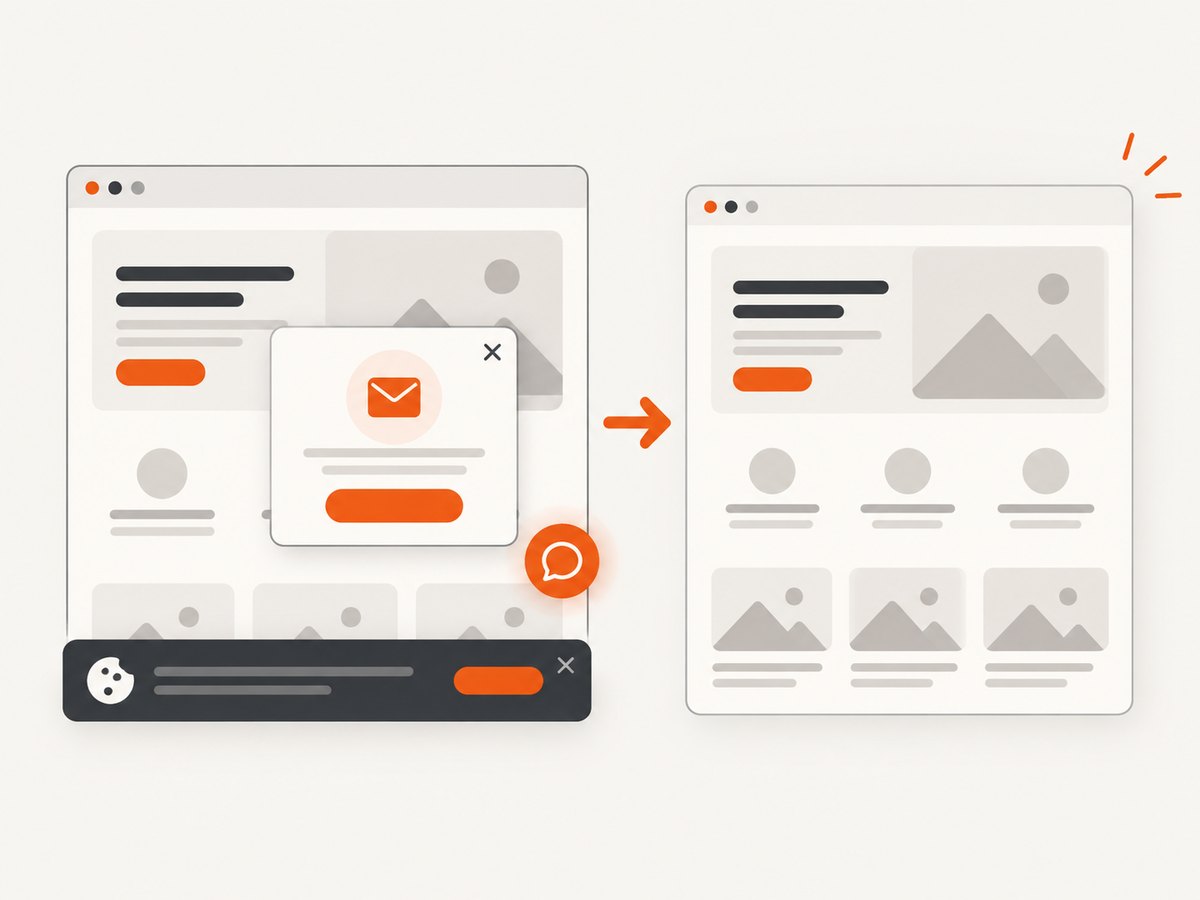
Temporary CSS can remove visual noise without changing your production site. Hide a sticky header, cookie prompt, or animated cursor only for the capture:
await page.addStyleTag({ content: `
  .cookie-banner, .chat-widget, .sticky-nav { display: none !important; }
  *, *::before, *::after { animation: none !important; transition: none !important; }
` });
await section.screenshot({ path: 'clean-section.png' });
You can also inject custom content, select dark mode, or set a background. Keep these changes explicit in your script so a later reader knows why the pixels differ from the live page.
Capture sections behind authentication
For private pages, authenticate before locating the section. Playwright can reuse a saved browser storage state:
const context = await browser.newContext({ storageState: 'playwright/.auth/user.json' });
const page = await context.newPage();
await page.goto('https://app.example.com/dashboard');
await page.getByTestId('account-summary').screenshot({ path: 'account-summary.png' });
Do not put passwords or tokens directly in source control. Pass them through environment variables or use an approved authentication state file with restricted permissions. If the page uses a one-time challenge, complete it during setup and reuse the resulting session where permitted.
Capture with Python
The Python Playwright package provides the same element workflow:
from playwright.sync_api import sync_playwright

with sync_playwright() as p:
    browser = p.chromium.launch()
    page = browser.new_page(viewport={"width": 1440, "height": 900})
    page.goto("https://example.com", wait_until="networkidle")
    section = page.locator(".header").first
    section.wait_for(state="visible")
    section.screenshot(path="header.png", animations="disabled")
    browser.close()
Install it with pip install playwright followed by playwright install chromium.
Capture with cURL, Python, and Node.js through ScreenshotNeo
If you do not want to operate a browser, ScreenshotNeo can capture one element by CSS selector through its screenshot API. See the ScreenshotNeo API documentation for the complete parameter list. The API supports element capture, full-page shots, dark mode, device presets, custom CSS and JavaScript, waiting rules, headers, cookies, geolocation, caching, resizing, and other options.
Or skip the browser setup
Use the element selector parameter with a URL:
curl -G "https://api.screenshotneo.com/v1/shot" \
  -d access_key=YOUR_API_KEY \
  --data-urlencode url=https://example.com \
  --data-urlencode selector='.pricing-card' \
  -o section.webp
import requests
r = requests.get(
"https://api.screenshotneo.com/v1/shot",
params={
"access_key": "YOUR_API_KEY",
"url": "https://example.com",
"selector": ".pricing-card",
},
timeout=90,
)
r.raise_for_status()
open("section.webp", "wb").write(r.content)const q = new URLSearchParams({
access_key: 'YOUR_API_KEY',
url: 'https://example.com',
selector: '.pricing-card'
});
const res = await fetch(`https://api.screenshotneo.com/v1/shot?${q}`);
if (!res.ok) throw new Error(`HTTP ${res.status}`);
await Bun.write('section.webp', res);ScreenshotNeo accepts the cookie or consent banner like a visitor and removes more than 60 known consent platforms, newsletter popups, and chat widgets before capture; each step can be turned off. Bot checks and CAPTCHAs, blank pages, timeouts, failed loads, and cache hits cost nothing. Every response identifies the result with X-Page-Verdict and X-Billed headers. Its MCP server provides take_screenshot, get_page_info, and capture_pdf for Claude, Cursor, and other MCP clients. The free plan includes 1,000 screenshots monthly without a card; paid plans start at $5 for 3,000.
Create a free ScreenshotNeo account to get 1,000 screenshots each month with no card.
Troubleshooting common failures
| Symptom | Likely cause | Fix |
|---|---|---|
| Locator resolves to zero elements | The page has not rendered, the selector is wrong, or content is inside an iframe | Wait for navigation and visibility, inspect the DOM, and use frameLocator() for an iframe. |
| Strict mode violation | The selector matches multiple elements | Use a more specific semantic selector, a test ID, or an intentional .first/.nth. |
| Screenshot is blank | A blocked resource, failed navigation, or hidden element | Check the response status, wait for visibility, and inspect console and network errors. |
| Images are missing | Lazy loading has not been triggered | Scroll the section into view and wait for image load completion. |
| Text differs between runs | Web fonts, animations, timestamps, ads, or live data | Disable animations, wait for fonts, hide dynamic content, and freeze test data. |
| Element is cut off | Overflow clipping or a transformed parent | Inspect CSS overflow and transforms; capture a suitable ancestor or adjust temporary CSS. |
| Timeout during navigation | Slow third-party requests or a page that never reaches idle | Use domcontentloaded, wait for the target selector, and set a bounded timeout. |
Performance and reliability
- Reuse a browser process for batches instead of launching Chromium for every URL.
- Reuse a context when cookies and authentication are shared, but isolate unrelated tenants.
- Keep selectors narrow so layout and screenshot work cover fewer pixels.
- Use WebP or JPEG when storage and transfer size matter; keep PNG for exact text and visual diffs.
- Set explicit navigation and element timeouts. Unbounded waits turn one broken page into a stuck worker.
- For repeat jobs, record the URL, selector, viewport, browser version, timestamp, and output hash.
- Retry transient navigation failures with backoff, but avoid retrying deterministic selector errors.
For large collections, queue captures and limit concurrency to what your CPU, memory, and target sites can handle. Full-page screenshots consume more memory than element shots, especially on long documents. Respect authentication, robots policies, privacy requirements, and the site’s terms when capturing pages.
Cost considerations
A self-hosted Playwright workflow costs the compute, storage, browser maintenance, and engineering time required to run it. A hosted API trades that operational work for usage charges and request limits. Compare the total workflow: browser installation, proxy or network configuration, retries, consent handling, cache strategy, and image storage.
ScreenshotNeo bills only clean shots. Cache hits, failed loads, blank pages, timeouts, bot checks, and CAPTCHAs are not billed, and the response headers expose the verdict. Plans are Free (1,000 shots/month), Starter ($5 for 3,000), Growth ($15 for 15,000), Pro ($39 for 60,000), Scale ($99 for 250,000), and Business ($249 for 1,000,000); yearly billing gives two months free.
Checklist for a production section capture
- Define whether the output is an element, viewport, or full-page image.
- Choose a stable semantic selector or test ID.
- Set the viewport, device scale, color scheme, and output format.
- Wait for the element, fonts, images, and data that affect its pixels.
- Disable animations and hide transient overlays when appropriate.
- Handle authentication and secrets outside source control.
- Save metadata with the image and monitor failures.
- Use bounded retries and a cache for repeated URLs.
FAQ
Can I capture an element that is below the fold?
Yes. An element screenshot can capture a matched element outside the current viewport. Scroll it into view first when lazy-loaded content depends on visibility.
What if the section has no useful class name?
Use an accessible role and name, a stable ancestor relationship, a data attribute, or add a dedicated test ID to the page.
Should I use a clip or an element screenshot?
Use an element screenshot when the region corresponds to a DOM element. Use a clip for a deliberate coordinate rectangle or a crop that spans several unrelated elements.
Can I capture a PDF page section?
For a rendered web section, use an element screenshot. For paginated document output, use a PDF workflow and define paper size, margins, orientation, and page ranges.
How do I automate this for many URLs?
Keep a queue of URL and selector pairs, reuse the browser, cap concurrency, record failures, and retry only transient navigation or network errors. A hosted API can remove browser installation and maintenance from that pipeline.


