How to Capture SVG Screenshots in Safari
Capture SVGs in Safari as crisp pixels or preserve the original editable SVG source with complete macOS, iPhone and automation steps.
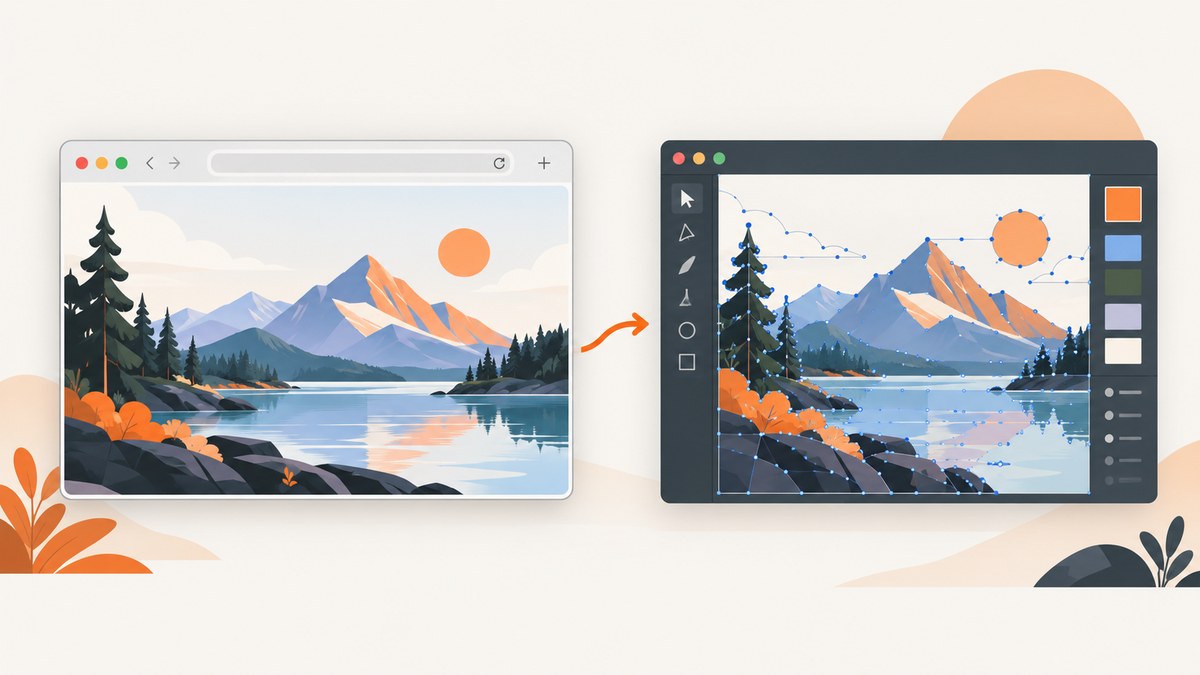
Short answer: Safari gives you two different results. Use the macOS screenshot controls when you need a bitmap of the SVG exactly as it is rendered. Use Web Inspector or Safari’s save commands when you need the original, editable SVG data. A normal screenshot does not create a new editable SVG, and Safari has no documented command that turns a cropped screenshot into vector source.
1. Choose the result you actually need
| Goal | Best method | Output | Main limitation |
|---|---|---|---|
| Quick image for documentation | macOS screenshot toolbar or selection capture | PNG or another raster image | Pixels cannot be edited as SVG paths |
| Capture only the visible graphic | Isolate the SVG in Safari, then capture the selected region | Raster image of that region | Browser rendering, anti-aliasing and background are preserved |
| Keep an editable logo or diagram | Control-click the direct SVG and choose Save Image or Save Image As | Original SVG resource | Only works when the SVG is directly addressable and saving is allowed |
| Recover inline or generated SVG | Web Inspector Elements and Sources tabs | Markup and referenced resources | External CSS, fonts, images or scripts may also be required |
2. Capture the rendered SVG as a bitmap on macOS
- Open the page in Safari and resize the window until the SVG has the dimensions you want.
- If the artwork is surrounded by unrelated content, open it in its own tab or use Safari’s responsive and inspection tools to position it cleanly.
- Open the standard macOS screenshot controls and choose a full-screen, window or selection capture. Drag around the SVG when you need only that region.
- Save the result as a PNG (or convert it later if your documentation system requires another raster format).
- View the saved image at 100% zoom. Check the edges for clipping, unexpected browser chrome, anti-aliasing and a background color you did not intend to include.
This records the pixels Safari displayed. Increasing the image size later cannot restore vector paths or remove the browser-rendered background.
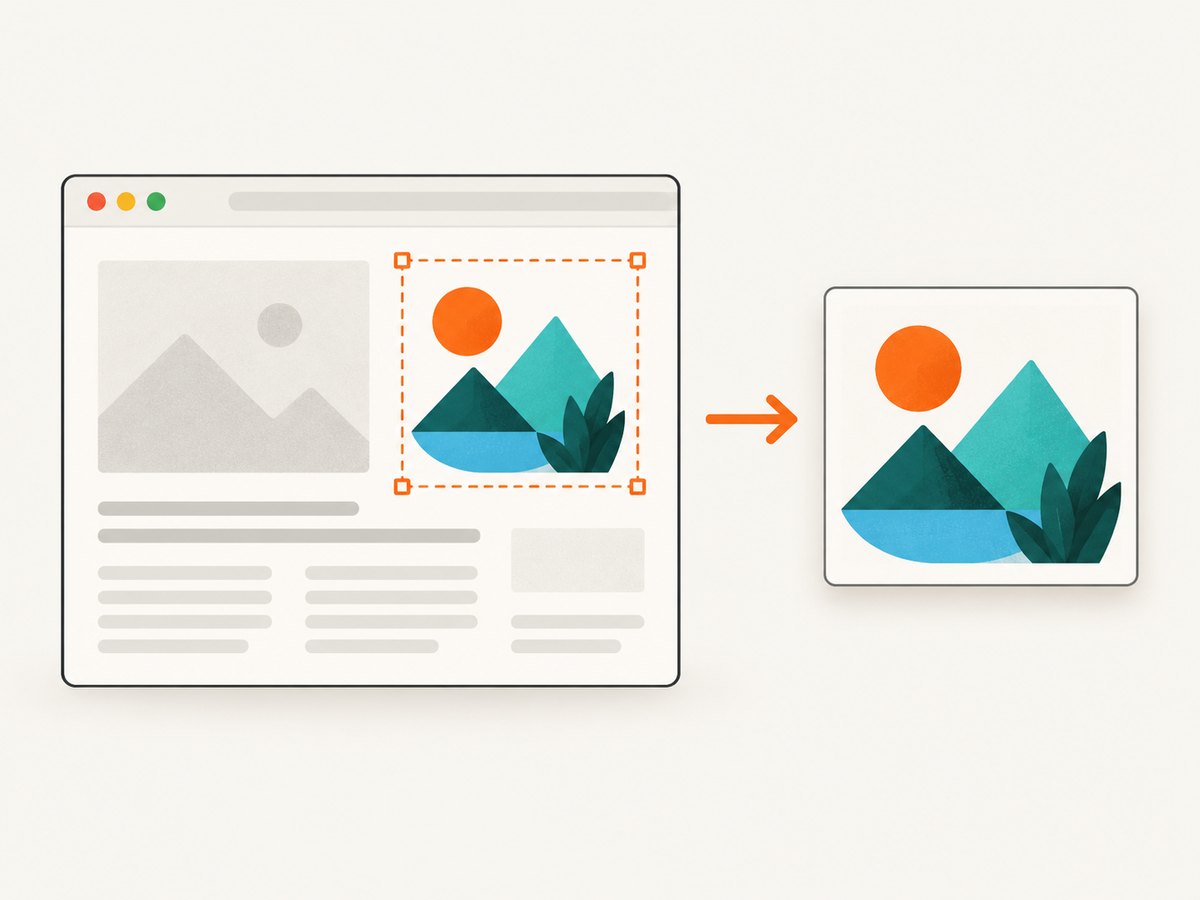
Capture only the SVG instead of the whole webpage
- Put the SVG in a dedicated tab when possible. For an inline graphic, zoom or resize the page so the artwork occupies the capture area.
- Use a selection capture around the artwork’s visible bounds.
- Leave a small margin if strokes touch the edge; otherwise anti-aliased pixels can be cut off.
- Keep the original SVG separately if anyone may need to recolor, crop or scale it later.
3. Find the SVG with Safari Web Inspector
- In Safari, open Safari > Settings > Advanced and enable Show features for web developers.
- Open Develop > Show Web Inspector (Option-Command-I), or Control-click the page and choose Inspect Element.
- Choose Develop > Start Element Selection (Shift-Command-C), then click the visible artwork.
- In the Elements tab, identify whether the selected artwork is an inline
<svg>, an<img>whosesrcpoints to an SVG, a CSS background or pseudo-element, or a nested resource inside another component. - Use the Sources tab to locate the actual document, image or other resource loaded by the page.
Element selection highlights the node under the pointer and reveals it in Elements. Inspecting the node is useful even when the visible image is generated by a component and is not a simple standalone file.
4. Save the original SVG without turning it into PNG
Direct SVG image
When Safari is displaying a directly addressable SVG image, Control-click it and choose Save Image or Save Image As. Open the saved file in a vector editor to crop, recolor or export it at another size.
Inline or embedded SVG
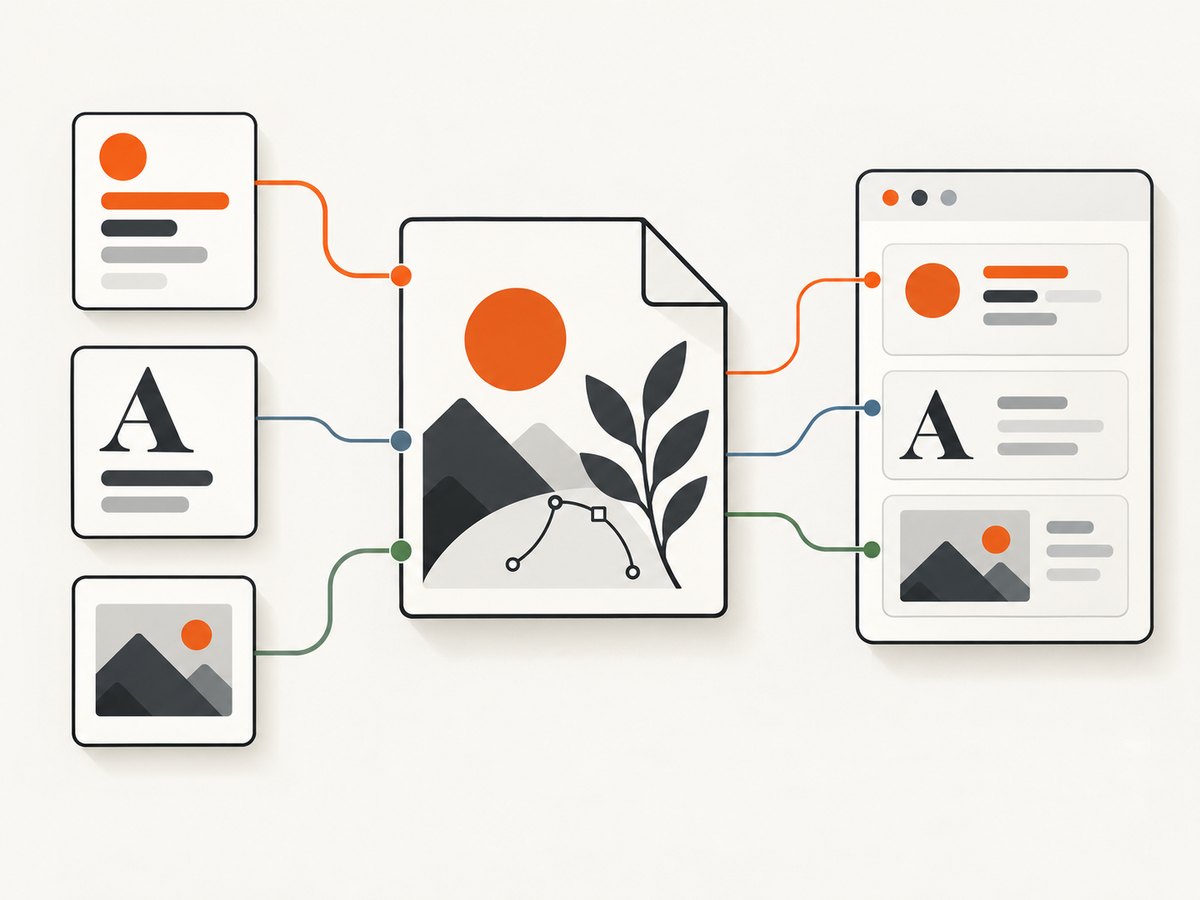
If Save Image is unavailable, select the element in Web Inspector and inspect its markup and resource references. You can copy inline <svg> markup into a new .svg file only when it is self-contained and you are permitted to copy it. Check for external stylesheets, web fonts, linked images, masks, filters and scripts. Saving the markup without those dependencies can change the appearance.
Whole-page fallback
Safari’s File > Save As offers Web Archive or Page Source. A Web Archive keeps page graphics and links while the destination pages remain available. Page Source saves HTML only, so it is a diagnostic fallback rather than a guaranteed standalone SVG export. Some pages can prevent saving displayed items.
5. Inspect SVGs on iPhone and iPad
- On the iPhone or iPad, open Settings > Safari > Advanced and enable Web Inspector.
- Connect the device to a Mac with a cable or configured wireless debugging.
- On the Mac, open Safari’s Develop menu and select the device and page.
- Use the device’s normal screenshot feature for a bitmap capture, or inspect the page on the Mac to locate and retrieve the SVG source.
Safari’s documented device workflow does not provide a one-click vector-screenshot export. Retrieve the source resource when vector fidelity matters.
6. Or skip the browser setup
ScreenshotNeo captures a webpage from one API request, returning PNG, JPEG, WebP or PDF. It is useful when you need repeatable rendered screenshots rather than the original editable SVG source. See the ScreenshotNeo API documentation for all options.
cURL
curl -G "https://api.screenshotneo.com/v1/shot" -d access_key=YOUR_API_KEY --data-urlencode url=https://example.com/page-with-svg -o shot.webpPython
import requests
r = requests.get("https://api.screenshotneo.com/v1/shot", params={"access_key": "YOUR_API_KEY", "url": "https://example.com/page-with-svg"}, timeout=90)
open("shot.webp", "wb").write(r.content)
Node.js
const q = new URLSearchParams({ access_key: 'YOUR_API_KEY', url: 'https://example.com/page-with-svg' });
const res = await fetch(`https://api.screenshotneo.com/v1/shot?${q}`);
Before capture, ScreenshotNeo accepts cookie and consent banners and removes more than 60 known consent platforms, newsletter popups and chat widgets; each step can be turned off. Bot checks, CAPTCHAs, blank pages, timeouts, failed loads and cache hits are not billed, and the response identifies the result with X-Page-Verdict and X-Billed headers. Its MCP server provides take_screenshot, get_page_info and capture_pdf for Claude, Cursor and other MCP clients. The Free plan includes 1,000 screenshots per month without a card; paid plans start at $5 for 3,000 shots.
Create a free ScreenshotNeo account to start with 1,000 screenshots per month and no card.
7. Troubleshooting
| Problem | Likely cause | Fix |
|---|---|---|
| The saved image is blurry when enlarged | A raster screenshot has a fixed pixel size | Save the original SVG resource or recapture at the largest useful viewport and retina scale. |
| The SVG looks different in a standalone editor | External CSS, fonts, linked images or scripts were not saved | Use Web Inspector to identify and preserve dependencies, or keep a browser-rendered bitmap. |
| Save Image is missing | The artwork is inline, generated, a CSS background or restricted by the site | Use Elements and Sources to locate the resource; respect site restrictions. |
| Only part of the graphic appears | The selection boundary clipped a stroke, filter or shadow | Recapture with a margin and verify at 100% zoom. |
| The screenshot includes Safari chrome | The capture covered the browser window rather than the artwork | Isolate the SVG in its own tab or use a region selection. |
| The SVG has an unwanted solid background | The screenshot records the rendered page background | Retrieve the original SVG or export it from a vector editor with transparency. |
| Web Inspector does not show the device | Web Inspector is disabled or the Mac-device connection is not configured | Enable it on the device, reconnect by cable or configure wireless debugging, then reopen Safari’s Develop menu. |
8. Quality, reliability and cost notes
- Fidelity: A screenshot preserves Safari’s rendered appearance, including fonts, anti-aliasing, layout and background. The SVG source preserves editability and arbitrary scaling.
- Dependencies: Inline SVG can depend on page CSS, fonts, images and scripts. Test a copied file in an offline editor before deleting the page context.
- Repeatability: Keep the viewport size, zoom level, page state and capture region consistent when producing a series of screenshots.
- Privacy and permissions: Save only artwork you are allowed to copy. A site may prevent saving displayed items.
- API economics: ScreenshotNeo bills only clean shots. Cache hits and failed or blocked captures are not billed, and you can choose a cache TTL. The Free plan has 1,000 shots per month; paid plans are $5 for 3,000, $15 for 15,000, $39 for 60,000, $99 for 250,000 and $249 for 1,000,000. Yearly billing gives two months free.
9. FAQ
Can a Safari screenshot be an SVG?
No. A normal screenshot is a raster image. Save or retrieve the original SVG resource when you need editable vector data.
Can I screenshot just an SVG element?
Yes. Isolate the graphic or position it with Safari’s inspection and responsive tools, then use a region capture around the element. This still produces pixels.
Why is my SVG blurry after taking a screenshot?
The screenshot has a fixed pixel resolution. Recapture at a larger or retina-scaled size, or use the original SVG.
Is Page Source enough to recover an SVG?
Usually not. Page Source is HTML and may omit external resources or generated geometry. Web Inspector’s Elements and Sources tabs provide better evidence of what the page loaded.
How do I automate rendered SVG page captures?
Use a browser automation workflow or a screenshot API such as ScreenshotNeo. Automation captures rendered pixels; it does not replace retrieving the original SVG source.


