How to Capture a Table Screenshot with Puppeteer
Capture one rendered HTML table with Puppeteer, handle dynamic data and wide layouts, troubleshoot failures, and compare element, page, and API captures.
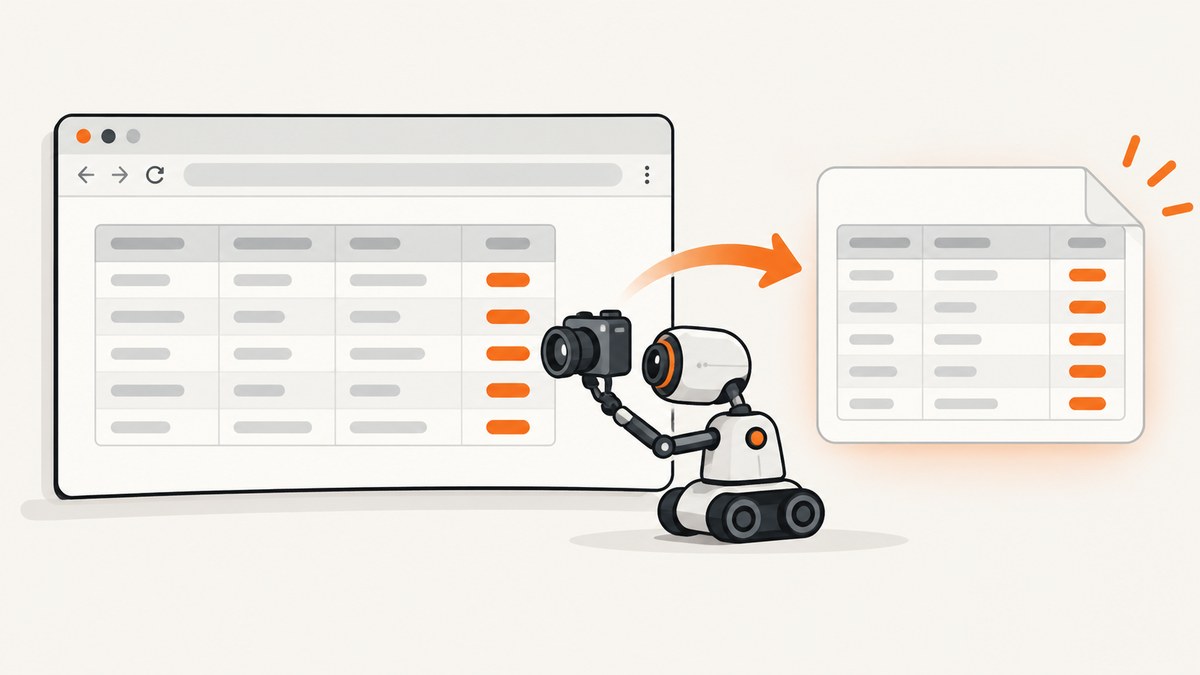
To capture only a table, locate it with a CSS selector, wait until its data has rendered, then call screenshot() on the returned ElementHandle:
const table = await page.waitForSelector('table#results');
if (!table) throw new Error('Table not found');
await table.screenshot({ path: 'table.png' });
This captures the table element rather than the entire document. Puppeteer scrolls the element into view when necessary. The call fails if the element was detached from the DOM, so dynamic applications need a table-specific readiness check and a fresh handle immediately before capture. The official API behavior is documented in the ElementHandle screenshot reference.
What you will build
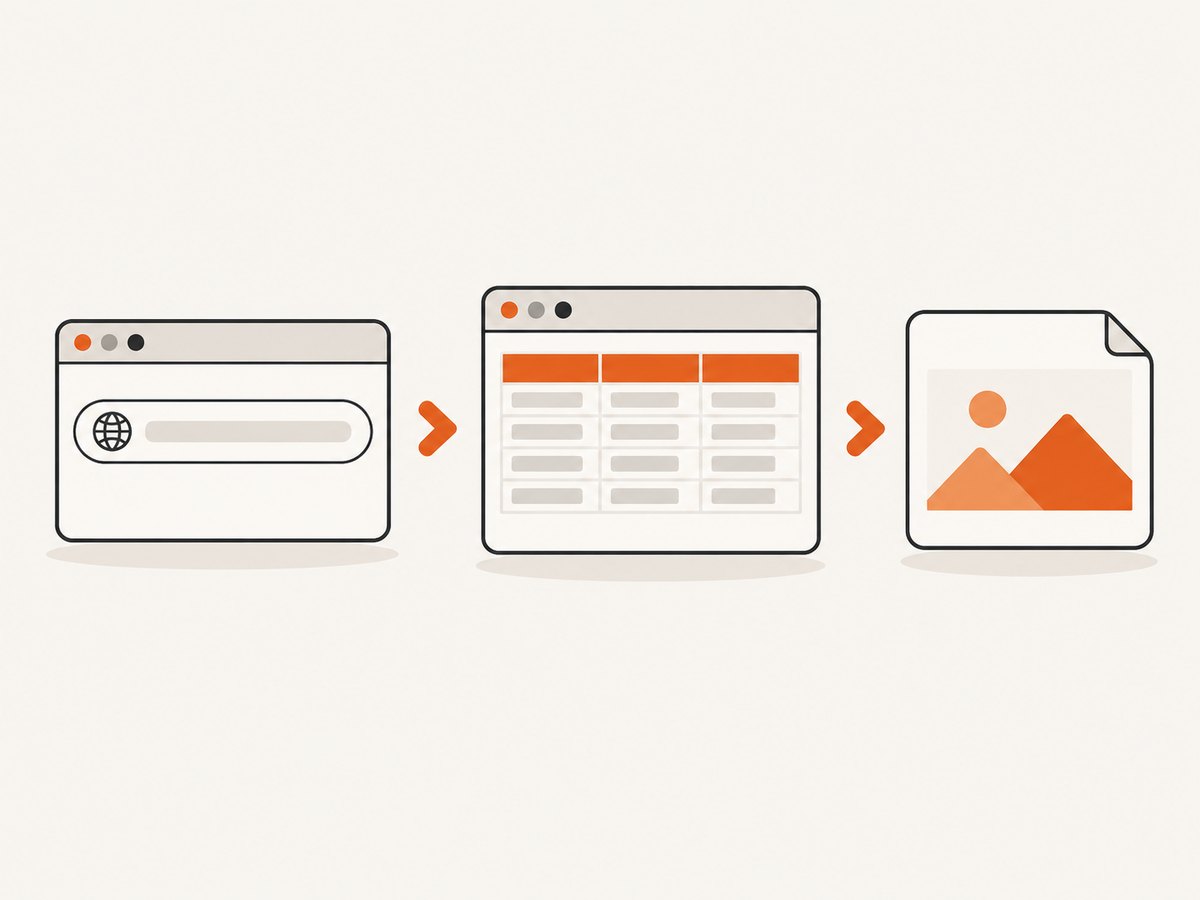
The examples in this guide open a page, wait for a table, save an image, and close the browser even when an error occurs. You will also learn when to use a full-page screenshot or a custom clip, how to handle tables that are populated asynchronously, and how to capture a table without maintaining a browser process.
- Element capture: saves only the selected table.
- Full-page capture: saves the complete document with
fullPage: true. - Clipped capture: saves a rectangular page region with
clip.
Choose the boundary based on the image you need. A table screenshot is usually an element capture; a report that includes its heading and notes may need a page clip or a full-page image.
Install Puppeteer and create a minimal capture
Create a project and install Puppeteer:
mkdir table-shot
cd table-shot
npm init -y
npm install puppeteer
Save this as capture-table.mjs:
import puppeteer from 'puppeteer';

const browser = await puppeteer.launch();
try {
  const page = await browser.newPage();
  await page.goto('https://example.com', { waitUntil: 'networkidle2' });

  const table = await page.waitForSelector('table#results');
  if (!table) throw new Error('Table not found');
  await table.screenshot({ path: 'table.png' });
} finally {
  await browser.close();
}
Run it with node capture-table.mjs. Replace table#results with a selector that matches the target page. networkidle2 waits for low network activity during navigation, but it does not prove that an application has finished calculating or inserting rows. Treat it as a navigation setting, then add a table-specific condition.
Use a reliable selector
A selector should identify the intended table even when the page contains several tables. Prefer a stable ID, data attribute, or semantic container over a generated class name:
table#results
table[data-testid="sales-results"]
section[aria-label="Quarterly results"] table
CSS selectors are supported by waitForSelector. Puppeteer also provides locators that wait for an element to be present and in a suitable state before interaction. Standard CSS does not cross a Shadow DOM boundary; for a shadow-root table, use Puppeteer’s supported selector strategies or query inside the shadow root from the page context.
When a selector can match more than one table, make it specific before you capture. Otherwise the first match may be a hidden template, a mobile-only copy, or an unrelated table.
const table = await page.waitForSelector(
  'section[aria-label="Quarterly results"] table[data-testid="results"]',
  { visible: true, timeout: 15000 }
);
A timeout usually means the selector is wrong, the page did not load, or the table is created only after another action. Inspect the live DOM in DevTools and confirm the selector against the rendered page, not just the server HTML.
Wait for asynchronous table data
Many tables exist before their rows arrive. Waiting for the element alone can produce a header-only image. Add a condition that represents completion for your application.
Wait for a minimum row count
await page.waitForFunction(() => {
  const rows = document.querySelectorAll('table#results tbody tr');
  return rows.length >= 10;
});

const table = await page.waitForSelector('table#results');
await table.screenshot({ path: 'table.png' });
Wait for a completion marker
await page.waitForSelector('[data-table-status="complete"]', {
  visible: true,
  timeout: 30000
});
const table = await page.waitForSelector('table#results');
await table.screenshot({ path: 'table.png' });
Wait for a known request
await Promise.all([
  page.waitForResponse(response =>
    response.url().includes('/api/results') && response.ok()
  ),
  page.goto('https://example.com/report', { waitUntil: 'domcontentloaded' })
]);

await page.waitForSelector('table#results tbody tr');
const table = await page.waitForSelector('table#results');
await table.screenshot({ path: 'table.png' });
Use the condition that reflects the product’s state. A generic delay can be useful for a known animation, but it is less reliable than waiting for rows, a status element, or a successful response.
Capture wide, tall, and styled tables
An element screenshot is intended for the selected element, including a table larger than the viewport. If the result is clipped by a scroll container, determine whether you want the visible portion or the entire table. You may need to remove an internal overflow constraint temporarily:
await page.addStyleTag({
  content: '#results-wrapper { overflow: visible !important; }'
});
const table = await page.waitForSelector('table#results');
await table.screenshot({ path: 'table.png' });
For a page-level image, use:
await page.screenshot({
  path: 'page.png',
  fullPage: true
});
fullPage is false by default. A custom rectangle is useful when the table needs its title and a small margin:
const box = await page.locator('table#results').boundingBox();
if (!box) throw new Error('Table has no layout box');
await page.screenshot({
  path: 'table-region.png',
  clip: { x: box.x - 16, y: box.y - 48, width: box.width + 32, height: box.height + 64 }
});
Check that the coordinates remain within the page and that the table is visible before taking a clip. For element screenshots, the handle method is simpler because Puppeteer performs the scroll into view.
Choose image format and output options
Puppeteer saves PNG by default. Set a file extension and type explicitly when you need JPEG or WebP:
await table.screenshot({ path: 'table.jpg', type: 'jpeg', quality: 85 });
await table.screenshot({ path: 'table.webp', type: 'webp' });
quality applies to supported lossy formats such as JPEG; it does not change PNG output. PNG is usually best for sharp text and grid lines. JPEG can reduce file size for photographic content, while WebP is useful when your downstream system supports it.
Set the viewport before navigation so responsive CSS selects the intended layout:
await page.setViewport({ width: 1440, height: 900, deviceScaleFactor: 2 });
await page.goto('https://example.com/report', { waitUntil: 'networkidle2' });
A larger device scale factor produces a higher-resolution image and increases memory use. Keep it consistent when comparing captures.
Handle detached elements and re-rendering
Frameworks often replace a table node after fetching data. If you keep an old handle, table.screenshot() can throw because the element was detached. Wait for the final state, then obtain a new handle immediately before capture:
await page.waitForSelector('[data-table-status="complete"]');
const table = await page.waitForSelector('table#results');
if (!table) throw new Error('Table not found after rendering');
await table.screenshot({ path: 'table.png' });
Do not cache an ElementHandle across navigation or a state-changing click. If the page replaces rows but keeps the table node, wait for the row condition again and capture after it resolves.
Complete reusable function
import puppeteer from 'puppeteer';

export async function captureTable({ url, selector, output }) {
  const browser = await puppeteer.launch();
  try {
    const page = await browser.newPage();
    await page.setViewport({
      width: 1440,
      height: 900,
      deviceScaleFactor: 1
    });
    await page.goto(url, { waitUntil: 'networkidle2', timeout: 60000 });
    await page.waitForSelector(selector, { visible: true, timeout: 30000 });

    const table = await page.waitForSelector(selector);
    if (!table) throw new Error(`Table not found: ${selector}`);
    await table.screenshot({ path: output, type: 'png' });
  } finally {
    await browser.close();
  }
}

await captureTable({
  url: 'https://example.com/report',
  selector: 'table#results',
  output: 'table.png'
});
The finally block prevents orphaned Chromium processes when navigation, selection, or screenshotting fails.
Common errors and fixes
| Error or symptom | Likely cause | Fix |
|---|---|---|
Waiting for selector ... failed |
Wrong selector, slow navigation, login wall, or table created after an action. | Inspect the rendered DOM, increase the timeout only when justified, and wait for the event that creates the table. |
| Image contains headers but no rows | Capture occurred before the data request or client rendering finished. | Wait for a minimum row count, completion marker, or successful API response. |
Node is detached from document |
A framework replaced the table after the handle was created. | Wait for the final state and obtain a fresh handle immediately before screenshot(). |
| Only part of a table is visible | The table is inside an overflow or scroll container. | Capture the element after adjusting overflow, or use a page clip/full-page capture based on the required framing. |
| Blank or unexpected page | Navigation failed, a redirect requires authentication, or a bot check blocked Chromium. | Check page.url(), response status, cookies, headers, and page text before capture. |
| Fonts or images are missing | Resources are still loading or blocked in the environment. | Wait for the relevant resource/state, verify network access, and use a deterministic viewport and device scale factor. |
| Browser will not launch in a container | Sandbox or missing system dependencies. | Use the runtime’s documented Chromium setup and container permissions; avoid adding flags blindly because they change isolation behavior. |
Reliability, performance, and cost considerations
Launching a browser for every table adds startup time and memory use. For a batch job, reuse one browser and create a new page per URL, closing each page after capture. Limit concurrency so several large tables do not exhaust memory. Keep navigation and selector timeouts explicit, log the URL, selector, final URL, and failure stage, and save a diagnostic screenshot or HTML snapshot when a capture fails.
Use caching at your application layer when the source table has not changed. Avoid waiting for global network idle when analytics or long polling keeps connections open; a table-specific readiness signal is both faster and more accurate. Large tables and high device scale factors produce larger files, so choose PNG, JPEG, or WebP based on the consumer and storage budget.
Puppeteer itself does not charge per screenshot; your costs are the compute, browser runtime, storage, and bandwidth required to run it. Authentication, proxying, CAPTCHA handling, and consent interactions also become your operational responsibility.
Or skip the browser setup
ScreenshotNeo provides a single-request website screenshot API when you do not want to operate Chromium. It can capture a page or one element by CSS selector, load lazy images, set a viewport or device preset, apply custom CSS and JavaScript, wait for a selector, delay, or network idle, and return PNG, JPEG, WebP, or PDF. See the ScreenshotNeo API documentation for the complete option list.
For a table, pass the page URL and the selector used by your application:
cURL
curl -G "https://api.screenshotneo.com/v1/shot" \
  -d access_key=YOUR_API_KEY \
  --data-urlencode url=https://example.com/report \
  --data-urlencode selector=table%23results \
  -o table.webp
Python
import requests

r = requests.get(
    "https://api.screenshotneo.com/v1/shot",
    params={
        "access_key": "YOUR_API_KEY",
        "url": "https://example.com/report",
        "selector": "table#results",
    },
    timeout=90,
)
r.raise_for_status()
open("table.webp", "wb").write(r.content)
print(r.headers.get("X-Page-Verdict"), r.headers.get("X-Billed"))
Node.js
const q = new URLSearchParams({
  access_key: 'YOUR_API_KEY',
  url: 'https://example.com/report',
  selector: 'table#results'
});
const res = await fetch(`https://api.screenshotneo.com/v1/shot?${q}`);
if (!res.ok) throw new Error(`Screenshot failed: ${res.status}`);
const bytes = new Uint8Array(await res.arrayBuffer());
await Bun.write('table.webp', bytes);
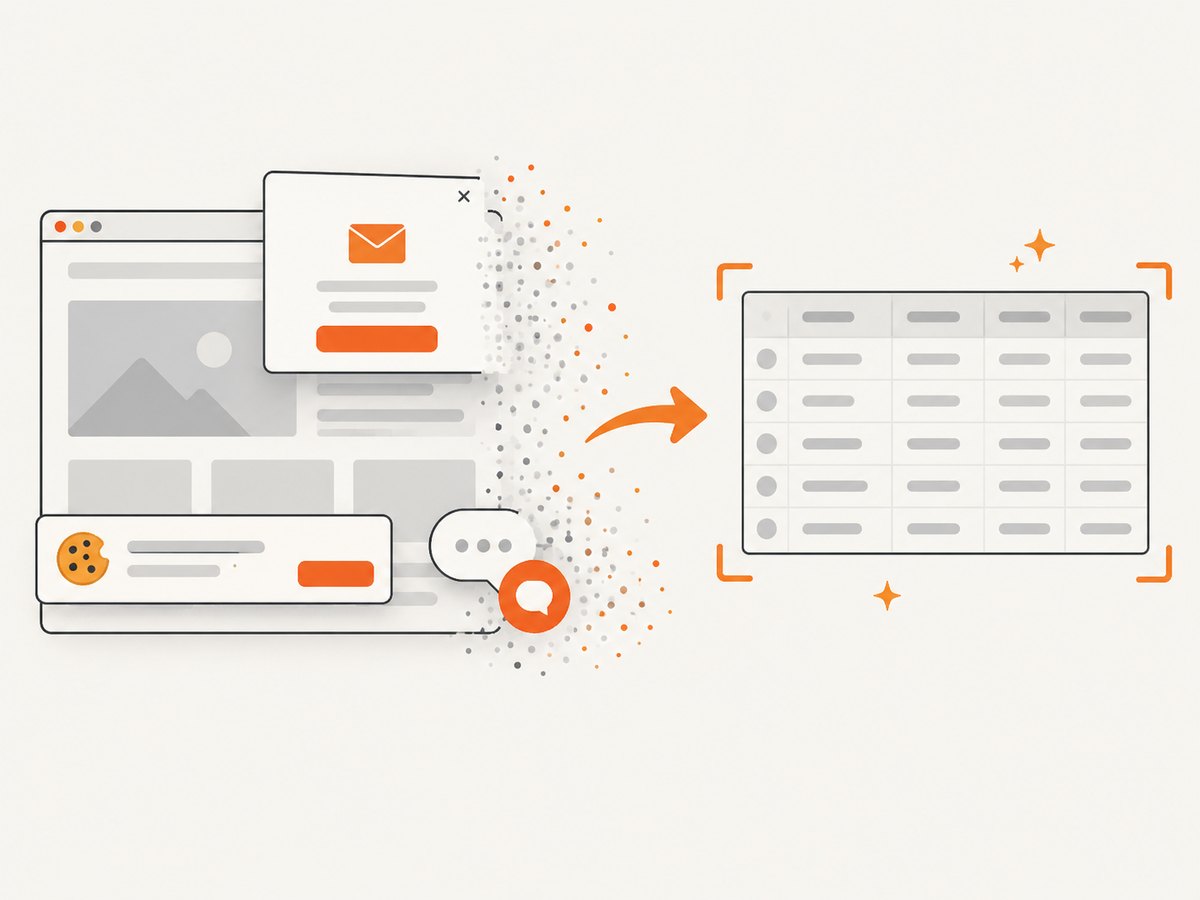
ScreenshotNeo accepts and removes cookie or consent banners, newsletter popups, and chat widgets before capture; each step can be disabled. Bot checks, blank pages, timeouts, failed loads, and cache hits are not billed, and the response identifies the result with X-Page-Verdict and X-Billed headers. An MCP server provides take_screenshot, get_page_info, and capture_pdf tools for Claude, Cursor, and other MCP clients.
There is a free plan with 1,000 screenshots per month and no card. Paid plans start at $5 for 3,000 shots, and every feature is available on every plan. Create a free ScreenshotNeo account.
FAQ
Does an element screenshot include the table’s surrounding heading?
No. It captures the selected element. Use a clip around the table or capture a containing section when the heading belongs in the image.
Can I capture a table hidden in a tab?
Activate the tab first, wait for the table to become visible and populated, then obtain a fresh handle and capture it.
Why use networkidle2 if it is not enough?
It is useful for navigation, but applications can render rows after network activity settles. Pair it with a condition that proves the table is ready.
Should I use PNG or JPEG?
Use PNG for crisp text and grid lines. Use JPEG when a smaller lossy image is acceptable; its quality option does not affect PNG.
What is the simplest hosted alternative?
ScreenshotNeo can perform selector-based captures through its API, while also handling consent UI and reporting whether a response was billable.


