How to Capture Screenshots of Test Failures Across Multiple Browsers
Capture reliable failure screenshots in Cypress and Playwright across browser matrices, retain CI artifacts, and automate clean shots with ScreenshotNeo.
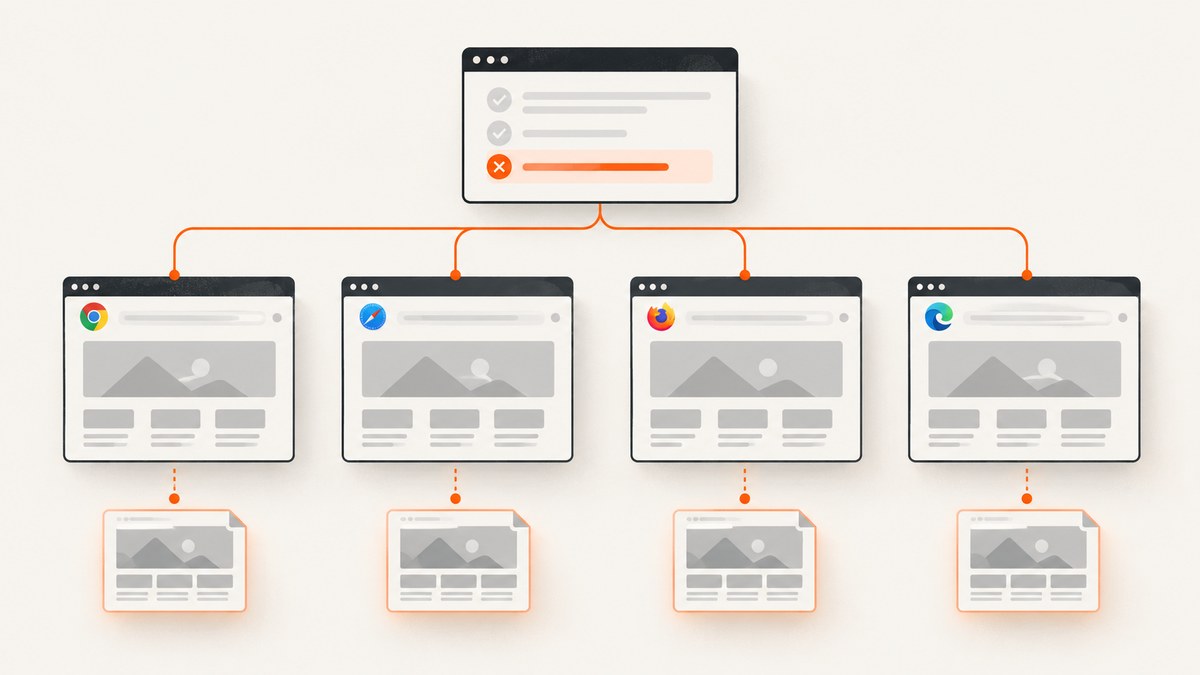
When a browser test fails, a screenshot records what a person could see at that moment. That evidence helps explain a broken layout, missing error message, blocked request, or unexpected state. It is different from visual regression testing: a failure screenshot documents an incident, while a visual assertion compares pixels with a known baseline.
This guide shows how to capture and retain failure screenshots across a browser matrix with Cypress and Playwright Test. It covers local runs, CI artifacts, retries, browser-specific naming, stable rendering, troubleshooting, and an API option when you need screenshots outside a test runner.
1. Choose the capture model
| Need | Best fit | What it proves |
|---|---|---|
| Automatic evidence when a test fails in a run | Cypress run mode | The rendered runner state at failure |
| Explicit files or reporter attachments | Playwright TestInfo | A screenshot you choose to write or attach |
| Pixel comparison against a baseline | toHaveScreenshot() or a visual-testing service |
Whether rendered pixels differ |
| One-off captures from URLs | Screenshot API | A clean rendered page image or PDF |
Keep these outputs separate. A screenshot can show the visible symptom without explaining the sequence that caused it. Console logs, traces, videos, and network data may be needed for that.
2. Cypress: automatic screenshots on failure
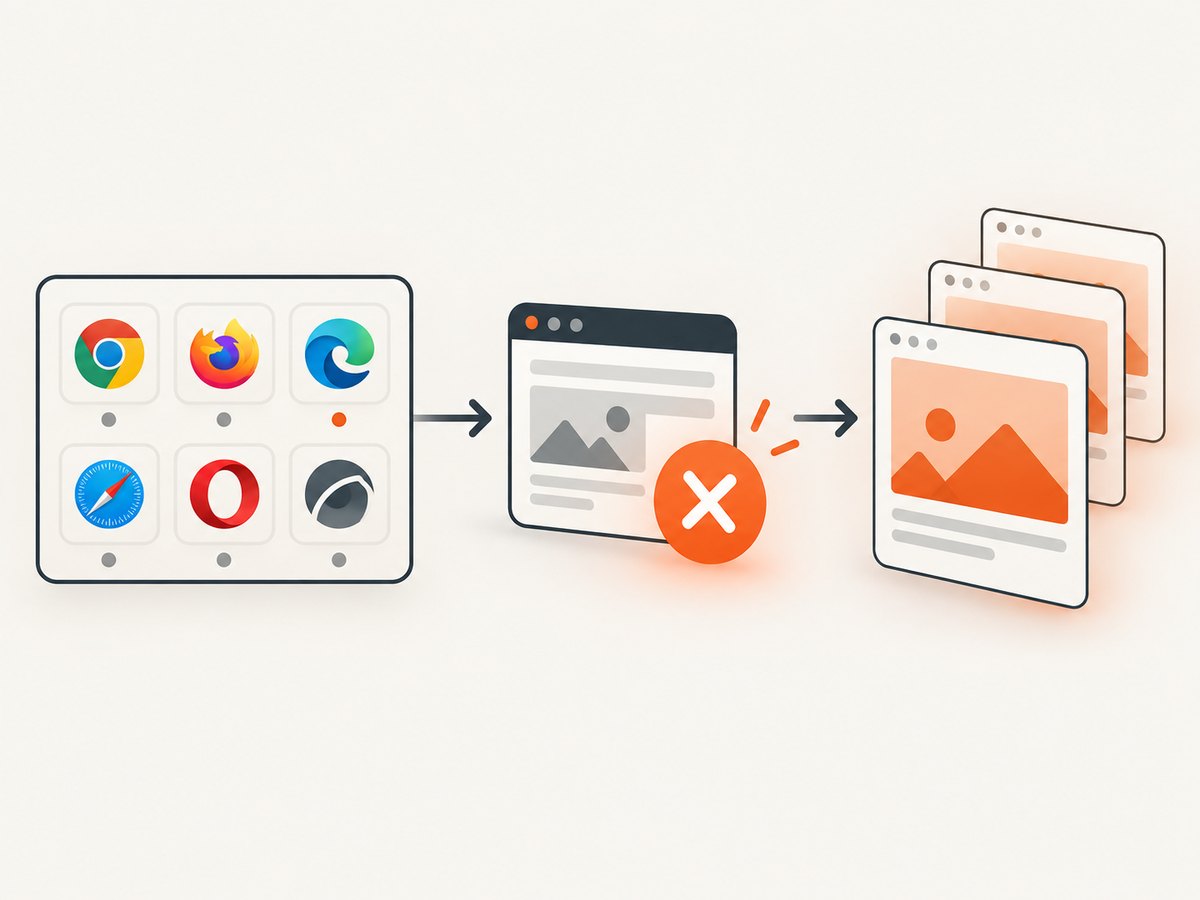
Cypress captures screenshots automatically for failed tests during cypress run, including CI runs. This behavior does not apply automatically to cypress open. The default setting is enabled and the default directory is cypress/screenshots.
Enable the default behavior
In cypress.config.js:
const { defineConfig } = require('cypress');

module.exports = defineConfig({
  e2e: {
    baseUrl: 'https://example.test',
    screenshotOnRunFailure: true,
    setupNodeEvents(on, config) {
      return config;
    }
  }
});
Run the suite in a selected browser:
npx cypress run --browser chromeRun it again for another browser family:
npx cypress run --browser firefox
npx cypress run --browser edge
Cypress documents Chrome-family browsers, Edge, Chrome for Testing, and Firefox. WebKit support is experimental, so label WebKit results accordingly in your matrix and avoid treating them as equivalent to the stable browser paths without current evidence.
Manual screenshots
Use cy.screenshot() when a failure needs a deliberate checkpoint, such as immediately after opening a menu:
describe('checkout', () => {
  it('shows a validation error', () => {
    cy.visit('/checkout');
    cy.get('[data-testid="submit"]').click();
    cy.get('[role="alert"]').should('be.visible');
    cy.screenshot('checkout-validation-error', { capture: 'viewport' });
  });
});
The documented capture modes are:
viewport: the application viewport.fullPage: the application from top to bottom.runner: the Cypress browser viewport and command log.
Failure screenshots are coerced to runner capture so the test context remains visible. A screenshot is asynchronous; the interface can change while it is being taken. Assert the expected state before capturing.
Preserve files in CI
Cypress clears cypress/screenshots before a run by default. Set trashAssetsBeforeRuns: false when a workflow intentionally needs to preserve existing files, and still publish the current run’s directory as a CI artifact. Each CI provider has its own upload and retention configuration; a local file does not persist after an ephemeral job ends unless your workflow uploads it.
const { defineConfig } = require('cypress');

module.exports = defineConfig({
  trashAssetsBeforeRuns: true,
  e2e: {
    screenshotOnRunFailure: true
  }
});
Use an artifact step after the test command. For example, a generic shell sequence is:
npx cypress run --browser chrome || status=$?
# Configure your CI provider to upload cypress/screenshots here.
exit ${status:-0}
Keep the original exit status so artifact collection does not hide a test failure.
Retries and filenames
When retries are enabled, Cypress retains screenshots for attempts and distinguishes later attempts with an (attempt n) suffix. Do not overwrite these files during post-processing. Index artifacts by at least browser, operating system, spec, test title, and retry attempt. That makes it possible to tell a flaky first attempt from a deterministic final failure.
3. Playwright Test: write or attach failure evidence
Playwright Test’s TestInfo API is available in test functions, hooks, and test-scoped fixtures. It can write a screenshot under the test output directory or attach screenshot bytes for reporters.
Save a screenshot to the test output path
import { test, expect } from '@playwright/test';

test('checkout validation', async ({ page }, testInfo) => {
  await page.goto('https://example.test/checkout');
  await page.getByTestId('submit').click();
  await expect(page.getByRole('alert')).toBeVisible();

  await page.screenshot({
    path: testInfo.outputPath('failure-evidence.png'),
    fullPage: true
  });
});
testInfo.outputPath() keeps files inside the test’s isolated output location, which avoids collisions between parallel workers and browser projects.
Attach bytes for reporters
import { test, expect } from '@playwright/test';

test('account page', async ({ page }, testInfo) => {
  await page.goto('https://example.test/account');
  const screenshot = await page.screenshot({ fullPage: true });
  await testInfo.attach('account-page', {
    body: screenshot,
    contentType: 'image/png'
  });
  await expect(page.getByRole('heading', { name: 'Account' })).toBeVisible();
});
Reporters can present the attachment from their accessible artifact location. In a real suite, capture in an afterEach hook only when the test failed, or capture a deliberate checkpoint before the assertion whose context you need. Keep the hook defensive: if navigation itself failed, check whether a page is still available before calling screenshot().
Configure a browser matrix
import { defineConfig, devices } from '@playwright/test';

export default defineConfig({
  testDir: './tests',
  projects: [
    { name: 'chromium', use: { ...devices['Desktop Chrome'] } },
    { name: 'firefox', use: { ...devices['Desktop Firefox'] } },
    { name: 'webkit', use: { ...devices['Desktop Safari'] } }
  ],
  retries: process.env.CI ? 2 : 0,
  reporter: [['html', { outputFolder: 'playwright-report' }]]
});
Name output files with the project name when aggregating artifacts. Playwright’s project names are also useful in visual snapshot paths. Follow the current Playwright browser support guidance for the exact matrix you run.
4. Failure evidence versus visual regression
A failure screenshot answers “what was visible when this test failed?” A visual assertion answers “does this render match the approved baseline?” Playwright’s toHaveScreenshot() is for the second question:
import { test, expect } from '@playwright/test';

test('home page visual baseline', async ({ page }) => {
  await page.goto('https://example.test/');
  await expect(page).toHaveScreenshot('home.png');
});
Do not use a visual diff as your only failure artifact. A diff can identify changed pixels, while an explicitly named failure capture can show the rendered error, modal, or test data that caused the assertion to fail.
5. Stabilize screenshots before capture
- Wait for the URL, selector, or role that represents the expected state.
- Wait for application data and fonts before taking a screenshot.
- Disable animations or use a test stylesheet where appropriate.
- Fix viewport dimensions, device scale factor, timezone, locale, and color scheme.
- Use the same browser version, operating system, installed fonts, and headless mode for baseline comparisons.
- Record browser project and retry attempt in the artifact metadata.
Operating systems, browser versions, display scaling, hardware, power settings, and fonts can alter pixels. Maintain separate baselines when environments intentionally differ. For lazy-loaded pages, scroll or wait until the required content is present before a full-page capture.
6. Common errors and fixes
| Symptom | Likely cause | Fix |
|---|---|---|
No Cypress image in cypress open |
Automatic failure capture is a run-mode feature | Use npx cypress run or call cy.screenshot() manually. |
| Old screenshots disappeared | Cypress cleans the screenshots directory before runs | Upload artifacts during the job; change trashAssetsBeforeRuns only when deliberate retention is required. |
| Only the last retry is visible | Post-processing overwrote attempt files | Preserve the (attempt n) suffix and include retry in your index. |
| Playwright attachment missing from report | The test ended before attachment or reporter output was collected | Await testInfo.attach(), use a supported reporter, and upload the report directory. |
| Screenshot is blank | Capture happened before navigation or rendering finished | Wait for a stable selector and verify the page is not still loading. |
| Visual diff fails only in CI | Different fonts, browser, OS, scale, or headless settings | Pin the environment or maintain environment-specific baselines. |
| Full-page image cuts off content | Lazy content was never loaded or a fixed element interfered | Scroll or wait for content, then capture after the page reaches its intended state. |
| Artifact upload hides the test failure | Upload command replaced the test exit code | Save the status, upload, then exit with the saved status. |
7. Performance, reliability, and cost
Screenshots add rendering and encoding work, and full-page captures are larger than viewport captures. Capture one diagnostic image per failed attempt unless a checkpoint is essential. Run browser projects in parallel when CI capacity allows, but give each worker an isolated output directory. Compress or retain thumbnails for routine review while keeping the original image for investigation.
Retries improve resilience against transient failures but multiply screenshot and artifact volume. Set a retention period that matches your debugging cycle. For visual comparisons, deterministic environments reduce false positives and the time spent reviewing noise.
Hosted visual services can add cross-browser rendering and review workflows; Cypress documentation names Argos, Chromatic, Happo, LambdaTest SmartUI, Percy, Sauce Labs Visual, SmartBear VisualTest, and Wopee.io. Verify current pricing, browser coverage, retention, and CI integration before selecting one.
8. Or skip the browser setup
ScreenshotNeo provides a website screenshot API and MCP server. It is useful when you need a clean capture of a URL outside the test runner, or when an AI agent should request a screenshot. The API accepts options for full-page capture, CSS element capture, dark mode, device presets or custom viewports, retina scale, waits, custom JavaScript and CSS, hidden selectors, headers, cookies, user agents, authorization, blocking rules, timezone, geolocation, transparent backgrounds, resizing, caching, PDFs, async jobs, signed links, webhooks, bulk capture, and usage reporting. See the ScreenshotNeo documentation for parameter details.
curl -G "https://api.screenshotneo.com/v1/shot" -d access_key=YOUR_API_KEY --data-urlencode url=https://stripe.com -o shot.webpimport requests
r = requests.get("https://api.screenshotneo.com/v1/shot", params={"access_key": "YOUR_API_KEY", "url": "https://stripe.com"}, timeout=90)
open("shot.webp", "wb").write(r.content)const q = new URLSearchParams({ access_key: 'YOUR_API_KEY', url: 'https://stripe.com' });
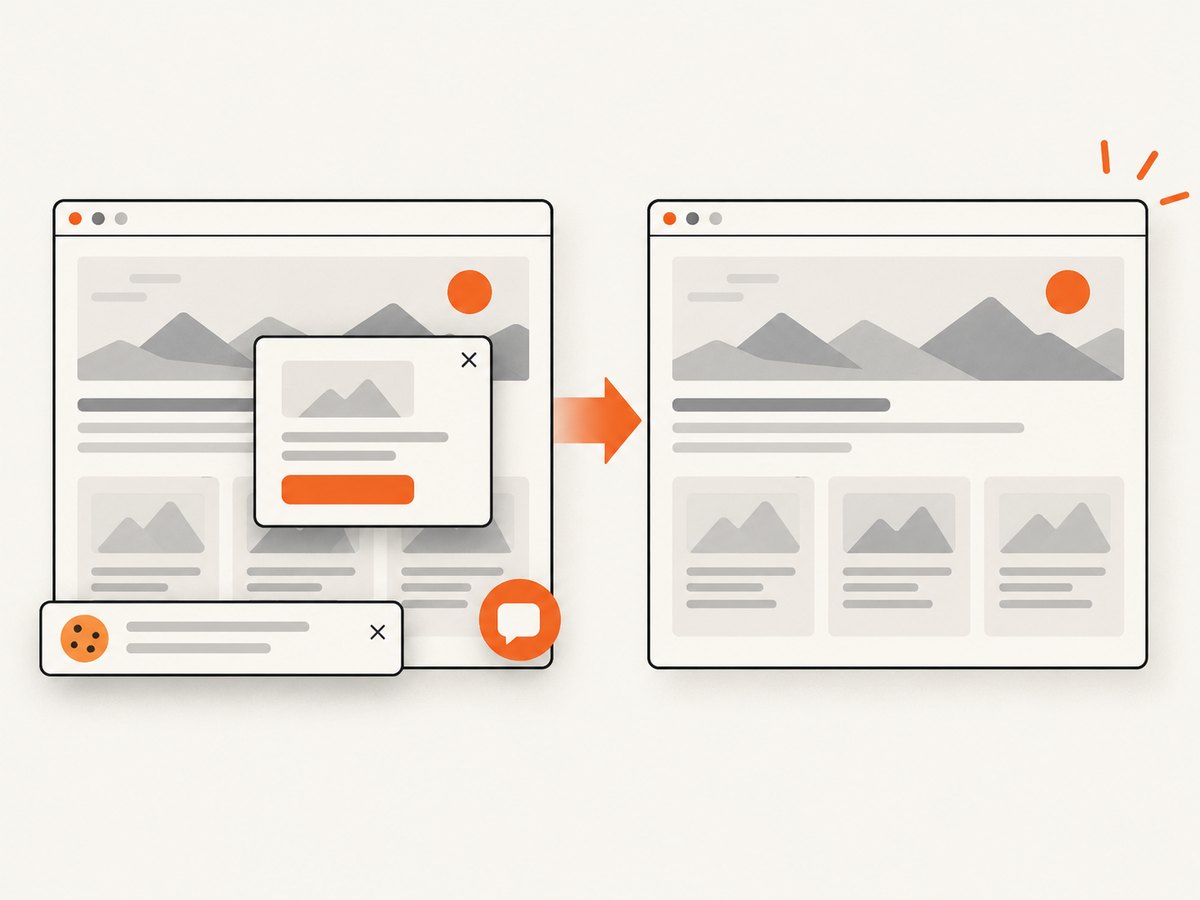
const res = await fetch(`https://api.screenshotneo.com/v1/shot?${q}`);Cookie and consent banners, newsletter popups, and chat widgets are removed before the shot. Bot checks, blank pages, failed loads, timeouts, and cache hits are not billed; response headers identify the page verdict and billing status. An MCP server exposes take_screenshot, get_page_info, and capture_pdf to Claude, Cursor, and other MCP clients. The free plan includes 1,000 screenshots a month with no card; paid plans start at $5 for 3,000 shots, and every feature is available on every plan.
Sign up for the free ScreenshotNeo plan to try it with 1,000 screenshots per month and no card.
9. A practical CI checklist
- List every browser project and its version in the run metadata.
- Capture after the UI reaches a known state.
- Keep failure evidence separate from visual baselines.
- Preserve Cypress retry suffixes and Playwright project names.
- Upload screenshots and reports before the job exits.
- Retain the original test exit status.
- Use stable fonts, viewport, scale, locale, and timezone for comparisons.
- Review full-page size and artifact retention costs.
FAQ
Does Cypress take failure screenshots in interactive mode?
Automatic failure screenshots are documented for cypress run. In cypress open, call cy.screenshot() when you need an image.
Should every browser share one visual baseline?
Only when the rendering environment is intentionally identical. Browser engines, operating systems, fonts, and settings can produce legitimate pixel differences.
Can a screenshot explain a flaky test?
It can show the final visible state, but it cannot reconstruct the full sequence. Pair it with logs, traces, network evidence, or video when timing is central.
When should I use an API instead of a test-runner screenshot?
Use an API for URL-based captures, scheduled pages, documentation images, or agent workflows where launching and maintaining a browser matrix in the caller is unnecessary.


