How to Capture Textareas with html2canvas
Capture textarea content reliably with html2canvas, preserve typed values and line breaks, fix clipping and CSS issues, and compare an API workflow.
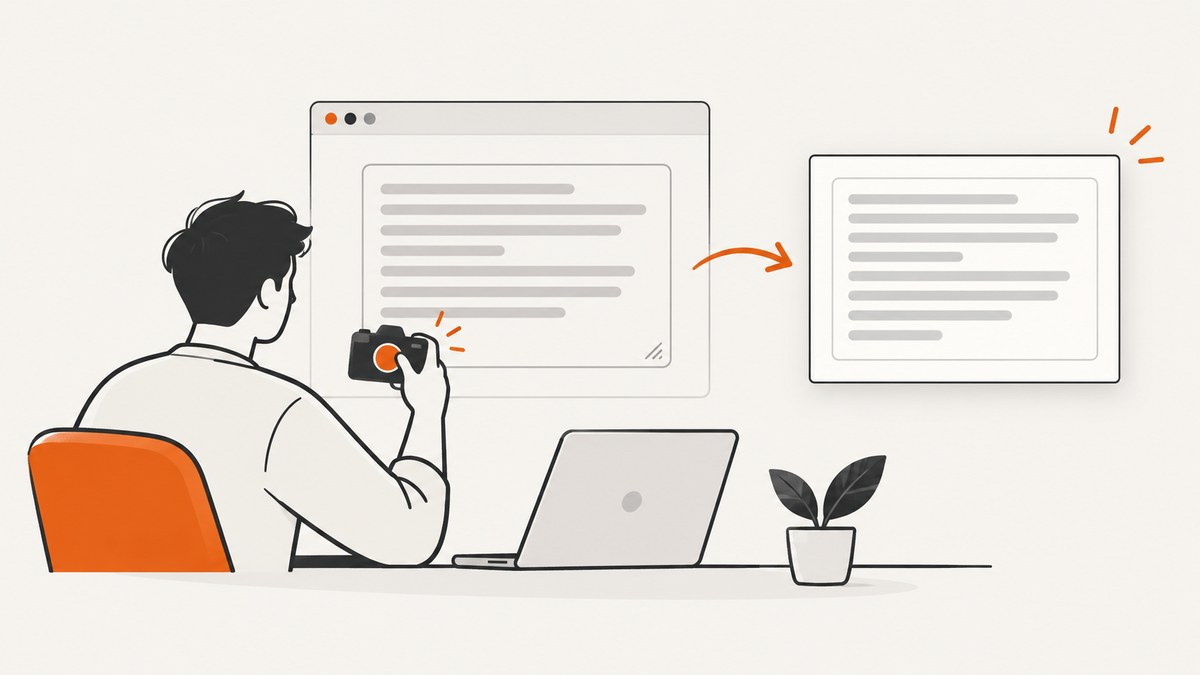
Short answer: pass the textarea element to html2canvas() and await the returned promise. If the image can omit the latest typed value, use the documented onclone callback to inspect or synchronize the cloned textarea before rendering. Render a parent container when you need labels, borders, or surrounding context.
const textarea = document.querySelector('textarea');
const canvas = await html2canvas(textarea);
document.body.appendChild(canvas);
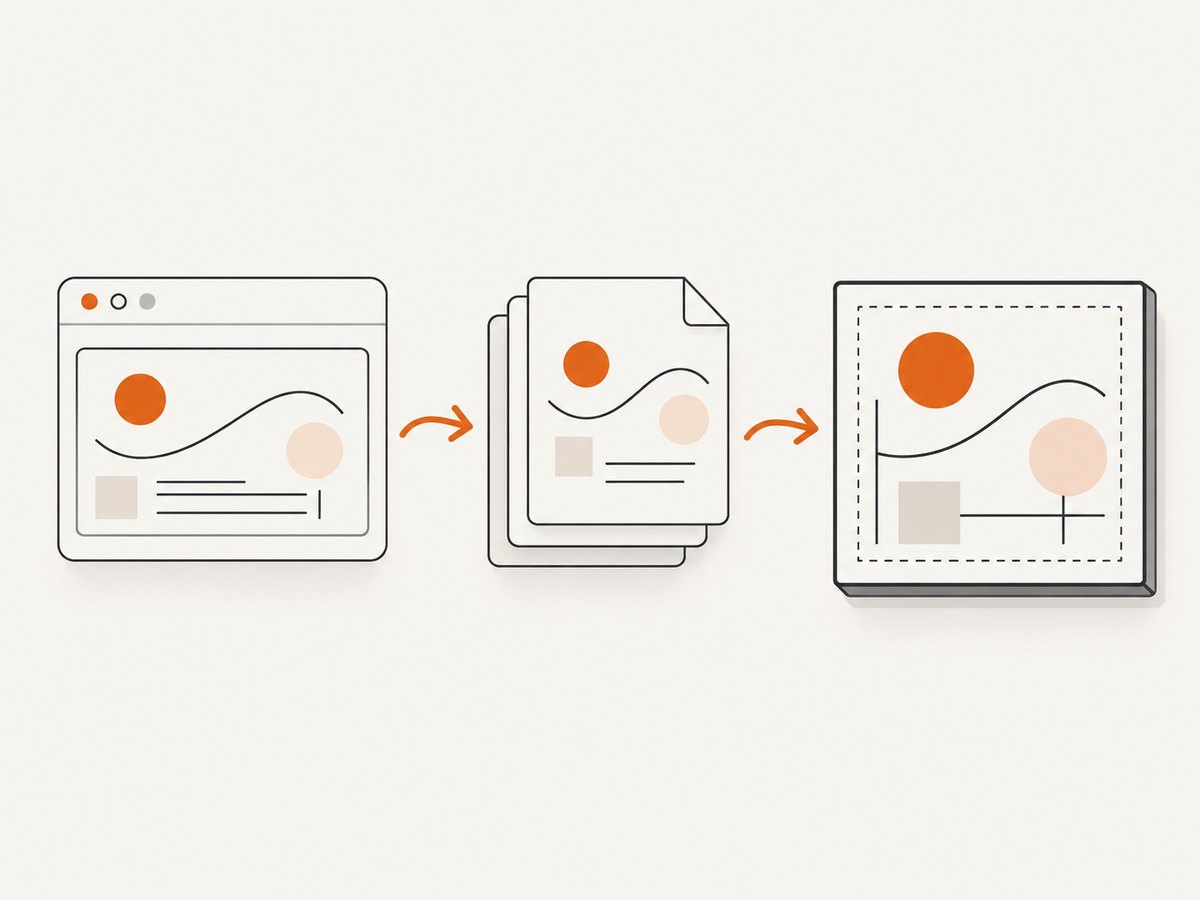
html2canvas reconstructs an image from DOM information. It does not take a literal pixel screenshot of the browser, so unsupported CSS, font differences, cross-origin images, and browser canvas limits can change the result. The official documentation describes the rendering call and promise-based workflow in its getting-started guide, while the architecture documentation explains the difference between DOM rendering and a browser screenshot.
1. Set up a minimal textarea capture
Install html2canvas with npm or load it from your chosen package pipeline. The following example captures one control after the page has rendered:
import html2canvas from 'html2canvas';

async function captureTextarea() {
  const textarea = document.querySelector('#message');
  if (!textarea) throw new Error('Textarea not found');

  const canvas = await html2canvas(textarea);
  const pngUrl = canvas.toDataURL('image/png');

  const link = document.createElement('a');
  link.href = pngUrl;
  link.download = 'textarea.png';
  link.click();

  return canvas;
}
Make sure the textarea is visible and has its final dimensions before calling the function. If a framework renders it asynchronously, call the capture handler after the relevant state update and after fonts or layout-dependent content have settled.
2. Preserve the user’s current typed value
A textarea has both markup and live control state. The value a user types is held in the element’s value property, while the original HTML may contain a different text node. html2canvas clones the document before rendering. The documented onclone hook lets you modify that clone without changing the live page.
const textarea = document.querySelector('#message');

const canvas = await html2canvas(textarea, {
  onclone: (clonedDocument) => {
    const clonedTextarea = clonedDocument.querySelector('#message');
    if (clonedTextarea) {
      // Defensive synchronization for releases/configurations where
      // the clone does not carry the current live value.
      clonedTextarea.value = textarea.value;
    }
  }
});
This is a defensive implementation pattern, not a promise that every html2canvas release loses textarea state. Verify the behavior with the exact browser and package version you ship. Test empty values, placeholder text, multiline content, long words, repeated spaces, and newlines. The project’s textarea reference test covers many of these layout cases.
If you need a stable render-only representation, you can copy the value into a temporary element in the cloned document:
const liveTextarea = document.querySelector('#message');

await html2canvas(liveTextarea, {
  onclone: (doc) => {
    const clone = doc.querySelector('#message');
    if (!clone) return;
    clone.value = liveTextarea.value;
    clone.setAttribute('data-capture-value', liveTextarea.value);
  }
});
Do not mutate the live textarea merely to make the image look right. Changes inside onclone apply to the cloned document used for rendering.
3. Capture the textarea or its containing panel
Choose the element argument based on the composition you need:
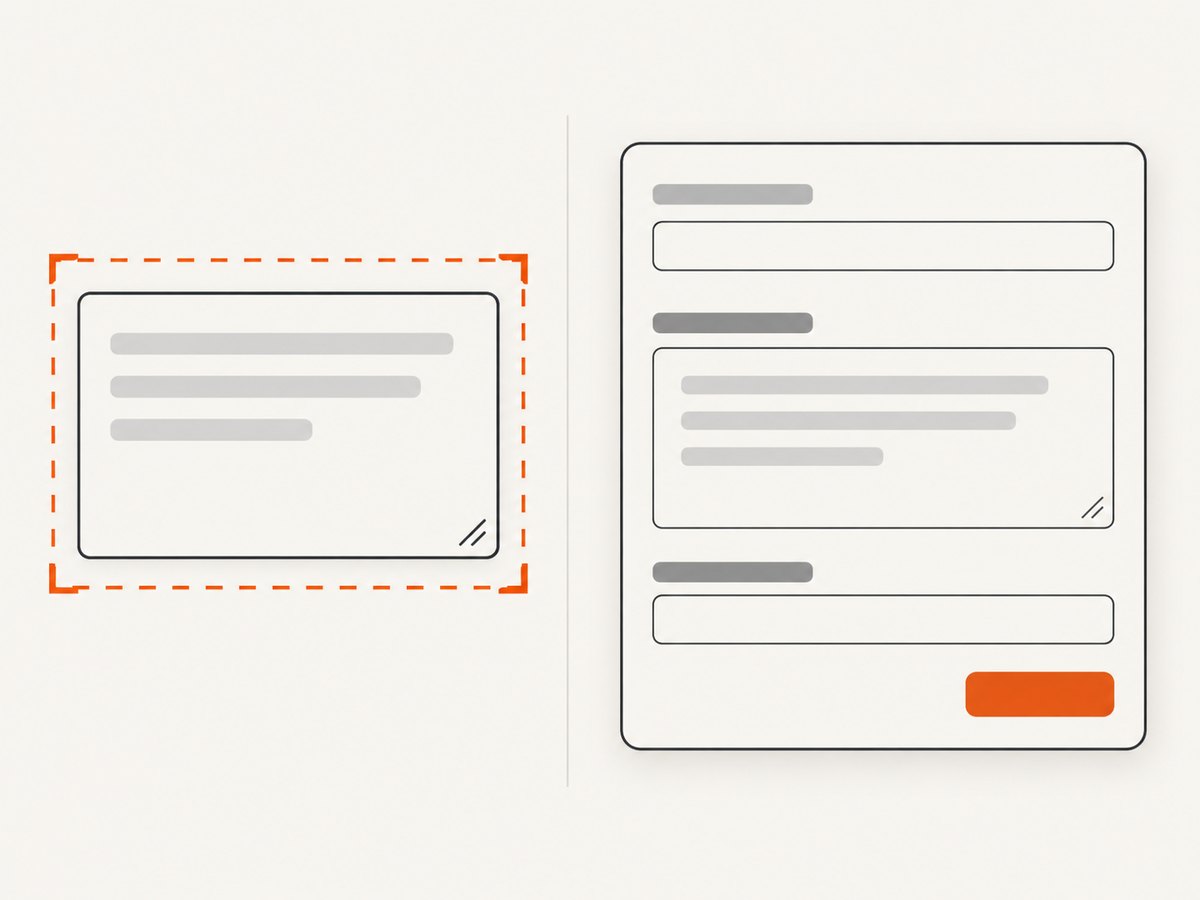
| Goal | Element to pass | Result |
|---|---|---|
| Only the control | document.querySelector('textarea') |
A crop around the textarea’s rendered box |
| Label, border, and help text | The containing panel | The surrounding layout is included |
| Several fields together | A form or section element | One image containing all descendants |
const panel = document.querySelector('.feedback-panel');
const canvas = await html2canvas(panel, {
  onclone: (doc) => {
    const clone = doc.querySelector('.feedback-panel textarea');
    if (clone) clone.value = document.querySelector('.feedback-panel textarea').value;
  }
});
Capturing a parent can include other content that affects the crop, such as buttons, badges, or validation messages. Capturing the textarea alone avoids that interference but excludes context. Decide whether the image is intended as a text artifact or a visual record of the form.
4. Configure dimensions, scale, and background
html2canvas accepts an options object. Common options for textarea captures include:
backgroundColor: set a known color, or usenullfor transparency when the browser and output format support it.scale: controls output pixel density. A higher value can improve text sharpness but increases memory and processing cost.windowWidthandwindowHeight: define the virtual viewport used while rendering.width,height,x, andy: adjust the rendered region when you need a controlled crop.useCORS,proxy, andallowTaint: control how images in the captured container are handled. They do not solve textarea value synchronization.ignoreElements: returntruefor elements that should not be rendered.onclone: make temporary changes in the cloned document.
const textarea = document.querySelector('#message');
const canvas = await html2canvas(textarea, {
  scale: window.devicePixelRatio,
  backgroundColor: '#ffffff',
  logging: false,
  onclone: (doc) => {
    const clone = doc.querySelector('#message');
    if (clone) clone.value = textarea.value;
  }
});
For a predictable output, set the background explicitly and choose a scale that fits your memory budget. A retina scale produces more pixels, but it does not add CSS features that html2canvas does not implement.
5. Keep wrapping, spacing, and line breaks consistent
Textarea appearance depends on font metrics and text-layout properties. The official feature matrix lists support for properties such as font-family, font-size, font-style, font-weight, padding, overflow, white-space, word-break, word-wrap, letter-spacing, and line-break. Compare those properties when a capture wraps differently from the live control.
textarea {
  box-sizing: border-box;
  width: 32rem;
  min-height: 12rem;
  padding: 1rem;
  font: 400 16px/1.5 system-ui, sans-serif;
  white-space: pre-wrap;
  overflow-wrap: anywhere;
}
Wait until the intended font is available before capturing. If a web font changes after the image is created, glyph widths and line breaks can differ. Test long words, multiple spaces, blank lines, and non-ASCII characters in every browser you support.
6. Exclude controls and change the cloned layout
Add data-html2canvas-ignore to an element that should never appear, or use ignoreElements for a conditional rule:
const canvas = await html2canvas(document.querySelector('.editor'), {
  ignoreElements: (element) => element.matches('.capture-toolbar, .error-message')
});
Use onclone for capture-only changes such as hiding a blinking caret, removing a focus outline, or changing a background:
const editor = document.querySelector('.editor');

await html2canvas(editor, {
  onclone: (doc) => {
    const clonedEditor = doc.querySelector('.editor');
    if (clonedEditor) clonedEditor.classList.add('capture-mode');
  }
});
.capture-mode textarea {
caret-color: transparent;
}
.capture-mode .live-only-controls {
display: none;
}7. Prevent clipping and empty canvases
Very large elements can exceed browser or device canvas limits. The html2canvas FAQ recommends accounting for those limits and aligning windowWidth and windowHeight with the content dimensions. Limits vary by browser, operating system, and hardware.
const element = document.querySelector('.long-form');
const canvas = await html2canvas(element, {
  windowWidth: element.scrollWidth,
  windowHeight: element.scrollHeight,
  width: element.scrollWidth,
  height: element.scrollHeight,
  x: 0,
  y: 0
});
If a long textarea is still too large, capture it in logical sections, reduce scale, or export the text directly instead of producing one enormous bitmap. A canvas that is blank or truncated is often a size problem rather than a textarea-value problem.
8. Handle images and cross-origin content
If the parent container includes images, browser cross-origin rules can affect the canvas. The configuration reference documents useCORS, proxy, and allowTaint. Use a same-origin image, a server that sends appropriate CORS headers, or the documented proxy approach when the surrounding panel contains remote assets.
const canvas = await html2canvas(document.querySelector('.message-card'), {
  useCORS: true,
  imageTimeout: 15000
});
These image settings do not control the textarea’s live value. Keep value synchronization in onclone and diagnose remote images separately.
9. Troubleshooting checklist
| Symptom | Likely cause | Fix |
|---|---|---|
| Latest typed text is missing or stale | The cloned control does not contain the live property value | Inspect the clone in onclone and copy liveTextarea.value; test your exact release |
| Line wrapping differs | Font metrics or supported text CSS differs | Wait for fonts, compare the feature matrix, and test width, padding, line height, and word-breaking rules |
| Placeholder appears unexpectedly | The value is empty and the clone still renders placeholder state | Test empty and non-empty values separately; set the cloned value deliberately |
| Control is clipped | Viewport or element dimensions are smaller than the scrollable content | Set dimensions from scrollWidth/scrollHeight and check canvas limits |
| Canvas is blank | Canvas size limit, hidden element, or an exception during rendering | Capture a visible smaller element, reduce scale, inspect console errors, and verify layout before capture |
| Remote images are absent | Cross-origin restrictions | Use useCORS, a valid proxy, or same-origin assets; check response headers |
| Shadows or filters differ | html2canvas does not support every CSS property | Check the official support list and simplify or adapt unsupported styling |
10. Know the fidelity limits
The project states that it cannot support every CSS property because each property must be implemented manually. The feature reference lists unsupported examples including box-shadow, filter, mix-blend-mode, object-fit, and writing-mode. Treat html2canvas as a DOM-based renderer, not a pixel-perfect browser capture. If exact browser pixels are required, use a browser automation screenshot instead.
11. Performance and reliability practices
- Capture only the smallest element that satisfies the requirement.
- Use a moderate
scale; large canvases consume memory quickly. - Debounce capture buttons so repeated clicks do not start overlapping renders.
- Capture after layout, fonts, and async content have settled.
- Release references to large canvases when finished and avoid retaining data URLs unnecessarily.
- Record browser, operating system, html2canvas version, dimensions, and options when diagnosing differences.
- For text-only workflows, store the textarea value directly. Rendering is appropriate when the visual layout is part of the output.
12. Or skip the browser setup
If you need a server-side screenshot of a page containing a textarea, ScreenshotNeo provides a GET endpoint that returns PNG, JPEG, WebP, or PDF. It loads the URL in a browser and supports full-page capture, custom CSS and JavaScript, selector-based element capture, waiting for a selector or network idle, custom viewport and device settings, and more. See the ScreenshotNeo API documentation for the complete option list.
cURL
curl -G "https://api.screenshotneo.com/v1/shot" \
  -d access_key=YOUR_API_KEY \
  --data-urlencode url=https://example.com/form \
  -o shot.webp
Python
import requests

r = requests.get(
    'https://api.screenshotneo.com/v1/shot',
    params={
        'access_key': 'YOUR_API_KEY',
        'url': 'https://example.com/form'
    },
    timeout=90
)
r.raise_for_status()
open('shot.webp', 'wb').write(r.content)
Node.js
const q = new URLSearchParams({
  access_key: 'YOUR_API_KEY',
  url: 'https://example.com/form'
});
const res = await fetch(`https://api.screenshotneo.com/v1/shot?${q}`);
if (!res.ok) throw new Error(`Screenshot failed: ${res.status}`);
const data = Buffer.from(await res.arrayBuffer());
await import('node:fs/promises').then(fs => fs.writeFile('shot.webp', data));
ScreenshotNeo removes cookie and consent banners, newsletter popups, and chat widgets before capture; each step can be turned off. Bot checks or CAPTCHAs, blank pages, timeouts, failed loads, and cache hits are not billed, and the response identifies the result with X-Page-Verdict and X-Billed headers. Its MCP server exposes take_screenshot, get_page_info, and capture_pdf for Claude, Cursor, and other MCP clients.
The Free plan includes 1,000 screenshots each month with no card. Paid plans start at $5 for 3,000 shots; every feature is available on every plan. Use the free ScreenshotNeo sign-up to get started.
13. FAQ
Should I capture the textarea or its parent?
Capture the textarea for a tight text image. Capture its parent when labels, borders, help text, or adjacent controls are part of the intended composition.
Does html2canvas preserve newline characters?
It can render multiline layout, but wrapping and line breaks depend on the cloned element’s dimensions, font, and supported CSS. Test the exact content and browser combination.
Can I get the typed text without an image?
Yes. Read textarea.value directly when the requirement is data extraction rather than a visual record.
Why does a screenshot differ from what Chrome displays?
html2canvas rebuilds a representation from DOM data and does not capture browser pixels. Unsupported CSS and resource or font differences can change the result.
When should I use an API instead?
Use a browser screenshot API when capture must run on a server, across many URLs, or without shipping browser setup and rendering code to each client.


