How to Capture a Screenshot of a Twitter Thread
Capture a complete, readable screenshot of a Twitter/X thread on iPhone, Android, Windows, or Mac, with tips for long threads and preserving context.
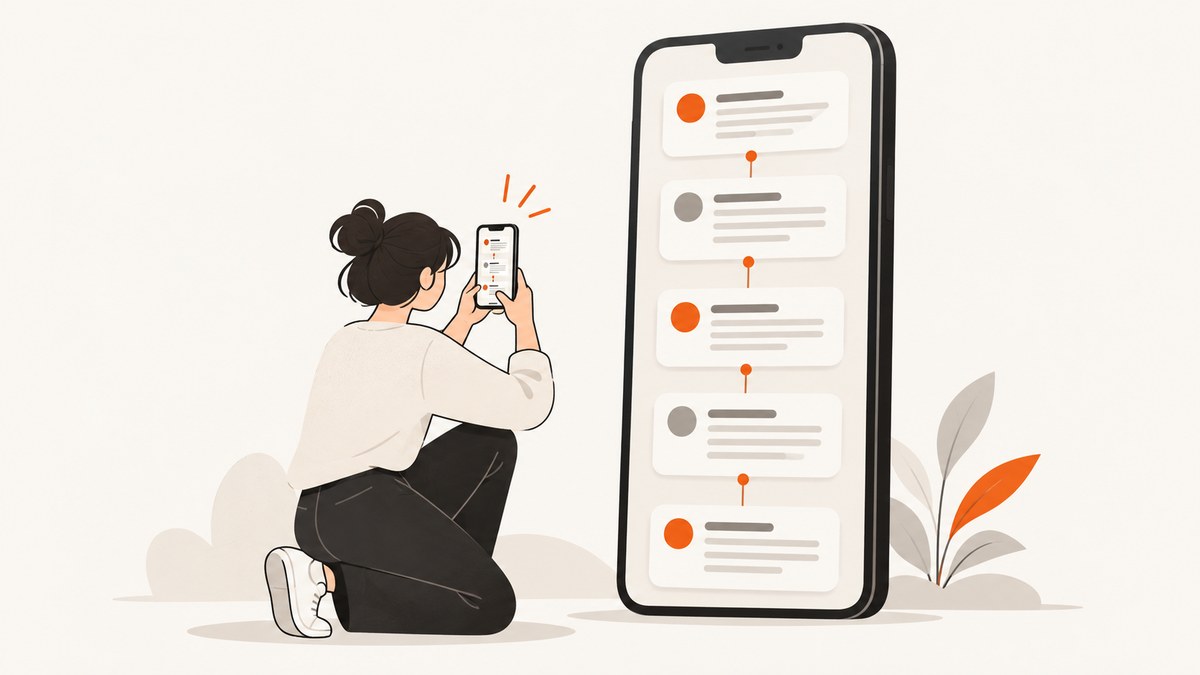
To capture a Twitter/X thread, open the first post, expand the thread with Show this thread if that control appears, and make sure every post has loaded. Then use your device’s screenshot tool. On a compatible scrollable screen, iPhone Full Page or Android Capture more can save more than the visible screen; otherwise, take a sequence of overlapping screenshots and number them in order.
Keep the account name, post text, timestamps, and connecting lines visible where possible. Save an uncropped original, check the whole sequence for missing posts or clipped media, and include the original post link when attribution or verification matters. A screenshot records what was visible at capture time; it is not a substitute for the live post.
1. Expand the whole thread before capturing
X describes a thread as connected posts from one person. Threads with four or more posts can be truncated behind a Show this thread control, so expand it before taking a screenshot. You can also tap the first post to open its thread detail view. [X Help Center: threads]
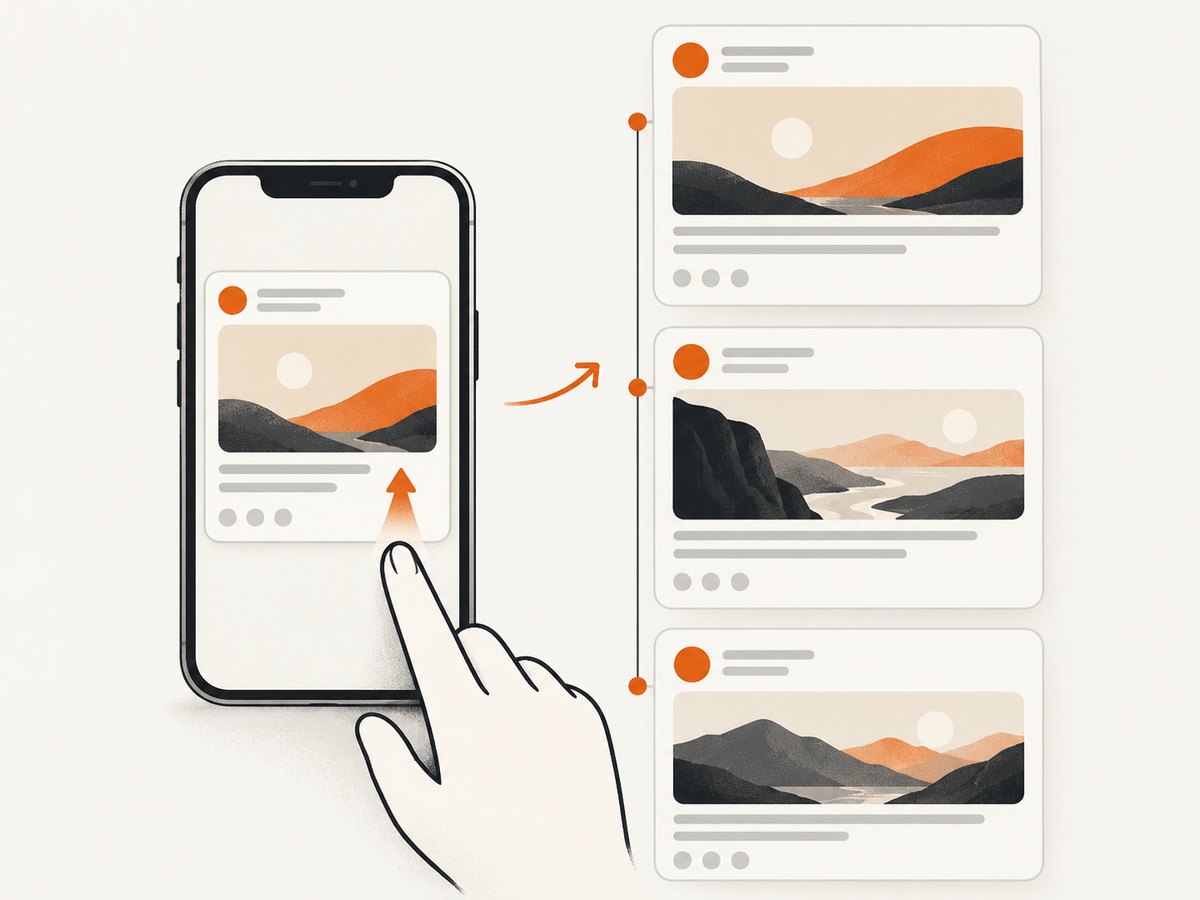
- Open the first post in the X app or at x.com.
- Choose Show this thread, if shown, or open the post’s detail view.
- Scroll through the thread and wait for posts, images, and video previews to load.
- Choose a full-page capture if your device offers one for that screen. Otherwise, capture overlapping sections in order.
- Review the result for missing posts, cut-off text, usernames, timestamps, and media before sharing.
Replies and quoted posts may appear near a thread without being part of the connected sequence. If your capture includes or omits them, make that clear when context matters. Avoid cropping away attribution or presenting a partial image as the complete thread.
2. Capture a thread on iPhone or iPad
On an iPhone with Face ID, quickly press and release the side button and volume-up button together. On models with a Home button, press the side button and Home button together. Tap the screenshot thumbnail to open editing options. If Full Page is offered, select it to capture content beyond the screen; Apple describes this for scrollable pages such as a webpage in Safari. Save the result to Photos. [Apple: take a screenshot on iPhone]
Full Page may not be available for a thread in the X app; availability depends on the app and capture context. If you do not see it, capture overlapping screen sections. You can also try opening the thread in Safari and checking whether Full Page is offered there. Treat that as a possibility, not a guarantee: the screen must support the feature. Crop or mark up a copy after keeping a clean original.
When several iPhone screenshots are needed
- Leave one or two lines of the previous screen visible at the top of the next capture so the order is clear.
- Keep the post’s author and timestamp in at least one image for each section.
- Name files in sequence, such as
thread-01,thread-02, andthread-03. - Check that a long post or attached image has not been cut across two captures.
3. Capture a thread on Android
On Android, open the screen and press Power + Volume Down. After the screenshot preview appears, tap Capture more if available, adjust the captured area, and save it. Google says scrolling screenshots work on Android 12 and up on most screens that allow scrolling. Find the saved screenshot in Google Photos under Collections > On this device > Screenshots, or in your device manufacturer’s Gallery app. [Google Android Help: take a screenshot or record your screen]
If Capture more is missing, that X screen or device may not expose a compatible scrollable surface. Take consecutive screenshots with a small overlap, or try opening the thread in a browser that supports scrolling capture. Button placement and menu names vary by manufacturer, so check its instructions if the standard shortcut differs.
Check an Android long capture before sharing
- Confirm the capture extends through the last post you intended to include.
- Look for stitching gaps, duplicated lines, or text cut off at the boundary.
- Make sure the crop does not remove the account name or other identifying context.
- If the app only captures the visible screen, use overlapping sections and label their order.
4. Capture a thread on Windows
Open the expanded thread in a browser. Use Windows Snipping Tool to capture a selected area around the post column, which usually keeps the text larger and avoids unrelated timeline columns. Snipping Tool can capture a region or the full screen; save each section if the thread extends beyond the visible browser area. [Microsoft: use Snipping Tool to capture screenshots]
For a long thread, scroll down and take successive captures with a small overlap. Number the files and check that each post appears fully at least once. Some browsers may offer a full-page capture through a developer or screenshot command, but availability and output can change. Verify the result visually rather than assuming the whole thread was captured.
5. Capture a thread on Mac
Apple’s built-in screenshot shortcuts are:
- Shift-Command-3: capture the whole screen.
- Shift-Command-4: select a region, useful for isolating the post column.
- Shift-Command-5: open screenshot controls for the full screen, a window, or a selected portion.
You can edit from the screenshot thumbnail. Screenshots normally save to the desktop unless you change the destination in the controls. [Apple: take a screenshot on your Mac]
For a thread taller than the browser window, capture successive regions as you scroll, keeping a small overlap between images. A browser full-page feature may be available; inspect its output for missing lazy-loaded posts and clipped media. Use a region capture around the thread when a full-screen image would make the post text too small.
6. Choose one long image or a numbered sequence
A single tall capture is convenient to archive or share, but it is only useful if the text remains readable and every intended post appears. A sequence of normal screenshots is often easier to inspect on a phone and safer when the app does not support scrolling capture. The right choice depends on the screen and how the image will be used.

| Method | Best for | Long-thread behavior | Review points |
|---|---|---|---|
| iPhone Full Page | Safari or another supported scrollable page | One tall image or document when offered; otherwise use multiple captures | Check whether the thread app exposes Full Page; crop or mark up a copy |
| Android Capture more | Compatible scrollable screens on Android 12+ | Extends the capture when the option appears | Check for missing content, seams, and unreadable text |
| Windows Snipping Tool | A precise desktop region or the full screen | Use repeated captures for content beyond the viewport | Keep the post column large and number sections |
| Mac Screenshot | A full screen, window, or selected region | Use repeated captures unless a browser full-page feature is available | Check each image for lazy-loaded posts and clipped media |
For several images, begin each new capture slightly above the last one’s endpoint. The overlap helps readers follow the sequence and makes it easier to spot a missing section. Keep a clean original before adding arrows, highlighting, or other markup. If the screenshot may be cited as evidence, preserve the uncropped copy and the original post link.
7. Troubleshooting
| Problem | Likely cause | What to do |
|---|---|---|
| The screenshot ends after only a few posts | The thread was collapsed or the capture covered only the visible screen | Expand Show this thread, open the detail view, and use a supported scrolling capture or numbered sections. |
| Full Page or Capture more is missing | The app or screen does not support scrolling capture in that context | Try the thread in a browser, if appropriate, or take overlapping screenshots. |
| Posts or media are blank | Content had not finished loading when the image was taken | Wait for the thread and media to load, scroll through it once, then capture again. |
| Text is too small to read | The capture includes too much screen width or the resulting tall image was scaled down | Capture the post column as a region, use multiple images, or view the original at full size. |
| A post is cut off between images | Captures did not overlap enough or the scroll moved too far | Retake with a small overlap and check that every post is complete in at least one image. |
| The order is unclear | Separate captures lack overlap or sequence labels | Use consistent filenames or labels and preserve a repeated line between adjacent captures. |
| The image seems to show the full thread, but a post is absent | The thread was truncated, a post had not loaded, or the capture skipped a section | Compare against the expanded live thread and state what was omitted if the image is partial. |
8. Or skip the browser setup
If you are documenting a thread displayed in a web page or another URL you can capture, ScreenshotNeo can return a screenshot with one GET request. It is a website screenshot API and MCP server for developers, made by ScreenshotNeo. Use a URL that renders the content you need; this endpoint does not turn a thread into a verified record of content hidden behind an app or account access.
cURL:
curl -G "https://api.screenshotneo.com/v1/shot" -d access_key=YOUR_API_KEY --data-urlencode url=https://x.com -o thread.webpPython:
import requests

r = requests.get(
    "https://api.screenshotneo.com/v1/shot",
    params={"access_key": "YOUR_API_KEY", "url": "https://x.com"},
    timeout=90,
)
open("thread.webp", "wb").write(r.content)
Node.js:
const q = new URLSearchParams({ access_key: 'YOUR_API_KEY', url: 'https://x.com' });
const res = await fetch(`https://api.screenshotneo.com/v1/shot?${q}`);
if (!res.ok) throw new Error(`Screenshot request failed: ${res.status}`);
await Bun.write('thread.webp', new Uint8Array(await res.arrayBuffer()));
See the ScreenshotNeo API documentation for request options and setup. Cookie banners, popups, and chat widgets are removed before the shot. Bot checks, blank pages, and failed loads are never billed. An MCP server lets AI agents take screenshots. The free plan includes 1,000 screenshots a month with no card; paid plans start at $5 for 3,000. Sign up for free and capture 1,000 screenshots a month with no card.
9. Make the saved screenshot useful later
A screenshot is a snapshot of the page at capture time. Preserve enough context for someone else to understand whose posts they are seeing and how the sequence connects. Keep an uncropped original, retain the live post link when attribution or verification matters, and disclose when replies, quoted posts, or media were left out. Interface labels and capture controls can change with X, browser, and operating-system updates, so check the resulting image rather than relying on an old walkthrough.
10. FAQ
Can I save a Twitter thread as one image?
Sometimes. Use Full Page or Capture more when your device offers it for the current screen. If it does not, use a numbered set of overlapping screenshots; that is often more readable than one extremely tall image.
Why does my screenshot show only the first posts?
The thread may still be collapsed, the screen may not support scrolling capture, or you may have captured only the visible area. Expand the thread, wait for it to load, and check whether a long-capture option appears.
Should I crop a thread screenshot before sharing?
You can crop unrelated timeline material, but keep attribution and enough connecting context to show the sequence. Preserve an uncropped copy, and do not describe a partial capture as the complete thread.
Is a screenshot a substitute for the original post?
No. It shows what appeared at capture time. Include the live post link when readers need to check attribution or verify the source.


