How to Capture UI Screenshots with Playwright
Learn how to capture viewport, full-page, and element screenshots with Playwright, configure output and stability, and automate visual checks.
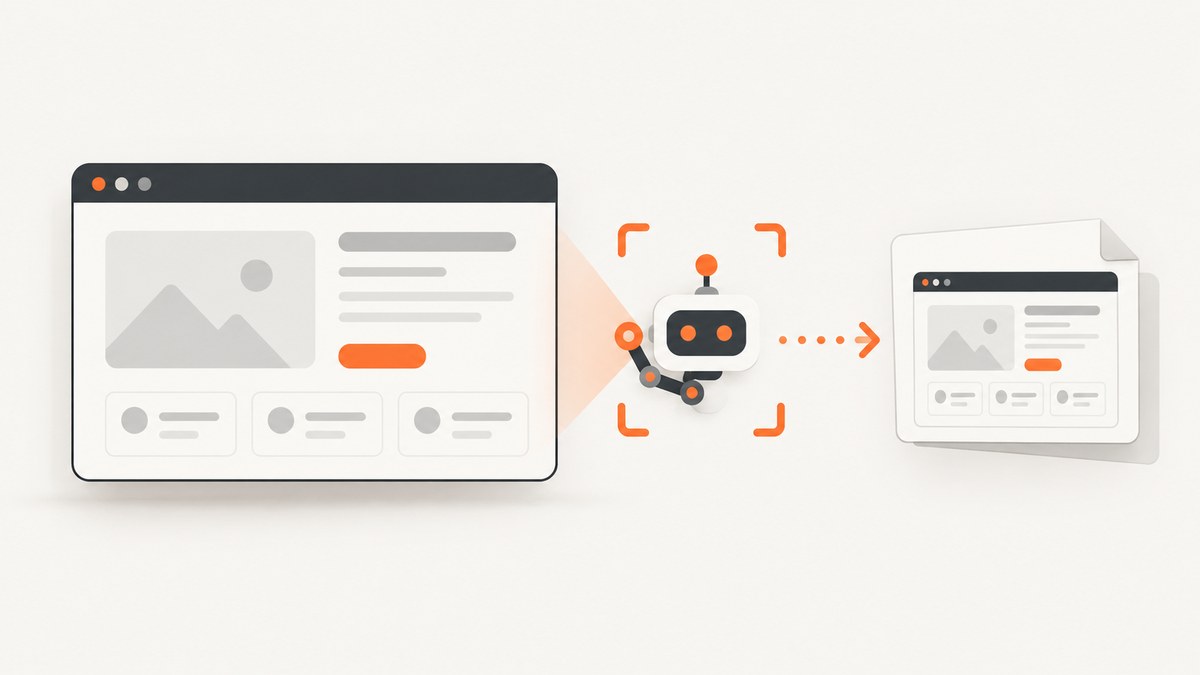
Playwright captures a UI screenshot with one call: await page.screenshot({ path: 'screenshot.png' }). Set fullPage: true for the entire scrollable document, or call screenshot() on a locator to capture one element. You can save an image to disk, keep the returned bytes in memory, choose PNG, JPEG, or WebP, and use Playwright Test’s toHaveScreenshot() for visual regression checks.
This guide covers a complete setup in JavaScript, viewport and full-page captures, element screenshots, clipping, output formats, high-DPI scaling, dynamic content, visual assertions, failure artifacts, troubleshooting, and operational considerations.
1. Install Playwright and create a basic screenshot
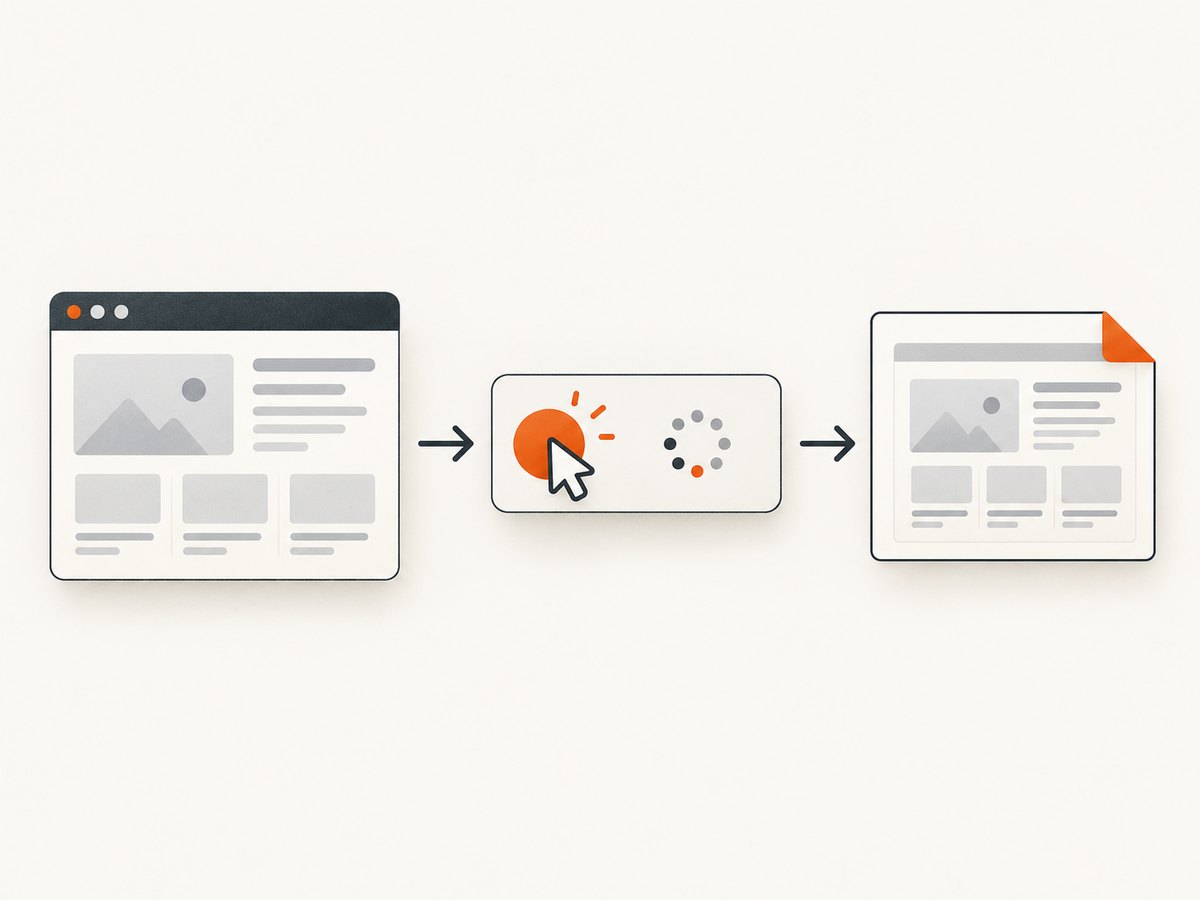
Install Playwright in a new Node.js project, then download at least one browser engine.
mkdir playwright-shots
cd playwright-shots
npm init -y
npm install -D playwright
npx playwright install chromium
Create capture.js:
const { chromium } = require('playwright');

(async () => {
  const browser = await chromium.launch();
  const page = await browser.newPage();

  await page.goto('https://example.com', { waitUntil: 'load' });
  await page.screenshot({ path: 'screenshot.png' });

  await browser.close();
})();
Run it with node capture.js. The default image is the current viewport. The documented Page API supports this navigation-and-save sequence and also lets you omit path to receive image data in memory (Page.screenshot documentation).
Use a deterministic viewport
Screenshot dimensions depend on the viewport. Set it when captures must be comparable between machines.
const page = await browser.newPage({
  viewport: { width: 1440, height: 900 },
  deviceScaleFactor: 1
});
width and height are CSS pixels. A device scale factor above one creates more physical pixels for the same CSS viewport, which is useful when you need retina-style output but increases file size and comparison sensitivity.
2. Capture the full scrollable page
Pass fullPage: true when the screenshot should include content below the fold:
await page.screenshot({
  path: 'full-page.png',
  fullPage: true
});
Playwright measures the scrollable document and stitches the result into one image. This is useful for documentation, design review, and landing pages. Very long pages can produce large images and consume more memory; split them into sections or capture a viewport when a single huge bitmap is not necessary.
Lazy-loaded content may not exist until it enters the viewport. If the page loads images while scrolling, scroll through it before capture:
await page.goto('https://example.com/catalog', { waitUntil: 'networkidle' });
await page.evaluate(async () => {
  await new Promise((resolve) => {
    let last = 0;
    const step = () => {
      window.scrollBy(0, 700);
      const current = document.documentElement.scrollTop;
      if (current === last) return resolve();
      last = current;
      setTimeout(step, 100);
    };
    step();
  });
  window.scrollTo(0, 0);
});
await page.screenshot({ path: 'catalog-full.png', fullPage: true });
For pages where scrolling changes layout, wait for the final content to settle after the scroll pass.
3. Capture one UI element
Use a locator when the target is a component rather than the whole page:
const header = page.locator('.header');
await header.screenshot({ path: 'header.png' });
Locator screenshots perform actionability checks and scroll the element into view. The resulting pixels still represent what is visible: an overlay can cover the element, and a scrollable container captures its currently scrolled content rather than every item inside it (Locator.screenshot documentation).
Prefer stable selectors such as data-testid or an accessible role and name:
await page.getByRole('navigation').screenshot({ path: 'navigation.png' });
await page.getByTestId('checkout-summary').screenshot({ path: 'summary.png' });
If a fixed cookie banner or chat widget obscures the component, close it or hide it before taking the screenshot:
const consent = page.getByRole('button', { name: /accept/i });
if (await consent.isVisible().catch(() => false)) {
  await consent.click();
}
await page.locator('.header').screenshot({ path: 'header-clean.png' });
4. Choose the capture area, format, and scale
| Need | Option | Notes |
|---|---|---|
| Viewport | Default | Captures the visible viewport. |
| Whole document | fullPage: true |
Includes the full scrollable page. |
| Rectangle | clip: { x, y, width, height } |
Captures a viewport-relative rectangle. |
| Format | PNG, JPEG, WebP | The path extension selects the format; pass an explicit type when needed. |
| Pixel density | scale: 'css' or 'device' |
CSS gives one pixel per CSS pixel; device follows the device scale factor. |
| Transparency | PNG with omitBackground: true |
JPEG does not support transparent backgrounds. |
await page.screenshot({
  path: 'card.webp',
  type: 'webp',
  quality: 82,
  clip: { x: 40, y: 120, width: 900, height: 500 },
  scale: 'css'
});
JPEG and WebP quality values trade file size against visual detail. Do not use a quality setting with PNG. When a path has an extension, Playwright can infer the image type; specifying type makes the choice explicit.
Return bytes instead of writing a file
const buffer = await page.screenshot({ type: 'png' });
require('node:fs').writeFileSync('memory-result.png', buffer);
The buffer can be uploaded to object storage, attached to a report, or passed to an image-processing library without an intermediate file.
5. Make screenshots stable for automation
Visual output changes when animations, clocks, ads, random data, or late network requests change. Stabilize the page before capture.
Wait for the state you actually need
await page.goto('https://example.com/dashboard', { waitUntil: 'domcontentloaded' });
await page.getByTestId('dashboard').waitFor({ state: 'visible' });
await page.waitForLoadState('networkidle');
await page.screenshot({ path: 'dashboard.png' });
networkidle can be inappropriate for applications with analytics, polling, or WebSockets. In those cases, wait for a meaningful selector and a short, intentional delay instead of waiting forever for the network to become quiet.
Disable animation and mask volatile areas
await page.screenshot({
  path: 'stable.png',
  animations: 'disabled',
  mask: [page.locator('[data-volatile]')],
  maskColor: '#ff00ff'
});
For more control, inject a stylesheet that hides timestamps, rotating banners, or caret effects. Playwright also supports a screenshot style option in current releases. Check the API documentation for the version installed in your project before relying on version-specific options.
Visual regression with Playwright Test
Use the test runner when the goal is to detect an unintended visual change rather than simply produce an image:
import { test, expect } from '@playwright/test';

test('home page matches the reference', async ({ page }) => {
  await page.goto('https://example.com');
  await expect(page).toHaveScreenshot('home.png', {
    fullPage: true,
    animations: 'disabled'
  });
});
On the first run Playwright creates a reference image. Later runs compare the new capture against it. Use masks or a stylesheet for known volatile regions, and adjust diff thresholds only for documented rendering variation. Do not raise tolerances to hide real UI changes. See the visual comparisons guide.
Capture screenshots when tests fail
import { defineConfig } from '@playwright/test';

export default defineConfig({
  use: {
    screenshot: 'only-on-failure',
    trace: 'retain-on-failure'
  }
});
Use only-on-failure to limit artifact volume, or on when every test needs a screenshot. The test configuration documents these recording modes.
6. Interact before capturing
Many UI states require a click, hover, login, or a form value:
await page.goto('https://example.com/settings');
await page.getByRole('button', { name: 'Appearance' }).click();
await page.getByRole('tab', { name: 'Dark mode' }).click();
await page.getByTestId('settings-panel').screenshot({ path: 'dark-settings.png' });
For authenticated pages, create a storage state once and reuse it in later tests. Keep credentials outside source control. If the page uses a custom user agent, timezone, locale, or viewport, configure those at browser-context creation so every capture uses the same environment.
7. Troubleshooting checklist
| Symptom | Likely cause | Fix |
|---|---|---|
| Blank or partially rendered image | Capture ran before the app rendered. | Wait for a stable, meaningful locator; verify the URL and console errors. |
| Element screenshot times out | Selector matches nothing, is hidden, or never becomes actionable. | Use a stable locator, assert visibility, and inspect the DOM with locator.count(). |
| Cookie banner covers content | Consent UI is still present. | Click its accept button, remove it with a test-only style, or capture after the overlay disappears. |
| Full-page image misses images | Images are lazy-loaded on scroll. | Scroll through the page, wait for image completion, then capture. |
| Screenshot differs on every run | Animations, timestamps, ads, random data, or fonts are changing. | Disable animation, mask volatile locators, freeze test data, and install identical fonts. |
| JPEG has no transparency | JPEG cannot encode an alpha channel. | Use PNG or WebP with an omitted background. |
| Capture is too large or slow | Full page, high device scale, or a very large DOM. | Use CSS scale, clip the required area, split the page, or choose WebP. |
| Navigation hangs | Third-party requests or application polling never finish. | Use domcontentloaded and wait for the application selector you need. |
| Overlay still appears over an element | Locator screenshots capture visible pixels, including covering content. | Close the overlay or hide it before calling screenshot(). |
8. Performance, reliability, and cost considerations
- Reuse browsers: Launching Chromium is expensive. Keep one browser process and create or close contexts per job.
- Control concurrency: A small worker pool prevents CPU and memory pressure when capturing many pages.
- Limit page size: Full-page captures and device scale multiply pixel count. Capture only the required element or rectangle when possible.
- Make waits explicit: Selector-based waits fail faster and are easier to diagnose than arbitrary multi-second sleeps.
- Keep environments consistent: Pin Playwright, browser binaries, fonts, locale, timezone, and viewport for repeatable visual tests.
- Collect diagnostics: Save the URL, browser version, viewport, timing, console errors, and a failure screenshot with each failed job.
- Plan retries carefully: Retry transient navigation failures, but preserve the first failure artifact so a real rendering bug is not hidden.
Playwright itself runs in your infrastructure, so your cost is the compute, storage, and bandwidth used by the browser jobs. Large full-page PNGs consume more storage than clipped WebP images. For a hosted capture workflow, account for API request pricing, cache behavior, and whether failed pages are billable.
9. Or skip the browser setup
If you need screenshots in a build pipeline, CMS, script, or AI workflow without maintaining browser binaries, ScreenshotNeo provides a single GET request. Its capture options include full-page screenshots with lazy images loaded, CSS-selector element capture, dark mode, device presets and custom viewports, retina scale, custom CSS and JavaScript, clicks, selector or network-idle waits, request blocking, headers, cookies, user agents, timezone and geolocation, resizing, caching, signed links, asynchronous jobs, bulk capture, and PDF output.
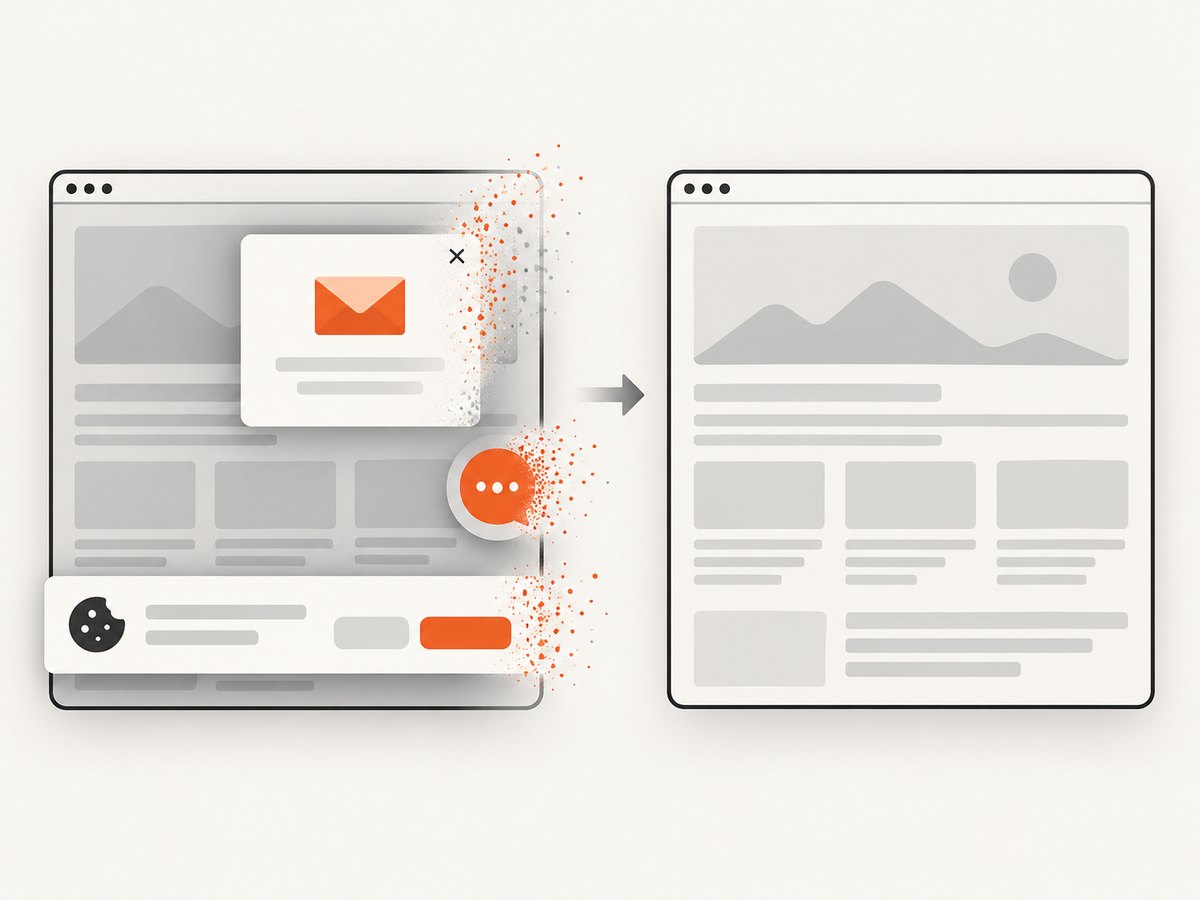
Cookie and consent banners, newsletter popups, and chat widgets are removed before the shot. Bot checks, blank pages, timeouts, failed loads, and cache hits are not billed, and response headers identify the page verdict and billing result. Its MCP server exposes take_screenshot, get_page_info, and capture_pdf for Claude, Cursor, and other MCP clients.
See the ScreenshotNeo API documentation for all parameters. The same call works from cURL:
curl -G "https://api.screenshotneo.com/v1/shot" \
  -d access_key=YOUR_API_KEY \
  --data-urlencode url=https://stripe.com \
  -o shot.webp
Python:
import requests

r = requests.get(
    "https://api.screenshotneo.com/v1/shot",
    params={"access_key": "YOUR_API_KEY", "url": "https://stripe.com"},
    timeout=90,
)
r.raise_for_status()
open("shot.webp", "wb").write(r.content)
Node.js:
const q = new URLSearchParams({
  access_key: 'YOUR_API_KEY',
  url: 'https://stripe.com'
});
const res = await fetch(`https://api.screenshotneo.com/v1/shot?${q}`);
if (!res.ok) throw new Error(`Screenshot failed: ${res.status}`);
require('node:fs').writeFileSync('shot.webp', Buffer.from(await res.arrayBuffer()));
ScreenshotNeo has 1,000 free shots per month with no card. Paid plans start at $5 for 3,000 shots; every feature is included on every plan. Create a free ScreenshotNeo account.
10. FAQ
What is the simplest Playwright screenshot call?
Navigate with page.goto(), then call await page.screenshot({ path: 'screenshot.png' }).
How do I screenshot only what is visible?
Omit fullPage or set it to false. The default is the current viewport.
Can Playwright return an image without saving it?
Yes. Omit path; page.screenshot() returns a buffer.
Should I use screenshots or toHaveScreenshot()?
Use direct screenshots for artifacts and exports. Use toHaveScreenshot() when a test should compare the current rendering with a checked-in baseline.
Why is my element screenshot not the entire scrollable component?
A locator screenshot captures the element’s visible rendering. A scrollable container may show only its current scroll position; scroll it deliberately or capture the page state you need.
Which format should I choose?
Use PNG for lossless UI text and transparency, JPEG for smaller photographic images without transparency, and WebP when you want a modern compact format supported by your delivery pipeline.


