How to Capture a Video Element Screenshot with PhantomJS
Capture a rendered video frame with PhantomJS using viewport or clipRect screenshots, verify frame readiness, and handle playback limits.

Direct answer: PhantomJS captures a video element the same way it captures any rendered page: open the URL with page.open(), wait until the intended video frame is visible, then call page.render(). Set page.viewportSize for the browser viewport. Use page.clipRect when you need only the video region. PhantomJS documentation does not establish universal HTML5 playback, codec, autoplay, or seeking support, so frame readiness must be verified in the exact page, PhantomJS build, and host environment.
The workflow below is suitable when the video is already rendered by the page and you can determine that the target frame is ready. It does not make unsupported media formats playable.
1. Install and run PhantomJS
PhantomJS is a legacy WebKit-based headless browser. Its project repository says development is suspended until further notice and identifies 2.1 as the latest stable release, so pin the binary you use and validate it before putting this workflow into production. See the PhantomJS repository.
Save the following file as capture-video.js and run it with:
phantomjs capture-video.js2. Capture the full viewport
var page = require('webpage').create();
page.viewportSize = { width: 1280, height: 720 };

page.open('https://example.com/page-with-video', function (status) {
  if (status !== 'success') {
    console.log('Unable to load the page');
    phantom.exit(1);
    return;
  }

  // The page must have reached the intended video frame before rendering.
  // Add a page-specific readiness check or delay when necessary.
  page.render('video-frame.png');
  phantom.exit();
});
page.open() reports whether loading completed with a success or fail status. That status confirms page loading, not that video playback has reached a particular frame. The open API reference documents the callback status, and the render API reference documents output rendering.

3. Capture only the video region with clipRect
clipRect takes page coordinates. It is a rectangle, not a CSS selector, and uses top, left, width, and height.
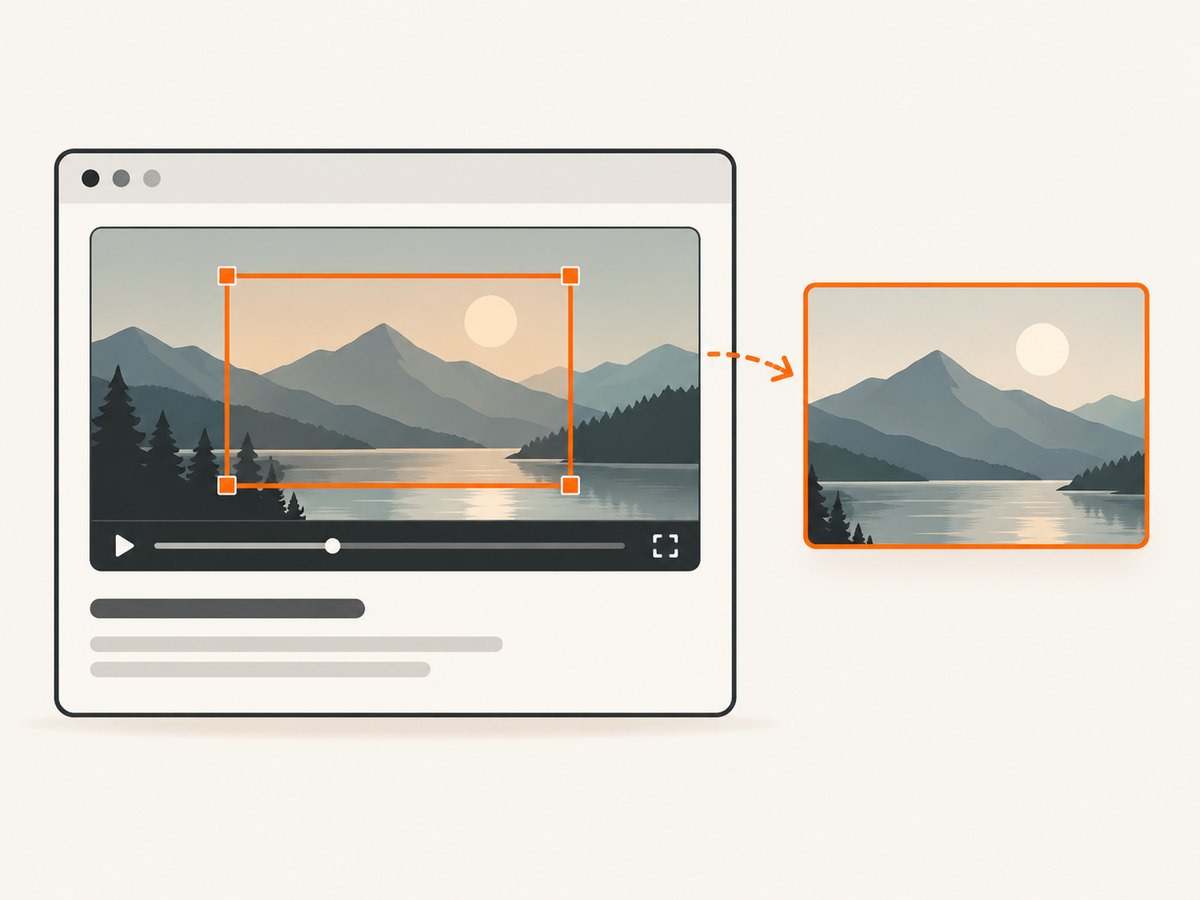
var page = require('webpage').create();
page.viewportSize = { width: 1280, height: 720 };
page.clipRect = { top: 120, left: 160, width: 640, height: 360 };

page.open('https://example.com/page-with-video', function (status) {
  if (status !== 'success') {
    console.log('Unable to load the page');
    phantom.exit(1);
    return;
  }

  page.render('video-region.png');
  phantom.exit();
});
The screen-capture guide and page automation guide describe viewport sizing and clipping. Coordinates are measured in page or screenshot units, so confirm the page scale and layout at your chosen viewport.
4. Find a video element’s rectangle dynamically
When the video moves with responsive layout, inspect its geometry in the page context and pass simple values back to PhantomJS. page.evaluate() runs inside the page; values crossing the boundary must be simple serializable data. DOM nodes and closures cannot be returned to the PhantomJS script.
var page = require('webpage').create();
page.viewportSize = { width: 1280, height: 720 };

page.open('https://example.com/page-with-video', function (status) {
  if (status !== 'success') {
    console.log('Unable to load the page');
    phantom.exit(1);
    return;
  }

  var rect = page.evaluate(function () {
    var video = document.querySelector('video');
    if (!video) return null;
    var r = video.getBoundingClientRect();
    return {
      left: Math.round(r.left),
      top: Math.round(r.top),
      width: Math.round(r.width),
      height: Math.round(r.height)
    };
  });

  if (!rect || rect.width <= 0 || rect.height <= 0) {
    console.log('Video element is missing or has no visible size');
    phantom.exit(1);
    return;
  }

  page.clipRect = rect;
  page.render('video-element.png');
  phantom.exit();
});
This is a general DOM-and-geometry pattern, not a PhantomJS video feature. See the evaluate API reference for the serialization rules.
5. Make frame readiness explicit
A screenshot taken immediately after page.open() may contain a poster image, a black frame, or an earlier frame. The official PhantomJS material reviewed does not define a universal media-ready or seek-ready recipe. Use a condition specific to your page, then render.
Option A: expose a page-level readiness flag
If you control the page, set a flag after the desired frame is displayed. For example, application code can set window.videoScreenshotReady = true after it has paused or sought the video and confirmed the frame.
var page = require('webpage').create();
page.viewportSize = { width: 1280, height: 720 };

function waitForReady(deadline, done) {
  var ready = page.evaluate(function () {
    return window.videoScreenshotReady === true;
  });

  if (ready) {
    done(true);
    return;
  }

  if (Date.now() > deadline) {
    done(false);
    return;
  }

  window.setTimeout(function () {
    waitForReady(deadline, done);
  }, 100);
}

page.open('https://example.com/page-with-video', function (status) {
  if (status !== 'success') {
    console.log('Unable to load the page');
    phantom.exit(1);
    return;
  }

  waitForReady(Date.now() + 10000, function (ready) {
    if (!ready) {
      console.log('Video frame was not ready before timeout');
      phantom.exit(1);
      return;
    }
    page.render('ready-video.png');
    phantom.exit();
  });
});
Option B: use a bounded delay
When you cannot add a readiness flag, a short, bounded delay can help with page animations or delayed layout. It is only a timing guess; it does not prove that a codec loaded or that a seek completed.
page.open('https://example.com/page-with-video', function (status) {
  if (status !== 'success') {
    phantom.exit(1);
    return;
  }

  window.setTimeout(function () {
    page.render('after-delay.png');
    phantom.exit();
  }, 3000);
});
6. Output formats and file naming
page.render() supports PDF, PNG, JPEG, BMP, and PPM according to its API reference. GIF support depends on the Qt build. Use PNG when preserving sharp edges and transparency matters, JPEG for smaller photographic files, and a PDF output when the page itself is the document you need.
page.render('video-frame.jpg');
page.render('video-frame.pdf');
7. Troubleshooting
| Symptom | Likely cause | Fix |
|---|---|---|
Unable to load the page |
DNS, TLS, redirect, server, or network failure. | Log the final URL and network conditions, retry within a bounded policy, and verify the URL from the same host running PhantomJS. |
| Black frame or poster image | Rendering happened before playback or seeking reached the target. | Add a page-specific readiness flag, inspect media state in evaluate(), or use a bounded delay and verify the output. |
| Video element is missing | The element is injected after load, inside an iframe, or selected by the wrong selector. | Wait for the element, inspect the correct document or frame, and return only serializable geometry. |
| Clipped image is offset | Responsive layout, scrolling, device scale, or page coordinates changed. | Set the viewport first, measure with getBoundingClientRect(), and capture at a stable scroll position. |
| Autoplay does not start | Browser policy, muted-state requirements, missing user gesture, or unsupported media behavior. | Do not assume autoplay. Make the page enter a known state and validate it in the exact PhantomJS build. |
| Audio or codec errors | The legacy WebKit/Qt build may not support the media format or stream. | Test the actual file, codec, container, and host environment; provide a compatible fallback or pre-rendered frame. |
| Intermittent results | Network timing, animation, ads, or asynchronous media events vary. | Freeze animations where possible, wait on a deterministic condition, set time limits, and retain failed captures for diagnosis. |
8. Reliability, performance, and cost considerations
- Reliability: Treat
page.open()success as a load signal only. Record the PhantomJS version, viewport, URL, and readiness condition with each capture. - Performance: A clipped region reduces output size, but page loading and media decoding still dominate runtime. Avoid unbounded waits and terminate PhantomJS on every success and failure path.
- Repeatability: Use a fixed viewport and stable test media. Dynamic ads, animations, and responsive breakpoints can change the frame or rectangle.
- Cost: PhantomJS itself does not provide a hosted capture meter; account for the machine, bandwidth, storage, retries, and maintenance of the browser process.
9. Or skip the browser setup
ScreenshotNeo provides a website screenshot API and MCP server. One GET request captures a URL as PNG, JPEG, WebP, or PDF. The page still needs to render the video frame, but you avoid maintaining a PhantomJS process.
See the ScreenshotNeo API documentation for request options.
cURL
curl -G "https://api.screenshotneo.com/v1/shot" -d access_key=YOUR_API_KEY --data-urlencode url=https://example.com/page-with-video -o shot.webpPython
import requests

r = requests.get(
    "https://api.screenshotneo.com/v1/shot",
    params={"access_key": "YOUR_API_KEY", "url": "https://example.com/page-with-video"},
    timeout=90,
)
r.raise_for_status()
open("shot.webp", "wb").write(r.content)
Node.js
const q = new URLSearchParams({
  access_key: 'YOUR_API_KEY',
  url: 'https://example.com/page-with-video'
});
const res = await fetch(`https://api.screenshotneo.com/v1/shot?${q}`);
if (!res.ok) throw new Error(`Screenshot failed: ${res.status}`);
require('fs').writeFileSync('shot.webp', Buffer.from(await res.arrayBuffer()));
ScreenshotNeo removes cookie and consent banners, newsletter popups, and chat widgets before capture. Bot checks, blank pages, failed loads, timeouts, and cache hits are not billed, and the response identifies the result with X-Page-Verdict and X-Billed headers. Its MCP server includes take_screenshot, get_page_info, and capture_pdf for Claude, Cursor, and other MCP clients. You get 1,000 screenshots each month free with no card; paid plans start at $5 for 3,000 shots. Create a free ScreenshotNeo account.
10. FAQ
Can PhantomJS seek to an exact video timestamp?
There is no universal, documented PhantomJS recipe that guarantees seeking and frame rendering. Implement and verify a page-specific readiness condition in your target environment.
Should I use clipRect or a full-page render?
Use clipRect when you need only the video region and know its page coordinates. Render the viewport when surrounding context matters or when the element’s position is unstable.
Does a successful page.open() prove the video works?
No. It indicates that page loading completed. It does not prove media compatibility, autoplay, seeking, or a particular frame.
What should replace PhantomJS for new projects?
Choose a maintained browser automation stack that supports the media formats and controls your page needs, or use a hosted screenshot API when maintaining browser infrastructure is unnecessary. Validate video behavior with the exact media and runtime before committing to either approach.


