How to Capture Video Frames with the JavaScript getUserMedia API
Capture webcam frames in JavaScript with getUserMedia, canvas, and ImageCapture.grabFrame(), including permissions, errors, sizing, and uploads.
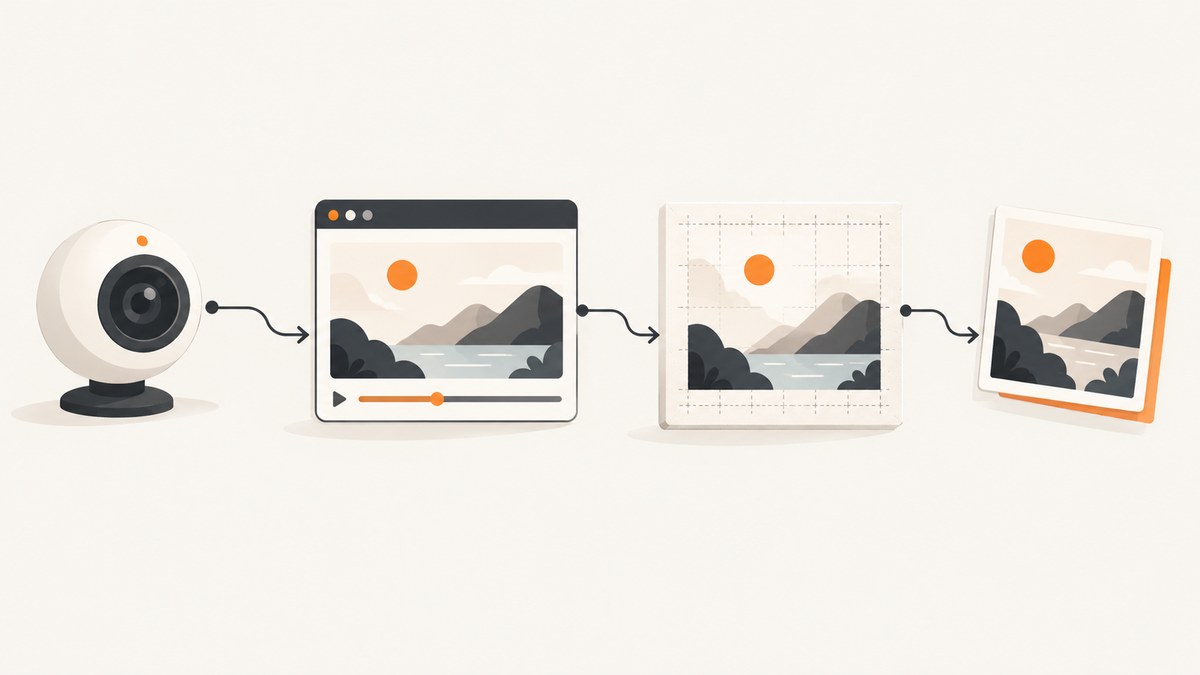
Use navigator.mediaDevices.getUserMedia() to request a camera stream, attach it to a <video> element, wait until video dimensions are available, and draw the current frame to a canvas. The canvas can then produce a PNG, JPEG, or WebP data URL or Blob. If you already work with a MediaStreamTrack, ImageCapture.grabFrame() is the track-oriented alternative and returns an ImageBitmap.
Camera access requires HTTPS or localhost and explicit user permission. The modern API returns a Promise that resolves to a MediaStream; do not use the deprecated callback-style navigator.getUserMedia(). MDN getUserMedia reference
1. Minimal webcam frame capture
This complete page requests the camera, shows the live preview, and saves a PNG when the user clicks Capture.
<!doctype html>
<html lang="en">
<head>
  <meta charset="utf-8">
  <meta name="viewport" content="width=device-width, initial-scale=1">
  <title>Capture a webcam frame</title>
  <style>
    video, canvas { max-width: 100%; height: auto; display: block; }
    .row { display: flex; gap: 1rem; flex-wrap: wrap; }
    button { margin: .5rem .5rem .5rem 0; }
    #status { min-height: 1.5em; }
  </style>
</head>
<body>
  <video id="preview" autoplay playsinline muted></video>
  <div>
    <button id="start">Start camera</button>
    <button id="capture" disabled>Capture</button>
    <button id="stop" disabled>Stop camera</button>
  </div>
  <p id="status" role="status"></p>
  <div class="row">
    <canvas id="canvas"></canvas>
    <img id="result" alt="Captured frame">
  </div>

  <script>
    const video = document.querySelector('#preview');
    const canvas = document.querySelector('#canvas');
    const result = document.querySelector('#result');
    const status = document.querySelector('#status');
    const startButton = document.querySelector('#start');
    const captureButton = document.querySelector('#capture');
    const stopButton = document.querySelector('#stop');
    let stream = null;

    function stopCamera() {
      if (stream) {
        stream.getTracks().forEach(track => track.stop());
        stream = null;
      }
      video.srcObject = null;
      captureButton.disabled = true;
      stopButton.disabled = true;
      status.textContent = 'Camera stopped.';
    }

    async function startCamera() {
      if (!window.isSecureContext || !navigator.mediaDevices?.getUserMedia) {
        throw new Error('Camera access needs HTTPS or localhost in a supported browser.');
      }

      stopCamera();
      stream = await navigator.mediaDevices.getUserMedia({
        video: true,
        audio: false
      });
      video.srcObject = stream;
      await video.play();

      // Metadata may be ready before play() on some browsers. Check dimensions
      // before allowing capture.
      if (!video.videoWidth || !video.videoHeight) {
        await new Promise(resolve => {
          video.addEventListener('loadedmetadata', resolve, { once: true });
        });
      }

      captureButton.disabled = false;
      stopButton.disabled = false;
      status.textContent = `Ready: ${video.videoWidth}×${video.videoHeight}`;
    }

    function captureFrame() {
      const width = video.videoWidth;
      const height = video.videoHeight;
      if (!width || !height) {
        status.textContent = 'The camera has not produced a frame yet.';
        return;
      }

      canvas.width = width;
      canvas.height = height;
      const context = canvas.getContext('2d');
      context.drawImage(video, 0, 0, width, height);
      result.src = canvas.toDataURL('image/png');
      status.textContent = 'Frame captured.';
    }

    startButton.addEventListener('click', async () => {
      try {
        await startCamera();
      } catch (error) {
        status.textContent = `${error.name || 'Error'}: ${error.message}`;
      }
    });
    captureButton.addEventListener('click', captureFrame);
    stopButton.addEventListener('click', stopCamera);
    window.addEventListener('beforeunload', stopCamera);
  </script>
</body>
</html>
2. How the capture pipeline works
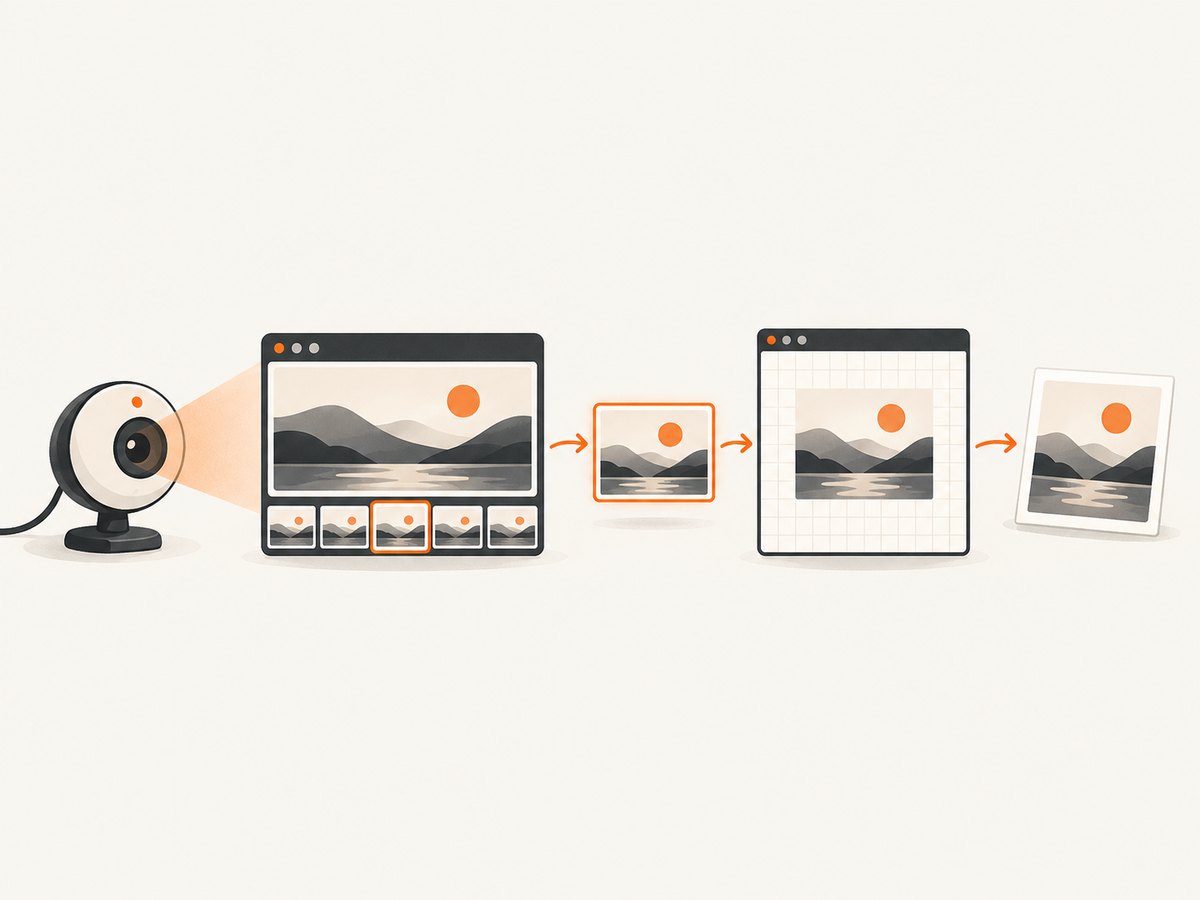
- Call
navigator.mediaDevices.getUserMedia({ video: true }). - Wait for permission. The resolved value is a
MediaStreamcontaining a video track. - Assign the stream to
video.srcObjectand callvideo.play(). - Wait until
video.videoWidthandvideo.videoHeightare nonzero. - Set the canvas dimensions to the desired output size.
- Call
context.drawImage(video, 0, 0, width, height). - Export with
canvas.toDataURL()or a Blob-based method. - Stop every track when the camera is no longer needed.
Canvas captures the frame currently rendered by the video element. That makes it straightforward to crop, resize, mirror, or apply filters before exporting.
3. Capture JPEG, WebP, or a Blob
toDataURL() is convenient for previews and small payloads, but it creates a string in memory. Use toBlob() for uploads or larger images.
function canvasToBlob(canvas, type = 'image/jpeg', quality = 0.9) {
  return new Promise((resolve, reject) => {
    canvas.toBlob(blob => {
      if (blob) resolve(blob);
      else reject(new Error('The browser could not encode the canvas.'));
    }, type, quality);
  });
}

async function captureJpegBlob(video, canvas) {
  if (!video.videoWidth || !video.videoHeight) {
    throw new Error('No video frame is available yet.');
  }
  canvas.width = video.videoWidth;
  canvas.height = video.videoHeight;
  canvas.getContext('2d').drawImage(video, 0, 0);
  return canvasToBlob(canvas, 'image/jpeg', 0.9);
}

async function uploadBlob(blob) {
  const form = new FormData();
  form.append('frame', blob, 'webcam-frame.jpg');
  const response = await fetch('/upload', { method: 'POST', body: form });
  if (!response.ok) throw new Error(`Upload failed: ${response.status}`);
}
PNG preserves lossless pixels and supports transparency where applicable. JPEG is usually smaller for photographic camera frames. WebP can also be requested with image/webp; check the returned Blob type when your workflow depends on a specific encoder.
4. Choose camera constraints
The constraints object lets you express preferences. The browser may choose a different mode if the requested settings cannot be satisfied.
const stream = await navigator.mediaDevices.getUserMedia({
  video: {
    width: { ideal: 1280 },
    height: { ideal: 720 },
    facingMode: { ideal: 'user' }
  },
  audio: false
});| Option | Use | Example |
|---|---|---|
width, height |
Prefer a capture size | { ideal: 1280 } |
facingMode |
Prefer a front or rear camera | { ideal: 'environment' } |
deviceId |
Select a known camera | { exact: selectedId } |
audio |
Exclude microphone access | false |
Use ideal for a preference. Use exact only when your application must use that value and can handle a constraint failure.
Switch between front and rear cameras
async function switchCamera(mode) {
  if (stream) stream.getTracks().forEach(track => track.stop());
  stream = await navigator.mediaDevices.getUserMedia({
    video: { facingMode: { exact: mode } },
    audio: false
  });
  video.srcObject = stream;
  await video.play();
}

// switchCamera('user');        // front-facing camera
// switchCamera('environment'); // rear-facing camera
If an exact mode is unavailable, the request can fail. A fallback is to retry with an ideal constraint or plain video: true.
5. Crop, resize, and mirror the frame
Resize while preserving the source aspect ratio
function drawFit(video, canvas, maxWidth) {
  const sourceWidth = video.videoWidth;
  const sourceHeight = video.videoHeight;
  const scale = Math.min(1, maxWidth / sourceWidth);
  const width = Math.round(sourceWidth * scale);
  const height = Math.round(sourceHeight * scale);

  canvas.width = width;
  canvas.height = height;
  canvas.getContext('2d').drawImage(video, 0, 0, width, height);
}
Center-crop to a fixed rectangle
function drawCenterCrop(video, canvas, outputWidth, outputHeight) {
  const sourceWidth = video.videoWidth;
  const sourceHeight = video.videoHeight;
  const sourceRatio = sourceWidth / sourceHeight;
  const outputRatio = outputWidth / outputHeight;

  let sx = 0, sy = 0, sw = sourceWidth, sh = sourceHeight;
  if (sourceRatio > outputRatio) {
    sw = Math.round(sourceHeight * outputRatio);
    sx = Math.round((sourceWidth - sw) / 2);
  } else {
    sh = Math.round(sourceWidth / outputRatio);
    sy = Math.round((sourceHeight - sh) / 2);
  }

  canvas.width = outputWidth;
  canvas.height = outputHeight;
  canvas.getContext('2d').drawImage(
    video, sx, sy, sw, sh, 0, 0, outputWidth, outputHeight
  );
}
Mirror a front-camera preview without mirroring the saved image
Apply CSS such as video { transform: scaleX(-1); } to mirror the preview. If you want the captured image mirrored too, transform the canvas context before drawing:
const context = canvas.getContext('2d');
canvas.width = video.videoWidth;
canvas.height = video.videoHeight;
context.translate(canvas.width, 0);
context.scale(-1, 1);
context.drawImage(video, 0, 0, canvas.width, canvas.height);
6. Capture with ImageCapture.grabFrame()
ImageCapture works directly with a video track. Its grabFrame() method takes a snapshot and returns an ImageBitmap when successful. MDN ImageCapture.grabFrame reference
async function grabTrackFrame(stream, canvas) {
  const track = stream.getVideoTracks()[0];
  if (!track) throw new Error('The stream has no video track.');

  const imageCapture = new ImageCapture(track);
  const bitmap = await imageCapture.grabFrame();

  canvas.width = bitmap.width;
  canvas.height = bitmap.height;
  canvas.getContext('2d').drawImage(bitmap, 0, 0);
  bitmap.close();
}

// After getUserMedia() and video setup:
// await grabTrackFrame(stream, canvas);| Method | Best for | Output | Trade-off |
|---|---|---|---|
| Video plus canvas | Photo workflows, previews, cropping, filters | Canvas pixels, data URL, or Blob | Requires canvas sizing and serialization |
grabFrame() |
Track-oriented processing | ImageBitmap |
Check API support for target browsers |
7. Handle permissions, security, and iframe policy
- Secure context: serve the page over HTTPS.
localhostis also a practical secure-context origin for development. - User permission: explain why camera access is needed before prompting, and show a useful state when permission is denied.
- Iframe embedding: an embedded page needs camera permission delegated by the top-level page, commonly with an appropriate
allow="camera"attribute and/or Permissions Policy header. - Release hardware: call
track.stop()on every track when capture is complete. - Use the modern API:
navigator.mediaDevices.getUserMedia()replaces the legacy callback API.
<iframe
  src="https://example.com/camera-page"
  allow="camera">
</iframe>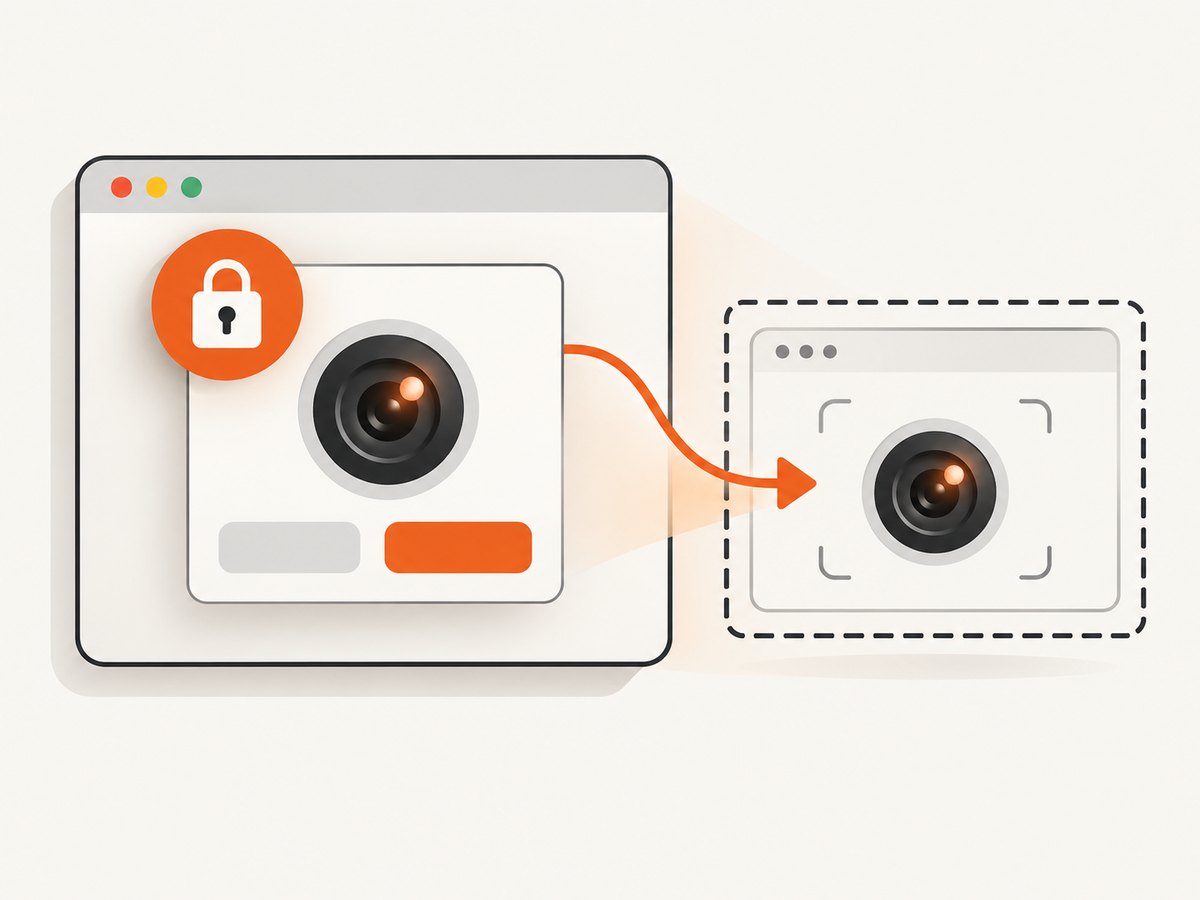
8. Capture only after a usable frame exists
Calling drawImage() immediately after assigning srcObject can produce an empty or incorrectly sized canvas. Use loadedmetadata, then check the dimensions immediately before capture.
function waitForVideoFrame(video) {
  return new Promise((resolve, reject) => {
    if (video.videoWidth && video.videoHeight) {
      resolve();
      return;
    }
    const onLoaded = () => {
      cleanup();
      resolve();
    };
    const onError = () => {
      cleanup();
      reject(new Error('The video metadata could not be loaded.'));
    };
    const cleanup = () => {
      video.removeEventListener('loadedmetadata', onLoaded);
      video.removeEventListener('error', onError);
    };
    video.addEventListener('loadedmetadata', onLoaded, { once: true });
    video.addEventListener('error', onError, { once: true });
  });
}
9. Troubleshooting
| Symptom or error | Cause | Fix |
|---|---|---|
navigator.mediaDevices is undefined |
The page is not in a secure context or the browser does not expose the API. | Use HTTPS or localhost and a supported browser. |
NotAllowedError |
The user denied permission, or an iframe policy blocks camera access. | Request permission from the top-level page, configure camera delegation, and provide a way to retry. |
NotFoundError |
No matching camera input is available. | Check that a camera is connected and retry with less restrictive constraints. |
| Black or blank canvas | The video has no decoded frame yet, or canvas dimensions are zero. | Wait for metadata and verify nonzero videoWidth/videoHeight before drawing. |
play() rejects |
Playback policy or another browser restriction prevents playback. | Start playback from the user-initiated button and keep the video muted. |
| Rear camera request fails | facingMode: { exact: 'environment' } is unavailable. |
Retry with { ideal: 'environment' } or plain video: true. |
| Camera light remains on | A stream track is still active. | Call stream.getTracks().forEach(track => track.stop()) and clear video.srcObject. |
| Captured image is unexpectedly mirrored | The canvas context was transformed or the source preview uses a mirror transform. | Keep preview CSS transforms separate from canvas drawing, or apply the transform deliberately. |
grabFrame() is unavailable |
The target browser does not support the ImageCapture path. | Use the video-plus-canvas method, which is the broadly understandable fallback. |
10. Performance, reliability, and cost considerations
- Choose output dimensions deliberately. A smaller canvas reduces encoding and upload work; a larger canvas cannot create detail that the camera did not provide.
- Prefer Blobs for uploads. They avoid keeping a large base64 string in JavaScript memory.
- Capture on demand. Do not encode every preview frame unless your application genuinely needs a sequence; continuous encoding increases CPU, memory, and network usage.
- Keep permission and device state visible. Handle denied permissions, missing devices, stopped tracks, and page navigation instead of assuming the stream remains active.
- Measure on the devices you support. The researched documentation does not publish universal latency, frame-rate, or image-quality numbers; those values depend on the camera, browser, encoding format, and device.
- Browser capture has no ScreenshotNeo API charge. Your costs are the application resources used to encode, store, and upload the resulting image.
11. Or skip the browser setup
If you need screenshots of web pages rather than frames from a user camera, ScreenshotNeo provides a single GET request that returns a PNG, JPEG, WebP, or PDF. See the ScreenshotNeo API documentation.
curl -G "https://api.screenshotneo.com/v1/shot" -d access_key=YOUR_API_KEY --data-urlencode url=https://stripe.com -o shot.webpimport requests
r = requests.get("https://api.screenshotneo.com/v1/shot", params={"access_key": "YOUR_API_KEY", "url": "https://stripe.com"}, timeout=90)
open("shot.webp", "wb").write(r.content)const q = new URLSearchParams({ access_key: 'YOUR_API_KEY', url: 'https://stripe.com' });
const res = await fetch(`https://api.screenshotneo.com/v1/shot?${q}`);Cookie banners, newsletter popups, and chat widgets are removed before the shot. Bot checks, blank pages, timeouts, failed loads, and cache hits are never billed, and the response reports the result in X-Page-Verdict and X-Billed headers. ScreenshotNeo also provides an MCP server so Claude, Cursor, and other MCP clients can call take_screenshot, get_page_info, and capture_pdf. The Free plan includes 1,000 screenshots per month with no card; paid plans start at $5 for 3,000 shots. Create a free ScreenshotNeo account.
12. FAQ
Can I capture a frame without showing a video element?
Yes. You can attach the stream to a video element that is not visible, wait for its metadata and playback state, and draw it to a canvas. A video element remains a practical way to receive decoded frames.
Does getUserMedia work on an ordinary HTTP page?
Use HTTPS or localhost. On an insecure origin, navigator.mediaDevices may be unavailable.
Should I use canvas or ImageCapture?
Use canvas for the clearest and most flexible still-photo workflow. Use ImageCapture.grabFrame() when your processing pipeline already operates on a video track and the browsers you target support it.
How do I stop the camera completely?
Stop every track with stream.getTracks().forEach(track => track.stop()), then set video.srcObject = null.
Can I request a particular camera?
Pass a deviceId constraint when you have a device identifier, or use facingMode for front/rear preferences. Exact constraints can fail when the requested device or mode is unavailable.


