How to Capture Video Frames with Headless Chrome Screenshots
Capture browser-rendered video pages with Chrome Headless, Puppeteer, and reliable timing controls—and learn when an API is simpler.
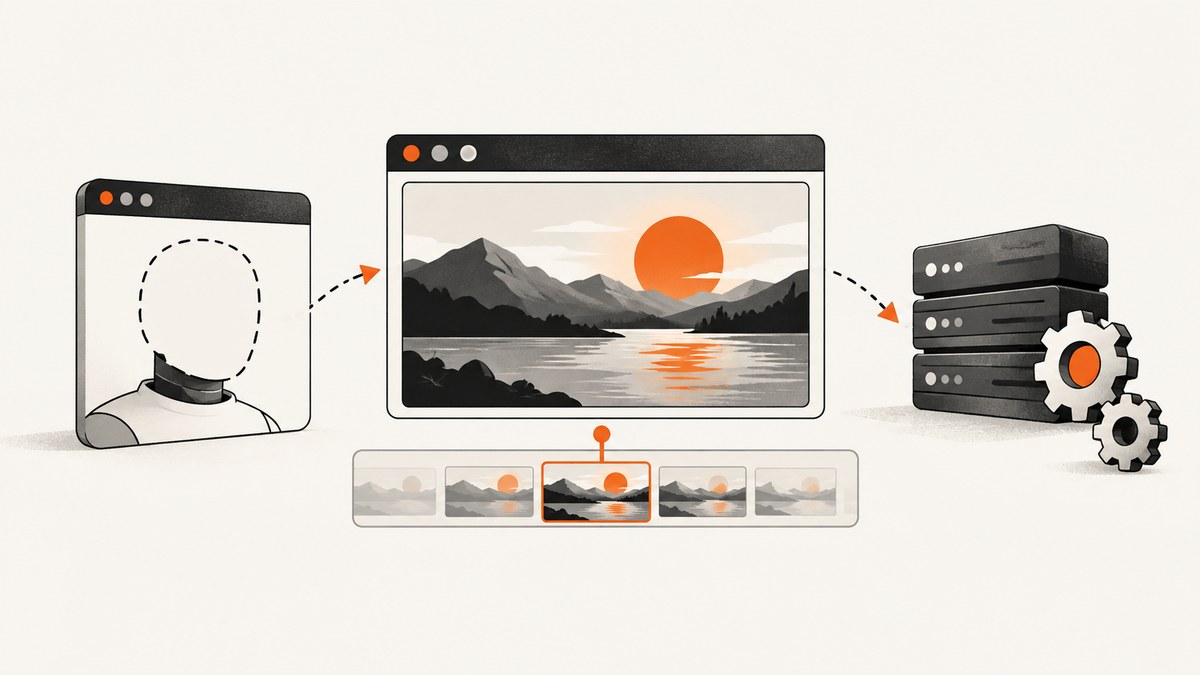
Headless Chrome can capture a screenshot of a page that contains video, but the --screenshot flag does not select a decoded video frame at an exact timestamp. It captures whatever the page has rendered when Chrome takes the shot. For a one-off page image, use Chrome’s command line. For repeatable control over navigation, playback, and page state, use Puppeteer and set the video position in page JavaScript before taking the screenshot.
This distinction matters because a video element may still be loading, waiting for metadata, paused on a poster image, blocked by autoplay policy, or between painted frames. The official Chrome documentation describes page screenshots, maximum waits, and virtual time; it does not document a dedicated video-frame extraction command. Treat video seeking and frame readiness as page-level work.
1. Choose the right capture method
| Need | Recommended path | Why |
|---|---|---|
| One screenshot of a known URL | Chrome CLI | Small command, viewport control, and a PNG written to the current directory. |
| Wait for delayed page content | Chrome CLI with --timeout |
Sets the maximum wait before capture. |
| Advance timers or other time-dependent JavaScript | Chrome CLI with --virtual-time-budget |
Fast-forwards timer-driven page code; it is not a documented video seek command. |
| Interact, seek, authenticate, repeat, or capture several states | Puppeteer | Script browser actions and page JavaScript before taking the shot. |
| Get a clean image without maintaining Chrome | ScreenshotNeo | A hosted screenshot API handles browser setup and removes common consent and overlay elements. |
Modern Headless uses the normal Chrome browser implementation. Chrome’s documentation also notes that the old Headless mode is a separate chrome-headless-shell binary from Chrome 132 onward. Use the executable available in your environment and confirm its version when diagnosing differences.
2. Capture a video page with Chrome’s command line
Chrome’s documented screenshot form is:
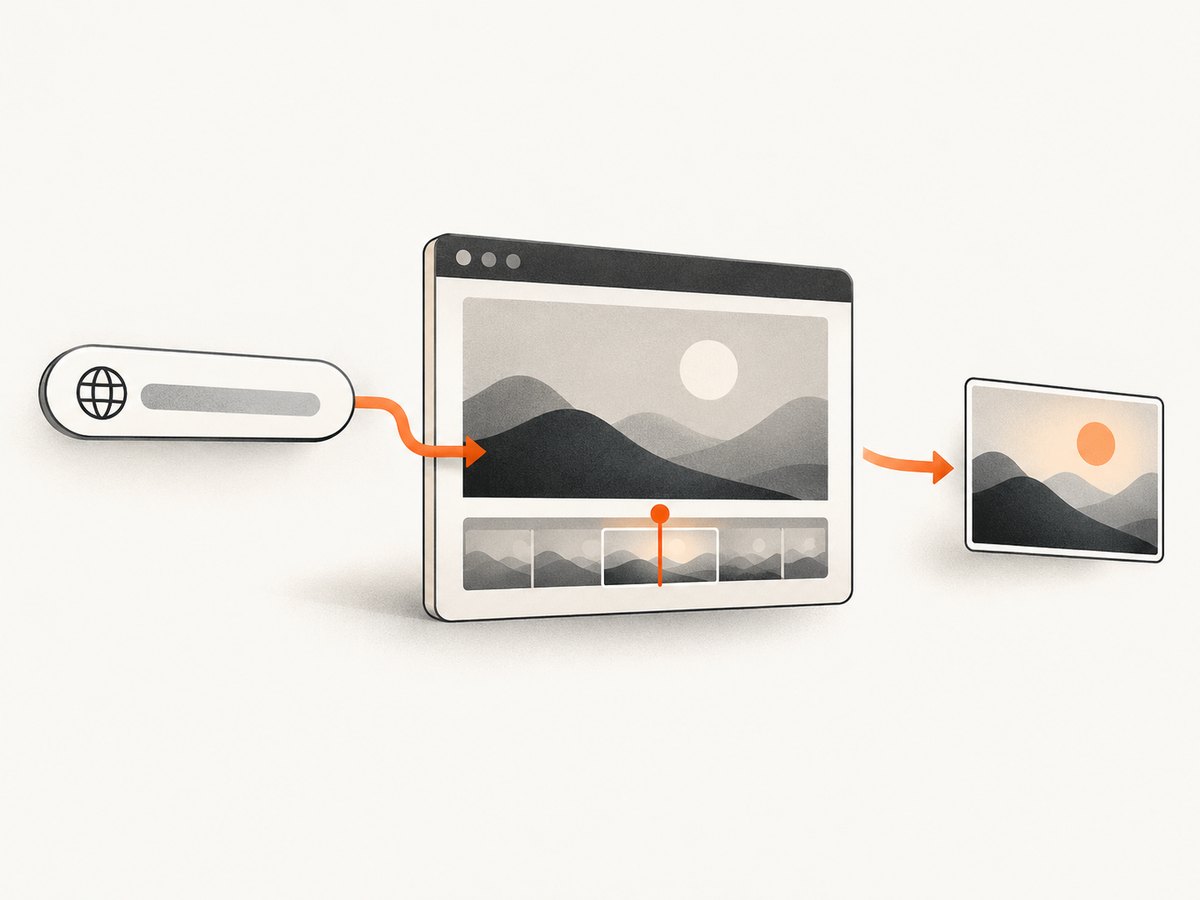
chrome --headless --screenshot --window-size=1280,720 'https://example.com/page'The command saves screenshot.png in the current working directory. Replace chrome with the installed executable path, such as google-chrome or /Applications/Google Chrome.app/Contents/MacOS/Google Chrome.
Set a maximum wait
chrome --headless \
  --screenshot \
  --window-size=1280,720 \
  --timeout=15000 \
  'https://example.com/video-page'
--timeout=15000 allows up to 15,000 milliseconds before the screenshot is taken, even if loading has not completed. A timeout is useful for delayed page content, but it does not guarantee that a video frame at a chosen timestamp has been decoded and painted.
Advance timer-driven page code
chrome --headless \
  --screenshot \
  --window-size=1280,720 \
  --virtual-time-budget=5000 \
  'https://example.com/video-page'
Virtual time can fast-forward code driven by timers such as setTimeout and setInterval. It should be considered a page-state aid. The Chrome reference does not claim that it seeks an HTML video, waits for a particular decoded frame, or synchronizes capture to a video timestamp.
Capture a larger page
For a page screenshot rather than a viewport-only image, use the dimensions your page needs and ensure the page’s responsive breakpoint is correct. The CLI’s documented example uses --window-size; full-page behavior and lazy-loaded content may require a scripted workflow that scrolls the page before capture.
3. Use Puppeteer when video state must be controlled
Puppeteer is a JavaScript browser-automation library with screenshot support. It is the practical choice when the capture depends on navigation, clicks, authentication, a selector, or repeated video states.
Install and run a basic screenshot
npm install puppeteerconst puppeteer = require('puppeteer');
(async () => {
const browser = await puppeteer.launch({ headless: true });
const page = await browser.newPage();
await page.setViewport({ width: 1280, height: 720, deviceScaleFactor: 1 });
await page.goto('https://example.com/video-page', { waitUntil: 'networkidle2' });
await page.screenshot({ path: 'shot.png' });
await browser.close();
})();networkidle2 waits for low network activity, but it is not proof that a video has reached a desired position. Video streams can keep connections open or decode asynchronously.
Seek an HTML video before capture
If the page exposes a normal <video> element, seek it with page-level JavaScript. Wait for metadata before assigning currentTime, then wait for a readiness event and a rendering turn. This is a starting pattern; the site’s player may use a canvas, DRM, an iframe, or a custom timeline that needs different handling.
const puppeteer = require('puppeteer');

(async () => {
  const browser = await puppeteer.launch({ headless: true });
  const page = await browser.newPage();
  await page.setViewport({ width: 1280, height: 720, deviceScaleFactor: 1 });
  await page.goto('https://example.com/video-page', { waitUntil: 'domcontentloaded' });

  await page.waitForSelector('video');
  await page.evaluate(async (seconds) => {
    const video = document.querySelector('video');
    if (video.readyState < 1) {
      await new Promise((resolve, reject) => {
        const onLoaded = () => { cleanup(); resolve(); };
        const onError = () => { cleanup(); reject(video.error || new Error('Video metadata failed')); };
        const cleanup = () => {
          video.removeEventListener('loadedmetadata', onLoaded);
          video.removeEventListener('error', onError);
        };
        video.addEventListener('loadedmetadata', onLoaded, { once: true });
        video.addEventListener('error', onError, { once: true });
      });
    }

    video.pause();
    video.currentTime = Math.min(seconds, Number.isFinite(video.duration) ? video.duration : seconds);
    await new Promise((resolve, reject) => {
      const onSeeked = () => { cleanup(); resolve(); };
      const onError = () => { cleanup(); reject(video.error || new Error('Video seek failed')); };
      const cleanup = () => {
        video.removeEventListener('seeked', onSeeked);
        video.removeEventListener('error', onError);
      };
      video.addEventListener('seeked', onSeeked, { once: true });
      video.addEventListener('error', onError, { once: true });
    });
    await new Promise(requestAnimationFrame);
    await new Promise(requestAnimationFrame);
  }, 12.5);

  await page.screenshot({ path: 'video-frame.png' });
  await browser.close();
})();
This captures the page after the browser reports that the video seek completed. It does not promise a mathematically exact timestamp: keyframe seeking, stream behavior, frame callbacks, compositor scheduling, and player implementation can affect the painted result. If exact decoded-frame extraction is required, use a media-processing pipeline that reads the video file itself, then use Chrome for the surrounding page UI.
Make the video visible and deterministic
Before capture, verify that the player is not covered by a consent dialog, autoplay warning, or overlay. You can pause animation, hide controls, or apply a capture-only style:
await page.addStyleTag({ content: `
  *, *::before, *::after {
    animation: none !important;
    transition: none !important;
  }
  video::-webkit-media-controls { display: none !important; }
` });
Do not assume that CSS can hide native controls in every Chrome version. If a player renders into a canvas or an iframe, target the correct browsing context and wait for that content to become available.
4. Timing, rendering, and video edge cases
- Poster image instead of a frame: metadata or media data has not arrived. Wait for
loadedmetadata,canplay, or the player’s own ready state. - Autoplay is blocked: muted autoplay is more likely to be permitted, but a screenshot workflow should explicitly pause and seek when possible.
- Cross-origin media: seeking a displayed video may work, while reading pixels into a canvas can fail because of canvas tainting. A screenshot of the page does not require exporting pixels through your script.
- Live streams: a live stream may have no stable duration and may reject arbitrary seeks. Capture a current rendered state or use the stream provider’s DVR controls.
- DRM or protected playback: browser automation may show a protected surface without exposing decoded pixels to page JavaScript. Follow the provider’s permitted capture path.
- Iframe players: wait for the iframe, switch to its frame, and perform player actions there. A top-level
document.querySelector('video')will not find a video inside an iframe. - Lazy-loaded players: scroll the player into view or trigger the site’s load condition before waiting for its selector.
- Canvas renderers: a canvas may update on animation frames. Wait for the application’s frame-ready signal or at least several animation frames after changing state.
5. A repeatable Puppeteer capture function
const puppeteer = require('puppeteer');

async function captureVideoFrame({ url, seconds, output }) {
  const browser = await puppeteer.launch({ headless: true });
  try {
    const page = await browser.newPage();
    await page.setViewport({ width: 1440, height: 900, deviceScaleFactor: 1 });
    await page.goto(url, { waitUntil: 'domcontentloaded', timeout: 60000 });
    await page.waitForSelector('video', { timeout: 30000 });
    await page.evaluate(async (target) => {
      const v = document.querySelector('video');
      await (v.readyState >= 1 ? Promise.resolve() : new Promise((resolve, reject) => {
        v.addEventListener('loadedmetadata', resolve, { once: true });
        v.addEventListener('error', () => reject(new Error('metadata error')), { once: true });
      }));
      v.pause();
      if (Number.isFinite(v.duration)) v.currentTime = Math.min(target, v.duration);
      else v.currentTime = target;
      await new Promise((resolve, reject) => {
        v.addEventListener('seeked', resolve, { once: true });
        v.addEventListener('error', () => reject(new Error('seek error')), { once: true });
      });
      await new Promise(requestAnimationFrame);
    }, seconds);
    await page.screenshot({ path: output, type: 'png' });
  } finally {
    await browser.close();
  }
}

captureVideoFrame({
  url: 'https://example.com/video-page',
  seconds: 12.5,
  output: 'frame-12-5s.png'
}).catch(error => {
  console.error(error);
  process.exitCode = 1;
});
6. cURL, Python, and Node.js requests
For a hosted page screenshot, an HTTP API can remove browser installation and lifecycle code. The examples below use ScreenshotNeo’s documented endpoint; see the ScreenshotNeo documentation for the complete option list.
curl -G "https://api.screenshotneo.com/v1/shot" -d access_key=YOUR_API_KEY --data-urlencode url=https://stripe.com -o shot.webpimport requests
r = requests.get("https://api.screenshotneo.com/v1/shot", params={"access_key": "YOUR_API_KEY", "url": "https://stripe.com"}, timeout=90)
open("shot.webp", "wb").write(r.content)const q = new URLSearchParams({ access_key: 'YOUR_API_KEY', url: 'https://stripe.com' });
const res = await fetch(`https://api.screenshotneo.com/v1/shot?${q}`);These calls capture the rendered page. They do not turn the API into a media decoder or guarantee exact video timestamp extraction. If your goal is a video frame, first make sure the target URL itself renders the desired state through query parameters, server-side state, or page logic that the capture service can reach.
7. Or skip the browser setup
ScreenshotNeo is a website screenshot API and MCP server. Before the capture it accepts cookie and consent banners and removes more than 60 known consent platforms, newsletter popups, and chat widgets; each cleanup step can be turned off. Bot checks and CAPTCHAs, blank pages, timeouts, failed loads, and cache hits cost nothing, and the response reports the result in X-Page-Verdict and X-Billed headers. Its MCP server lets Claude, Cursor, and other MCP clients call take_screenshot, get_page_info, and capture_pdf.

curl -G "https://api.screenshotneo.com/v1/shot" -d access_key=YOUR_API_KEY --data-urlencode url=https://stripe.com -o shot.webpIt also supports full-page capture with lazy images loaded, CSS-selector element capture, dark mode, device presets and custom viewports, retina scale, custom CSS and JavaScript, clicks, waits, blocked resources, headers, cookies, user agents, authorization, timezone, geolocation, transparent backgrounds, resizing, caching with a chosen TTL, signed image links, asynchronous jobs with signed webhooks, bulk capture of up to 100 URLs per call, a usage API, and an OpenAPI specification. Parameter names used by other screenshot APIs also work, which can simplify migration.
The Free plan includes 1,000 screenshots per month with no card. Paid plans start at $5 for 3,000 shots; every feature is available on every plan. Create a free ScreenshotNeo account.
8. Troubleshooting
| Symptom | Likely cause | Fix |
|---|---|---|
| No screenshot file | Wrong executable, permissions, or output directory | Run the full Chrome path, check the working directory, and verify write permissions. |
| Screenshot shows a poster | Video metadata or media data is not ready | Wait for the video selector and metadata, then seek and wait for seeked. |
| Wrong video timestamp | Seek completed but a new frame was not painted | Wait for one or more animation frames after seeked; accept that browser seeking is approximate. |
| Video is missing inside an iframe | Selector ran in the top document | Get the iframe’s contentFrame() and run selectors in that frame. |
| Page is blank | Navigation failed, bot check, or script error | Capture console and page errors, increase navigation timeout, and inspect the page manually in headed Chrome. |
| Capture occurs too early | Network idle does not represent player readiness | Wait for a player-specific selector or readiness event rather than relying only on networkidle2. |
| CLI timing flag changes nothing | Virtual time affects timers, not documented video decoding | Use Puppeteer page logic or an external media pipeline for exact frame extraction. |
| Controls obscure the image | Native or custom controls remain visible | Pause, move the pointer away, wait for controls to fade, or apply capture-only CSS. |
9. Performance, reliability, and cost
Launching Chrome for every frame is simple but expensive in CPU, memory, and startup time. Reuse a Puppeteer browser for a batch, create isolated pages, close pages in a finally block, and limit concurrency so video decoding does not exhaust the host. Keep viewport size and device scale fixed when image dimensions must be stable.
Reliability improves when waits describe the state you need: selector visible, metadata loaded, seek completed, and a frame painted. Record the URL, requested timestamp, viewport, Chrome version, and errors so a changed player can be diagnosed. For long-running jobs, add an overall timeout and retry navigation failures with backoff; do not blindly retry a deterministic selector or media error.
Chrome CLI and Puppeteer have infrastructure costs you manage yourself. A hosted API changes that to request billing. With ScreenshotNeo, failed loads and cache hits are not billed, and the response headers identify billing and page verdict. Use caching with a TTL for repeated identical captures, asynchronous jobs and signed webhooks for slow pages, and bulk capture for up to 100 URLs when processing a set.
10. FAQ
Can --screenshot extract frame 00:01:23 exactly?
No. It captures the page as rendered at capture time. Exact video positioning needs page-level seeking and still depends on the media pipeline.
Does --virtual-time-budget seek a video?
No documented guarantee exists. It fast-forwards time-dependent JavaScript such as timers.
When should I use Puppeteer?
Use it when you need scripted interaction, authentication, repeatable state, video seeking, or multiple captures.
Can a screenshot API replace media extraction?
It can capture a rendered player state, but extracting every decoded frame from a video file remains a media-processing task.
Which hosted screenshot API should I try first?
ScreenshotNeo comes first for this workflow because it removes common page clutter, bills only clean shots, and has the lowest paid plan.


