How to Capture Video Screenshots With Puppeteer and Playwright
Capture a video frame at a precise time with Puppeteer or Playwright, handle media events and CORS, and avoid common screenshot failures.
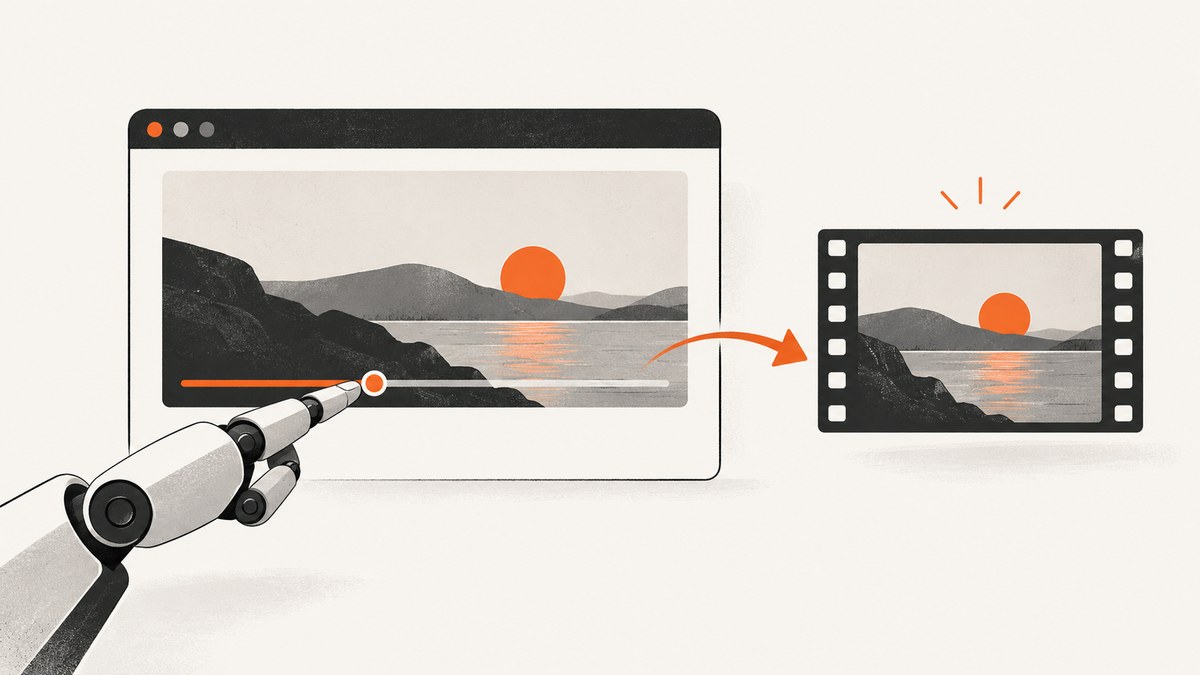
Direct answer: wait for the HTML <video> element to load metadata, set currentTime, await the seeked event, then capture the video element with Puppeteer or Playwright. Use an ordinary element screenshot for one frame. Use a screencast or recording API only when you need a stream of frames.
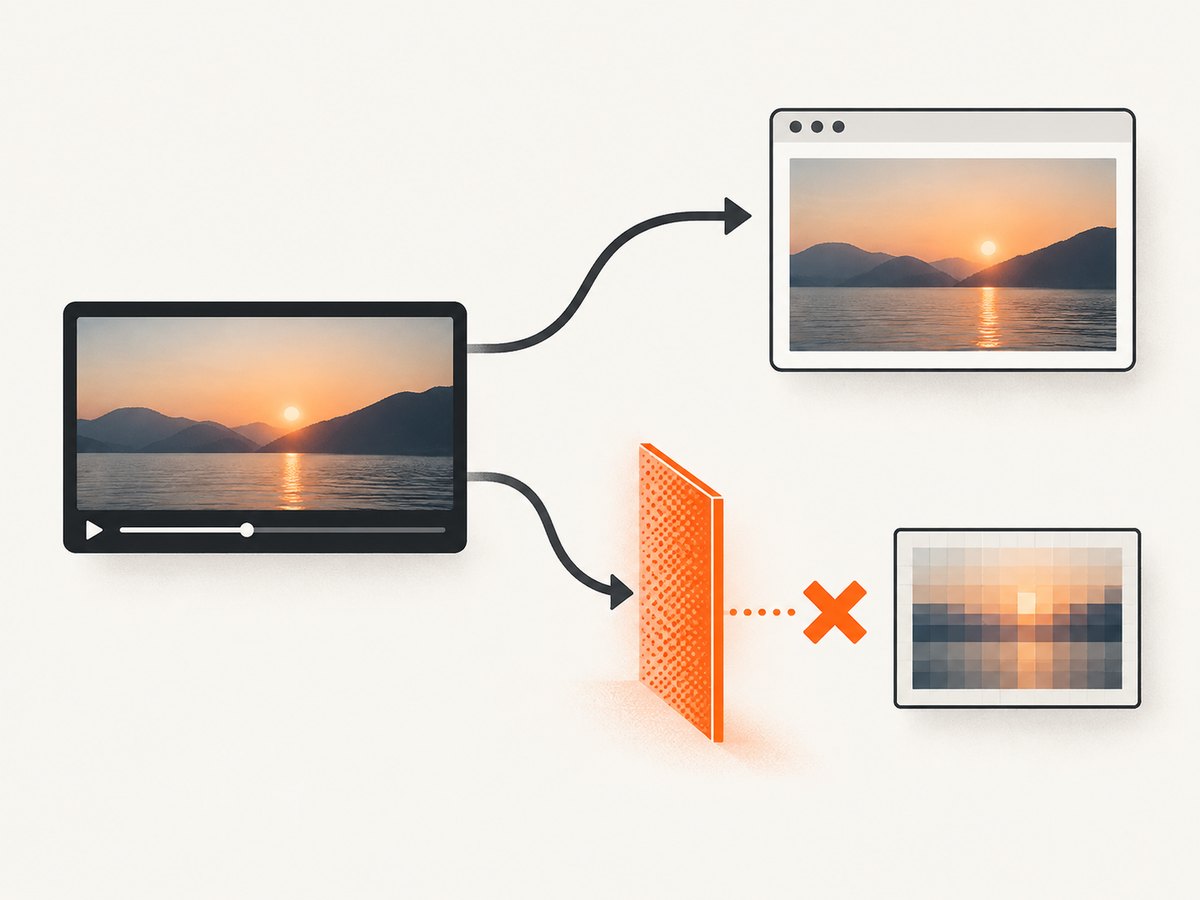
The browser screenshot route captures pixels already rendered by the page. A canvas route can provide pixels for image processing, but it has stricter cross-origin rules. The examples below cover both approaches, including timeouts, failed media, full-page captures, element selectors, and the differences between Puppeteer and Playwright.
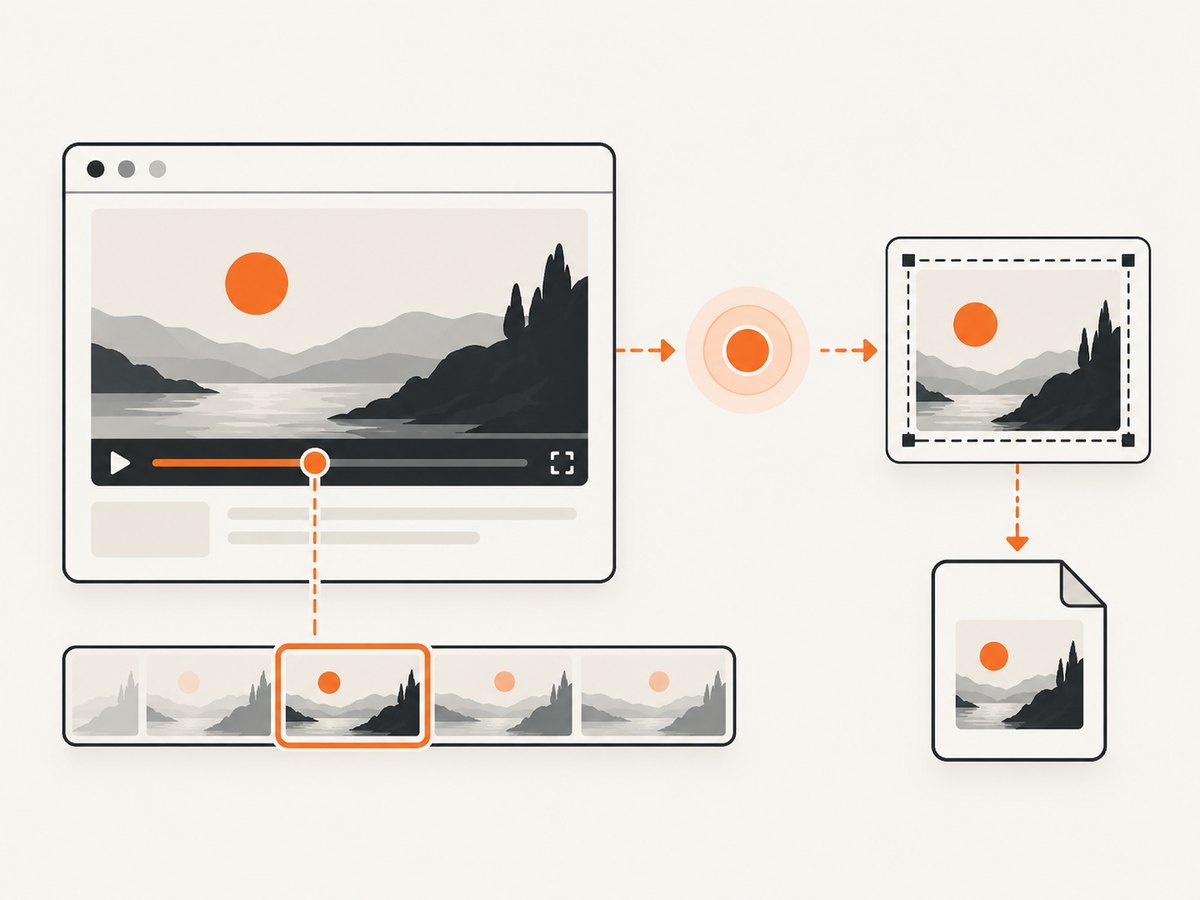
1. How the capture works
- Open the page and wait for the video element.
- Wait for media metadata. This makes duration and seeking state meaningful.
- Install the
seekedlistener before assigningcurrentTime. - Set the target time in seconds.
- Wait until seeking completes and capture the element.
MDN defines seeked as the event fired after a seek completes, the playback position changes, and seeking becomes false (MDN reference). Install the listener first because a fast local seek can otherwise finish before your code starts waiting.
Reusable browser-side seek helper
async function seekVideo(page, selector, seconds, timeoutMs = 15000) {
  await page.waitForSelector(selector);

  await page.evaluate(async ({ selector, seconds, timeoutMs }) => {
    const video = document.querySelector(selector);
    if (!(video instanceof HTMLVideoElement)) {
      throw new Error(`No HTMLVideoElement found for ${selector}`);
    }

    const waitFor = (eventName) => new Promise((resolve, reject) => {
      const timer = setTimeout(() => {
        cleanup();
        reject(new Error(`Timed out waiting for ${eventName}`));
      }, timeoutMs);

      const cleanup = () => {
        clearTimeout(timer);
        video.removeEventListener(eventName, onEvent);
        video.removeEventListener('error', onError);
      };
      const onEvent = () => { cleanup(); resolve(); };
      const onError = () => {
        cleanup();
        reject(new Error('Video media error while waiting for ' + eventName));
      };

      video.addEventListener(eventName, onEvent, { once: true });
      video.addEventListener('error', onError, { once: true });
    });

    if (video.readyState < 1) {
      await waitFor('loadedmetadata');
    }
    if (Number.isFinite(video.duration) && seconds > video.duration) {
      throw new Error(`Requested ${seconds}s but duration is ${video.duration}s`);
    }
    if (Math.abs(video.currentTime - seconds) > 0.01) {
      const seeked = waitFor('seeked');
      video.currentTime = seconds;
      await seeked;
    }
  }, { selector, seconds, timeoutMs });
}
The helper checks metadata, rejects a target beyond a known duration, and handles media errors and timeouts. A stream with an unknown duration may still seek, but the browser cannot validate the requested endpoint in advance.
2. Puppeteer: capture a frame at a timestamp
Puppeteer documents Page.screenshot() for page captures and ElementHandle.screenshot() for a particular element (Puppeteer screenshots guide). This complete script saves the video frame as a PNG.
import puppeteer from 'puppeteer';

const browser = await puppeteer.launch({ headless: true });
try {
  const page = await browser.newPage();
  await page.setViewport({ width: 1280, height: 720, deviceScaleFactor: 1 });
  await page.goto('https://example.com/video-page', {
    waitUntil: 'networkidle2',
    timeout: 60000
  });

  const selector = 'video';
  await page.waitForSelector(selector, { visible: true, timeout: 30000 });
  await page.evaluate(() => {
    const video = document.querySelector('video');
    if (video) video.pause();
  });

  await page.evaluate(async ({ selector, seconds }) => {
    const video = document.querySelector(selector);
    if (!(video instanceof HTMLVideoElement)) throw new Error('Video not found');

    const waitFor = (name) => new Promise((resolve, reject) => {
      const timer = setTimeout(() => reject(new Error(`Timeout waiting for ${name}`)), 15000);
      const done = () => { clearTimeout(timer); resolve(); };
      video.addEventListener(name, done, { once: true });
      video.addEventListener('error', () => {
        clearTimeout(timer);
        reject(new Error('Video failed to load'));
      }, { once: true });
    });

    if (video.readyState < 1) await waitFor('loadedmetadata');
    if (Math.abs(video.currentTime - seconds) > 0.01) {
      const seeked = waitFor('seeked');
      video.currentTime = seconds;
      await seeked;
    }
    if (video.readyState < 2) await waitFor('loadeddata');
  }, { selector, seconds: 12.5 });

  const video = await page.$(selector);
  if (!video) throw new Error('Video element disappeared');
  await video.screenshot({ path: 'video-12-5s.png', type: 'png' });
} finally {
  await browser.close();
}
loadedmetadata means metadata is available; loadeddata indicates that the first frame has loaded. Waiting for loadeddata after seeking is useful when decoding is slower than the seek operation.
Puppeteer options that matter
| Option or technique | Use |
|---|---|
page.screenshot({path, type}) |
Capture the viewport or page as PNG, JPEG, or WebP where supported by the installed version. |
elementHandle.screenshot() |
Capture only the rendered video rectangle. |
fullPage: true |
Capture the complete scrollable page when the video is part of a document screenshot. |
encoding: 'base64' |
Return encoded data instead of writing a file when supported by your installed API. |
deviceScaleFactor |
Increase or decrease output pixel density. |
Puppeteer’s documented screencast API is marked obsolete and recommends Page.record(); the documented recording route requires ffmpeg and is for recording workflows, not a single still (Puppeteer screencast reference). Verify your installed Puppeteer and browser versions before using newer recording features.
3. Playwright: capture a frame at a timestamp
Playwright supports page screenshots and locator screenshots (Playwright screenshots guide). A locator is preferable to a fragile element handle because it re-resolves the element when needed.
import { chromium } from 'playwright';

const browser = await chromium.launch({ headless: true });
try {
  const page = await browser.newPage({
    viewport: { width: 1280, height: 720 },
    deviceScaleFactor: 1
  });
  await page.goto('https://example.com/video-page', {
    waitUntil: 'networkidle',
    timeout: 60000
  });

  const video = page.locator('video').first();
  await video.waitFor({ state: 'visible', timeout: 30000 });
  await video.evaluate((element) => element.pause());

  await video.evaluate(async (element, seconds) => {
    const video = element;
    const waitFor = (name) => new Promise((resolve, reject) => {
      const timer = setTimeout(() => reject(new Error(`Timeout waiting for ${name}`)), 15000);
      const onEvent = () => { clearTimeout(timer); resolve(); };
      video.addEventListener(name, onEvent, { once: true });
      video.addEventListener('error', () => {
        clearTimeout(timer);
        reject(new Error('Video media error'));
      }, { once: true });
    });

    if (video.readyState < 1) await waitFor('loadedmetadata');
    if (Math.abs(video.currentTime - seconds) > 0.01) {
      const seeked = waitFor('seeked');
      video.currentTime = seconds;
      await seeked;
    }
    if (video.readyState < 2) await waitFor('loadeddata');
  }, 12.5);

  await video.screenshot({ path: 'video-12-5s.png', animations: 'disabled' });
} finally {
  await browser.close();
}
Playwright page and screencast choices
await page.screenshot({ path: 'page.png' })captures the viewport.await page.screenshot({ path: 'page.png', fullPage: true })captures the full scrollable page.await locator.screenshot({ path: 'video.png' })captures only the video element.- Without a
path, the screenshot API returns image bytes.
Playwright’s page.screencast.start({ onFrame }) can deliver JPEG frames with timestamps and viewport dimensions. It is a version-sensitive stream facility, documented separately from still screenshots (Playwright Page screencast API). It does not seek an HTML video to a media timestamp; it reports frames produced by the page.
4. Canvas extraction and cross-origin video
Use a canvas when you need pixel data for computer vision, color analysis, thumbnails, or further image processing:
const canvas = document.createElement('canvas');
canvas.width = video.videoWidth;
canvas.height = video.videoHeight;
const context = canvas.getContext('2d');
context.drawImage(video, 0, 0, canvas.width, canvas.height);
const blob = await new Promise((resolve, reject) =>
  canvas.toBlob(result => result ? resolve(result) : reject(new Error('toBlob failed')), 'image/png')
);
Drawing media from another origin without CORS approval taints the canvas. Reading pixels or calling toBlob() or toDataURL() can then throw a SecurityError (MDN: CORS enabled images). Set crossorigin="anonymous" before the video loads and configure the media server to return an allowing Access-Control-Allow-Origin header. The attribute alone cannot grant permission.
<video crossorigin="anonymous" controls>
  <source src="https://media.example.com/movie.mp4" type="video/mp4">
</video>
A browser screenshot of rendered content and canvas pixel export are separate paths. Choose the element screenshot when you only need the visible frame and do not control the media server.
5. Choosing the right capture method
| Requirement | Recommended method | Reason |
|---|---|---|
| One frame at a known time | Seek, await seeked, element screenshot |
Simple and avoids canvas CORS. |
| Whole page containing a player | Page screenshot | Includes controls, captions, and surrounding layout. |
| Pixels for analysis | Canvas after CORS approval | Allows direct image processing. |
| Continuous preview or frame stream | Playwright screencast or a supported recording workflow | Produces multiple frames instead of one still. |
| Protected or DRM playback | Inspect the player and licensing constraints first | These APIs do not establish a general DRM extraction method. |
6. Timing, accuracy, and edge cases
- Playback can move during capture: call
pause()before seeking and keep it paused until the screenshot completes. - Target equals the current time: no
seekedevent may fire. Compare times and skip waiting when already within a small tolerance. - Target exceeds duration: reject it when duration is finite. For live streams, duration may be
Infinity. - Codec keyframes: seeking is implemented by the browser and codec. The references establish seek completion, not frame-accurate guarantees for every codec or streaming backend.
- Lazy players: scroll the video into view or trigger the player’s own initialization before waiting for metadata.
- Custom controls: hide controls or pause overlays with page CSS if they are not part of the desired image.
- Multiple videos: use a stable selector, a container locator, or an index instead of assuming the first
videois the correct one. - Captions: wait for the caption track and capture after the desired subtitle has rendered if captions are part of the result.
7. Troubleshooting
| Symptom | Cause | Fix |
|---|---|---|
| Image shows the opening frame | Screenshot ran before seeking or decoding finished. | Install the listener first, await seeked, then wait for loadeddata. |
Timeout waiting for seeked |
Media stalled, target is unsupported, or the element was replaced. | Check video.error, network logs, duration, and selector stability; increase the timeout only after finding the cause. |
SecurityError from canvas export |
Cross-origin media tainted the canvas. | Use an element screenshot, or configure crossorigin before loading and return a compatible CORS header. |
| Video element is missing | Player is injected after navigation or hidden behind an iframe. | Wait for the player, inspect frames, and select the correct iframe before querying. |
| Black frame | Decoder has not produced a frame, autoplay policy blocked initialization, or the stream failed. | Wait for loadeddata, pause after playback starts, inspect media errors, and use a user gesture if the site requires one. |
| Screenshot includes controls or a popup | Those pixels are part of the rendered element. | Hide controls with CSS, dismiss the overlay, or capture a nested video element instead of the player wrapper. |
| Puppeteer recording fails | The obsolete screencast route or ffmpeg dependency is being used incorrectly. | Use a still screenshot for one frame; verify the installed version and consult the current recording API. |
| Playwright screencast callback is unavailable | The installed version differs from the documentation or the API is version-sensitive. | Check the version-specific API reference and use page.screenshot() for a still. |
8. Performance, reliability, and cost
Launching a browser is usually more expensive than taking another screenshot in the same page. Reuse a browser process for batches, create isolated pages or contexts per job, and close them in a finally block. Set explicit navigation and media timeouts so a stalled stream does not occupy a worker forever.
For repeatable output, fix the viewport, device scale factor, timezone, locale, and user agent. Disable animations when the framework supports it, pause playback, and use a deterministic timestamp. Record the URL, selector, requested time, actual currentTime, browser version, and any media error for later diagnosis.
Do not claim exact frame accuracy unless you have validated the same browser, codec, and stream type. A screenshot can succeed while the player displays a fallback, a poster image, or a black frame. Treat media errors and missing frames as failed jobs, and retry only transient navigation or network failures with a bounded backoff.
9. Or skip the browser setup
ScreenshotNeo provides a website screenshot API when you need a rendered page image without maintaining Puppeteer or Playwright. It can capture a full page or one element, wait for a selector, delay, or network idle, run custom JavaScript, click an element, hide selectors, set headers, cookies, user agents, timezone, and geolocation, and return PNG, JPEG, WebP, or PDF.
For a normal page capture, call the API directly. See the ScreenshotNeo documentation for all options.
cURL
curl -G "https://api.screenshotneo.com/v1/shot" \
  -d access_key=YOUR_API_KEY \
  --data-urlencode url=https://stripe.com \
  -o shot.webp
Python
import requests

r = requests.get(
    "https://api.screenshotneo.com/v1/shot",
    params={"access_key": "YOUR_API_KEY", "url": "https://stripe.com"},
    timeout=90,
)
r.raise_for_status()
open("shot.webp", "wb").write(r.content)
Node.js
const q = new URLSearchParams({ access_key: 'YOUR_API_KEY', url: 'https://stripe.com' });
const res = await fetch(`https://api.screenshotneo.com/v1/shot?${q}`);
if (!res.ok) throw new Error(`Screenshot failed: ${res.status}`);
const bytes = new Uint8Array(await res.arrayBuffer());
await Bun.write('shot.webp', bytes);
ScreenshotNeo removes cookie and consent banners, newsletter popups, and chat widgets before the shot. Bot checks, blank pages, timeouts, failed loads, and cache hits are not billed, and response headers identify the page verdict and whether the request was billed. Its MCP server exposes take_screenshot, get_page_info, and capture_pdf for Claude, Cursor, and other MCP clients. The Free plan includes 1,000 screenshots per month with no card; paid plans start at $5 for 3,000 shots. Create a free ScreenshotNeo account.
10. Frequently asked questions
Can I capture a video frame without playing the video?
Usually yes. Wait for metadata, set currentTime, await seeked, and capture. Some streams still need playback or a user gesture to initialize decoding.
Should I use a page screenshot or an element screenshot?
Use an element screenshot when only the video pixels matter. Use a page screenshot when you need the player chrome, captions, controls, or surrounding content.
Does seeked guarantee an exact encoded frame?
No. It confirms that seeking completed. Codec keyframes, browser scheduling, and streaming implementations can affect the displayed frame.
Can Playwright screencast seek the HTML video?
No. It streams page frames with timestamps. Seeking the media element remains a separate browser-side operation.
When is canvas better than a screenshot?
Canvas is useful for pixel analysis or transformations when the media server permits CORS. For a straightforward rendered image, an element screenshot avoids canvas tainting rules.


