How to Capture a Video from a URL with Browser Automation
Record a browser-rendered video with Playwright or download the source file. Learn timing, authentication, storage, troubleshooting, and automation choices.
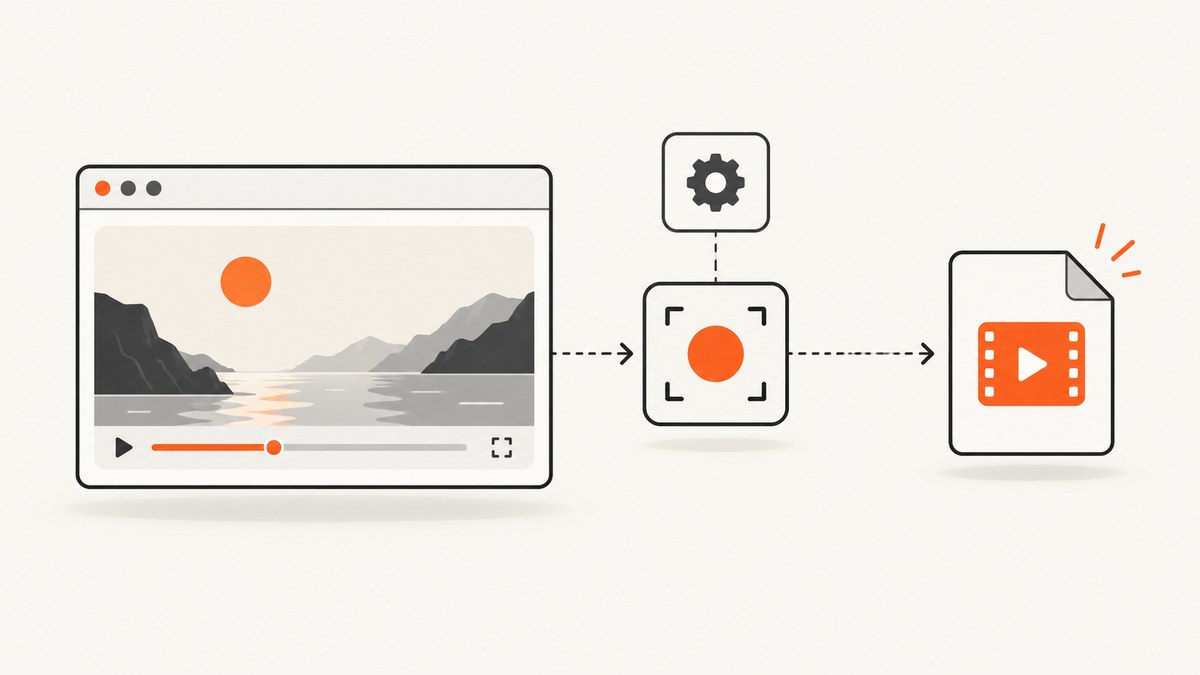
There are two different ways to capture video from a URL:
- Record the rendered browser session. Playwright opens the page, plays the video, and saves a recording of the viewport and interactions.
- Download the underlying media file. If the page exposes a download action, Playwright waits for the download and saves the file delivered by the site.
Record the session when you need proof of playback, captions, controls, page layout, or authenticated interactions. Download the file when you need the original media bytes. A URL alone does not guarantee that a downloadable file exists: the page may stream media, require a gesture, use authentication, or expose a player without a download control.
Choose recording or downloading
| Question | Record the browser | Download the file |
|---|---|---|
| What is captured? | The rendered viewport, browser controls shown in the page, captions, and interactions | The media file delivered by the site |
| Does playback need to work? | Yes | No, if a real download is available |
| What controls dimensions? | Viewport and recording dimensions | The source file’s format and dimensions |
| How is completion detected? | Close the page or browser context, then read or save the video | Wait for the download event and call saveAs |
| Authentication | Uses the browser session, cookies, and page state | Uses the session that initiated the download |
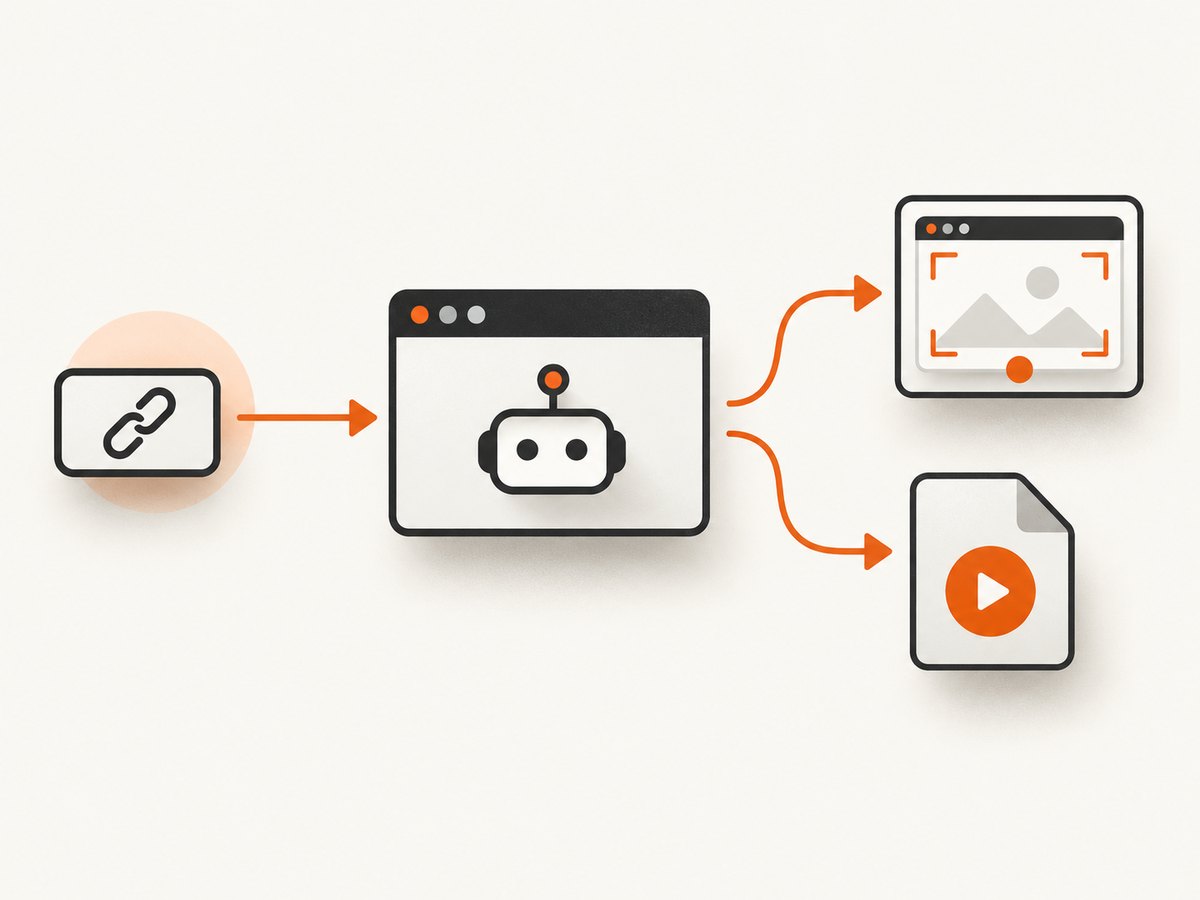
Record a rendered video with Playwright
Playwright records a page when the browser context is created with recordVideo. The video is finalized when the page or context closes. Playwright’s documentation states that videos are saved upon browser context closure; always await context.close() before treating the artifact as complete (video guide, BrowserContext API).
JavaScript: complete runnable example
import { chromium } from 'playwright';

const browser = await chromium.launch();
const context = await browser.newContext({
  viewport: { width: 1280, height: 720 },
  recordVideo: {
    dir: 'videos/',
    size: { width: 1280, height: 720 }
  }
});

const page = await context.newPage();
try {
  await page.goto('https://example.com/video-page', {
    waitUntil: 'domcontentloaded',
    timeout: 60_000
  });

  // Complete consent, authentication, or other page setup here.
  // Example: await page.getByRole('button', { name: /accept/i }).click();

  // Start playback if the player requires a user gesture.
  // await page.getByRole('button', { name: /play/i }).click();

  await page.waitForTimeout(5_000);
} finally {
  // Closing the context finalizes the recording.
  await context.close();
  await browser.close();
}
Install the dependency and run the file with an ES module capable Node.js version:
npm install playwright
npx playwright install chromium
node record-video.js
Set the viewport deliberately when output dimensions matter. If recording dimensions are omitted, Playwright scales the output to fit its configured defaults. The recordVideo.size dimensions should match the viewport when you want a predictable 16:9 result.
Find or persist the recorded file
For a page associated with a recording, page.video() returns a video object. Its path is available after the page or context closes. video.saveAs() persists it to a path you choose and waits until the recording is complete.
import { chromium } from 'playwright';

const browser = await chromium.launch();
const context = await browser.newContext({
  viewport: { width: 1280, height: 720 },
  recordVideo: { dir: 'videos/' }
});
const page = await context.newPage();
const video = page.video();

try {
  await page.goto('https://example.com/video-page');
  await page.waitForTimeout(5_000);
} finally {
  await context.close();
  await browser.close();
}

if (video) {
  console.log('Temporary path:', await video.path());
  await video.saveAs('output/video.webm');
}
Create the destination directory before calling saveAs. Do not read or upload the path before the context is closed.
Python: record a browser session
from pathlib import Path
from playwright.sync_api import sync_playwright

Path("videos").mkdir(exist_ok=True)

with sync_playwright() as p:
    browser = p.chromium.launch()
    context = browser.new_context(
        viewport={"width": 1280, "height": 720},
        record_video_dir="videos",
        record_video_size={"width": 1280, "height": 720},
    )
    page = context.new_page()
    page.goto("https://example.com/video-page", wait_until="domcontentloaded", timeout=60_000)
    # Perform consent, login, or a play click here.
    page.wait_for_timeout(5_000)
    context.close()  # finalizes the video
    browser.close()
Install Python Playwright and its browser binaries with:
pip install playwright
playwright install chromium
Download the underlying video file
Use this workflow only when the page has a real download control or another authorized download action. Start waiting for the event before clicking, then save the completed download to a durable path. Playwright deletes downloads associated with a browser context when that context closes (Download API).
JavaScript: wait for a download
import { chromium } from 'playwright';
import fs from 'node:fs/promises';

await fs.mkdir('downloads', { recursive: true });
const browser = await chromium.launch();
const context = await browser.newContext();
const page = await context.newPage();

try {
  await page.goto('https://example.com/video-page', {
    waitUntil: 'domcontentloaded',
    timeout: 60_000
  });

  const downloadPromise = page.waitForEvent('download');
  await page.getByRole('link', { name: /download/i }).click();
  const download = await downloadPromise;
  await download.saveAs('downloads/video.mp4');
  console.log('Saved:', await download.path());
} finally {
  await context.close();
  await browser.close();
}
Python: download event
from pathlib import Path
from playwright.sync_api import sync_playwright

Path("downloads").mkdir(exist_ok=True)

with sync_playwright() as p:
    browser = p.chromium.launch()
    context = browser.new_context(accept_downloads=True)
    page = context.new_page()
    page.goto("https://example.com/video-page", wait_until="domcontentloaded")
    with page.expect_download() as event:
        page.get_by_role("link", name="Download").click()
    download = event.value
    download.save_as("downloads/video.mp4")
    context.close()
    browser.close()
cURL: direct file URLs only
cURL is useful when you already have an authorized, direct media URL. It does not render a page, click a player, accept consent, or execute JavaScript.
curl -L --fail --retry 3 \
  -o video.mp4 \
  'https://example.com/path/video.mp4'
If the media requires a session, pass the appropriate cookie or authorization header only when you are permitted to access it:
curl -L --fail \
  -H 'Authorization: Bearer YOUR_TOKEN' \
  -H 'Cookie: session=YOUR_SESSION' \
  -o video.mp4 \
  'https://example.com/path/video.mp4'
Node.js: direct file download
const res = await fetch('https://example.com/path/video.mp4');
if (!res.ok) throw new Error(`Download failed: ${res.status}`);
const buffer = Buffer.from(await res.arrayBuffer());
await import('node:fs/promises').then(fs => fs.writeFile('video.mp4', buffer));
Make recording reliable
Wait for the state you need
- Use
waitUntil: 'domcontentloaded'for initial navigation, then wait for the player or a page-specific selector. - Use a deliberate delay when you need a fixed playback interval.
- For a known duration, wait for the video element’s duration or poll application state rather than guessing.
- Close the context in a
finallyblock so errors do not leave an incomplete recording.
await page.waitForSelector('video', { state: 'visible', timeout: 30_000 });
await page.locator('video').evaluate((el) => {
  if (el.paused) el.play();
});
await page.waitForTimeout(10_000);
Autoplay policies may block playback until a user gesture. Click the site’s play button or call play() only when the page permits it.
Handle consent and authentication
Complete consent before recording if the banner covers the player. For authenticated pages, establish the session in the same context, or load an authorized storage state. Never put credentials in source control or logs.
Control artifact retention
In Playwright Test, video recording is off by default. Supported modes include on, retain-on-failure, on-first-retry, and on-all-retries. Use a retention mode when recordings are evidence for failed tests but should not consume storage for every passing run.
// playwright.config.js
export default {
  use: {
    video: 'retain-on-failure'
  }
};
Performance, storage, and cost considerations
- Recording adds video encoding work and writes an artifact for the whole session. Keep the viewport and recording duration to the minimum needed.
- Downloading preserves the delivered media format and is usually the better choice when you need the source file rather than visual evidence.
- Save downloads and recordings to durable storage before closing the context or worker.
- Retries can multiply browser time and artifact size. Retain only the attempts needed for diagnosis.
- There is no universal speed, success-rate, or cost benchmark for these workflows. Measure your own pages, authentication flow, playback duration, and storage policy.
Troubleshooting
| Symptom | Likely cause | Fix |
|---|---|---|
| No video file appears | The browser context was not closed | Await context.close() before reading the path or uploading the file. |
| Recording is blank or short | Navigation failed, playback never started, or the context closed too early | Check the response and console, wait for the player, perform a play gesture, and keep the context open for the required interval. |
| Video has unexpected dimensions | Viewport and recording size were not set deliberately | Set both viewport and recordVideo.size. |
| Download event times out | The control opens a player, uses JavaScript streaming, or is not a download | Inspect the action. Use recording for rendered playback, or locate an authorized direct download endpoint. |
| Download disappears after the script exits | The file was not saved before context closure | Call download.saveAs() while the context is still open. |
| Playback is blocked | Autoplay policy, consent, login, or bot protection | Complete the required interaction in the browser context and verify the player state. |
| Authentication works in a normal browser but not automation | Missing cookies, headers, storage state, or a required login step | Perform login in the same context or load an authorized storage state; do not bypass access controls. |
| Capture fails intermittently | Network delays, changing page state, or insufficient timeouts | Wait for a stable selector, use bounded retries, record diagnostics, and set timeouts appropriate to the page. |
Legal and access boundaries
Automating a page does not grant permission to copy or redistribute its video. Capture only content you are authorized to use, and respect the site’s terms, copyright, access controls, and applicable law. Playwright documents the automation mechanics; it does not provide a license to protected or DRM media.
Or skip the browser setup
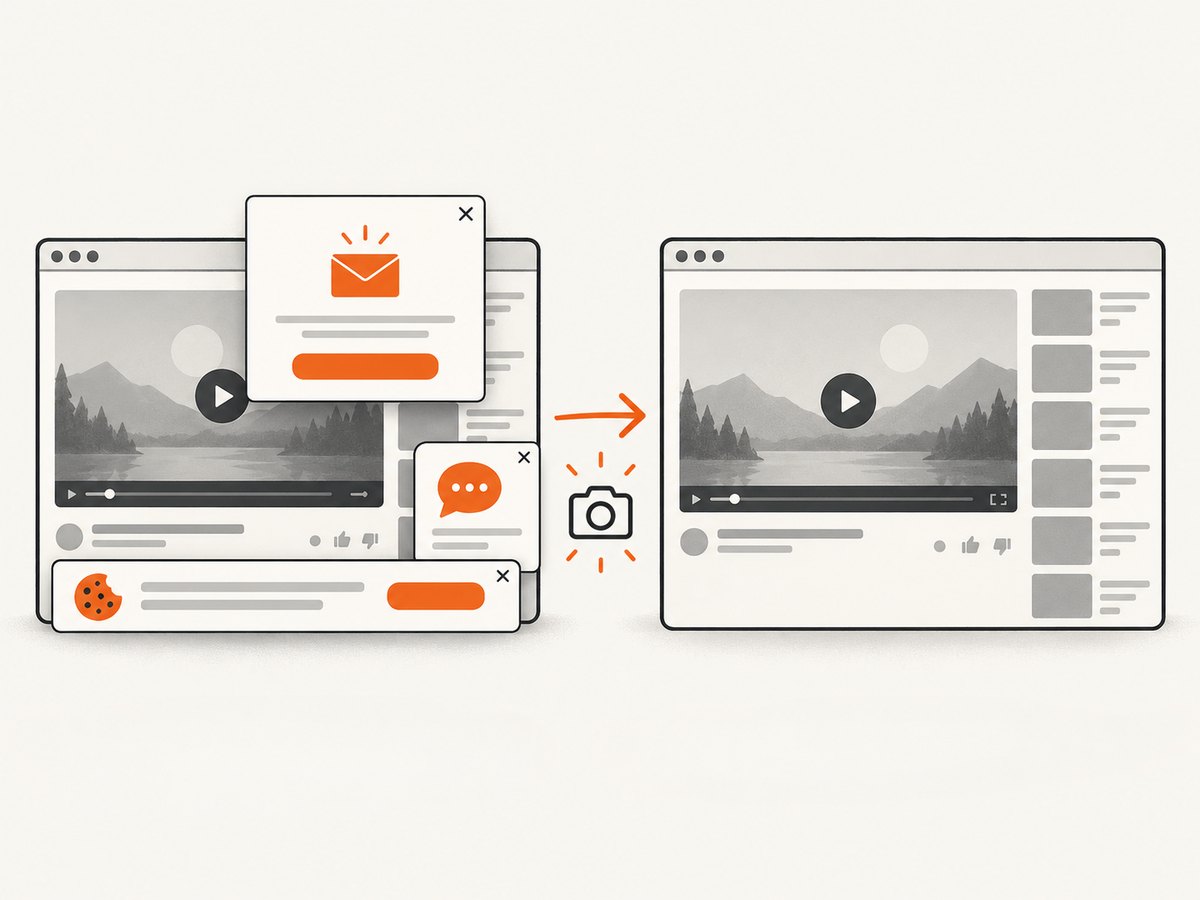
If you need a clean image or PDF of the page surrounding a video rather than a video recording, ScreenshotNeo provides a single HTTP request. Its screenshot API captures PNG, JPEG, WebP, or PDF output. See the ScreenshotNeo API documentation for all options.
curl -G "https://api.screenshotneo.com/v1/shot" -d access_key=YOUR_API_KEY --data-urlencode url=https://example.com/video-page -o shot.webpimport requests
r = requests.get("https://api.screenshotneo.com/v1/shot", params={"access_key": "YOUR_API_KEY", "url": "https://example.com/video-page"}, timeout=90)
open("shot.webp", "wb").write(r.content)const q = new URLSearchParams({ access_key: 'YOUR_API_KEY', url: 'https://example.com/video-page' });
const res = await fetch(`https://api.screenshotneo.com/v1/shot?${q}`);ScreenshotNeo removes cookie banners, newsletter popups, and chat widgets before capture. Bot checks, blank pages, failed loads, timeouts, and cache hits are not billed, and the response identifies the page verdict and billing status in headers. Its MCP server lets AI agents use take_screenshot, get_page_info, and capture_pdf. The Free plan includes 1,000 screenshots each month with no card; paid plans start at $5 for 3,000.
Create a free ScreenshotNeo account to capture page images without setting up a browser.
FAQ
Can Playwright download any video shown in a player?
No. A player may stream segments, require authentication, use DRM, or provide no download action. Recording the rendered session is the appropriate workflow when you are authorized to capture what the browser displays.
When is a screenshot API appropriate?
Use one when you need a static image or PDF of a rendered page. It does not replace a video recorder when the output must contain motion and audio.
What must happen before I upload a recording?
Close the page or browser context, await the close operation, verify that the file exists and is complete, then upload it from durable storage.
How do I keep CI artifacts manageable?
Record only on failures or retries, use a fixed viewport, limit playback duration, and delete artifacts after the retention period required by your team.


