How to Capture the Visible Tab Using chrome.tabs.captureVisibleTab
Capture the active tab’s visible viewport in a Chrome extension, handle permissions and errors, and turn the returned data URL into a downloadable image.

chrome.tabs.captureVisibleTab() captures the visible viewport of the active tab in a Chrome window and returns a Promise that resolves to an image data URL. In a Manifest V3 extension, request activeTab and call it in response to a user action such as clicking the extension’s toolbar button. The method captures what is currently on screen; it does not capture the entire scrollable page.
Here is a minimal, runnable extension setup. Create the two files below in the same directory, load that directory as an unpacked extension from chrome://extensions, open a page, and click the extension action.
1. Create a Manifest V3 extension
Save this as manifest.json:
{
  "manifest_version": 3,
  "name": "Visible Tab Capture",
  "version": "1.0.0",
  "permissions": ["activeTab"],
  "action": { "default_title": "Capture visible tab" },
  "background": { "service_worker": "service-worker.js" }
}
Save this as service-worker.js:
chrome.action.onClicked.addListener(async (tab) => {
  if (tab.windowId === undefined) {
    console.error("The clicked tab did not include a window ID.");
    return;
  }

  try {
    const dataUrl = await chrome.tabs.captureVisibleTab(tab.windowId, {
      format: "png"
    });
    console.log("Captured visible tab image data URL", dataUrl);
  } catch (error) {
    console.error("Visible-tab capture failed", error);
  }
});
The click handler receives the tab associated with the action. Passing its windowId makes the target window explicit. The optional argument defaults to the current window, which is suitable only when that is the window you intend to capture. The returned value is a data URL; the example logs it so you can confirm the call, but a production extension should display, download, or transmit it through an intentional workflow.
2. Understand permissions and target pages
The extension needs either the activeTab permission or the broad all_urls host permission. For a capture initiated by a user, activeTab is usually the better fit: it grants temporary access associated with the user’s invocation instead of requesting access across sites. See the [Chrome tabs API reference](https://developer.chrome.com/docs/extensions/reference/api/tabs) and [activeTab permission documentation](https://developer.chrome.com/docs/extensions/develop/concepts/activeTab).
| Permission | When to use it | Tradeoff |
|---|---|---|
activeTab |
The user clicks the action or invokes another supported extension command before capture. | Narrower access; capture is tied to user invocation. |
all_urls |
Your extension has a justified need to access tabs across sites without relying on a user-granted active-tab session. | Broader host access that should be reflected clearly in the extension’s purpose and permission request. |
Some special pages have additional rules. Chrome permits capture of sensitive chrome: pages, other extension pages, and data: URLs through activeTab. Access to file: URLs requires the user to grant file access to the extension in Chrome’s extension settings. A permission in the manifest does not by itself override that file-access setting.
3. Choose the image format and use the result
The options object accepts an image format. PNG is shown above. JPEG is also available; its optional quality setting applies to JPEG output. The method resolves with an image data URL, so it can be assigned directly to an image element in an extension page or converted into a Blob for download or upload. Keep the data URL inside extension-controlled code and pass it to a page you control rather than trying to inject it into the captured website.
Display the capture in an extension page
Send the result to an extension page with extension messaging, then assign it to an image element. For example, add a receiver to a page’s script:
chrome.runtime.onMessage.addListener((message) => {
  if (message.type === "visible-tab-capture" && message.dataUrl) {
    document.querySelector("#preview").src = message.dataUrl;
  }
});
Use this markup in that extension page:
<img id="preview" alt="Capture of the visible tab">Then replace the logging line in the service worker with a message to the extension page or popup that is open. A service worker cannot manipulate a page’s DOM directly. Coordinate the receiver and sender in your extension’s own pages, and handle the case where a popup has already closed.
Download the result from an extension page
Once an extension page has received the data URL, it can convert it to a Blob and trigger a download:
function downloadDataUrl(dataUrl, filename = "visible-tab.png") {
  const [header, encoded] = dataUrl.split(",", 2);
  if (!header || !encoded) throw new Error("Invalid image data URL");

  const mime = header.match(/^data:(.*?);base64$/)?.[1];
  if (!mime) throw new Error("Expected a base64 image data URL");

  const binary = atob(encoded);
  const bytes = new Uint8Array(binary.length);
  for (let i = 0; i < binary.length; i++) {
    bytes[i] = binary.charCodeAt(i);
  }

  const blob = new Blob([bytes], { type: mime });
  const objectUrl = URL.createObjectURL(blob);
  const link = document.createElement("a");
  link.href = objectUrl;
  link.download = filename;
  link.click();
  setTimeout(() => URL.revokeObjectURL(objectUrl), 1000);
}
For a simple preview, avoid converting the data URL at all: assigning it to img.src is sufficient. Conversion is useful when an API expects a Blob or when you want to create an object URL for a download. Large data URLs consume memory, so release object URLs when finished and avoid keeping unnecessary copies.
4. Promise and callback forms
Manifest V3 supports the Promise form, which works naturally with async/await and lets you catch a rejected capture:
try {
  const image = await chrome.tabs.captureVisibleTab(windowId, { format: "png" });
  // Use image data URL.
} catch (error) {
  console.error(error);
}
Callback syntax is the compatibility form for platforms without Promise support. When using it, inspect chrome.runtime.lastError inside the callback; it is only available in that callback context.
chrome.tabs.captureVisibleTab(windowId, { format: "png" }, (dataUrl) => {
  if (chrome.runtime.lastError) {
    console.error("Capture failed:", chrome.runtime.lastError.message);
    return;
  }
  console.log(dataUrl);
});
5. Know what is and is not captured
This API captures the visible area of the active tab in the specified window. It is useful for a user-requested snapshot of the current viewport, for visual bug reports, or for sharing what a user is looking at. It does not scroll the page or stitch multiple viewports into a full-page screenshot. If the page is still loading, a transition is in progress, or a banner obscures content, the captured pixels reflect that state. Wait for the desired state before calling the API.
It also operates on the active tab of a window, not an arbitrary background tab selected by tab ID. If your workflow involves several windows, use the clicked tab’s windowId or explicitly choose the intended window. Ensure it is the correct active tab at capture time. A user may switch tabs between separate steps in a multi-step workflow.
6. Throttle capture frequency
Chrome documents MAX_CAPTURE_VISIBLE_TAB_CALLS_PER_SECOND as two calls per second beginning with Chrome 92. Capturing is expensive, so do not call it continuously on every timer tick or for every event in a burst. See the [Chrome tabs API constants](https://developer.chrome.com/docs/extensions/reference/api/tabs#property-MAX_CAPTURE_VISIBLE_TAB_CALLS_PER_SECOND).
For periodic snapshots, keep requests at or below the documented limit and avoid overlapping work. This small queue spaces attempts at 600 ms intervals, leaving some margin below two calls per second:
let lastCaptureAt = 0;
let captureInProgress = false;

async function captureThrottled(windowId) {
  if (captureInProgress) {
    throw new Error("A capture is already in progress");
  }

  const minimumIntervalMs = 600;
  const waitMs = Math.max(0, minimumIntervalMs - (Date.now() - lastCaptureAt));
  if (waitMs) await new Promise((resolve) => setTimeout(resolve, waitMs));

  captureInProgress = true;
  try {
    const dataUrl = await chrome.tabs.captureVisibleTab(windowId, { format: "png" });
    lastCaptureAt = Date.now();
    return dataUrl;
  } finally {
    captureInProgress = false;
  }
}
This is a basic single-worker throttle, not a persistent job system. If the service worker stops between events, its in-memory timestamp is lost. For a simple user-triggered capture, that is generally fine; for scheduled or queued capture workflows, track pending work explicitly and still handle rejected calls.
7. Troubleshoot common failures
| Symptom | Likely cause | Fix |
|---|---|---|
| “activeTab or all_urls permission required” or a permission rejection | The manifest lacks both permissions, or capture ran outside the user invocation that grants activeTab. |
Add activeTab and trigger capture from the extension action or another appropriate user invocation. Reload the unpacked extension after changing its manifest. |
| Capture fails on a local file URL | The user has not enabled file URL access for the extension. | Ask the user to enable “Allow access to file URLs” in the extension’s Chrome settings, then retry on the file page. |
| The wrong tab or window is captured | The call used the default current window, or the active tab changed before capture. | Pass the windowId from the action’s tab object and keep capture close to the user invocation. |
| Blank or unexpected content appears | The page was still navigating, loading, or displaying an intermediate state when the capture ran. | Wait for the intended page state before capture. The API records the current visible pixels and does not wait for a site-specific condition automatically. |
| Calls are delayed or rejected during a burst | Capture frequency exceeded Chrome’s documented limit or calls overlapped. | Throttle to at most two calls per second, serialize captures, and show a retryable error to the user. |
dataUrl is undefined in callback code |
The call failed and the callback did not inspect chrome.runtime.lastError, or the result was not forwarded to the extension page. |
Check lastError inside the callback, or use the Promise form and catch the rejection. Verify the message receiver is open and listening. |
| The image is too large or slow to pass around | Data URLs encode the complete image as a string and can use substantial memory. | Use the smallest suitable format, avoid duplicate copies, and convert to a Blob/object URL when the next step supports it. |
8. Performance, reliability, and cost
captureVisibleTab has no ScreenshotNeo API charge because it is a Chrome extension API, but you own the extension workflow and its operational constraints. Capture work is limited to two calls per second according to Chrome’s documented constant. Data URLs add encoding and memory overhead; prefer keeping a result only as long as needed, and throttle repeated capture.
For reliability, catch both Promise rejections and failures in downstream work such as messaging or uploading. A successful capture only means Chrome returned the visible image; it does not guarantee that the page itself is fully rendered or that the image reached a server. If you upload captures, handle network errors separately and avoid retrying capture and upload as one inseparable operation: retain the image only when needed and retry the failed stage.
9. Or skip the browser setup
If your goal is to capture a website from a backend, script, or AI agent rather than from inside a Chrome extension, [ScreenshotNeo](https://screenshotneo.com) offers a one-request screenshot API. See the [ScreenshotNeo API documentation](https://screenshotneo.com/docs/) for parameters and setup.
curl -G "https://api.screenshotneo.com/v1/shot" -d access_key=YOUR_API_KEY --data-urlencode url=https://stripe.com -o shot.webpimport requests
r = requests.get(
"https://api.screenshotneo.com/v1/shot",
params={"access_key": "YOUR_API_KEY", "url": "https://stripe.com"},
timeout=90,
)
open("shot.webp", "wb").write(r.content)const q = new URLSearchParams({ access_key: 'YOUR_API_KEY', url: 'https://stripe.com' });
const res = await fetch(`https://api.screenshotneo.com/v1/shot?${q}`);
if (!res.ok) throw new Error(`Screenshot request failed: ${res.status}`);
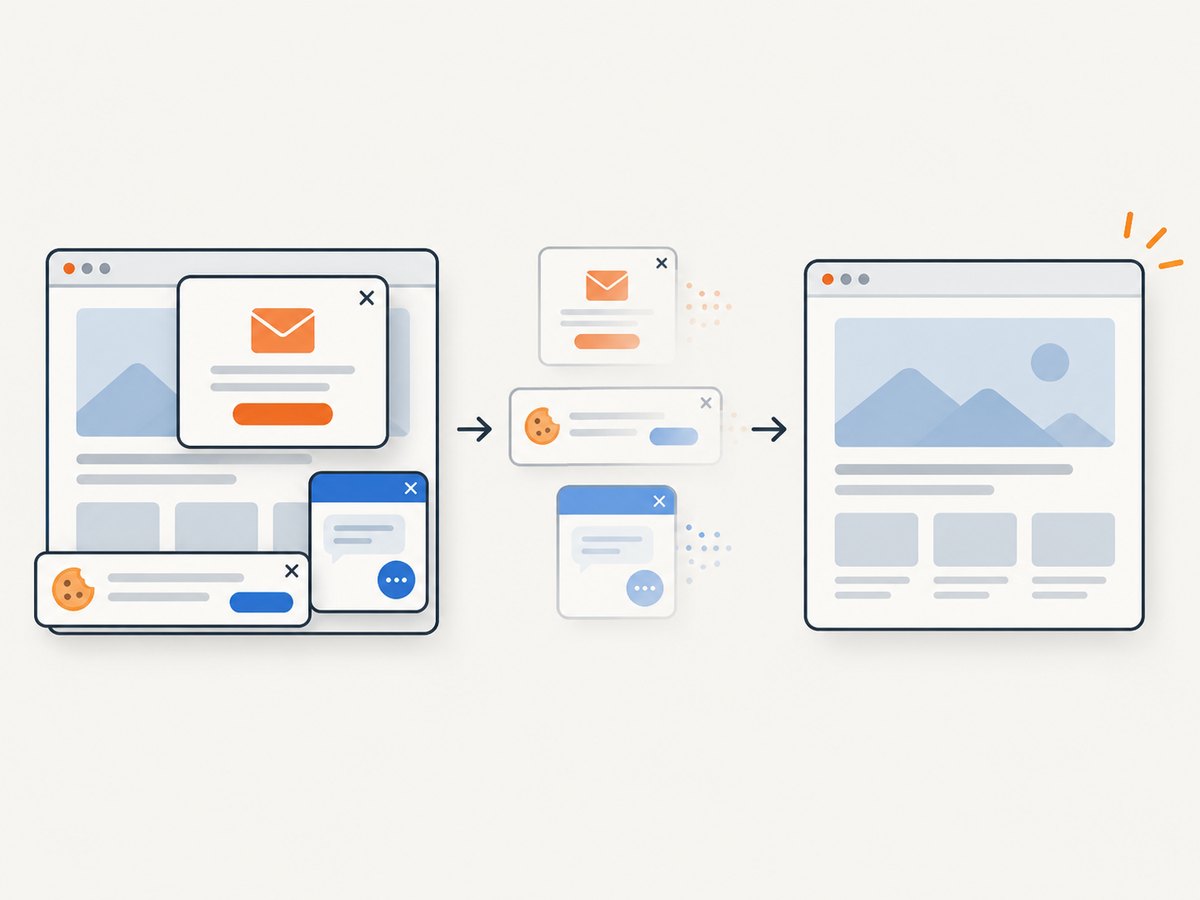
await Bun.write("shot.webp", res);ScreenshotNeo removes cookie banners, newsletter popups, and chat widgets before the shot. Bot checks, blank pages, failed loads, timeouts, and cache hits are not billed, and the response identifies the page verdict and billing status. Its MCP server lets AI agents use screenshot tools. The free plan includes 1,000 screenshots a month with no card; paid plans start at $5 for 3,000 screenshots. Its API is for capturing website URLs, while captureVisibleTab captures the tab the extension user is currently viewing.
Create a free ScreenshotNeo account for 1,000 screenshots a month, with no card required.
10. Frequently asked questions
Can I capture a tab without the user clicking the extension?
The example uses activeTab, which is intended for access granted through a user invocation. Background capture without that interaction requires a different permission design and should be justified by the extension’s purpose.
Does the method return a file path?
No. It resolves to a data URL string. Convert it to a Blob or use it as an image source if you need a file-like workflow.
Can it capture a page below the current viewport?
No. It captures the visible area only. A full-page capture requires a different approach that scrolls and combines content or a screenshot service designed for whole-page capture.
Why does the screenshot include a consent banner?
The API captures what is visible. It does not dismiss site dialogs or remove overlays. Your extension would need a separate, site-appropriate interaction before capture.
Can I capture several tabs at once?
The call targets the active tab in a window, and Chrome limits capture frequency. Schedule captures serially, select the intended active tab and window, and handle navigation or tab changes between requests.


