How to Capture a Screenshot of a VSTS Site with C#
Capture VSTS (Azure DevOps) pages in C# with Selenium, including full-page images, authentication, CI attachments, troubleshooting, and an API alternative.
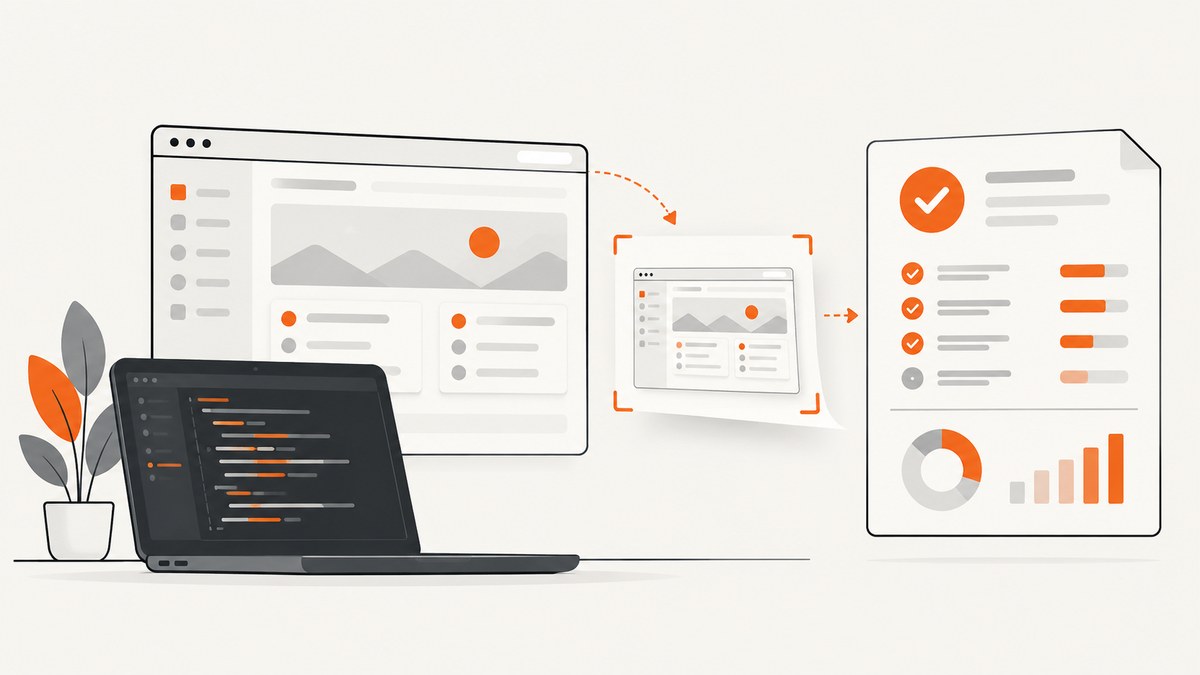
VSTS is the former name for Visual Studio Team Services. Microsoft documentation now calls the service Azure DevOps. In C#, the standard approach is Selenium WebDriver for .NET: open a browser, navigate to the Azure DevOps URL, complete authentication, wait for the page to be ready, then call GetScreenshot() and SaveAsFile().
using OpenQA.Selenium;
using OpenQA.Selenium.Chrome;

using var driver = new ChromeDriver();
driver.Navigate().GoToUrl("https://dev.azure.com/your-org/your-project");

var screenshot = ((ITakesScreenshot)driver).GetScreenshot();
screenshot.SaveAsFile("vsts-page.png");
GetScreenshot() captures the page currently loaded in the browser, and SaveAsFile() writes the image as PNG. The URL, sign-in process, waits, and selectors vary by organization and identity provider. See the Selenium documentation for current .NET setup details.
1. Set up a C# Selenium project
Create a console app or test project and add Selenium plus the Chrome driver package:
dotnet new console -n VstsScreenshot
a cd VstsScreenshot
dotnet add package Selenium.WebDriver
dotnet add package Selenium.WebDriver.ChromeDriver
Use a driver and browser version supported by your environment. In CI, Microsoft-hosted agents provide common browsers and matching drivers; service-configured agents commonly need headless mode.
2. Capture the visible VSTS page
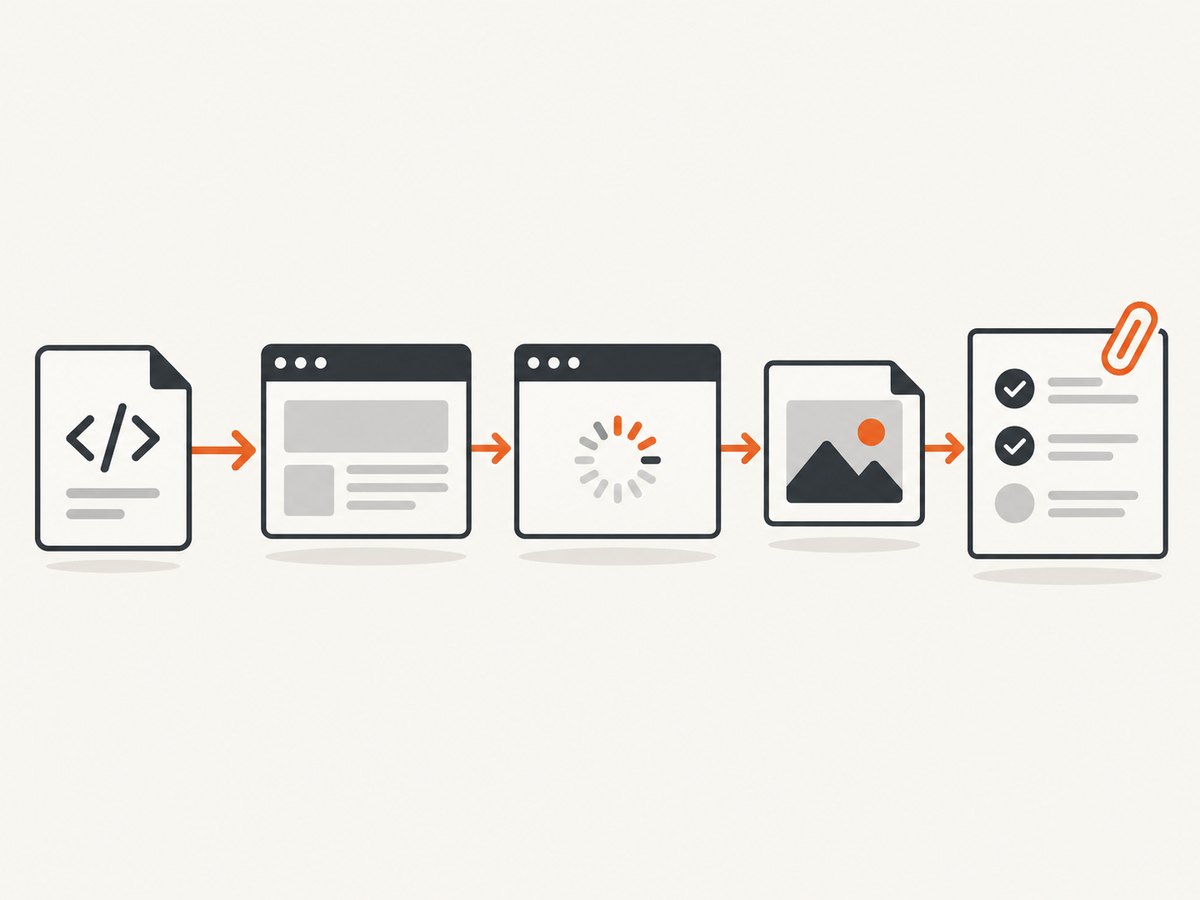
This complete example sets a predictable window, navigates to Azure DevOps, waits for the document and a page element, and saves a PNG.
using OpenQA.Selenium;
using OpenQA.Selenium.Chrome;
using OpenQA.Selenium.Support.UI;

var options = new ChromeOptions();
// Uncomment for a CI agent without a display:
// options.AddArgument("--headless=new");
options.AddArgument("--window-size=1440,1000");

using var driver = new ChromeDriver(options);
driver.Manage().Timeouts().PageLoad = TimeSpan.FromSeconds(90);
driver.Navigate().GoToUrl("https://dev.azure.com/your-org/your-project");

var wait = new WebDriverWait(driver, TimeSpan.FromSeconds(60));
wait.Until(d => ((IJavaScriptExecutor)d).ExecuteScript("return document.readyState")?.ToString() == "complete");

// Replace this selector with a stable element in your project.
wait.Until(d => d.FindElements(By.CssSelector("body")).Count > 0);

var screenshot = ((ITakesScreenshot)driver).GetScreenshot();
screenshot.SaveAsFile("vsts-page.png");
A successful navigation does not guarantee that Azure DevOps data has finished rendering. Wait for a stable project-specific element, or for a loading indicator to disappear, before capturing.
3. Handle authentication safely
Azure DevOps may require Microsoft Entra ID, a federated identity provider, or a conditional-access challenge. Selenium cannot bypass those controls. Complete the required sign-in in the browser, then capture only after the target page is authenticated.
- For local work, navigate to the page and sign in interactively before taking the screenshot.
- For automated tests, use a test account and the organization’s approved non-interactive authentication flow.
- Do not hard-code passwords, personal access tokens, cookies, or Authorization headers in source control.
- Use an explicit wait for a project element that is visible only after sign-in.
var wait = new WebDriverWait(driver, TimeSpan.FromSeconds(60));
wait.Until(d => d.FindElements(By.CssSelector("[data-testid='project-overview']")).Count == 1);
The selector above is illustrative; inspect your organization’s rendered DOM and choose a stable selector that your team controls.
4. Capture a full page or a clipped region
A normal Selenium screenshot represents the current viewport. For content longer than the browser window, use the browser’s DevTools Protocol. Selenium’s DevTools capture settings support capturing beyond the viewport and clipping to a selected region; PNG is the default format.
using OpenQA.Selenium;
using OpenQA.Selenium.Chrome;
using OpenQA.Selenium.DevTools;
using OpenQA.Selenium.DevTools.V124.Page;

var options = new ChromeOptions();
options.AddArgument("--headless=new");
options.AddArgument("--window-size=1440,1000");
using var driver = new ChromeDriver(options);
driver.Navigate().GoToUrl("https://dev.azure.com/your-org/your-project");

var wait = new WebDriverWait(driver, TimeSpan.FromSeconds(60));
wait.Until(d => ((IJavaScriptExecutor)d).ExecuteScript("return document.readyState")?.ToString() == "complete");

var devTools = ((IDevTools)driver).GetDevToolsSession();
var page = new OpenQA.Selenium.DevTools.V124.Page.PageAdapter(devTools);
var result = await page.CaptureScreenshot(new CaptureScreenshotCommandSettings
{
    Format = CaptureScreenshotFormat.Png,
    CaptureBeyondViewport = true
});

File.WriteAllBytes("vsts-full-page.png", result.Data);
The versioned namespace (such as V124) must match the DevTools version exposed by your Selenium package. If your package exposes a different version, change the namespace accordingly. For a region, provide a Clip rectangle with the target’s x/y coordinates, width, height, and scale.
Capture one element
When you need a work-item panel or test result rather than the entire page, scroll the element into view and use Selenium’s element screenshot API:
var panel = wait.Until(d => d.FindElement(By.CssSelector("[data-testid='work-item-form']")));
((IJavaScriptExecutor)driver).ExecuteScript("arguments[0].scrollIntoView({block:'center'});", panel);
panel.GetScreenshot().SaveAsFile("work-item.png");
5. Attach screenshots to Azure DevOps test results
A file saved on an agent is not automatically displayed in an Azure Pipelines test report. Add it explicitly as a test result attachment. Microsoft’s UI-testing guidance documents the framework-specific APIs.
MSTest
var fileName = Path.Combine(TestContext.TestRunDirectory, "vsts-page.png");
((ITakesScreenshot)driver).GetScreenshot().SaveAsFile(fileName);
TestContext.AddResultFile(fileName);
NUnit 3.7+
var fileName = Path.Combine(TestContext.CurrentContext.WorkDirectory, "vsts-page.png");
((ITakesScreenshot)driver).GetScreenshot().SaveAsFile(fileName);
TestContext.AddTestAttachment(fileName, "Azure DevOps page screenshot");
Keep the screenshot path unique per test or overwrite it deliberately. Publish the test results in the pipeline so the attachment is available in the Azure DevOps report.
6. Run Selenium in Azure Pipelines
Headless mode is usually required when the agent runs as a service without an interactive desktop. A minimal pipeline step can run your .NET tests:
- task: DotNetCoreCLI@2
  inputs:
    command: test
    projects: '**/*Tests.csproj'
    arguments: '--logger trx --results-directory $(Agent.TempDirectory)/test-results'

- task: PublishTestResults@2
  condition: succeededOrFailed()
  inputs:
    testResultsFormat: VSTest
    testResultsFiles: '$(Agent.TempDirectory)/test-results/*.trx'
    testRunTitle: 'Azure DevOps Selenium tests'
Ensure the browser, driver, .NET SDK, and test project are installed on the chosen agent. Save screenshots under the test run directory so the test framework can attach them.
7. Common errors and fixes
| Error | Likely cause | Fix |
|---|---|---|
SessionNotCreatedException |
Browser and driver versions do not match. | Install a compatible driver/browser pair or update Selenium and the driver package. |
| Screenshot is only the visible area | Standard GetScreenshot() is viewport capture. |
Use DevTools CaptureBeyondViewport, or capture the required element. |
| Blank or half-rendered image | Capture occurred before asynchronous content loaded. | Wait for a stable project selector, remove loading indicators, and allow lazy content to render. |
| Redirected to sign-in | The session is unauthenticated or expired. | Complete the organization’s approved authentication flow and wait for an authenticated-only element. |
TimeoutException |
Selector, network, or identity-provider timing varies. | Use a stable selector, inspect the current URL/title, and set a bounded wait appropriate to the page. |
| Chrome cannot start in CI | No display, sandbox restrictions, or insufficient shared memory. | Use --headless=new; configure the agent according to its browser requirements. |
| Attachment missing from the report | The file was saved but not registered with the test framework. | Call TestContext.AddResultFile (MSTest) or AddTestAttachment (NUnit), then publish results. |
| Element screenshot is cropped unexpectedly | Element is outside the viewport, transformed, or still animating. | Scroll it into view, wait for layout stability, and disable animations with test CSS when appropriate. |
8. Reliability and performance checklist
- Use explicit waits tied to application state instead of long fixed sleeps.
- Set page-load and script timeouts so a stuck page fails predictably.
- Use a deterministic viewport and timezone when visual output is compared.
- Freeze test data or capture a known project state to reduce visual drift.
- Capture after lazy images and charts have loaded; scroll progressively if the application loads content on scroll.
- Reuse a browser session only when test isolation permits it; otherwise create a fresh driver per test.
- Store files on the agent’s temporary directory and clean them after publishing.
- PNG preserves detail but produces larger files; choose JPEG only when your comparison workflow accepts lossy output.
Selenium runs a real browser, so each capture consumes browser startup, navigation, rendering, and authentication time. Parallel tests can reduce wall-clock duration but require isolated accounts, data, ports, and output paths.
9. Or skip the browser setup
ScreenshotNeo provides a website screenshot API and MCP server. One request captures an Azure DevOps URL without managing a local browser. Read the API documentation for the available options.
using System.Net.Http;

using var http = new HttpClient { Timeout = TimeSpan.FromSeconds(90) };
var url = "https://dev.azure.com/your-org/your-project";
var endpoint = "https://api.screenshotneo.com/v1/shot" +
               "?access_key=YOUR_API_KEY&url=" + Uri.EscapeDataString(url);
var bytes = await http.GetByteArrayAsync(endpoint);
await File.WriteAllBytesAsync("vsts-page.webp", bytes);
curl -G "https://api.screenshotneo.com/v1/shot" -d access_key=YOUR_API_KEY --data-urlencode url=https://dev.azure.com/your-org/your-project -o shot.webpimport requests
r = requests.get("https://api.screenshotneo.com/v1/shot", params={"access_key": "YOUR_API_KEY", "url": "https://dev.azure.com/your-org/your-project"}, timeout=90)
r.raise_for_status()
open("shot.webp", "wb").write(r.content)const q = new URLSearchParams({ access_key: 'YOUR_API_KEY', url: 'https://dev.azure.com/your-org/your-project' });
const res = await fetch(`https://api.screenshotneo.com/v1/shot?${q}`);
if (!res.ok) throw new Error(`HTTP ${res.status}`);
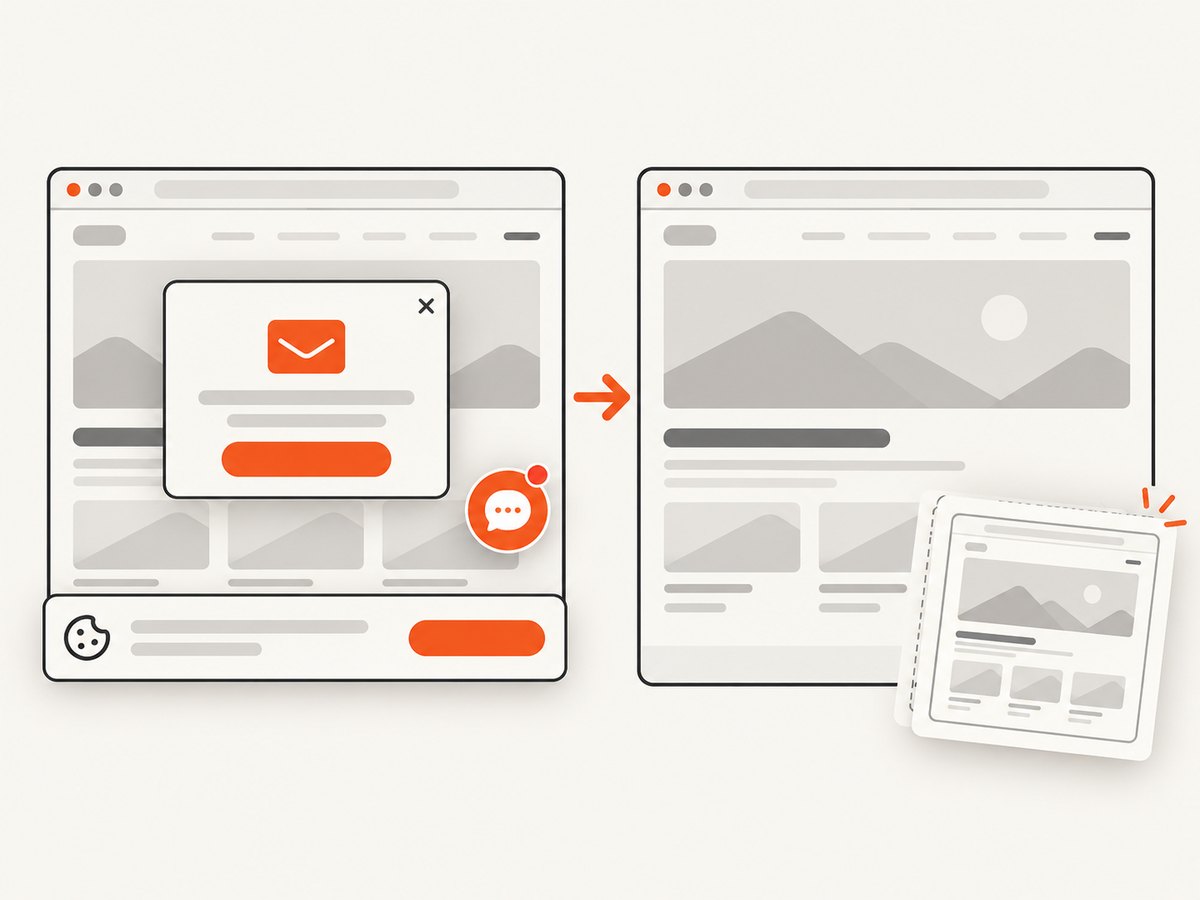
await Bun.write('vsts-page.webp', res);ScreenshotNeo accepts options for full-page capture, element selectors, device and viewport settings, retina scale, dark mode, custom CSS and JavaScript, waits, headers, cookies, user agents, Authorization, timezone, geolocation, blocking requests, caching, signed links, asynchronous jobs, bulk capture, PDFs, and HTML/CSS rendering. Cookie and consent banners, newsletter popups, and chat widgets are removed before capture. Bot checks, blank pages, timeouts, failed loads, and cache hits are not billed; inspect the X-Page-Verdict and X-Billed response headers. Its MCP server exposes take_screenshot, get_page_info, and capture_pdf for Claude, Cursor, and other MCP clients.
The Free plan includes 1,000 screenshots per month with no card. Paid plans start at $5 for 3,000 screenshots, and every feature is available on every plan. Create a free ScreenshotNeo account.
10. FAQ
Is VSTS still the correct name?
No. VSTS is the legacy name; use Azure DevOps in new documentation and URLs, while recognizing VSTS wording in older projects and questions.
Can Selenium bypass a CAPTCHA?
No. Treat bot checks and CAPTCHAs as authentication or security controls and use an approved test flow.
Can I prove that all asynchronous data loaded?
No screenshot API can infer your application’s business readiness. Wait for an application-specific success condition, such as a known result element and the disappearance of its loading state.
Why is my image different between local and CI?
Viewport size, browser version, fonts, timezone, device scale, data state, and headless rendering can differ. Pin these inputs where visual consistency matters.
How do I choose between Selenium and an API?
Use Selenium when the test itself must drive a browser and interact with authenticated controls. Use an API when you need repeatable captures without maintaining browser drivers and CI display configuration.


