How to Capture a Web Page and Convert It to PDF
Learn when to print a web page to PDF, when to capture a full-page image, and how to automate clean PDF captures with code.
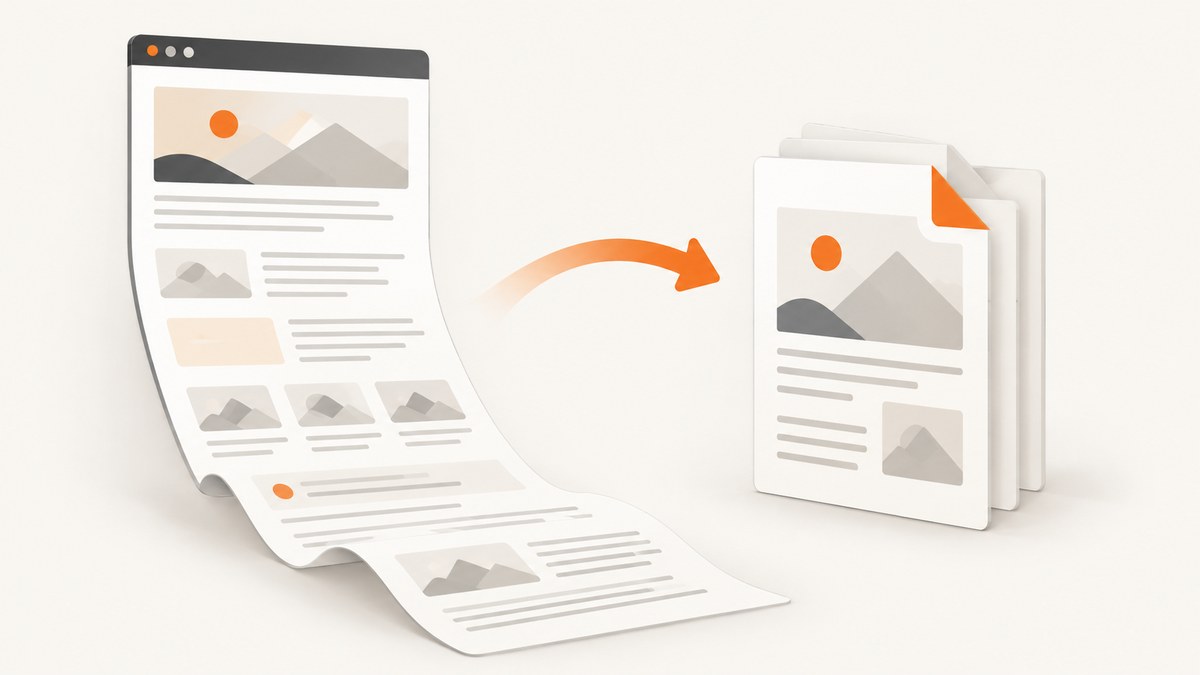
Use your browser’s print preview when you need a readable, paginated PDF. Open the page, choose Print, select a PDF destination such as Save to PDF, check the preview, then save. Use a full-page screenshot when you need one visual record of the entire page; that produces an image rather than a conventional text-oriented PDF.
The right method depends on what you need to preserve:
| Goal | Best method | Result |
|---|---|---|
| Readable document for sharing, printing, or archiving | Print preview, then Save to PDF | Paginated PDF whose layout follows print settings and the site’s print styles |
| Visual record of the whole page | Browser full-page screenshot | One long image or image capture, preserving the page’s visual presentation |
| Cleaner article content | Firefox Simplified format or Edge Immersive Reader, when available | Reduced clutter before printing; availability depends on the browser and website |
1. Decide whether you need a PDF or a full-page image
A PDF is usually better for text. It can contain selectable text, multiple pages, paper-sized margins, headers, footers, and a predictable print layout. A full-page screenshot is better for visual fidelity: it records how the page looks, including spacing, colors, charts, and other screen elements. It is still an image, even if you later place that image inside a PDF.
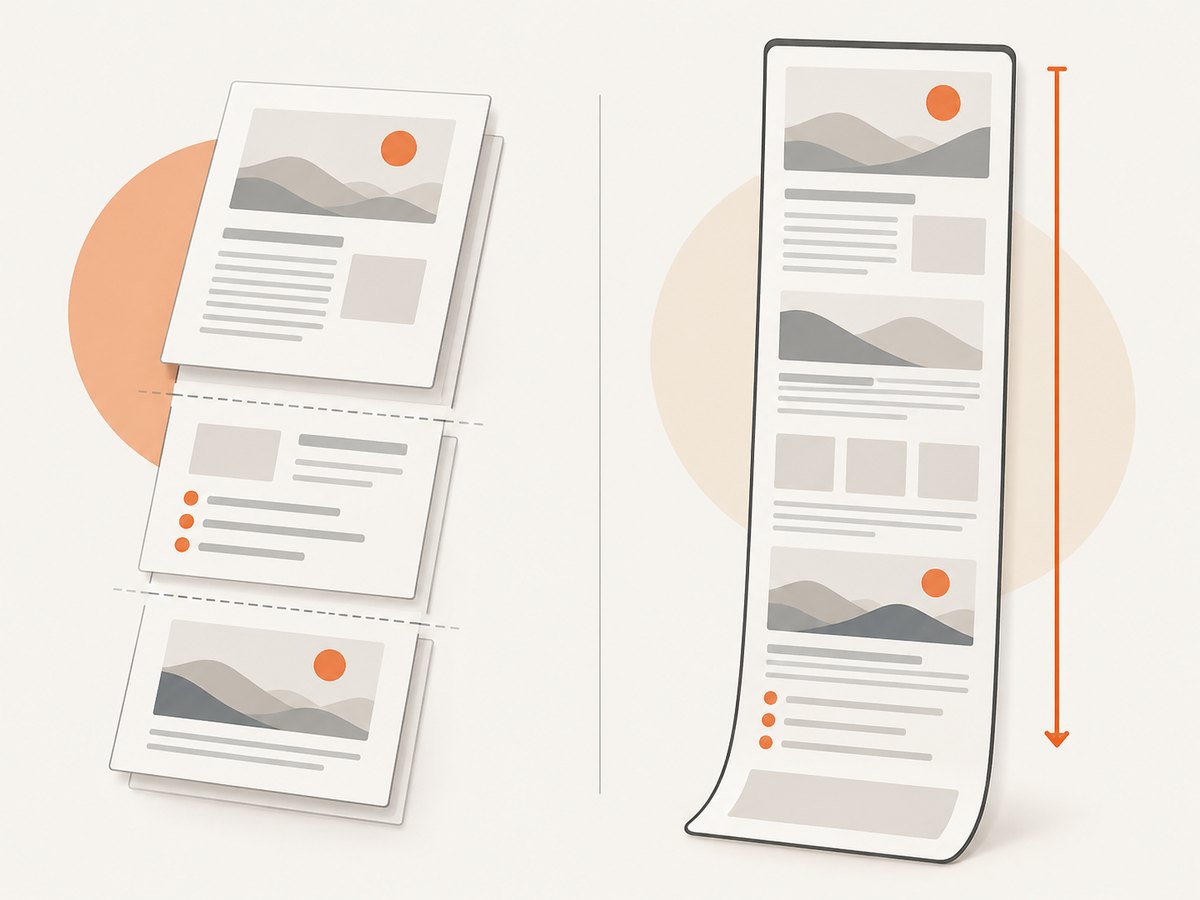
Printing can change the design. Websites may provide a separate print stylesheet, hide navigation, reflow columns, remove backgrounds, or split a large element across pages. Always inspect the preview before saving. Firefox’s print controls include orientation, page selection, paper size, scale, margins, pages per sheet, headers and footers, background printing, and Simplified format where available. Mozilla also warns that a page can arrange itself differently for paper than it does on screen.
If your requirement is “give me a PDF someone can read,” start with print preview. If the requirement is “show exactly what the page looked like from top to bottom,” start with full-page capture.
2. Save a web page as a PDF in Firefox
- Open the page you want to save.
- Open the Firefox menu and choose Print. You can also use the operating system’s print command.
- In print preview, choose Save to PDF as the destination.
- Choose the paper size and orientation. Use landscape for wide tables or dashboards.
- Adjust scale and margins if headings, tables, or images are clipped.
- Enable print backgrounds when colors or background images are part of the document.
- Review page breaks and the page range, then select Print or Save and choose a filename.
Firefox may offer Simplified format for an article. This can remove navigation and other page clutter before printing. Its availability depends on the page. Simplified format cannot be combined with printed backgrounds, so choose the option that matches your goal.
Firefox settings that affect the PDF
- Orientation: Portrait works for ordinary articles; landscape gives wide tables more room.
- Paper size: Match the destination paper or select a standard size such as A4 or Letter.
- Scale: Lower it when content is cut off; raising it can make text easier to read but may increase page count.
- Margins: Narrow margins fit more content. Keep enough space for printers or binding.
- Headers and footers: Disable them when you do not want the URL, date, or page title added.
- Backgrounds: Enable background printing when colored panels, charts, or image-based diagrams matter.
- Page range: Save all pages or a selected range after checking the preview.
3. Save a web page as a PDF in Microsoft Edge
- Open the page in Edge.
- Press Ctrl+P on Windows or Command+P on Mac. You can also open Settings and more, then choose Print.
- Select the PDF destination offered by your system’s print dialog, such as Save as PDF or Microsoft Print to PDF.
- Open More settings and review paper size, scale, margins, headers and footers, and page range.
- Enable Background graphics if the preview loses important colors or images.
- Save the file after checking every page in the preview.
For a less cluttered article, Microsoft documents Immersive Reader as a possible printing workaround. It is not available on every website, so treat it as an optional step rather than a guaranteed feature.
4. Capture the entire page as an image
Firefox full-page screenshot
- Right-click an empty part of the page and select Take Screenshot. You can also press Ctrl+Shift+S on Windows or Command+Shift+S on Mac.
- Choose Save full page to capture content below the viewport.
- Choose Save visible when you only need the current screen.
- Save the resulting image file.
Firefox’s full-page capture is an image workflow. It does not create a text-oriented PDF with normal pagination. If you need a PDF afterward, convert the saved image with an image viewer or document tool, understanding that text may not remain selectable.
Microsoft Edge full-page screenshot
- Open the Screenshot feature with Ctrl+Shift+S.
- Select Capture full page for content extending below the screen, or select a region for a partial capture.
- Mark up, copy, or save the capture as an image.
Use full-page capture for design reviews, visual regression records, and pages where print styles remove information you need to see. Use print-to-PDF for contracts, documentation, invoices, and other documents that people must read or print.
5. Make the PDF readable and complete
Check the preview before saving
- Scan every page for clipped columns, missing images, and unexpected blank pages.
- Confirm that headings are not stranded at the bottom of a page.
- Check that links, lists, and tables remain understandable after reflow.
- Verify the page range so you do not accidentally save only the first page.
- Turn on backgrounds only when they carry meaning; they can increase file size.
Handle long or dynamic pages
Some pages load more content as you scroll. Scroll through the page first so lazy-loaded images and sections exist before printing or taking a screenshot. Expand accordions that must appear in the final document. If a page requires a login, confirm that you are authenticated in the same browser profile used for capture.
Interactive maps, videos, canvas drawings, and animations may not print as expected. A screenshot records the rendered state at capture time; a PDF print may omit controls or replace an interactive element with a static placeholder.
Preserve a visual page as a PDF
If you specifically need a long screenshot inside a PDF, save the full-page image first, then insert it into a document or image-to-PDF workflow. Set the page orientation and image scaling deliberately. A very tall image can become unreadable when shrunk to a single paper page; splitting it across pages usually improves legibility.
6. Automate capture with ScreenshotNeo
Manual browser steps work for occasional captures. For repeatable jobs, ScreenshotNeo provides a website screenshot API and MCP server. One GET request can return a PNG, JPEG, WebP, or PDF. It supports full-page capture with lazy images loaded, PDF paper sizes, margins, landscape mode, and page ranges, along with waiting, custom CSS and JavaScript, cookies, headers, authentication, geolocation, and other capture controls. See the ScreenshotNeo documentation for parameter details.
cURL: request a capture
curl -G "https://api.screenshotneo.com/v1/shot" \
  -d access_key=YOUR_API_KEY \
  --data-urlencode url=https://stripe.com \
  -o shot.webp
The example writes the response to a WebP file. Set the output format and PDF options according to the API documentation when you need a PDF document.
Python: save the response
import requests

r = requests.get(
    "https://api.screenshotneo.com/v1/shot",
    params={"access_key": "YOUR_API_KEY", "url": "https://stripe.com"},
    timeout=90,
)
r.raise_for_status()
open("shot.webp", "wb").write(r.content)
Node.js: fetch the capture
const q = new URLSearchParams({
  access_key: 'YOUR_API_KEY',
  url: 'https://stripe.com'
});

const res = await fetch(`https://api.screenshotneo.com/v1/shot?${q}`);
if (!res.ok) throw new Error(`HTTP ${res.status}`);
const data = Buffer.from(await res.arrayBuffer());
require('fs').writeFileSync('shot.webp', data);
Useful ScreenshotNeo options
| Requirement | Available control |
|---|---|
| Whole document | Full-page capture with lazy images loaded |
| One component | Capture an element by CSS selector |
| Consistent appearance | Device presets, custom viewport, retina scale, dark mode, timezone, and geolocation |
| Remove clutter | Hide selectors, block ads and trackers, block requests or resource types, custom CSS and JavaScript |
| Wait for app state | Wait for a selector, delay, or network idle; click an element before capture |
| Authenticated pages | Custom headers, cookies, user agent, and Authorization |
| PDF output | Paper size, margins, landscape, and page ranges |
| Repeat jobs | Caching with a chosen TTL, asynchronous jobs with signed webhooks, and bulk capture for up to 100 URLs per call |
7. Or skip the browser setup
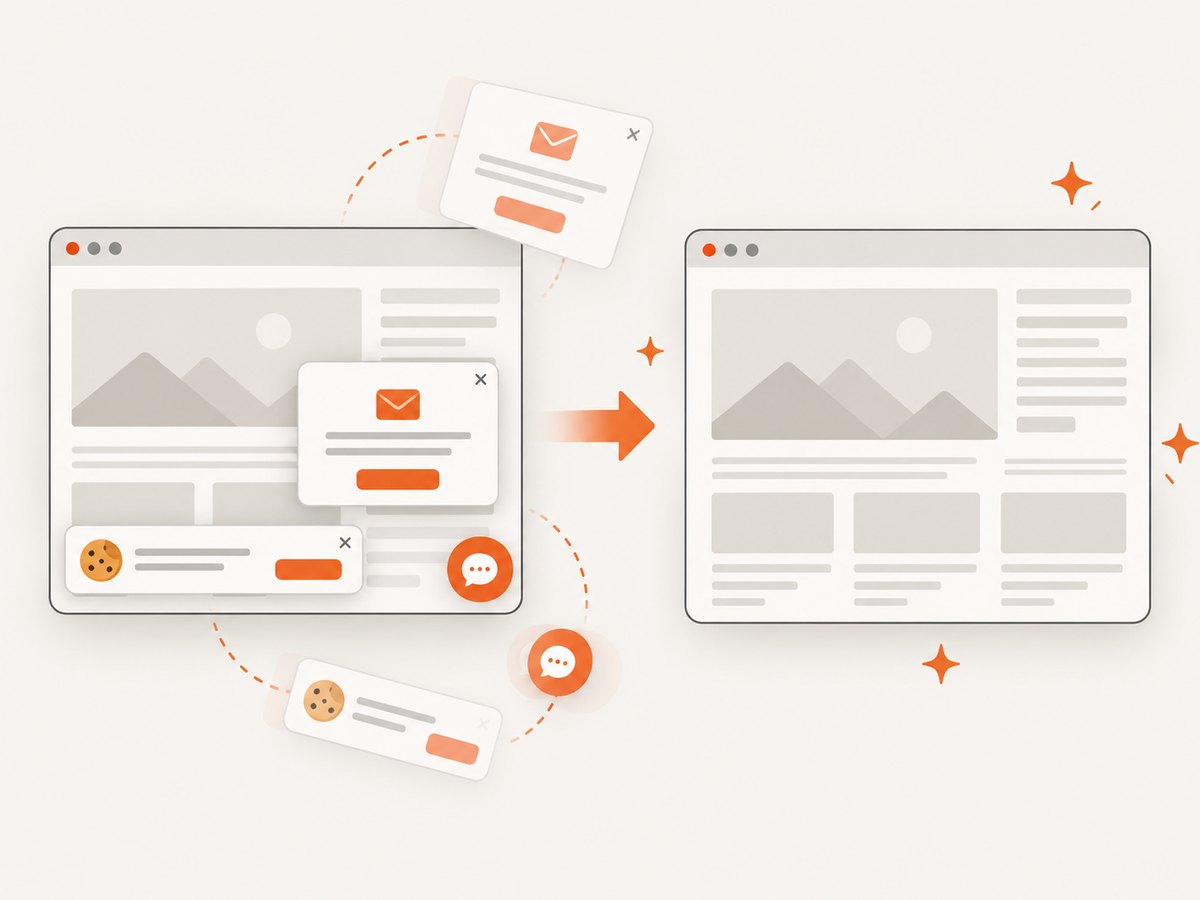
ScreenshotNeo handles the capture in one request. Cookie and consent banners, newsletter popups, and chat widgets are removed before the shot. Bot checks, blank pages, failed loads, timeouts, and cache hits are not billed; the response reports the result with X-Page-Verdict and X-Billed headers. An MCP server lets AI agents use take_screenshot, get_page_info, and capture_pdf from Claude, Cursor, or another MCP client.
curl -G "https://api.screenshotneo.com/v1/shot" -d access_key=YOUR_API_KEY --data-urlencode url=https://stripe.com -o shot.webpThe Free plan includes 1,000 screenshots each month with no card. Paid plans start at $5 for 3,000 shots, and every feature is available on every plan. Create a free ScreenshotNeo account.
8. Troubleshooting
The PDF is missing colors or images
Enable Background graphics in Edge or Print backgrounds in Firefox. Some sites deliberately remove decorative backgrounds in their print stylesheet. If the missing element is essential, use a full-page screenshot or an automated capture with explicit styling.
The page is clipped or split badly
Reduce scale, change orientation, increase the paper size, or adjust margins. Check the preview rather than relying on the on-screen layout. Wide tables often need landscape mode.
Only the visible viewport was captured
Choose Save full page in Firefox or Capture full page in Edge. For an API, enable full-page capture and wait for lazy-loaded content.
Ads or navigation dominate the PDF
Try Firefox Simplified format or Edge Immersive Reader when available. For automated jobs, hide selectors, block ads and trackers, or apply custom CSS before capture.
The API response is not an image or PDF
Inspect the HTTP status and response headers before writing the body to a file. Authentication failures, invalid URLs, bot checks, blank pages, timeouts, and failed loads should be handled as response states. With ScreenshotNeo, check X-Page-Verdict and X-Billed so your job can distinguish a clean billable capture from a failed or non-billable result.
Dynamic content is absent
Wait for a selector, a delay, or network idle. Trigger the required click, provide cookies or authorization headers, and ensure the target page is reachable without an interactive browser challenge.
9. Performance, reliability, and cost considerations
For a one-off page, browser print preview is fastest because it requires no setup. For repeated URLs, automation avoids manual variation: use a fixed viewport, explicit waits, selected resource blocking, and caching with a TTL when the page does not change often. Bulk capture can reduce orchestration work when processing many URLs.
Rendering time grows with page complexity, JavaScript, images, fonts, and network dependencies. Waiting for network idle can improve completeness but may delay pages that keep analytics connections open; a selector wait or bounded delay is often more predictable. Store the returned verdict and billing headers with your job record so retries do not hide what happened.
ScreenshotNeo’s pricing is usage-based: Free includes 1,000 shots per month, followed by Starter at $5 for 3,000, Growth at $15 for 15,000, Pro at $39 for 60,000, Scale at $99 for 250,000, and Business at $249 for 1,000,000. Yearly billing gives two months free. Failed loads, bot checks, blank pages, timeouts, and cache hits cost nothing.
10. FAQ
Can I turn a full-page screenshot directly into a searchable PDF?
Not reliably. A screenshot is pixels. Use print-to-PDF for selectable text, or add OCR in a separate workflow if an image-based PDF is unavoidable.
Why does my PDF have more pages than the browser view?
Paper has a fixed width and height, so the browser reflows content and applies margins, scale, and print styles. Review orientation, paper size, and scale in print preview.
Should I use a screenshot or PDF for archiving?
Use a PDF when text search, pagination, and printing matter. Use a screenshot when the exact visual arrangement is the record you need. For high-value archives, keep both.
Can automated capture include a logged-in page?
Yes, when the capture service supports the required cookies, headers, user agent, or authorization and the page does not require an interactive challenge. Configure those values explicitly and protect them as secrets.
How do I capture only one part of a page?
Browsers provide region selection. ScreenshotNeo can capture one element by CSS selector, which is more repeatable for dashboards, invoices, and component-level tests.


