How to Capture a Web Page Screenshot in Java
Learn how to capture web page screenshots in Java with Selenium or Playwright, including full pages, elements, byte arrays, formats, waits and troubleshooting.
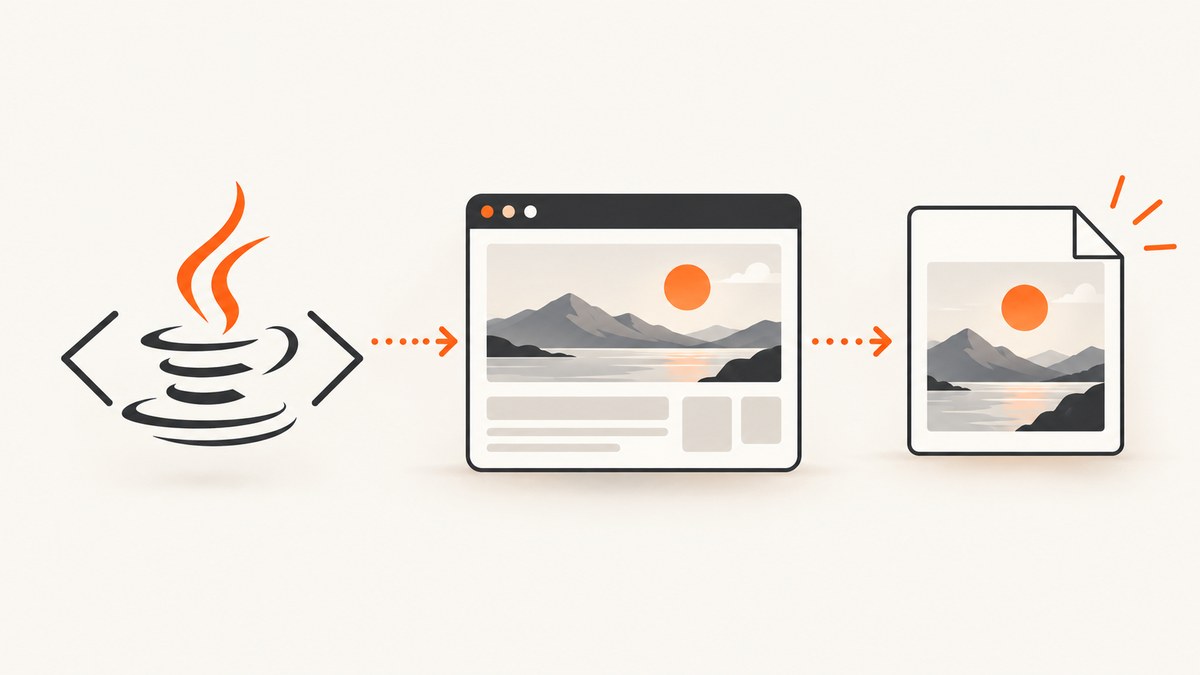
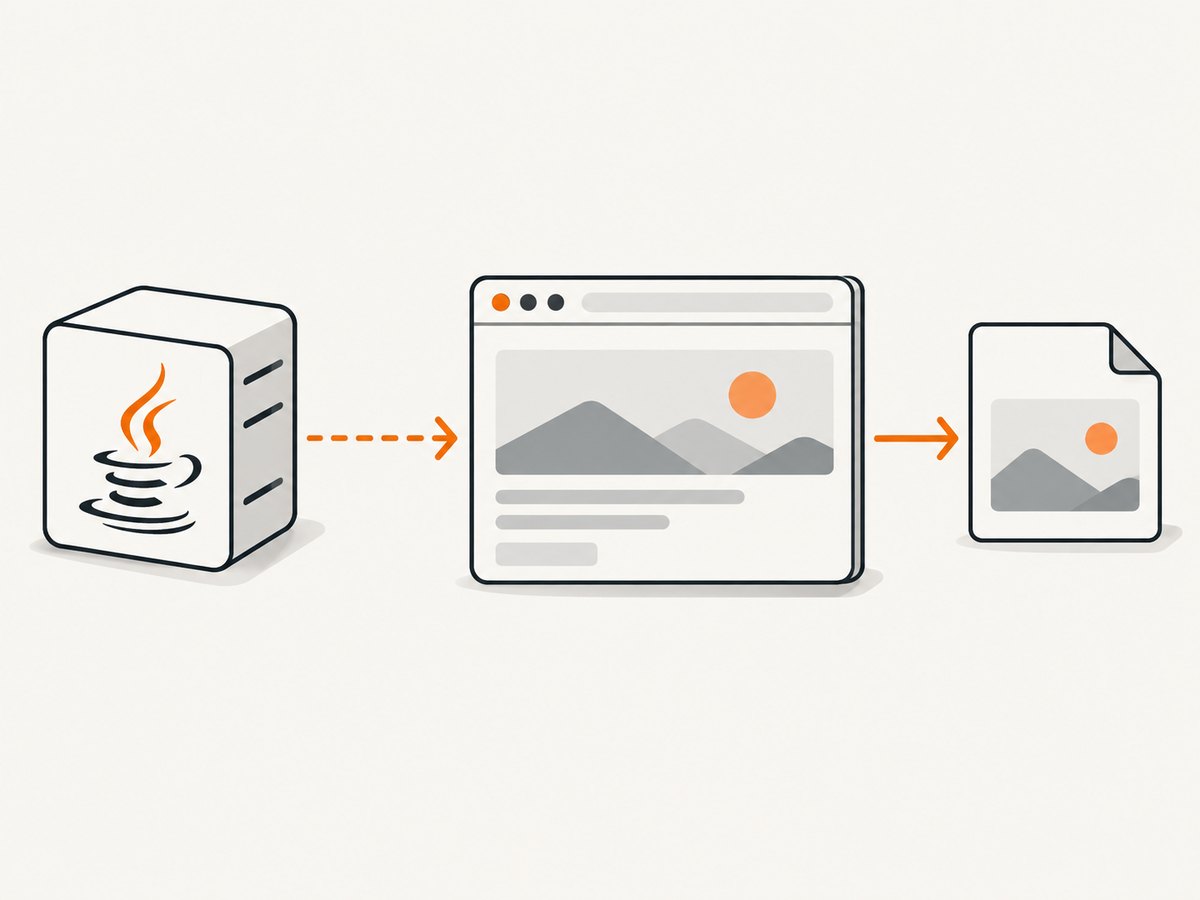
Use Playwright Java when screenshot control matters; use Selenium when your project already uses WebDriver. Selenium can capture a driver window or individual WebElement, while Playwright adds explicit full-page capture, image formats, byte-array output, masking, animation controls, scale and timeout options.
This guide shows complete Java examples for both libraries, explains full-page and element screenshots, covers deterministic waits and dynamic pages, and includes cURL, Python and Node.js alternatives.
1. Choose Selenium or Playwright
| Need | Recommended API | Reason |
|---|---|---|
| Existing WebDriver test suite | Selenium TakesScreenshot |
Uses your current driver and browser setup. |
| Explicit full-page screenshots | Playwright Page.screenshot |
setFullPage(true) makes the intent explicit. |
| Element screenshots | Either | Selenium uses WebElement; Playwright uses locator actionability checks. |
| PNG, JPEG and WebP controls | Playwright | Format, quality, scale and other screenshot options are exposed directly. |
| In-memory bytes | Either | Selenium supports output types such as Base64; Playwright returns byte[]. |
Selenium documents getScreenshotAs(OutputType<X>) for drivers and elements, but page coverage can depend on the WebDriver implementation. Read Selenium’s screenshot documentation. Playwright documents page and locator screenshots, including full-page mode and output options. Read the Playwright Java screenshot guide.
2. Capture a page with Selenium Java
Prerequisites
- Install a recent JDK.
- Add Selenium Java to your build.
- Use a browser driver available to Selenium Manager or configure the driver yourself.
Maven dependency:
<dependency>
  <groupId>org.seleniumhq.selenium</groupId>
  <artifactId>selenium-java</artifactId>
  <version>4.XX.X</version>
</dependency>
Replace 4.XX.X with the Selenium version selected by your project’s dependency policy.
Viewport screenshot to a PNG file
import java.io.File;
import java.nio.file.Files;
import java.nio.file.Path;
import java.nio.file.StandardCopyOption;

import org.openqa.selenium.OutputType;
import org.openqa.selenium.TakesScreenshot;
import org.openqa.selenium.WebDriver;
import org.openqa.selenium.chrome.ChromeDriver;

public class SeleniumScreenshot {
  public static void main(String[] args) throws Exception {
    WebDriver driver = new ChromeDriver();
    try {
      driver.get("https://example.com");

      File temporaryFile = ((TakesScreenshot) driver)
          .getScreenshotAs(OutputType.FILE);

      Files.copy(
          temporaryFile.toPath(),
          Path.of("page.png"),
          StandardCopyOption.REPLACE_EXISTING);
    } finally {
      driver.quit();
    }
  }
}
The driver-level call captures what the WebDriver implementation provides. A conforming implementation follows the WebDriver screenshot behavior; other implementations may return the whole page, current window, current frame or display on a best-effort basis.
Capture an element with Selenium
import java.io.File;
import java.nio.file.Files;
import java.nio.file.Path;
import java.nio.file.StandardCopyOption;

import org.openqa.selenium.By;
import org.openqa.selenium.OutputType;
import org.openqa.selenium.WebDriver;
import org.openqa.selenium.WebElement;
import org.openqa.selenium.chrome.ChromeDriver;

public class SeleniumElementScreenshot {
  public static void main(String[] args) throws Exception {
    WebDriver driver = new ChromeDriver();
    try {
      driver.get("https://example.com");
      WebElement header = driver.findElement(By.cssSelector("header"));
      File temporaryFile = header.getScreenshotAs(OutputType.FILE);
      Files.copy(
          temporaryFile.toPath(),
          Path.of("header.png"),
          StandardCopyOption.REPLACE_EXISTING);
    } finally {
      driver.quit();
    }
  }
}
Get a Base64 screenshot instead of a file
String base64 = ((TakesScreenshot) driver)
    .getScreenshotAs(OutputType.BASE64);
Use OutputType.BYTES when the next step accepts raw bytes, such as an object-storage upload or image comparison pipeline.
Make Selenium captures less flaky
import java.time.Duration;
import org.openqa.selenium.support.ui.ExpectedConditions;
import org.openqa.selenium.support.ui.WebDriverWait;

WebDriverWait wait = new WebDriverWait(driver, Duration.ofSeconds(20));
wait.until(ExpectedConditions.visibilityOfElementLocated(
    By.cssSelector("main")));
wait.until(ExpectedConditions.invisibilityOfElementLocated(
    By.cssSelector(".loading")));

WebElement main = driver.findElement(By.cssSelector("main"));
((TakesScreenshot) driver).getScreenshotAs(OutputType.FILE);
Wait for the state that matters to your screenshot: a heading visible, a loading indicator gone, a chart rendered, or a specific network-driven element populated. An arbitrary sleep is less reliable because page speed varies.
3. Capture a page with Playwright Java
Maven dependency
<dependency>
  <groupId>com.microsoft.playwright</groupId>
  <artifactId>playwright</artifactId>
  <version>1.XX.X</version>
</dependency>
Use the Playwright version managed by your build, then install the required browser binaries with Playwright’s installation command.
Save a viewport screenshot
import com.microsoft.playwright.Browser;
import com.microsoft.playwright.BrowserContext;
import com.microsoft.playwright.BrowserType;
import com.microsoft.playwright.Page;
import com.microsoft.playwright.Playwright;
import java.nio.file.Paths;

public class PlaywrightScreenshot {
  public static void main(String[] args) {
    try (Playwright playwright = Playwright.create()) {
      Browser browser = playwright.chromium().launch(
          new BrowserType.LaunchOptions().setHeadless(true));
      BrowserContext context = browser.newContext(
          new Browser.NewContextOptions()
              .setViewportSize(1440, 900));
      Page page = context.newPage();
      page.navigate("https://example.com");
      page.screenshot(new Page.ScreenshotOptions()
          .setPath(Paths.get("page.png")));
      browser.close();
    }
  }
}
Capture the full scrollable page
page.screenshot(new Page.ScreenshotOptions()
    .setPath(Paths.get("full-page.png"))
    .setFullPage(true));
Full-page mode captures the page beyond the current viewport. Very tall pages can create large images; consider clipping a meaningful region or capturing sections when downstream systems have size limits.
Return screenshot bytes
byte[] png = page.screenshot();Send the returned bytes to object storage, an HTTP response, a visual comparison tool or a database without writing a temporary file.
Capture one element with a locator
page.locator(".header").screenshot(
    new Locator.ScreenshotOptions()
        .setPath(Paths.get("header.png")));
A locator screenshot scrolls the matched element into view and performs actionability checks. Use a stable selector and ensure it matches exactly the component you intend to capture.
4. Playwright screenshot options
| Option | Java API | Use it for |
|---|---|---|
| Full page | setFullPage(true) |
Capturing the entire scrollable document. |
| PNG | setType(ScreenshotType.PNG) |
Lossless output and visual comparisons. |
| JPEG | setType(ScreenshotType.JPEG) |
Smaller photographic output; combine with quality. |
| WebP | setType(ScreenshotType.WEBP) |
Compact modern image output. |
| Quality | setQuality(80) |
JPEG/WebP size control where supported. |
| Scale | setScale("css") or setScale("device") |
Choose CSS-pixel output or device-pixel output. |
| Masking | setMask(List<Locator>) |
Hide changing regions such as timestamps or ads. |
| Animations | setAnimations("disabled") |
Reduce frame-to-frame differences. |
| Background | setOmitBackground(true) |
Produce transparent output where supported. |
| Timeout | setTimeout(30_000) |
Bound screenshot operations that wait on actionability. |
Deterministic visual-test capture
import com.microsoft.playwright.Locator;
import com.microsoft.playwright.Page;
import java.util.List;
import java.nio.file.Paths;

page.screenshot(new Page.ScreenshotOptions()
    .setPath(Paths.get("stable.webp"))
    .setType(Page.ScreenshotType.WEBP)
    .setQuality(85)
    .setScale("css")
    .setAnimations("disabled")
    .setMask(List.of(
        page.locator(".live-clock"),
        page.locator(".advertisement"))));
Use CSS scale when one output pixel should correspond to one CSS pixel. Use device scale when you need high-DPI evidence. Mask timestamps, rotating promotions and other intentionally changing regions rather than accepting false visual diffs.
5. Wait for the right page state
- Navigate to the URL.
- Wait for a meaningful selector such as the main content or chart.
- Wait for loading placeholders to disappear.
- Scroll or locate lazy-loaded content if a full-page image must include it.
- Disable or mask animations and volatile content.
- Capture only after the required state is observable.
page.navigate("https://example.com/dashboard");
page.locator("main.dashboard").waitFor(
    new Locator.WaitForOptions()
        .setState(WaitForSelectorState.VISIBLE));
page.locator(".skeleton").waitFor(
    new Locator.WaitForOptions()
        .setState(WaitForSelectorState.HIDDEN));
page.screenshot(new Page.ScreenshotOptions()
    .setPath(Paths.get("dashboard.png"))
    .setFullPage(true));
For pages that load images only after scrolling, use full-page mode and verify that the page’s lazy-loading behavior has completed. If the site requires authentication, create a context with the appropriate storage state or headers and avoid putting secrets in source control.
6. Full-page, viewport and element edge cases
- Long documents: Full-page output can be very tall and consume substantial memory. Capture sections if an image consumer has pixel or file-size limits.
- Sticky headers: A fixed header can appear repeatedly or overlap content in stitched captures. Compare the result with a viewport capture and adjust the page or capture strategy.
- Shadow DOM: Selectors must target the component correctly; use the framework’s locator capabilities or expose a stable host element.
- Iframes: A driver-level screenshot may include the frame, while element capture requires locating the frame or switching context as appropriate.
- Cross-origin content: You cannot read another origin’s DOM from page JavaScript, but the browser may still render it in the screenshot.
- Responsive layouts: Set a fixed viewport and device scale when comparing screenshots across runs.
- Consent dialogs and chat widgets: These can cover content or alter layout. Dismiss them before capture or hide their selectors.
- Canvas and WebGL: Wait for rendering to finish; headless GPU behavior can differ from a headed browser.
- Fonts: Wait for web fonts before capture when text wrapping matters. Different installed fonts can change line breaks.
7. Or skip the browser setup
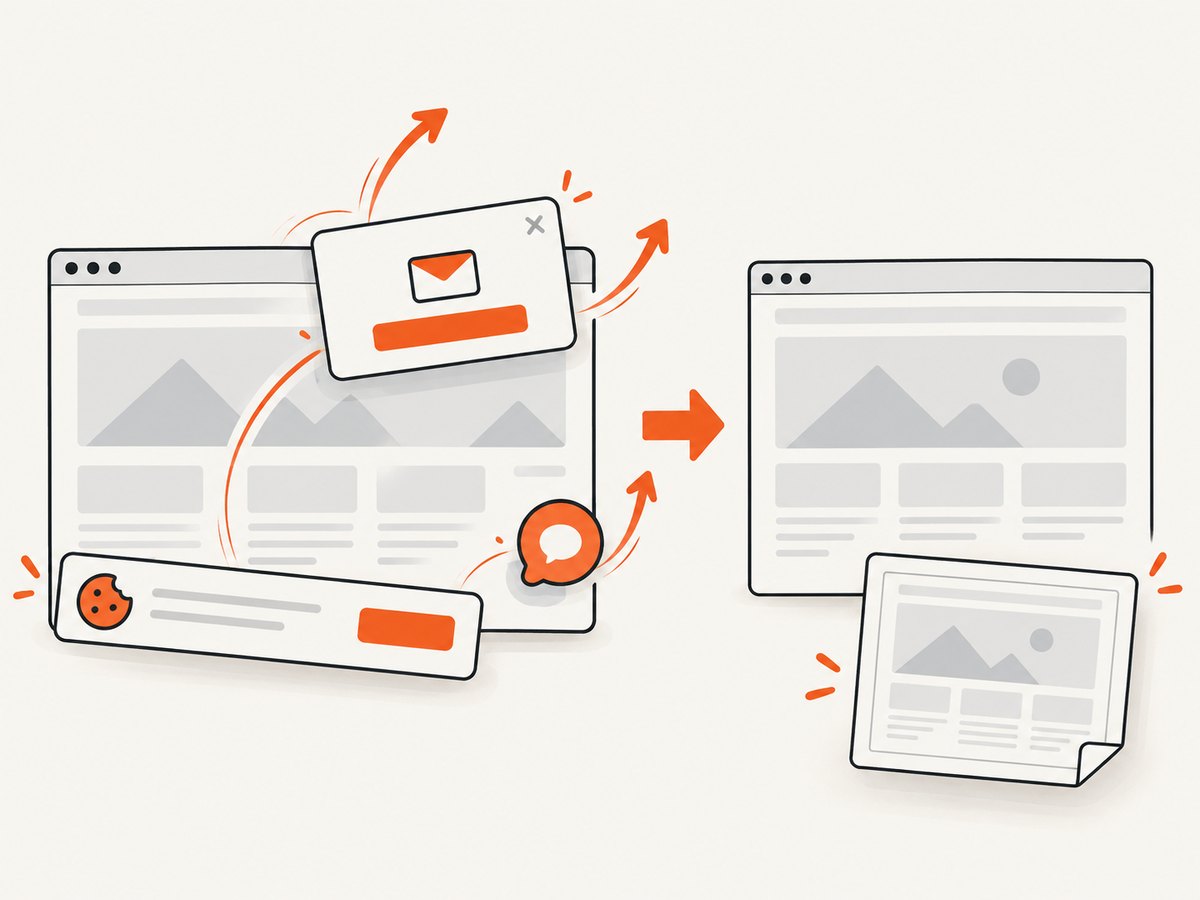
ScreenshotNeo provides a website screenshot API and MCP server. One GET request returns a PNG, JPEG, WebP or PDF. Before capture it accepts cookie and consent banners and removes more than 60 known consent platforms, newsletter popups and chat widgets; each cleanup step can be turned off.
See the ScreenshotNeo API documentation for all options, including full-page and element capture, dark mode, device presets, custom CSS and JavaScript, waits, request blocking, headers, cookies, authentication, timezone, geolocation, resizing, caching, signed links, asynchronous jobs, bulk capture and usage reporting.
Java
import java.net.URI;
import java.net.http.HttpClient;
import java.net.http.HttpRequest;
import java.net.http.HttpResponse;
import java.nio.file.Files;
import java.nio.file.Path;

public class ScreenshotNeoJava {
  public static void main(String[] args) throws Exception {
    String url = "https://stripe.com";
    String apiUrl = "https://api.screenshotneo.com/v1/shot"
        + "?access_key=YOUR_API_KEY"
        + "&url=" + java.net.URLEncoder.encode(
            url, java.nio.charset.StandardCharsets.UTF_8);

    HttpRequest request = HttpRequest.newBuilder()
        .uri(URI.create(apiUrl))
        .GET()
        .build();

    HttpResponse<byte[]> response = HttpClient.newHttpClient()
        .send(request, HttpResponse.BodyHandlers.ofByteArray());

    Files.write(Path.of("shot.webp"), response.body());
    System.out.println("Page verdict: "
        + response.headers().firstValue("X-Page-Verdict").orElse("unknown"));
    System.out.println("Billed: "
        + response.headers().firstValue("X-Billed").orElse("unknown"));
  }
}
cURL
curl -G "https://api.screenshotneo.com/v1/shot" \
  -d access_key=YOUR_API_KEY \
  --data-urlencode url=https://stripe.com \
  -o shot.webp
Python
import requests

r = requests.get(
    "https://api.screenshotneo.com/v1/shot",
    params={"access_key": "YOUR_API_KEY", "url": "https://stripe.com"},
    timeout=90,
)
r.raise_for_status()
open("shot.webp", "wb").write(r.content)
Node.js
const q = new URLSearchParams({
  access_key: 'YOUR_API_KEY',
  url: 'https://stripe.com'
});
const res = await fetch(`https://api.screenshotneo.com/v1/shot?${q}`);
if (!res.ok) throw new Error(`HTTP ${res.status}`);
const buffer = Buffer.from(await res.arrayBuffer());
require('node:fs').writeFileSync('shot.webp', buffer);
Bot checks and CAPTCHAs, blank pages, timeouts, failed loads and cache hits cost nothing. The response identifies the result with X-Page-Verdict and X-Billed headers. An MCP server also lets Claude, Cursor and other MCP clients call take_screenshot, get_page_info and capture_pdf.
There is a free plan with 1,000 screenshots per month and no card. Paid plans start at $5 for 3,000 screenshots; yearly billing gives two months free, and every feature is included on every plan. Create a free ScreenshotNeo account.
8. Troubleshooting
| Symptom | Likely cause | Fix |
|---|---|---|
| Screenshot is blank | Capture happened before rendering or navigation failed. | Check navigation errors, wait for a meaningful selector and verify the page URL. |
| Only the visible viewport appears | Selenium driver behavior or missing full-page option. | Use Playwright setFullPage(true), or confirm your Selenium browser/driver’s screenshot behavior. |
| Element screenshot throws an exception | Selector does not match, element is hidden or still moving. | Use a stable selector, wait for visibility and disable animations. |
| Images are missing | Lazy loading has not run or requests failed. | Wait for the image/content selector, scroll as needed and inspect browser console/network errors. |
| Text wraps differently between runs | Viewport, device scale or fonts differ. | Fix viewport and scale, use the same browser version and wait for fonts. |
| Screenshot times out | Slow navigation, blocked resource or unresolved locator actionability. | Increase the operation timeout carefully, identify the slow dependency and avoid waiting on an optional selector. |
| Browser fails in CI | Missing browser binary, sandbox restrictions or insufficient shared memory. | Install browser dependencies in the image, use the supported headless configuration and inspect CI logs. |
| Output file is unexpectedly large | Full-page dimensions, PNG compression or device scale. | Use CSS scale, JPEG/WebP, quality settings or section captures. |
| Consent dialog covers content | Banner appeared after navigation. | Dismiss it before capture, hide it with a selector, or use ScreenshotNeo’s consent cleanup. |
9. Performance, reliability and cost
- Reuse browsers: Launch one browser per worker and create contexts or pages per job instead of launching a process for every screenshot.
- Bound waits: Use explicit timeouts and selector-based readiness checks so one broken page does not stall a queue.
- Control concurrency: Limit parallel pages to the CPU, memory and network capacity of the runner.
- Keep captures small: Element or viewport images are faster and cheaper to move than very tall full-page PNGs.
- Stabilize output: Fix viewport, browser version, fonts, timezone and dynamic regions for repeatable visual comparisons.
- Retry selectively: Retry transient navigation or network failures, but record the URL and error so persistent application failures are visible.
- Cache intentionally: For repeated identical pages, cache by URL and capture configuration. In ScreenshotNeo, choose the cache TTL that fits your freshness requirement; cache hits are not billed.
- Track result state: With ScreenshotNeo, inspect
X-Page-VerdictandX-Billedrather than assuming every HTTP response represents a billable clean screenshot.
10. FAQ
Can Selenium capture a full web page?
It can, depending on the browser and driver implementation. Selenium’s documented screenshot API is implementation-dependent for page coverage. Playwright provides an explicit full-page option.
Should I use PNG or JPEG?
Use PNG for lossless UI and visual regression work. Use JPEG or WebP when smaller files matter and slight compression is acceptable.
How do I capture only one component?
Use Selenium’s WebElement.getScreenshotAs or Playwright’s locator screenshot. Prefer a stable CSS selector and wait until the component is visible.
How do I return the screenshot from a Java service?
Use Selenium’s byte output or Playwright’s byte[] result, then write those bytes to the HTTP response with the matching image content type.
When is an API preferable to running a browser?
An API is useful when you do not want to maintain browser binaries, waits, consent handling, popup cleanup and capture workers. ScreenshotNeo also provides an MCP server for AI-agent workflows.


