How to Capture Frames From a Webcam Stream With JavaScript
Use getUserMedia, video, and canvas to capture webcam frames in JavaScript, process them continuously, and fix common permission and device errors.
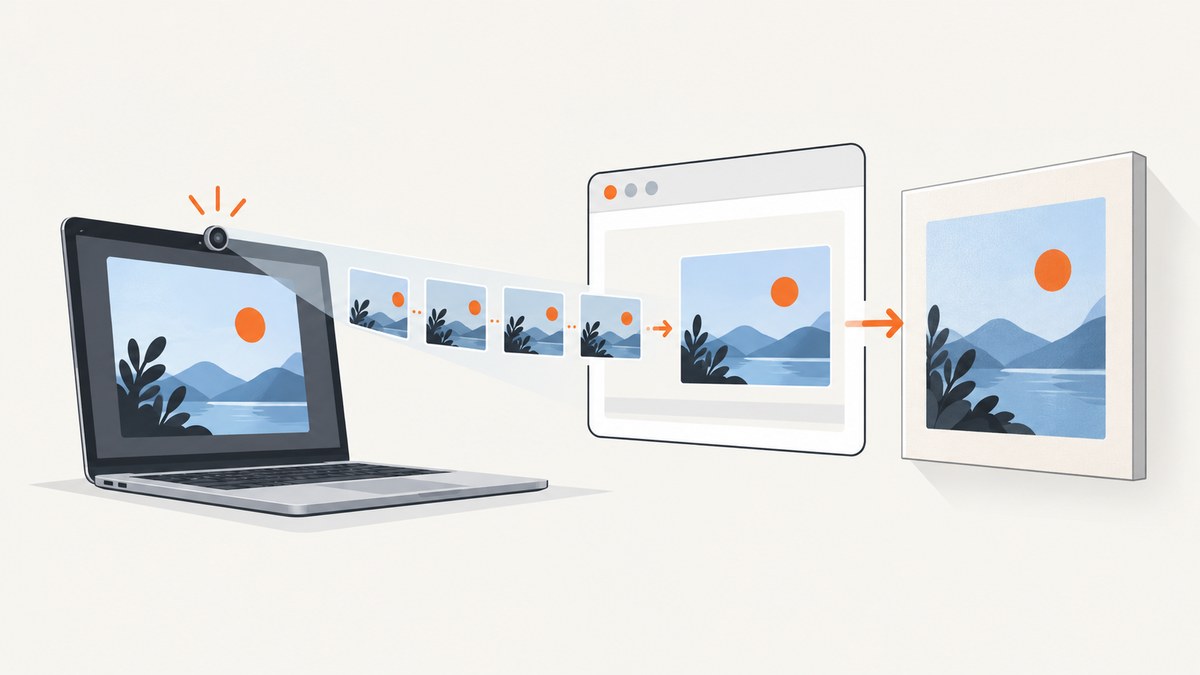
Short answer: call navigator.mediaDevices.getUserMedia({ video: true }), assign the returned MediaStream to a <video> element, wait for loadedmetadata, then draw the current video frame into a same-origin <canvas> with drawImage(). Encode the canvas with toBlob() for a still image, or repeat the draw at a controlled rate for continuous processing.
Camera access normally requires HTTPS (localhost is allowed for development) and a user permission prompt. The browser can reject the request when permission is denied, no camera matches the constraints, the page is not secure, or an embedding policy blocks access. MDN documents the permission and error model for getUserMedia(); the W3C specification defines the underlying media-device API in Media Capture and Streams.
1. Minimal still-frame capture
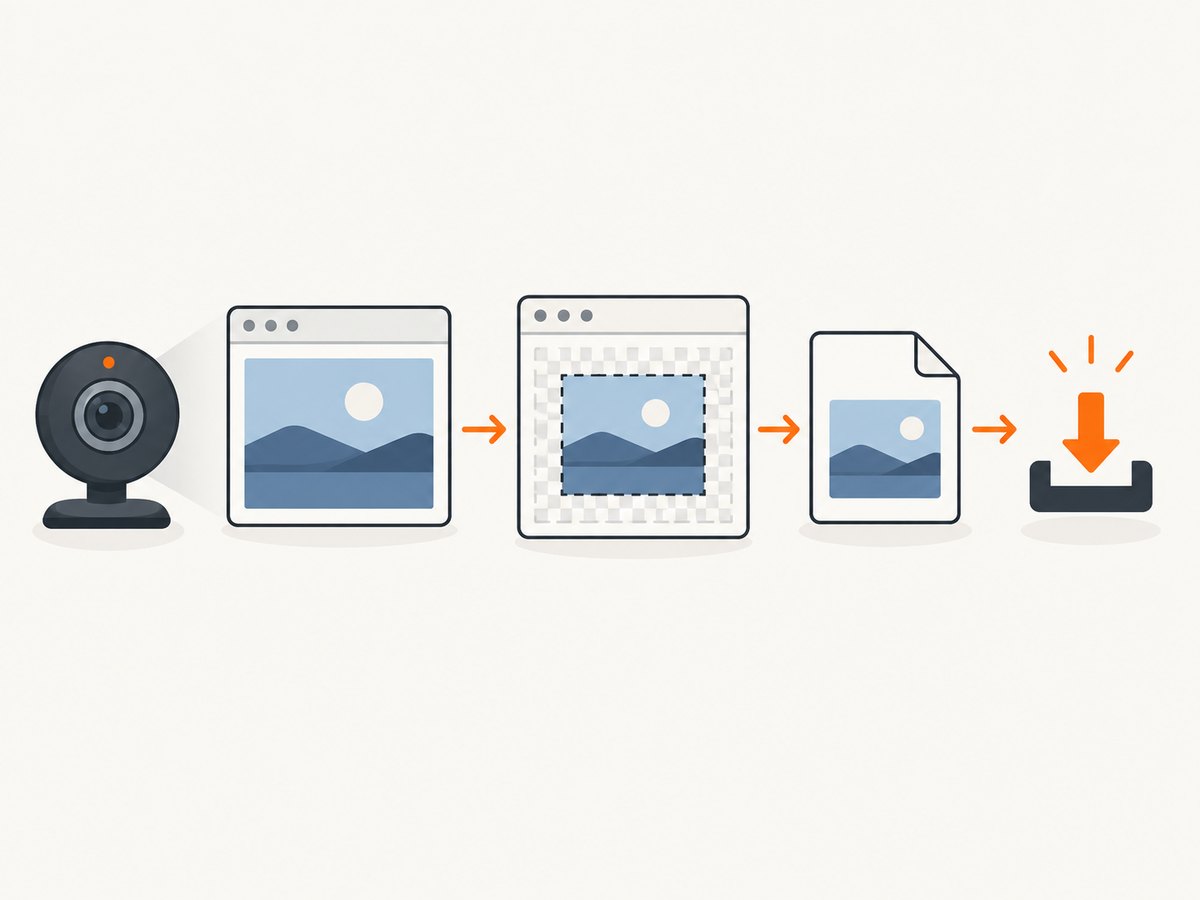
This complete page starts the camera, shows a live preview, captures one JPEG when the user clicks a button, downloads it, and releases the camera when stopped.
<!doctype html>
<html lang="en">
<meta charset="utf-8">
<meta name="viewport" content="width=device-width, initial-scale=1">
<title>Webcam frame capture</title>
<style>
  video { max-width: 100%; background: #111; }
  button { margin: .5rem .5rem 0 0; padding: .6rem .9rem; }
</style>

<video id="preview" autoplay playsinline></video>
<canvas id="frame" hidden></canvas>
<div>
  <button id="start">Start camera</button>
  <button id="snap" disabled>Capture frame</button>
  <button id="stop" disabled>Stop</button>
</div>
<p id="status" role="status"></p>

<script>
const video = document.querySelector('#preview');
const canvas = document.querySelector('#frame');
const startButton = document.querySelector('#start');
const snapButton = document.querySelector('#snap');
const stopButton = document.querySelector('#stop');
const status = document.querySelector('#status');
let stream = null;

function setStatus(message) {
  status.textContent = message;
}

async function startCamera() {
  if (!window.isSecureContext || !navigator.mediaDevices?.getUserMedia) {
    throw new Error('Camera capture requires HTTPS (or localhost) and getUserMedia support.');
  }

  stream = await navigator.mediaDevices.getUserMedia({
    video: true,
    audio: false
  });
  video.srcObject = stream;

  await new Promise((resolve) => {
    video.addEventListener('loadedmetadata', resolve, { once: true });
  });

  // Use the camera's real pixel dimensions, not the CSS display size.
  canvas.width = video.videoWidth;
  canvas.height = video.videoHeight;
  snapButton.disabled = false;
  stopButton.disabled = false;
  startButton.disabled = true;
  setStatus(`Camera ready: ${canvas.width}×${canvas.height}`);
}

async function captureFrame() {
  if (!stream || video.readyState < HTMLMediaElement.HAVE_CURRENT_DATA) {
    throw new Error('The camera has not produced a frame yet.');
  }

  const context = canvas.getContext('2d', { alpha: false });
  context.drawImage(video, 0, 0, canvas.width, canvas.height);

  const blob = await new Promise((resolve) => {
    canvas.toBlob(resolve, 'image/jpeg', 0.92);
  });
  if (!blob) throw new Error('Frame encoding failed.');

  const objectUrl = URL.createObjectURL(blob);
  const link = document.createElement('a');
  link.href = objectUrl;
  link.download = `webcam-${new Date().toISOString()}.jpg`;
  link.click();
  URL.revokeObjectURL(objectUrl);
  setStatus(`Captured ${(blob.size / 1024).toFixed(1)} KB JPEG`);
}

function stopCamera() {
  stream?.getTracks().forEach((track) => track.stop());
  stream = null;
  video.srcObject = null;
  snapButton.disabled = true;
  stopButton.disabled = true;
  startButton.disabled = false;
  setStatus('Camera stopped.');
}

startButton.addEventListener('click', () => startCamera().catch((error) => {
  console.error(error);
  setStatus(`${error.name || 'Error'}: ${error.message}`);
}));
snapButton.addEventListener('click', () => captureFrame().catch(console.error));
stopButton.addEventListener('click', stopCamera);
window.addEventListener('pagehide', stopCamera);
</script>
</html>
getUserMedia() resolves only after the user and browser policy allow access. Assigning the stream to srcObject lets the video element render it. Waiting for loadedmetadata ensures video.videoWidth and video.videoHeight are available before sizing the canvas. Drawing with the intrinsic dimensions avoids stretching caused by CSS layout.
2. Capture a frame as JPEG, PNG, or WebP
canvas.toBlob() is asynchronous and avoids putting a large base64 string in memory. Use JPEG for photographs, PNG when lossless pixels or transparency matter, and WebP when supported by your receiving system.
function canvasBlob(canvas, type = 'image/jpeg', quality = 0.92) {
  return new Promise((resolve, reject) => {
    canvas.toBlob((blob) => {
      if (blob) resolve(blob);
      else reject(new Error('The browser could not encode the canvas.'));
    }, type, quality);
  });
}

const jpeg = await canvasBlob(canvas, 'image/jpeg', 0.9);
const png = await canvasBlob(canvas, 'image/png');
const webp = await canvasBlob(canvas, 'image/webp', 0.85);
toDataURL() is convenient for a small inline image, but it creates a long string and can temporarily increase memory use. Prefer a Blob when uploading or downloading.
3. Capture frames continuously
Process every animation frame
const context = canvas.getContext('2d', { willReadFrequently: true });
let running = true;

function processLoop() {
  if (!running) return;
  context.drawImage(video, 0, 0, canvas.width, canvas.height);
  const pixels = context.getImageData(0, 0, canvas.width, canvas.height);
  // Run a small, synchronous operation on pixels here.
  requestAnimationFrame(processLoop);
}

requestAnimationFrame(processLoop);
// Set running = false and stop the camera when finished.
requestAnimationFrame() follows the display refresh rate. It is appropriate for visual effects, but expensive image analysis should be throttled so it does not consume every frame.
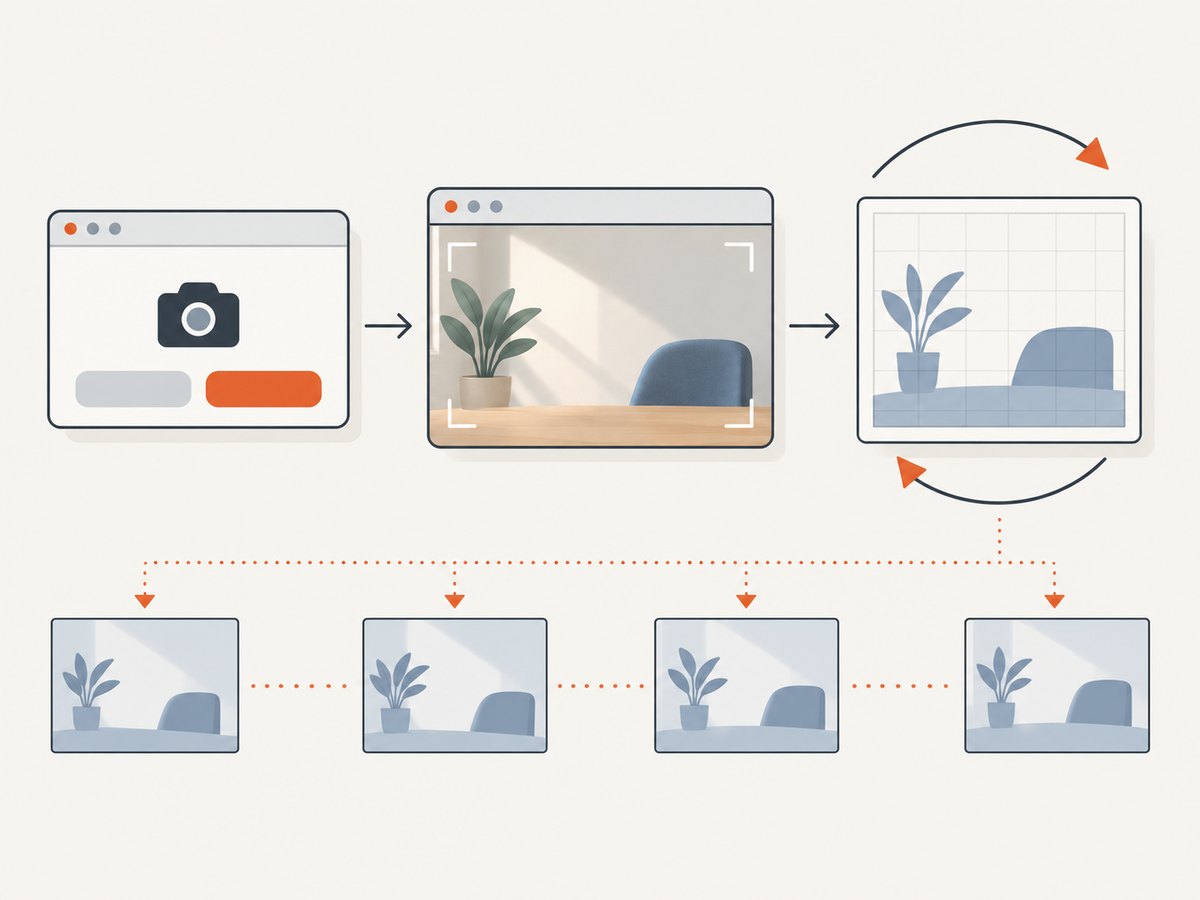
Throttle processing to a target rate
const targetRate = 5;
const interval = 1000 / targetRate;
let lastProcessed = 0;
let running = true;

function throttledLoop(now) {
  if (!running) return;
  if (now - lastProcessed >= interval) {
    lastProcessed = now;
    context.drawImage(video, 0, 0, canvas.width, canvas.height);
    // Analyze or encode the current frame.
  }
  requestAnimationFrame(throttledLoop);
}
requestAnimationFrame(throttledLoop);
For network uploads, add backpressure: do not start another upload while the previous one is still pending, or maintain a bounded queue and drop stale frames.
Produce a MediaStream from the canvas
Use canvas.captureStream(frameRate) when another Web API needs a stream rather than individual images, such as a recorder or peer connection. The W3C Media Capture from DOM Elements specification defines the resulting canvas video track.
const outputStream = canvas.captureStream(15); // target 15 frames per second
const recorder = new MediaRecorder(outputStream, { mimeType: 'video/webm' });
const chunks = [];
recorder.ondataavailable = (event) => event.data.size && chunks.push(event.data);
recorder.onstop = () => {
  const recording = new Blob(chunks, { type: 'video/webm' });
  const url = URL.createObjectURL(recording);
  window.open(url);
};
recorder.start();

// captureStream(0) disables automatic capture. In that mode, call
// outputStream.getVideoTracks()[0].requestFrame() after each canvas draw.
4. Choose a camera, resolution, and frame rate
Start with flexible constraints, then request a specific device or capability when your application needs it.
const devices = await navigator.mediaDevices.enumerateDevices();
const cameras = devices.filter((device) => device.kind === 'videoinput');

const constraints = {
  video: {
    deviceId: cameras[0]?.deviceId ? { exact: cameras[0].deviceId } : undefined,
    width: { ideal: 1280 },
    height: { ideal: 720 },
    frameRate: { ideal: 30, max: 30 },
    facingMode: 'user'
  },
  audio: false
};
const selectedStream = await navigator.mediaDevices.getUserMedia(constraints);
Call enumerateDevices() after permission has been granted if you need camera labels. Before permission, browsers may omit labels and device identifiers. If exact constraints cannot be satisfied, the request can fail with OverconstrainedError; use ideal values for graceful fallback and inspect track.getSettings() after starting.
const track = selectedStream.getVideoTracks()[0];
console.log(track.getSettings());
console.log(track.getCapabilities());
A physical UVC USB webcam is the required hardware. For example, Logitech’s C920 specification lists USB/UVC operation and capture modes up to 1080p at 30 fps. Actual modes depend on the device, operating system, browser, lighting, and competing applications.
5. Camera permissions, security, and lifecycle
- Serve the page over HTTPS. In local development, use an allowed secure origin such as
http://localhost. - Explain the permission prompt and provide a visible Start and Stop control.
- Use
playsinlineso mobile browsers keep the preview in the page instead of forcing fullscreen playback. - Stop every track with
stream.getTracks().forEach(track => track.stop())when the user stops capture or leaves the page. This turns off the camera indicator and releases the device. - If the page is embedded in an iframe, the top-level page may need a
Permissions-Policydeclaration and an iframeallow="camera"attribute. - Never assume a camera frame is available immediately after assigning
srcObject; wait for metadata and checkreadyState.
Canvas pixels remain readable only while the canvas is origin-clean. If you draw cross-origin content into a canvas without the required CORS headers, reading pixels can raise a security error. A local webcam video assigned to the video element does not require downloading the camera stream through a remote URL.
6. Upload a captured frame
Send the Blob with fetch() and FormData to an endpoint you control. The endpoint and authentication method are application-specific, so keep credentials out of browser code when possible.
const blob = await canvasBlob(canvas, 'image/jpeg', 0.9);
const form = new FormData();
form.append('frame', blob, 'webcam.jpg');

const response = await fetch('/api/frames', {
  method: 'POST',
  body: form
});
if (!response.ok) throw new Error(`Upload failed: ${response.status}`);
For continuous capture, set a maximum upload rate and cancel requests during shutdown with an AbortController. Avoid sending full-resolution frames when a smaller working image is sufficient; resize the canvas or draw into a second, smaller canvas before encoding.
7. Performance and reliability checklist
- Size the canvas from
video.videoWidthandvideo.videoHeight, then use CSS only for display scaling. - Throttle CPU-heavy processing and network uploads. A 15 fps canvas stream does not require analysis at 15 fps.
- Prefer
toBlob()overtoDataURL()for uploads and repeated captures. - Use JPEG quality between roughly 0.75 and 0.95 for camera photos, then measure the visual result and payload size for your use case.
- Handle the camera track’s
endedevent because a user can unplug the device or revoke permission. - Reacquire the stream after a device change instead of assuming the old track can recover.
- Keep only the frames you need. Revoke object URLs after downloads and previews.
- Release all tracks on
pagehide, route changes, and explicit Stop actions.
8. Troubleshooting common errors
| Error or symptom | Cause | Fix |
|---|---|---|
navigator.mediaDevices is undefined |
The page is not in a secure context or the browser lacks support. | Use HTTPS or localhost, check window.isSecureContext, and test a current browser. |
NotAllowedError |
The user denied permission, the permission was previously blocked, or an iframe policy disallows the camera. | Enable camera permission for the site, reload, and configure iframe/Permissions Policy if embedded. |
NotFoundError |
No camera matches the request or no camera is connected. | Connect or enable a camera and retry with { video: true } before adding restrictive constraints. |
OverconstrainedError |
An exact width, height, frame rate, or device ID is unavailable. | Use ideal constraints, inspect getCapabilities(), or fall back to basic video. |
| Black or frozen preview | The stream was not assigned, metadata has not loaded, or another application owns the camera. | Set video.srcObject, wait for loadedmetadata, check readyState, and close competing camera apps. |
| Canvas is stretched | Canvas dimensions were set from CSS pixels rather than the video track. | Set width and height from video.videoWidth and video.videoHeight. |
toBlob() returns null |
The canvas cannot be encoded or has no usable content yet. | Wait for a current video frame, verify nonzero canvas dimensions, and handle the null result. |
SecurityError while reading pixels |
The canvas is not origin-clean because cross-origin content was drawn into it. | Serve the source with appropriate CORS headers or keep the canvas input same-origin. |
| Camera light stays on | A video track is still live. | Stop every track and clear video.srcObject; also handle page teardown. |
9. Or skip the browser setup
If your goal is to capture a web page rather than a user’s physical webcam, ScreenshotNeo provides a single GET request that returns a PNG, JPEG, WebP, or PDF. It is separate from browser camera capture: it does not ask a visitor for webcam permission or turn a local camera stream into frames.
ScreenshotNeo removes cookie and consent banners, newsletter popups, and chat widgets before the capture. Bot checks, blank pages, timeouts, failed loads, and cache hits are not billed, and the response identifies the result with X-Page-Verdict and X-Billed headers. Its MCP server exposes take_screenshot, get_page_info, and capture_pdf to Claude, Cursor, and other MCP clients. Every plan includes the full feature set; 1,000 screenshots per month are free with no card, and paid plans start at $5 for 3,000.
See the ScreenshotNeo API documentation for all options, including viewport and device presets, full-page and CSS-selector capture, waits, custom headers and cookies, blocking rules, caching, signed links, asynchronous jobs, bulk capture, and PDF settings.
curl -G "https://api.screenshotneo.com/v1/shot" \
  -d access_key=YOUR_API_KEY \
  --data-urlencode url=https://stripe.com \
  -o shot.webp
import requests
r = requests.get(
"https://api.screenshotneo.com/v1/shot",
params={"access_key": "YOUR_API_KEY", "url": "https://stripe.com"},
timeout=90,
)
r.raise_for_status()
open("shot.webp", "wb").write(r.content)const q = new URLSearchParams({
access_key: 'YOUR_API_KEY',
url: 'https://stripe.com'
});
const res = await fetch(`https://api.screenshotneo.com/v1/shot?${q}`);
if (!res.ok) throw new Error(`Screenshot failed: ${res.status}`);
const bytes = Buffer.from(await res.arrayBuffer());
require('fs').writeFileSync('shot.webp', bytes);Create a free ScreenshotNeo account to get 1,000 screenshots each month with no card.
10. FAQ
Can I capture a webcam frame without showing a video element?
Yes. Keep the video element hidden or off-screen, wait for metadata and a current frame, then draw it into the canvas. The browser still requires permission and the camera indicator remains visible.
Does getUserMedia() work on plain HTTP?
Normally no. Use HTTPS or an allowed local-development origin such as localhost.
How do I mirror a selfie preview but save an unmirrored image?
Apply CSS transform: scaleX(-1) to the preview only. Draw the video into the canvas without that CSS transform. To save a mirrored image, transform the canvas context before drawing.
Should I use requestAnimationFrame() or captureStream()?
Use requestAnimationFrame() when your code consumes individual frames. Use captureStream() when another API needs a video stream generated from the canvas.
Why does the camera stop when I change tabs?
Browsers may throttle background pages, suspend playback, or revoke a device after a system change. Listen for track events and provide a restart control rather than assuming the stream is permanent.


